
需求:在vue项目中,实现用户选择地图绘点或者通过搜索关键字选点
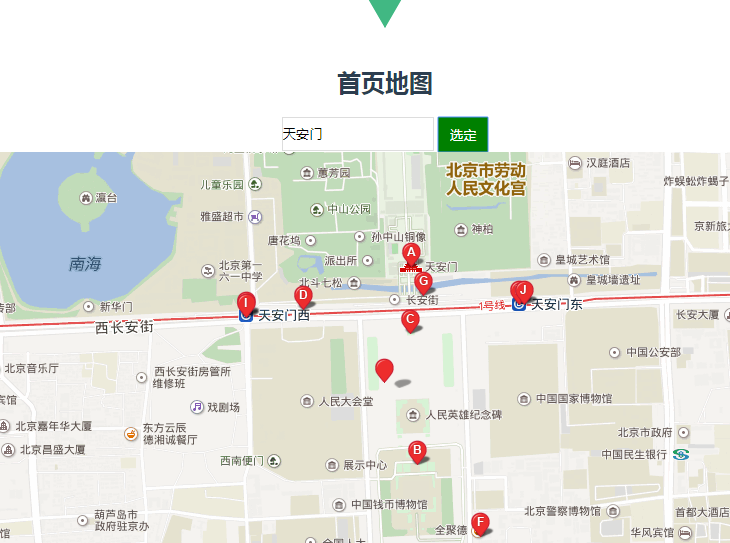
<template>
    <div id="home">
        <h2>首页地图</h2>
        <div>
          <input type="text" v-model="city" class="city">
          <input type="button" v-model="cityBtn" class="cityBtn" value="选定" @click="mapBtn">
        </div>
        <div id="allmap">
          <baidu-map v-bind:style="mapStyle" class="bm-view" ak="GPO8jLk2SoDXF5nnaOdDudHxIsMVEK6V"
          :center="center" :zoom="zoom" :scroll-wheel-zoom="true" @click="getClickInfo"
          @moving="syncCenterAndZoom"
          @moveend="syncCenterAndZoom"
          @zoomend="syncCenterAndZoom">
            <bm-view style="width: 100%; height:500px;"></bm-view>
            <bm-marker :position="{lng: center.lng, lat: center.lat}" :dragging="true"
            animation="BMAP_ANIMATION_BOUNCE"></bm-marker>  <!-- 红点 -->
            <bm-control :offset="{width: '10px', height: '10px'}">
              <bm-auto-complete v-model="keyword" :sugStyle="{zIndex: 999999}">
                <!-- <input type="text" placeholder="请输入搜索关键字" class="serachinput"> -->
              </bm-auto-complete>
            </bm-control>
            <bm-local-search :keyword="keyword" :auto-viewport="true" style="width:0px;height:0px;overflow: hidden;"></bm-local-search>
          </baidu-map>
        </div>
    </div>
</template>
<script>
import {BaiduMap, BmControl, BmView, BmAutoComplete, BmLocalSearch, BmMarker} from 'vue-baidu-map'
export default {
  components: {
    BaiduMap,
    BmControl,
    BmView,
    BmAutoComplete,
    BmLocalSearch,
    BmMarker
  },
  data() {
    return {
      city:'',
      cityBtn:'选定',
      keyword: '',//填写选择的地址
      mapStyle: {
          width: '100%',
          height: this.mapHeight + 'px'
        },
      center: {lng: 110, lat: 39.915},
      zoom: 11
    };
  },
  methods:{
    getClickInfo(e){
      // debugger
      this.center.lng = e.point.lng
      this.center.lat = e.point.lat
      console.log(e.point.lng,e.point.lat)
    },
    syncCenterAndZoom (e) {
      // debugger
        const {lng, lat} = e.target.getCenter()//地图当前的经纬度
        this.center.lng = lng
        this.center.lat = lat
        this.zoom = e.target.getZoom()//地图当前的缩放比例
    },
    mapBtn(){
      this.keyword = this.city
    }
  }
};
</script>
<style>
.bm-view {
  margin: 0 auto;
  width: 800px;
  height: 500px;
}
.city{
    width: 150px;
    height: 30px;
    border: 1px solid #dddddd;
}
.cityBtn{
  width: 50px;
  height: 35px;
  background-color:green;
  color: #ffffff;
  border:1px solid green;
  vertical-align: top;
}
</style>
