
移动端 touchmove高频事件与requestAnimationFrame的结合优化
移动端最高频耗内存的的操作 莫属 touchmove 与scroll事件 两者需要 微观的 优化,使用 requestAnimationFrame性能优化 H5性能优化requestAnimationFrame
这里 我们 讲述 touchmove;touchmove 事件发生很频繁,会比屏幕刷新率快,导致无效的渲染和重绘;
帧数 –显示设备通常的刷新率通常是50~60Hz –1000ms / 60 ≈ 16.6ms(1毫秒的优化意味着 6%的性能提升)
这就是 常说的 16.6毫秒的优化

浏览器对每一帧画面的渲染工作需要在16毫秒(1秒 / 60 = 16.66毫秒)之内完成 ;如果超过了这个时间限度,页面的渲染就会出现卡顿效果,也就是常说的jank;我们需要在 正确的时间 做正确的渲染;
拖拽的都会写,先上图看看效果;

大概了解一下 Timeline 查看看渲染情况 旧版如下( 新的 在 Performance )
ps Performance 可以在控制台出入 查看

(function() {

    handleAddListener('load', getTiming)

    function handleAddListener(type, fn) {
        if(window.addEventListener) {
            window.addEventListener(type, fn)
        } else {
            window.attachEvent('on' + type, fn)
        }
    }

    function getTiming() {
        try {
            var time = performance.timing;
            var timingObj = {};

            var loadTime = (time.loadEventEnd - time.loadEventStart) / 1000;

            if(loadTime < 0) {
                setTimeout(function() {
                    getTiming();
                }, 200);
                return;
            }

            timingObj['重定向时间'] = (time.redirectEnd - time.redirectStart) / 1000;
            timingObj['DNS解析时间'] = (time.domainLookupEnd - time.domainLookupStart) / 1000;
            timingObj['TCP完成握手时间'] = (time.connectEnd - time.connectStart) / 1000;
            timingObj['HTTP请求响应完成时间'] = (time.responseEnd - time.requestStart) / 1000;
            timingObj['白屏时间'] = (time.responseStart - time.navigationStart) / 1000;

            timingObj['DOM渲染时间'] = (time.domComplete - time.domInteractive) / 1000;


            timingObj['domready时间--DOMContentLoaded事件完成的时间'] = (time.domContentLoadedEventEnd - time.fetchStart) / 1000;
            timingObj['onload时间 --页面所有资源完全加载的时间 '] = (time.loadEventEnd-time.fetchStart)/1000;

            for(item in timingObj) {
                console.log(item + ":" + timingObj[item] + '毫秒(ms)');
            }

            console.log(performance.timing);

        } catch(e) {
            console.log(timingObj)
            console.log(performance.timing);
        }
    }
})();
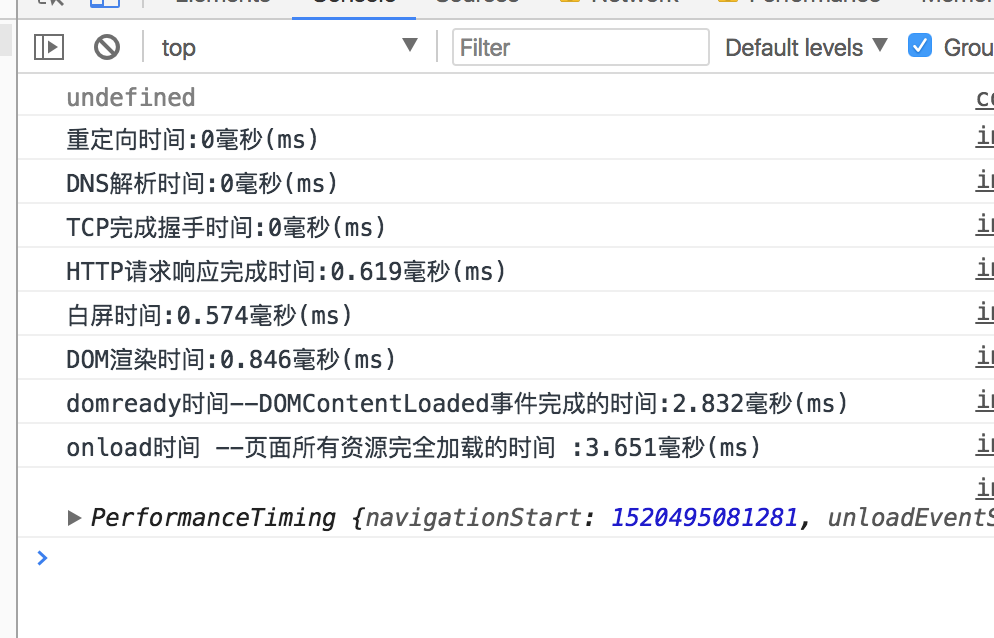
上面的代码 可以放入页面查看性能。
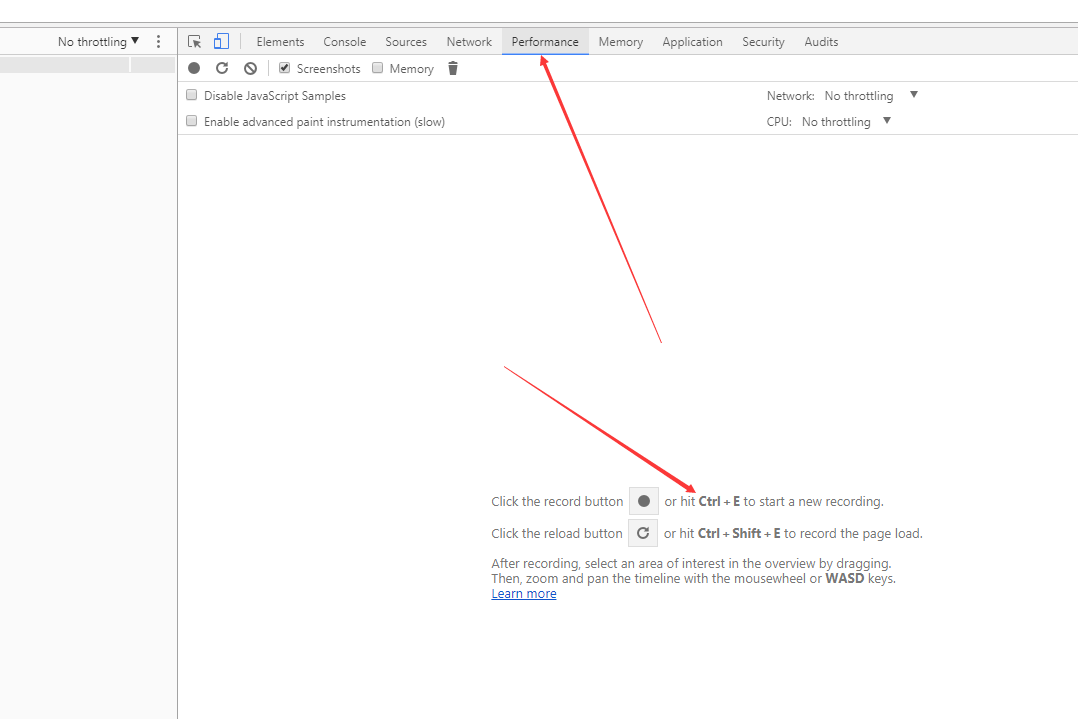

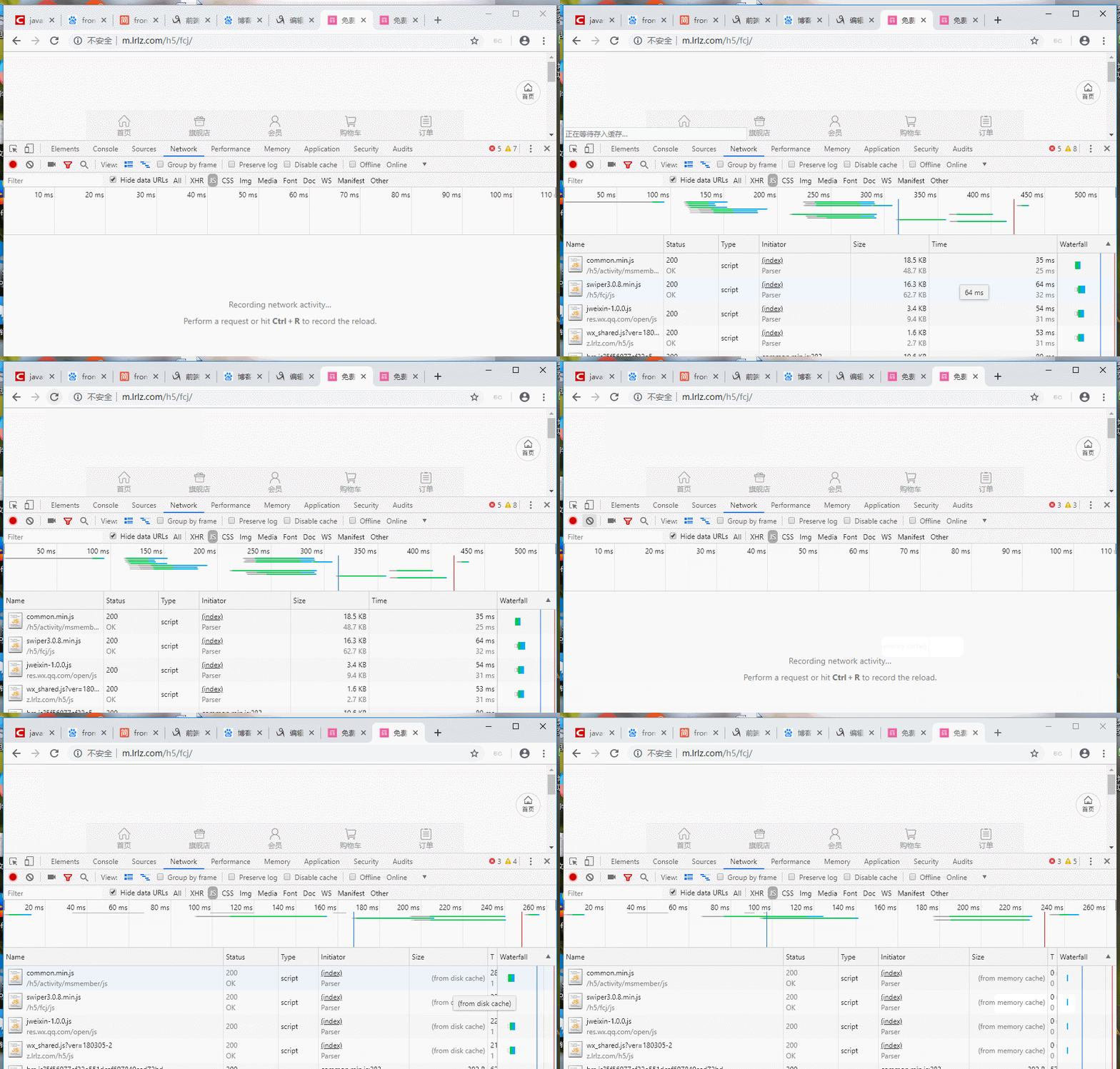
在看看 帧模式 渲染情况;

那些没必要的 move 什么也不需要做;没必要在16.6毫秒内多余的event对象计算;

关于帧模式:


普通的拖拽
<script>


	 function getStyle(obj,attr){
        return  obj.currentStyle? obj.currentStyle[attr]: getComputedStyle(obj,false)[attr];
   }

		    var oDiv = document.getElementById("oDiv");   //当前元素
			var direction="horizontal";

			     var disX=0;
        	     var disY=0;

                 var self = this;  //上下文
                 var downLeft=0;
                 var downTop=0;
                 var isDown = false;
                 var oDivWidth=parseInt(oDiv.offsetWidth);
                oDiv.onmousedown = function (e) {
                	var e=e||window.event;
                 //鼠标按下,计算当前元素距离可视区的距离

                     downLeft= parseInt(getStyle(oDiv,'left'));;
                     downTop= parseInt(getStyle(oDiv,'top'));;

                     disX = e.clientX ;
                     disY = e.clientY;

                    console.log("开始位置",e.clientX,"downLeft",downLeft);
                     isDown = true;
                    document.onmousemove = function (e) {
                    	var e=e||window.event;
                    	e.preventDefault();
                    	oDiv.style.cursor="move";

                    	 if (isDown == false) {
						        return;
						  }

                      //通过事件委托,计算移动的距离
                        var l = e.clientX - disX+downLeft;
                        var t = e.clientY - disY+downTop;


                      //移动当前元素
                       if(direction=="horizontal"){//水品
                       	 oDiv.style.left = l + 'px';
                       }else if(direction=="vertical"){//垂直
                       	 oDiv.style.top = t + 'px';
                       }else{
                        oDiv.style.left = l + 'px';
                        oDiv.style.top = t + 'px';
                       }


                        // console.log("移动位置",e.clientX,"移动中left",l,"最终",getOffset(oDiv).left);
                         //将此时的位置传出去
                        //binding.value({x:l,y:t,direction:direction})
                    };
                    document.onmouseup = function (e) {
                         var e=e||window.event;


                         var left2=e.clientX-disX;
                         var top2=e.clientY-disY;
                             isDown = false;
                        // console.log("结束位2置",e.pageX,"移asa中left",left2,"最终",getOffset(oDiv).left);
                         //将此时的位置传出去

                        document.onmousemove = null;
                        document.onmouseup = null;
                         return false;    //FF等高版本浏览器中阻止默认行为
                     };
                };


		</script>
高效拖拽
<!DOCTYPE html>
<html>
    <head>
        <meta charset="utf-8">
        <title></title>
    </head>
    <style>
        * {
            margin: 0;
            paddding: 0;
            list-style: none;
        }

        #box1 {
            width: 100px;
            height: 100px;
            background-color: #bfa;
            position: absolute;

            left: 200px;
            top: 300px;

        }

        #box2 {
            width: 100px;
            height: 100px;
            background-color: red;
            position: absolute;
            left: 400px;
            top: 300px;

        }
    </style>
    <script>
        function rafThrottle(fn) {
            var locked = false;
            return function() {
                var context = this,
                    args = arguments;
                if (locked) return;
                locked = true;

                // setTimeout(function() {
                //     fn.apply(context, args)
                //     locked = false;
                // }, 20)

                window.requestAnimationFrame(function() {
                    fn.apply(context, args)
                    locked = false;
                });
            };
        }


        //开启拖拽的元素
        function drag(obj, type2) {
            obj.onmousedown = function(event) {
                obj.setCapture && obj.setCapture();
                var event = event || window.event;
                //div偏移量=鼠标.clientX-元素.offsetLeft
                //div偏移量=鼠标.clientY-元素.offsetTop
                var offsetx = event.clientX - obj.offsetLeft;
                var offsety = event.clientY - obj.offsetTop;

                var moveX;
                var moveY;

                function move2(event) {
                    var event2 = event || window.event;

                    //获取鼠标的位置:
                    var x = event2.clientX - offsetx;
                    var y = event2.clientY - offsety;

                    //修改box1的位置
                    obj.style.left = x + "px";
                    obj.style.top = y + "px";


                    return {
                        x: x,
                        y: y
                    }

                }

                // if (type2) {
                //     document.onmousemove = rafThrottle(function(e) {
                //         //console.log('rafThrottle', type2)
                //         move2(e)
                //     });
                // } else {
                //     document.onmousemove = function(e) {
                //         move2(e)
                //     };
                // }


                // //为元素绑定一个松开事件
                // document.onmouseup = function(e) {
                //     move2(e)
                //     //当松开时候,被拖拽元素固定在当前位置
                //     //取消onmousemove事件
                //     document.onmousemove = null
                //     document.onmouseup = null; //一次性事件
                //     //IE8取消对事件的捕获
                //     obj.releaseCapture && obj.releaseCapture();

                // };

                var move3 = move2;
                if (type2) {
                    rafThrottle(function(e) {
                        //console.log('move3', e)
                        move2(e)
                    });
                }


                document.addEventListener('mousemove', move3, false);
                document.addEventListener('mouseup', up2, false);

                function up2(e) {
                    console.log('up2', e)
                    move2(e)

                    document.removeEventListener('mousemove', move3, false);
                    document.removeEventListener('mouseup', up2, false);
                    return false;


                }

                event.stopPropagation && event.stopPropagation();
                event.preventDefault && event.preventDefault();
                return false; //FF等高版本浏览器中阻止默认行为

            };
        };
        window.onload = function(event) {
            var box1 = document.getElementById("box1");
            var box2 = document.getElementById("box2");
            drag(box1, 1);
            drag(box2);
        }
    </script>

    <body>
        <p>我是一段文字</p>
        <div id="box1">
            rafThrottle
        </div>
        <div id="box2">
            normal
        </div>
    </body>
</html>
附上源代码:
 1 function drag(element){
 2
 3         var startX=0,
 4             startY=0,
 5             ticking=false,
 6             raf,
 7             doc=document;
 8
 9         element.addEventListener("touchstart",function(e){
10
11
12                   var e=e||window.event,
13                    touchs = e.touches[0];
14                   e.preventDefault();       //低端安卓 touch事件 有的导致touchend事件时效  必须开始 就加   e.preventDefault();
15                                            // text a ipnut textarea 几个 等标签除外
16                                             // ,另外自定义移动端touchstart touchend组合的 hover事件,建议不加这个,不然页面无法滚动
17                                             //touchmove 开始 就加  不然抖动一下,才能touchmove, 然后才正常 尤其早些的 三星   系列自带浏览器
18
19
20                    startX=parseInt(touchs.pageX-(element.lefts||0));
21                    startY=parseInt(touchs.pageY-(element.tops||0));
22
23                    doc.addEventListener("touchmove",update,false);
24                    doc.addEventListener("touchend",end,false);
25
26         },false);
27
28
29
30
31
32         var  update=function (e) {
33
34                var e=e||window.event;
35                if (e.touches.length > 1 || e.scale && e.scale !== 1) return;
36                 e.preventDefault();
37
38                //cancelAnimationFrame(raf);
39                if(!ticking) {
40
41                var touchs = e.changedTouches[0];
42
43                  //1先触摸移动
44                     element.lefts = touchs.pageX - startX;
45                     element.tops = touchs.pageY - startY;
46
47                  //2交给requestAnimationFrame 更新位置
48                 //raf=requestAnimationFrame(function(){draw();});
49                  raf=requestAnimationFrame(draw);
50
51                 }
52
53                  ticking = true;
54            };
55
56
57
58
59          var draw= function  (){
60                   ticking = false;
61                   var nowLeft=parseInt(element.lefts);    //滑动的距离             touchmove时候,如果加阻力,可能有细小的抖动;我想应该是移动端 部分支持0.5px的缘故; parseInt的转化有点牵强;
62                   var  nowTop=parseInt (element.tops);    //滑动的距离
63
64                     element.style.webkitTransform=element.style.transform = "translate3D(" + nowLeft + "px," + nowTop + "px,0px)";
65
66               };
67
68         var end=function(){
69                      var endLeft= parseInt(element.lefts);    //滑动的距离
70                      var  endTop= parseInt(element.tops);    //滑动的距离
71
72                      //element.style.webkitTransform=element.style.transform = "translate(" + endLeft+ "px," + endTop + "px)";
73
74                         doc.removeEventListener("touchmove",update,false);
75                         doc.removeEventListener("touchend",end,false);
76                         // cancelAnimationFrame(raf);
77
78             }
79
80      };
81
注意点:RequestAnimationFrame的兼容
;(function(){var lastTime=0;var vendors=["ms","moz","webkit","o"];for(var x=0;x<vendors.length&&!window.requestAnimationFrame;++x){window.requestAnimationFrame=window[vendors[x]+"RequestAnimationFrame"];window.cancelAnimationFrame=window[vendors[x]+"CancelAnimationFrame"]||window[vendors[x]+"CancelRequestAnimationFrame"]}if(!window.requestAnimationFrame){window.requestAnimationFrame=function(callback,element){var currTime=new Date().getTime();var timeToCall=Math.max(0,16-(currTime-lastTime));var id=window.setTimeout(function(){callback(currTime+timeToCall)},timeToCall);lastTime=currTime+timeToCall;return id}}if(!window.cancelAnimationFrame){window.cancelAnimationFrame=function(id){clearTimeout(id)}}}());
RequestAnimationFrame的简易动画库
requestAnimationFrame 节流函数
  function throttle(fn, wait) {
                let previous = 0;
                return function() {
                    let now = new Date().getTime();
                    if (now - previous > wait) {
                        fn.apply(this, arguments);
                        previous = now;
                    }
                }
            }

            function debounce(func, wait, immediate) {
                var wait = wait || 800;
                var timeout;

                return function() {
                    var context = this,
                        args = arguments;
                    var later = function() {
                        timeout = null;
                        if (!immediate) func.apply(context, args);
                    };
                    var callNow = immediate && !timeout;
                    clearTimeout(timeout);
                    timeout = setTimeout(later, wait);
                    // console.log('混入的钩子函数2');
                    if (callNow) func.apply(context, args);
                };
            }


            function raf_throttle(fn) { //
                var ticking = false;


                return function() {
                    var context = this,
                        args = arguments;
                    //console.log("正1确的e",args);
                    if (!ticking) {
                        ticking = true;
                        requestAnimationFrame(function() {
                           // console.log("正2确的e",ev);
                            fn.apply(context, args)
                            ticking = false;
//                          setTimeout(function(){
//                          	  ticking = false;
//                          },1500)
                        });
                    }
                }
            };

            function raf_debounce(fn, immediate) { //

                var timeout;

                return function() {
                    var context = this,
                        args = arguments;
                    var later = function() {
                        timeout = null;
                        if (!immediate) fn.apply(context, args);
                    };
                    var callNow = immediate && !timeout;
                    cancelAnimationFrame(timeout);
                    timeout = requestAnimationFrame(later);
                    if (callNow) fn.apply(context, args);
                };
            };


            function microtask2(fn) {
               var called = false;
              return function () {

  	           var context = this,  args = arguments;

			    if (called) {
			      return;
			    }
			    called = true;
			    //var flah=false;
			    if(Promise){
			    Promise.resolve().then(function () {
			     called = false;
			      fn.apply(context, args)
			    });
			    }else{
			        setTimeout(function(){
			    	   	   called = false;
			       },0)
			      fn.apply(context, args)
			    }

			  };
			}
            // vue 使用
            //import  throttle  from '@/utils/throttle.js';
            //import  debounce  from '@/utils/debounce.js';
            // methods: {
            //  throttle3:throttle(function(func,wait){
            //      //console.log('混入的throttle3',this.mixin_msg);
            //      func();
            //  },1000),

            //  debounce3:debounce(function(func,wait){
            //  //console.log('混入的debounce3',this.mixin_msg);
            //   func();
            //  },1000,true),
            // }

            //使用方法 1 -------------------------------
            // window.addEventListener("scroll", throttle(function(e) {
            //  console.time('使用方法 1');
            // }))


            //使用方法 2   -------------------------------
            var pre = 0

            function action5(e, sa) {
                //console.time('raf_debounce runTime1:');
                console.log("raf_debounce 动作停下后 16.6ms 执行最后一次 里面 e", e, "其他参数", sa)
                //console.timeEnd('raf_debounce runTime1:');

            }


            function action6(e, sa) {
                //console.time('raf_throttle runTime1:');
               var duction=+new Date-preStartStamp6;

                console.log("raf_throttle  动作持续 每隔16.6ms 执行一次 里面 duction", duction, "其他参数", sa)
               // console.timeEnd('raf_throttle runTime1:');
                 preStartStamp6=+new Date;
            }

            function action7(e, sa) {
               // console.time('throttle runTime2:');
                console.log("throttle 动作持续 每隔1s 执行一次 里面 e", e, "其他参数", -sa)
               // console.timeEnd('throttle runTime2:');

            }

            function action8(e, sa) {
                //console.time('debounce');
                console.log("debounce 动作停下 1s后执行 最后一次 里面 e", e, "其他参数", sa)
               // console.timeEnd('debounce')

            }

              function action9(e, sa) {
               // console.time('microtask2');
                   var duction=+new Date-preStartStamp9;
                  //console.log("action9 ",sa)
                console.log("microtask2 动作持续 每隔16.6ms 执行一次 里面 duction", duction, "其他参数",sa)
               // console.timeEnd('microtask2')
                  preStartStamp9=+new Date;
            }
            var fn5 = raf_debounce(action5);
            var fn6 = raf_throttle(action6);
            var fn7 = throttle(action7, 1000);
            var fn8 = debounce(action8, 1000);
             var fn9 = microtask2(action9);//microtask2 优先与requestAnimationFrame 执行
            var  preStartStamp6=+new Date
             var  preStartStamp9=+new Date
            var abb = "外面参数数"
            window.addEventListener("scroll", function(e) {

                var now = +new Date;
                //preStartStamp=now;
                var saa = abb+"-"+now

//              fn5(e, saa)
            // fn6(e, saa)
//              fn7(e, saa)
//              fn8(e, saa)
                fn9(e, saa)


            })

		</script>
Promise 版本 debounce ,来自elementUI的popper.js
function debounce(fn) {
    var pending;
    return function () {
      if (!pending) {
        pending = new Promise(function (resolve) {
          Promise.resolve().then(function () {
            pending = undefined;
            resolve(fn());
          });
        });
      }

      return pending;
    };
  }
充分合理 使用 requestAnimationFrame性能优化 对H5网页的体验 有着微观细致的影响;
from memory cache与from disk cache
三级缓存原理
1、先查找内存,如果内存中存在,从内存中加载;
2、如果内存中未查找到,选择硬盘获取,如果硬盘中有,从硬盘中加载;
3、如果硬盘中未查找到,那就进行网络请求;
4、加载到的资源缓存到硬盘和内存;
三、HTTP状态码及区别
-
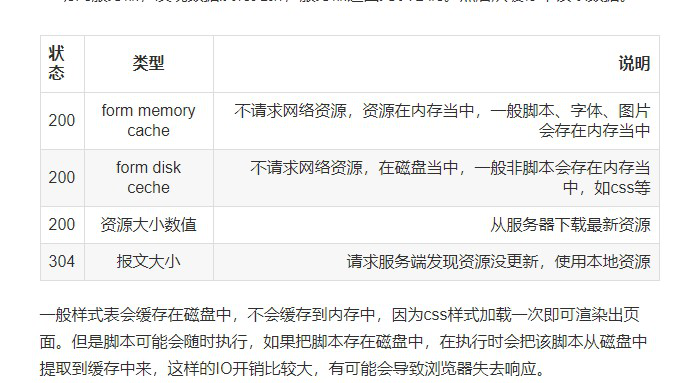
200 form memory cache
不访问服务器,一般已经加载过该资源且缓存在了内存当中,直接从内存中读取缓存。浏览器关闭后,数据将不存在(资源被释放掉了),再次打开相同的页面时,不会出现from memory cache。 -
200 from disk cache
不访问服务器,已经在之前的某个时间加载过该资源,直接从硬盘中读取缓存,关闭浏览器后,数据依然存在,此资源不会随着该页面的关闭而释放掉下次打开仍然会是from disk cache。 -
304 Not Modified
访问服务器,发现数据没有更新,服务器返回此状态码。然后从缓存中读取数据。
链接:https://www.jianshu.com/p/8332da83955d
参考网站:
谷歌开发者,非常专业:https://developers.google.com/web/fundamentals/getting-started/?hl=zh-cn 需要FQ;
Web前端性能优化的微观分析 http://velocity.oreilly.com.cn/2013/ppts/16_ms_optimization--web_front-end_performance_optimization.pdf
移动端性能调优:ttps://speakerdeck.com/baofen14787/yi-dong-duan-xing-neng-diao-you-ji-16msyou-hua
总结:做的东西多了,得 整理一下以;
移动端 scroll,touchmove的事件用的还是比较多的;有时间还是要 细细优化的;虽然感觉很微观 ,甚至觉得 优化的几乎看不出来;但是你去优化好,还是费不少时间 的;
requestAnimationFrame是个移动端的利器;动画尽量用它或者除集合css3实现;
一个基于 requestAnimationFrame 的动画函数,仿造jquery http://www.cnblogs.com/surfaces/p/5129868.html
移动端 transition动画函数的封装(仿Zepto)以及 requestAnimationFrame动画函数封装(仿jQuery)
其他 js实现 以鼠标为中心缩放图片 1
<!DOCTYPE html>
<html lang="en">

    <head>
        <meta charset="UTF-8">
        <meta name="viewport" content="width=device-width, initial-scale=1.0">
        <title>Document</title>
        <style>
            * {
                margin: 0;
                padding: 0;
                list-style: none;
                box-sizing: border-box;
            }

            body {
                background:
                    -webkit-linear-gradient(top, transparent 99px, #f1f1f1 99px),
                    -webkit-linear-gradient(left, transparent 99px, #f1f1f1 99px);
                background-size: 100px 100px;
            }


            .container {
                width: 600px;
                position: relative;
                height: 400px;
                border: 1px solid red;
                margin-top: 200px;
                margin-left: 300px;


                background:
                    -webkit-linear-gradient(top, transparent 99px, #ccc 99px),
                    -webkit-linear-gradient(left, transparent 99px, #ccc 99px);
                background-size: 100px 100px;

            }

            .container img {
                position: absolute;
                top: 0;
                left: 0;
                width: 300px;
                height: 200px;
                object-fit: cover;
                transform-origin: 0% 0%;
                opacity: 0.8;
            }

            .lo77g {
                position: absolute;
                top: 20px;
                right: 20px;
                width: 200px;
                height: 100px;

            }

            .red {
                position: absolute;
                top: 0;
                left: 0;
                width: 6px;
                height: 6px;
                background-color: red;
                border-radius: 6px;
                z-index: 888;


            }
        </style>
    </head>

    <body>
        <div class="container">
            <img id="img" src="https://fuss10.elemecdn.com/e/5d/4a731a90594a4af544c0c25941171jpeg.jpeg">
            <div class="red"></div>
        </div>

        <div>
            <p>思路</p>
            <p>开始位置为p1(200,100),</p>
            <p>放大两倍后 位置为p2(400,200),</p>
            <p>我们再将p2移动到p1,就完成了位置的修正,</p>
            <p>实现了以鼠标为中心缩放</p>
            <p>参考链接:https://juejin.cn/post/7296692047417737226</p>
        </div>


        <div class="lo77g"></div>

        <script>
            let scale = 1 //缩放倍率
            let lasts = 1
            let minL = 0.5
            let maxL = 10;
            const lo77g = document.querySelector('.lo77g');
            const img = document.getElementById('img')
            const red = document.querySelector('.red');
            var container = document.querySelector('.container');

            function getElementCenter(element) {
                const rect = element.getBoundingClientRect();
                const centerX = rect.left + (rect.width / 2);
                const centerY = rect.top + (rect.height / 2);
                return {
                    centerX,
                    centerY
                };
            }


            function wheelZoom(img) {

                container.addEventListener('mousewheel', function(e) {
                    var clientX = e.clientX;
                    var clientY = e.clientY;

                    var d = e.deltaY < 0 ? 0.1 : -0.1;
                    var ratio = 1 + d;

                    scale = scale * ratio;
                    scale = Math.min(Math.max(minL, scale), maxL);
                    //console.log("e.target.tagName", img.style.top)
                    var sourceTop = +img.style.top.slice(0, -2)
                    var sourceLeft = +img.style.left.slice(0, -2)
                    var rect = container.getBoundingClientRect()

                    //不是图片滚轮  默认鼠标位置  放在图片中心点上
                    if (e.target.tagName.toLowerCase() !== "img") {
                        clientX = getElementCenter(img).centerX;
                        clientY = getElementCenter(img).centerY;
                        //console.log("假设在 图片中心点", clientX, clientY, "re22ct", getElementCenter(img))
                    }

                    var x = clientX - rect.left;
                    var y = clientY - rect.top;


                    lo77g.innerHTML = "clientX" + clientX + "<br>clientY" + clientY + "<br>image 的origin x" + x +
                        "<br>image 的origin Y" + y;

                    //缩放前,鼠标位置相对图片缩放为1时的位置
                    var origin = getSourePosition(img, lasts, x, y)
                    var x2 = origin.x2;
                    var y2 = origin.y2;


                    lo77g.innerHTML =
                        "<br>e.clientX" + clientX.toFixed(2) +
                        "<br>e.clientY" + clientY.toFixed(2) +
                        "<br>原始 的origin x" + x.toFixed(2) +
                        "<br>原始 的origin Y" + y.toFixed(2)


                    // 缩放后,图片需要的位移
                    var nowPos = getXY(scale, x, y, x2, y2)
                    var x4 = nowPos.x4;
                    var y4 = nowPos.y4;


                    //设置位置
                    setPosition(img, x4, y4, scale);
                    lasts = scale

                })
            }

            // 图片加载完成后再绑定事件
            img.addEventListener('load', function() {

                img.style.left = img.width / 2 + "px"
                img.style.top = img.height / 2 + "px"
                wheelZoom(img)
                drag(img)
            });


            //缩放前,鼠标位置相对图片缩放为1时的位置
            function getSourePosition(el, scale, x, y) {
                var sourceTop = +el.style.top.slice(0, -2)
                var sourceLeft = +el.style.left.slice(0, -2)


                var x2 = (x - sourceLeft) / scale;
                var y2 = (y - sourceTop) / scale;


                red.style.left = x2 + 'px';
                red.style.top = y2 + 'px';
                red.innerHTML = x2.toFixed(2) + "<br>" + y2.toFixed(2)
                return {
                    x2,
                    y2
                }
            }

            // 缩放后,图片需要的位移
            function getXY(scale, x, y, x2, y2) {
                // 缩放后的位置
                var x3 = x2 * scale
                var y3 = y2 * scale

                // 缩放后的位置移动到鼠标位置,需要的位移
                var x4 = x - x3
                var y4 = y - y3
                console.log("缩放后,原先x", x, "缩放后的位置x3", x3, "差值x4", x4)
                return {
                    x4,
                    y4
                }
            }

            // 设置图片位置
            const setPosition = (el, x4, y4, scale) => {
                el.style.left = `${x4}px`
                el.style.top = `${y4}px`
                el.style.transform = `scale(${scale})`
            }


            // 拖拽查看
            function drag(image) {


                // 绑定 pointerdown
                image.addEventListener('mousedown', function(e) {
                    //console.log("mousedown", e.clientX, e.clientY)

                    var offsetx = e.clientX - image.offsetLeft;
                    var offsety = e.clientY - image.offsetTop;

                    document.addEventListener('mousemove', move2, false);
                    document.addEventListener('mouseup', up2, false);


                    function move2(e) {

                        var x = e.clientX - offsetx;
                        var y = e.clientY - offsety;

                        image.style.transform = 'scale(' + scale + ')';
                        image.style.left = x + 'px';
                        image.style.top = y + 'px';
                    }

                    function up2(e) {

                        move2(e)
                        // 绑定 pointermove
                        document.removeEventListener('mousemove', move2, false);
                        // 绑定 pointerup
                        document.removeEventListener('mouseup', up2, false);

                    }


                    e.stopPropagation && e.stopPropagation();
                    e.preventDefault && e.preventDefault();
                    return false;
                });


            }
        </script>
    </body>

</html>
其他 js实现 以鼠标为中心缩放图片 2
<!DOCTYPE html>
<html>
    <head>
        <meta charset="utf-8">
        <title></title>
    </head>
    <body>
        <style>
            * {
                margin: 0;
                padding: 0;
                list-style: none;
                box-sizing: border-box;
            }

            body {
                background:
                    -webkit-linear-gradient(top, transparent 99px, #f1f1f1 99px),
                    -webkit-linear-gradient(left, transparent 99px, #f1f1f1 99px);
                background-size: 100px 100px;
            }

            .container {
                width: 400px;
                height: 400px;
                overflow: hidden;


                position: relative;

                border: 1px solid red;
                margin-top: 200px;
                margin-left: 300px;
            }

            .image {
                width: 100%;
                height: 100%;
                transition: transform .3s;
                transform-origin: 0 0;
            }

            img {
                width: auto;
                height: auto;
                max-width: 100%;
            }
        </style>


        <div class="container">
            <div class="image">
                <img src="https://fuss10.elemecdn.com/e/5d/4a731a90594a4af544c0c25941171jpeg.jpeg" />
            </div>
        </div>
        <script>
            const container = document.querySelector('.container');
            const image = document.querySelector('.image');

            let size = {
                w: image.offsetWidth,
                h: image.offsetHeight
            };
            let pos = {
                x: 0,
                y: 0
            };
            let target = {
                x: 0,
                y: 0
            };
            let pointer = {
                x: 0,
                y: 0
            };
            let scale = 1;

            drag(image)

            window.addEventListener('wheel', event => {
                event.preventDefault();

                pointer.x = event.pageX - container.offsetLeft;
                pointer.y = event.pageY - container.offsetTop;
                target.x = (pointer.x - pos.x) / scale;
                target.y = (pointer.y - pos.y) / scale;

                scale += -1 * Math.max(-1, Math.min(1, event.deltaY)) * 0.5 * scale;

                scale = Math.max(1, Math.min(5, scale));

                pos.x = -target.x * scale + pointer.x;
                pos.y = -target.y * scale + pointer.y;

                // if (pos.x > 0) pos.x = 0;
                // if (pos.x + size.w * scale < size.w) pos.x = -size.w * (scale - 1);
                // if (pos.y > 0) pos.y = 0;
                // if (pos.y + size.h * scale < size.h) pos.y = -size.h * (scale - 1);

                image.style.transform = `translate(${pos.x}px,${pos.y}px) scale(${scale},${scale})`;


            }, {
                passive: false
            });


            function getTransLate(transform) {

                let tx = 0,
                    ty = 0
                if (transform === '') {
                    return {
                        tx,
                        ty
                    }
                } else {
                    tx = transform.split(' ')[0].replaceAll('translate(', '').replaceAll('px,', '')
                    ty = transform.split(' ')[1].replaceAll('px)', '')
                    return {
                        tx,
                        ty
                    }
                }

            }


            // 拖拽查看
            function drag(image) {


                // 绑定 pointerdown
                image.addEventListener('mousedown', function(e) {
                    console.log("mousedown", e.clientX, e.clientY)
                    var trs = getTransLate(image.style.transform)
                    // var offsetx = e.clientX - image.offsetLeft;
                    // var offsety = e.clientY - image.offsetTop;
                    var offsetx = e.clientX - trs.tx;
                    var offsety = e.clientY - trs.ty;
                    image.style.transition = "null";
                    document.addEventListener('mousemove', move2, false);
                    document.addEventListener('mouseup', up2, false);


                    function move2(e) {

                        var x = e.clientX - offsetx;
                        var y = e.clientY - offsety;

                        //image.style.transform = 'scale(' + scale + ')';
                        // image.style.left = x + 'px';
                        // image.style.top = y + 'px';
                        image.style.transform = `translate(${x}px,${y}px) scale(${scale},${scale})`;
                        pos.x = x;
                        pos.y = y
                    }

                    function up2(e) {

                        move2(e)
                        // 绑定 pointermove
                        document.removeEventListener('mousemove', move2, false);
                        // 绑定 pointerup
                        document.removeEventListener('mouseup', up2, false);
                        image.style.transition = "transform  .3s";

                    }


                    e.stopPropagation && e.stopPropagation();
                    e.preventDefault && e.preventDefault();
                    return false;
                });
            }
        </script>
    </body>
</html>
其他 js实现 以鼠标为中心缩放图片 3
<!DOCTYPE html>
<html lang="en">

    <head>
        <meta charset="UTF-8">
        <meta name="viewport" content="width=device-width, initial-scale=1.0">
        <title>Document</title>
        <style>
            * {
                margin: 0;
                padding: 0;
                list-style: none;
                box-sizing: border-box;
            }

            body {
                background:
                    -webkit-linear-gradient(top, transparent 99px, #f1f1f1 99px),
                    -webkit-linear-gradient(left, transparent 99px, #f1f1f1 99px);
                background-size: 100px 100px;
            }


            .container {
                width: 700px;
                position: relative;
                height: 500px;
                border: 1px solid red;
                margin-top: 200px;
                margin-left: 300px;


                background:
                    -webkit-linear-gradient(top, transparent 99px, #ccc 99px),
                    -webkit-linear-gradient(left, transparent 99px, #ccc 99px);
                background-size: 100px 100px;

            }

            .container img {
                position: absolute;
                top: 0;
                left: 0;
                width: 300px;
                height: 200px;
                object-fit: cover;
                transform-origin: 0% 0%;
                opacity: 0.8;
                z-index: 9;

            }


            .p1 {
                position: absolute;
                top: 0;
                left: 0;
                color: #333;
                border-radius: 6px;
                z-index: 188;
                font-size: 12px;
                height: 14px;
                line-height: 14px;
                padding-left: 6px;
            }

            .p1:before {
                content: "";
                position: absolute;
                top: 3px;
                left: 0;
                width: 4px;
                height: 4px;
                background-color: #333;
                border-radius: 4px;


            }


            .p2 {
                position: absolute;
                top: 0;
                left: 0;
                color: red;
                border-radius: 6px;
                z-index: 288;
                font-size: 12px;
                height: 14px;
                line-height: 14px;
                padding-left: 6px;
            }

            .p2:before {
                content: "";
                position: absolute;
                top: 3px;
                left: 0;
                width: 4px;
                height: 4px;
                background-color: red;
                border-radius: 4px;


            }

            .start {
                position: absolute;
                top: 0;
                left: 0;
                width: 300px;
                height: 200px;
                opacity: 0.3;
                background-color: #999;
            }
        </style>
    </head>

    <body>
        <div class="container">
            <img id="img" src="https://fuss10.elemecdn.com/e/5d/4a731a90594a4af544c0c25941171jpeg.jpeg">
            <div class="p1"></div>
            <div class="start"></div>
            <div class="p2"></div>

        </div>

        <div>
            <p>思路</p>
            <p>开始位置为p1(200,100),</p>
            <p>放大两倍后 位置为p2(400,200),</p>
            <p>我们再将p2移动到p1,就完成了位置的修正,</p>
            <p>实现了以鼠标为中心缩放</p>
            <p>参考链接:https://juejin.cn/post/7296692047417737226</p>
        </div>


        <script>
            var scale = 1 //缩放倍率
            var minL = 0.2
            var maxL = 10;
            var speed = 0.2;
            var nowPos = {
                x: 0,
                y: 0
            }
            var pointPos = {
                x: 0,
                y: 0
            }
            var size = {
                w: 0,
                h: 0
            };


            const img = document.getElementById('img')
            const p1 = document.querySelector('.p1');
            const p2 = document.querySelector('.p2');


            var container = document.querySelector('.container');

            function getElementCenter(element) {
                const rect = element.getBoundingClientRect();
                const centerX = rect.left + (rect.width / 2);
                const centerY = rect.top + (rect.height / 2);
                //console.log("rect", rect)
                return {
                    centerX,
                    centerY,
                    rect
                };
            }


            function wheelZoom(img) {


                container.addEventListener('mousewheel', function(e) {
                    var clientX = e.clientX;
                    var clientY = e.clientY;

                    //不是图片滚轮  默认鼠标位置  放在图片中心点上
                    if (e.target.tagName.toLowerCase() !== "img") {
                        var imgCenter = getElementCenter(img);
                        clientX = imgCenter.centerX;
                        clientY = imgCenter.centerY;
                        //console.log("假设在 图片中心点", clientX, clientY, "--imgCenter", imgCenter)
                    }

                    pointPos.x = clientX - container.offsetLeft;
                    pointPos.y = clientY - container.offsetTop;


                    //缩放前,鼠标位置相对图片缩放为1时的位置
                    var x2 = (pointPos.x - nowPos.x) / scale;
                    var y2 = (pointPos.y - nowPos.y) / scale;


                    showLog(p1, 1, x2, y2)


                    //scale += -1 * Math.max(-1, Math.min(1, e.deltaY)) * speed * scale;

                    var d = e.deltaY < 0 ? speed : -speed;
                    var ratio = 1 + d;
                    scale = scale * ratio;
                    scale = Math.max(minL, Math.min(maxL, scale));


                    // 缩放后,图片需要的位移
                    nowPos.x = -x2 * scale + pointPos.x;
                    nowPos.y = -y2 * scale + pointPos.y;


                    showLog(p2, 2, x2 * scale, y2 * scale)


                    //设置位置
                    img.style.transition = "transform  .3s";
                    img.style.transform = `translate(${nowPos.x}px,${nowPos.y}px) scale(${scale},${scale})`;

                    e.stopPropagation && e.stopPropagation();
                    e.preventDefault && e.preventDefault();
                    return false;
                })
            }


            // 图片加载完成后再绑定事件
            img.addEventListener('load', function() {
                size = {
                    w: img.offsetWidth,
                    h: img.offsetHeight
                };

                nowPos.x = container.offsetWidth / 2 - img.width / 2
                nowPos.y = container.offsetHeight / 2 - img.height / 2

                // console.log("load", x, y)

                img.style.transition = "none";
                img.style.transform = `translate(${nowPos.x}px,${nowPos.y}px) scale(${scale},${scale})`;

                wheelZoom(img)
                drag(img)
            });

            function showLog(ele, num, x2, y2) {
                var p2 = ele;
                var num = num || 1

                p2.style.left = x2 + 'px';
                p2.style.top = y2 + 'px';
                p2.innerHTML = "P" + num + " (" + x2.toFixed(0) + "," + y2.toFixed(0) + ")";

            }


            function getTransLate(transform) {
                let tx = 0,
                    ty = 0
                if (transform) {
                    tx = transform.split(' ')[0].replaceAll('translate(', '').replaceAll('px,', '')
                    ty = transform.split(' ')[1].replaceAll('px)', '')
                }
                return {
                    tx,
                    ty
                }

            }


            // 拖拽查看
            function drag(image) {

                // 绑定 pointerdown
                image.addEventListener('mousedown', function(e) {
                    //console.log("mousedown", e.clientX, e.clientY)
                    var trs = getTransLate(image.style.transform)
                    // var offsetx = e.clientX - image.offsetLeft;
                    // var offsety = e.clientY - image.offsetTop;
                    var offsetx = e.clientX - trs.tx;
                    var offsety = e.clientY - trs.ty;
                    image.style.transition = "none";
                    document.addEventListener('mousemove', move2, false);
                    document.addEventListener('mouseup', up2, false);


                    function move2(e) {

                        var x = e.clientX - offsetx;
                        var y = e.clientY - offsety;

                        nowPos.x = x;
                        nowPos.y = y;

                        image.style.transform = `translate(${x}px,${y}px) scale(${scale},${scale})`;

                    }

                    function up2(e) {

                        move2(e)
                        // 绑定 pointermove
                        document.removeEventListener('mousemove', move2, false);
                        // 绑定 pointerup
                        document.removeEventListener('mouseup', up2, false);
                        //image.style.transition = "transform  .3s";

                    }


                    e.stopPropagation && e.stopPropagation();
                    e.preventDefault && e.preventDefault();
                    return false;
                });


            }
        </script>
    </body>

</html>

 浙公网安备 33010602011771号