
iOS开发:调用系统自带相机以及获取相册照片的功能实现
iOS开发:调用系统自带相机以及获取相册照片的功能实现
在iOS开发过程中,经常用到的技术之一就是APP上传图片了,这个知识点虽然不难,但是上传图片的需求却是各不相同,比如有些时候需要你一次性在相册中同时多选指定数量的照片,而且选择的照片数量不确定,有时候又需要调用系统相机拍照图片。针对这种不同需求的上传照片,只要掌握核心的上传照片的原理,其他的内容都是大同小异,不管有再变态的需求你也会驾驭的游刃有余。
先通过介绍通过APP上传一个用户头像来介绍通过系统相册相机上传图片的原理,然后多张上传图片的功能就自然而然的进行下去了。
一、首先要把项目工程里面的相册相机权限先打开
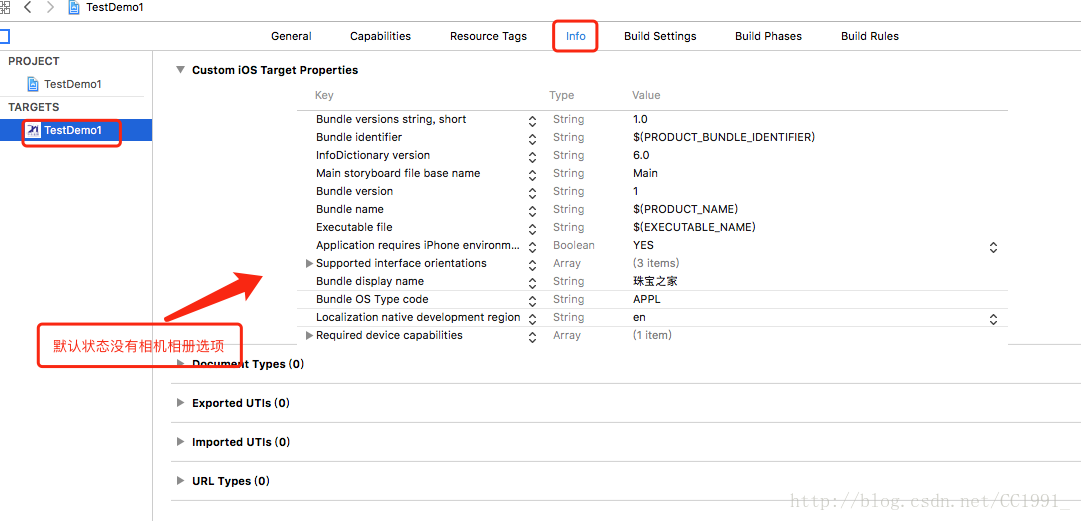
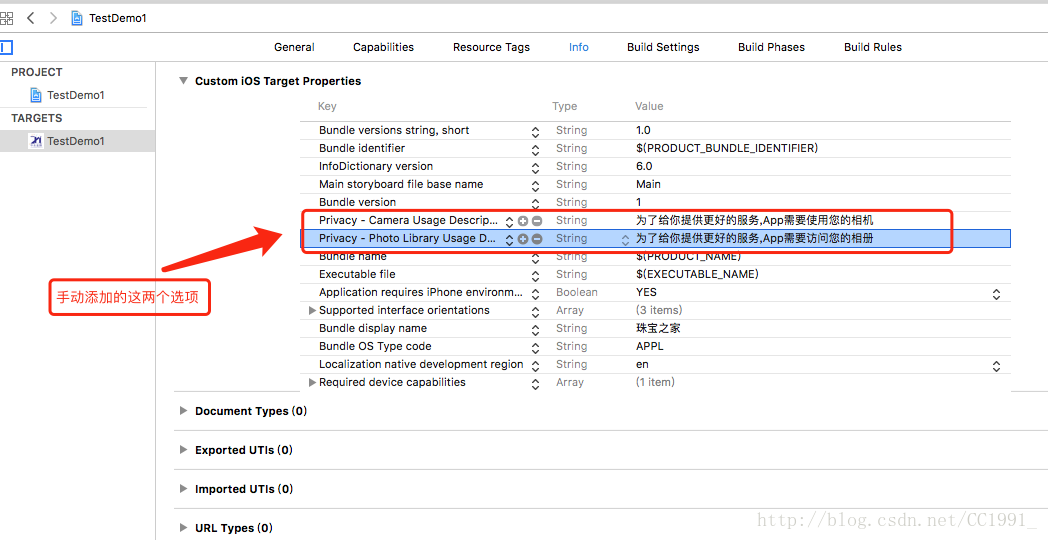
新建的项目里面,默认是没有加入打开相册相机权限提示的,那么就需要开发者自己手动添加,如下图所示:
没有添加之前的情况:
添加之后的情况:
二、其次创建控件,进行基本设置
1.创建一个UIimageView的控件,然后进行基本设置,以及初始化;
2.创建一个全局的UIImagePickerController对象,然后指定UIImagePickerController的来源sourceType,相机是UIImagePickerControllerSourceTypeCamera,相册是UIImagePickerControllerSourceTypePhotoLibrary,然后遵循协议;
3.展示UIImagePickerController,然后实现代理方法,以及相关调用操作。
在.m里面声明协议,具体代码步骤如下:
#import "MineViewController.h"

@interface MineViewController ()<UIActionSheetDelegate,UIImagePickerControllerDelegate,UINavigationControllerDelegate> //一定要声明这三个协议,缺一不可

@property(nonatomic,strong) UIImagePickerController *imagePicker; //声明全局的UIImagePickerController

@end
4.初始化设置UIimageView,以及点击事件设置
这里我使用的是XIB创建的UIimageView控件,纯代码的使用不在这里介绍。
- (void)viewDidLoad {
    [super viewDidLoad];

    [self setImgUI];
}
- (void)setImgUI {
    //UIimageView的基本设置
    _headerV.layer.cornerRadius = 100/2;
    _headerV.clipsToBounds = YES;
    _headerV.layer.borderWidth = 1;
    _headerV.layer.borderColor = [UIColor lightGrayColor].CGColor;
    _headerV.userInteractionEnabled = YES;
    [_headerV addGestureRecognizer:[[UITapGestureRecognizer alloc] initWithTarget:self action:@selector(headClick)]];
}
#pragma mark -头像UIImageview的点击事件-
- (void)headClick {
    //自定义消息框
    UIActionSheet *sheet = [[UIActionSheet alloc] initWithTitle:@"选择" delegate:self cancelButtonTitle:nil destructiveButtonTitle:@"取消" otherButtonTitles:@"拍照",@"从相册选择", nil];
    sheet.tag = 2550;
    //显示消息框
    [sheet showInView:self.view];
}
#pragma mark -消息框代理实现-
- (void)actionSheet:(UIActionSheet *)actionSheet clickedButtonAtIndex:(NSInteger)buttonIndex {
if (actionSheet.tag == 2550) {
NSUInteger sourceType = 0;
// 判断系统是否支持相机
UIImagePickerController *imagePickerController = [[UIImagePickerController alloc] init];
if([UIImagePickerController isSourceTypeAvailable:UIImagePickerControllerSourceTypeCamera]) {
imagePickerController.delegate = self; //设置代理
imagePickerController.allowsEditing = YES;
imagePickerController.sourceType = sourceType; //图片来源
if (buttonIndex == 0) {
return;
}else if (buttonIndex == 1) {
//拍照
sourceType = UIImagePickerControllerSourceTypeCamera;
imagePickerController.sourceType = sourceType;
[self presentViewController:imagePickerController animated:YES completion:nil];
}else if (buttonIndex == 2){
//相册
sourceType = UIImagePickerControllerSourceTypePhotoLibrary;
imagePickerController.sourceType = sourceType;
[self presentViewController:imagePickerController animated:YES completion:nil];
}
}else {
sourceType = UIImagePickerControllerSourceTypePhotoLibrary;
imagePickerController.sourceType = sourceType;
[self presentViewController:imagePickerController animated:YES completion:nil];
}
}
}
#pragma mark -实现图片选择器代理-(上传图片的网络请求也是在这个方法里面进行,这里我不再介绍具体怎么上传图片)
- (void)imagePickerController:(UIImagePickerController *)picker didFinishPickingMediaWithInfo:(NSDictionary *)info {
     [picker dismissViewControllerAnimated:YES completion:^{}];
     UIImage *image = [info objectForKey:UIImagePickerControllerOriginalImage]; //通过key值获取到图片
     _headerV.image = image;  //给UIimageView赋值已经选择的相片


     //上传图片到服务器--在这里进行图片上传的网络请求,这里不再介绍
     ......
 }
//当用户取消选择的时候,调用该方法
- (void)imagePickerControllerDidCancel:(UIImagePickerController *)picker {
[picker dismissViewControllerAnimated:YES completion:^{}];
}以上就是通过调用系统自带相机以及访问相册来实现选择图片的功能,自定义选择图片的方法这里不再详解,我会单独用一篇博文来介绍自定义上传多张图片的方法,敬请期待

 浙公网安备 33010602011771号