
drag-weektime一天时间段选择 新增与编辑
效果图:
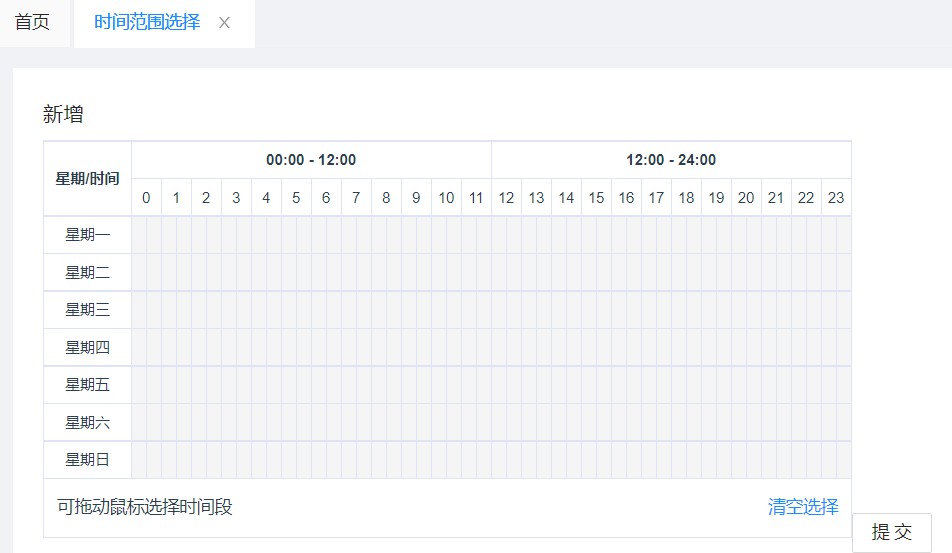
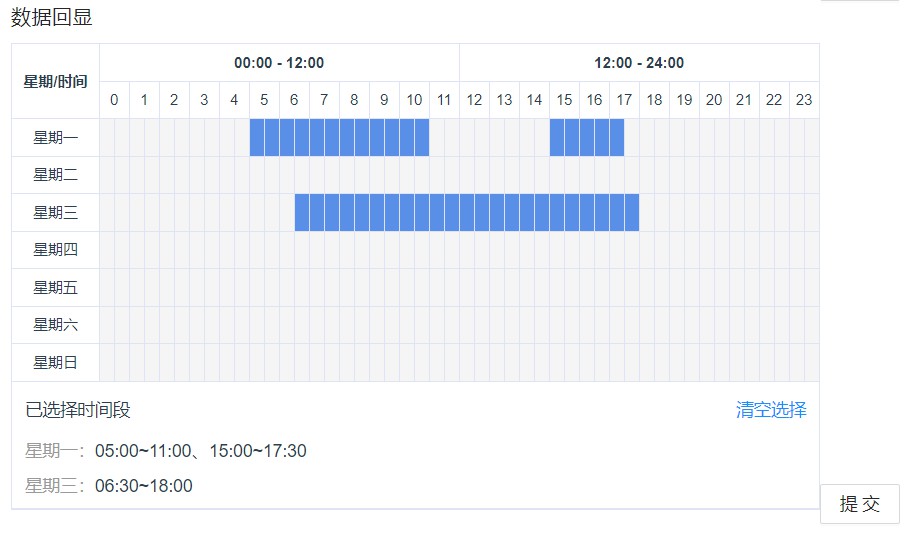
一天的时间范围选择,在网上找的插件,不过大多都是新增,没有修改时的数据回显
在原来的组件上加了数据回显的处理,记录一下方法
时间选择的插件 dragWeekTime.vue
<template>
  <div class="c-weektime">
    <div class="c-schedue"></div>
    <!-- mode 为1 表示正在选中, 'c-schedue-notransi' 样式就是选择淡蓝色 框的 -->
    <div
      :class="{ 'c-schedue': true, 'c-schedue-notransi': mode }"
      :style="styleValue"
    ></div>

    <table class="c-weektime-table" :class="{ 'c-min-table': colspan < 2 }">
      <thead class="c-weektime-head">
        <tr>
          <th rowspan="8" class="week-td">星期/时间</th>
          <th :colspan="12 * colspan">00:00 - 12:00</th>
          <th :colspan="12 * colspan">12:00 - 24:00</th>
        </tr>
        <tr>
          <td v-for="t in theadArr" :key="t" :colspan="colspan">
            {{ t }}
          </td>
        </tr>
      </thead>
      <tbody class="c-weektime-body">
        <tr v-for="t in data" :key="t.row">
          <td>{{ t.value }}</td>
          <td
            v-for="n in t.child"
            :key="`${n.row}-${n.col}`"
            :data-week="n.row"
            :data-time="n.col"
            @mouseenter="cellEnter(n)"
            @mousedown="cellDown(n)"
            @mouseup="cellUp(n)"
            :class="selectClasses(n)"
            class="weektime-atom-item"
          ></td>
        </tr>
        <tr>
          <td colspan="49" class="c-weektime-preview">
            <div class="g-clearfix c-weektime-con">
              <span class="g-pull-left">{{
                selectState ? "已选择时间段" : "可拖动鼠标选择时间段"
              }}</span>
              <a class="g-pull-right" @click.prevent="$emit('on-clear')"
                >清空选择</a
              >
            </div>
            <div v-if="selectState" class="c-weektime-time">
              <div v-for="t in selectValue" :key="t.id">
                <p v-if="t.value">
                  <span class="g-tip-text">{{ t.week }}:</span>
                  <span>{{ t.value }}</span>
                </p>
              </div>
            </div>
          </td>
        </tr>
      </tbody>
    </table>
  </div>
</template>
<script>
const createArr = (len) => {
  return Array.from(Array(len)).map((ret, id) => id);
};
export default {
  name: "DragWeektime",
  props: {
    value: {
      type: Array,
    },
    data: {
      type: Array,
    },
    colspan: {
      type: Number,
      default() {
        return 2;
      },
    },
  },
  computed: {
    // 用于计算 用户选择时间段的范围
    styleValue() {
      return {
        width: `${this.width}px`,
        height: `${this.height}px`,
        left: `${this.left}px`,
        top: `${this.top}px`,
      };
    },
    selectValue() {
      return this.value;
    },
    selectState() {
      return this.value.some((ret) => ret.value);
    },
    selectClasses() {
      return (n) => (n.check ? "ui-selected" : "");
    },
  },
  methods: {
    // 鼠标悬浮的最后位置
    cellEnter(item) {
      console.log("cellEnter");
      // 找到鼠标最终悬停位置的 表格
      const ele = document.querySelector(
        `td[data-week='${item.row}'][data-time='${item.col}']`
      );
      if (ele && !this.mode) {
        this.left = ele.offsetLeft;
        this.top = ele.offsetTop;
      } else {
        // 根据起始点 和 最终点, 计算出 选中框的 left、top 属性 和 width 和 height 高度
        if (item.col <= this.col && item.row <= this.row) {
          // 最终的节点,在起始点的 —— 左上角
          this.width = (this.col - item.col + 1) * ele.offsetWidth;
          this.height = (this.row - item.row + 1) * ele.offsetHeight;
          this.left = ele.offsetLeft;
          this.top = ele.offsetTop;
        } else if (item.col >= this.col && item.row >= this.row) {
          // 最终的节点,在起始点的 —— 右下角
          this.width = (item.col - this.col + 1) * ele.offsetWidth;
          this.height = (item.row - this.row + 1) * ele.offsetHeight;
          if (item.col > this.col && item.row === this.row)
            this.top = ele.offsetTop;
          if (item.col === this.col && item.row > this.row)
            this.left = ele.offsetLeft;
        } else if (item.col > this.col && item.row < this.row) {
          // 最终的节点,在起始点的 —— 右上角
          this.width = (item.col - this.col + 1) * ele.offsetWidth;
          this.height = (this.row - item.row + 1) * ele.offsetHeight;
          this.top = ele.offsetTop;
        } else if (item.col < this.col && item.row > this.row) {
          // 最终的节点,在起始点的 —— 左下角
          this.width = (this.col - item.col + 1) * ele.offsetWidth;
          this.height = (item.row - this.row + 1) * ele.offsetHeight;
          this.left = ele.offsetLeft;
        }
      }
    },
    cellDown(item) {
      console.log("cellDown");
      // item = {
      //   'week': '星期一',
      //   'value': '01:00~01:30',
      //   'begin': '01:00',
      //   'end': '01:30',
      //   'row': 0, // 代表星期几, 0 代表星期一 6 代表星期 天
      //   'col': 2 // 代表哪个时段 (半个小时为一个时段,一天有48个时段)
      // }
      // 获取用户选中的点
      const ele = document.querySelector(
        `td[data-week='${item.row}'][data-time='${item.col}']`
      );
      // 判断用户选中的格子是否被选中
      this.check = Boolean(item.check); // 用于样式的渲染
      this.mode = 1; //  mode 为1 表示正在选中 的样式
      if (ele) {
        // with 和 height 是用户手动选择的范围
        this.width = ele.offsetWidth;
        this.height = ele.offsetHeight;
      }
      // 起始行
      this.row = item.row;
      // 起始列
      this.col = item.col;
    },
    cellUp(item) {
      console.log("cellUp", this.data);
      // 最终的节点,在起始点的 —— 左上角
      if (item.col <= this.col && item.row <= this.row) {
        this.selectWeek(
          [item.row, this.row],
          [item.col, this.col],
          !this.check
        );
      } else if (item.col >= this.col && item.row >= this.row) {
        // 最终的节点,在起始点的 —— 右下角
        this.selectWeek(
          [this.row, item.row],
          [this.col, item.col],
          !this.check
        );
      } else if (item.col > this.col && item.row < this.row) {
        // 最终的节点,在起始点的 —— 右上角
        this.selectWeek(
          [item.row, this.row],
          [this.col, item.col],
          !this.check
        );
      } else if (item.col < this.col && item.row > this.row) {
        // 最终的节点,在起始点的 —— 左下角
        this.selectWeek(
          [this.row, item.row],
          [item.col, this.col],
          !this.check
        );
      }
      this.width = 0; // 选中的宽度为 0
      this.height = 0; // 选中的高度为 0
      this.mode = 0; // 标记不是选中的状态
    },
    // 计算出 起始点  和  最重点  范围的节点,然后将它们的状态值改为 “选中状态", 会计算出样式
    selectWeek(row, col, check) {
      const [minRow, maxRow] = row;
      const [minCol, maxCol] = col;
      this.data.forEach((item) => {
        item.child.forEach((t) => {
          if (
            t.row >= minRow &&
            t.row <= maxRow &&
            t.col >= minCol &&
            t.col <= maxCol
          ) {
            this.$set(t, "check", check);
          }
        });
      });
    },
  },
  data() {
    return {
      width: 0,
      height: 0,
      left: 0,
      top: 0,
      mode: 0,
      row: 0,
      col: 0,
      theadArr: [],
    };
  },
  created() {
    this.theadArr = createArr(24);
  },
};
</script>
<style lang="less" scoped>
.c-weektime {
  min-width: 640px;
  position: relative;
  display: inline-block;
}
.c-schedue {
  background: #598fe6;
  position: absolute;
  width: 0;
  height: 0;
  opacity: 0.6;
  pointer-events: none;
}
.c-schedue-notransi {
  transition: width 0.12s ease, height 0.12s ease, top 0.12s ease,
    left 0.12s ease;
}
.c-weektime-table {
  border-collapse: collapse;
  th {
    vertical-align: inherit;
    font-weight: bold;
  }
  tr {
    height: 30px;
  }
  tr,
  td,
  th {
    user-select: none;
    border: 1px solid #dee4f5;
    text-align: center;
    min-width: 12px;
    line-height: 1.8em;
    transition: background 0.2s ease;
  }
  .c-weektime-head {
    font-size: 12px;
    .week-td {
      width: 70px;
    }
  }
  .c-weektime-body {
    font-size: 12px;
    td {
      &.weektime-atom-item {
        user-select: unset;
        background-color: #f5f5f5;
      }
      &.ui-selected {
        background-color: #598fe6;
      }
    }
  }
  .c-weektime-preview {
    line-height: 2.4em;
    padding: 0 10px;
    font-size: 14px;
    .c-weektime-con {
      line-height: 46px;
      user-select: none;
    }
    .c-weektime-time {
      text-align: left;
      line-height: 2.4em;
      p {
        max-width: 625px;
        line-height: 1.4em;
        word-break: break-all;
        margin-bottom: 8px;
      }
    }
  }
}
.c-min-table {
  tr,
  td,
  th {
    min-width: 24px;
  }
}
.g-clearfix {
  &:after,
  &:before {
    clear: both;
    content: " ";
    display: table;
  }
}
.g-pull-left {
  float: left;
}
.g-pull-right {
  float: right;
}
.g-tip-text {
  color: #999;
}
</style>
数据处理方 handleData.js
const handleData = weekData => {
    let allWeeks = [
        '星期一',
        '星期二',
        '星期三',
        '星期四',
        '星期五',
        '星期六',
        '星期日',
    ];
    // 将weekdata中空数据补齐
    allWeeks = allWeeks.map((item, i) => {
        let newItem = {
            id: i,
            week: item,
            value: '',
        };
        weekData.some(subItem => {
            if (subItem.week === item) {
                newItem = {
                    ...subItem,
                };
            }
        });
        return newItem;
    });

    const formatDate = (date, fmt) => {
        let o = {
            'M+': date.getMonth() + 1,
            'd+': date.getDate(),
            'h+': date.getHours(),
            'm+': date.getMinutes(),
            's+': date.getSeconds(),
            'q+': Math.floor((date.getMonth() + 3) / 3),
            S: date.getMilliseconds(),
        };
        if (/(y+)/.test(fmt)) {
            fmt = fmt.replace(
                RegExp.$1,
                (date.getFullYear() + '').substr(4 - RegExp.$1.length),
            );
        }
        for (var k in o) {
            if (new RegExp('(' + k + ')').test(fmt)) {
                fmt = fmt.replace(
                    RegExp.$1,
                    RegExp.$1.length === 1
                        ? o[k]
                        : ('00' + o[k]).substr(('' + o[k]).length),
                );
            }
        }
        return fmt;
    };

    const createArr = len => {
        return Array.from(Array(len)).map((ret, id) => id);
    };

    const formatWeektime = col => {
        const timestamp = 1542384000000; // '2018-11-17 00:00:00'
        const beginstamp = timestamp + col * 1800000; // col * 30 * 60 * 1000
        const endstamp = beginstamp + 1800000;

        const begin = formatDate(new Date(beginstamp), 'hh:mm');
        const end = formatDate(new Date(endstamp), 'hh:mm');
        return `${begin}~${end}`;
    };

    const data = allWeeks.map((ret, index) => {
        const children = (ret, row, max) => {
            const valueRange = [];
            if (ret.value) {
                ret.value.split('、').forEach(item => {
                    if (item) {
                        const minValue = new Date(
                            `2018-01-01 ${item.split('~')[0]}`,
                        ).getTime();
                        const maxValue = new Date(
                            `2018-01-01 ${item.split('~')[1]}`,
                        ).getTime();
                        valueRange.push({
                            minValue,
                            maxValue,
                        });
                    }
                });
                console.log(valueRange);
            }
            return createArr(max).map((t, col) => {
                const newItem = {
                    week: ret.week,
                    value: formatWeektime(col),
                    begin: formatWeektime(col).split('~')[0],
                    end: formatWeektime(col).split('~')[1],
                    row: row,
                    col: col,
                };
                if (valueRange.length) {
                    const endTime = new Date(
                        `2018-01-01 ${newItem.end}`,
                    ).getTime();
                    valueRange.some(item => {
                        if (
                            endTime > item.minValue &&
                            endTime <= item.maxValue
                        ) {
                            newItem.check = true;
                            return true;
                        }
                    });
                }
                return newItem;
            });
        };
        return {
            value: ret.week,
            row: index,
            child: children(ret, index, 48),
        };
    });
    return data;
};

export default handleData;
组件引用 index.vue
<template>
  <div class="about">
    <div>
      <h3>新增</h3>
      <drag-weektime
        v-model:value="multTimeRange"
        :data="weektimeData"
        @on-clear="clearWeektime"
      >
      </drag-weektime>
      <a-button type="parimary" @click="submit">提交</a-button>
    </div>
    <div>
      <h3>数据回显</h3>
      <drag-weektime
        v-model:value="multTimeRange2"
        :data="weektimeData2"
        @on-clear="clearWeektime2"
      >
      </drag-weektime>
      <a-button type="parimary" @click="submit2">提交</a-button>
    </div>
  </div>
</template>
<script>
import DragWeektime from "./components/dragWeekTime.vue";
import handleData from "./components/handleData";

function splicing(list) {
  let same;
  let i = -1;
  let len = list.length;
  let arr = [];

  if (!len) return;
  while (++i < len) {
    const item = list[i];
    if (item.check) {
      if (item.check !== Boolean(same)) {
        arr.push(...["、", item.begin, "~", item.end]);
      } else if (arr.length) {
        arr.pop();
        arr.push(item.end);
      }
    }
    same = Boolean(item.check);
  }
  arr.shift();
  return arr.join("");
}

export default {
  name: "DragTime",
  components: { DragWeektime }, //, DatePicker
  computed: {
    multTimeRange() {
      return this.weektimeData.map((item) => {
        return {
          id: item.row,
          week: item.value,
          value: splicing(item.child),
        };
      });
    },
    multTimeRange2() {
      return this.weektimeData2.map((item) => {
        return {
          id: item.row,
          week: item.value,
          value: splicing(item.child),
        };
      });
    },
  },
  data() {
    return {
      weektimeData: handleData([]),
      weektimeData2: handleData([]),
    };
  },
  created() {
    setTimeout(() => {
      const testData = [
        {
          id: 0,
          week: "星期一",
          value: "05:00~11:00、15:00~17:30",
        },
        { id: 2, week: "星期三", value: "06:30~18:00" },
      ];
      this.weektimeData2 = handleData(testData);
      console.log("multTimeRange后台数据", this.multTimeRange2);
      console.log("weektimeData转换后数据", this.weektimeData2);
    }, 1000);
  },
  methods: {
    // 清空时间段
    clearWeektime() {
      this.weektimeData.forEach((item) => {
        item.child.forEach((t) => {
          t.check = false;
        });
      });
    },
    // 提交数据格式
    submit() {
      console.log("submit", this.multTimeRange);
    },
    // 清空时间段
    clearWeektime2() {
      this.weektimeData2.forEach((item) => {
        item.child.forEach((t) => {
          t.check = false;
        });
      });
    },
    // 提交数据格式
    submit2() {
      console.log("submit", this.multTimeRange);
    },
  },
};
</script>
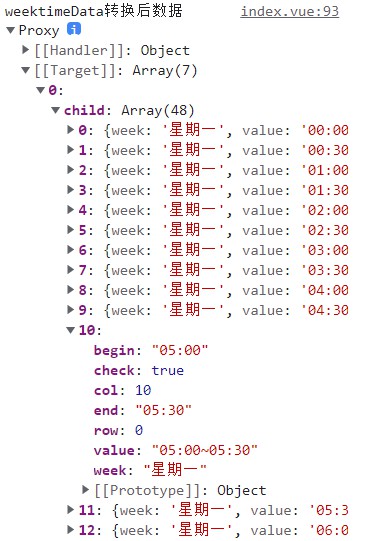
组件需要的数据是这种有 48 个时间段的数据,如果选中,就将 check 属性设置为 true
一般提交时传给后端的数据,是转化过的,如下:
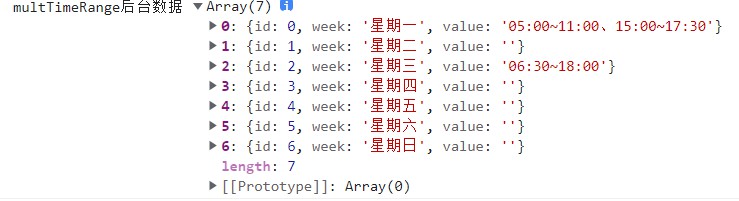
这个 handleData.js 就是用来将后端返回的数据,再处理成组件需要的数据
拿到后台数据格式可以是这种星期一到星期日完整的数据:
const testData = [
                { id: 0, week: '星期一', value: '05:00~11:00、15:00~17:30' },
                { id: 1, week: '星期二', value: '' },
                { id: 2, week: '星期三', value: '06:30~18:00' },
                { id: 3, week: '星期四', value: '' },
                { id: 4, week: '星期五', value: '' },
                { id: 5, week: '星期六', value: '' },
                { id: 6, week: '星期日', value: '' },
            ];
也可以是只有value有值的数据:
const testData = [
        {
          id: 0,
          week: "星期一",
          value: "05:00~11:00、15:00~17:30",
        },
        { id: 2, week: "星期三", value: "06:30~18:00" },
      ];
handledata方法已经做了处理
要注意这里的数据时间段是用 、分隔,如果是其他分隔,可以修改成上面的数据格式 ,或者修改处理方法

 浙公网安备 33010602011771号