
搭建LNMP环境(CentOS 6)
- Linux:自由和开放源码的类UNIX操作系统。
- Nginx:轻量级网页服务器、反向代理服务器。
- MySQL:关系型数据库管理系统。
- PHP:主要适用于Web开发领域的一种脚本语言。
Nginx是一个小巧而高效的Linux下的Web服务器软件,是由 Igor Sysoev 为俄罗斯访问量第二的 Rambler.ru 站点开发的,已经在一些俄罗斯的大型网站上运行多年,目前很多国内外的门户网站、行业网站也都在是使用Nginx,相当稳定。
1、添加运行nginx服务进程的用户
2、下载源码包解压编译。
# wget http://nginx.org/download/nginx-1.10.2.tar.gz# tar xvf nginx-1.10.2.tar.gz -C /usr/local/src# yum groupinstall "Development tools"# yum -y install gcc wget gcc-c++ automake autoconf libtool libxml2-devel libxslt-devel perl-devel perl-ExtUtils-Embed pcre-devel openssl-devel# cd /usr/local/src/nginx-1.10.2# ./configure \--prefix=/usr/local/nginx \--sbin-path=/usr/sbin/nginx \--conf-path=/etc/nginx/nginx.conf \--error-log-path=/var/log/nginx/error.log \--http-log-path=/var/log/nginx/access.log \--pid-path=/var/run/nginx.pid \--lock-path=/var/run/nginx.lock \--http-client-body-temp-path=/var/tmp/nginx/client \--http-proxy-temp-path=/var/tmp/nginx/proxy \--http-fastcgi-temp-path=/var/tmp/nginx/fcgi \--http-uwsgi-temp-path=/var/tmp/nginx/uwsgi \--http-scgi-temp-path=/var/tmp/nginx/scgi \--user=nginx \--group=nginx \--with-pcre \--with-http_v2_module \--with-http_ssl_module \--with-http_realip_module \--with-http_addition_module \--with-http_sub_module \--with-http_dav_module \--with-http_flv_module \--with-http_mp4_module \--with-http_gunzip_module \--with-http_gzip_static_module \--with-http_random_index_module \--with-http_secure_link_module \--with-http_stub_status_module \--with-http_auth_request_module \--with-mail \--with-mail_ssl_module \--with-file-aio \--with-ipv6 \--with-http_v2_module \--with-threads \--with-stream \--with-stream_ssl_module# make && make install# mkdir -pv /var/tmp/nginx/client
3、添加SysV启动脚本。
# vim /etc/init.d/nginx## nginx - this script starts and stops the nginx daemon## chkconfig: - 85 15# description: Nginx is an HTTP(S) server, HTTP(S) reverse \# proxy and IMAP/POP3 proxy server# processname: nginx# config: /etc/nginx/nginx.conf# config: /etc/sysconfig/nginx# pidfile: /var/run/nginx.pid# Source function library.. /etc/rc.d/init.d/functions# Source networking configuration.. /etc/sysconfig/network# Check that networking is up.[ "$NETWORKING" = "no" ] && exit 0nginx="/usr/sbin/nginx"prog=$(basename $nginx)NGINX_CONF_FILE="/etc/nginx/nginx.conf"[ -f /etc/sysconfig/nginx ] && . /etc/sysconfig/nginxlockfile=/var/lock/subsys/nginxstart() {[ -x $nginx ] || exit 5[ -f $NGINX_CONF_FILE ] || exit 6echo -n $"Starting $prog: "daemon $nginx -c $NGINX_CONF_FILEretval=$?echo[ $retval -eq 0 ] && touch $lockfilereturn $retval}stop() {echo -n $"Stopping $prog: "killproc $prog -QUITretval=$?echo[ $retval -eq 0 ] && rm -f $lockfilereturn $retvalkillall -9 nginx}restart() {configtest || return $?stopsleep 1start}reload() {configtest || return $?echo -n $"Reloading $prog: "killproc $nginx -HUPRETVAL=$?echo}force_reload() {restart}configtest() {$nginx -t -c $NGINX_CONF_FILE}rh_status() {status $prog}rh_status_q() {rh_status >/dev/null 2>&1}case "$1" instart)rh_status_q && exit 0$1;;stop)rh_status_q || exit 0$1;;restart|configtest)$1;;reload)rh_status_q || exit 7$1;;force-reload)force_reload;;status)rh_status;;condrestart|try-restart)rh_status_q || exit 0;;*)echo $"Usage: $0 {start|stop|status|restart|condrestart|try-restart|reload|force-reload|configtest}"exit 2esac
4、赋予脚本执行权限。
# chmod +x /etc/init.d/nginx
5、添加至服务管理列表,设置开机自启。
# chkconfig --add nginx# chkconfig nginx on
6、启动服务。
# service nginx start
7、浏览器访问可看到默认欢迎页面。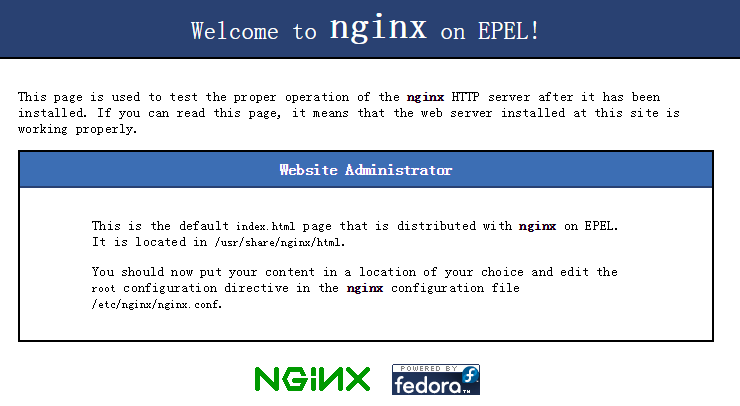
步骤三:安装mysql
1、准备编译环境。
# yum groupinstall "Server Platform Development" "Development tools" -y# yum install cmake -y
2、准备mysql数据存放目录。
# mkdir /mnt/data# groupadd -r mysql# useradd -r -g mysql -s /sbin/nologin mysql# id mysqluid=497(mysql) gid=498(mysql) groups=498(mysql)
3、更改数据目录属主属组。
# chown -R mysql:mysql /mnt/data
4、解压编译在MySQL官网下载的稳定版源码包,这里使用的是5.6.24版本
# tar xvf mysql-5.6.24.tar.gz -C /usr/local/src# cd /usr/local/src/mysql-5.6.24# cmake . -DCMAKE_INSTALL_PREFIX=/usr/local/mysql \-DMYSQL_DATADIR=/mnt/data \-DSYSCONFDIR=/etc \-DWITH_INNOBASE_STORAGE_ENGINE=1 \-DWITH_ARCHIVE_STORAGE_ENGINE=1 \-DWITH_BLACKHOLE_STORAGE_ENGINE=1 \-DWITH_READLINE=1 \-DWITH_SSL=system \-DWITH_ZLIB=system \-DWITH_LIBWRAP=0 \-DMYSQL_TCP_PORT=3306 \-DMYSQL_UNIX_ADDR=/tmp/mysql.sock \-DDEFAULT_CHARSET=utf8 \-DDEFAULT_COLLATION=utf8_general_ci# make && make install
5、修改安装目录的属组为mysql。
# chown -R mysql:mysql /usr/local/mysql/
6、初始化数据库。
# /usr/local/mysql/scripts/mysql_install_db --user=mysql --datadir=/mnt/data/
注:在CentOS 6.5版操作系统的最小安装完成后,在/etc目录下会存在一个my.cnf,需要将此文件更名为其他的名字,如:/etc/my.cnf.bak,否则,该文件会干扰源码安装的MySQL的正确配置,造成无法启动。
7、拷贝配置文件和启动脚本。
# cp /usr/local/mysql/support-files/mysql.server /etc/init.d/mysqld# chmod +x /etc/init.d/mysqld# cp support-files/my-default.cnf /etc/my.cnf
8、设置开机自动启动。
# chkconfig mysqld on# chkconfig --add mysqld
9、修改配置文件中的安装路径及数据目录存放路径。
# echo -e "basedir = /usr/local/mysql\ndatadir = /mnt/data\n" >> /etc/my.cnf
10、设置PATH环境变量。
# echo "export PATH=$PATH:/usr/local/mysql/bin" > /etc/profile.d/mysql.sh# source /etc/profile.d/mysql.sh
11、启动服务。
# service mysqld start# mysql -h 127.0.0.1
步骤四:安装php-fpm
Nginx本身不能处理PHP,作为web服务器,当它接收到请求后,不支持对外部程序的直接调用或者解析,必须通过FastCGI进行调用。如果是PHP请求,则交给PHP解释器处理,并把结果返回给客户端。PHP-FPM是支持解析php的一个FastCGI进程管理器。提供了更好管理PHP进程的方式,可以有效控制内存和进程、可以平滑重载PHP配置。
1、安装依赖包。
# yum install libmcrypt libmcrypt-devel mhash mhash-devel libxml2 libxml2-devel bzip2 bzip2-devel
2、解压官网下载的源码包,编译安装。
# tar xvf php-5.6.23.tar.bz2 -C /usr/local/src# cd /usr/local/src/php-5.6.23# ./configure --prefix=/usr/local/php \--with-config-file-scan-dir=/etc/php.d \--with-config-file-path=/etc \--with-mysql=/usr/local/mysql \--with-mysqli=/usr/local/mysql/bin/mysql_config \--enable-mbstring \--with-freetype-dir \--with-jpeg-dir \--with-png-dir \--with-zlib \--with-libxml-dir=/usr \--with-openssl \-enable-xml \--enable-sockets \--enable-fpm \--with-mcrypt \--with-bz2# make && make install
3、添加php和php-fpm配置文件。
# cp /usr/local/src/php-5.6.23/php.ini-production /etc/php.ini# cd /usr/local/php/etc/# cp php-fpm.conf.default php-fpm.conf# sed -i 's@;pid = run/php-fpm.pid@pid = /usr/local/php/var/run/php-fpm.pid@' php-fpm.conf
4、添加php-fpm启动脚本。
# cp /usr/local/src/php-5.6.23/sapi/fpm/init.d.php-fpm /etc/init.d/php-fpm# chmod +x /etc/init.d/php-fpm
5、添加php-fpm至服务列表并设置开机自启。
# chkconfig --add php-fpm# chkconfig --list php-fpm# chkconfig php-fpm on
6、启动服务。
# service php-fpm start
7、添加nginx对fastcgi的支持,首先备份默认的配置文件。
# cp /etc/nginx/nginx.conf /etc/nginx/nginx.confbak# cp /etc/nginx/nginx.conf.default /etc/nginx/nginx.conf
编辑/etc/nginx/nginx.conf,在所支持的主页面格式中添加php格式的主页,类似如下:
location / {root /usr/local/nginx/html;index index.php index.html index.htm;}
取消以下内容前面的注释:
location ~ \.php$ {root /usr/local/nginx/html;fastcgi_pass 127.0.0.1:9000;fastcgi_index index.php;fastcgi_param SCRIPT_FILENAME /usr/local/nginx/html/$fastcgi_script_name;include fastcgi_params;}
重新载入nginx的配置文件。
# service nginx reload
在/usr/local/nginx/html/新建index.php的测试页面,内容如下。
# cat index.php<?php$conn=mysql_connect('127.0.0.1','root','');if ($conn){echo "LNMP platform connect to mysql is successful!";}else{echo "LNMP platform connect to mysql is failed!";}phpinfo();?>
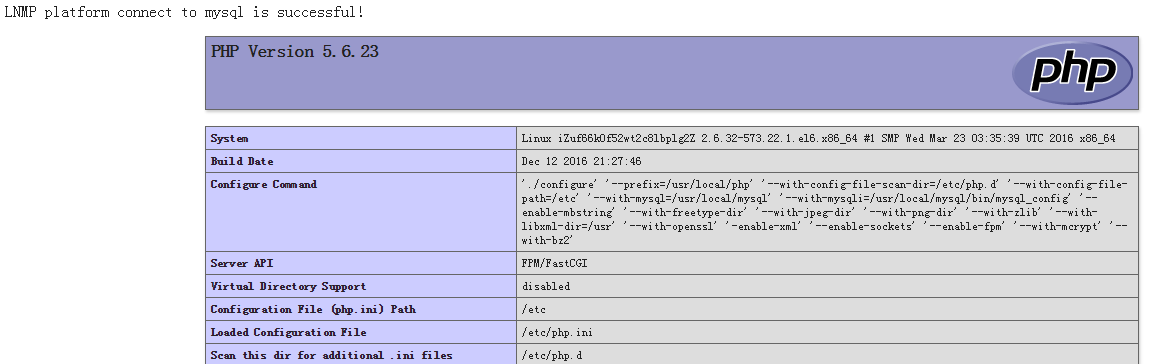
浏览器访问测试,如看到以下内容则表示LNMP平台构建完成。
原文链接:https://help.aliyun.com/document_detail/50700.html?spm=a2c4g.11186623.6.756.pQGQZC

 浙公网安备 33010602011771号