

完整教程:uniapp 日历组件 uni-datetime-picker
背景:
App端需要日历组件,选择年月日,或者年月日时分秒。找到了两种组件,如下:
方式一:
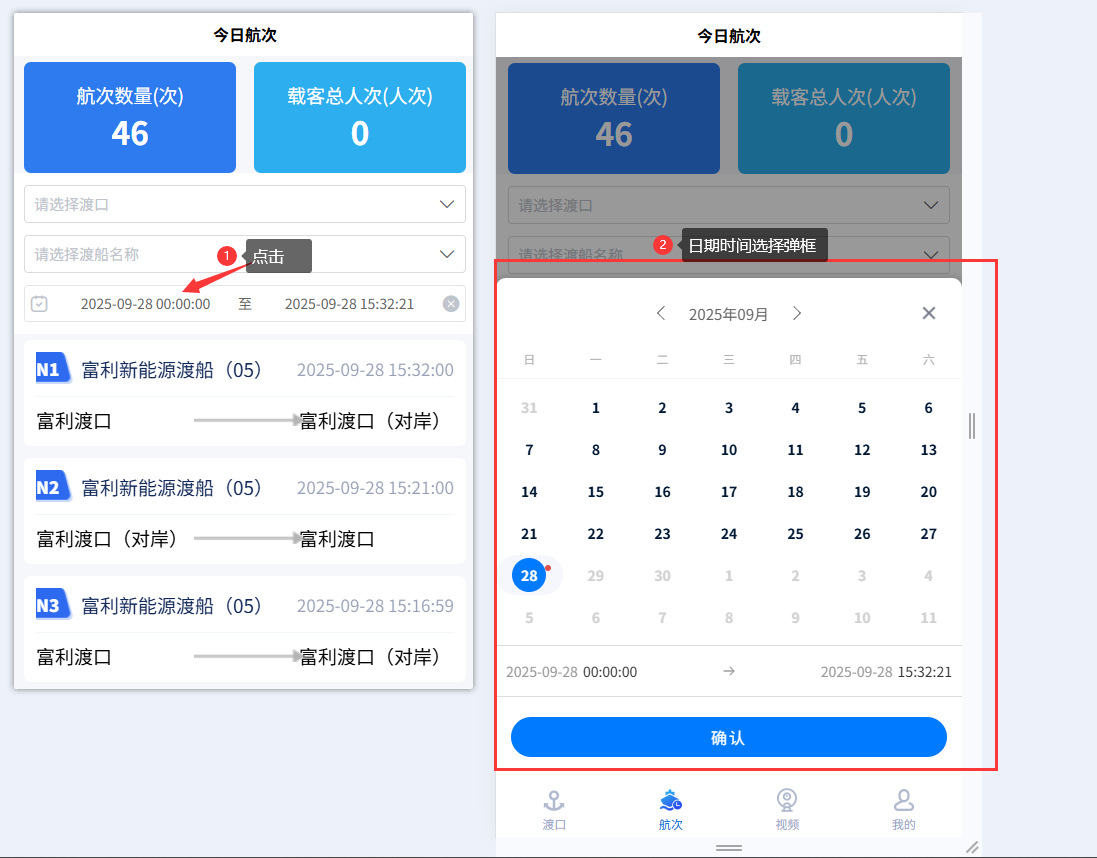
DCloud插件市场的uni-datetime-picker组件,设置为日期时间选择器【datetimerange】,或者日期选择器【daterange】
<uni-datetime-picker
v-model="timeData"
type="datetimerange"
rangeSeparator="至"
:start="minDate"
:end="maxDate"
@change="maskChange"
@maskClick="maskClick"
/>
方式二:
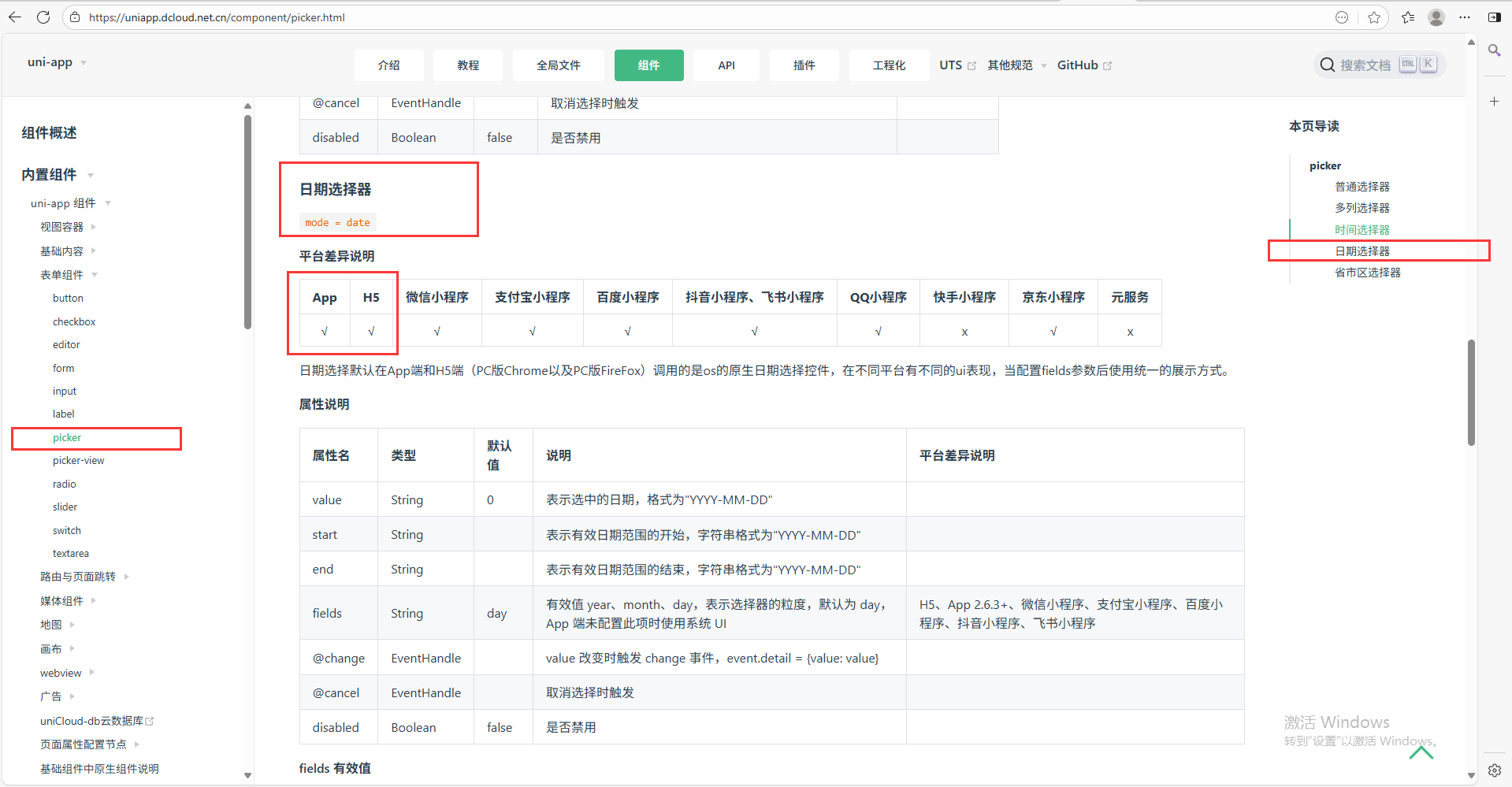
uniapp基础组件的picker组件,设置为日期选择器 mode="date"
<picker
mode="date"
:value="date"
:start="startDate"
:end="endDate"
@change="bindDateChange">
<view class="uni-input">{{date}}</view>
</picker>插件市场有插件uni-datetime-picker,uniapp内置组件有picker组件。
一、插件市场uni-datetime-picker组件
效果展示:【由两部分组成:一组件,二点击组件的弹框】
日期选择器:
设置type为:daterange 或者 datetimerange
js逻辑层:
<script>
export default {
    data() {
       return {
        timeData: [],
        minDate: '',
        maxDate: '',
    },
    methods:{
        formatTime(time, format = "YY-MM-DD hh:mm:ss") {
            const args = {
                y: time.getFullYear(),
                M: time.getMonth() + 1,
                d: time.getDate(),
                h: time.getHours(),
                m: time.getMinutes(),
                s: time.getSeconds(),
            };
            for (const key in args) {
                const value = args[key];
                if (value < 10) args[key] = "0" + value;
            }
            const dateStr =
                args.y +
                "-" +
                args.M +
                "-" +
                args.d +
                " " +
                args.h +
                ":" +
                args.m +
                ":" +
                args.s;
            return dateStr;
        },
        maskChange(e) {
            this.timeData = e
        },
        maskClick() {
        },
    },
    created() {
        const maxDate = this.formatTime(new Date(Date.now()))
        const minDate1 = this.formatTime(new Date(Date.now() - 8.64e7))
        const minDate7 = this.formatTime(new Date(Date.now() - 8.64e7 * 7))
        this.minDate = minDate7
        this.maxDate = maxDate
        this.timeData = [minDate1, maxDate]
    },
}插件市场官网:点击跳转
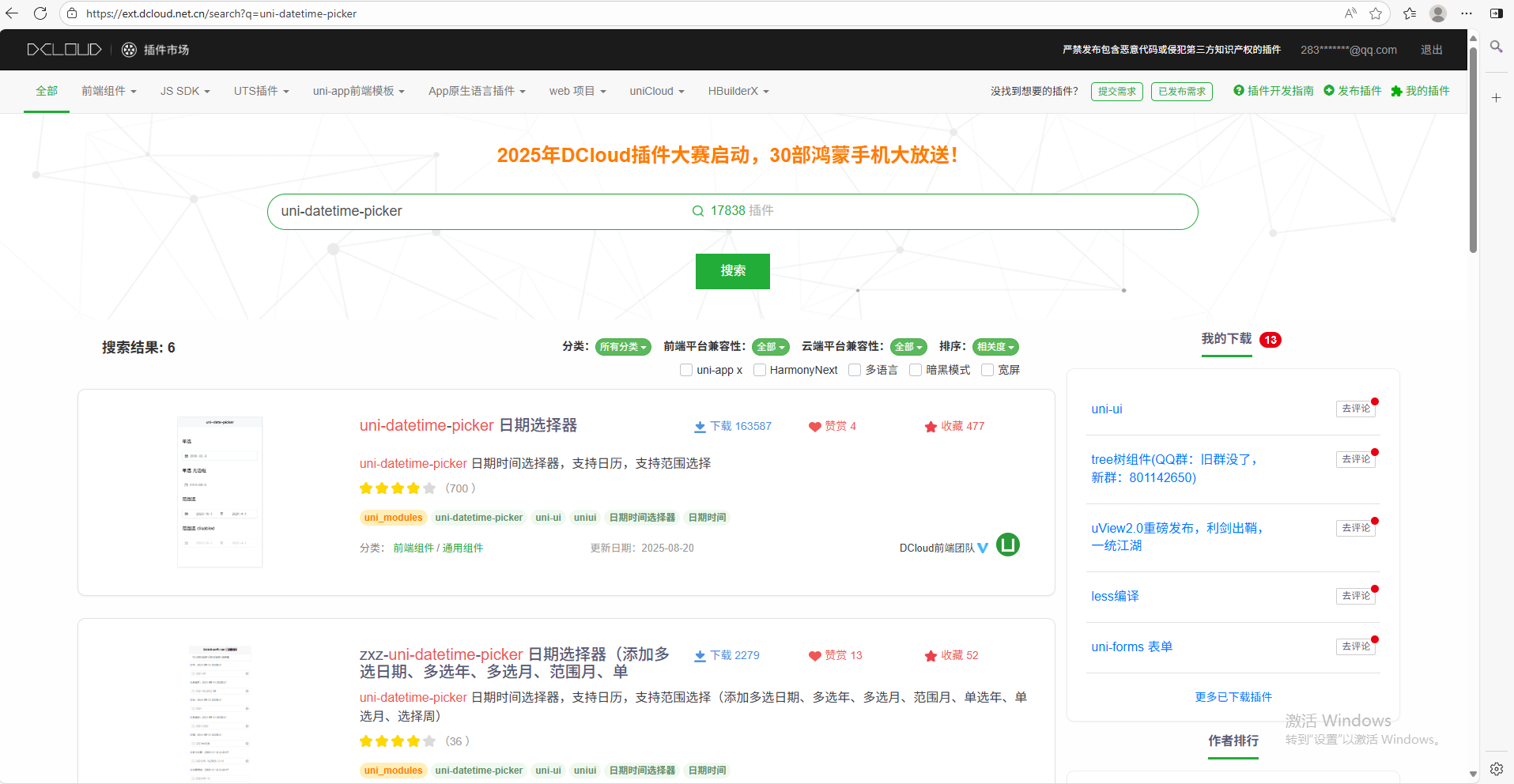
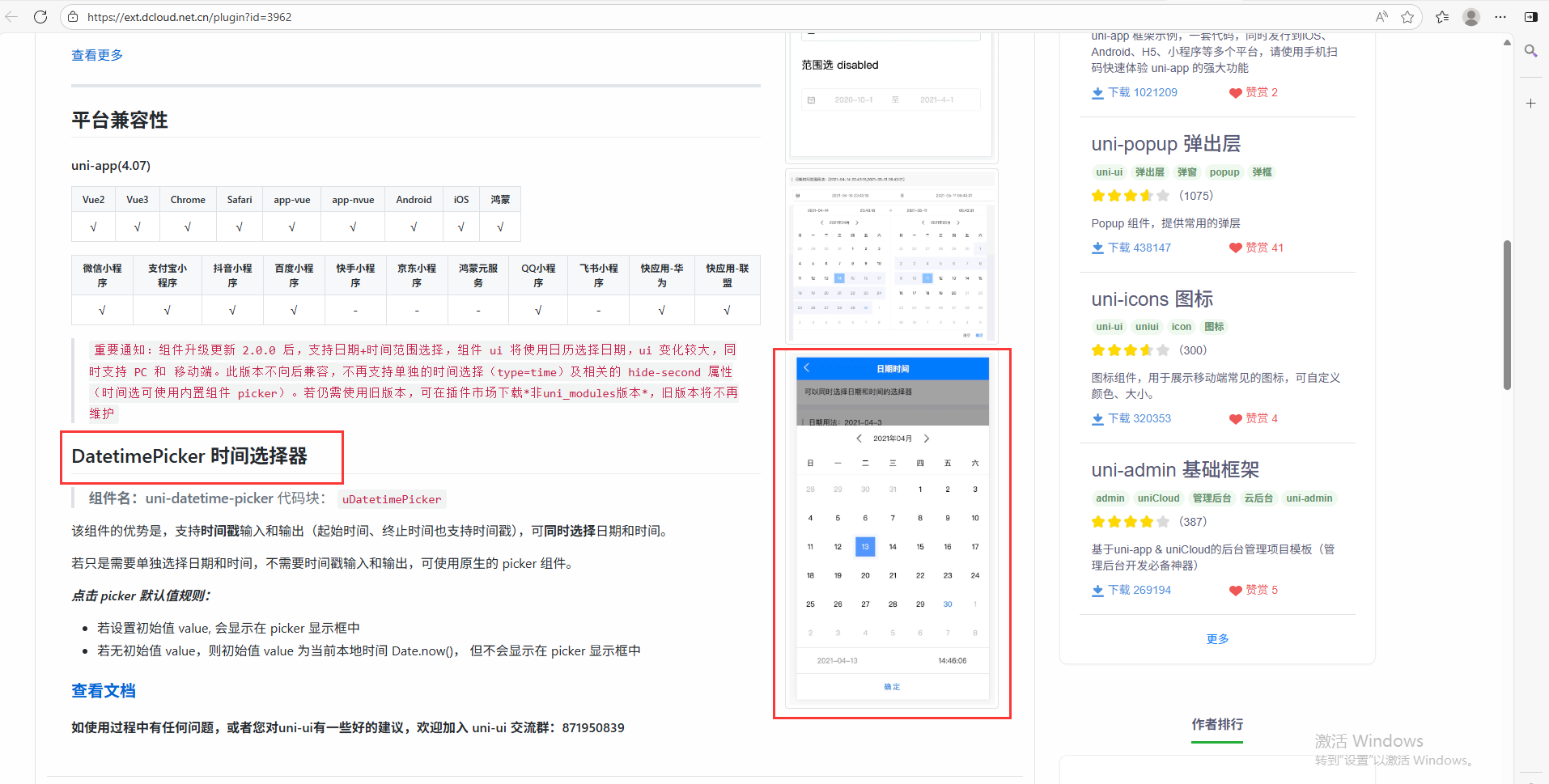
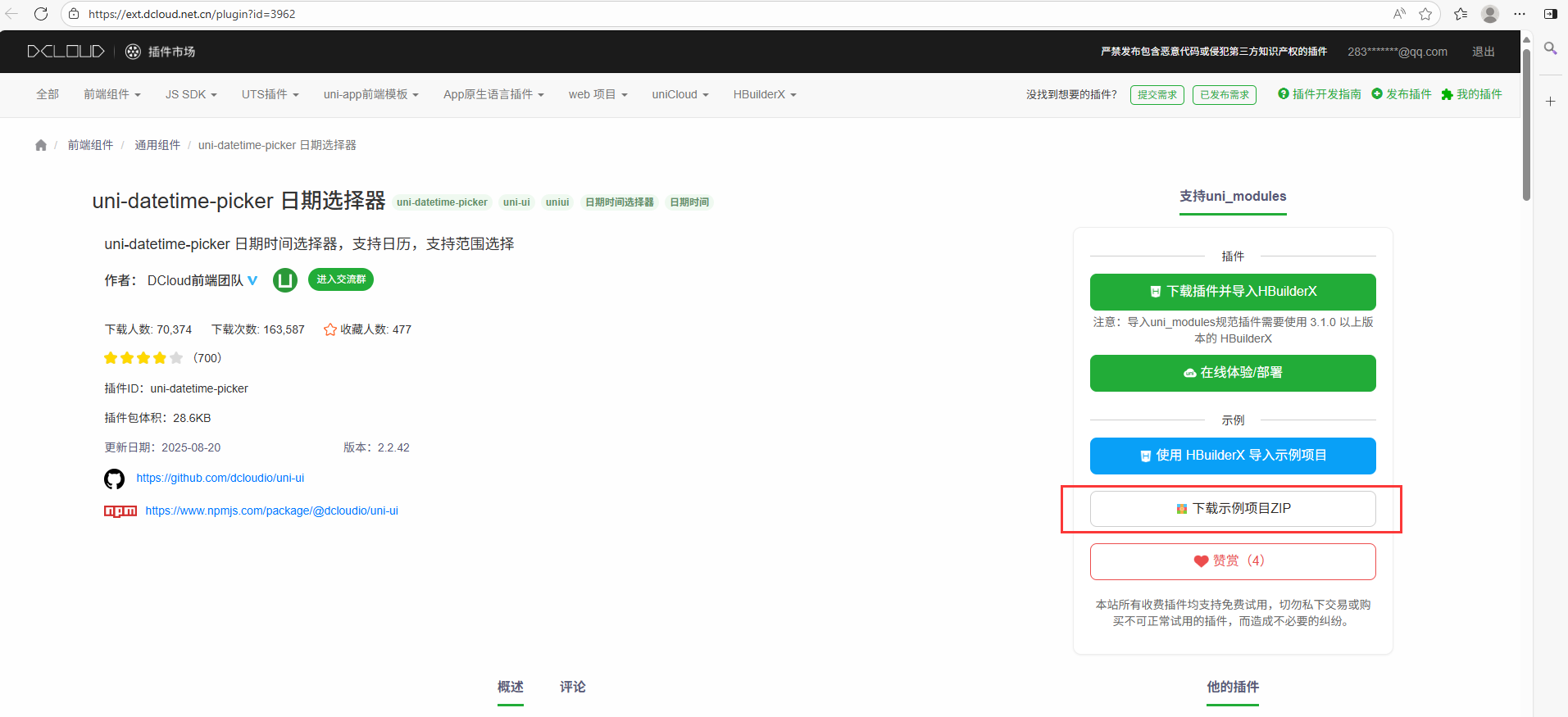
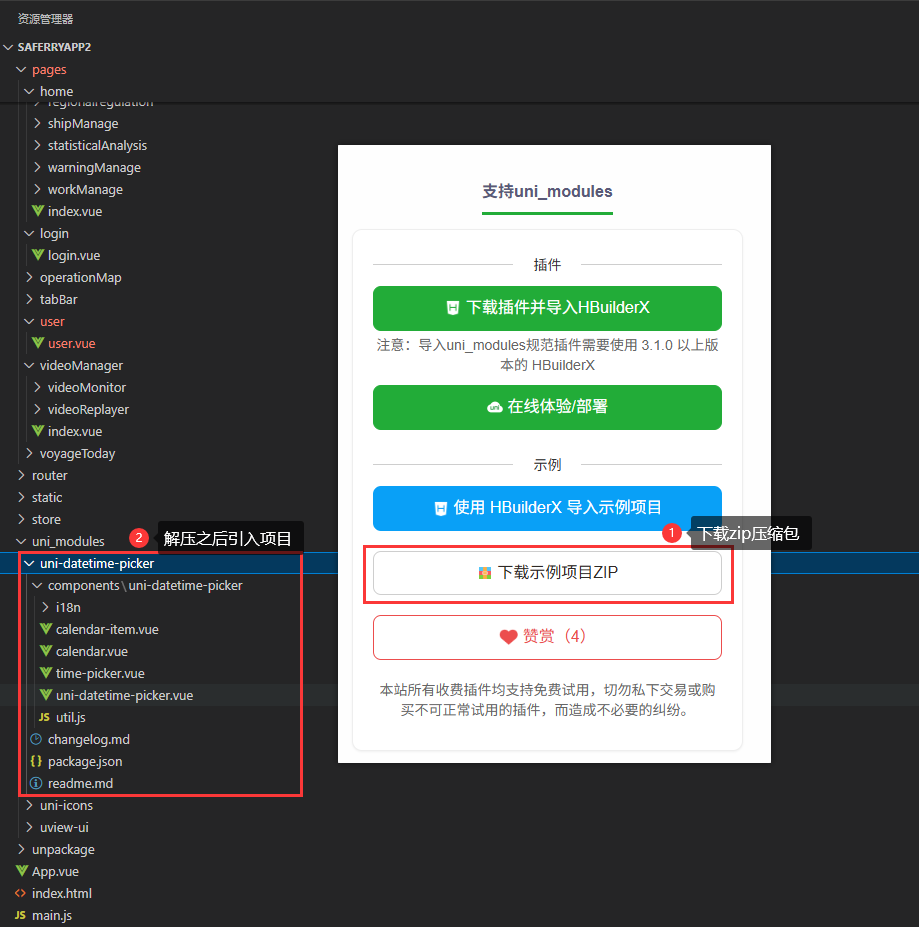
下载插件市场的插件,可以通过HBuilder下载,或者下载zip然后导入项目文件夹uni_modules
二、uniapp内置组件
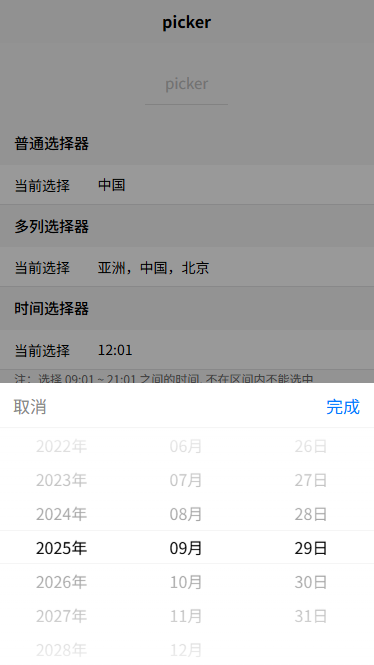
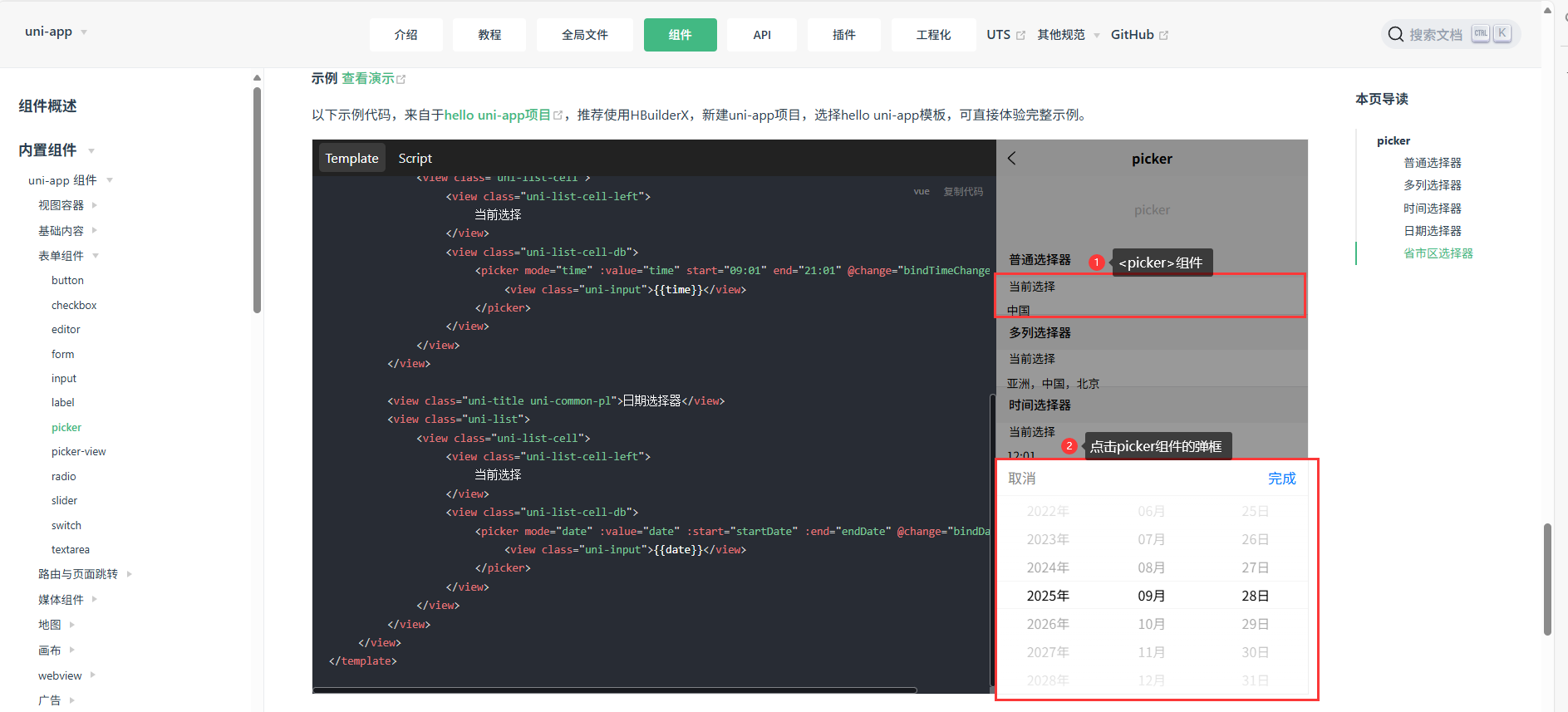
效果展示:
日期选择器:
{{date}}
js逻辑层:
<script>
export default {
    data() {
        const currentDate = this.getDate({
            format: true
        })
        return {
            title: 'picker',
            array: ['中国', '美国', '巴西', '日本'],
            index: 0,
            date: currentDate,
            time: '12:01'
        }
    },
    computed: {
        minDate() {
            return this.getDate('start');
        },
        maxDate() {
            return this.getDate('end');
        }
    },
    methods: {
        bindPickerChange: function(e) {
            console.log('picker发送选择改变,携带值为', e.detail.value)
            this.index = e.detail.value
        },
        bindDateChange: function(e) {
            this.date = e.detail.value
        },
        bindTimeChange: function(e) {
            this.time = e.detail.value
        },
        getDate(type) {
            const date = new Date();
            let year = date.getFullYear();
            let month = date.getMonth() + 1;
            let day = date.getDate();
            if (type === 'start') {
                year = year - 10;
            } else if (type === 'end') {
                year = year + 10;
            }
            month = month > 9 ? month : '0' + month;
            day = day > 9 ? day : '0' + day;
            return `${year}-${month}-${day}`;
        }
    }
}
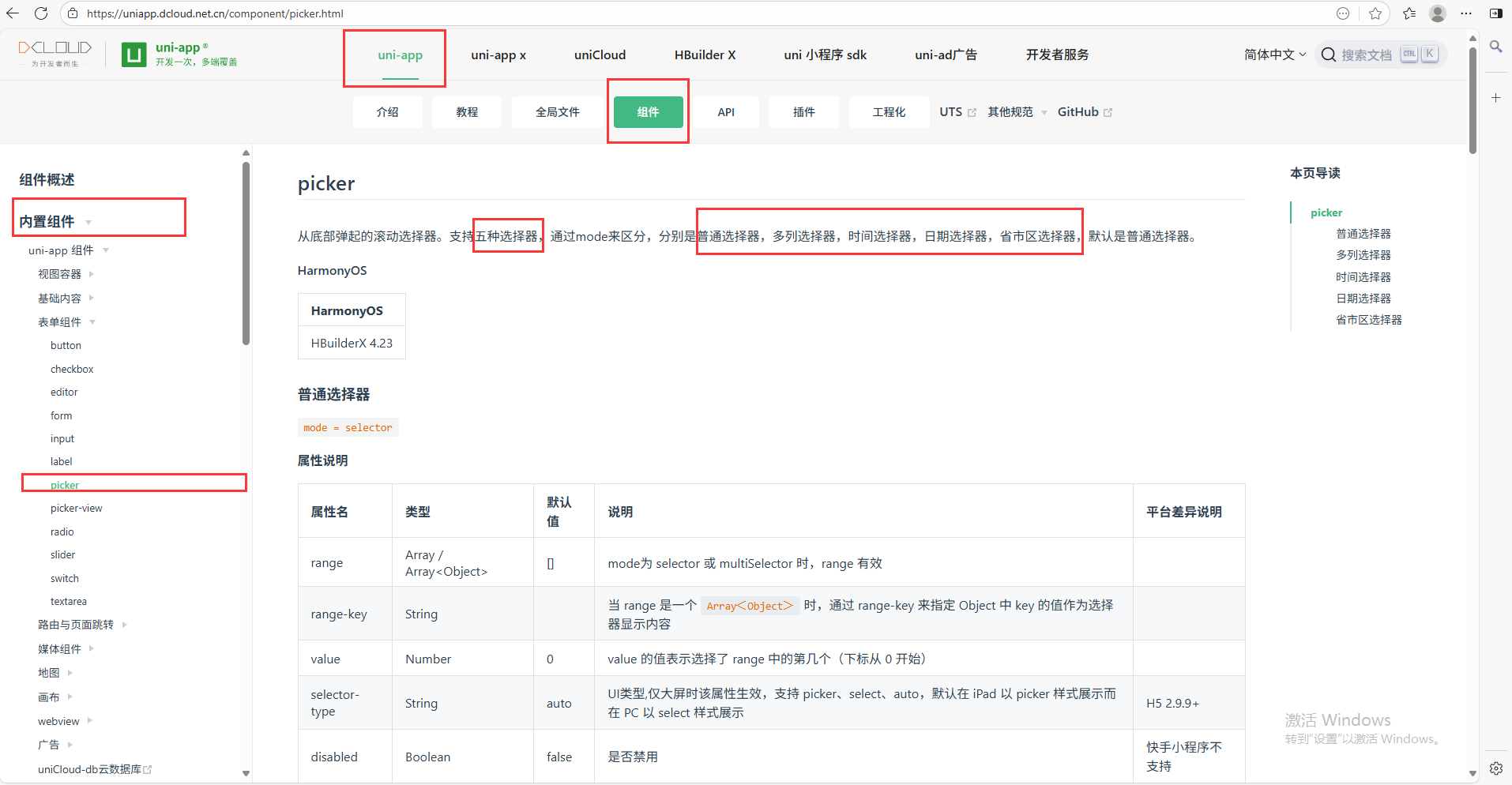
</script>uniapp组件官网链接:点击跳转
三、自行封装一个日历选择器
背景:
以上两种组件在H5端或者Android端组件的形式有所差异,可根据实际情况进行调整。
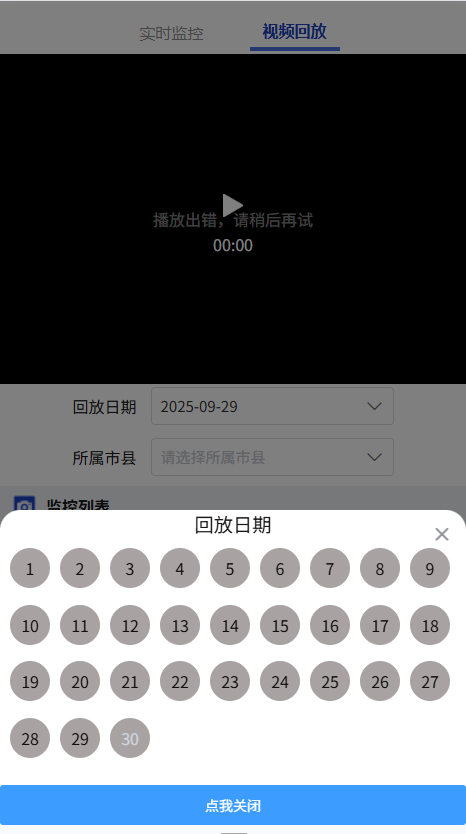
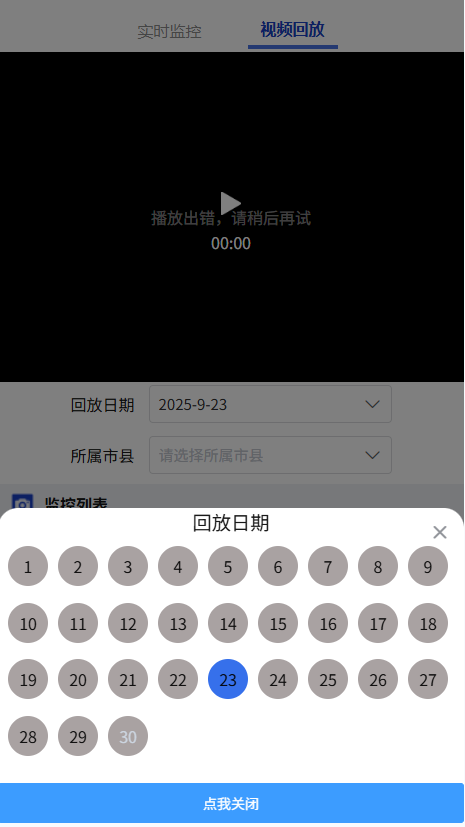
以下是自行封装了一个名为MyCalender的组件,组件只能选择具体的某一天。封装它的意图是想要弹出框尽量小,或者日历选择区域尽量小。
效果展示:
封装组件思路:
日期选择器只能选择一天。弹框根据实时日期渲染当月的总天数。大于当前日期的不可选并有提示信息,只能选择小于等于当前日期。
封装自定义组件:
回放日期
{{ item }}
<script>
export default {
name: "MyCalender",
props: {
defaultTime: {
type: String,
default: ''
},
timeArr: {
type: Number,
default: 30,
}
},
data() {
return {
showPop: false,
clickData: '',
inputValue: '',
isOpen: false,
timeCalender: 0,
currentD: 0,
currentDStyle: 0,
}
},
methods: {
handlePopup(state) {
this.showPop = state;
},
toggle() {
console.log('toggle');
this.showPop = !this.showPop
},
handleOpenOption(data) {
console.log('handleOpenOption', data);
this.isOpen = !this.isOpen
},
clickCalenderI(item) {
console.log('clickCalenderI', item);
this.currentD = item
//根据第几天得出日期
const whichData = new Date(new Date().getFullYear(), new Date().getMonth(), item)
this.clickData = whichData
if (this.clickData > new Date()) {
this.clickData = new Date()
this.currentD = this.clickData.getDate()
uni.showToast({
icon: 'none',
title: `请重新选择日期,不可大于今日${this.currentD}号`,
})
} else {
this.clickData = this.clickData
}
const whichData_String = this.clickData.getFullYear() + '-' + (this.clickData.getMonth() + 1) + '-' + this.clickData.getDate()
this.inputValue = whichData_String
this.$emit('clickCalenderI', this.inputValue)
}
},
created() {
//timeCalender
const currentDate = new Date();
const currentY = currentDate.getFullYear();
const currentM = currentDate.getMonth() + 1;
const currentD = currentDate.getDate();
const days = new Date(currentY, currentM, 0).getDate();
console.log('days', days);
this.timeCalender = days;
this.currentDStyle = currentD
},
watch: {
defaultTime: {
handler(val) {
if (val && val.split(' ').length) {
this.inputValue = val.split(' ')[0]
}
},
immediate: true,
deep: true
}
}
}
</script>
使用自定义的组件:
<MyCalender :defaultTime="maxDate" @clickCalenderI="clickCalenderI"></MyCalender>
//vue2
clickCalenderI(item) {
console.log('clickCalenderI', item);
this.timeData = [`${item} 00:00:00`, `${item} 23:59:59`]
},
this.maxDate = this.formatTime(new Date(Date.now()))
formatTime(time, format = "YY-MM-DD hh:mm:ss") {
const args = {
y: time.getFullYear(),
M: time.getMonth() + 1,
d: time.getDate(),
h: time.getHours(),
m: time.getMinutes(),
s: time.getSeconds(),
};
for (const key in args) {
const value = args[key];
if (value < 10) args[key] = "0" + value;
}
const dateStr =
args.y +
"-" +
args.M +
"-" +
args.d +
" " +
args.h +
":" +
args.m +
":" +
args.s;
return dateStr;
},
写到这儿。。。我们就实现了三种uniapp选择日期的方式,根据实际情况自行选择。。。


 浙公网安备 33010602011771号