spring boot方案利用Torna生成在线接口文档
Torna 是一个企业级的接口文档管理系统,专注于 API 文档的生成、管理和协作。它支持多种编程语言的接口文档自动生成,无代码侵入,并提供可视化的管理界面,适合开发团队使用。
本文将介绍Torna的安装及在项目中如何使用。
一、安装
下载地址
https://gitee.com/durcframework/torna/releases https://gitee.com/durcframework/torna/releases本文下载的是torna-1.33.7版本安装包
下载完成后上传到ubantu服务中
然后解压
sudo unzip torna-1.33.7.zip
进入解压目录下,编辑application.properties,配置数据库连接和端口
# Server port
server.port=7700
# MySQL host
mysql.host=localhost:3306
# Schema name
mysql.schema=torna
# Make sure the account can run CREATE/ALTER SQL
mysql.username=root
mysql.password=root
记得初始化数据库,sql文件,根据自己的版本去下载
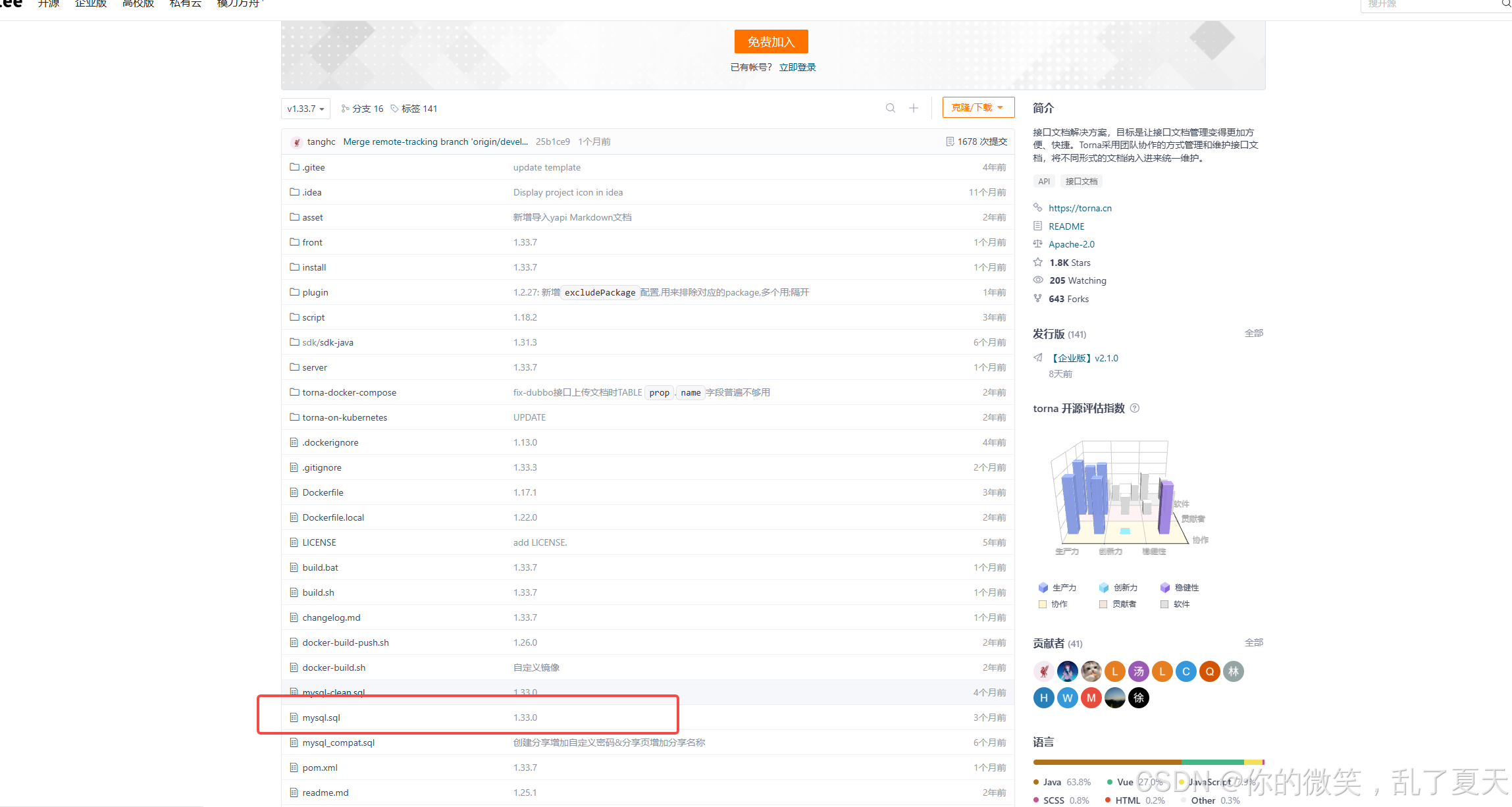
https://gitee.com/durcframework/torna/tree/v1.33.7/
然后运行命令启动
sudo sh startup.sh
放开端口,云服务的话还得去云服务商的控制台添加安全策略
sudo ufw allow 7700/tcp
然后访问:http://192.168.110.35:7700/#/dashboard

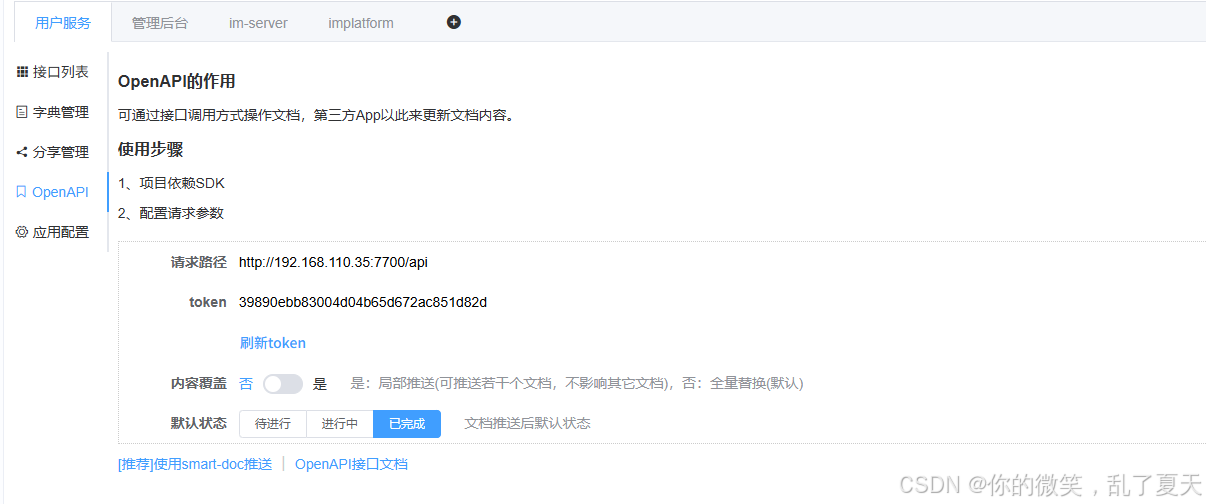
创建一个自己的项目,然后在项目下面创建应用
二、在spring boot项目中使用
pom.xml添加插件依赖
com.ly.smart-doc
smart-doc-maven-plugin
3.0.2
${basedir}/src/main/resources/smart-doc.json
xx
package
org.apache.maven.plugins
maven-source-plugin
3.2.1
package
jar-no-fork
然后在项目resource目录下新建smart-doc.json文件
{
"outPath": "target/doc",
"projectName": "管理后台",//项目名称
"packageFilters": "xxx.xxx.xxx.controller.*", // 扫描的包,即存放controller的包
"openUrl": "http://192.168.110.35:7700/api", // 对应torna所创建的应用下OpenAPI的请求路径
"appToken": "39890ebb83004d04b65d672ac851d82d",// 对应torna所创建的应用下OpenAPI的token
"debugEnvName":"本地环境",
"debugEnvUrl":"http://127.0.0.1:8080/api-users",
"tornaDebug": true,
"replace": true
}
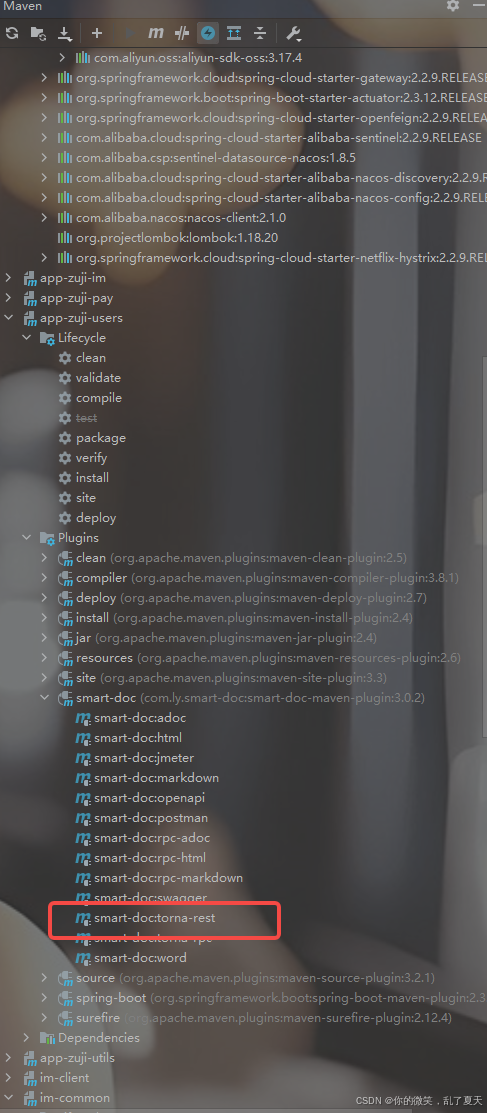
然后在找到smart-doc插件,然后双击运行torna-rest
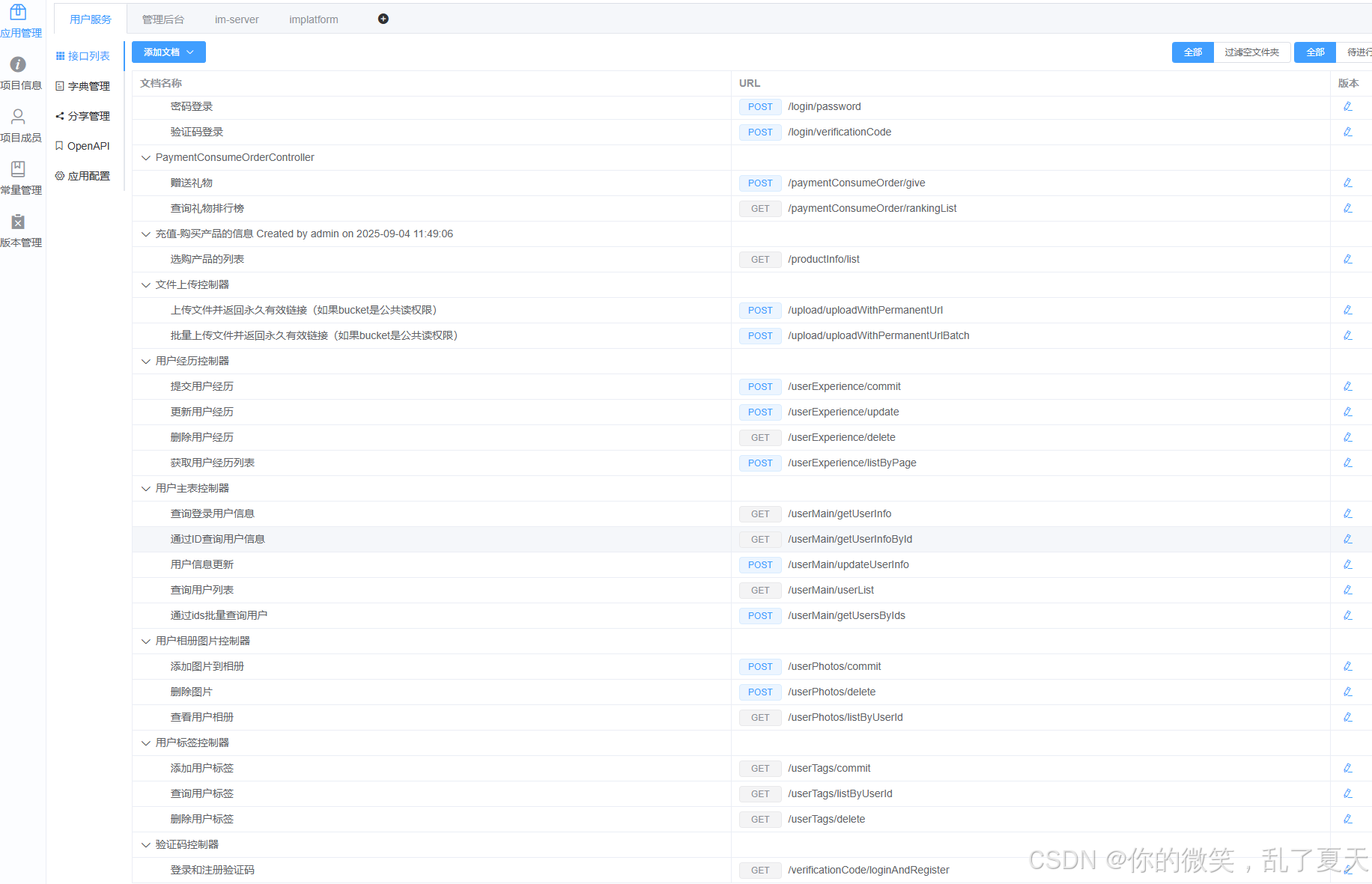
然后进入torna查看接口文档是否更新


 浙公网安备 33010602011771号