
关于前端对话框、消息框的优秀插件多不胜数。造轮子是为了更好的使用轮子,并不是说自己造的轮子肯定好。所以,这个博客系统基本上都是自己实现的,包括日志记录、响应式布局等等一些本可以使用插件的。好了,废话不多时。我们来实现自己的对话框和消息框。
对话框
要求:可拖动、点击按钮后可回调
画一个简单的模型框
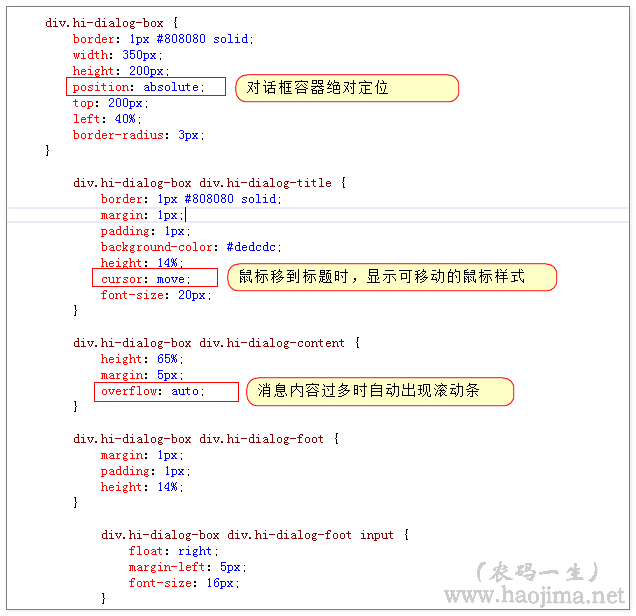
<div class="hi-dialog-box clearfix"> <div class="hi-dialog-title">系统提示</div> <div class="hi-dialog-content"> </div> <div class="hi-dialog-foot"> <input type="button" class="hi-dialog-determine" value="确定" /> <input type="button" class="hi-dialog-cancel" value="取消" /> </div></div>div.hi-dialog-box { border: 1px #808080 solid; width: 350px; height: 200px; border-radius: 3px; } div.hi-dialog-box div.hi-dialog-title { border: 1px #808080 solid; margin: 1px; padding: 1px; padding: 0px 0px 0px 5px; background-image: initial; background-position: initial; background-size: initial; background-repeat: initial; background-attachment: initial; background-origin: initial; background-clip: initial; border-left: 3px solid rgb(108, 226, 108); line-height: 20px; width: 640px; clear: both; border-radius: 0px !important; border-top: 0px !important; border-right: 0px !important; border-bottom: 0px !important; border-image: initial !important; bottom: auto !important; float: none !important; height: auto !important; left: auto !important; outline: 0px !important; overflow: visible !important; position: static !important; right: auto !important; top: auto !important; vertical-align: baseline !important; box-sizing: content-box !important; font-family: Consolas, "Bitstream Vera Sans Mono", "Courier New", Courier, monospace !important; min-height: auto !important; color: gray !important;">#dedcdc; height: 14%; cursor: move; font-size: 20px; } div.hi-dialog-box div.hi-dialog-content { height: 65%; margin: 5px; } div.hi-dialog-box div.hi-dialog-foot { margin: 1px; padding: 1px; height: 14%; } div.hi-dialog-box div.hi-dialog-foot input { float: right; margin-left: 5px; font-size: 16px; }是不是像那么回事了,不过现在还不能拖动。拖动,说白了就是在鼠标移动的时候不停的修改绝对定位。
首先修改以下样式:
用js代码实现拖动效果:
/鼠标按下时 $("div.hi-dialog-title").mousedown(function (event) { $("html").unbind();//首先清除事件方法 var click_clientX = event.clientX;//记录鼠标按下时相对当前窗口的 x 坐标 var click_clientY = event.clientY;//记录鼠标按下时相对当前窗口的 y 坐标 //取的对话框容器 var dialogBox = $(this).closest("div.hi-dialog-box"); //记录对话框容器当前位置 var dialogBoxX = parseInt($(dialogBox).css("left")); var dialogBoxY = parseInt($(dialogBox).css("top")); //鼠标移动时 $("html").mousemove(dialog_mousemove = function (event) { //鼠标按下后移动量加上原来的位置 var top = event.clientY - click_clientY + dialogBoxY; var left = event.clientX - click_clientX + dialogBoxX; //修改对话框位置(这里就实现了移动效果了) $(dialogBox).css({ "left": left, "top": top }); }); //鼠标按键松开时 $("html").mouseup(function () { //清除鼠标移动事件 $("html").unbind("mousemove", dialog_mousemove); }); });点击按钮后可回调
很多时候,我们点击确定或取消的时候我们需要执行回调(比如“您是否删除”,点击了确定后肯定需要做删除操作)。
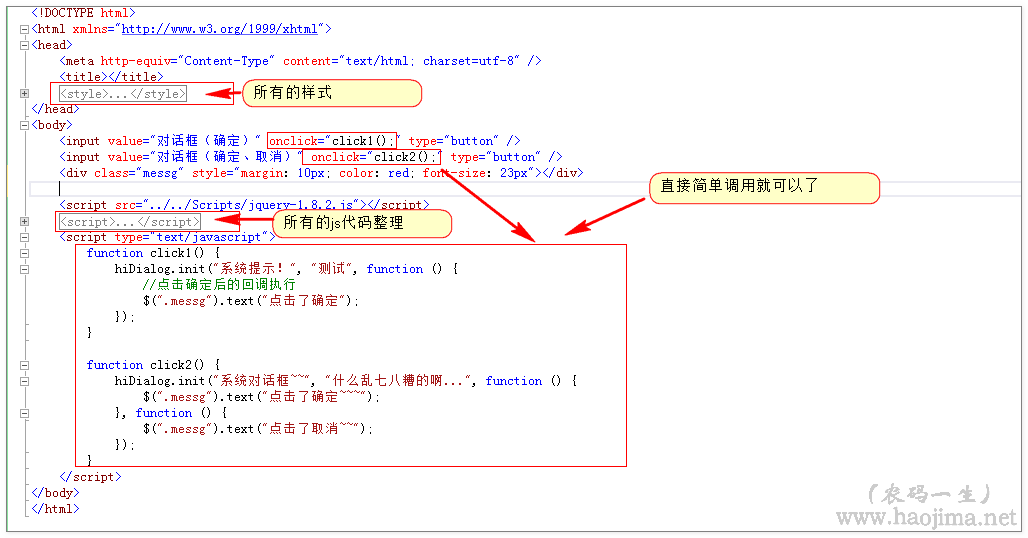
全部代码:(当然,这只是简单实现。还有很多需要继续细化的效果,如:背景遮罩、如果实现点击多次对话框)
<!DOCTYPE html>
<html xmlns="http://www.w3.org/1999/xhtml">
<head>
<meta http-equiv="Content-Type" content="text/html; charset=utf-8" />
<title></title>
<style type="text/css">
* {
box-sizing: border-box;
}
.clearfix:after {
content: ' ';
display: table;
clear: both;
}
.clearfix {
*zoom: 1;
}
div.hi-dialog-box {
border: 1px #808080 solid;
width: 350px;
height: 200px;
position: absolute;
top: 200px;
left: 40%;
border-radius: 3px;
}
div.hi-dialog-box div.hi-dialog-title {
border: 1px #808080 solid;
margin: 1px;
padding: 1px;
background-color: #dedcdc;
height: 14%;
cursor: move;
font-size: 20px;
}
div.hi-dialog-box div.hi-dialog-content {
height: 65%;
margin: 5px;
overflow: auto;
}
div.hi-dialog-box div.hi-dialog-foot {
margin: 1px;
padding: 1px;
height: 14%;
}
div.hi-dialog-box div.hi-dialog-foot input {
float: right;
margin-left: 5px;
font-size: 16px;
}
</style>
</head>
<body>
<input value="对话框(确定)" onclick="click1();" type="button" />
<input value="对话框(确定、取消)" onclick="click2();" type="button" />
<div class="messg" style="margin: 10px; color: red; font-size: 23px"></div>
<script src="../../Scripts/jquery-1.8.2.js"></script>
<script type="text/javascript">
var hiDialog = {
init: function (title, messg, determineCallback, cancelCallback) {
title = title || "系统提示";
var determine = "", cancel = "";
if (typeof (determineCallback) == "function")
determine = '<input type="button" class="hi-dialog-determine" value="确定" />';
if (typeof (cancelCallback) == "function")
cancel = '<input type="button" class="hi-dialog-cancel" value="取消" />';
if (!$("div.hi-dialog-box").length) {
var hi_dialog_box = '<div class="hi-dialog-box clearfix">\
<div class="hi-dialog-title"></div>\
<div class="hi-dialog-content">\
</div>\
<div class="hi-dialog-foot">\
</div>\
</div>';
$("body").append(hi_dialog_box);
}
var $box = $("div.hi-dialog-box");
$box.find("div.hi-dialog-title").html(title);
$box.find("div.hi-dialog-content").html(messg);
$box.find("div.hi-dialog-foot").html(determine + cancel);
$("div.hi-dialog-box").show();
$box.find(".hi-dialog-determine").click(function () {
determineCallback();
hiDialog.close();
});
$box.find(".hi-dialog-cancel").click(function () {
cancelCallback();
hiDialog.close();
});
//鼠标按下时
$("div.hi-dialog-title").mousedown(function (event) {
$("html").unbind();
var click_clientX = event.clientX;
var click_clientY = event.clientY;
var dialogBox = $(this).closest("div.hi-dialog-box");
var dialogBoxX = parseInt($(dialogBox).css("left"));
var dialogBoxY = parseInt($(dialogBox).css("top"));
//鼠标移动时
$("html").mousemove(dialog_mousemove = function (event) {
var top = event.clientY - click_clientY + dialogBoxY;
var left = event.clientX - click_clientX + dialogBoxX;
$(dialogBox).css({ "left": left, "top": top });
});
//鼠标按键松开时
$("html").mouseup(function () {
$("html").unbind("mousemove", dialog_mousemove);
});
});
},
close: function () {
$("div.hi-dialog-box").hide();
}
}
</script>
<script type="text/javascript">
function click1() {
hiDialog.init("系统提示!", "测试", function () {
//点击确定后的回调执行
$(".messg").text("点击了确定");
});
}
function click2() {
hiDialog.init("系统对话框~~", "什么乱七八糟的啊...", function () {
$(".messg").text("点击了确定~~~");
}, function () {
$(".messg").text("点击了取消~~");
});
}
</script>
</body>
</html>
消息框
要求:自动定时关闭消息框、有消息分类(如:警告、错误、成功等)
画一个简单的模型框
<div class="hi-message-box">
<img class="hi-message-type" src="" />
<span class="hi-message-messg">你不爱我了~~</span>
</div>
添上基本样式
<style type="text/css">
div.hi-message-box {
padding: 10px;
padding-top: 15px;
padding-bottom: 20px;
background-color: #aee0c1;
min-width: 200px;
max-width: 500px;
font-size: 19px;
border-radius: 3px;
}
</style>
看上去是不是很简单呢?下面我们给它加上定时关闭消息功能。
定时关闭消息(表骂我,就是这么简单。我也想写复杂的。)
setTimeout(function () { $("div.hi-message-box").fadeOut("slow");}, 1200);
加上消息类型(其实就是根据参数加不同的图片而已)
setTimeout(function () {
$("div.hi-message-box").fadeOut("slow");
}, 1200);
加上图标是不是更像那么回事了?
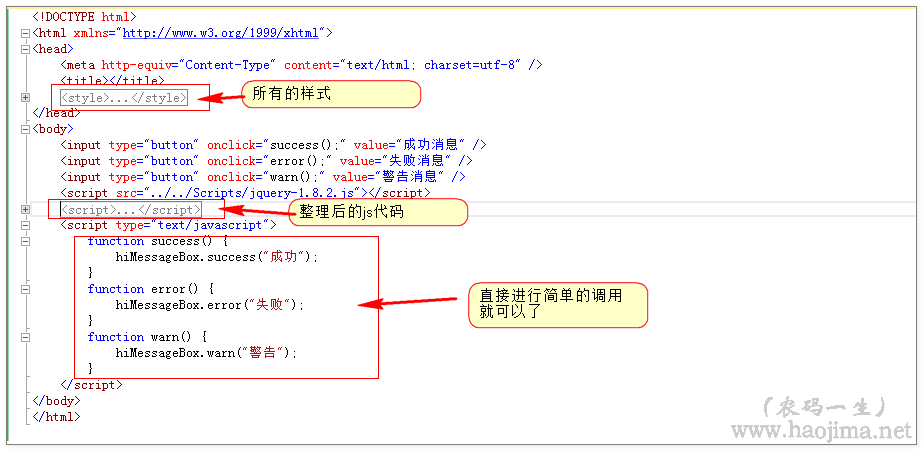
如上,我们同样需要稍微整理下实现代码:
<!DOCTYPE html><head> <meta http-equiv="Content-Type" content="text/html; charset=utf-8" /> <title></title> <style type="text/css"> * { box-sizing: border-box; } .clearfix:after { content: ' '; display: table; clear: both; } .clearfix { *zoom: 1; } div.hi-message-box { padding: 10px; padding-top: 15px; padding-bottom: 20px; background-color: #aee0c1; position: absolute; min-width: 200px; max-width: 500px; font-size: 19px; border-radius: 3px; top:200px; left:45%; } div.hi-message-box img { vertical-align: bottom; } </style></head><body> <input type="button" onclick="success();" value="成功消息" /> <input type="button" onclick="error();" value="失败消息" /> <input type="button" onclick="warn();" value="警告消息" /> <script src="../../Scripts/jquery-1.8.2.js"></script> <script type="text/javascript"> var hiMessageBox = { init: function (type, messg) { var hiMessageBox = '<div class="hi-message-box">\ <img class="hi-message-type" src="" />\ <span class="hi-message-messg"></span>\ </div>'; if (!$("div.hi-message-box").length) { $("body").append(hiMessageBox); } var $box = $("div.hi-message-box"); $box.find(".hi-message-messg").text(messg); switch (type) { case 0://success 成功 $box.find("img.hi-message-type").attr("src", "imgs/Tick_24px.png") break; case 1://warn 警告 $box.find("img.hi-message-type").attr("src", "imgs/Warning_24px.png") break; case 2:// $box.find("img.hi-message-type").attr("src", "imgs/Delete_24px.png") break; } $("div.hi-message-box").fadeIn("slow") setTimeout(function () { $("div.hi-message-box").fadeOut("slow"); }, 1200); }, success: function (messg) { this.init(0, messg); }, warn: function (messg) { this.init(1, messg); }, error: function (messg) { this.init(2, messg); } }; </script> <script type="text/javascript"> function success() { hiMessageBox.success("成功"); } function error() { hiMessageBox.error("失败"); } function warn() { hiMessageBox.warn("警告"); } </script></body></html>消息框
要求:自动定时关闭消息框、有消息分类(如:警告、错误、成功等)
画一个简单的模型框
添上基本样式
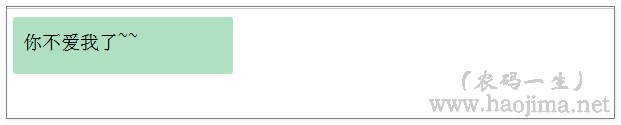
效果图:
看上去是不是很简单呢?下面我们给它加上定时关闭消息功能。
定时关闭消息(表骂我,就是这么简单。我也想写复杂的。)
效果图:

加上消息类型(其实就是根据参数加不同的图片而已)
效果图:

加上图标是不是更像那么回事了?
如上,我们同样需要稍微整理下实现代码:
效果图:
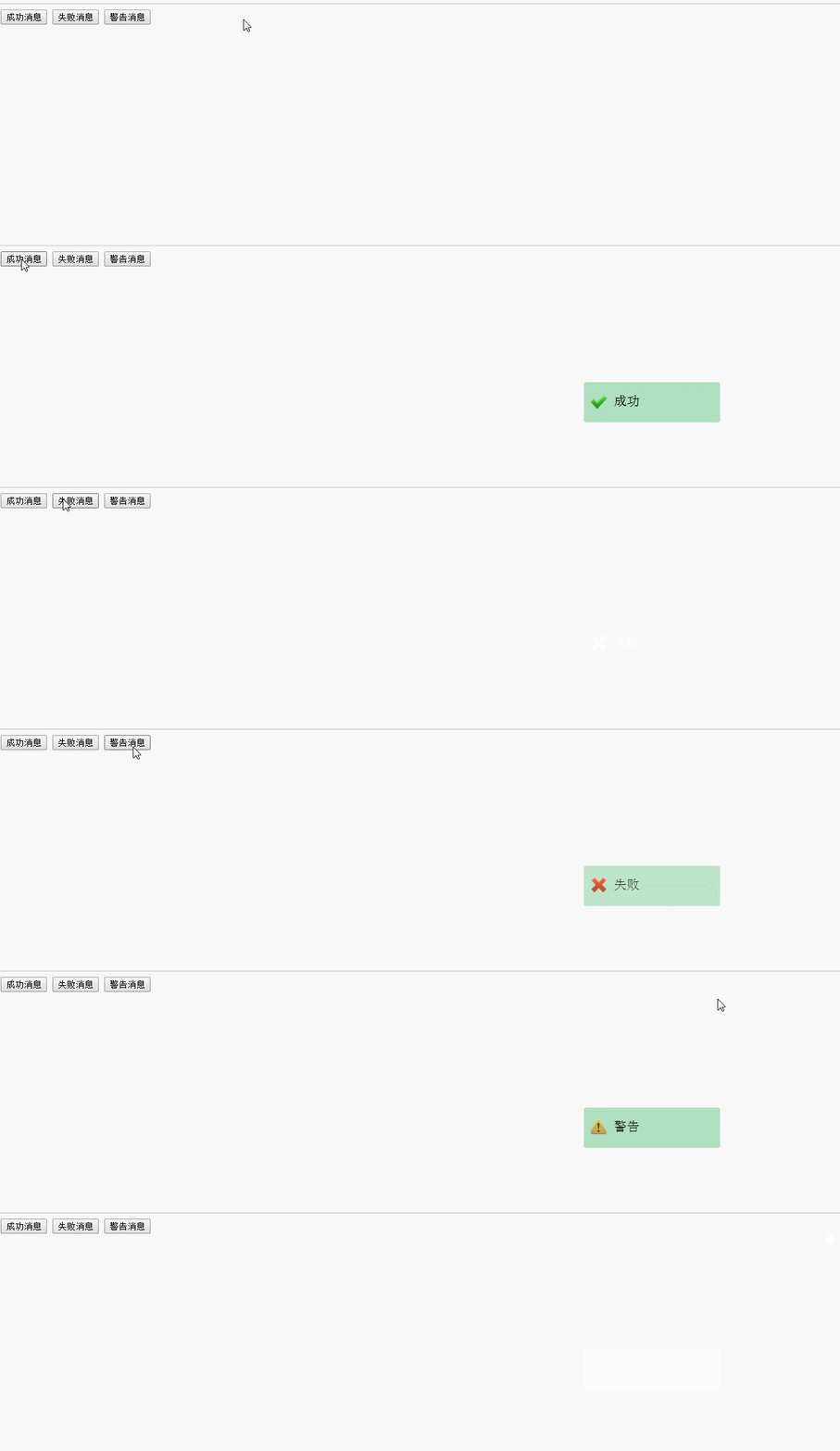
全部代码:(同样,消息框也只是进行了简单实现。还有太多没有考虑,如(参数定位消息框位置、设置定时关闭时间、多次触发消息框))
以上所述是基于基于.Net实现前端对话框和消息框的全部叙述,希望对大家有所帮助,如果大家想了解更多内容,敬请关注脚本之家!
大家感兴趣的内容

最近更新的内容
常用在线小工具


最新评论