
Use icon font in web page
Icons in website
Website icons support the user interface, making it more visually appealing.

Website icons are visual cues that help communicate concepts on your website pages. They can act as a visual language to prevent the user from interpreting a concept incorrectly and to ensure effective communication.Part of great website design are the icons you use on your website.The colors, the elements, the copy, the navigation and other aspects are all important, as they give the user an experience with your brand. But icons are an especially important visual element that complement the copy and overall look of the page.That website icon supports the content and further communicates critical information about that feature.
The most important function icons play is to give users instruction or direction for what they should do next. As a visual cue that accompanies content, users will quickly know what to do and where to go.
Icon fonts
Icon fonts are fonts that contain website icons. They’re popular for web designers since you can style them with CSS the same way as regular text. Also, since they’re vector’s they’re easily scaleable.

They’re small, so they load quickly, and they’re supported in all browsers.
Evolution
From images to fonts, web icons have been developed over a long time and experienced several important evelutions.
Era of Images
Traditionally, developers had to rely on just images formats to quench their needs.
Img tag
Earlier whenever someone had to use an icon on their webpage, they used to first download the icon, and then added an img tag with the icon's path as src to show the icon.
<img src="img_delete.jpg" alt="Delete" width="100" height="60">
As the number of icons on the page increased, they finally found that most http requests were for images in their site. Obviously, this way it took up too much bandwidth.
Then, Image Sprite came out.
Image Sprite
CSS image sprites technique is a way to reduce the number of HTTP requests made for image resources, by combining images in a single file, which can be very effective for improving the loading time of web pages and overall site performance.
1. Making the image sprite
You can create an image sprite using any image editing tool you like.
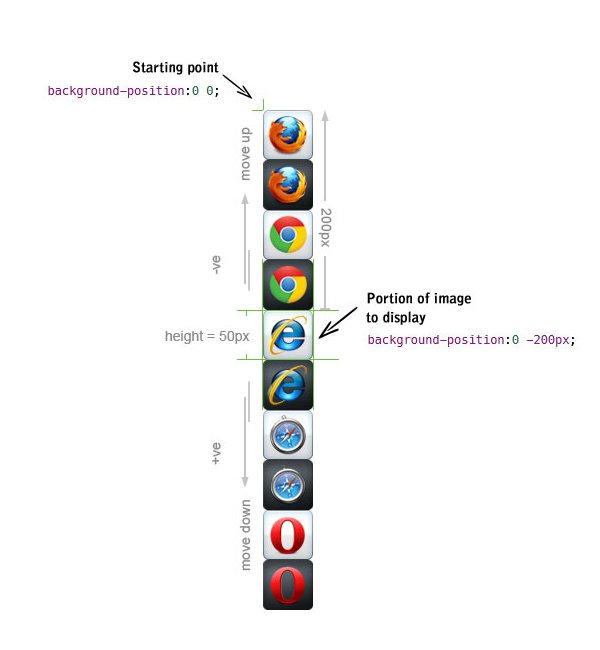
Tip: For the sake of simplicity, we have used all icons of same size, and place them closely to each other for easy offset calculation.
2. Display an icon from image sprite
To display a single image from the combined image, you could use the CSS background-position property, defining the exact position of the image to be displayed.
The background-position CSS property sets the initial position for each background image. It allows developer to move a background image around within its container. The default values are 0 0. This places your background image at the top-left of the container.
1 .sprite-ie {
2    width: 50px;
3    height: 50px;
4    background: url("images/mySprite.png") 0 -200px;
5 }
Even though image sprites was a vast improvement, it still had tons of shortcoming that cannot be ignored.
Using images for icons delivers poor performance in terms of render quality and resolution.The size of the icon image is fixed, hence for larger size it will become blur.
Also, if you want to one icon in 3 colors, then you have to download or create 3 different icon images.
When merging pictures, you need to merge multiple pictures in an orderly and reasonable manner into one picture, and also leave enough space to prevent the board unnecessary backgrounds will appear.
The most painful is that every time you need to add or modify a single icon, you have to modify the whole combined image, by which it is so easy to make a mistake.
Icon Font libraries
The next stage of web icons came in 2012 in form of icon fonts.
Unlike images and sprites, icon fonts are able to scale up perfectly to any resolution without any degradation or loss of visual quality. Icon fonts are in essence simple text. We can use CSS style rules to easily change and modify color, size/resolution, apply box-shadow, apply CSS animations and transitions.
There are some amazing icon font libraries such as Font Awesome, Google Material Icons and Alibaba's IconFont , etc. The most recommended one among all these icon font libraries is IconFont, which provides several thousand of free icons, and also allows users to create and upload their own icons.
How to use? Take IconFont as an example:
First, download the library files from IconFont official website.You will be provided with a zip file after downloading.
Login IconFont and create a new project for your web site and add icons to your project. And then download font package.
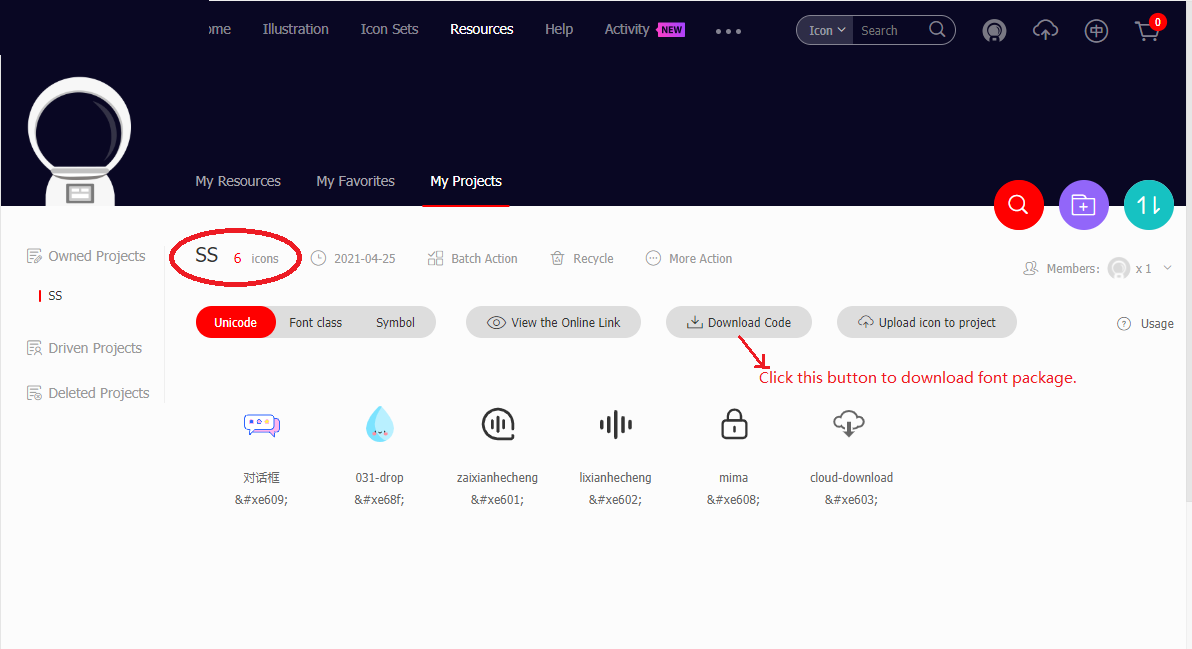
Extracting the zip file will give you:
- 5 font files: iconfont.eot, iconfont.svg, iconfont.ttf, iconfont.woff, and iconfont.woff2.
- 1 css file: iconfont.css(It's used for Class Way).
- 1 js file: iconfont.js(It's used for Symbol Way).
and several demo files.
Then, use icon font in your web pages.
There are three ways to use icon fonts: quote as unicode, font class or symbol.
1. Quote as Unicode
Unicode is the most primitive way of font’s application, and featured by
- Good compatibility, it supports IE 6+ and all usual browsers.
- It supports adjusting the icon size, color and so on dynamically as font.
- It can not support multi-color icon due to the limitation of font
Its application steps as follows:
(1) Copy the 5 font files into your project font folder.
(2) Define font-family by using @font-face.
1 @font-face {
2   font-family: "iconfont";
3   src: url('iconfont.eot'); /* IE9*/
4   src: url('iconfont.eot#iefix') format('embedded-opentype'), /* IE6-IE8 */
5   url('iconfont.woff') format('woff'), /* chrome, firefox */
6   url('iconfont.woff2') format('woff2'), /* chrome, firefox */
7   url('iconfont.ttf') format('truetype'), /* chrome, firefox, opera, Safari, Android, iOS 4.2+*/
8   url('iconfont.svg#iconfont') format('svg'); /* iOS 4.1- */
9 }
(3) Define common style of iconfont.
1 .iconfont {
2   font-family: "iconfont" !important;
3   font-size: 16px;
4   font-style: normal;
5   -webkit-font-smoothing: antialiased;
6   -moz-osx-font-smoothing: grayscale;
7 }
(4) Use icon font in html page.
<i class="iconfont">3</i>
2. Quote as Font class
Font-class is one kind of derived usage of Unicode, which solved the problems of intuitive writing and semantic ambiguity
Compared with Unicode, its characteristics as following:
- Good compatibility, it supports IE 8+ and all usual browsers.
- When you want to change one icon, you just need to alter the quote of Unicode in class, because it define icons by “class”.
- But it‘’s one kind of font essentially, it can not support multi-color icon as well.
Its application steps as follows:
(1) Copy the 5 font files and the 1 css file (iconfont.css) into your project font folder.
(2) In the <head> of your html, reference the location to your iconfont.css.
<link rel="stylesheet" href="myProjects/icofont/css/icofont.css">
(3) Use icon by class name.
<i class="iconfont icon-xxx"></i>
You can add your own custom styling to icon fonts by adding your own CSS rules in your project’s code. Everything you can normally control with CSS is up for grabs - from color to display to alignment.
3. Quote as Symbol
It’s a new way of usage we recommend and will be the main trend in future. This usage is a collection of SVG and its characteristics as following:
- It supports multi-color and get rid of the limitation of monochrome.
- It could adjust the style by some technique just like font.
- You have all the same CSS control as with a font, but better, because you can control individual parts of a multi-part icon and use SVG-specific CSS like stroke properties.
- Poor compatibility, it supports IE 9+ and modern browsers only.
- The performance of rendering SVG by browser is worse than PNG.
Before we start to use symbol, let's get to know what the svg symbol is and how it works.
Symbol in SVG
The <symbol> element is used to define graphical template objects which can be instantiated by a <use> element. Symbol is used for the graphics that are appeared multiple times in the document. The following is an example for usage of symbol element.
 1 <svg viewBox="0 0 80 20" xmlns="http://www.w3.org/2000/svg" xmlns:xlink="http://www.w3.org/1999/xlink">
 3   <!-- Our symbol in its own coordinate system -->
 4   <symbol id="myDot" width="10" height="10" viewBox="0 0 2 2">
 5     <circle cx="1" cy="1" r="1" />
 6   </symbol>
 7
 8    <!-- A grid to materialize our symbol positioning -->
 9   <path d="M0,10 h80 M10,0 v20 M25,0 v20 M40,0 v20 M55,0 v20 M70,0 v20" fill="none" stroke="pink" />
10
11   <!-- All instances of our symbol -->
12   <use xlink:href="#myDot" x="5"  y="5" style="opacity:1.0" />
13   <use xlink:href="#myDot" x="20" y="5" style="opacity:0.8" />
14   <use xlink:href="#myDot" x="35" y="5" style="opacity:0.6" />
15   <use xlink:href="#myDot" x="50" y="5" style="opacity:0.4" />
16   <use xlink:href="#myDot" x="65" y="5" style="opacity:0.2" />
17 </svg>
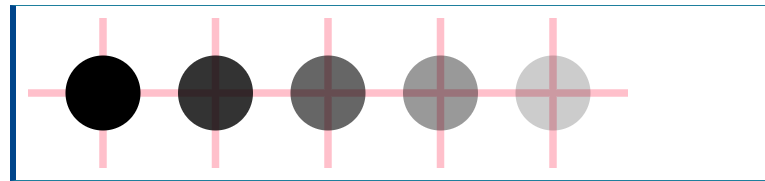
Note: A <symbol> element itself is not meant to be rendered. Only instances of a <symbol> element (i.e., reference to a <symbol> by a <use> element ) are rendered.
The <use> element can link to elements in another svg element, as long as they are in the same document. So please imagine that we just include a big svg element which is filled with symbols(icons template) in html and then we can use each symbol anywhere on the page like this:
<svg class="size"><use xlink:href="#target" /></svg>
It's pretty simple! Now we could come back to using icon fonts as Symbol.
(1) Copy the js file named iconfont.js into your project folder.
(2) Add a common iconfont CSS file. This step is not a must, but a best way to define a default style for svg icons.
.iconfont {
  width: 1em; height: 1em;
  vertical-align: -0.15em;
  fill: currentColor;
  overflow: hidden;
}
(3) In the <head> of your html, include the iconfont.js and iconfont.css.
<link rel="stylesheet"  href="myProjects/icofont/css/icofont.css">
<script src="iconfont.js"></script>
Here iconfont.js will generate a svg element, which contains all your selected svg icons, and then insert it into your html .
Now open the page in browser and open the devtools you will find a svg element appears in the document.
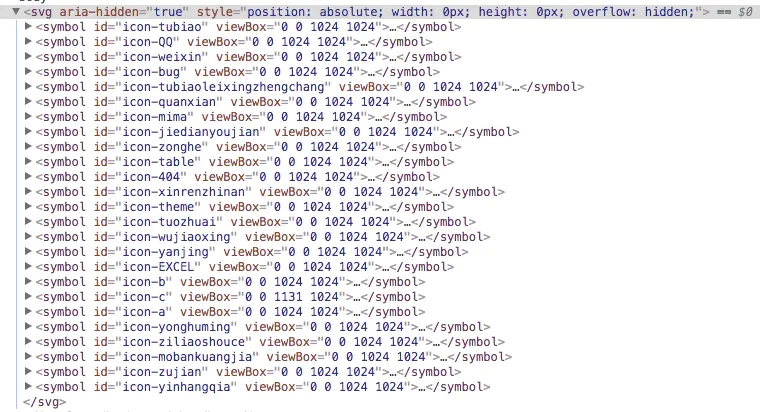
(4) Use icon in page.
<svg class="icon" aria-hidden="true">
  <use xlink:href="#icon-xxx"></use>
</svg>
Using svg icons in Vue.js
1. In the <head> of your html, include the iconfont.js
2. Define icon font componet.
//components/Icon-svg
<template>
  <svg class="svg-icon" aria-hidden="true">
    <use :xlink:href="iconName"></use>
  </svg>
</template>

<script>
export default {
  name: 'icon-svg',
  props: {
    iconClass: {
      type: String,
      required: true
    }
  },
  computed: {
    iconName() {
      return `#icon-${this.iconClass}`
    }
  }
}
</script>

<style>
.svg-icon {
  width: 1em;
  height: 1em;
  vertical-align: -0.15em;
  fill: currentColor;
  overflow: hidden;
}
</style>
3. Register component gloablly
//Import icon-svg component.
import IconSvg from '@/components/IconSvg'

//Register icon-svg component globally.
Vue.component('icon-svg', IconSvg)

//Use icon-svg component
<icon-svg icon-class="password" />
Now everything is done. But, there is a an obvious drawback:
How should developers know the icon's name? It's hard to get the icon's name, isn't it?
Just look at the iconfont.js which includes all svg icons and imagine how to find which icon you need.

Second, the iconfont.js contains a lot of unuseful information, such as editor source,comments and so on. we hope to remove those informations which are irrelevant to page rendering.
And also, it's not convenient for developers to add a new icon. They must upload the new icon to the project of IconFont site and then generate iconfont.js again.
Using SVG-Sprite
1. Get SVG icons.
You can download svg icons from web sites such as icomoon.io, iconfont.cn, or font-awesome. Also, you can make svg icons by using drawing tools such as Sketch, illustrator and so on.
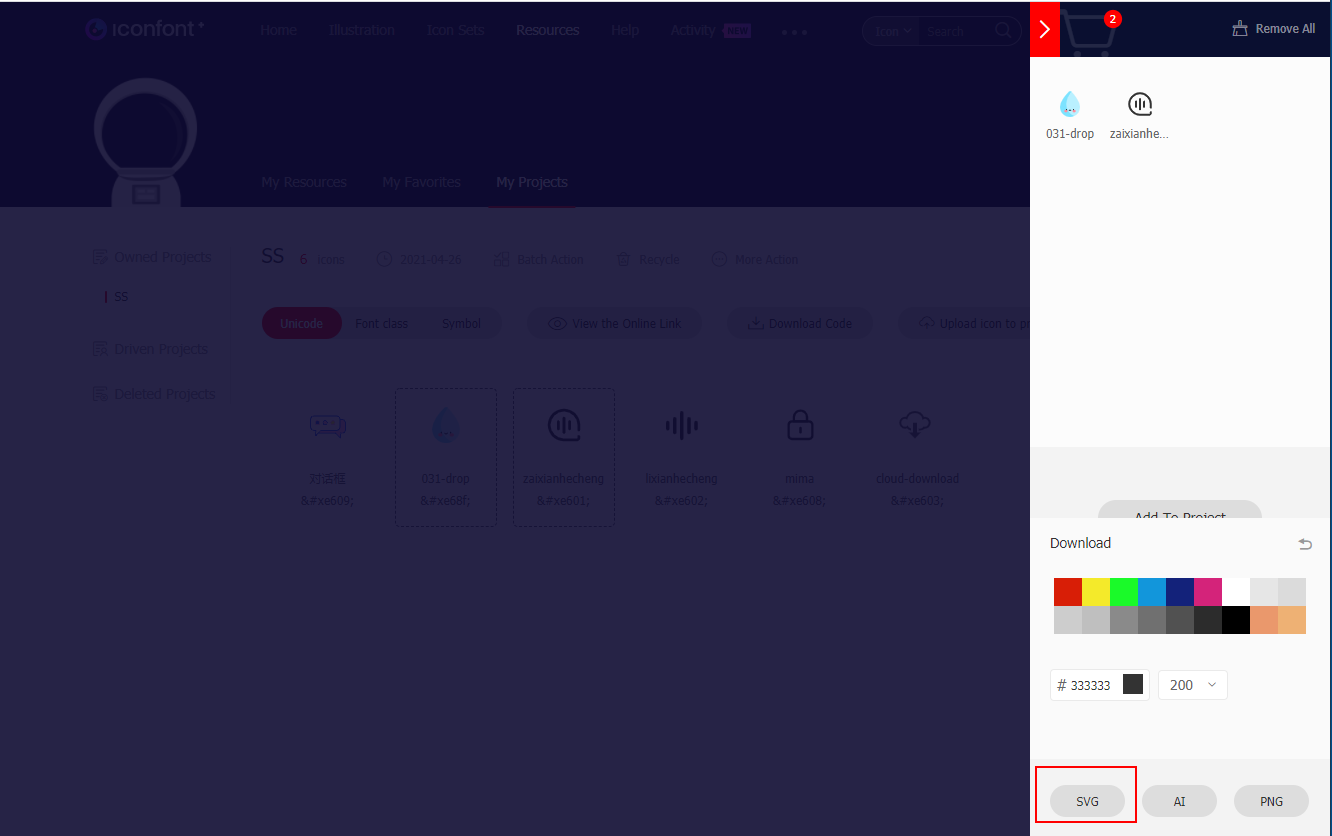
Take IconFont as an example.You can select icons and put them into cart and then download as svgs.
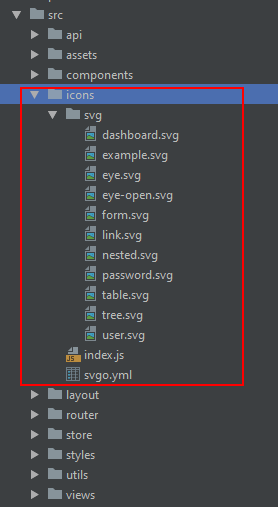
2. Create an directory (e.g. @/src/icons) which is used to store all your svg icons in your local project folder, and then put svg icons into this new folder.
3. Generate svg sprite by using svg-sprite-loader and require.context.
svg-sprite-loader is webpack loader, it can generate and inject svg sprite in pages according to what you actually need automatically. Developers just refer to icons via import '@/src/icons/xxx.svg' and '<svg><use xlink:href="#id"></use></svg>'.
(1) Install svg-sprite-loader in your vue project:
npm install svg-sprite-loader --save-dev
(2) Config svg loading rule
Add svg icons loading rule
{
    test: /\.svg$/,
    loader: 'svg-sprite-loader',
    include:[resolve('src/icons/svg')],
    options: {
        symbolId: 'icon-[name]'
    }
}
Exclude svg icons which are used as icon fonts from image loading rules.
{
   test: /\.(png|jpe?g|gif|svg)(\?.*)?$/,
   loader: 'url-loader',
   exclude: [resolve('src/icons/svg')],
   options: {
       limit: 10000,
       name: utils.assetsPath('images/[name].[hash:7].[ext]')
   }
}
(3) Import svgs automatically
You can create your own context with the require.context() function.
It allows you to pass in a directory to search, a flag indicating whether subdirectories should be searched too, and a regular expression to match files against.
webpack parses for require.context() in the code while building.
The syntax is as follows:
require.context(
  directory,
  (useSubdirectories = true),
  (regExp = /^\.\/.*$/),
  (mode = 'sync')
);
Examples:
A context with files from the test directory that can be required with a request ending with .test.js.
require.context('./test', false, /\.test\.js$/)
A context with all files in the parent folder and descending folders ending with .stories.js.
require.context('../', true, /\.stories\.js$/)
So import all svg icons in @/src/icons. We can create a index.js file under @/src/icons to import all svgs.
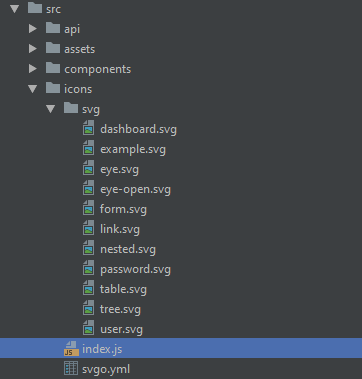
Add code in index.js as below:
const req = require.context('./svg', false, /\.svg$/)
const requireAll = requireContext => requireContext.keys().map(requireContext)
requireAll(req)
Now we can update icons in @/src/icons as need and the svg-sprite-loader will generate svg sprite automatically.
4. Using svg icons as vue component.
Deine a vue component named icon-svg as the mentioned earlier and then register the icon-svg component in index.js of @/src/icons. Now index.js looks like this:
import Vue from 'vue'
import SVGIcon from '@/components/SVGIcon'
// register globally
Vue.component('svg-icon', SVGIcon);

const requireAll = requireContext => requireContext.keys().map(requireContext);
const req = require.context('./svg', true, /\.svg$/);
requireAll(req);
Now wen can use icon-svg like this:
<icon-svg icon-class="password" />
5. Improve svg icons by using svgo
SVG files, especially exported from various editors, usually contain a lot of redundant and useless information such as editor metadata, comments, hidden elements, default or non-optimal values and other stuff that can be safely removed or converted without affecting SVG rendering result.
SVGO(svg optimizer) is a Node.js-based tool for optimizing SVG vector graphics files.
(1) Install svgo
npm -g install svgo --save-dev
(2) Configuration
Add a configuration file (e.g. svgo.yaml) in @/src/icons.
SVGO has a plugin-based architecture, so almost every optimization is a separate plugin. There is a set of built-in plugins. Here we can add a plugin to remove the default colors in svgo.yaml.
# replace default config

# multipass: true
# full: true

plugins:

  # - name
  #
  # or:
  # - name: false
  # - name: true
  #
  # or:
  # - name:
  #     param1: 1
  #     param2: 2

- removeAttrs:
    attrs:
      - 'fill'
      - 'fill-rule'
(3) Usage
Add a new line in Scripts block of the package.json file
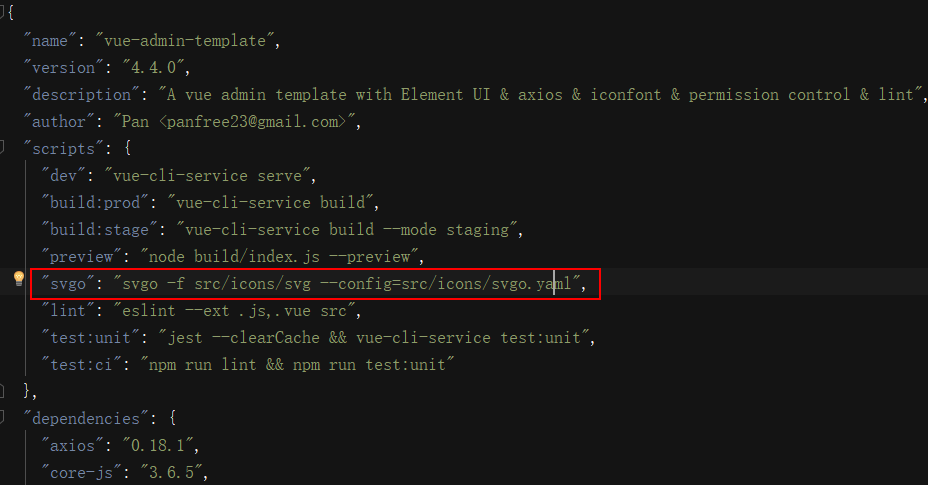
Every time when you add a svg icon, please "npm run svgo" to remove imrove svg icons.
Icon Font or SVG Sprite?
1. User experience
-
For Icon Font and SVG Sprite, you have all the same CSS control as with a font, but SVG Sprite better, because you can control individual parts of a multi-part icon and use SVG-specific CSS like stroke properties.
-
One major advantage of SVG icons over Icon fonts is their superior accessibility. SVGs are armed with built in semantic elements – like < title > and < desc > that makes it accessible to screen reader and text browsers.
-
Another concern with icon fonts is that they may encounter occasional failures. Loading errors leave black spaces which can have an adverse effect on page design.
2. Performance
-
It's worth noting that inline SVG code doesn't get cached by the user's browser. Icon fonts can be cached therefore making them load faster directly from the browser. However, the downside to this is that they create an additional HTTP request.
-
Again, performance-wise the difference in speed will depend on how large your icon font/SVGs are. Try running performance tests with both to determine which one loads faster.
3. compatiblity
- Icon fonts are more widely supported. Anyone using IE 6 or higher, should be able to see your icon fonts. If you use SVGs, then you might want to include a JS polyfill to support those using IE 8 or lower. However, in 2018, as most users have moved away from legacy browsers versions, this shouldn't be much of a concern regardless of whether you choose icon fonts or SVGs.
Conclusion
There is still some debate in the community regarding whether or not icon fonts are better than SVGs or vice-versa. The truth is, what makes one or the other "better", in some cases, depends on the circumstance in which it is being used.
Icon fonts or svg sprite? which one we should select. It doesn't have one single answer.Choosing which icon system is right for you depends squarely on your need – if you need a few icons without any multicolor modifications and animations then icon fonts are the right choice. However, if you are using a large number of icons which are multicolored and have animations then, SVG should be the right choice.

 浙公网安备 33010602011771号