
第一周
 第一周
第一周
1. 总结namespace的类型及功能
namespace 是 Linux 系统的底层概念,在内核层实现。容器只是运行在宿主机上的一种特殊的进程,那么多个容器之间使用的就还是同一个宿主机的操作系统内核。容器的本质就是一种特殊的进程,通过namespace实现容器运行空间的相互隔离后,再通过Linux Cgroups 实现资源的限制。上图体会

1.1 MNT Namespace(mount)

提供磁盘挂载点和文件系统的隔离能力 ,Linux 2.4.19开始支持。每个容器都要有独立的根文件系统有独立的用户空间,以实现在容器里面启动服务并且使用容器的运行环境,即一个宿主机是 ubuntu 的服务器,可以在里面启动一个 centos 运行环境的容器并且在容器里面启动一个 Nginx 服务,此 Nginx 运行时使用的运行环境就是 centos 系统目录的运行环境,但是在容器里面是不能访问宿主机的资源,宿主机是使用了 chroot 技术把容器锁定到一个指定的运行目录里面。
1.2 IPC Namespace(Inter-Process Communication)
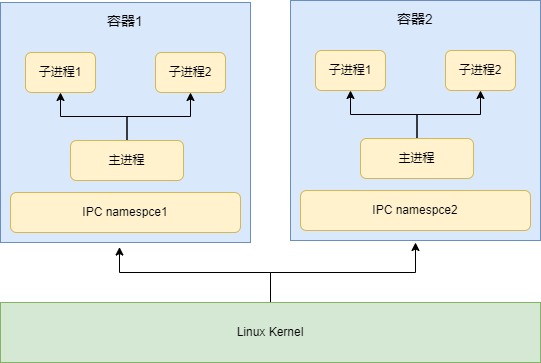
提供进程间通信的隔离能力,linux2.6.9开始支持。一个容器内的进程间通信,允许一个容器内的不同进程的(内存、缓存等)数据访问,但是不能夸容器访问其他容器的数据。
1.3 UTS Namespace(UNIX Timesharing System)

提供主机名隔离能力,linux2.6.9开始支持。UTS namespace(UNIX Timesharing System 包含了运行内核的名称、版本、 底层体系结构类型等信息)用于系统标识,其中包含了 hostname 和域名 domainname ,它使得一个容器拥有属于自己 hostname 标识,这个主机名标识独立于宿主机系统和其上的其他容器。
1.4 PID Namespace(Process Identification)

提供进程隔离能力 Linux 2.6.24。Linux 系统中,有一个 PID 为 1 的进程(init/systemd)是其他所有进程的父进程,那么在每个容器内 也要有一个父进程来管理其下属的子进程,那么多个容器的进程通过 PID namespace 进程隔离(比如 PID 编号重复、容器内的主进程生成与回收子进程等)。
1.5 Net Namespace(network)

提供网络隔离能力 Linux 2.6.29。每一个容器都类似于虚拟机一样有自己的网卡、监听端口、TCP/IP 协议栈等, Docker 使用 network namespace 启动一个 vethX 接口,这样你的容器将拥有它自己的桥接 ip 地址,通常是 docker0,而 docker0 实质就是 Linux 的虚拟网桥, 网桥是在 OSI 七层模型的数据链路层的网络设备,通过 mac 地址对网络进行划分,并且在不同网络直接传递数据。
1.6 User Namespace(user)

提供用户隔离能力 Linux 3.8。User Namespace 允许在各个宿主机的各个容器空间内创建相同的用户名以及相同的用户 UID 和 GID,只是会把用户的作用范围限制在每个容器内,即 A 容 器和 B 容器可以有相同的用户名称和 ID 的账户,但是此用户的有效范围仅是当前容器内,不能访问另外一个容器内的文件系统,即相互隔离、互补影响、永不相见。
1.7 Control group (cgroup)

提供进程所属的控制组的身份隔离。Linux 4.6 支持。在一个容器,如果不对其做任何资源限制,则宿主机会允许其占用无限大的内存空间,有时候会因为代码 bug 程序会一直申请内存,直到把宿主机内存占完, 为了避免此类的问题出现,宿主机有必要对容器进行资源分配限制,比如 CPU、 内存等,Linux Cgroups 的全称是 Linux Control Groups,它最主要的作用,就是限制一个进程组能够使用的资源上限,包括 CPU、内存、磁盘、网络带宽等等。此外,还能够对进程进行优先级设置,以及将进程挂起和恢复等操作。
2. 总结docker的命令使用(镜像管理、容器管理)
2.1镜像管理
# docker image --help
Usage: docker image COMMAND
Manage images
Commands:
build      #从Docker文件构建新的镜像
history     #查询镜像的构建历史
import     #从本地或远程的压缩包等导入镜像,可以指定导入后的镜像名称
inspect     #显示一个或多个镜像的详细信息
load      #从一个tar包或标准输入导入镜像
ls       #列出本地的所有镜像
prune      #删除本地未使用的镜像
pull      #从镜像仓库下载镜像到本地
push      #从本地上传镜像到镜像仓库
rmi       #删除一个或者多个本地镜像
save      #保存一个或者多个镜像到一个tar包(默认保存到当前终端的标准输出)
tag       #对镜像打一个新的标签
2.1.1 搜索镜像
[root@k8s ~]$ docker search nginx        # 搜索镜像为nginx
[root@k8s ~]$ docker search centos:7.2.1511   # 搜索指定版本的centos
2.1.2 下载镜像
[root@k8s ~]$ docker pull alpine     # 拉取alpine镜像
[root@k8s ~]$ docker pull nginx      # 拉取nginx 镜像
[root@k8s ~]$ docker pull centos     # 拉取centos镜像
2.1.3 查看本地镜像
[root@k8s ~]$ docker images
REPOSITORY  TAG    IMAGE ID    CREATED     SIZE
nginx     latest   605c77e624dd  18 months ago  141MB
alpine    latest   c059bfaa849c  19 months ago  5.59MB
centos    latest   5d0da3dc9764  21 months ago  231MB

REPOSITORY      #镜像所属的仓库名称
TAG          #镜像版本号(标识符),默认为 latest
IMAGE ID       #镜像唯一 ID 标示
CREATED        #镜像创建时间
VIRTUAL SIZE     #镜像的大小
2.1.4 镜像导出
# 第一种方法
[root@k8s ~]$ docker save centos -o centos.tar.gz
# 第二种方法
[root@k8s ~]$ docker save centos >centos-1.tar.gz
[root@k8s ~]$ ls -l
total 465988
-rw-r--r-- 1 root root 238581248 Jul  7 14:44 centos-1.tar.gz
-rw------- 1 root root 238581248 Jul  7 14:43 centos.tar.gz
2.1.5 查看镜像内容
[root@k8s ~]$ mkdir centos
[root@k8s ~]$ mv centos.tar.gz centos && cd centos
[root@k8s ~/centos]$ tar xf centos.tar.gz
[root@k8s ~/centos]$ ls            #查看解压出来的文件内容
079bc5e75545bf45253ab44ce73fbd51d96fa52ee799031e60b65a82e89df662    manifest.json
5d0da3dc976460b72c77d94c8a1ad043720b0416bfc16c52c45d4847e53fadb6.json  repositories
[root@k8s ~/centos]$ cat manifest.json    #包含了镜像的相关配置,配置文件、分层
[{"Config":"5d0da3dc976460b72c77d94c8a1ad043720b0416bfc16c52c45d4847e53fadb6.json","RepoTags":["centos:latest"],"Layers":["079bc5e75545bf45253ab44ce73fbd51d96fa52ee799031e60b65a82e89df662/layer.tar"]}]
2.1.6 镜像删除及导入
# 查看镜像
[root@k8s ~/centos]$ docker images
REPOSITORY  TAG    IMAGE ID    CREATED     SIZE
nginx     latest   605c77e624dd  18 months ago  141MB
alpine    latest   c059bfaa849c  19 months ago  5.59MB
centos    latest   5d0da3dc9764  21 months ago  231MB
#删除镜像
[root@k8s ~/centos]$ docker rmi 5d0da3dc9764 -f
# 再次查看镜像
[root@k8s ~/centos]$ docker images
REPOSITORY  TAG    IMAGE ID    CREATED     SIZE
nginx     latest   605c77e624dd  18 months ago  141MB
alpine    latest   c059bfaa849c  19 months ago  5.59MB
# 导入镜像
[root@k8s ~]$ docker load < centos.tar.gz
74ddd0ec08fa: Loading layer[==================================================>] 238.6MB/238.6MB
Loaded image: centos:latest
# 再次查看镜像
[root@k8s ~]$ docker images
REPOSITORY  TAG    IMAGE ID    CREATED     SIZE
nginx     latest   605c77e624dd  18 months ago  141MB
alpine    latest   c059bfaa849c  19 months ago  5.59MB
centos    latest   5d0da3dc9764  21 months ago  231MB
2.2 容器管理
# 命令格式
docker run [选项] [镜像名] [shell 命令] [参数]
2.2.1 从镜像中启动一个容器
[root@k8s ~]$ docker run -it centos bash
[root@450d9b6e504b /]# cat /etc/redhat-release   # 容器内查看版本
CentOS Linux release 8.4.2105
2.2.2 显示正在运行的容器
[root@k8s ~]$ docker ps
CONTAINER ID  IMAGE   COMMAND          CREATED     STATUS     PORTS     NAMES
5eb20df9bf4b  centos   "/bin/bash"  7 seconds ago  Up 6 seconds   quizzical_brahmagupta
# 显示所有的容器
[root@k8s ~]$ docker ps -a
CONTAINER ID  IMAGE   COMMAND              CREATED        STATUS                  PORTS   NAMES
5eb20df9bf4b  centos   "/bin/bash"  About a minute ago  Up About a minute                 quizzical_brahmagupta
450d9b6e504b  centos   "bash"       11 minutes ago      Exited (0) 2 minutes ago          quirky_kalam
2.2.3 删除容器
[root@k8s ~]$ docker rm -f 5eb20df9bf4b
5eb20df9bf4b
[root@k8s ~]$ docker ps
CONTAINER ID  IMAGE   COMMAND  CREATED  STATUS   PORTS   NAMES
# 批量删除已退出的容器
[root@k8s ~]$ docker rm -f `docker ps -aq -f status=exited`
450d9b6e504b
# 删除所有的容器
[root@k8s ~]$  docker rm -f $(docker ps -a -q)
2.2.4 容器端口映射
# 指定宿主机81端口映射给容器80端口
[root@k8s ~]$ docker run -it -p 81:80 --name nginx-test81 -d nginx
80cdb5e71d7697f76dbe890065533b1024aebe27134c38c7d94f4e36c26815a5
[root@k8s ~]$ ss -ntlp | grep 81
LISTEN   0     4096        0.0.0.0:81        0.0.0.0:*     users:(("docker-proxy",pid=7231,fd=4))
LISTEN   0     4096          [::]:81          [::]:*     users:(("docker-proxy",pid=7238,fd=4))
# 宿主机IP:本地端口:容器端口 此处本机的IP是10.0.0.130
[root@k8s ~]$ docker run -it -p 10.0.0.130:81:80 --name nginx-test2 -d nginx
# 宿主机IP:本地随机端口:容器端口 注意随机端口映射,其实是默认从 32768 开始
[root@k8s ~]$ docker run -it -p 10.0.0.130::80 --name nginx-test4 -d nginx
# 本机ip:本地端口:容器端口/协议,默认为tcp协议
[root@k8s ~]$ docker run -it -p 10.0.0.130:83:80/udp --name nginx-test4 -d nginx
# 一次性映射多个端口+协议 指定80、443端口及28udp端口映射
[root@k8s ~]$ docker run -p 86:80/tcp -p 443:443/tcp -p 28:28/udp --name nginx-test5 -d nginx
# 查看nginx-test5已经映射的端口
[root@k8s ~]$ docker port nginx-test5
28/udp -> 0.0.0.0:28
28/udp -> [::]:28
80/tcp -> 0.0.0.0:86
80/tcp -> [::]:86
443/tcp -> 0.0.0.0:443
443/tcp -> [::]:443
2.2.5 自定义容器名称
# --name 名称
[root@k8s ~]$ docker run -it --name nginx-test -d nginx
2.2.6 后台启动
# 加-d 即可
[root@k8s ~]$ docker run -d --name nginx-test nginx
2.2.7 创建并进入容器
# 带bash或者sh
[root@k8s ~]$ docker run -it --name test-centos centos /bin/bash
[root@41ec8f38dd67 /]# ps aux  # 进入到容器里面执行
USER     PID %CPU %MEM   VSZ  RSS TTY    STAT START  TIME COMMAND
root      1  0.1  0.0  12044  3248 pts/0   Ss  02:14  0:00 /bin/bash
root      16  0.0  0.0  44660  3412 pts/0   R+  02:15  0:00 ps aux
2.2.8 单次运行
# --rm 执行的时候加上该参数,测试容器的时候,命令有用
[root@k8s ~]$ docker ps -a
CONTAINER ID  IMAGE   COMMAND  CREATED  STATUS   PORTS   NAMES
[root@k8s ~]$ docker run -it --rm --name nginx-del nginx bash
root@df7e0bfe0f44:/# exit      # 退出容器
exit
[root@k8s ~]$ docker ps -a     # 发现容器已经删除
CONTAINER ID  IMAGE   COMMAND  CREATED  STATUS   PORTS   NAMES
2.2.9 传递运行命令
# 镜像后面加命令
[root@k8s ~]$ docker run -d centos tail -f '/etc/hosts'
15fc3e0973c1c2f3b9aa0df3a9abddacfb7274204c5446b2a0c670b3ad0b8156
[root@k8s ~]$ docker ps     # 这里看到COMMAND命令就是我们传递进去的参数
CONTAINER ID  IMAGE   COMMAND         CREATED     STATUS     PORTS   NAMES
15fc3e0973c1  centos   "tail -f /etc/hosts"  5 seconds ago  Up 4 seconds       kind_kowalevski
2.2.10 容器的启动及关闭
# 关闭容器
[root@k8s ~]$ docker stop 15fc3e0973c1
[root@k8s ~]$ docker ps -a   # 看STATUS状态为Exited
CONTAINER ID  IMAGE   COMMAND         CREATED     STATUS            PORTS   NAMES
15fc3e0973c1  centos   "tail -f /etc/hosts"  2 minutes ago  Exited (137) 8 seconds ago       kind_kowalevski
# 启动容器
[root@k8s ~]$ docker start 15fc3e0973c1
15fc3e0973c1
[root@k8s ~]$ docker ps -a    # 看STATUS状态为Up
CONTAINER ID  IMAGE   COMMAND         CREATED     STATUS     PORTS   NAMES
15fc3e0973c1  centos   "tail -f /etc/hosts"  3 minutes ago  Up 7 seconds       kind_kowalevski
2.2.11 进入正在运行的容器 3种方式
2.2.11.1 attach 方式进入
# attach 类似于vnc,会在各个容器界面显示,一般不用此方式
# 第一个xshell窗口运行
[root@k8s ~]$ docker run -it centos bash
[root@59a1e07cfe7d /]#
# 第二个xshell窗口运行
[root@k8s /]$ docker ps
CONTAINER ID  IMAGE   COMMAND  CREATED      STATUS      PORTS   NAMES
59a1e07cfe7d  centos   "bash"   21 seconds ago  Up 20 seconds       inspiring_wu
[root@k8s /]$ docker attach 59a1e07cfe7d
[root@59a1e07cfe7d /]# ls
bin  dev  etc  home  lib  lib64  lost+found  media  mnt  opt  proc  root  run  sbin  srv  sys  tmp  usr  var
# 此时会发现第一个窗口也会同步命令及输出
[root@k8s ~]$ docker run -it centos bash
[root@59a1e07cfe7d /]# ls
bin  dev  etc  home  lib  lib64  lost+found  media  mnt  opt  proc  root  run  sbin  srv  sys  tmp  usr  var
2.2.11.2 使用exec命令
#  使用exec进入容器,exec退出容器还会继续运行
[root@k8s ~]$ docker start 59a1e07cfe7d  # 刚才attach命令退出后,centos容器就是退出状态了
59a1e07cfe7d
[root@k8s ~]$ docker ps
CONTAINER ID  IMAGE   COMMAND  CREATED     STATUS     PORTS   NAMES
59a1e07cfe7d  centos   "bash"   5 minutes ago  Up 2 seconds       inspiring_wu
[root@k8s ~]$ docker exec -it 59a1e07cfe7d bash   # 平时经常用该方式
[root@59a1e07cfe7d /]# ps aux
USER     PID %CPU %MEM   VSZ  RSS TTY    STAT START  TIME COMMAND
root      1  0.1  0.0  12044  3228 pts/0   Ss+  02:39  0:00 bash
root      15  0.6  0.0  12044  3300 pts/1   Ss  02:39  0:00 bash
root      30  0.0  0.0  44660  3400 pts/1   R+  02:39  0:00 ps aux
[root@59a1e07cfe7d /]# exit
exit
[root@k8s ~]$ docker ps
CONTAINER ID  IMAGE   COMMAND  CREATED     STATUS      PORTS   NAMES
59a1e07cfe7d  centos   "bash"   6 minutes ago  Up 29 seconds       inspiring_wu
2.2.11.3 使用 nsenter 命令
# 需要安装util-linux
[root@k8s ~]$ apt install util-linux   # yum命令也是同样的包名
# 获取容器ID
[root@k8s ~]$ docker ps
CONTAINER ID  IMAGE   COMMAND  CREATED      STATUS     PORTS   NAMES
59a1e07cfe7d  centos   "bash"   10 minutes ago  Up 4 minutes       inspiring_wu
# 参数带容器的ID取到容器的PID
[root@k8s ~]$ docker inspect -f "{{.State.Pid}}" 59a1e07cfe7d
# 通过PID进入容器
[root@k8s ~]$ nsenter -t 4355 -m -u -i -n -p
[root@59a1e07cfe7d /]#
该步骤繁琐,使用脚本的方式
#将 nsenter 命令写入到脚本进行调用
docker_in(){
    PID=`docker inspect -f "{{.State.Pid}}" ${NAME_ID}`
    nsenter -t ${PID} -m -u -i -n -p
}

man(){
echo $1
NAME_ID=$1
if [ -z "${NAME_ID}" ];then
    echo "docker-in.sh CONTAINER ID|NAMES"
else
    docker inspect $1 &>/dev/null
    if [ $? -eq 0 ];then
        docker_in
    else
        echo "Please enter the correct Docker ID or name!"
    fi
fi
}
man $1
2.2.12 容器与宿主机互相拷贝文件
[root@k8s ~]$ docker cp centos:/etc/hosts /opt/  #拷贝容器中的文件到宿主机
[root@k8s ~]$ docker cp /opt/hosts centos:/etc/hosts  #拷贝宿主机文件到容器
2.2.13 映射宿主机目录到容器
# -v 挂载宿主机的/data/mysql目录到容器/var/lib/mysql目录
mkdir -p /data/mysql
docker run --name mysql -e MYSQL_ROOT_PASSWORD=7LyzdnOxt7lhBrewOXAU0cVtSSRr5eWa -v /data/mysql:/var/lib/mysql -p 3306:3306 -d mysql
2.2.14 其他命令需要再补充--docker官方命令帮助
3. 熟练使用各种方式安装docker
3.1 Yum/apt安装
Centos7平时生产经常安装,有外网的情况下,按照阿里云官方的指引即可安装成功,以下演示Ubuntu20.04版本安装
# 环境的版本为20.04.6 LTS
[root@10.0.0.130 k8s <13:43:53> ~]$ lsb_release -a
No LSB modules are available.
Distributor ID:	Ubuntu
Description:	Ubuntu 20.04.6 LTS
Release:	20.04
Codename:	focal
[root@10.0.0.130 k8s <13:45:04> ~]$ uname -r
5.4.0-153-generic
以下演示使用阿里云镜像安装 阿里云docker安装 清华源docker安装
# step 1: 安装必要的一些系统工具
sudo apt-get update
sudo apt-get -y install apt-transport-https ca-certificates curl software-properties-common
# step 2: 安装GPG证书
curl -fsSL https://mirrors.aliyun.com/docker-ce/linux/ubuntu/gpg | sudo apt-key add -
# Step 3: 写入软件源信息
sudo add-apt-repository "deb [arch=amd64] https://mirrors.aliyun.com/docker-ce/linux/ubuntu $(lsb_release -cs) stable"
# Step 4: 更新并安装Docker-CE
sudo apt-get -y update
sudo apt-get -y install docker-ce
# 安装完成后,查看版本
docker  --version
Docker version 24.0.2, build cb74dfc
3.2 安装包安装
Ubuntu离线deb下载地址
centos rpm离线安装包地址
当前下载最新版本
# 当前下载最新版本
sudo dpkg -i containerd.io_1.6.9-1_amd64.deb
sudo dpkg -i docker-ce-cli_24.0.2-1~ubuntu.20.04~focal_amd64.deb
sudo dpkg -i docker-ce_24.0.2-1~ubuntu.20.04~focal_amd64.deb
sudo dpkg -i docker-compose-plugin_2.10.2~ubuntu-focal_amd64.deb
sudo dpkg -i docker-buildx-plugin_0.10.5-1~ubuntu.20.04~focal_amd64.deb
service docker start
参考:官方安装指引教程
3.3 二进制安装(生产推荐方式)
清华源二进制包下载 选最新的版本安装,当前最新的版本为docker-24.0.2.tgz
梳理成脚本,批量执行
点击查看脚本
# 将对应的二进制离线包,放到跟脚本同级目录
root@k8s:~# ls docker-24.0.2.tgz
# 部署脚本,只针对Ubuntu部署docker
root@k8s:/data# cat intall.sh
DIR=`pwd`
PACKAGE_NAME="docker-24.0.2.tgz"
DOCKER_FILE=${DIR}/${PACKAGE_NAME}
#read -p "请输入使用docker server的普通用户名称,默认为docker:" USERNAME
if test -z ${USERNAME};then
  USERNAME=docker
fi
init(){
    cat >${DIR}/limits.conf<<EOF
*             soft    core            unlimited
*             hard    core            unlimited
*	          soft    nproc           1000000
*             hard    nproc           1000000
*             soft    nofile          1000000
*             hard    nofile          1000000
*             soft    memlock         32000
*             hard    memlock         32000
*             soft    msgqueue        8192000
*             hard    msgqueue        8192000
EOF
    cat >${DIR}/sysctl.conf<<EOF
net.ipv4.ip_forward=1
vm.max_map_count=262144
kernel.pid_max=4194303
fs.file-max=1000000
net.ipv4.tcp_max_tw_buckets=6000
net.netfilter.nf_conntrack_max=2097152

net.bridge.bridge-nf-call-ip6tables = 1
net.bridge.bridge-nf-call-iptables = 1
vm.swappiness=0
EOF
   cat >${DIR}/daemon.json<<EOF
{
  "data-root": "/var/lib/docker",
  "storage-driver": "overlay2",
  "insecure-registries": ["harbor.magedu.com","harbor.myserver.com","172.31.7.105"],
  "registry-mirrors": ["https://9916w1ow.mirror.aliyuncs.com"],
  "exec-opts": ["native.cgroupdriver=systemd"],
  "live-restore": false,
  "log-opts": {
      "max-file": "5",
      "max-size": "100m"
  }
}
EOF
cat >${DIR}/containerd.service<<EOF
opyright The containerd Authors.
#
# Licensed under the Apache License, Version 2.0 (the "License");
# you may not use this file except in compliance with the License.
# You may obtain a copy of the License at
#
#     http://www.apache.org/licenses/LICENSE-2.0
#
# Unless required by applicable law or agreed to in writing, software
# distributed under the License is distributed on an "AS IS" BASIS,
# WITHOUT WARRANTIES OR CONDITIONS OF ANY KIND, either express or implied.
# See the License for the specific language governing permissions and
# limitations under the License.

[Unit]
Description=containerd container runtime
Documentation=https://containerd.io
After=network.target local-fs.target

[Service]
ExecStartPre=-/usr/sbin/modprobe overlay
ExecStart=/usr/local/bin/containerd

Type=notify
Delegate=yes
KillMode=process
Restart=always
RestartSec=5
# Having non-zero Limit*s causes performance problems due to accounting overhead
# in the kernel. We recommend using cgroups to do container-local accounting.
LimitNPROC=infinity
LimitCORE=infinity
LimitNOFILE=infinity
# Comment TasksMax if your systemd version does not supports it.
# Only systemd 226 and above support this version.
TasksMax=infinity
OOMScoreAdjust=-999

[Install]
WantedBy=multi-user.target
EOF
cat >${DIR}/docker.service<<EOF
[Unit]
Description=Docker Application Container Engine
Documentation=https://docs.docker.com
BindsTo=containerd.service
After=network-online.target firewalld.service containerd.service
Wants=network-online.target
Requires=docker.socket

[Service]
Type=notify
# the default is not to use systemd for cgroups because the delegate issues still
# exists and systemd currently does not support the cgroup feature set required
# for containers run by docker
ExecStart=/usr/local/bin/dockerd -H fd:// --containerd=/run/containerd/containerd.sock
ExecReload=/bin/kill -s HUP $MAINPID
TimeoutSec=0
RestartSec=2
Restart=always

# Note that StartLimit* options were moved from "Service" to "Unit" in systemd 229.
# Both the old, and new location are accepted by systemd 229 and up, so using the old location
# to make them work for either version of systemd.
StartLimitBurst=3

# Note that StartLimitInterval was renamed to StartLimitIntervalSec in systemd 230.
# Both the old, and new name are accepted by systemd 230 and up, so using the old name to make
# this option work for either version of systemd.
StartLimitInterval=60s

# Having non-zero Limit*s causes performance problems due to accounting overhead
# in the kernel. We recommend using cgroups to do container-local accounting.
LimitNOFILE=infinity
LimitNPROC=infinity
LimitCORE=infinity

# Comment TasksMax if your systemd version does not support it.
# Only systemd 226 and above support this option.
TasksMax=infinity

# set delegate yes so that systemd does not reset the cgroups of docker containers
Delegate=yes

# kill only the docker process, not all processes in the cgroup
KillMode=process

[Install]
WantedBy=multi-user.target
EOF
cat >${DIR}/docker.socket<<EOF
[Unit]
Description=Docker Socket for the API
PartOf=docker.service

[Socket]
ListenStream=/var/run/docker.sock
SocketMode=0660
SocketUser=root
SocketGroup=docker

[Install]
WantedBy=sockets.target
EOF
}

docker_install_success_info(){
    /bin/echo "正在启动docker server并设置为开机自启动!"
    systemctl  enable containerd.service && systemctl  restart containerd.service
    systemctl  enable docker.service && systemctl  restart docker.service
    systemctl  enable docker.socket && systemctl  restart docker.socket
    sleep 0.5 && /bin/echo "docker server安装完成,欢迎进入docker世界!" && sleep 1
}
ubuntu_install_docker(){
  grep "Ubuntu" /etc/issue &> /dev/null
  if [ $? -eq 0 ];then
    /bin/echo  "当前系统是`cat /etc/issue`,即将开始系统初始化、配置docker-compose与安装docker" && sleep 1
    init
    \cp ${DIR}/limits.conf /etc/security/limits.conf
    \cp ${DIR}/sysctl.conf /etc/sysctl.conf

    /bin/tar xvf ${DOCKER_FILE}
    \cp docker/*  /usr/local/bin
    mkdir /etc/docker && \cp daemon.json /etc/docker

    \cp containerd.service /lib/systemd/system/containerd.service
    \cp docker.service  /lib/systemd/system/docker.service
    \cp docker.socket /lib/systemd/system/docker.socket

    \cp ${DIR}/docker-compose-Linux-x86_64_1.28.6 /usr/bin/docker-compose

    groupadd docker && useradd docker -r -m -s /sbin/nologin -g docker
    id -u  ${USERNAME} &> /dev/null
    if [ $? -ne 0 ];then
      groupadd  -r  ${USERNAME}
      useradd -r -m -s /bin/bash -g ${USERNAME} ${USERNAME}
      usermod ${USERNAME} -G docker
    else
      usermod ${USERNAME} -G docker
    fi
    docker_install_success_info
  fi
}
main(){
  RUNTIME=$1
  case ${RUNTIME}  in
    docker)
      ubuntu_install_docker
      ;;
    containerd)
      ubuntu_install_containerd
      ;;
    *)
      usage;
    esac;
}
main $1
4. 总结docker的存储引擎
Docker 官方推荐首选存储引擎为 overlay2,devicemapper 存在使用空间方面的一些限制,虽然可以通过后期配置解决,但是官方依然推荐使用 overlay2。
注意:不同的存储引擎需要相应的系统支持,如需要磁盘分区的时候传递 d-type文件分层功能,即需要传递内核参数开启格式化磁盘的时候的指定功能。
结论:生产建议使用overlay2,目前是生产环境广泛使用的存储引擎。有几个坑需要避免:
-
docker不支持ext2/ext3的磁盘系统
-
centos 7.3 以上的版本才支持
Supports d_typecentos7.2不支持。
[root@k8s ~]$ xfs_info /
meta-data=/dev/mapper/cl-root    isize=512    agcount=4, agsize=1113856 blks
         =                       sectsz=512   attr=2, projid32bit=1
         =                       crc=1        finobt=1, sparse=1, rmapbt=0
         =                       reflink=1
data     =                       bsize=4096   blocks=4455424, imaxpct=25
         =                       sunit=0      swidth=0 blks
naming   =version 2              bsize=4096   ascii-ci=0, ftype=1 #这里需要是1
log      =internal log           bsize=4096   blocks=2560, version=2
         =                       sectsz=512   sunit=0 blks, lazy-count=1
realtime =none                   extsz=4096   blocks=0, rtextents=0
# 如果 docker 数据目录是一块单独的磁盘分区而且是 xfs 格式的,那么需要在格式化的时候加上参数-n ftype=1,否则后期在启动容器的时候会报错不支持 d-type
以下为各种引擎介绍,详细参考官方文档存储引擎介绍 github历史更新
Overlay2: Overlay2是Docker的另一个常用存储引擎,也是一个联合文件系统。它是OverlayFS的改进版本,提供了更好的性能和更低的存储开销。与OverlayFS不同,Overlay2存储引擎将镜像层和容器层的元数据存储在磁盘上的特定位置,以提高性能和可扩展性。
OverlayFS:OverlayFS是Docker默认的存储引擎,它是一个联合文件系统,通过将不同的层叠加在一起来创建一个只读的基础镜像和可写的容器层。它具有良好的性能和较低的存储开销。
Aufs(Advanced Multi-Layered Unification Filesystem):Aufs是另一个常用的Docker存储引擎,也是一个联合文件系统,类似于OverlayFS。然而,自Linux内核版本4.19开始,Aufs的官方支持已经停止,并不再推荐使用。
Device Mapper:Device Mapper是一种基于块的存储引擎,它通过创建逻辑卷管理Docker容器的镜像和层。Device Mapper可以使用不同的存储驱动程序,如loopback、thin pool和direct LVM等。
Btrfs(B-Tree File System):Btrfs是一个先进的复制文件系统,它提供了诸如快照、数据压缩和校验等功能。尽管Btrfs在某些方面具有吸引力,但在Docker中使用它的支持相对较少,并且在生产环境中使用时需要谨慎考虑。
VFS(Virtual File System):VFS是一种简单的存储引擎,它在主机文件系统上直接创建容器的文件。VFS的性能较差,并且不适合生产环境,通常用于测试和调试。
5.总结docker的-v和-p的使用
-v 宿主机路径:容器内路径   -v选项用于需要持久化数据的场景,修改了宿主机的配置文件,需要重启docker使用
-p 宿主机端口:容器内端口    映射端口给宿主机及外部主机能访问到容器应用
6. 使用docker创建MySQL容器并把数据保存到宿主机的/data/mysql
mkdir -p /data/mysql
docker run --name mysql -e MYSQL_ROOT_PASSWORD=7LyzdnOxt7lhBrewOXAU0cVtSSRr5eWa -v /data/mysql:/var/lib/mysql -p 3306:3306 -d mysql

 浙公网安备 33010602011771号