
安装Label Img(不使用Anaconda)
参考文章链接:
- https://www.10qianwan.com/articledetail/621099.html
- https://blog.csdn.net/weixin_45654405/article/details/107650754
简要步骤
- 在github上下载文件
- 根据GitHub页面上的提示进行安装并解决报错
报错1:‘pyrcc5’ 不是内部或外部命令,也不是可运行的程序 或批处理文件。
报错2:找不到resources.py这个文件。
详细步骤
1. 在GitHub上下载文件并解压。
地址:https://github.com/heartexlabs/labelImg#user-content-windows
过程:
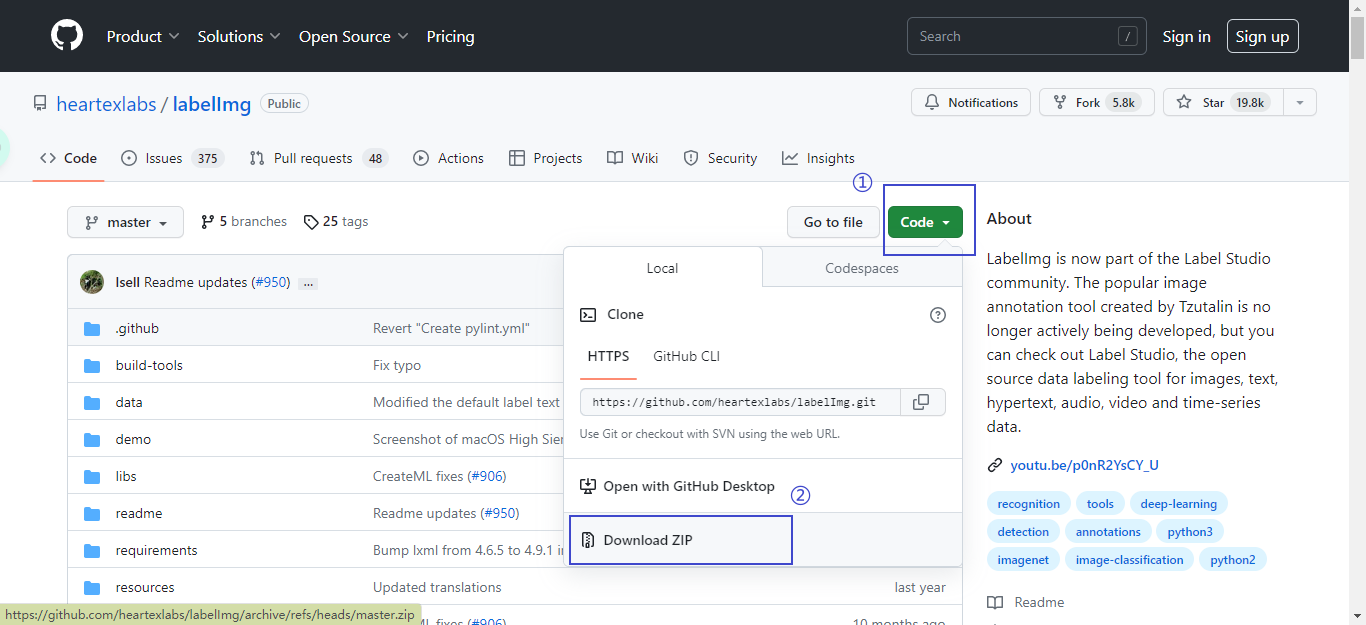
先点击Code,再点击Download ZIP。下载好之后解压文件。
解压文件

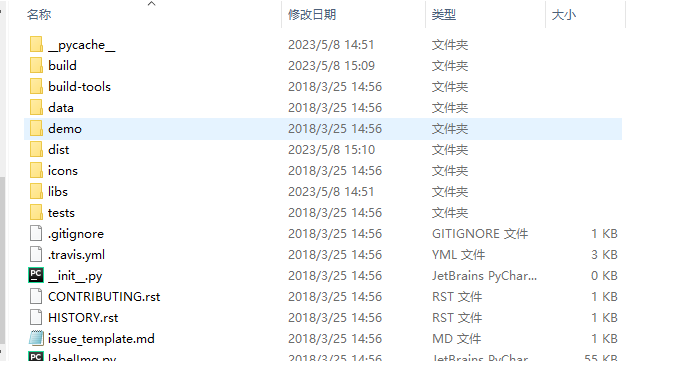
打开文件夹:
2. 根据GitHub页面上的提示进行安装
GitHub主页上往下翻,找到windows部分
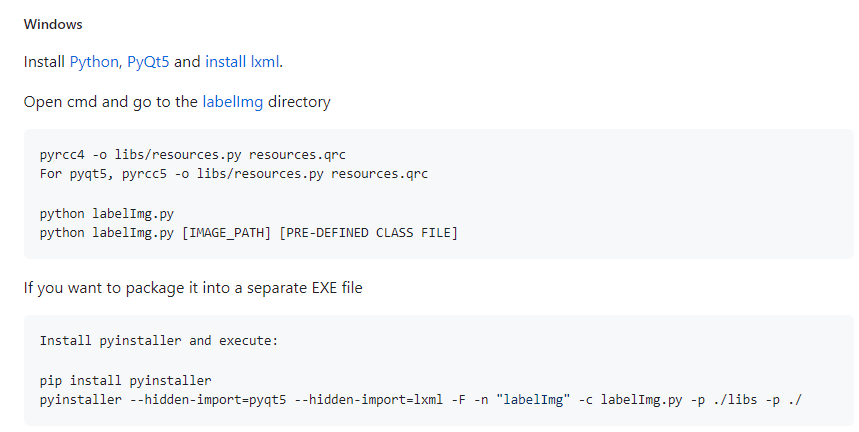
① Install Python, PyQt5 and install lxml.
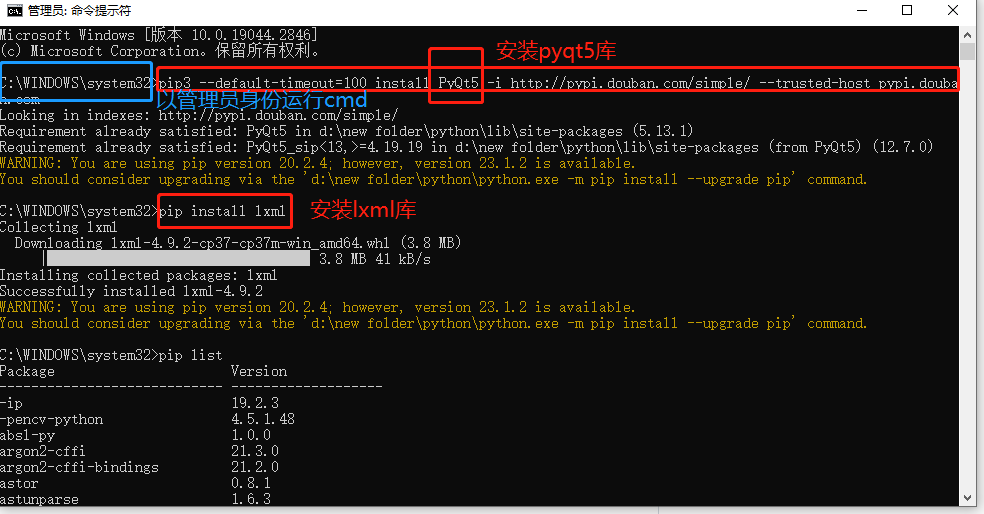
win+r,输入cmd,进入命令行中分别安装python,PyQt5和lxml.
安装Pyqt5命令:pip3 --default-timeout=100 install PyQt5 -i http://pypi.douban.com/simple/ --trusted-host pypi.douban.com
安装lxml命令:pip3 install lxml
② Open cmd and go to the labelImg directory
pyrcc5 -o libs/resources.py resources.qrc
For pyqt5, pyrcc5 -o libs/resources.py resources.qrc

python labelImg.py
python labelImg.py [IMAGE_PATH] [PRE-DEFINED CLASS FILE]
找到之前存放文件的路径,打开labelImg-master文件夹,在上方导航栏上输入cmd。
运行第一条命令pyrcc5 -o libs/resources.py resources.qrc,出现报错‘pyrcc5’ 不是内部或外部命令,也不是可运行的程序 或批处理文件。
报错图:
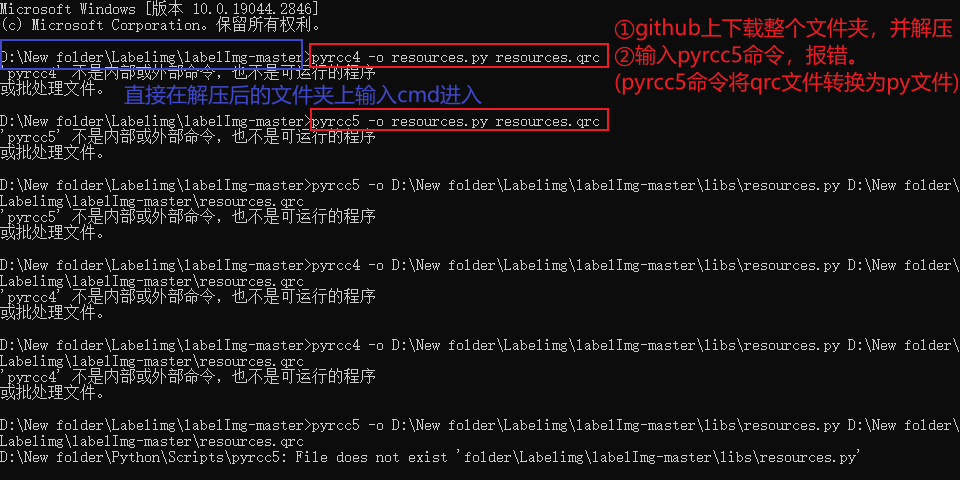
原因:Pycrr4命令是用来将resources.qrc转换为resources.py。安装pyqt5库时并没有安装pyrcc5.exe文件,需要再安装pyqt5-tools的包
解决:在cmd命令窗口下输入命令:pip install pyqt5_tools

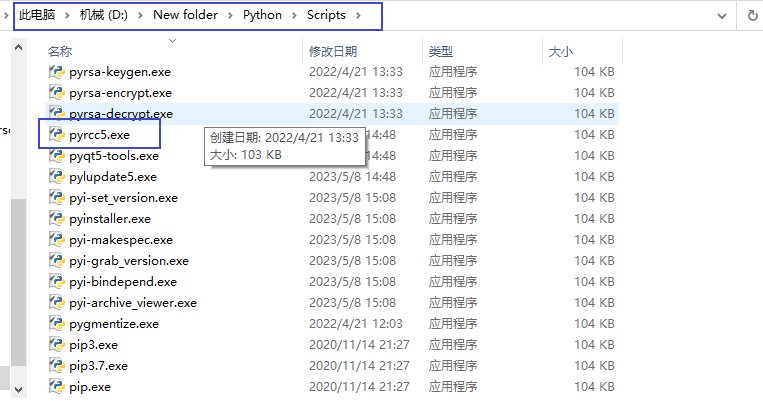
安装成功的pyrcc.exe放在以下目录中:D:\New folder\Python\Scripts\pyrcc5.exe
运行第二条命令:python labelImg.py,出现错误,找不到resources.py这个文件。
原因:上一步转换后的resources.py文件默认放在与resources.qrc文件相同目录下面,但应该把resources.py文件移到libs文件夹下
解决:在labelImg-master目录下找到resources.py文件,复制该文件到libs文件夹下,
③ If you want to package it into a separate EXE file
Install pyinstaller and execute:

pip install pyinstaller
pyinstaller --hidden-import=pyqt5 --hidden-import=lxml -F -n "labelImg" -c labelImg.py -p ./libs -p ./
运行上述命令,可以出现独立的exe文件,下次打开时直接点exe文件即可。
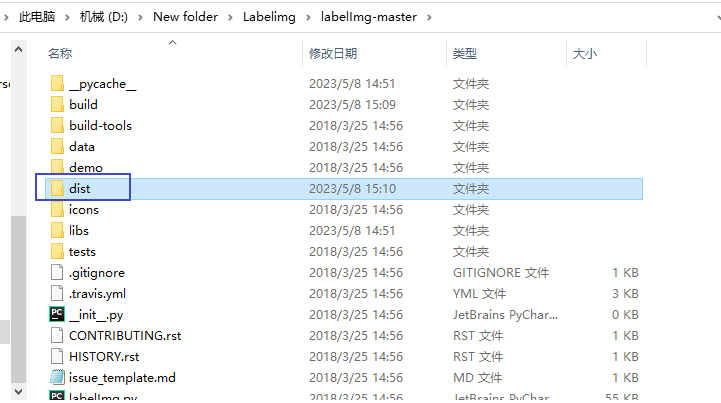
生成的文件存放在dist文件夹下

 浙公网安备 33010602011771号