
How to Turn Off Windows Defender (Permanently!)
How to Turn Off Windows Defender (Permanently)
If you’re looking to turn off Windows Defender for good, here’s what you need to do:
- Click Start.
- Type “Windows Security” and click the option under “Best match”.
- In the new window that opens, click Virus & threat protection.
- Under the Virus & threat protection heading, click Manage settings.
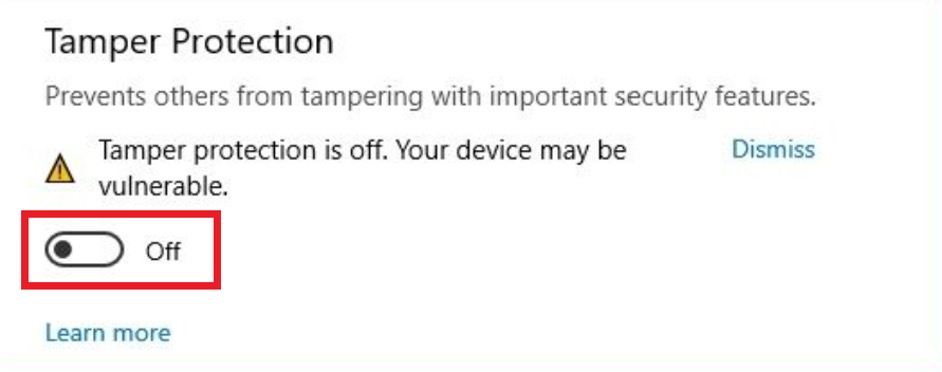
- Set the Tamper Protection toggle to the Off position.
![How to Turn Off Windows Defender_Disable permanently_tamper protection_20221214]()
- Click Start (again).
- Type “gpedit.msc” and click the option under “Best match”.
- Navigate to Computer Configuration > Administrative Templates > Windows Components > Microsoft Defender Antivirus.
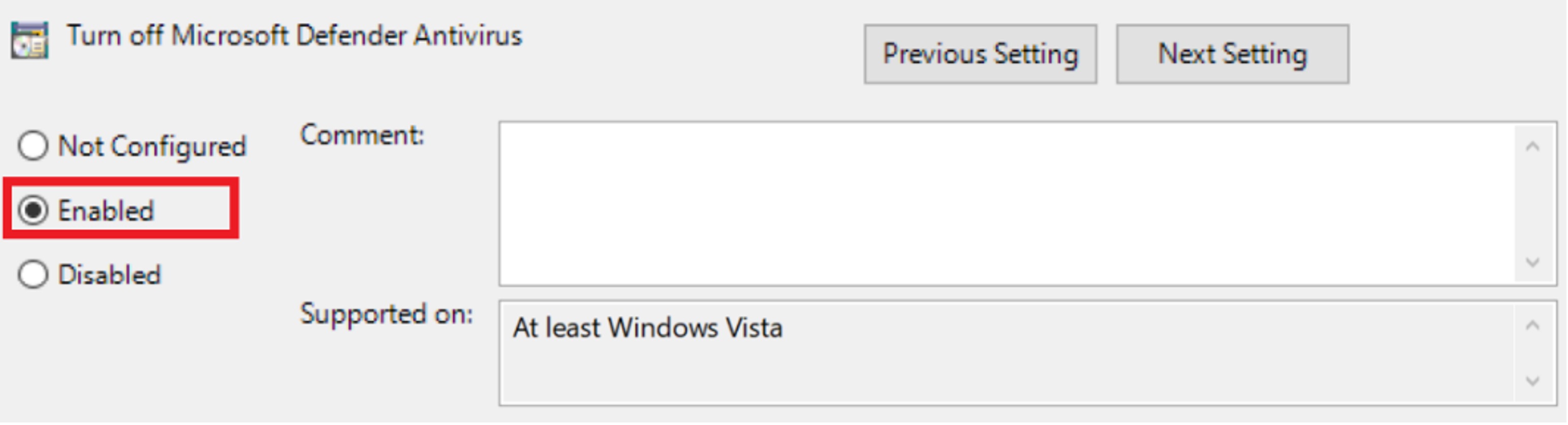
- Find “Turn off Microsoft Defender Antivirus” and double-click it.
- Click the Enabled checkbox (it’s to enable turning off Windows Defender).
![How to Turn Off Windows Defender_Disable permanently_enabled checkbox_20221214]()
- Click Apply, OK, then restart your computer.
After following the instructions above, Windows Defender will be permanently disabled, but you will still see the icon in the system tray on the taskbar — this is perfectly normal.
https://news.trendmicro.com/2022/12/14/how-to-turn-off-windows-defender/

 浙公网安备 33010602011771号