
uniapp微信小程序微信同声传译和OCR支持功能
1.首先小程序后台设置里面的第三方设置插件管理需要添加微信同声传译和OCR支持两个插件
2.【微信同声传译】
在manifest.json切换成源码视图 然后在appid同级目录添加插件
/* 小程序特有相关 */
    "mp-weixin" : {
        "appid" : "wx9fd66d4d0e83c5f9",
        "setting" : {
            "urlCheck" : false,
            "es6" : true,
            "minified" : true
        },
        "__usePrivacyCheck__": true, //隐私政策
        "usingComponents" : true,
        "plugins" : {
            "ocr-plugin" : {
                "version" : "3.0.6",
                "provider" : "wx4418e3e031e551be"
            },
            "WechatSI": {//语音识别
                "version": "0.3.5",
                "provider": "wx069ba97219f66d99"//插件的appId
            }
        },
微信同声传译(这里我将功能封装成了一个组件,注意组件是不执行onload和onshow的所有周期改成mounted就可以)
@touchstart="touchStart" 手指触摸动作开始触发
@touchend="touchEnd" 手指触摸动作结束触发
<template>
    <view>
        <button @touchstart="streamRecord" @touchend='endStreamRecord' form-type="submit" type="primary"
            class="fc-white">{{buttonInfo}}</button>//点击传译的按钮
    </view>
</template>

<script>
    var plugin = requirePlugin("WechatSI")
    let manager = plugin.getRecordRecognitionManager()
    export default {
        data() {
            return {
                currentText: "",
                buttonInfo:'长按语音识别'
            }
        },
        mounted() {
            this.initRecord()
        },
        methods: {
            streamRecord: function() {
                this.buttonInfo = '正在识别中...'
                uni.showLoading({
                    title: '正在录音'
                });
                console.log('=======开始====')
                manager.start({
                    lang: 'zh_CN',
                })
            },
            endStreamRecord: function() {
                uni.hideLoading();
                console.log('=======结束====')
                manager.stop()
                this.buttonInfo = '长按语音识别'
            },
            initRecord: function() {
                let that = this
                //有新的识别内容返回,则会调用此事件
                manager.onRecognize = (res) => {
                    console.log('新内容',res)
                    let text = res.result
                    //识别的内容
                    that.currentText = text
                    this.$emit('messageInfo', this.currentText)
                }
                // 识别结束事件
                manager.onStop = (res) => {
                    let text = res.result
                    console.log('识别结束',res)
                    if (text == '') {
                        uni.showToast({
                            title: '没有识别到声音内容',
                            duration: 2000,
                            icon:'error'
                        })
                        console.log('没有说话')
                        return
                    }
                    //识别的内容
                    that.currentText = text
                    this.$emit('messageInfo', this.currentText)
                }
            },
        }
    }
</script>

<style>

</style>
3.【OCR支持】
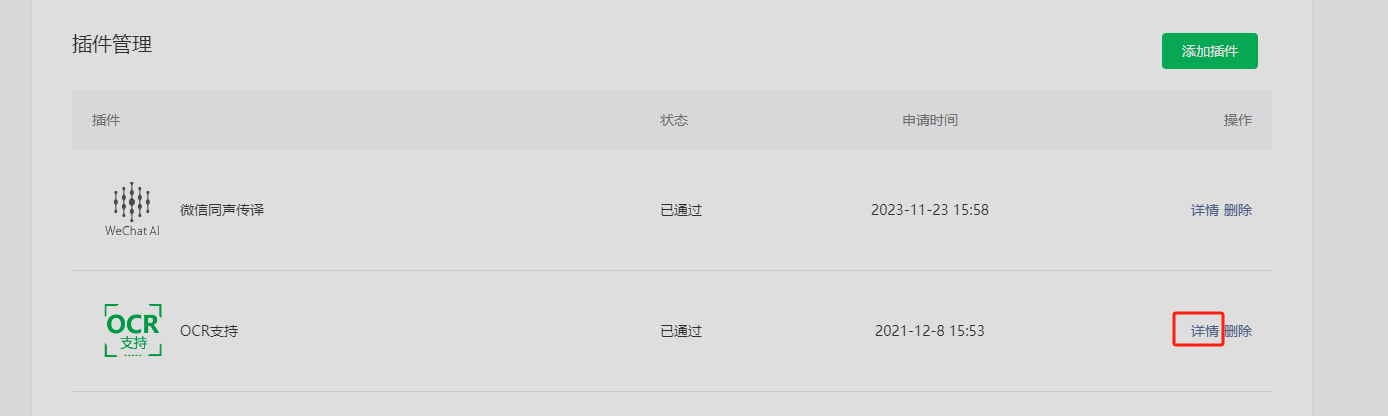
小程序第三方插件添加完这个插件之后,需要去微信服务市场购买扫描次数,免费的是一天可扫描100次
具体操作步骤:点击插件管理中的OCR支持右边的详情
然后点击开发文档之后在出现的页面上点击开放社区来购买
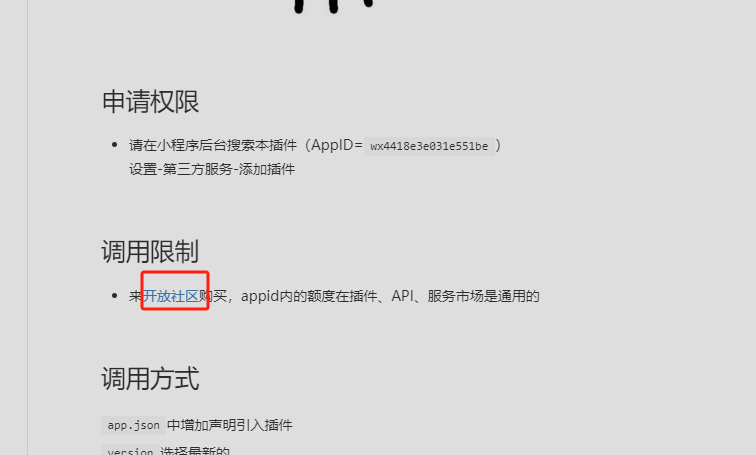
购买完之后同样需要在manifest.json切换成源码视图 然后在appid同级目录添加插件
// 拍照或从相册选取
chooseImage() {
    uni.chooseImage({
        count: 1,
        sizeType: ['original', 'compressed'],
        sourceType: ['album', 'camera'],
        success: (res) => {
            console.log("上传res--", res)
            this.ocrIdentify(res.tempFilePaths[0])
        },
        fail: (err) => {}
    });
},
ocrIdentify(tempFilePath) {
    const invokeRes = wx.serviceMarket.invokeService({
        service: 'wx79ac3de8be320b71',  //固定的不要动
        api: 'OcrAllInOne',             //固定的不要动
        data: {
            // 用 CDN 方法标记要上传并转换成 HTTP URL 的文件
            img_url: new wx.serviceMarket.CDN({
                type: 'filePath',
                filePath: tempFilePath,
            }),
            data_type: 3,
            ocr_type: 1        // 1是身份证识别  7是营业执照识别
        },
        success: function(res) {   //打印这个res  就是你想要的结果
            wx.showModal({
                title: 'success',
                content: JSON.stringify(res),
            })
        }
    })
},
自带的插件不支持通用OCR的扫描,只有1:身份证;2:银行卡;3:行驶证;4:驾驶证;7:营业执照;和10: 车牌识别,上面的代码是可扫描图片获取图片上的文字
如需扫描身份证、银行卡、行驶证等等就需要进一步配置使用插件
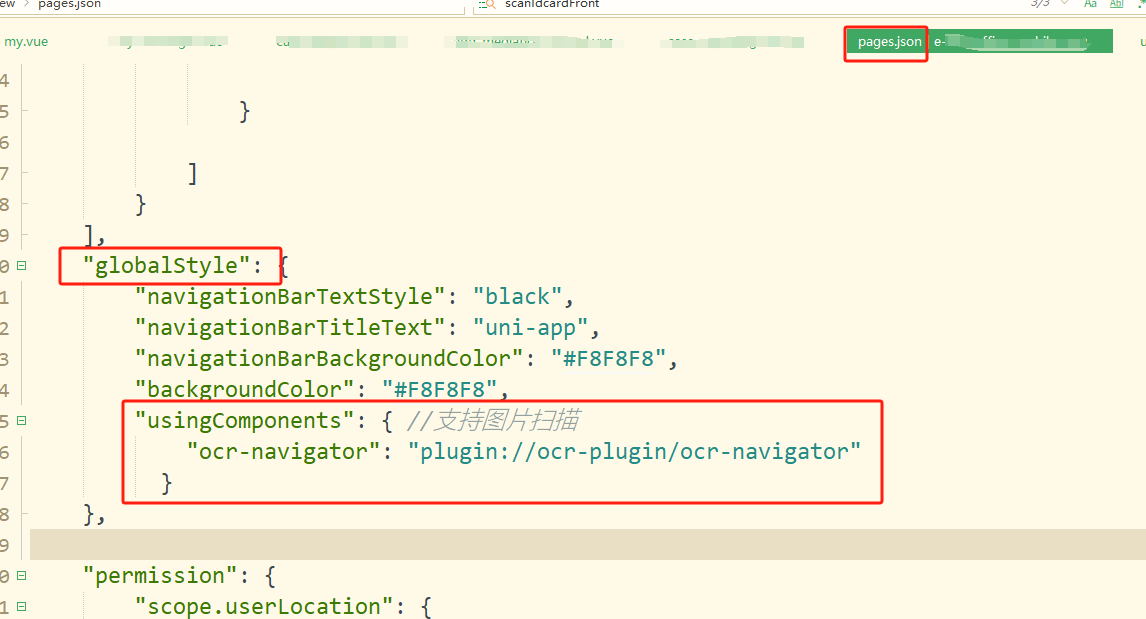
在pages.json里配置代码
"usingComponents": {
	"ocr-navigator": "plugin://ocr-plugin/ocr-navigator"
}
<ocr-navigator @onSuccess="scanIdcardFront" certificateType="idCard" :opposite="false"> // 这里可以写上用于点击的按钮或者文字 </ocr-navigator>
字段解析->>>>>>>>>> onSuccess: 用于扫描后的回调 certificateType: 扫描的类型 身份证(idCard) opposite: 如果是身份证扫码 那么这个参数 true 表示有国徽那面 false表示照片哪面
可根据https://fuwu.weixin.qq.com/service/detail/000ce4cec24ca026d37900ed551415进行修改
本文来自博客园,作者:熬夜的布偶猫#,转载请注明原文链接:https://www.cnblogs.com/prince11/p/17859324.html

 浙公网安备 33010602011771号