新项目中的CC.Net每日编译环境
2012-08-03 15:47 price.liu 阅读(462) 评论(0) 收藏 举报刚开始个新项目,需要个持续集成环境.下面简单说下用CCnet带搭建了Dailybuild环境:
下面的文章是写在公司内部网上的,我直接copy过来,就不做什么修改了.
花了1天多时间,构建好了Dailybuild环境,还有一些小问题,会不断改进。
以下是我部署过程中的一些经验,大家有兴趣可以看看。
Cc.net的功能很强大,我只用到了部分功能,大家有兴趣也可以自己研究研究。
一、用到的工具
(ア) CC.net(必须):Dailybuild控制. 网址
(イ) SCM(必须):源代码下载.(其他VSS.SVN等)
(ウ) MSBuild.exe(必须):编译工具,framework自带,也可以用vs2008的命令行编译工具代替。
(エ) Nunit(可):Unit Test。也可以用MSTest代替,ccnet也支持。
(オ) Ncover(可):Unit Test覆盖率检测。
(カ) FXCop(可):代码规范检测工具。
(キ) Simian(可):重复代码检测工具。
二、用到的服务器
(ア) Sh-Leyser-build: dailybuild服务器。整个dailybuild流程都在上面完成。
(イ) \\sh-indus-file\\Publish\\Indusprototype\\Codes
:每日构建程序发布地址,每次build出来的程序都在里面。

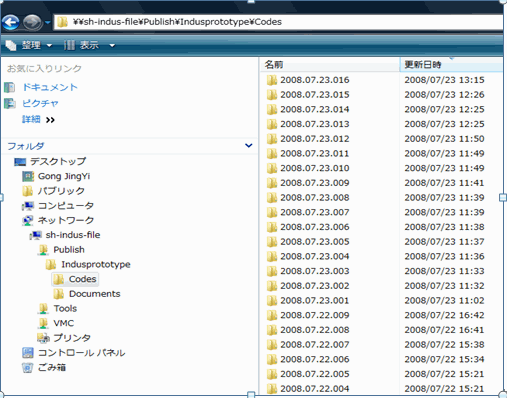
(ウ) \\sh-indus-file\\Publish\\Indusprototype\\Documents
: 每日构建API文档发布地址(CHM或Html格式)
三、流水账
(ア) Sh-indus-file
上解压cc.net。
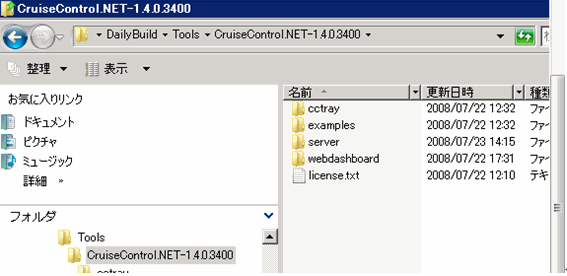
Cc.net下有4个目录
1, Server : 核心,Server端。
2, Cctray : 客户端程序,可以用它进行手动build,查看build情况等。
3, Webdashboard
:web程序。配置好之后,可以通过浏览器来手动进行build,查看build情况等。
(イ) 先来配置Server端,启动Server可以用里面的ccnet.exe和ccservice.exe。
ccnet.exe是self hosting;ccservice.exe是windows service,用哪个随意。
(ウ) 好,接下去是关键,server端配置ccnet.config。下面是建立一个project。
 <cruisecontrol> <project name="IndusPrototype"> </project> </cruisecontrol>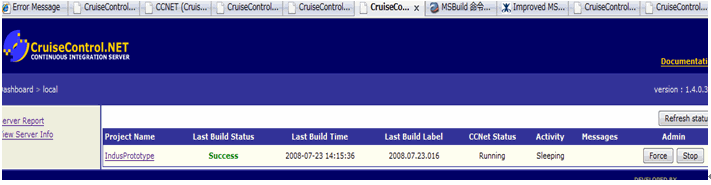
此时,启动server,假如Webdashboard已经搭建好了,则可以看到上图,有了一个project了。
(エ) 好,继续完善ccnet.config。我们要让dailybuild从 source control上去下载最新代码。在project里面插入:
 <!--Source Control Blocks--> <sourcecontrol type="surround"> <executable>C:"Program Files"Seapine"Surround SCM"sscm.exe</executable> <serverconnect>Server:Port</serverconnect> <serverlogin>Username:Password</serverlogin> <branch>IndusProject</branch> <repository>IndusProject"IndusPrototype</repository> <workingDirectory>D:"DailyBuild"Codes"IndusPrototype</workingDirectory> <recursive>1</recursive> <searchregexp>0</searchregexp> <timeout units="minutes">30</timeout> </sourcecontrol>
(オ) Build的心跳,控制dailybuild啥时候自动运行。Project里插入代码:
<!--Trigger Blocks--> <triggers> <scheduleTrigger time="2:00" buildCondition="ForceBuild" name="Scheduled"> <weekDays> <weekDay>Monday</weekDay> <weekDay>Tuesday</weekDay> <weekDay>Wednesday </weekDay> <weekDay>Thursday </weekDay> <weekDay>Friday</weekDay> </weekDays> </scheduleTrigger> </triggers>
这里写的是周一—周五早上2点自动dailybuild,这里可以改很多策略,比如代码一改动,马上build之类的。
(カ) 指定build版本的名称规范。Project内插入代码:
<labeller type="dateLabeller" />
这是按日期来。Build的格式是2008.07.23.016 。我们收到的mail,发布出去的程序存放的目录,都会变成这个格式。
当然,还有多种版本命名格式任君选用。
(キ) 接下是去指定task。如msbuild,nunit,ncover等。要在project下插入:
</tasks>
(ク) msbuild,用msbuild来编译下载下来的代码。在tasks下插入:
<msbuild>
<executable>C:"Windows"Microsoft.NET"Framework"v3.5"MSBuild.exe</executable>
<workingDirectory>D:"DailyBuild"Codes"IndusPrototype</workingDirectory>
<projectFile>IndusPrototype.sln</projectFile>
<buildArgs>/t:rebuild /v:quiet /noconlog /p:Configuration=Debug</buildArgs>
<targets>rebuild</targets>
<timeout>900</timeout>
<logger>D:"DailyBuild"Tools"CruiseControl.NET-1.4.0.3400"server"Rodemeyer.MsBuildToCCNet.dll</logger>
<!-- old logger <logger>D:"DailyBuild"Tools"CruiseControl.NET-1.4.0.3400"server"ThoughtWorks.CruiseControl.MsBuild.dll</logger> -->
</msbuild>
注意:在这里我用了一个Rodemeyer.MsBuildToCCNet.dll的插件,第三方提供的。用来记录build的log,比官方那个要好一些。具体可以看看这里:
http://confluence.public.thoughtworks.org//display/CCNETCOMM/Improved+MSBuild+Integration
另外,buildArgs用了 /t:rebuild; 因为build的话,第二次build时假如代码没改动,是不会去build的,warning什么的也不会记录下来。所以用rebuild。Targets也改为rebuild。
(ケ) 然后做Nunit,在tasks下:

<!--Unit test-->
<nunit>
<path>D:"DailyBuild"Tools"FxCop"NUnit-2.4.7-net-2.0"bin"nunit-console.exe</path>
<assemblies>
<assembly>D:"xxx"yyy.nunit</assembly>
</assemblies>
</nunit>
现在还没有Unit
test,有了之后,只要修改路径就可以了。
(コ) 其他Ncover,fxcop等先掠过。
(サ) 然后是publish,分成publish程序。发mail等。在project下插入:
</publishers>
(シ) 发布程序。在publishers下插入:
<buildpublisher>
<sourceDir>D:"DailyBuild"Codes"IndusPrototype"Bin</sourceDir>
<publishDir>""sh-indus-file"Publish"Indusprototype"Codes</publishDir>
<useLabelSubDirectory>True</useLabelSubDirectory>
</buildpublisher>
把编译出来的结果,发布到""sh-indus-file"Publish"Indusprototype"Codes下。
(ス) 发email。在publishers下插入:
<!--mail publisher--><email from="Builder@Grapecity.com" mailhost="shexg1.GRAPECITY.NET" includeDetails="TRUE"> <users> <user name="tony" group="buildmaster" address="a@a.com"/> <user name="b" group="developers" address="b@b.com"/> </users> <groups> <group name="buildmaster" notification="always"/> <!--<group name="developers" notification="always"/>--> </groups> </email>
这里的策略也很多的。可以定制用户组,然后给不同的用户组发送不同的邮件(比如build
failed和build success的邮件可以发给不同的组)
(セ) 邮件可以定制。关键是server目录下的ccnet.exe.config中有这样一段:
<xslFiles> <file name="xsl"header.xsl"/> <file name="xsl"compile.xsl"/> <file name="xsl"unittests.xsl"/> <file name="xsl"fit.xsl"/> <file name="xsl"modifications.xsl"/> <file name="xsl"fxcop-summary.xsl"/> </xslFiles>这就是邮件里的内容。
你可以通过修改xsl"header.xsl等文件进行定制。当然也可以直接增加文件。
四、说好Server端,再说搭建web。
(ア) 搭建web:开IIS,把webdashboard目录建为web application。Framework版本选2.0即可。如application名为ccnet。则可以通过http://sh-indus-build/ccnet进行访问。
(イ) Web配置:关键是目录下的dashboard.config。可以对web application进行定制。用来控制web上显示哪些元素。
(ウ) 比如,
<serverPlugins> <serverReportServerPlugin /> <!-- <serverLogServerPlugin /> --> <serverInformationServerPlugin /> </serverPlugins>当中注释的一行,是在web页面上显示 Server运行的log。因为这个log会暴露我的域密码,所以被我禁用了。
五、Web的大致使用方法:
(一)、首页
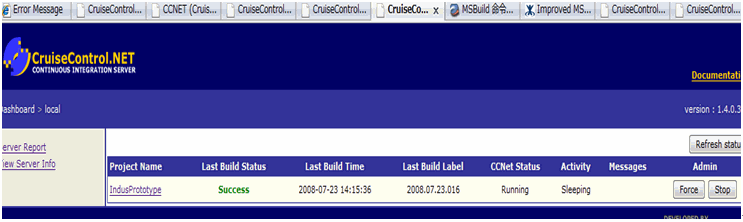
1, Force:强制build。
2, Stop:停止build。
3, Refresh
status:刷新状态。注意:Force之后,不要用F5刷新,会造成重复Force的情况。
(二)、点击projectname:
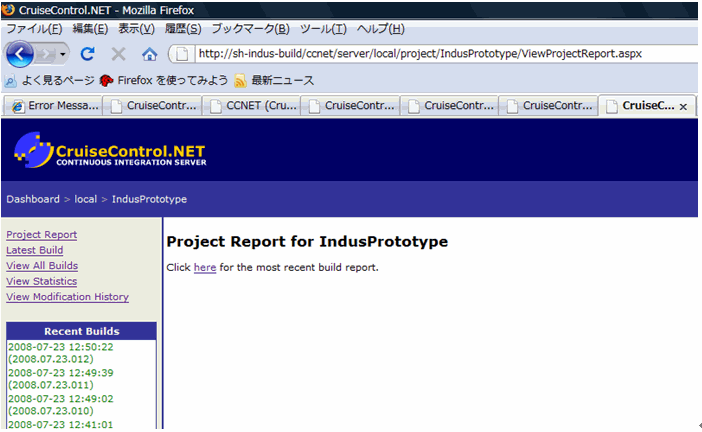
1, 可以看到indusprototype的历次build情况。
2, 左边的的Project report,就是该页。
3, Lastest
build:进入最新一次build的具体内容。下面会讲。
4, View all
builds:看历年来所有build情况。
5, View
statistics:
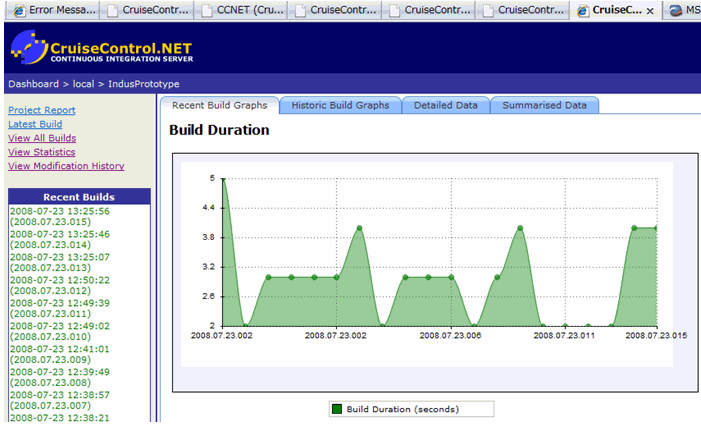
历次build的一些统计信息,比如build频繁度。每次build的修改文件等。
6, View
Modification History:历次build的修改记录。可以看到每次dailybuild时,都有哪几个文件是改动过的。
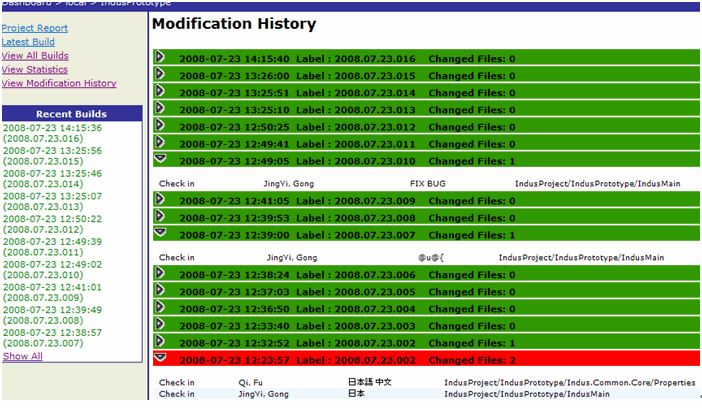
(三)、具体build情况。点击页面上的Click here for the most recent build
report.。或左边的Lastest build,即可进入最近一次build的详细页面。或者也可以点击左边Recent builds中的任一次build。
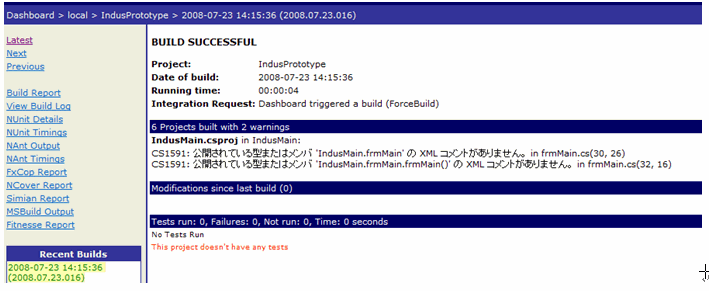
最新一次的build情况将显示出来。
首页上显示:build成功。但有2个warnings。Nunit情况也会显示出来。
通过点击左边的一些link,可以看具体情况。比如Nunit情况,Ncover情况等。
最后,看看我完整的ccnet.config 和 ccnet.exe.config
 ccnet.config
<?xml version="1.0" encoding="utf-8"?><configuration> <configSections> <section name="xslFiles" type="ThoughtWorks.CruiseControl.Core.Config.XslFilesSectionHandler,ThoughtWorks.CruiseControl.Core"/> <section name="log4net" type="log4net.Config.Log4NetConfigurationSectionHandler, log4net"/> </configSections> <!-- Specifies the stylesheets that are used to transform the build results when using the EmailPublisher --> <xslFiles> <file name="xsl\header.xsl"/> <file name="xsl\msbuild2ccnet.xsl"/> <file name="xsl\unittests.xsl"/> <file name="xsl\fit.xsl"/> <file name="xsl\NCoverSummary.xsl"/> <file name="xsl\modifications.xsl"/> <!-- gjy <file name="xsl\fxcop-summary.xsl"/>--> </xslFiles> <!-- Defines the port and protocol that the ccnet server will use to service remote requests --> <system.runtime.remoting> <application> <channels> <channel ref="tcp" port="21234"> <serverProviders> <formatter ref="binary" typeFilterLevel="Full"/> </serverProviders> </channel> </channels> </application> </system.runtime.remoting> <appSettings> <add key="ServerLogFilePath" value="ccnet.log"/> <!-- Used by the WebDashboard ServerLog plugin to locate the log file produced by the LogFileTraceListener (above) --> <add key="ServerLogFileLines" value="100"/> <!-- Used by the WebDashboard ServerLog plugin to determine how many lines from the log file should be read --> <add key="WatchConfigFile" value="true"/> <!-- Turns on or off the file watcher used to monitor the ccnet.config file --> </appSettings> <startup> <supportedRuntime version="v2.0.50727" /> </startup> <log4net> <root> <!-- Change the value in the next line to alter the amount of logging generated by CruiseControl.NET. The following values are supported: DEBUG, INFO, WARN, ERROR, OFF. For more detailed information on how to configure log4net, see http://logging.apache.org/log4net/ --> <level value="WARN"/> <appender-ref ref="Console"/> <appender-ref ref="RollingFileAppender"/> </root> <appender name="Console" type="log4net.Appender.ColoredConsoleAppender"> <mapping> <level value="ERROR"/> <foreColor value="White" /> <backColor value="Red, HighIntensity" /> </mapping> <mapping> <level value="DEBUG" /> <foreColor value="Green" /> </mapping> <mapping> <level value="INFO" /> <foreColor value="White" /> </mapping> <layout type="log4net.Layout.PatternLayout"> <conversionPattern value="[%thread:%level] %message%newline"/> </layout> </appender> <appender name="RollingFileAppender" type="log4net.Appender.RollingFileAppender"> <file value="ccnet.log"/> <appendToFile value="true"/> <rollingStyle value="Size"/> <maxSizeRollBackups value="10"/> <maximumFileSize value="10MB"/> <staticLogFileName value="true"/> <layout type="log4net.Layout.PatternLayout"> <conversionPattern value="%date [%thread:%level] %message%newline"/> </layout> </appender> </log4net></configuration>转载

 浙公网安备 33010602011771号