
1. 远程仓库的搭建
关于远程仓库的搭建,常见的有两种方式,一种是使用gitee.com,一种是使用github.com,下面分别介绍这两种方式的搭建。
还有远程仓库的认证方式,分为https和ssh两种方式,推荐使用ssh方式,安全性更高。
协议差异:
- HTTPS:需要每次输入用户名和 PAT(个人访问令牌)认证。
- SSH:使用密钥认证,无需重复输入凭据(推荐长期使用)
1.1. gitee仓库搭建
-
在gitee.com注册登录
-
粘贴公钥,验证gitee账号密码。
-
添加主机到本机
ssh -T [git@gitee.com](mailto:git@gitee.com)
- 创建仓库

复制ssh链接
这就完成了环境的搭建
参考:gitee.com/help/articles/4181#article-header0
1.2. github仓库搭建
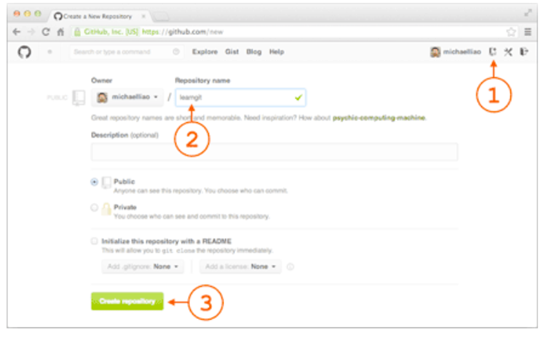
在github.com注册登录,创建仓库如下图所示:
-
复制ssh链接
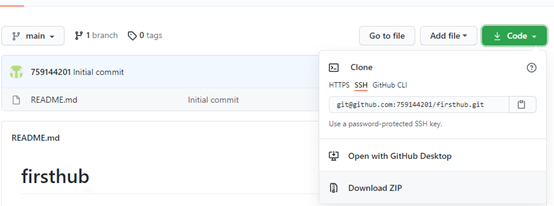
这就完成了仓库的搭建
2. 远程仓库的认证
之前说到两种方式,下面以github为例,分别介绍两种方式的认证方法,gitee的认证方法和github类似。
2.1. 通过SSH key操作仓库(github)
2.1.1. 本地生成SSH key
使用命令
ssh-keygen -t rsa -C [759144201@qq.com](mailto:759144201@qq.com)
后面会提示保存路径和密码,根据需要设置,一般一路enter
创建完成后复制id_rsa_pub公钥
cat ~/.ssh/id\_rsa.pub
2.1.2. SSH key添加到远程仓库
进入账号设置个人账户公钥github.com/settings/keys
粘贴公钥,验证github账号密码。

在远程仓库的设置中添加SSH key,验证成功后就可以使用SSH方式操作远程仓库了。
可以使用ssh -T [git@github.com](mailto:git@github.com)命令测试是否成功连接github。
第一次连接会提示是否继续连接,输入yes即可。
2.2. 通过http操作仓库(github)
GitHub 等平台已弃用密码认证,需使用 PAT(Personal Access Token) 代替密码。
否则会报错
$ git clone https://github.com/owlm00n/OMYProject.git
Cloning into 'OMYProject'...
Logon failed, use ctrl+c to cancel basic credential prompt.
Username for 'https://github.com': 759144201@qq.com
remote: Invalid username or token. Password authentication is not supported for Git operations.
fatal: Authentication failed for 'https://github.com/owlm00n/OMYProject.git/'
2.2.1. 生成PAT
步骤1:生成带有写权限的PAT
- 登录GitHub → 点击右上角头像 → Settings。
- 选择左侧 Developer settings → Personal access tokens。
- 点击 Generate new token:
- Note:填写描述(如
git-push-token)。 - Select scopes:勾选
repo权限(包含读写仓库权限)。 - 点击 Generate token,立即复制生成的令牌(页面关闭后无法查看)。
- Note:填写描述(如
步骤2:清除Git凭据缓存
- Windows:
- 打开 控制面板 → 凭据管理器。
- 找到
github.com相关条目,删除旧凭据。
生成pat 后,可以进行授权
2.2.1.1. 使用pat 代替密码
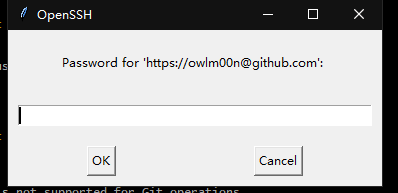
在使用git push时,输入用户名后,会弹出密码框, 使用生成的PAT代替密码进行认证。第一种输入密码的认证经常会fail,可以继续使用命令行来输入,
$ git push --set-upstream origin main
Logon failed, use ctrl+c to cancel basic credential prompt.
Username for 'https://github.com': owlm00n
remote: Write access to repository not granted.
fatal: unable to access 'https://github.com/owlm00n/OMYProject.git/': The requested URL returned error: 403
弹出下面的密码框,粘贴PAT进行认证.
2.2.1.2. 修改http的url来替代输入密码的方式
比如
使用以下格式进行克隆:
git clone https://<用户名>:<PAT>@github.com/<用户名>/<仓库名>.git
添加完之后本地与远程仓库如何同步呢,常见有两种方法:本地关联远程仓库和克隆远程仓库
3. 本地关联远程仓库
3.1. 与本地的git关联git remote add
适用于本地有仓库,远程仓库是新建的,远程仓库是空的,
远程仓库创建后,根据认证方式复制链接,不创建远程仓库是无法直接推送的,因为 Git 需要一个目标地址来存放代码
git remote add origin git@gitee.com:owl_moon/work.git
git remote add origin git@github.com:759144201/firsthub.git
这里的分别是两个远程仓库的关联方法,实用ssh方式,其中的origin是远程仓库的别名,大家的仓库默认取这个别名,但是仓库名字不能重复,想要关联两个不同的仓库,需要修改仓库为两个不同名称
4. 克隆远程仓库git clone
第二种方法是,这种方法更加常用,先建立远程仓库,在克隆到本地,并且这种方法能够克隆别人开源的仓库,适用于本地没有仓库。
复制ssh或者HTTP链接,可以在终端敲命令转到要克隆为仓库的文件夹,或者右键打开
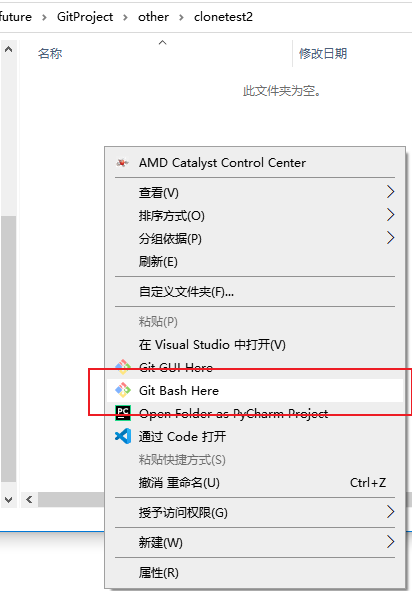
输入命令,这是github随便一个仓库。-b参数指定分支
git clone git@github.com:qinfen1379/firsthub.git

git clone -b test [git@github.com:qinfen1379/firsthub.git](mailto:git@github.com:qinfen1379/firsthub.git)
4.1. github 的http克隆
更多用法
--bare和--mirror参数能够单独克隆版本库,也就是.git里面的所有内容
$ git clone --mirror /g/future/fight/xmind /g/future/fight/mirror\_xmind

Cloning into bare repository 'G:/future/fight/mirror\_xmind'...

done.

$ ls

HEAD config description hooks/ info/ objects/ packed-refs refs/

命令目标都会加上.git后缀来克隆为版本库

$ git clone --bare /g/future/fight/xmind /g/future/fight/bare\_xmind/.git

Cloning into bare repository 'G:/future/fight/bare\_xmind/.git'...

done.

$ ls -al

total 8

drwxr-xr-x 1 Administrator 197121 0 Jul 1 16:39 ./

drwxr-xr-x 1 Administrator 197121 0 Jul 1 16:39 ../

drwxr-xr-x 1 Administrator 197121 0 Jul 1 16:39 .git/
两个参数的区别是mirror对上游版本库进行了注册,对比config可以看出区别
$ cat /g/future/fight/mirror\_xmind/config

\[core\]

repositoryformatversion = 0

filemode = false

bare = true

symlinks = false

ignorecase = true

\[remote "origin"\]

url = G:/future/fight/xmind

fetch = +refs/\*:refs/\*

mirror = true

$ cat /g/future/fight/bare\_xmind/.git/config

\[core\]

repositoryformatversion = 0

filemode = false

bare = true

symlinks = false

ignorecase = true

\[remote "origin"\]

url = G:/future/fight/xmind
5. 与远程仓库的交互
搭建完远程仓库后,整个框架已经完全了,如图
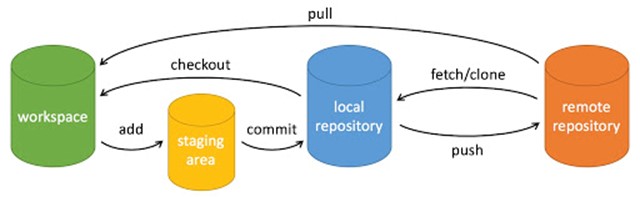
下面接着说远程仓库与本地仓库的交互。
对于本地关联的远程仓库的搭建方式,需要推送才能让远程仓库有内容。
5.1. 操作远程仓库git remote
查看远程库状态是https还是ssh
git remote
git remote -v \\详细的
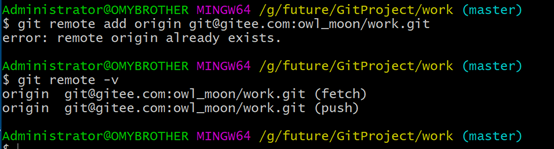
这个指令经常用来查看远程仓库的状态,比如看仓库的是https还是ssh,http的是这样的
$ git remote -v
origin  https://github.com/owlm00n/OMYProject.git (fetch)
origin  https://github.com/owlm00n/OMYProject.git (push)
这个是ssh
重命名远程仓库
git remote rename origin github
不需要关联的时候就可以移除,但是不是正常意义的删除,远程仓库不会清空
移除远程仓库
git remote rm origin
修改远程仓库地址(仓库名字)
git修改远程仓库地址
方法有三种:
1.修改命令
git remote origin set-url \[url\]
2.先删后加
git remote rm origin
git remote add origin \[url\]
3.直接修改config文件
git remote origin set-url \[url\]
上面的方法只是修改了引用地址,还得去github实际去修改
1. 在 GitHub.com 上,导航到存储库的主页。
2. 在存储库名称下,单击 “设置”。 如果看不到“设置”选项卡,请选择“”下拉菜单,然后单击“设置”。

3. 在“存储库名称”字段中,键入存储库的新名称。
4. 单击“重命名”。
参考
5.2. 推送本地仓库到远程仓库git push
git push 的参数很多,容易混淆,特地解释一下
git push <远程主机名> <本地分支名> <远程分支名>
ps:这里的远程主机名是本地给取得名字,不是仓库名,也即是本地给给远程仓库的别名,rename命令可以修改。
git push origin master:refs/for/master
如果分支同名,可以省略为
git push origin master
再如果你的远程仓库分支只有一个,省略为
git push origin
有多少个分支呢?查看远程分支
git branch -r
如果你使用过参数 -u,这个参数是默认映射一个远程仓库的分支,一般都是第一次使用
git push -u origin master
映射之后命令可以省略为
git push
并且可以查看.git目录下的config 更新
\[branch "master"\]

    remote = origin

    merge = refs/heads/master
最后参数 -f 强推 可以解决远程仓库和本地仓库存在差异的问题。
git push -f origin master
接下来是提取命令
5.2.1. push常见问题
5.2.1.1. 没有远程主机名,也可以映射之后使用。
$ git push master

fatal: The current branch master has no upstream branch.

To push the current branch and set the remote as upstream, use
git push --set-upstream master master
5.2.1.2. git推送时报错:git push -u origin main fatal: unable to access
git push -u origin main fatal: unable to access 'https://github.com/username/Repository_name.git/': Failed to connect to github.com port 443 after 21095 ms: Couldn't connect to server
将git使用的https端口改为代理使用的端口(打开代理软件自行查询其设置的端口),例如我这里代理端口为7899。

# 设置端口
git config --global http.proxy 127.0.0.1:7899
git config --global https.proxy 127.0.0.1:7899
# 取消端口设置
git config --global --unset http.proxy
git config --global --unset https.proxy
git推送时报错:git push -u origin main fatal: unable to access - datou- - 博客园
5.3. 提取远程仓库到本地仓库git fetch
提取是提取远程仓库的更新到本地,也就是本地没有的文件或者内容
在远程仓库新建一个新文件,使用命令提取。
git fetch gitee master
提示会有一行
f13e54c..9bd730f master -> gitee/master
说明HEAD已经指向了远程的master
但是发现工作区域的目录没有新建的文件,需要使用merge命令
git merge gitee/master
在此查看就也可以看到远程修改的内容和新文件都在本地同步了。
5.4. 拉取远程仓库到本地仓库git pull
使用pull命令相当于上面的两个操作,也就是fetch和merge
在远程仓库修改一次,在使用命令
$ git pull gitee master:master
命令可以简化为
$ git pull
远程的分支gitee/master和本地分支相同,省略:master,省略规则见---
6. 问题
$ git push ee-xmind master master
error: src refspec master does not match any
error: src refspec master does not match any
error: failed to push some refs to 'gitee.com:owl_moon/xmind.git'
查看当前是分支head是否没有指向一个commit
初始化之后head指向一般为空
使用branch查看
再查看当前本地的分支的工作区是否为空
使用add和commit创建一个新提交
6.1. git访问共享版本库
使用ip地址访问局域网电脑,不能使用域名
git remote add origin //10.3.5.8/GitRemote/schedule.git
对于克隆的版本库,工作区的模式是对等的,对于这种模式同步有下面的问题
git push 命令会报错
$ git push -f bro

Enumerating objects: 5, done.

Counting objects: 100% (5/5), done.

Delta compression using up to 4 threads

Compressing objects: 100% (2/2), done.

Writing objects: 100% (4/4), 319 bytes | 319.00 KiB/s, done.

Total 4 (delta 1), reused 0 (delta 0), pack-reused 0

remote: error: refusing to update checked out branch: refs/heads/master

remote: error: By default, updating the current branch in a non-bare repository

remote: is denied, because it will make the index and work tree inconsistent

remote: with what you pushed, and will require 'git reset --hard' to match

remote: the work tree to HEAD.

remote:

remote: You can set the 'receive.denyCurrentBranch' configuration variable

remote: to 'ignore' or 'warn' in the remote repository to allow pushing into

remote: its current branch; however, this is not recommended unless you

remote: arranged to update its work tree to match what you pushed in some

remote: other way.

remote:

remote: To squelch this message and still keep the default behaviour, set

remote: 'receive.denyCurrentBranch' configuration variable to 'refuse'.

To //192.168.31.252/future/fight/xmind

! \[remote rejected\] master -> master (branch is currently checked out)

error: failed to push some refs to '//192.168.31.252/future/fight/xmind'
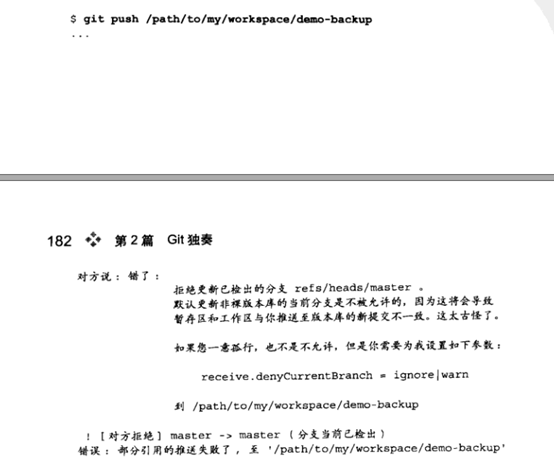
同步的方式只能用git pull

 浙公网安备 33010602011771号