
《云操作系统(OpenStack)第二版》学习笔记06-第六章:计算服务Nova
《云操作系统(OpenStack)第二版》学习笔记06-第六章:计算服务Nova
根据《云操作系统(OpenStack)》第六章来做的。
一、6.1 Placement和Nova架构及原理
控制节点与计算节点都要配置。
二、6.2 安装并配置Placement
应该只需要配置控制节点。
1. 6.2.1 数据库配置
1-1. 登录MySQL数据库
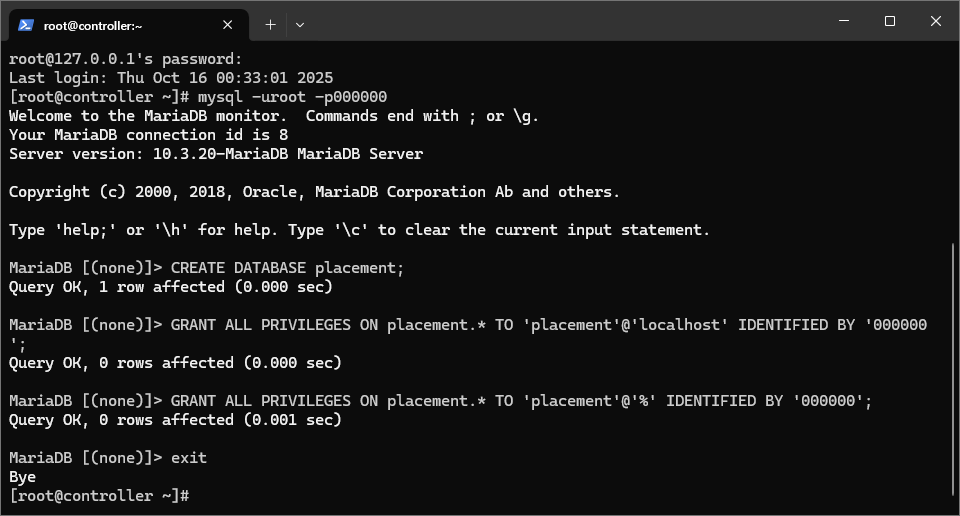
- mysql -uroot -p000000
1-2. 创建placement数据库
- CREATE DATABASE placement;
1-3. 设置授权用户和密码
- GRANT ALL PRIVILEGES ON placement.* TO 'placement'@'localhost' IDENTIFIED BY '000000';
- GRANT ALL PRIVILEGES ON placement.* TO 'placement'@'%' IDENTIFIED BY '000000';
- exit
enter description here
2. 6.2.2 创建服务凭证和API端点
2-1. 生效admin用户变量
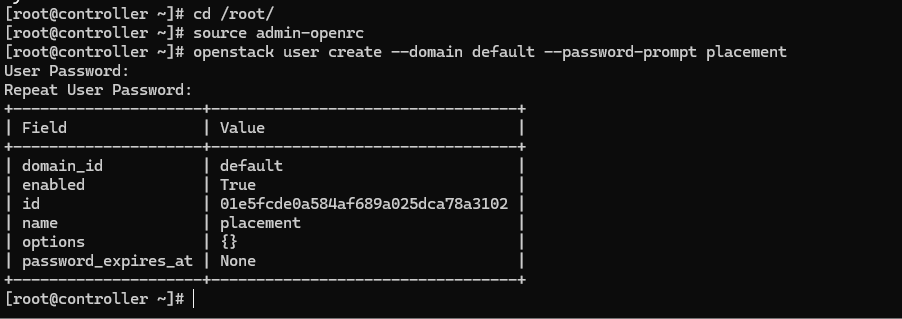
- cd /root/
- source admin-openrc
2-2. 创建服务凭证
- openstack user create --domain default --password-prompt placement
enter description here
我这里设置的密码是000000,和上面授权用户密码一样。
2-2-1. 进行关联,即给placement用户添加admin角色
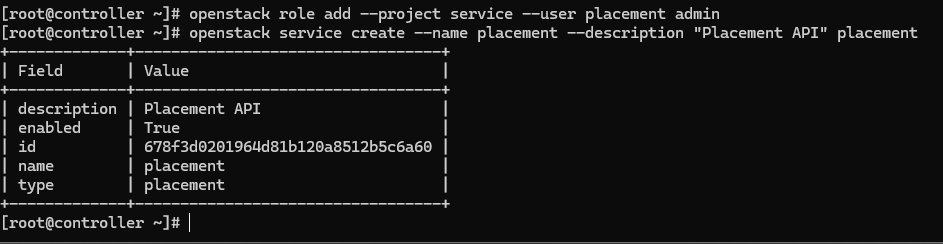
- openstack role add --project service --user placement admin
2-2-2. 创建placement服务实例认证
- openstack service create --name placement --description "Placement API" placement
enter description here
2-3. 创建API端点
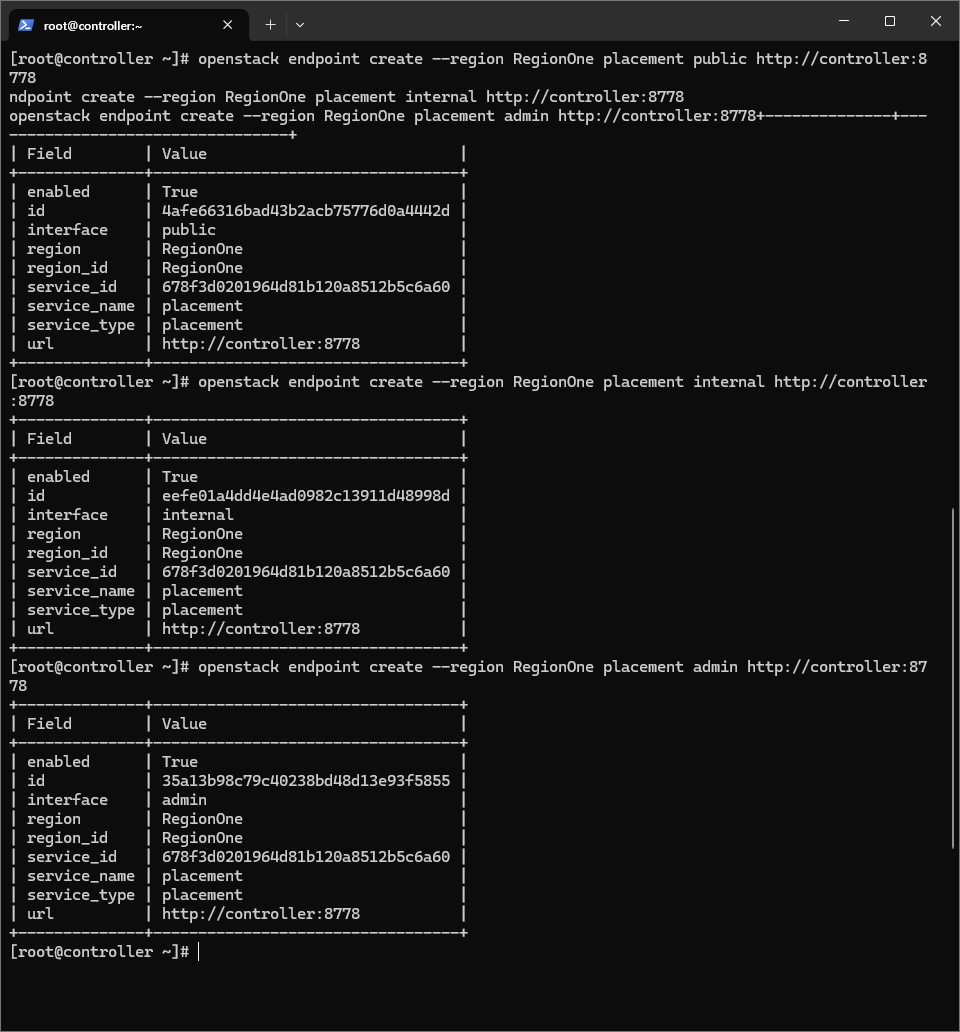
- openstack endpoint create --region RegionOne placement public http://controller:8778
- openstack endpoint create --region RegionOne placement internal http://controller:8778
- openstack endpoint create --region RegionOne placement admin http://controller:8778
enter description here
3. 6.2.3 安装并配置Placement组件
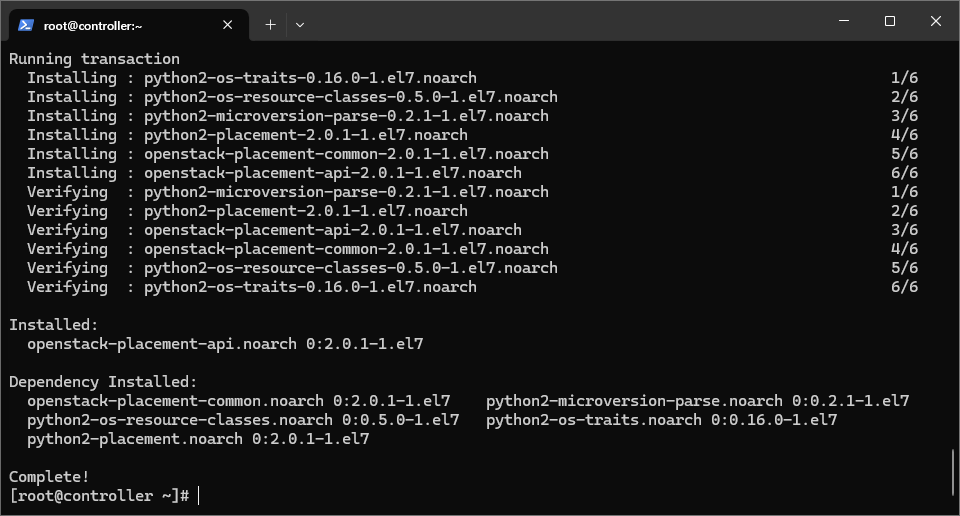
3-1. 安装Placement组件所需的软件包
- yum install openstack-placement-api -y
enter description here
3-2. 配置placement所需组件
- vi /etc/placement/placement.conf
在[placement_database]部分中,配置数据库访问(大约在511行左右)
- [placement_database]
- connection=mysql+pymysql://placement:000000@controller/placement
在[api]部分中,配置身份服务访问(第208行左右,删除#)
- [api]
- #...
- auth_strategy=keystone
在[keystone_authtoken]部分中,配置身份服务访问(第241行左右,插入内容)
- [keystone_authtoken]
- #...
- auth_url=http://controller:5000/v3
- memcached_servers=controller:11211
- auth_type=password
- project_domain_name=Default
- user_domain_name=Default
- project_name=service
- username=placement
- password=000000
默认情况下,Placement配置文件可能存在权限问题,需要对Placement API命令位置授权。
- vi /etc/httpd/conf.d/00-placement-api.conf
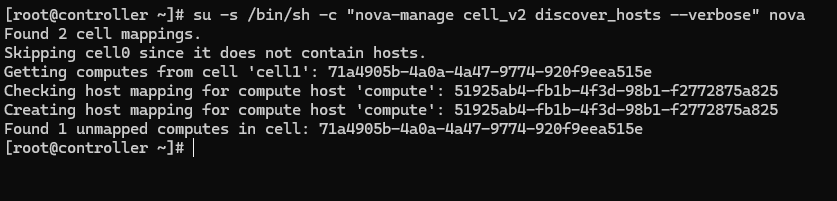
在结尾添加如下代码框中的内容(书上没有做这一步,所以它在6.5的第2步发现主机主机时就没有做成功,配图中的Found 0 unmapped computes in cell就证明了这一点):
" data-lang="xml">Require all granted
- <pre><Directory /usr/bin>
- Require all granted
- </Directory></pre>
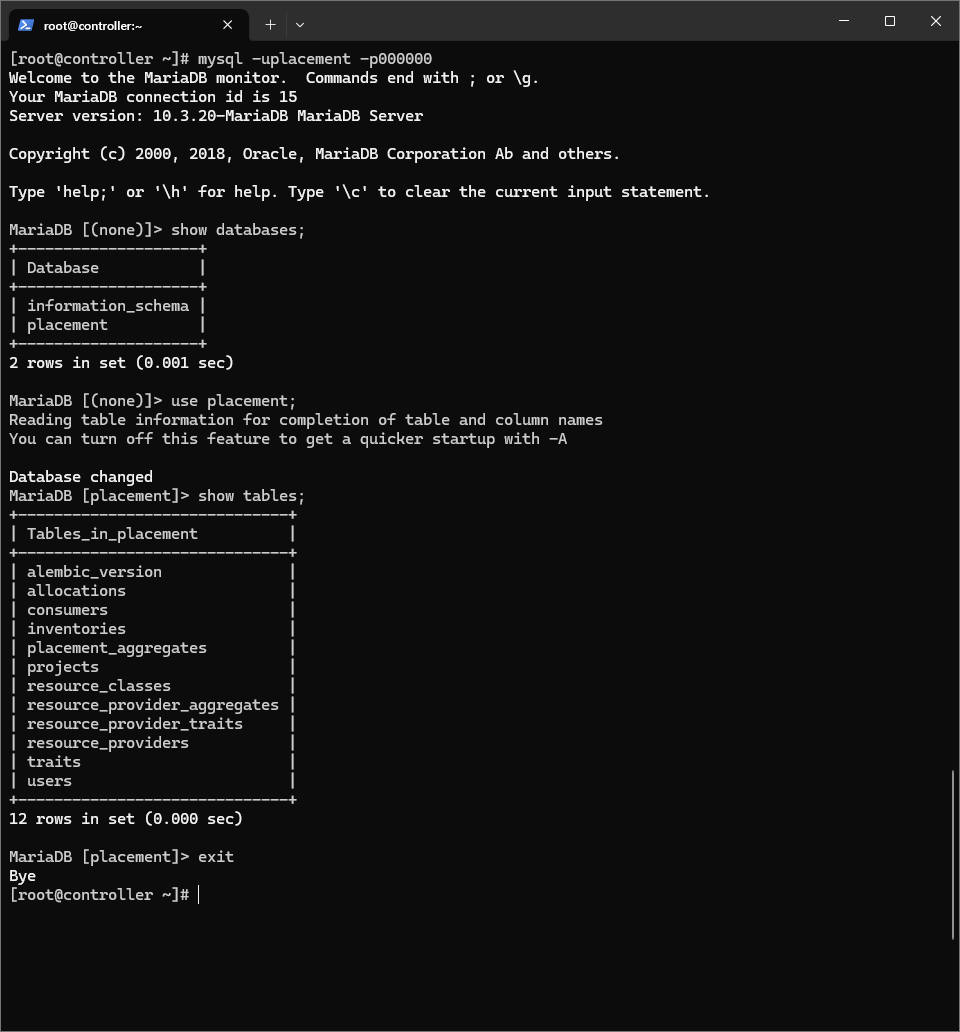
3-3. 同步数据库
- su -s /bin/sh -c "placement-manage db sync" placement

enter description here
验证是否同步成功
- mysql -uplacement -p000000
- show databases;
- use placement;
- show tables;
- exit
enter description here
3-4. 重启httpd服务
- systemctl restart httpd
4. 6.2.4 Placement验证
4-1. 生效admin用户环境变量
- cd /root/
- source admin-openrc
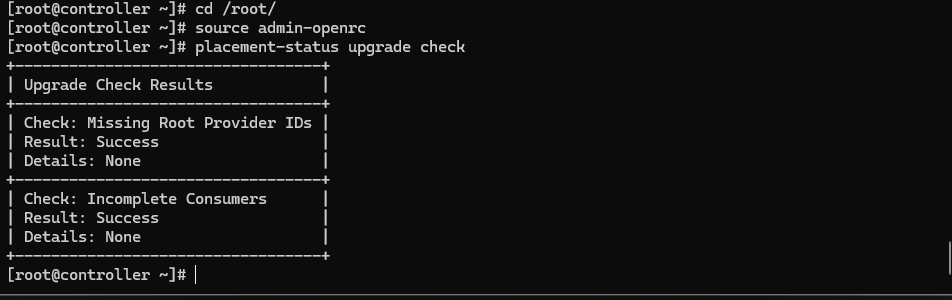
4-2. 执行状态检查
- placement-status upgrade check
enter description here
三、6.3 安装并配置控制节点Nova服务
1. 6.3.1 数据库配置
1-1. 登录
- mysql -uroot -p000000
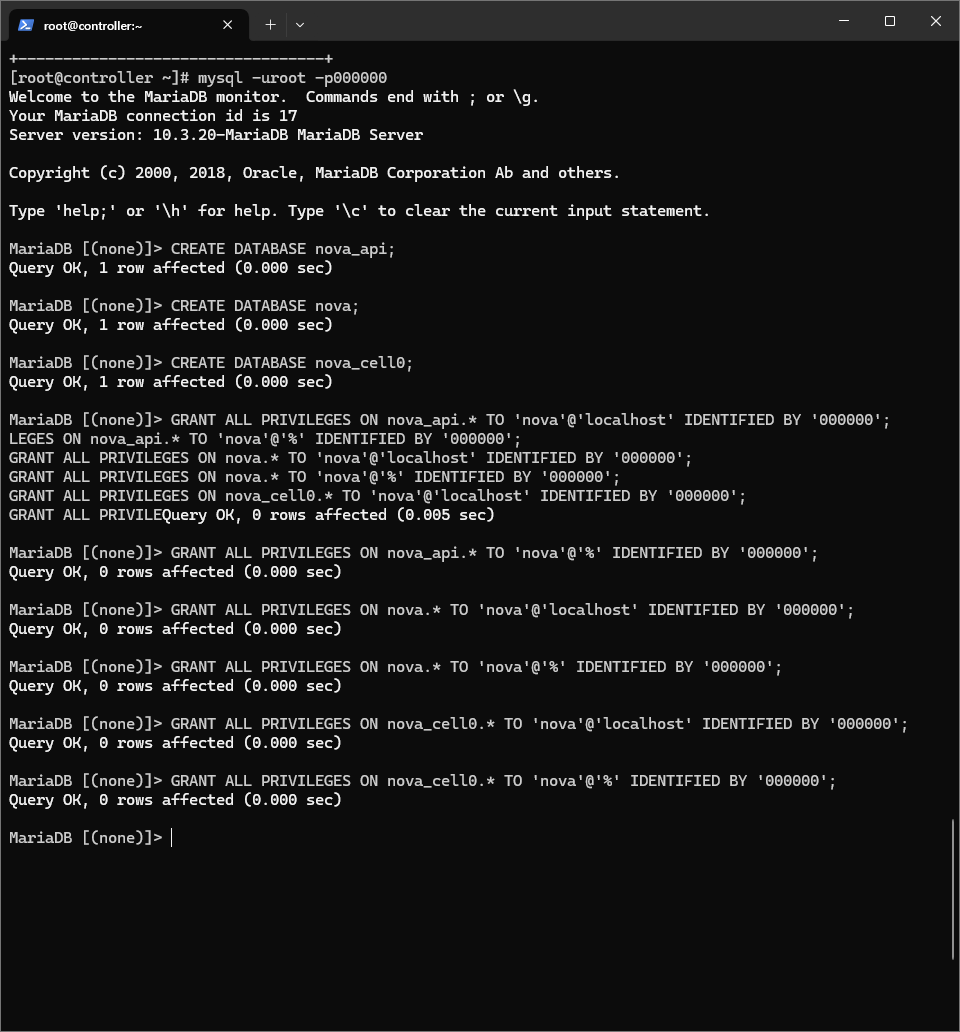
1-2. 创建3个数据库
- CREATE DATABASE nova_api;
- CREATE DATABASE nova;
- CREATE DATABASE nova_cell0;
1-3. 设置授权用户和密码
- GRANT ALL PRIVILEGES ON nova_api.* TO 'nova'@'localhost' IDENTIFIED BY '000000';
- GRANT ALL PRIVILEGES ON nova_api.* TO 'nova'@'%' IDENTIFIED BY '000000';
- GRANT ALL PRIVILEGES ON nova.* TO 'nova'@'localhost' IDENTIFIED BY '000000';
- GRANT ALL PRIVILEGES ON nova.* TO 'nova'@'%' IDENTIFIED BY '000000';
- GRANT ALL PRIVILEGES ON nova_cell0.* TO 'nova'@'localhost' IDENTIFIED BY '000000';
- GRANT ALL PRIVILEGES ON nova_cell0.* TO 'nova'@'%' IDENTIFIED BY '000000';
- exit
enter description here
2. 6.3.2 创建服务凭证和API端点
2-1. 生效admin用户环境变量
- cd /root/
- source admin-openrc
2-2. 创建服务凭证
2-2-1. 创建nova用户
- openstack user create --domain default --password-prompt nova
我设置的密码是000000。
2-2-2. 进行关联
- openstack role add --project service --user nova admin
2-2-3. 创建Nova服务实体认证
- openstack service create --name nova --description "OpenStack Compute" compute
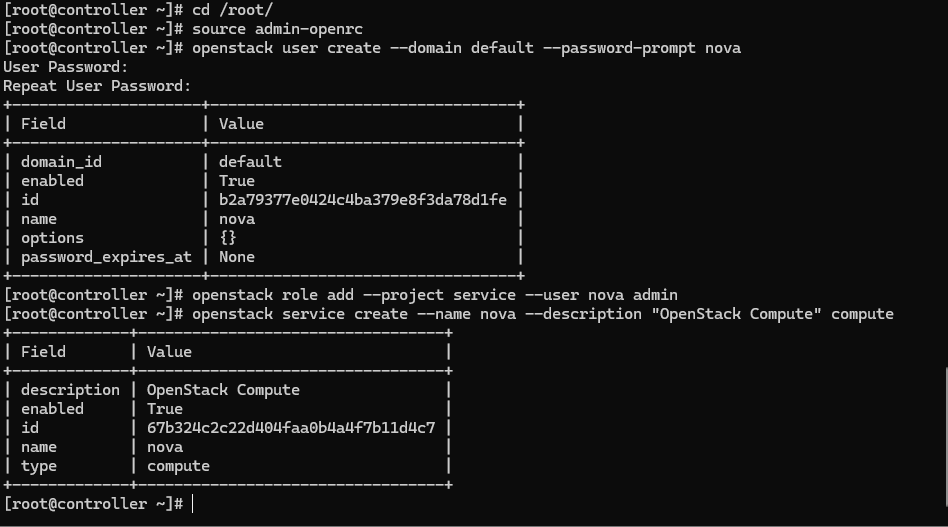
enter description here
2-3. 创建API端点
2-3-1. 创建公共端点
- openstack endpoint create --region RegionOne compute public http://controller:8774/v2.1
2-3-2. 创建外部端点
- openstack endpoint create --region RegionOne compute internal http://controller:8774/v2.1
2-3-3. 创建管理端点
- openstack endpoint create --region RegionOne compute admin http://controller:8774/v2.1
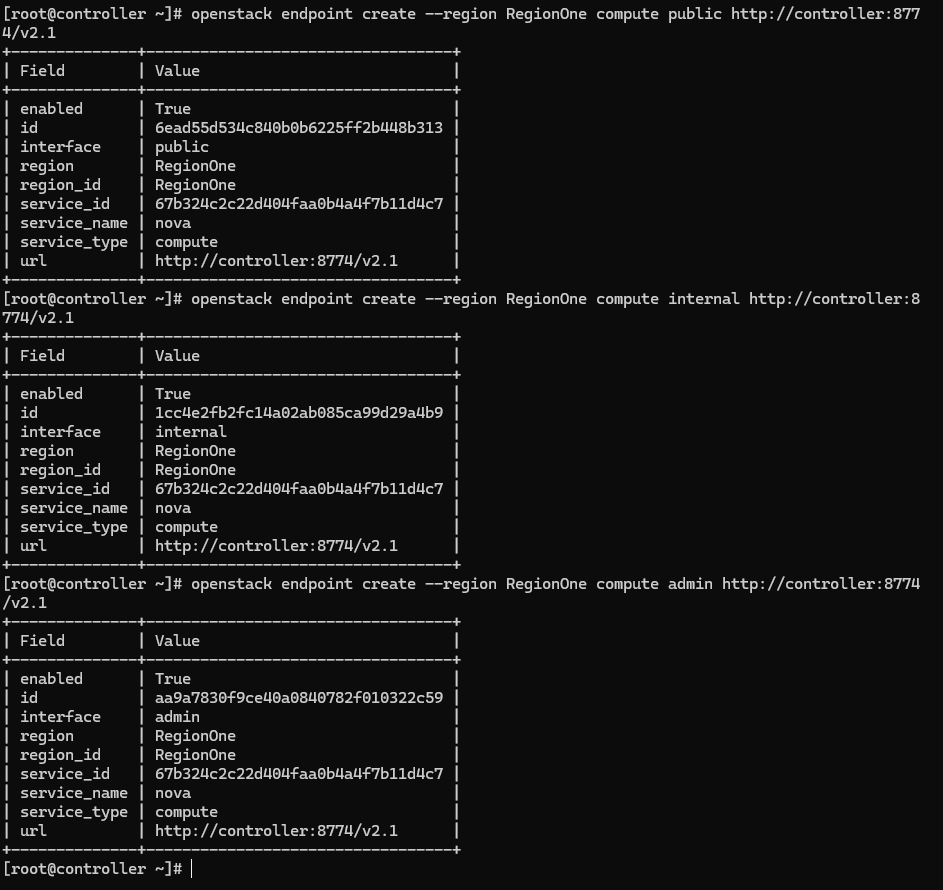
enter description here
3. 6.3.3 安装并配置Nova组件
3-1. 安装Nova组件所需软件包
- yum install openstack-nova-api openstack-nova-conductor openstack-nova-novncproxy openstack-nova-scheduler -y
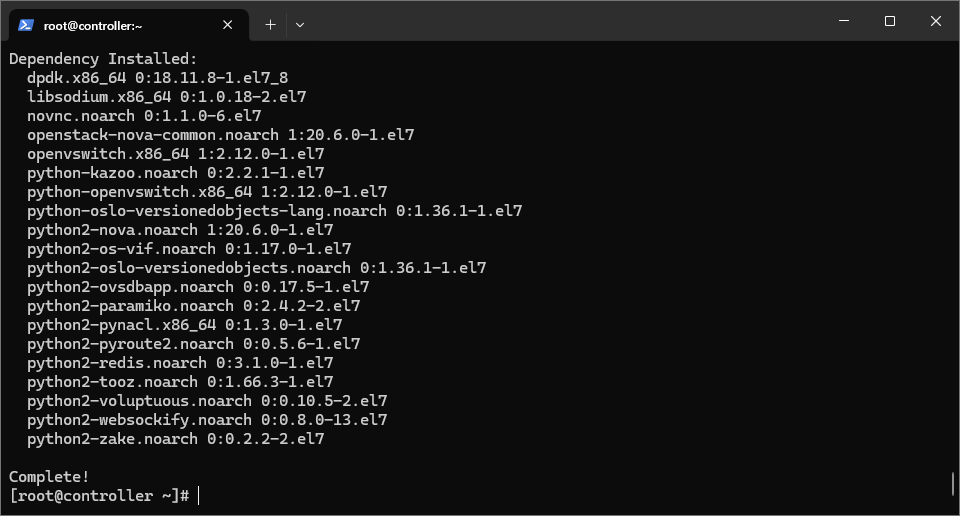
enter description here
3-2. 配置Nova所需组件
- vi /etc/nova/nova.conf
3-2-1. 编辑[DEFAULT]部分,启用计算和元数据API(第2行插入):
- [DEFAULT]
- enable_apis=osapi_compute,metadata
3-2-2. 编辑[api_database](1842行左右)和[database](2332行左右)部分,配置数据库连接
- [api_database]
- connection=mysql+pymysql://nova:000000@controller/nova_api
- [database]
- connection=mysql+pymysql://nova:000000@controller/nova
3-2-3. 编辑[DEFAULT]部分,配置RabbitMQ消息服务器连接:
- [DEFAULT]
- transport_url=rabbit://openstack:000000@controller:5672
3-2-4. 编辑[DEFAULT](1643行左右)和[keystone_authtoken](3203行左右)部分,配置Keystone身份认证:
- [DEFAULT]
- auth_strategy=keystone
- [keystone_authtoken]
- www_authenticate_uri=http://controller:5000/
- auth_url=http://controller:5000/
- memcached_servers=controller:11211
- auth_type=password
- project_domain_name=Default
- user_domain_name=Default
- project_name=service
- username=nova
- password=000000
3-2-5. 编辑[DEFAULT]部分,配置管理IP
地址和启用网络服务
- [DEFAULT]
- my_ip=192.168.200.100
- user_neutron=True
- firewall_driver=nova.virt.firewall.NoopFirewallDriver
3-2-6. 编辑[vnc]部分(5880行左右),配置VNC代理管理IP地址
- [vnc]
- vncserver_listen=$my_ip
- vncserver_proxyclient_address=$my_ip
3-2-7. 编辑[glance]部分(2641行左右),配置镜像服务API端点
- [glance]
- api_servers=http://controller:9292
3-2-8. 编辑[oslo_concurrency]部分(4264行左右),配置lock_path
- [oslo_concurrency]
- lock_path=/var/lib/nova/tmp
3-2-9. 编辑[placement]部分(4756行左右),配置对placement服务的访问权限
- [placement]
- #...
- region_name=RegionOne
- project_domain_name=Default
- project_name=service
- auth_type=password
- user_domain_name=Default
- auth_url=http://controller:5000/v3
- username=placement
- password=000000
3-3. 同步数据库
3-3-1. 填充nova_api数据库
- su -s /bin/sh -c "nova-manage api_db sync" nova
3-3-2. 注册cell0数据库
- su -s /bin/sh -c "nova-manage cell_v2 map_cell0" nova
3-3-3. 创建cell1单元格
- su -s /bin/sh -c "nova-manage cell_v2 create_cell --name=cell1 --verbose" nova
3-3-4. 填充nova数据库
- su -s /bin/sh -c "nova-manage db sync" nova
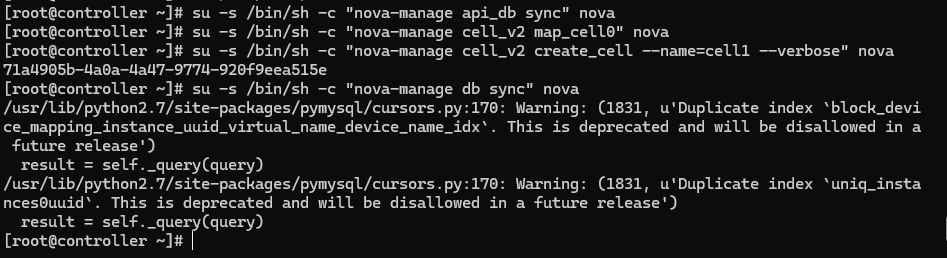
enter description here
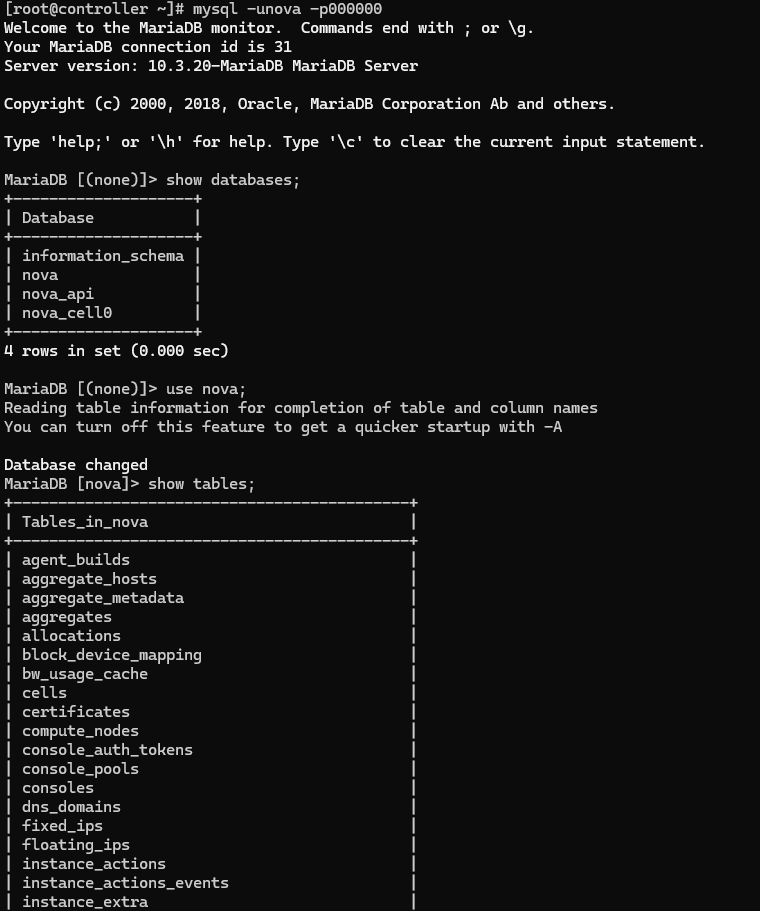
3-3-5. 进入nova数据库查看数据表,验证是否同步成功
- mysql -unova -p000000
- show database;
- use nova;
- show tables;
- exit
enter description here
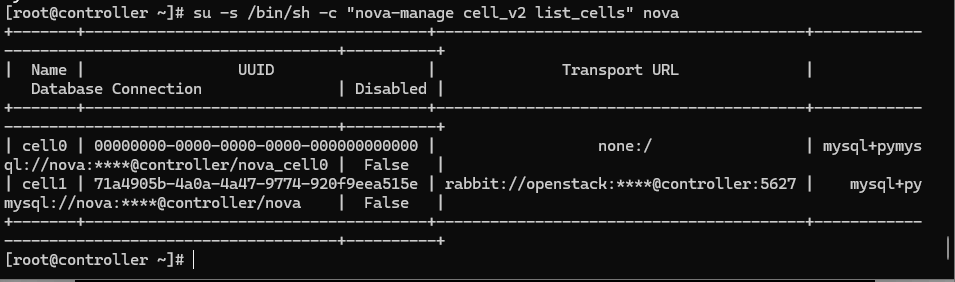
3-3-6. 验证nova cell0和cell1是否正确注册
- su -s /bin/sh -c "nova-manage cell_v2 list_cells" nova
enter description here
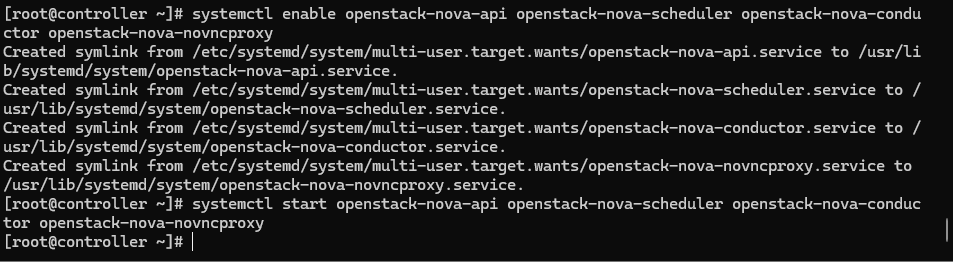
3-4. 启动nova服务并设置开机启动
- systemctl enable openstack-nova-api openstack-nova-scheduler openstack-nova-conductor openstack-nova-novncproxy
- systemctl start openstack-nova-api openstack-nova-scheduler openstack-nova-conductor openstack-nova-novncproxy
enter description here
四、6.4 安装并配置计算节点
1. 安装并配置Nova组件
1-1. 安装nova组件所需软件包
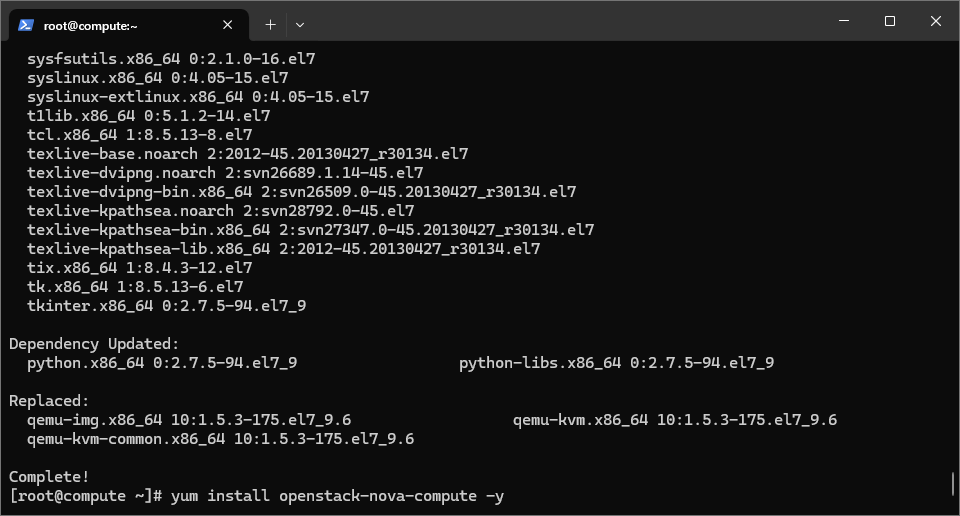
- yum install openstack-nova-compute -y
出现如下错误
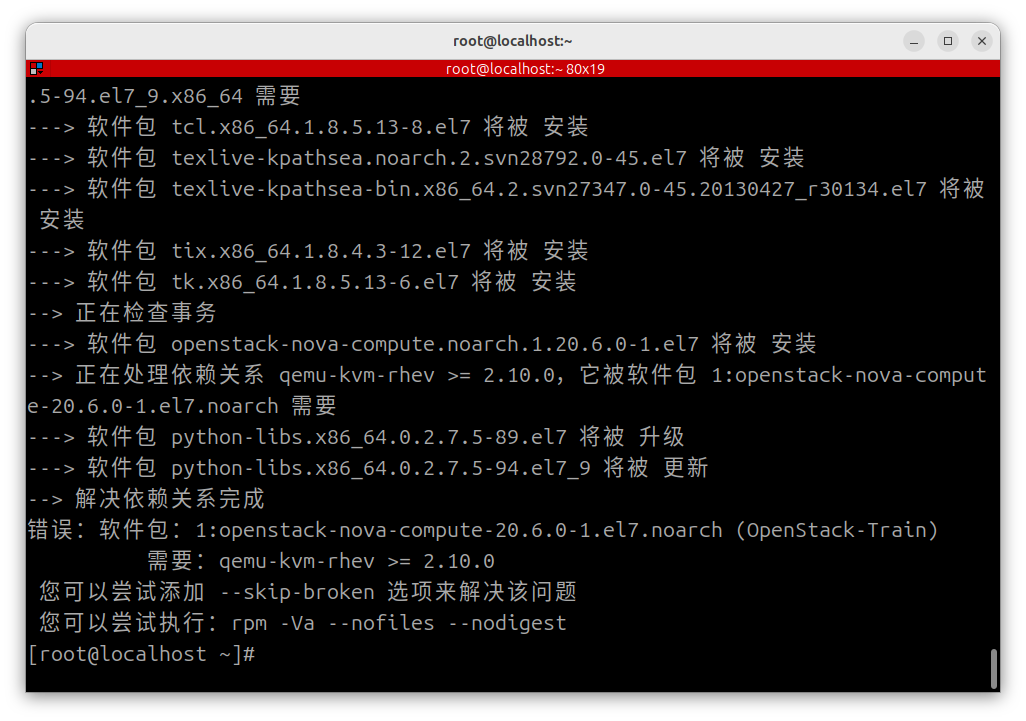
查找网络,解决方法如下:
创建并编辑yum源文件
- vi /etc/yum.repos.d/virt.repo
写入如下内容
- [Virt]
- name=CentOS-$releasever-Virt
- baseurl=http://mirrors.aliyun.com/centos/7.9.2009/virt/x86_64/kvm-common/
- gpgcheck=0
- gpgkey=file:///etc/pki/rpm-gpg/RPM-GPG-KEY-CentOS-7
再执行上面的命令进行安装就可以了。
1-2. 配置nova所需组件
- vi /etc/nova/nova.conf
1-2-1. 编辑[DEFAULT]部分(1362行左右),启用计算一元数据API
- [DEFAULT]
- #...
- enabled_apis=osapi_compute,metadata
1-2-2. 编辑[DEFAULT]部分(1588行左右),配置RabbitMQ消息服务器
- [DEFAULT]
- transport_url=rabbit://openstack:000000@controller
这里的用户名和密码是在第三章设置的。
1-2-3. 编辑[DEFAULT]部分,配置管理IP地址和启用网络服务支持
- [DEFAULT]
- my_ip=192.168.200.101(508行)
- use_neutron=True(插入)
- firewall_driver=nova.virt.firewall.NoopFirewallDriver(1168行)
1-2-4. 编辑[api]和[keystone_authtoken]部分,配置Keystone身份认证
- [api]
- auth_strategy=keystone(1648行)
- [keystone_authtoken](3205行左右)
- www_authenticate_uri=http://controller:5000/
- auth_url=http://controller:35357/(书上这里是5000,我做到后来发现计算节点的nova-compute服务无法启动,提示与rabbitmq消息服务无法通信,到处查资料,在[# OpenStack学习之官方POC环境Nova-Compute节点安装(七)](https://zhuanlan.zhihu.com/p/38706465)这个资料上看别人配的是35357,我也就改成了这个,后面又有其它的修改,最后连接成功,不确定这个地方是否发挥了作用。)
- memcached_servers=controller:11211
- auth_type=password
- project_domain_name=Default
- user_domain_name=Default
- project_name=service
- username=nova
- password=000000
- auth_uri=http://controller:5000(这一行书上没有,也是在解决问题查找资料中看[# OpenStack学习之官方POC环境Nova-Compute节点安装(七)](https://zhuanlan.zhihu.com/p/38706465)这个资料上这么配的,我也就这么配了,后来成功了,不确定这个地方是否发挥了作用。)
1-2-5. 编辑[vnc]部分,启用并配置远程控制台的访问
- [vnc](5880行左右)
- enabled=True
- vncserver_listen=0.0.0.0
- vncserver_proxyclient_address=$my_ip
- novncproxy_base_url=http://192.168.200.100:6080/vnc_auto.html
1-2-6. 编辑[glance]部分,配置镜像服务API的位置
- [glance](2629行左右)
- api_servers=http://controller:9292
1-2-7. 编辑[oslo_concurrency]部分,配置lock_path
- [oslo_concurrency](4250行左右)
- lock_path=/var/lib/nova/tmp
1-2-8. 编辑[plcacement]部分,配置Placement API
- [placment](4757行左右)
- #...
- region_name=RegionOne
- project_domain_name=Default
- project_name=service
- auth_type=password
- user_domain_name=Default
- auth_url=http://controller:5000/v3
- username=placement
- password=000000
2. 检查主机是否支持虚拟机硬件加速
2-1. 执行命令
- egrep -c '(vmx|svm)' /proc/cpuinfo

enter description here
2-2. 启动Nova服务并设置开机自启动
- systemctl enable libvirtd openstack-nova-compute
- systemctl start libvirtd openstack-nova-compute
五、6.5 计算节点配置同步
虽然是计算节点配置同步,但是操作却是在控制节点上做。
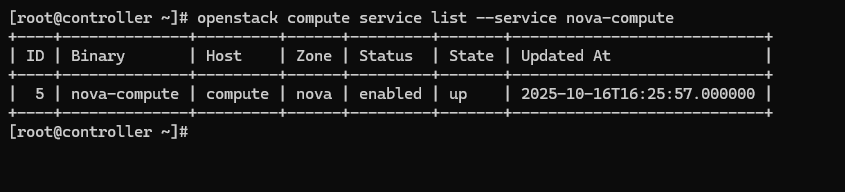
1. 获取管理员凭据以启用仅管理员的CLI命令,然后确认数据库中有计算主机
- cd /root/
- source admin-openrc
- openstack compute service list --service nova-compute
enter description here
2. 发现计算主机(书上这里的配图表明它没有做成功)
- su -s /bin/sh -c "nova-manage cell_v2 discover_hosts --verbose" nova
enter description here
六、6.6 验证Nova服务
在控制节点上进行如下操作
1. 生效admin用户环境变量
- cd /root/
- source admin-openrc
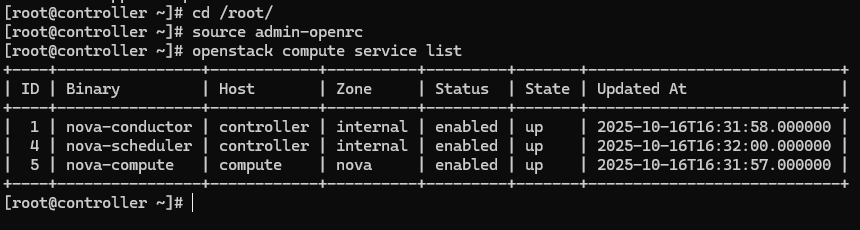
2. 查看Nova服务
- openstack compute service list
enter description here
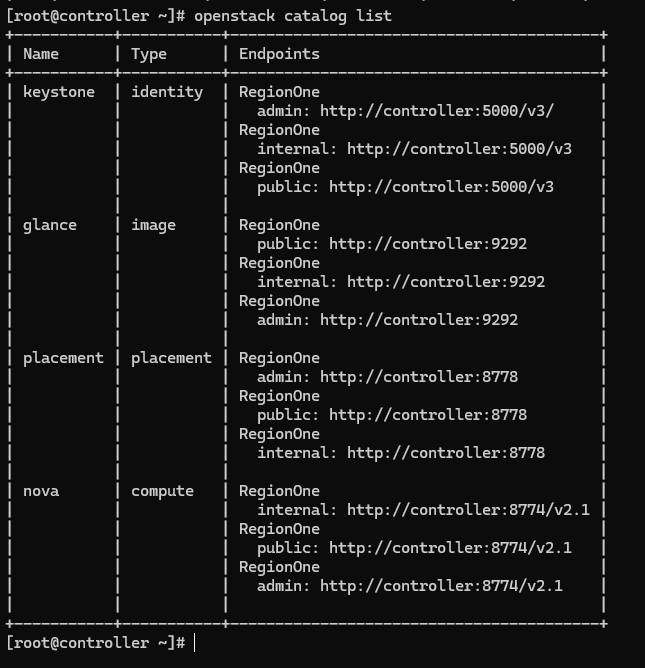
3. 与keystone连接验证
- openstack catalog list
enter description here
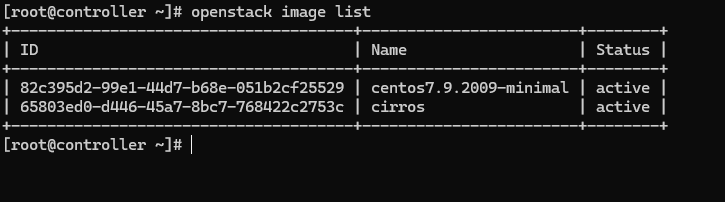
4. 与Glance连接验证
- openstack image list
enter description here
5. 整体检查
5-1. 编辑/etc/httpd/conf.d/00-placement-api.conf文件
在<virtualhost *:8778>内添加如下内容(不需要做了,因为我在前面已经做了,否则我也到不了这里):
- <Directory /usr/bin>
- <IfVersion >= 2.4>
- Require all granted
- </IfVersion>
- <IfVersion < 2.4>
- Order allow,deny
- Allow from all
- </IfVersion>
- </Directory>
5-2. 重启httpd服务(因为前一步不需要了,所以这一步也不需要了)
- systemctl restart httpd
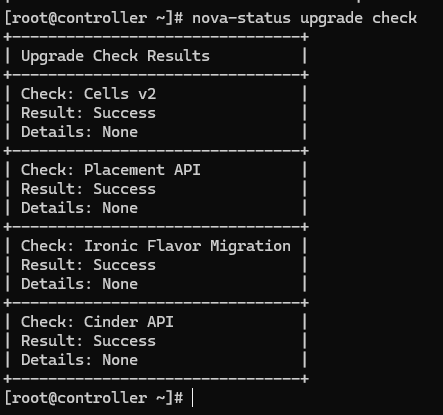
5-3. 检查单元格cell和placement API是否正常运行,以及其它必要的先决条件是否到位
- nova-status upgrade check
enter description here
第六章做完了。书中有一点问题,经查找资料,已解决。

 浙公网安备 33010602011771号