

Selenium终极自动化测试环境搭建(一):Selenium+Eclipse+Junit+TestNG
第一步 安装JDK
JDk1.7,下载地址:http://www.oracle.com/technetwork/java/javase/downloads/jdk7-downloads-1880260.html
一路猛击‘下一步’,OK。安装完成后配置环境变量:
JAVA_HOME = E:\Java\Java\jdk1.7.0_15
PATH = %JAVA_HOME%\bin
CLASSPATH = .;%JAVA_HOME%\lib\dt.jar;%JAVA_HOME%\lib\tools.jar
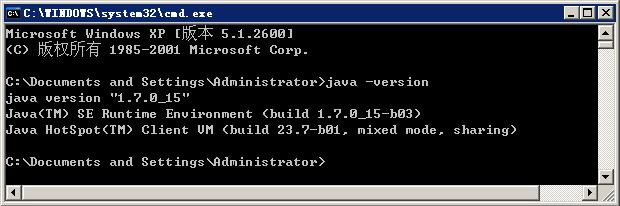
配置完环境变量后,CMD命令行输入:java -version,返回如下结果,则表示安装成功:
![]()
第二步 下载Eclipse
下载地址:http://www.eclipse.org/download/
最新的Eclipse Standard 4.3, 198 MB,下载的都是不用安装的,解压出来后直接用。
第三步 下载Selenium IDE、SeleniumRC、IEDriverServer、SeleniumClient Drivers
下载地址:http://www.seleniumhq.org/download/
1、 Selenium IDE:selenium-ide-2.2.0.xpi 用来在Firefox上录制脚本。
2、 Selenium RC:selenium-server-standalone-2.33.0.jar 模拟服务器端,不可少。
3、 IEDriverServer:DriverServer_Win32_2.33.0.zip IE驱动,Firfox和chorm不用驱动。
4、 Selenium Client Drivers:selenium-java-2.33.0.zip 模拟Selenium客户端。
![]()
这里,我将下载得到的所有文件,全存放在E:\eclipse\selenium下面,方便管理:
![]()
第四步 下载Firefox
下载地址:http://www.firefox.com.cn/download/
下载得到文件:Firefox-latest.exe
第五步 安装IDE、Firebug、Xpath checker、Xpath finder
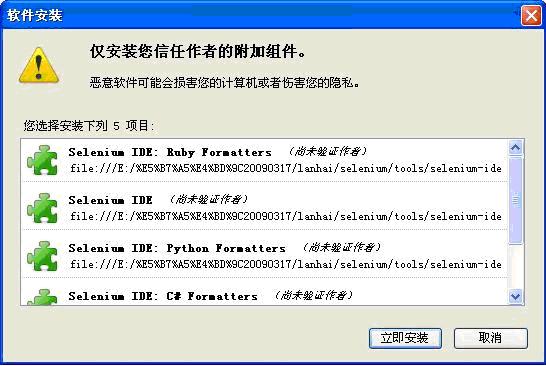
安装完Firefox后,打开Firefox,把前面下载的selenium-ide-2.2.0xpi拖放到Firefox,弹出下图后,安装即可。
![]()
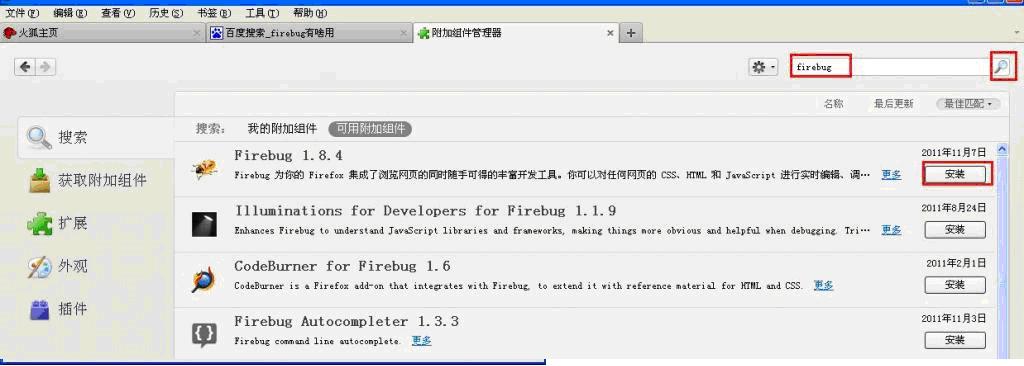
Firebug、Xpath checker、Xpath finder,打开firefox浏览器,选择工具――附加组件,打开附加组件管理器页面,搜索firebug、Xpath。
将查询到的firebug、xpath checker、xpath finder都装上,重启浏览器后生效:
![]()
SeleniumIDE、Firebug和xpath的用法,可以百度Selenium私房菜(新手入门教程).pdf,里面有很好的说明。
第六步 启动SeleniumRC
启动seleniumRC的方法:
cmd命令行进入selenium-server-standalone-2[1].33.0.jar存放目录,输入如下命令
java -jar selenium-server-standalone-2[1].12.0.jar
![]()
为了方便,可以将启动命令写一个bat来执行,Run_selenium.bat,内容如下:
@echo off
cd E:\eclipse\selenium
E:
java -jar selenium-server-standalone-2.33.0.jar
第七步 Eclipse执行Selenium的Java实例
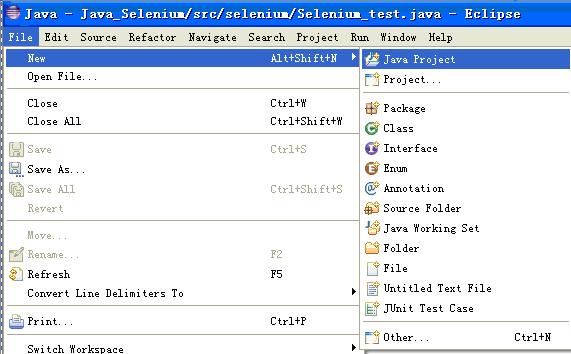
-----7.1 打开Eclipse,新建一个工程File—new—Java Project
![]()
-----7.2 输入工程名:Selenium,next
![]()
-----7.3 接下来,窗口进入Java Settings,选择Libraries,点击Addlibrary。
引用Junit4的Jar包(E:\eclipse\plugins\org.junit_4.11.0.v2XXXX)。然后点击Add External Jars..,引用Selenium相关的包(E:\eclipse\selenium),最终Libraries如下:
![]()
完成后,Java视图如下:
![]()
-----7.4 右击src,new->package新建一个包Selenium_Test,再右击包Selenium_Test,new->class,新建一个Class类Case1.java,最终效果如下:
![]()
-----7.5 下面我们来用IE浏览器执行一个实例,修改Case1.java代码如下:
package Selenium_Test;
import org.openqa.selenium.By;
import org.openqa.selenium.WebDriver;
import org.openqa.selenium.WebElement;
import org.openqa.selenium.ie.InternetExplorerDriver;
import org.openqa.selenium.remote.DesiredCapabilities;
public class Case1 {
public static void main(String[] args) {
System.setProperty("webdriver.ie.driver",
"E:\\eclipse\\selenium\\IEDriverServer.exe");//注意这里IEDriverServer.exe的文件存放路径
DesiredCapabilities ieCapabilities = DesiredCapabilities
.internetExplorer();
ieCapabilities
.setCapability(
InternetExplorerDriver.INTRODUCE_FLAKINESS_BY_IGNORING_SECURITY_DOMAINS,
true);
WebDriver driver = new InternetExplorerDriver(ieCapabilities);
driver.get("http://www.google.com.hk");
WebElement element = driver.findElement(By.name("q"));
element.sendKeys("hello Selenium!");
element.submit();
try {
Thread.sleep(3000);
} catch (InterruptedException e) {
e.printStackTrace();
}
System.out.println("Page title is: " + driver.getTitle());
driver.quit();
}
}
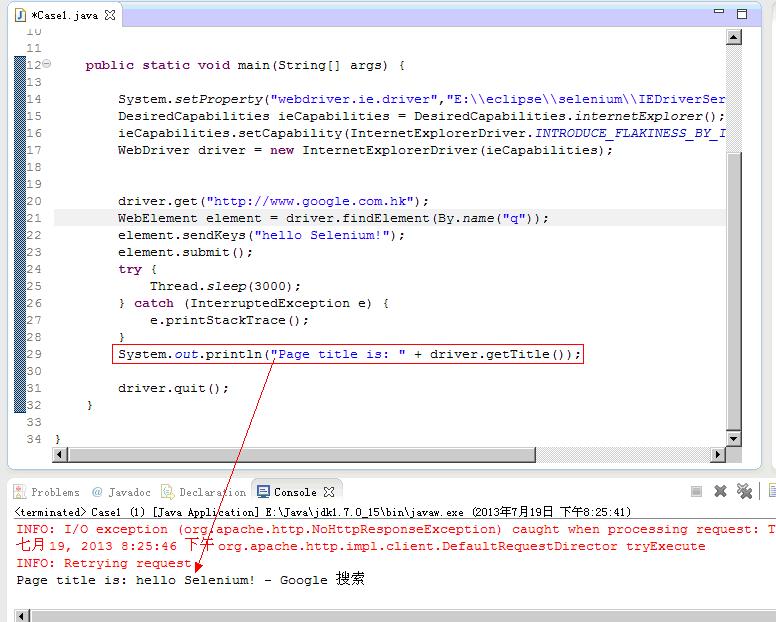
-----7.6 运行Run_selenium.bat,启动Selenium RC服务器。然后右击Case1.Java,Run As—>Java Application,执行成功结果如下:
![]()
下面我们通过Junit来运行脚本,脚本需要修改一下,因为Junit的Java文件有它自己的格式。
第八步 Eclipse通过Junit执行Selenium的Java实例
-----8.1 右击Selenium_Test,new->Junit test case 新建一个Case2.java。
![]()
完成后如下:
![]()
-----8.2 修改Case2.java代码如下:
package Selenium_Test;
import org.junit.*;
import org.openqa.selenium.*;
import org.openqa.selenium.firefox.FirefoxDriver;
public class Case2 {
WebDriver driver;
@Before
public void setUp() throws Exception {
driver = new FirefoxDriver();
}
@Test
public void test_case2() throws Exception {
driver.get("http://www.google.com.hk");
WebElement element = driver.findElement(By.name("q"));
element.sendKeys("hello Selenium!");
element.submit();
}
@After
public void tearDown() throws Exception {
System.out.println("Page title is: " + driver.getTitle());
driver.quit();
}
}
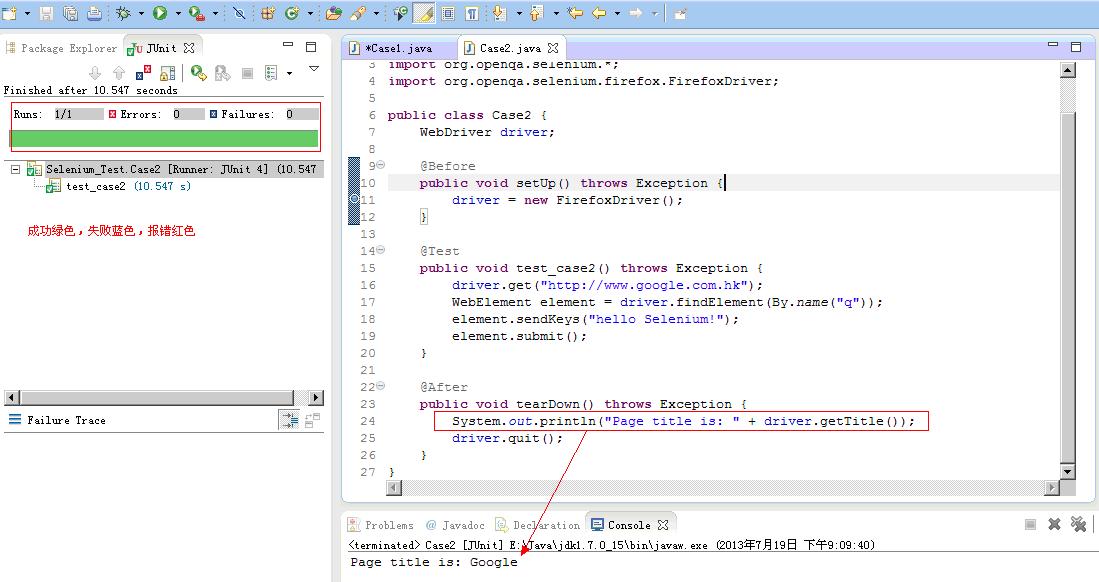
-----8.3 运行Run_selenium.bat,启动Selenium RC服务器(前面RC启动后若未关闭,则无需启动多个)右击Case2.java,Run As—>Junit Test,执行成功结果如下:
![]()
第九步 Eclipse通过TestNG执行Selenium的Java实例
-----9.1
安装 TestNG
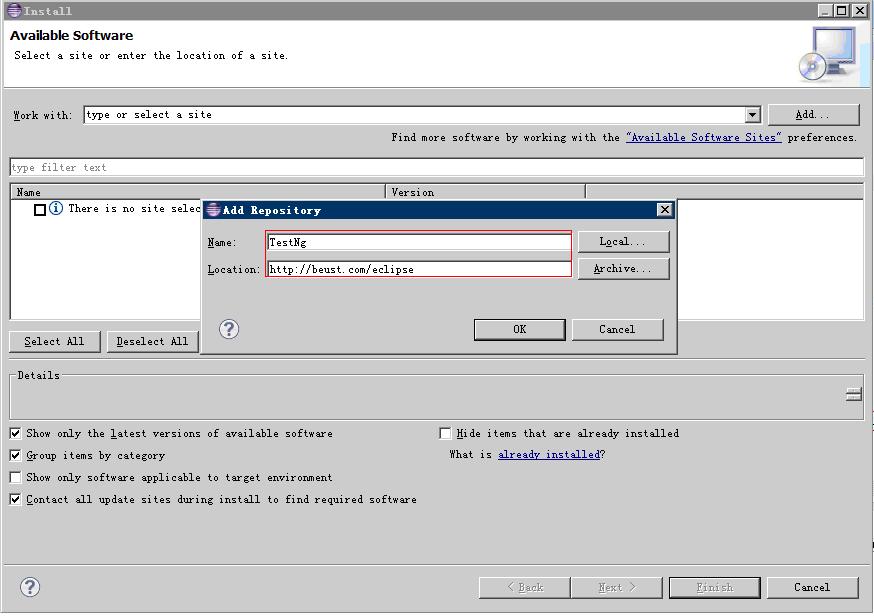
在 Eclipse 中,点击 Help -> Install new software ,在 add 栏中输入http://beust.com/eclipse,在下面就会看到 TestNG.选中点击安装,按下一步直到安装完,在线安装会有点很慢。
![]()
安装完重启Eclipse后,在 window->Show View->other 里面选中Java->TestNG,就会出现TestNG选项了。
![]()
-----9.2 右击包Selenium_Test,new->other->TestNG新建一个 TestNG 的测试类Case3.java。![]()
完成后如下:
![]()
修改Case3.java脚本内容如下:
package Selenium_Test;
import org.testng.annotations.Test;
import org.openqa.selenium.By;
import org.openqa.selenium.WebDriver;
import org.openqa.selenium.WebElement;
import org.testng.annotations.BeforeMethod;
import org.testng.annotations.AfterMethod;
import org.openqa.selenium.firefox.FirefoxDriver;
public class Case3 {
WebDriver driver;
@BeforeMethod
public void beforeMethod() {
}
@AfterMethod
public void afterMethod() {
System.out.println("Page title is: " + driver.getTitle());
driver.quit();
}
@Test
public void test_case3() {
driver = new FirefoxDriver();
driver.get("http://www.google.com.hk");
WebElement element = driver.findElement(By.name("q"));
element.sendKeys("hello Selenium!");
element.submit();
}
}
-----9.3 运行Run_selenium.bat,启动Selenium RC服务器。右击Case3.java,Run as->TestNG Test,执行成功结果如下:
![]()
执行完,会生成一个test-output文件夹,文件夹下面的index.html就是测试报告,如下:
![]()
以上是在Eclipse下如何搭建Selenium的测试环境,包括直接执行.java,通过Junit执行.java,通过TestNG执行.java。
一路猛击‘下一步’,OK。安装完成后配置环境变量:
JAVA_HOME = E:\Java\Java\jdk1.7.0_15
PATH = %JAVA_HOME%\bin
CLASSPATH = .;%JAVA_HOME%\lib\dt.jar;%JAVA_HOME%\lib\tools.jar
配置完环境变量后,CMD命令行输入:java -version,返回如下结果,则表示安装成功:
第二步 下载Eclipse
下载地址:http://www.eclipse.org/download/
最新的Eclipse Standard 4.3, 198 MB,下载的都是不用安装的,解压出来后直接用。
第三步 下载Selenium IDE、SeleniumRC、IEDriverServer、SeleniumClient Drivers
下载地址:http://www.seleniumhq.org/download/
1、 Selenium IDE:selenium-ide-2.2.0.xpi 用来在Firefox上录制脚本。
2、 Selenium RC:selenium-server-standalone-2.33.0.jar 模拟服务器端,不可少。
3、 IEDriverServer:DriverServer_Win32_2.33.0.zip IE驱动,Firfox和chorm不用驱动。
4、 Selenium Client Drivers:selenium-java-2.33.0.zip 模拟Selenium客户端。

这里,我将下载得到的所有文件,全存放在E:\eclipse\selenium下面,方便管理:

第四步 下载Firefox
下载地址:http://www.firefox.com.cn/download/
下载得到文件:Firefox-latest.exe
第五步 安装IDE、Firebug、Xpath checker、Xpath finder
安装完Firefox后,打开Firefox,把前面下载的selenium-ide-2.2.0xpi拖放到Firefox,弹出下图后,安装即可。
Firebug、Xpath checker、Xpath finder,打开firefox浏览器,选择工具――附加组件,打开附加组件管理器页面,搜索firebug、Xpath。
将查询到的firebug、xpath checker、xpath finder都装上,重启浏览器后生效:
SeleniumIDE、Firebug和xpath的用法,可以百度Selenium私房菜(新手入门教程).pdf,里面有很好的说明。
第六步 启动SeleniumRC
启动seleniumRC的方法:
cmd命令行进入selenium-server-standalone-2[1].33.0.jar存放目录,输入如下命令
java -jar selenium-server-standalone-2[1].12.0.jar

为了方便,可以将启动命令写一个bat来执行,Run_selenium.bat,内容如下:
@echo off
cd E:\eclipse\selenium
E:
java -jar selenium-server-standalone-2.33.0.jar
第七步 Eclipse执行Selenium的Java实例
-----7.1 打开Eclipse,新建一个工程File—new—Java Project
-----7.2 输入工程名:Selenium,next
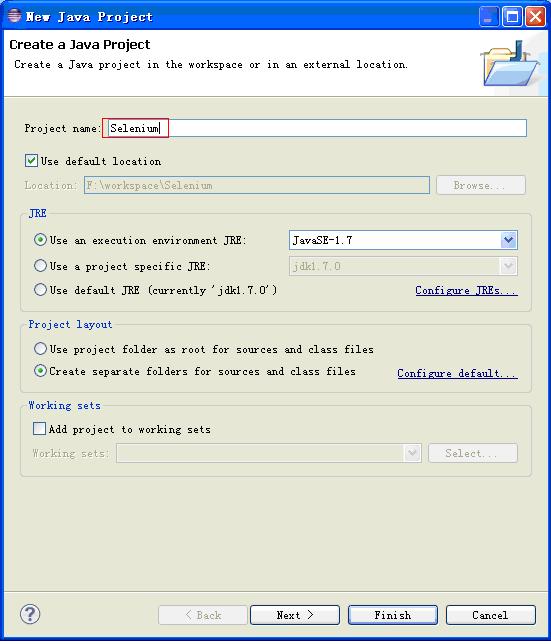
-----7.3 接下来,窗口进入Java Settings,选择Libraries,点击Addlibrary。
引用Junit4的Jar包(E:\eclipse\plugins\org.junit_4.11.0.v2XXXX)。然后点击Add External Jars..,引用Selenium相关的包(E:\eclipse\selenium),最终Libraries如下:

完成后,Java视图如下:

-----7.4 右击src,new->package新建一个包Selenium_Test,再右击包Selenium_Test,new->class,新建一个Class类Case1.java,最终效果如下:

-----7.5 下面我们来用IE浏览器执行一个实例,修改Case1.java代码如下:
package Selenium_Test;
import org.openqa.selenium.By;
import org.openqa.selenium.WebDriver;
import org.openqa.selenium.WebElement;
import org.openqa.selenium.ie.InternetExplorerDriver;
import org.openqa.selenium.remote.DesiredCapabilities;
public class Case1 {
public static void main(String[] args) {
System.setProperty("webdriver.ie.driver",
"E:\\eclipse\\selenium\\IEDriverServer.exe");//注意这里IEDriverServer.exe的文件存放路径
DesiredCapabilities ieCapabilities = DesiredCapabilities
.internetExplorer();
ieCapabilities
.setCapability(
InternetExplorerDriver.INTRODUCE_FLAKINESS_BY_IGNORING_SECURITY_DOMAINS,
true);
WebDriver driver = new InternetExplorerDriver(ieCapabilities);
driver.get("http://www.google.com.hk");
WebElement element = driver.findElement(By.name("q"));
element.sendKeys("hello Selenium!");
element.submit();
try {
Thread.sleep(3000);
} catch (InterruptedException e) {
e.printStackTrace();
}
System.out.println("Page title is: " + driver.getTitle());
driver.quit();
}
}
-----7.6 运行Run_selenium.bat,启动Selenium RC服务器。然后右击Case1.Java,Run As—>Java Application,执行成功结果如下:
下面我们通过Junit来运行脚本,脚本需要修改一下,因为Junit的Java文件有它自己的格式。
第八步 Eclipse通过Junit执行Selenium的Java实例
-----8.1 右击Selenium_Test,new->Junit test case 新建一个Case2.java。
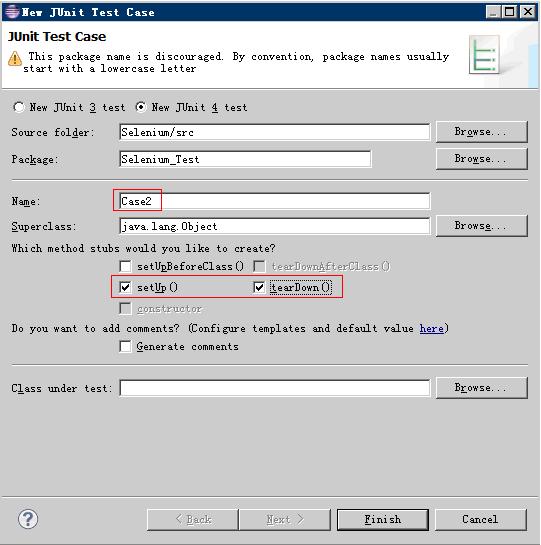
完成后如下:

-----8.2 修改Case2.java代码如下:
package Selenium_Test;
import org.junit.*;
import org.openqa.selenium.*;
import org.openqa.selenium.firefox.FirefoxDriver;
public class Case2 {
WebDriver driver;
@Before
public void setUp() throws Exception {
driver = new FirefoxDriver();
}
@Test
public void test_case2() throws Exception {
driver.get("http://www.google.com.hk");
WebElement element = driver.findElement(By.name("q"));
element.sendKeys("hello Selenium!");
element.submit();
}
@After
public void tearDown() throws Exception {
System.out.println("Page title is: " + driver.getTitle());
driver.quit();
}
}
-----8.3 运行Run_selenium.bat,启动Selenium RC服务器(前面RC启动后若未关闭,则无需启动多个)右击Case2.java,Run As—>Junit Test,执行成功结果如下:
第九步 Eclipse通过TestNG执行Selenium的Java实例
-----9.1
安装 TestNG
在 Eclipse 中,点击 Help -> Install new software ,在 add 栏中输入http://beust.com/eclipse,在下面就会看到 TestNG.选中点击安装,按下一步直到安装完,在线安装会有点很慢。
安装完重启Eclipse后,在 window->Show View->other 里面选中Java->TestNG,就会出现TestNG选项了。

-----9.2 右击包Selenium_Test,new->other->TestNG新建一个 TestNG 的测试类Case3.java。
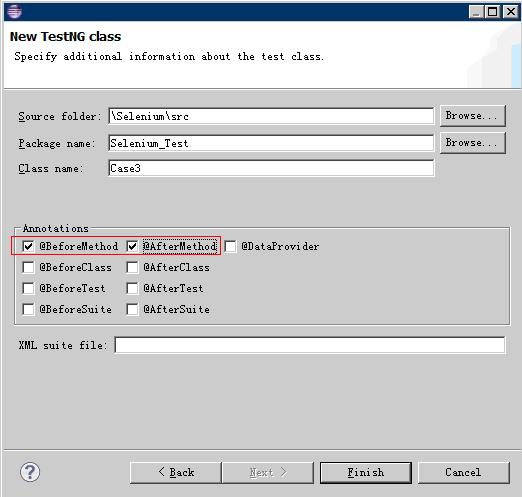
完成后如下:
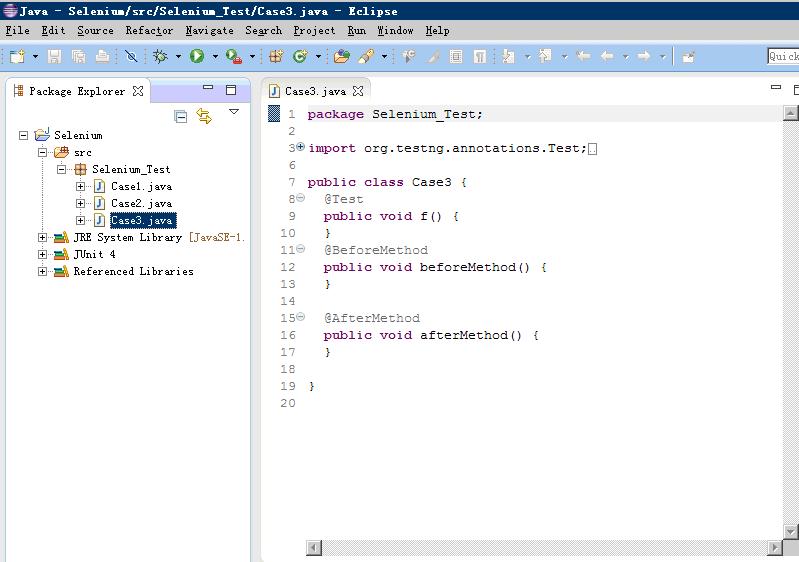
修改Case3.java脚本内容如下:
package Selenium_Test;
import org.testng.annotations.Test;
import org.openqa.selenium.By;
import org.openqa.selenium.WebDriver;
import org.openqa.selenium.WebElement;
import org.testng.annotations.BeforeMethod;
import org.testng.annotations.AfterMethod;
import org.openqa.selenium.firefox.FirefoxDriver;
public class Case3 {
WebDriver driver;
@BeforeMethod
public void beforeMethod() {
}
@AfterMethod
public void afterMethod() {
System.out.println("Page title is: " + driver.getTitle());
driver.quit();
}
@Test
public void test_case3() {
driver = new FirefoxDriver();
driver.get("http://www.google.com.hk");
WebElement element = driver.findElement(By.name("q"));
element.sendKeys("hello Selenium!");
element.submit();
}
}
-----9.3 运行Run_selenium.bat,启动Selenium RC服务器。右击Case3.java,Run as->TestNG Test,执行成功结果如下:
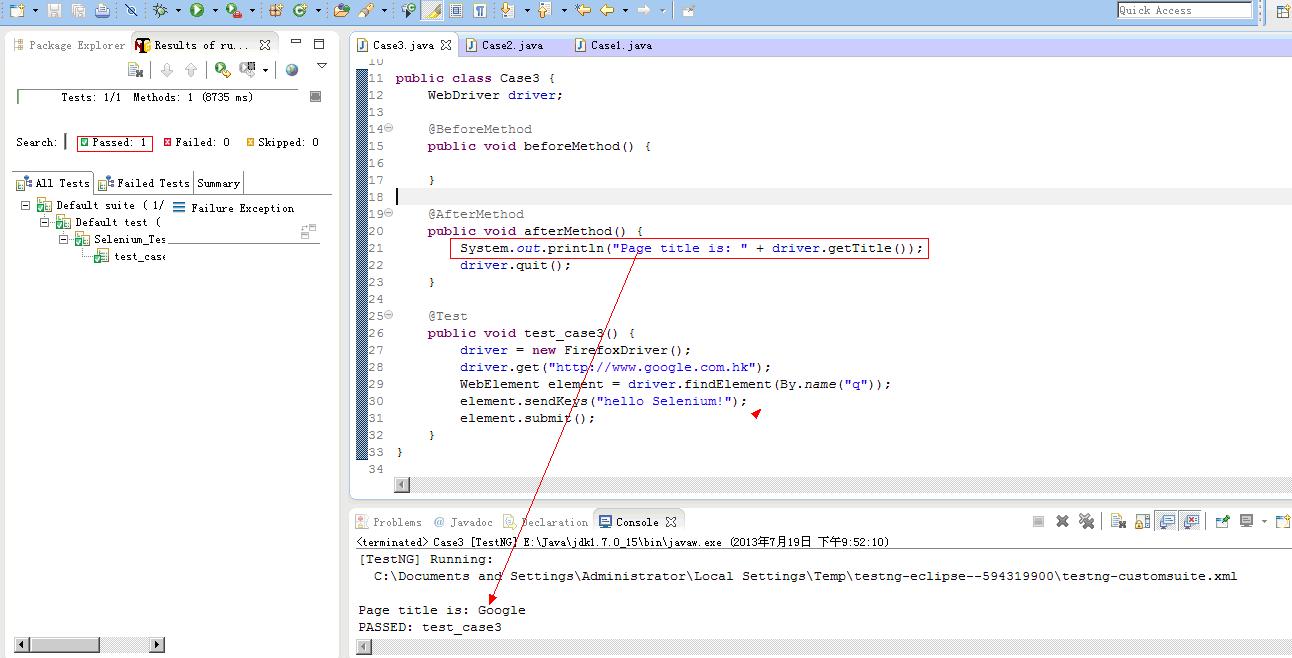
执行完,会生成一个test-output文件夹,文件夹下面的index.html就是测试报告,如下:
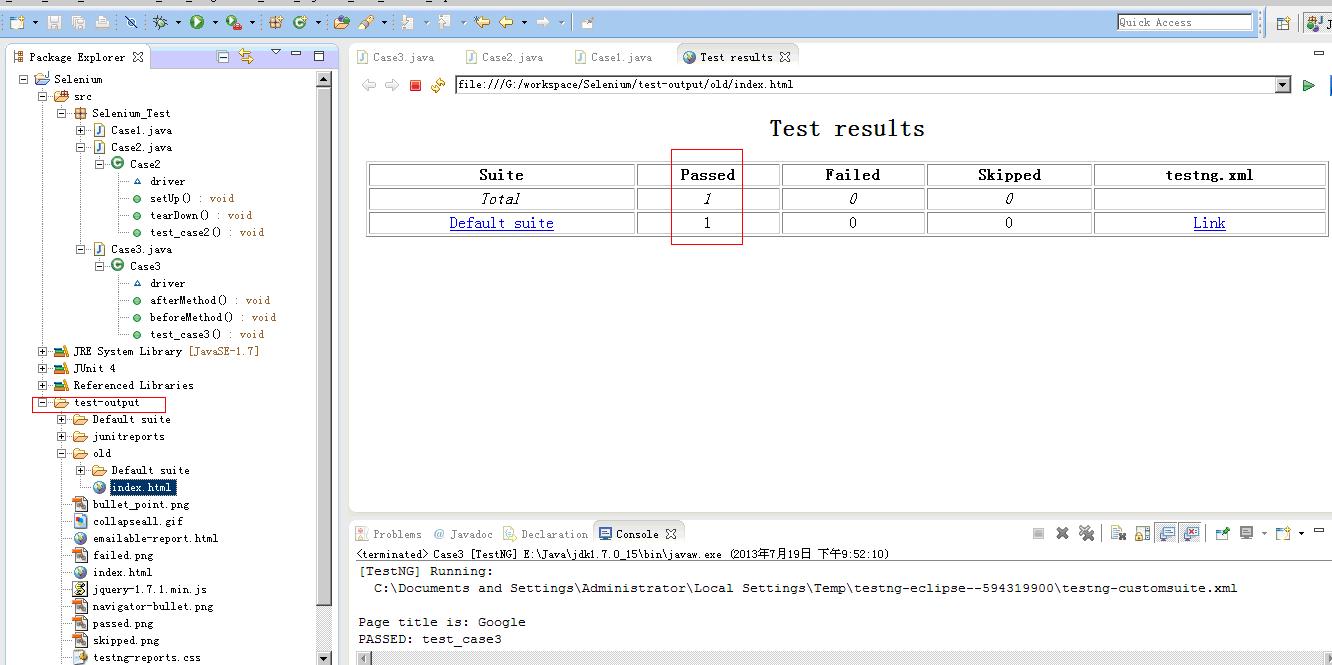
以上是在Eclipse下如何搭建Selenium的测试环境,包括直接执行.java,通过Junit执行.java,通过TestNG执行.java。

 浙公网安备 33010602011771号