
Powershell美化
先来一张完成图
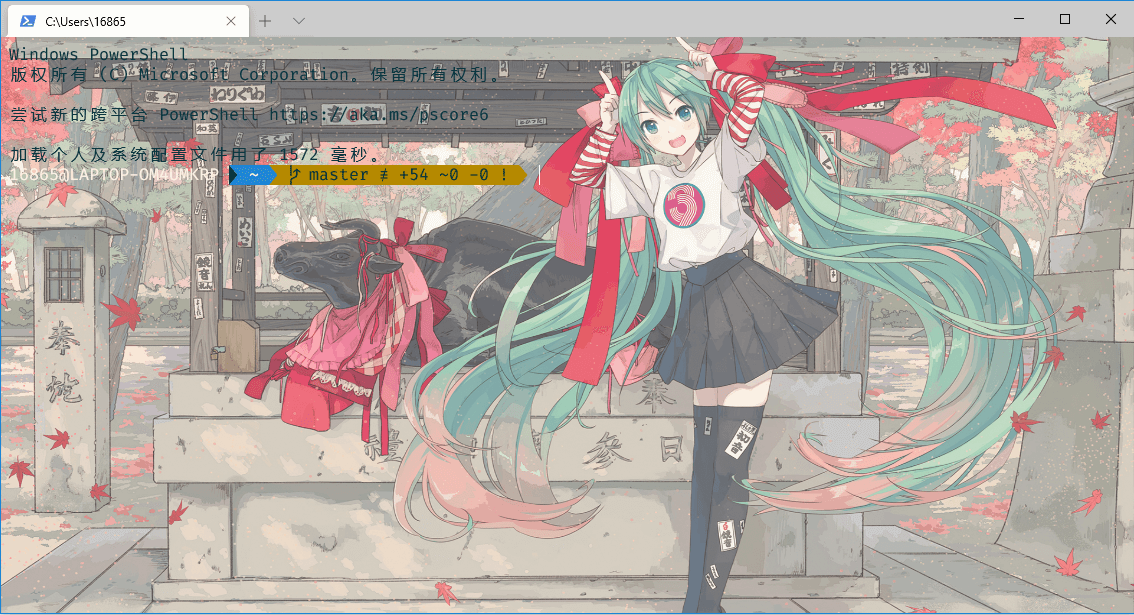
一.Windows Terminal
1.安装
在微软商店里搜Windows Terminal,安装即可。
2.配置介绍
// To view the default settings, hold "alt" while clicking on the "Settings" button.
// For documentation on these settings, see: https://aka.ms/terminal-documentation

{
  "$schema": "https://aka.ms/terminal-profiles-schema",

  // 设置默认shell 指定guid
  "defaultProfile": "{61c54bbd-c2c6-5271-96e7-009a87ff44bf}",

  // 行列数
  "initialCols": 110,
  "initialRows": 28,

  // 快捷键
  "keybindings": [
      {
          "command": "closeTab",
          "keys": [
              "ctrl+alt+c"
          ]
      }
  ],

  "profiles":
  [
      {
          // Make changes here to the powershell.exe profile
          "name": "Peter's power shell",
          // 	终端配置标识
          "guid": "{61c54bbd-c2c6-5271-96e7-009a87ff44bf}",
          "startingDirectory": "C:\\Users\\16865",
          "acrylicOpacity" : 0.9,
          // 不透明度
          "useAcrylic": true,
          "closeOnExit" : true,
          // 色彩风格
          "colorScheme" : "Solarized Light",
          "cursorColor" : "#fefefe",
          "cursorShape" : "bar",
          "fontSize" : 12,
          "historySize" : 10000,
          // 背景
          "backgroundImage": "C:\\Users\\16865\\Pictures\\123\\1.jpg",
          "backgroundImageOpacity": 0.75,
          "backgroundImageStretchMode": "fill",
          "commandline": "powershell.exe",
          "hidden": false,
          "fontFace": "Fira Code"
      },
      {
          "name": "Peter's cmd",
          "startingDirectory": "C:\\Users\\16865",
          "acrylicOpacity" : 0.9,
          // 不透明度
          "useAcrylic": true,
          "closeOnExit" : true,
          // 色彩风格
          "colorScheme" : "myScheme",
          "cursorColor" : "#fefefe",
          "cursorShape" : "bar",
          "fontSize" : 12,
          "historySize" : 10000,
          // 背景
          "backgroundImage": "C:\\Users\\16865\\Pictures\\123\\1.jpg",
          "backgroundImageOpacity": 0.75,
          "backgroundImageStretchMode": "fill",
          // Make changes here to the cmd.exe profile
          "guid": "{0caa0dad-35be-5f56-a8ff-afceeeaa6101}",
          "commandline": "cmd.exe",
          "hidden": false,
          "fontFace": "Fira Code"
      },
      {
          "name": "Peter's wsl",
          "acrylicOpacity" : 0.9,
          // 不透明度
          "useAcrylic": true,
          "closeOnExit" : true,
          // 色彩风格
          "colorScheme" : "Solarized Light",
          "cursorColor" : "#fefefe",
          "cursorShape" : "bar",
          "fontSize" : 12,
          "historySize" : 10000,
          // 背景
          "backgroundImage": "C:\\Users\\16865\\Pictures\\123\\1.jpg",
          "backgroundImageOpacity": 0.75,
          "backgroundImageStretchMode": "fill",
          "guid": "{07b52e3e-de2c-5db4-bd2d-ba144ed6c273}",
          "hidden": false,
          "source": "Windows.Terminal.Wsl",
          "fontFace": "Fira Code"
      },
      {
          "guid": "{b453ae62-4e3d-5e58-b989-0a998ec441b8}",
          "hidden": false,
          "name": "Azure Cloud Shell",
          "source": "Windows.Terminal.Azure"
      },
      {
          "guid": "{07b52e3e-de2c-5db4-bd2d-ba144ed6c273}",
          "hidden": false,
          "name": "Ubuntu-20.04",
          "source": "Windows.Terminal.Wsl"
      },
      {
          "guid": "{a5a97cb8-8961-5535-816d-772efe0c6a3f}",
          "hidden": false,
          "name": "Arch",
          "source": "Windows.Terminal.Wsl"
      },
      {
          "guid": "{5d65d560-5504-5943-b759-c9f530ff081c}",
          "hidden": false,
          "name": "Launcher",
          "source": "Windows.Terminal.Wsl"
      }
  ],

  // Add custom color schemes to this array
  "schemes": [
      {
          "name": "myScheme",
          // 前景色,既字体色
          "foreground": "#c0c0c0",
          "background": "#0C0C0C",
          "colors": [
              "#0C0C0C",
              "#C50F1F",
              "#13A10E",
              "#C19C00",
              "#0037DA",
              "#881798",
              "#3A96DD",
              "#CCCCCC",
              "#767676",
              "#E74856",
              "#16C60C",
              "#F9F1A5",
              "#3B78FF",
              "#B4009E",
              "#61D6D6",
              "#F2F2F2"
          ]
      },
      {
          "name": "Solarized Dark",
          "foreground": "#FDF6E3",
          "background": "#073642",
          "colors": [
              "#073642",
              "#D30102",
              "#859900",
              "#B58900",
              "#268BD2",
              "#D33682",
              "#2AA198",
              "#EEE8D5",
              "#002B36",
              "#CB4B16",
              "#586E75",
              "#657B83",
              "#839496",
              "#6C71C4",
              "#93A1A1",
              "#FDF6E3"
          ]
      },
      {
          "name": "Solarized Light",
          "foreground": "#073642",
          "background": "#FDF6E3",
          "colors": [
              "#073642",
              "#D30102",
              "#859900",
              "#B58900",
              "#268BD2",
              "#D33682",
              "#2AA198",
              "#EEE8D5",
              "#002B36",
              "#CB4B16",
              "#586E75",
              "#657B83",
              "#839496",
              "#6C71C4",
              "#93A1A1",
              "#FDF6E3"
          ]
      },
      {
          "name": "Ubuntu",
          "foreground": "#EEEEEC",
          "background": "#2C001E",
          "colors": [
              "#EEEEEC",
              "#16C60C",
              "#729FCF",
              "#B58900",
              "#268BD2",
              "#D33682",
              "#2AA198",
              "#EEE8D5",
              "#002B36",
              "#CB4B16",
              "#586E75",
              "#657B83",
              "#839496",
              "#6C71C4",
              "#93A1A1",
              "#FDF6E3"
          ]
      },
      {
          "name": "UbuntuLegit",
          "foreground": "#EEEEEE",
          "background": "#2C001E",
          "colors": [
              "#4E9A06",
              "#CC0000",
              "#300A24",
              "#C4A000",
              "#3465A4",
              "#75507B",
              "#06989A",
              "#D3D7CF",
              "#555753",
              "#EF2929",
              "#8AE234",
              "#FCE94F",
              "#729FCF",
              "#AD7FA8",
              "#34E2E2",
              "#EEEEEE"
          ]
      }
  ]
}
{% note warning %}
接下来,是注释,可以自行更改。
 "profiles": {
    "defaults": {
      // Put settings here that you want to apply to all profiles
      "acrylicOpacity": 0.8, //背景透明度
      "useAcrylic": true, // 启用毛玻璃
      "backgroundImage": "D:\\OneDrive\\图片\\stack.jpg", //背景图片
      "backgroundImageOpacity": 0.5, //图片透明度
      "backgroundImageStretchMode": "fill", //填充模式
      "icon": "ms-appx:///ProfileIcons/{9acb9455-ca41-5af7-950f-6bca1bc9722f}.png", //图标
      "fontFace": "Sarasa Term SC", //字体
      "fontSize": 14, //文字大小
      "colorScheme": "Solarized Light", //主题
      "cursorColor": "#FFFFFF", //光标颜色
      "cursorShape": "bar", //光标形状
      "startingDirectory":"D://Projects//" //起始目录
    }
 }
二.Chocolatey
1.介绍
Chocolatey 是 windows 下一款命令行包管理软件 ,简单说这就是 Windows 的 apt-get。习惯 Linux 操作方式并非常想用它操纵 Windows 的敬请折腾。Chocolatey 这套包管理系统目前已经包含了近7887 个社区维护包。
2.安装
Set-ExecutionPolicy Bypass -Scope Process -Force; iex ((New-Object System.Net.WebClient).DownloadString('https://chocolatey.org/install.ps1'))
{% note success %}
使用上面这个命令,就🉑
三.接下来是正题
1.安装字体
这里比较推荐Fira code
choco install firacode
2.更改组策略
以管理员权限打开的powershell中这么执行指令:
Get-ExecutionPolicy -List //在powershell中执行,查看当前的设置
此时,我们需要输入以下命令,将CurrentUser的ExecutionPolicy(执行权限)从原来的Undefined更改成RemoteSigned,需要输入命令:
Set-ExecutionPolicy RemoteSigned -Scope CurrentUser
3.安装ConEmu
推荐你使用ConEmu在Windows上获得出色的终端体验。
众所周知的是Windows下的命令行体验不是很好,而ConEmu可以说是弥补这些体验的,也可以说是它模拟了Linux Bash下的一些命令,以此可以在Windows上运行某些命令。
choco install ConEmu
4.安装posh-git与 oh-my-posh
接下来,你需要使用PowerShell Gallery 来安装 oh-my-posh.
Install-Module posh-git -Scope CurrentUser
Install-Module oh-my-posh -Scope CurrentUser
5.编辑 $Profile 文件
# 如果之前没有配置文件,就新建一个 PowerShell 配置文件
if (!(Test-Path -Path $PROFILE )) { New-Item -Type File -Path $PROFILE -Force }
notepad $Profile
在文件中添加:
Import-Module posh-git
Import-Module oh-my-posh
Set-Theme Agnoster
{% note warning %}
保存后关闭记事本。其中Set-Theme Honukai是设置主题的,其他可选主题有 Agnoster、Avit、Darkblood、Fish、Honukai、Paradox、Sorin、tehrob,可自行选择。
{% endnote %}
致谢名单
{% note info %}
感谢 chocolatey 提供支持
下面是官网
{% btn 'https://chocolatey.org/',Chocolatey,far fa-hand-point-right,orange larger %}
感谢网上各个博客的资料

 浙公网安备 33010602011771号