
利用ASP.NET操作IIS (可以制作安装程序)
很多web安装程序都会在IIS里添加应用程序或者应用程序池,早期用ASP.NET操作IIS非常困难,不过,从7.0开始,微软提供了 Microsoft.Web.Administration 类,可以很容易操作IIS。
本文主要介绍四点:
一.添加应用程序
二.添加应用程序池
三.设置应用程序所使用的应用程序池
四.IIS里其他属性的设置
首先,必须确保电脑上已经安装了IIS,安装后,系统默认会注册一个DLL,通常位置是
C:\Windows\assembly\GAC_MSIL\Microsoft.Web.Administration\7.0.0.0__31bf3856ad364e35\Microsoft.Web.Administration.dll
要获取站点和应用程序,代码为:
 public static ApplicationPool getAppPool()
        {
            ServerManager manager = new ServerManager();
            return manager.ApplicationPools;
        }

        public static SiteCollection GetAllSite()
        {
            ServerManager manager = new ServerManager();
            SiteCollection sites = manager.Sites;
            return sites;
        }
一.添加应用程序
手动添加应用程序,通常是在“Default Web Site”上,右键,选择“添加应用程序...”,然后在弹出的对话框里,输入应用程序名称和物理路径,如下图所示。
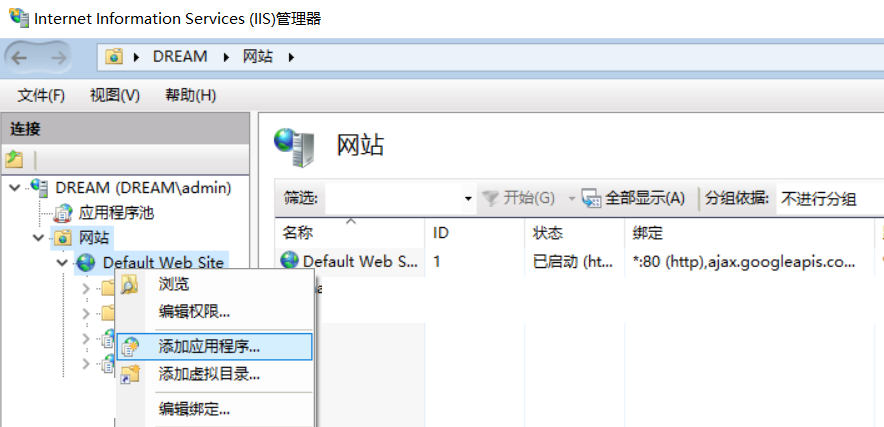
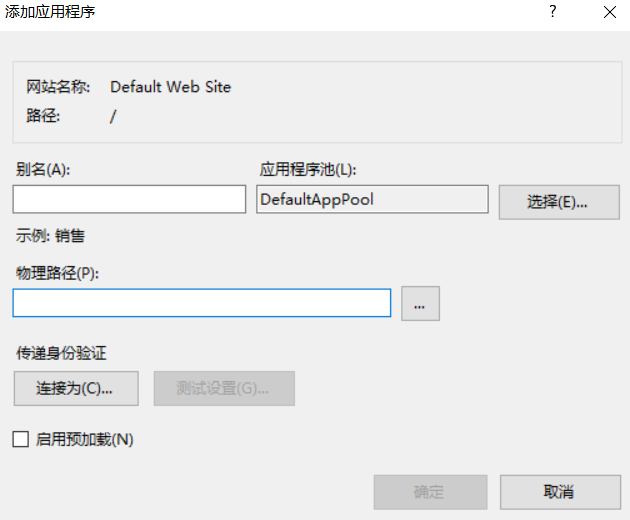
这个操作,使用C#代码操作为
   public static void  CreateVdir(string vdir, string phydir)
        {
                ServerManager serverManager = new ServerManager();
                Site mySite = serverManager.Sites["Default Web Site"];
                mySite.Applications.Add("/" + vdir, phydir);
                serverManager.CommitChanges();

        }
首先定义一个ServerManager 对象,然后用Sites获取站点的集合。,最后调用Applications属性里的Add方法将应用程序添加到站点里。但是请注意:建立应用程序是以“/”为路径的,所以,上面代码里传入的参数,直接输入应用程序名称即可。
要在Default Web Site默认站点下建立一个名称为 test的应用程序,其物理路径为 D:\web\sample ,则调用为
CreateVdir("test","d:\\web\\sample")
删除一个应用程序也很简单,直接调用Remove方法即可。
    public static void DeleteVdir(string vDirName)
        {

                ServerManager serverManager = new ServerManager();
                Site mySite = serverManager.Sites["Default Web Site"];
                Microsoft.Web.Administration.Application application = mySite.Applications["/" + vDirName];
                mySite.Applications.Remove(application);
                serverManager.CommitChanges();
        }
二、添加应用程序池
手动在IIS里添加应用程序池为直接在IIS控制面板里添加。
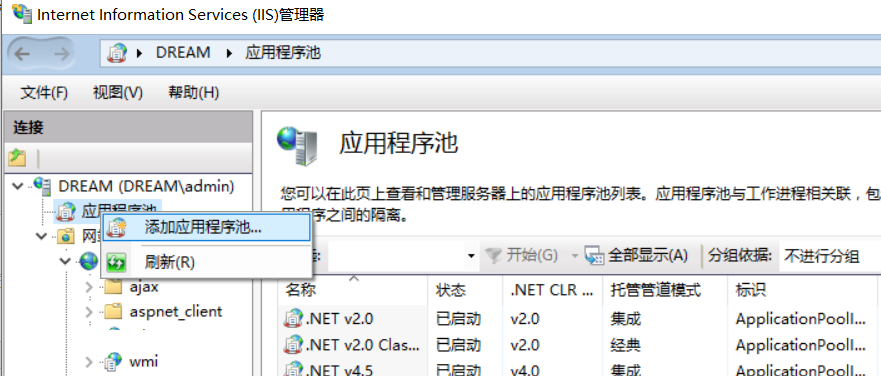
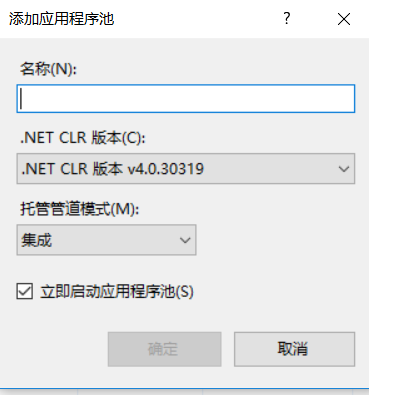
使用c#代码如下
   public static void CreateAppPool( string appPoolName)
        {

                ServerManager serverManager = new ServerManager();
                serverManager.ApplicationPools.Add(appPoolName);
                ApplicationPool apppool = serverManager.ApplicationPools[appPoolName];
                apppool.ManagedPipelineMode = ManagedPipelineMode.Integrated;
                apppool.Enable32BitAppOnWin64 = true;
                apppool.ManagedRuntimeVersion = "v4.0";
                serverManager.CommitChanges();
                apppool.Recycle();

        }
从上面代码里可以看到,ApplicationPool 提供了 Enable32BitAppOnWin64 、ManagedPipelineMode 、ManagedRuntimeVersion等属性,可以很容易使用。
就像上面代码,要使用集成模式可以直接设置 apppool.ManagedPipelineMode = ManagedPipelineMode.Integrated 。
删除应用程序池同样也比较简单,调用remove方法
   public static void DeleteAppPool(string appPoolName)
        {

                ServerManager serverManager = new ServerManager();
                ApplicationPool apppool = serverManager.ApplicationPools[appPoolName];
                serverManager.ApplicationPools.Remove(apppool);
                serverManager.CommitChanges();
       }
三:设置应用程序所使用的应用程序池
手动操作:在IIS里,选择应用程序后,在高级设置里,可以直接修改应用程序所使用的应用程序池。
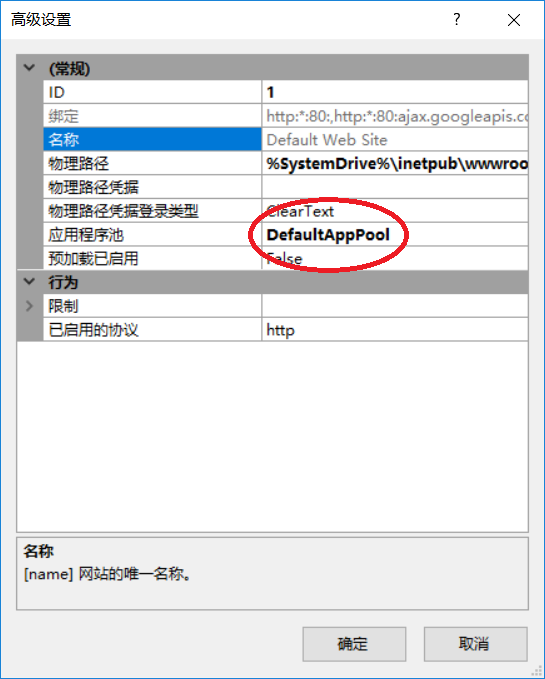
要完成类似上面的操作,可以设置Applications的ApplicationPoolName属性,该属性表示应用程序所使用的应用程序池名称。
     public   static void AssignVDirToAppPool(string vdir, string appPoolName)
        {

                ServerManager serverManager = new ServerManager();
                Site site = serverManager.Sites["Default Web Site"];
                site.Applications["/" + vdir].ApplicationPoolName = appPoolName;
                serverManager.CommitChanges();

        }
四:控制IIS里的其他属性
除了应用程序和应用程序池,使用ServerManager类还可以操控IIS里的更多属性。例如设置ISAPI和CGI的限制。
手动操作为:打开ISAPI和CGI操作,在需要的.NET版本上启用或者禁用。
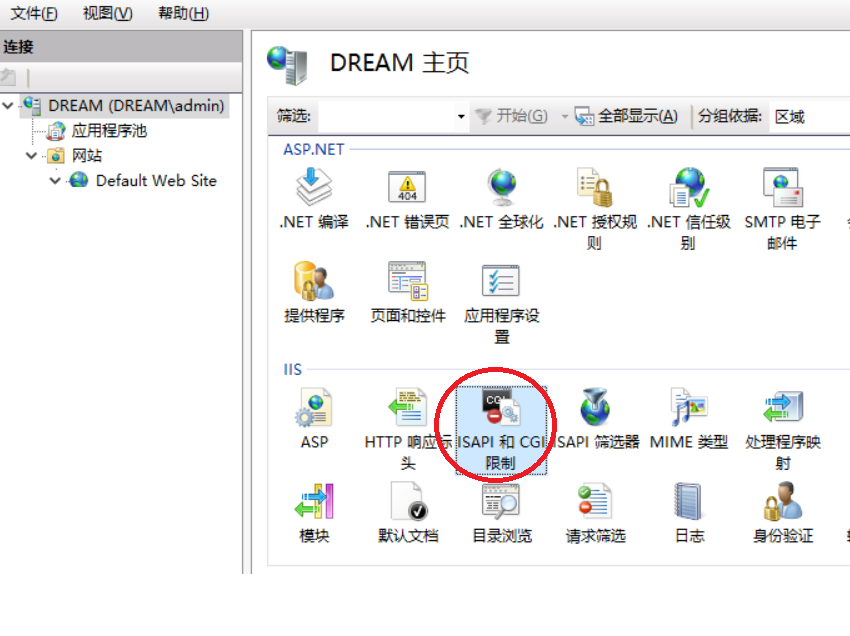
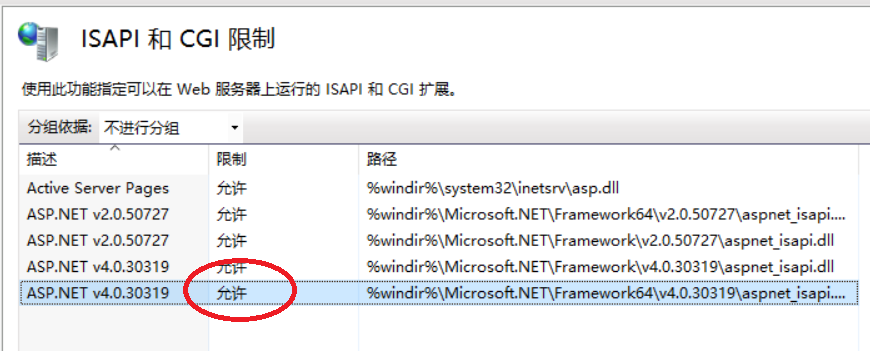
完成上面操的代码如下
            using (ServerManager serverManager = new ServerManager())
              {
                  Configuration config = serverManager.GetApplicationHostConfiguration();
                  ConfigurationSection isapiCgiRestrictionSection = config.GetSection("system.webServer/security/isapiCgiRestriction");
                  ConfigurationElementCollection isapiCgiRestrictionCollection = isapiCgiRestrictionSection.GetCollection();

                  foreach (ConfigurationElement element in isapiCgiRestrictionCollection)
                  {
                      string path = element["path"].ToString();
                      string allowed = element["allowed"].ToString();
                      string description = element["description"].ToString();
                      string groupId = element["groupId"].ToString();


                      if (description == "ASP.NET v4.0.30319")
                      {

                            element["allowed"] = true;

                      }


                  }

                  serverManager.CommitChanges();
              }
你甚至可以在ISPAPI里增加自己的配置:
                ConfigurationElement addElement = isapiCgiRestrictionCollection.CreateElement("add");
                addElement["path"] = @"C:\Windows\abc\aspnet_isapi.dll";
                addElement["allowed"] = true;
                addElement["groupId"] = @"ContosoGroup";
                addElement["description"] = @"Contoso Extension";
                isapiCgiRestrictionCollection.Add(addElement);
                serverManager.CommitChanges();
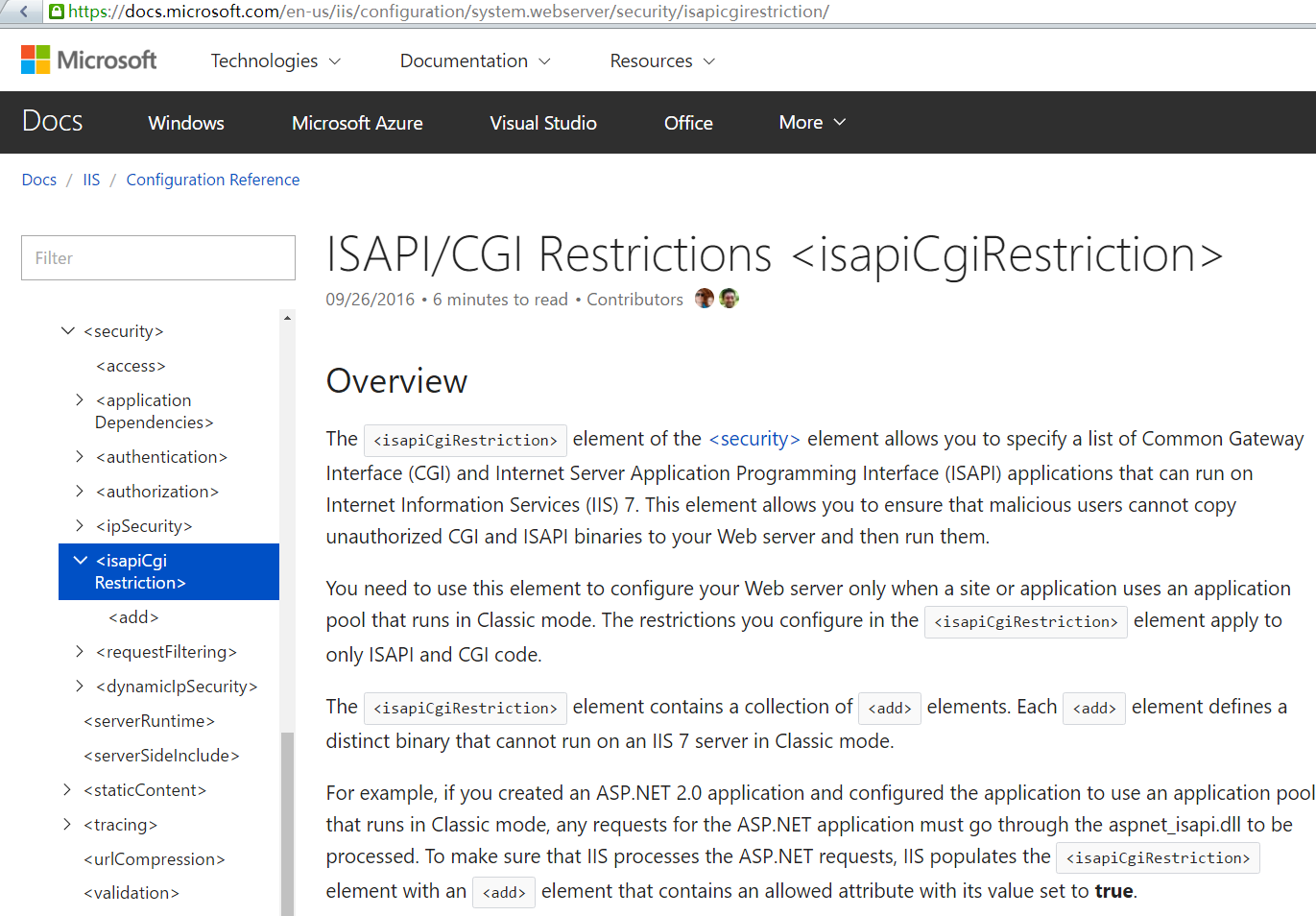
当然,上面代码里的“难点”是,可能你并不知道IIS里,各个属性的 Section("system.webServer/security/isapiCgiRestriction") 是多少,不过不用担心
微软的官方文档已经详细列出了各个节点,你只要根据根据需要使用相应的节点即可进行相关操作。
网址为: https://docs.microsoft.com/en-us/iis/configuration/system.webserver/security/isapicgirestriction/
有了上面的属性,如果后期想定制exe版本的web安装程序,就可以使用这些类控制IIS。

 浙公网安备 33010602011771号