

Nginx常见问题
Nginx常见问题
Nginx 多server优先级
在开始处理一个http请求时,nginx会取出header头中的Host变量,与nginx.conf中的每个server_name进行匹配,以此决定到底由哪一个server来处理这个请求,但nginx如何配置多个相同的server_name,会导致server_name出现优先级访问冲突。
优先级案例
[root@lb01 code]# cat /etc/nginx/conf.d/server*.conf
server {
	listen 80;
	server_name localhost test1.com;
	location / {
		root /code/test1;
		index index.html;
	}
}
server {
	listen 80;
	server_name localhost test2.com;
	location / {
		root /code/test2;
		index index.html;
	}
}
server {
	listen 80;
	server_name localhost test3.com;
	location / {
		root /code/test3;
		index index.html;
	}
}
[root@lb01 conf.d]# cd /code/
[root@lb01 code]# ll
drwxr-xr-x 2 root root 6 Aug 10 00:31 test1
drwxr-xr-x 2 root root 6 Aug 10 00:31 test2
drwxr-xr-x 2 root root 6 Aug 10 00:31 test3
[root@lb01 code]# echo test1 > /code/test1/index.html
[root@lb01 code]# echo test2 > /code/test2/index.html
[root@lb01 code]# echo test3 > /code/test3/index.html
server_name匹配顺序
1.首先选择所有的字符串完全匹配的server_name。(完全匹配)
2.选择通配符在前面的server_name,如.driverzeng.com www.driverzeng.com
3.选择通配符在后面的server_name,如driverzeng. driverzeng.com driverzeng.cn
4.最后选择使用正则表达式匹配的server_name
5.如果全部都没有匹配到,那么将选择在listen配置项后加入[default_server]的server块
6.如果没写,那么就找到匹配listen端口的第一个Server块的配置文件
注意:当出现多个相同的server_name情况下,配置文件排序优先使用则会被调用,所以建议配置相同端口,不同域名,这样不会出现域名访问冲突。
nginx禁止IP解析
当用户通过访问IP或者未知域名访问你得网站的时候,你希望禁止显示任何有效内容,可以给他返回500,目前国内很多机房都要求网站关闭空主机头,防止未备案的域名指向过来造成麻烦
server {
	listen 80 default_server; #默认优先返回;
	server_name _; #空主机头或者IP;
	return 500; #直接返回500错误;
}
Nginx 的include使用
一台服务器配置多个网站,如果配置都写在nginx.conf主配置文件中,会导致nginx.conf主配置文件变得非常庞大而且可读性非常的差。那么后期的维护就变得麻烦。 假设现在希望快速的关闭一个站点,该怎么办? 1.如果是写在nginx.conf中,则需要手动注释,比较麻烦 2.如果是include的方式,那么仅需修改配置文件的扩展名,即可完成注释 Include包含的作用是为了简化主配置文件,便于人类可读。
inlcude /etc/nginx/online/*.conf #线上使用的配置
/etc/nginx/offline #保留配置,不启用(下次使用在移动到online中)
Ninx的alias用法
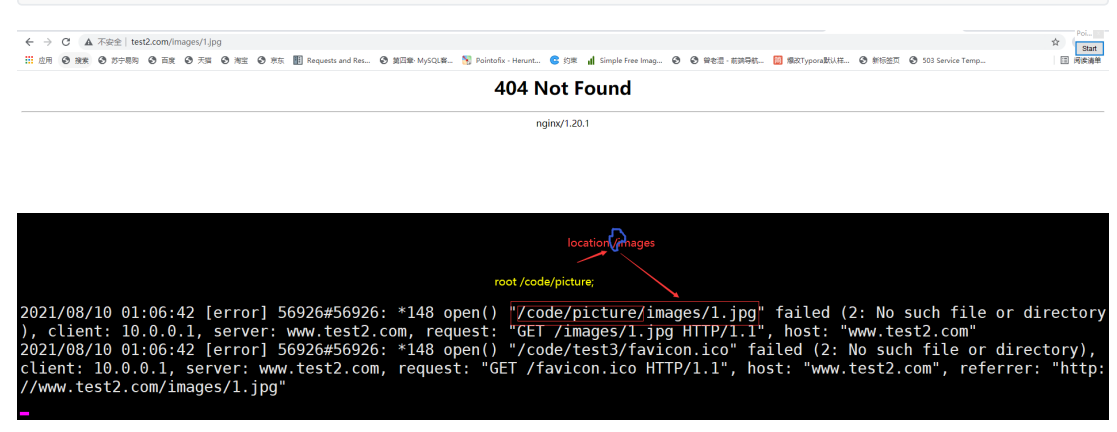
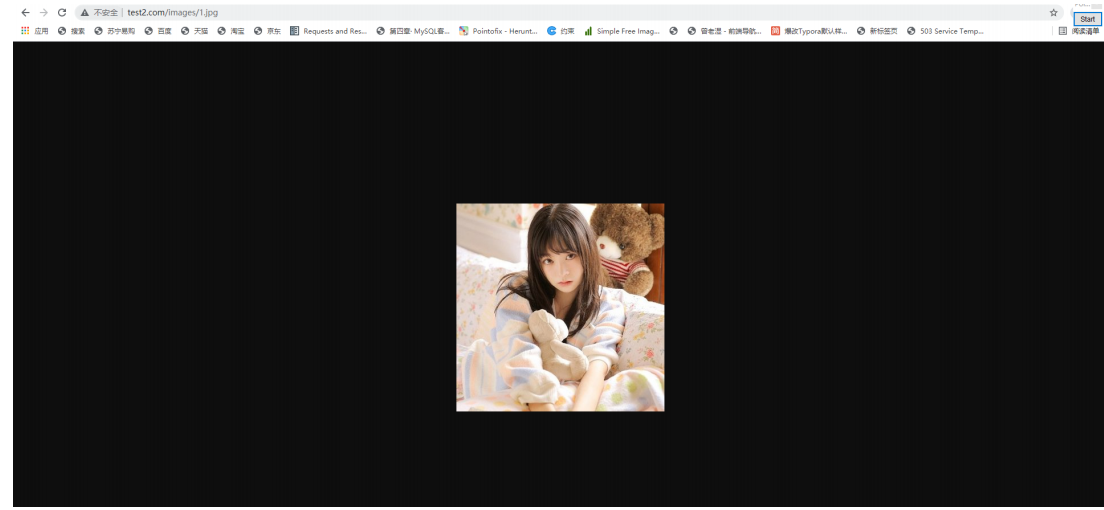
root与alias路径匹配主要区别在于nginx如何解释location后面的uri,这会使两者分别以不同的方式将请求映射到服务器文件上,alias是一个目录别名的定义,root则是最上层目录的定义。
root的处理结果是:root路径+location路径alias的处理结果是:使用alias定义的路径
server {
	listen 80 default_server;
	server_name _;
	return 500;
}
server {
	listen 80;
	server_name www.test2.com;
	location / {
		root /code/test3;
		index index.html;
	}
	location /images {
		root /code/picture;
		index index.html;
	}
}
server {
	listen 80 default_server;
	server_name _;
	return 500;
}
server {
	listen 80;
	server_name www.test2.com;
	location / {
		root /code/test3;
		index index.html;
	}
	location /images {
		alias /code/picture;
		index index.html;
	}
}
生产环境配置alias
server {
listen 80;
server_name image.driverzeng.com;
location / {
root /code;
}
location ~* ^.*\.(png|jpg|gif)$ {
alias /code/images/;
}
}
try_files使用
nginx的try_file路径匹配,Nginx会按顺序检查文件及目录是否存在(根据 root 和 alias 指令设置的参数构造完整
的文件路径),并用找到的第一个文件提供服务。在元素名后面添加斜杠 / 表示这个是目录。如果文件和目录都不存在,Nginx会执行内部重定向,跳转到命令的最后一个 uri 参数定义的 URI 中。
#1. 配置nginx
[root@lb01 conf.d]# vim try.conf
server {
listen 80;
server_name try.drz.com;
root /code;
index index.html;
location / {
try_files $uri $uri/ /404.html;
}
}
#2. 创建实例目录与文件drz
[root@lb01 conf.d]# echo try11111 > /code/index.html
[root@lb01 conf.d]# echo '404 404 404' > /code/404.html
#3. 尝试访问try.drz.com
[root@lb01 conf.d]# curl try.drz.com
404 404 404
#由于访问的是try.drz.com,而$uri取得是域名后面我们写的内容,它找不到,所以返回后面的内容,即
404.html
#4. 尝试访问try.drz.com/index.html
[root@lb01 conf.d]# curl try.drz.com/index.html
try11111
#由于访问的是try.drz.com/index.html,而$uri取到了index.html所以返回/code/index.html的内容
#5. 修改配置为
location / {
try_files $uri $uri/ /404.html;
}
#6. 再次尝试访问try.drz.com
[root@lb01 conf.d]# curl try.drz.com
try11111
#我们访问的是try.drz.com,而$uri我们没有写任何内容,于是他访问的便是“空/”,即匹配
到/code/index.html
try_files 企业实战2
server {
	listen 80;
	server_name try.drz.com;
	root /code;
	index index.html;
	location / {
		try_files $uri $uri/ @tomcat;
	}
	location @tomcat {
		proxy_pass http://172.16.1.8:8080;
	}
}
nginx美化404界面
server {
	listen 80 default_server;
	server_name _;
	return 500;
}
server {
	listen 80;
	server_name www.test2.com;
	location / {
		root /code/test3;
		index index.html;
	}
	location /images {
		alias /code/picture;
		index index.html;
	}
	error_page 404 /404.html;
}
[root@lb01 conf.d]# vim /code/test3/404.html
<img style='width:100%;height:100%;'
src=https://blog.driverzeng.com/zenglaoshi/404_page.png>
本文来自博客园,作者:远方还很远,转载请注明原文链接:https://www.cnblogs.com/moqiqingyu/p/15121030.html

 浙公网安备 33010602011771号