
WPF TextBox
1、WPF点击空白区域,文本失去焦点
1)默认
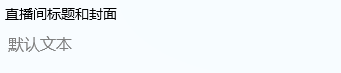
2)进入焦点
3、点击空白区域,文本失去焦点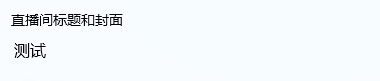
MouseDown += (s, e) => {
    txtTitle.MoveFocus(new TraversalRequest(FocusNavigationDirection.Next));
};
让页面所以的文本框失去焦点
private void TextBoxVisual(Visual visual)
{
    for (int i = 0; i < VisualTreeHelper.GetChildrenCount(visual); i++)
    {
        Visual childVisual = (Visual)VisualTreeHelper.GetChild(visual, i);
        if (childVisual != null)
        {
            if (childVisual is TextBox)
            {
                (childVisual as TextBox).MoveFocus(new TraversalRequest(FocusNavigationDirection.Next));
            }
            TextBoxVisual(childVisual);
        }
    }
}
调用方式
this.MouseDown += (s, e) => {
    TextBoxVisual(this);
};
2、WPF Textbox 加水印
XAML 文档
引用 C# 命名控件
<Window xmlns:ctr="clr-namespace:Micro.Common.Control;assembly=Micro.Common">
调用命名空间
<TextBox x:Name="txtTitle" ctr:TextBoxHelper.Placeholder="默认文本"/>
C# 拓展属性
public class TextBoxHelper
{
    #region Placeholder
    public static string GetPlaceholder(DependencyObject obj)
    {
        return (string)obj.GetValue(PlaceholderProperty);
    }

    public static void SetPlaceholder(DependencyObject obj, string value)
    {
        obj.SetValue(PlaceholderProperty, value);
    }

    public static readonly DependencyProperty PlaceholderProperty =
        DependencyProperty.RegisterAttached("Placeholder", typeof(string), typeof(TextBoxHelper),
            new UIPropertyMetadata(string.Empty, new PropertyChangedCallback(OnPlaceholderChanged)));

    public static void OnPlaceholderChanged(DependencyObject d, DependencyPropertyChangedEventArgs e)
    {
        TextBox txt = d as TextBox;
        if (txt == null || e.NewValue.ToString().Trim().Length == 0) return;

        if (DesignerProperties.GetIsInDesignMode(txt))
        {
            txt.Text = e.NewValue.ToString();
            txt.FontStyle = FontStyles.Normal;
            txt.Foreground = Brushes.Gray;
        }

        RoutedEventHandler loadHandler = null;
        loadHandler = (s1, e1) =>
        {
            txt.Loaded -= loadHandler;

            if (txt.Text.Length == 0)
            {
                txt.Text = e.NewValue.ToString();
                txt.FontStyle = FontStyles.Normal;
                txt.Foreground = Brushes.Gray;
            }
        };

        txt.Loaded += loadHandler;

        txt.GotFocus += (s1, e1) =>
        {
            if (txt.Text == e.NewValue.ToString()
                && txt.FontStyle == FontStyles.Normal
                && txt.Foreground == Brushes.Gray)
            {
                txt.Clear();
                txt.FontStyle = FontStyles.Normal;
                txt.Foreground = SystemColors.WindowTextBrush;
            }
        };

        txt.LostFocus += (s1, e1) =>
        {
            if (txt.Text.Length == 0)
            {
                txt.Text = e.NewValue.ToString();
                txt.FontStyle = FontStyles.Normal;
                txt.Foreground = Brushes.Gray;
            }
        };
    }
    #endregion
}
3、WPF 隐藏 TextBox 默认边框
TextBox 默认是有边框的,显示效果如下:有一个淡蓝色的边框围绕着,如果需要隐藏这个边框,则只需要在代码中加上以下代码即可:
BorderBrush="{x:Null}" BorderThickness="0"
<TextBox BorderBrush="{x:Null}" BorderThickness="0"></TextBox>
4、WPF Textbox 允许自动换行
<TextBox VerticalScrollBarVisibility="Auto" TextWrapping="Wrap" AcceptsReturn="True" />
5、WPF TextBox 捕获键盘 KeyDown 事件
1)、同时按下Ctrl和Enter两个键时触发
private void txtBoxInput_KeyDown(object sender, KeyEventArgs e)
{
    if (e.Key == Key.Enter && (Keyboard.Modifiers & (ModifierKeys.Control)) == (ModifierKeys.Control))
    {

    }
}
2)同时按下Shift键和Enter键时换行
private void txtBoxInput_KeyDown(object sender, KeyEventArgs e)
{
    if (e.Key == Key.Enter && (Keyboard.Modifiers & (ModifierKeys.Shift)) == (ModifierKeys.Shift))
    {
        // 添加一个换行字符
        txtBoxInput.SelectedText = Environment.NewLine;
        // 光标向前移动一位
        txtBoxInput.Select(txtBoxInput.SelectionStart + 1, 0);
        e.Handled = true;

    }
}
6、设置TextBox内容为空时的提示文字

<TextBox Width="150" Margin="5">
    <TextBox.Resources>
        <VisualBrush x:Key="HintText" TileMode="None" Opacity="0.5" Stretch="None" AlignmentX="Left">
            <VisualBrush.Visual>
                <TextBlock FontStyle="Italic" Text="请输入用户名"/>
            </VisualBrush.Visual>
        </VisualBrush>
    </TextBox.Resources>
    <TextBox.Style>
        <Style TargetType="TextBox">
            <Style.Triggers>
                <Trigger Property="Text" Value="{x:Null}">
                    <Setter Property="Background" Value="{StaticResource HintText}"/>
                </Trigger>
                <Trigger Property="Text" Value="">
                    <Setter Property="Background" Value="{StaticResource HintText}"/>
                </Trigger>
            </Style.Triggers>
        </Style>
    </TextBox.Style>
</TextBox>
注意:
不可直接设置TextBox的Text内容,否则将一直使用该Text内容。
7、WPF TextBox输入小数
TextBox在双向绑定的情况下,输入小数会出现很尴尬的情况
比如0.这样的字符串并不能被转换成小数,所以会被去掉.,变成0,所以没有办法正常的输入小数,只能通过粘贴板
通过StringFormat特性,可以很好的解决这个问题
<TextBox Text="{Binding InputNumber,Mode=TwoWay,UpdateSourceTrigger=PropertyChanged, StringFormat={}{0:N2}}"></TextBox>
TextBox回车命令
<TextBox>
    <i:Interaction.Triggers>
        <i:EventTrigger EventName="KeyUp">
            <i:InvokeDataCommand Command="{Binding CommandKeyUp}"/>
        </i:EventTrigger>
    </i:Interaction.Triggers>
</TextBox>
WPF 4 TextBox 笔刷特效
https://www.cnblogs.com/gnielee/archive/2010/04/21/wpf4-textbox-brush.html
占位符行为 PlaceHolderBehavior 的实现以及使用
https://www.cnblogs.com/tsliwei/p/5658426.html
https://www.cnblogs.com/ZXdeveloper/p/7798943.htmlWPF TextBox按字节长度限制输入
https://www.cnblogs.com/ZXdeveloper/p/7798943.html
利用行为Behavior和依赖属性实现WPF TextBox的水印
https://www.jianshu.com/p/2c4fe0e31e33

 浙公网安备 33010602011771号