
【Android】TableLayout简单讲解和使用例子
TableLayout是Android表格布局,可用于制作表格
TableLayout里面的每一个子View都为单行显示,其中TableRow为其子控件
TableLayout有三个属性:
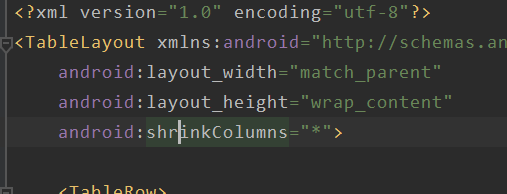
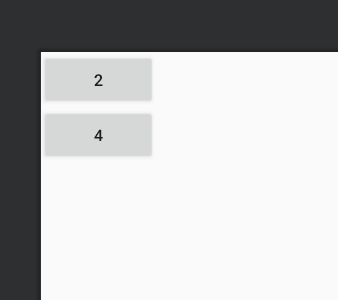
collapseColumns(隐藏某一列,隐藏多列用" , "符号分割,若隐藏所有列则用" * "符号)
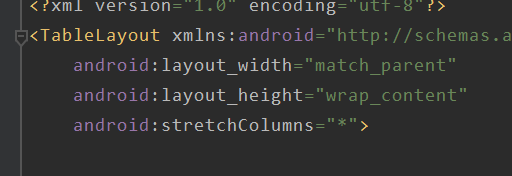
stretchColumns(拉伸某一列,拉伸多列用" , "符号分割,若拉伸所有列则用" * "符号)
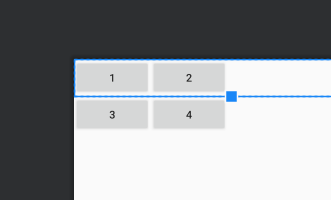
shrinkColumns(收缩某一列,收缩多列用" , "符号分割,若收缩所有列则用" * "符号)
运用:
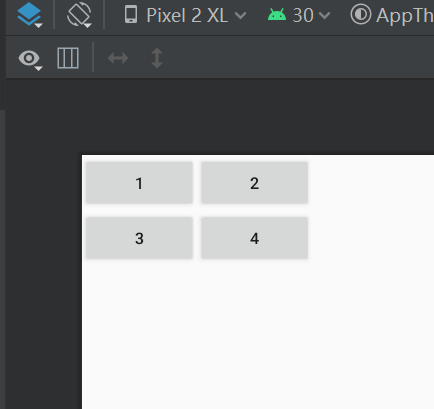
效果前代码:
查看代码
<TableLayout xmlns:android="http://schemas.android.com/apk/res/android"
    android:layout_width="match_parent"
    android:layout_height="wrap_content"
    >
    <TableRow>

        <Button
            android:layout_width="100dp"
            android:text="1" />

        <Button
            android:layout_width="100dp"
            android:text="2" />
    </TableRow>
    <TableRow>
        <Button
            android:layout_width="100dp"
            android:text="3" />

        <Button
            android:layout_width="100dp"
            android:text="4" />
    </TableRow>
</TableLayout>
效果前原图:
collapseColumns运用:
代码:
效果图:
stretchColumns运用:
代码:
效果图:
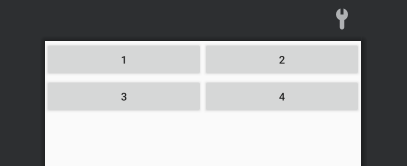
shrinkColumns运用:
代码:
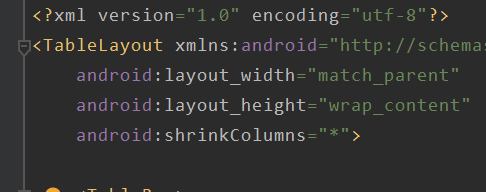
效果图:
简单运用例子:
<TableLayout xmlns:android="http://schemas.android.com/apk/res/android"
    android:layout_width="match_parent"
    android:layout_height="wrap_content"
    android:shrinkColumns="*">

    <TableRow>

        <TableLayout>

            <Button
                android:layout_width="100dp"
                android:layout_height="200dp"
                android:text="1" />

            <Button
                android:layout_width="100dp"
                android:layout_height="100dp"
                android:text="2" />
        </TableLayout>

        <TableLayout android:layout_width="200dp">

            <Button
                android:layout_height="100dp"
                android:text="3" />

            <TableRow>

                <Button
                    android:layout_width="100dp"
                    android:layout_height="200dp"
                    android:height="100dp"
                    android:text="4" />

                <Button
                    android:layout_width="100dp"
                    android:layout_height="match_parent"
                    android:height="100dp"

                    android:text="5" />
            </TableRow>
        </TableLayout>
    </TableRow>
</TableLayout>
效果图:
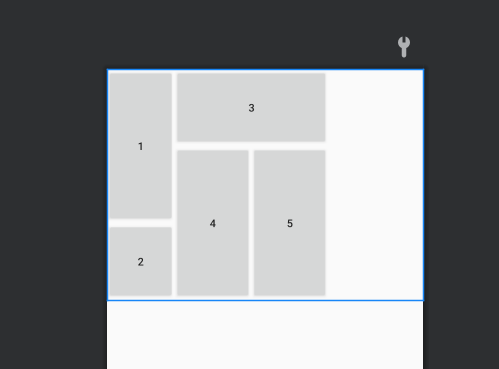
PS:TableLayout子View的TableRow组件无法设置高度,不过可以在他的子View里设置高度。

 浙公网安备 33010602011771号