


一、场景定义
- 设备A(手机):正在播放音乐(歌曲《Hello World》,进度 1:20),用户点击“流转”按钮。
- 设备B(平板):被手机发现并选中,接收音乐状态(歌曲ID、播放进度、音量等),自动启动音乐应用并从 1:20 续播。
- 核心目标:实现“断点续播”和“无缝体验”,用户无感知设备切换。
二、技术方案
设备发现:通过 DeviceManager 获取平板设备 ID。
状态传递:通过 Want 对象传递音乐播放状态(歌曲 ID、进度、音量)。
音乐续播:平板端接收状态后,调用播放器 API 从指定进度播放。
分布式权限:声明跨设备通信、状态同步等权限。
三、完整代码实现(基于 ArkTS)
Step 1:配置权限(module.json5)
在应用配置文件中声明分布式能力权限:
{
"module": {
"reqPermissions": [
{ "name": "ohos.permission.DISTRIBUTED_DEVICE_STATE_CHANGE" }, // 设备状态权限
{ "name": "ohos.permission.GET_DISTRIBUTED_DEVICE_INFO" },    // 获取设备信息
{ "name": "ohos.permission.DISTRIBUTED_DATASYNC" },           // 数据同步权限
{ "name": "ohos.permission.INTERACT_ACROSS_DEVICES" },        // 跨设备交互
{ "name": "ohos.permission.READ_MEDIA" }                      // 读取媒体文件(播放音乐)
],
"distributedNotificationEnabled": true, // 允许分布式通知
"abilities": [
{
"name": "MusicAbility", // 音乐播放 FA 组件(可流转的页面)
"type": "page",
"visible": true
}
]
}
}
Step 2:设备发现组件(DeviceDiscovery.ets)
实现“发现周围鸿蒙设备”的 UI 组件,供用户选择流转目标:
import deviceManager from '@ohos.distributedDeviceManager';
import promptAction from '@ohos.promptAction';
@Preview
@Component
export default struct DeviceDiscovery {
private dmInstance: deviceManager.DeviceManager | null = null;
private deviceList: deviceManager.DeviceInfo[] = []; // 发现的设备列表
private selectedDeviceId: string = ''; // 用户选中的设备 ID
// 组件初始化时创建设备管理器
aboutToAppear() {
this.initDeviceManager();
}
// 创建设备管理器实例,监听设备变化
private initDeviceManager() {
try {
deviceManager.createDeviceManager('com.example.musicplayer', (err, manager) => {
if (err) {
promptAction.showToast({ message: `设备管理初始化失败: ${err.message}` });
return;
}
this.dmInstance = manager;
// 订阅设备状态变化(设备上线/下线)
this.dmInstance.on('deviceStateChange', (device: deviceManager.DeviceInfo) => {
if (device.status === 0) { // 0: 设备在线
this.deviceList.push(device); // 添加到设备列表
} else { // 设备离线
this.deviceList = this.deviceList.filter(d => d.deviceId !== device.deviceId);
}
});
// 主动扫描周围设备
this.dmInstance.discoverDevices();
});
} catch (error) {
console.error('初始化设备管理器失败:', error);
}
}
// 用户选择设备后触发流转
private async onSelectDevice(deviceId: string) {
this.selectedDeviceId = deviceId;
// 调用音乐流转逻辑(下一步实现)
await this.transferMusicToDevice(deviceId);
}
// 音乐流转核心逻辑(后文实现)
private async transferMusicToDevice(targetDeviceId: string): Promise<void> {
  // ... 见 Step 3
  }
  build() {
  Column() {
  Text('选择流转设备')
  .fontSize(18)
  .margin(10);
  // 展示发现的设备列表
  List() {
  ForEach(this.deviceList, (device: deviceManager.DeviceInfo) => {
  ListItem() {
  Text(`${device.deviceName} (${device.deviceType})`) // 设备名+类型(手机/平板)
  .fontSize(16)
  .width('100%')
  .padding(10)
  .onClick(() => this.onSelectDevice(device.deviceId));
  }
  });
  }
  .height(200)
  .width('100%');
  }
  .padding(20);
  }
  }
Step 3:音乐流转逻辑(音乐续播核心)
在 transferMusicToDevice 方法中,实现“获取当前播放状态 → 传递状态到目标设备 → 启动目标设备音乐应用”:
import featureAbility from '@ohos.ability.featureAbility';
import Want from '@ohos.app.ability.Want';
import media from '@ohos.multimedia.media'; // 音乐播放器 API
// 全局音乐播放器实例(简化示例)
let player: media.AVPlayer = media.createAVPlayer();
// 音乐流转核心函数
private async transferMusicToDevice(targetDeviceId: string) {
try {
// 1. 获取当前播放状态(歌曲ID、进度、音量等)
const currentState = await this.getPlaybackState();
// 2. 构造 Want 对象(指定目标设备和要启动的 FA 组件)
const want: Want = {
deviceId: targetDeviceId, // 目标设备 ID(从设备列表选择)
bundleName: 'com.example.musicplayer', // 当前应用包名
abilityName: 'MusicAbility', // 音乐播放 FA 组件名
parameters: {
// 传递播放状态(需序列化,使用 JSON.stringify)
musicState: JSON.stringify({
songId: currentState.songId, // 歌曲唯一 ID
progress: currentState.progress, // 当前播放进度(秒)
volume: currentState.volume, // 音量(0-100)
isPlaying: currentState.isPlaying // 是否正在播放
})
}
};
// 3. 跨设备启动 MusicAbility(触发应用流转)
await featureAbility.startAbility({ want: want });
// 4. 本地暂停播放(可选:流转后当前设备停止播放)
await player.pause();
promptAction.showToast({ message: `已流转到 ${this.getDeviceName(targetDeviceId)}` });
} catch (error) {
console.error('音乐流转失败:', error);
promptAction.showToast({ message: '流转失败,请重试' });
}
}
// 获取当前播放状态(从播放器实例读取)
private async getPlaybackState(): Promise<{
songId: string,
progress: number,
volume: number,
isPlaying: boolean
}> {
return {
songId: 'song_001', // 示例:当前播放歌曲 ID
progress: await player.getCurrentTime(), // 获取当前播放进度(秒)
volume: player.getVolume(), // 获取当前音量
isPlaying: player.state === media.PlaybackState.PLAYING // 是否播放中
};
}
// 根据设备 ID 获取设备名称(简化:从设备列表匹配)
private getDeviceName(deviceId: string): string {
const device = this.deviceList.find(d => d.deviceId === deviceId);
return device?.deviceName || '未知设备';
}
Step 4:目标设备恢复播放(MusicAbility.ets)
在目标设备(平板)的 MusicAbility 中,接收流转状态并恢复播放:
import Ability from '@ohos.app.ability.Ability';
import Want from '@ohos.app.ability.Want';
import media from '@ohos.multimedia.media';
export default class MusicAbility extends Ability {
private player: media.AVPlayer = media.createAVPlayer(); // 目标设备播放器
async onCreate(want: Want) {
super.onCreate(want);
// 判断是否为跨设备流转启动(通过 want.parameters 检测)
if (want?.parameters?.musicState) {
await this.restoreMusicState(want.parameters.musicState as string);
}
}
// 恢复音乐播放状态
private async restoreMusicState(musicStateStr: string) {
try {
// 1. 解析流转传递的状态
const musicState = JSON.parse(musicStateStr);
const { songId, progress, volume, isPlaying } = musicState;
// 2. 设置播放器参数(音量、歌曲源)
this.player.setVolume(volume / 100); // 音量归一化(0-1)
await this.player.reset();
await this.player.setSource({ uri: `dataability:///media/songs/${songId}` }); // 歌曲 URI(示例)
await this.player.prepare();
// 3. 跳转到指定进度并播放
await this.player.seek(progress * 1000); // seek 单位为毫秒
if (isPlaying) {
await this.player.play(); // 续播
}
console.log(`音乐流转恢复成功:歌曲 ${songId},进度 ${progress}秒`);
} catch (error) {
console.error('恢复播放状态失败:', error);
}
}
}
四、运行流程演示
1、手机端操作:
- 播放歌曲《Hello World》,进度 1:20。
- 点击“流转”按钮,触发 DeviceDiscovery 组件发现平板设备。
- 选择平板后,调用 transferMusicToDevice 传递状态并暂停本地播放。
2、平板端结果:
- 自动启动音乐应用,MusicAbility 的 onCreate 接收 musicState。
- 解析状态后,播放器跳转到 1:20 并续播,音量与手机端一致。
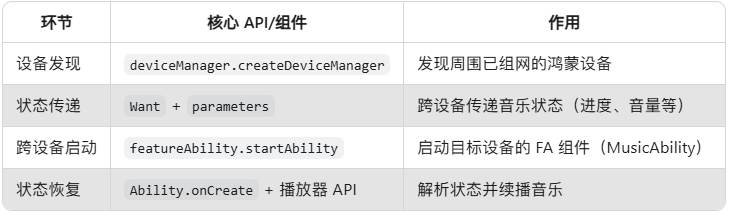
五、关键技术点总结
六、进阶优化
分布式 KV 存储同步播放进度:
若音乐进度实时变化(如用户在平板手动调整进度),可通过 分布式 KV 存储 双向同步进度,避免依赖单次Want 传递。设备类型适配:
平板屏幕较大,可在 MusicAbility 中根据 deviceType 调整 UI(如歌词显示区域更大)。异常处理:
目标设备无该歌曲时,显示“歌曲未同步”提示,引导用户通过分布式文件服务拉取歌曲文件。
总结:
通过 设备发现 → 状态传递 → 跨设备启动 → 状态恢复 四步,实现了音乐播放器的跨设备流转。核心是利用鸿蒙的 DeviceManager(设备管理)和 Want(跨设备通信)能力,结合应用状态序列化传递,实现“无缝断点续播”。这一模式可扩展到视频、文档、游戏等更多流转场景。

 浙公网安备 33010602011771号