


01-定位(重点)
作用:灵活的改变盒子在网页中的位置
实现:
1.定位模式:position
2.边偏移:设置盒子的位置
- left
- right
- top
- bottom
相对定位
position: relative
特点:
- 不脱标,占用自己原来位置
- 显示模式特点保持不变
- 设置边偏移则相对自己原来位置移动
div {
position: relative;
top: 100px;
left: 200px;
}
绝对定位
position: absolute
使用场景:子级绝对定位,父级相对定位(子绝父相)
特点:
- 脱标,不占位
- 显示模式具备行内块特点
- 设置边偏移则相对最近的已经定位的祖先(可以是相对,也可以是绝对)元素改变位置
- 如果祖先元素都未定位,则相对浏览器可视区改变位置
.father {
position: relative;
}
.father span {
position: absolute;
top: 0;
right: 0;
}
定位居中
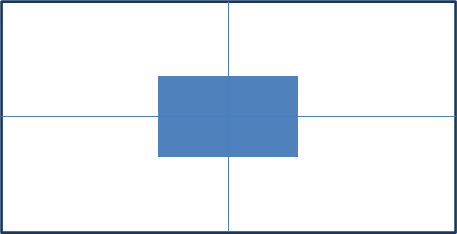
实现步骤:
- 绝对定位
- 水平、垂直边偏移为 50%
- 子级向左、上移动自身尺寸的一半
- 左、上的外边距为 –尺寸的一半
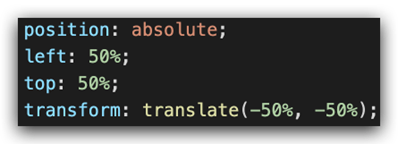
- transform: translate(-50%, -50%)
<!DOCTYPE html>
  <html lang="en">
    <head>
      <meta charset="UTF-8">
        <meta http-equiv="X-UA-Compatible" content="IE=edge">
          <meta name="viewport" content="width=device-width, initial-scale=1.0">
          <title>Document</title>
            <style>
              /* 让绝对定位的盒子水平和垂直居中 */
              .box {
              position: absolute;
              /* 移动父亲的50% */
              left: 50%;
              /* 往左走自己宽度的一半 */
              /* margin-left: -100px; */
              top: 50%;
              /* margin-top: -100px; */
              /* 让子盒子走自己宽度和高度的一半 */
              transform: translate(-50%, -50%);
              width: 200px;
              height: 200px;
              background-color: pink;
              /* 绝对定位让margin 0 auto 失效 */
              /* margin: 0 auto; */
              }
              img {
              position: absolute;
              top: 50%;
              left: 50%;
              /* 让子盒子走自己宽度和高度的一半 */
              transform: translate(-50%, -50%);
              /* 注意,translate 百分比相对于盒子自身的宽度和高度来说 */
              }
            </style>
          </head>
          <body>
          <!-- <div class="box"></div> -->
            <img src="./images/down-open.png" alt="">
            </body>
          </html>
固定定位
position: fixed
场景:元素的位置在网页滚动时不会改变
特点:
- 脱标,不占位
- 显示模式具备行内块特点
- 设置边偏移相对浏览器窗口改变位置
<!DOCTYPE html>
  <html lang="en">
    <head>
      <meta charset="UTF-8">
        <meta http-equiv="X-UA-Compatible" content="IE=edge">
          <meta name="viewport" content="width=device-width, initial-scale=1.0">
          <title>Document</title>
            <style>
              .header {
              position: fixed;
              left: 0;
              top: 0;
              /* width: 200px; */
              width: 100%;
              height: 80px;
              background-color: pink;
              }
            </style>
          </head>
          <body>
          <div class="header">123</div>
          <p> 里面有很多的文字</p>
        <p> 里面有很多的文字</p>
      <p> 里面有很多的文字</p>
    <p> 里面有很多的文字</p>
  <p> 里面有很多的文字</p>
</body>
</html>
堆叠层级z-index

默认效果:按照标签书写顺序,后来者居上
作用:设置定位元素的层级顺序,改变定位元素的显示顺序
属性名:z-index
属性值:整数数字(默认值为auto,取值越大,层级越高)
<!DOCTYPE html>
  <html lang="en">
    <head>
      <meta charset="UTF-8">
        <meta http-equiv="X-UA-Compatible" content="IE=edge">
          <meta name="viewport" content="width=device-width, initial-scale=1.0">
          <title>Document</title>
            <style>
              div {
              position: absolute;
              top: 0;
              left: 0;
              /* 默认的层级 z-index: auto; */
              /* 根据标签的书写顺序排列 */
              /* 越往后,层级越高 */
              width: 200px;
              height: 200px;
              }
              .box1 {
              background-color: red;
              /* 层级属性 整数 不要跟单位*/
              /* 数字越大,层级越高 */
              z-index: 1;
              }
              .box2 {
              background-color: green;
              left: 20px;
              top: 20px;
              z-index: 2;
              }
              .box3 {
              background-color: blue;
              left: 40px;
              top: 40px;
              }
            </style>
          </head>
          <body>
          <div class="box1"></div>
          <div class="box2"></div>
          <div class="box3"></div>
          </body>
        </html>
粘性定位
粘性定位可以被认为是相对定位和固定定位的混合,元素在跨越特定阀值前为相对定位,之后则是绝对定位
注意:必须指定top、right、bottom、left四个值其中之一
02-高级技巧
CSS精灵
CSS 精灵,也叫 CSS Sprites,是一种网页图片应用处理方式。把网页中一些背景图片整合到一张图片文件中,再background-position 精确的定位出背景图片的位置。

优点:减少服务器被请求次数,减轻服务器的压力,提高页面加载速度

实现步骤:
- 创建盒子,盒子尺寸与小图尺寸相同
- 设置盒子背景图为精灵图
- 添加 background-position 属性,改变背景图位置
3.1 使用 PxCook 测量小图片左上角坐标
3.2 取负数坐标为 background-position 属性值(向左上移动图片位置)
案例-写出自己的名字
HTML结构
<!DOCTYPE html>
    <html lang="en">
    <head>
        <meta charset="UTF-8">
          <meta http-equiv="X-UA-Compatible" content="IE=edge">
            <meta name="viewport" content="width=device-width, initial-scale=1.0">
          <title>Document</title>
            <style>
              div {
              display: inline-block;
              margin: 0 15px;
              background: url(./images/abcd.jpg) no-repeat;
              }
              .l {
              width: 96px;
              height: 112px;
              background-color: pink;
              background-position: -5px -275px;
              }
              .i {
              width: 62px;
              height: 107px;
              background-position: -324px -141px;
              }
              .u {
              width: 112px;
              height: 112px;
              background-position: -476px -421px;
              }
              span {
              display: block;
              width: 106px;
              height: 118px;
              background: url(./images/abcd.jpg) no-repeat;
              /* 过渡 */
              transition: .2s;
              }
              span:hover {
              /* background-position: -118px -12px; */
              background-position: -484px -10px;
              /* width: 95px; */
              /* background-position: -3px -137px; */
              }
            </style>
          </head>
          <body>
          <div class="l"></div>
          <div class="i"></div>
          <div class="u"></div>
          <span></span>
          </body>
        </html>
字体图标(重点)

字体图标:展示的是图标,本质是字体
作用:在网页中添加简单的、颜色单一的小图标
优点
- 灵活性:灵活地修改样式,例如:尺寸、颜色等
- 轻量级:体积小、渲染快、降低服务器请求次数
- 兼容性:几乎兼容所有主流浏览器
- 使用方便:先下载再使用
下载字体
iconfont 图标库:https://www.iconfont.cn/
登录 → 素材库 → 官方图标库 → 进入图标库 → 选图标,加入购物车 → 购物车,添加至项目,确定 → 下载至本地
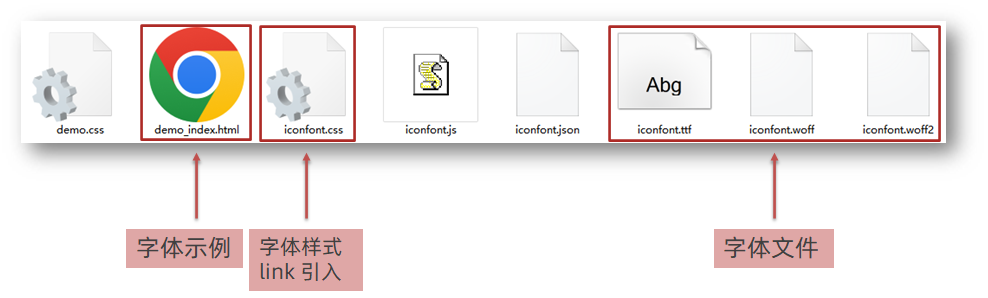
使用字体
引入字体样式表(iconfont.css)
标签使用字体图标类名
- iconfont:字体图标基本样式(字体名,字体大小等等)
- icon-xxx:图标对应的类名

<!DOCTYPE html>
    <html lang="en">
    <head>
        <meta charset="UTF-8">
          <meta http-equiv="X-UA-Compatible" content="IE=edge">
            <meta name="viewport" content="width=device-width, initial-scale=1.0">
          <title>Document</title>
              <link rel="stylesheet" href="./fonts/iconfont.css">
              <style>
                .iconfont {
                font-size: 300px;
                color: pink;
                }
              </style>
            </head>
            <body>
              <!-- 必须2个类名,第一个类名iconfont -->
              <i class="iconfont icon-shouji"></i>
              <span class="iconfont icon-zhaoxiangji"></span>
              </body>
            </html>
03-CSS修饰属性
垂直对齐方式
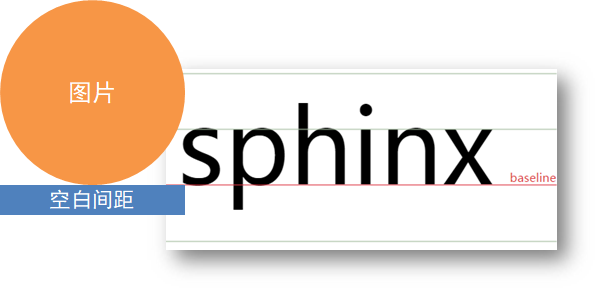
属性名:vertical-align
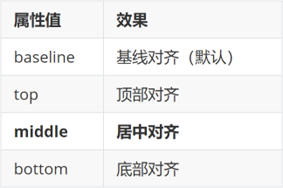
<!DOCTYPE html>
    <html lang="en">
    <head>
        <meta charset="UTF-8">
          <meta http-equiv="X-UA-Compatible" content="IE=edge">
            <meta name="viewport" content="width=device-width, initial-scale=1.0">
          <title>Document</title>
            <style>
              img {
              /* 行内块元素 默认和文字的基线对齐*/
              vertical-align: middle;
              }
              span {
              display: inline-block;
              vertical-align: middle;
              width: 50px;
              height: 50px;
              background-color: pink;
              }
              div {
              /* width: 300px;
              height: 300px; */
              border: 2px solid red;
              }
            </style>
          </head>
          <body>
              <img src="./images/computer.png" alt=""> my name is 刘德华
            <span></span> my name is 刘德华
              <hr>
                <div>
                    <img src="./images/1.webp" alt="">
                  </div>
                </body>
              </html>
去除图片底部缝隙的两种方法:
- 给图片添加 display: block;
- 给图片添加 vertical-align: middle; 等,只要不是 baseline就行
过渡
作用:可以为一个元素在不同状态之间切换的时候添加过渡效果
属性名:transition(复合属性)
属性值:过渡的属性 花费时间 (s)
提示:
- 过渡的属性可以是具体的 CSS 属性
- 也可以为 all(两个状态属性值不同的所有属性,都产生过渡效果)
- transition 设置给元素本身
<!DOCTYPE html>
  <html lang="en">
    <head>
      <meta charset="UTF-8">
        <meta http-equiv="X-UA-Compatible" content="IE=edge">
          <meta name="viewport" content="width=device-width, initial-scale=1.0">
          <title>Document</title>
            <style>
              .box {
              width: 200px;
              height: 200px;
              background-color: pink;
              /* 谁做过渡给谁加 */
              transition: all .3s;
              }
              .box:hover {
              height: 300px;
              width: 300px;
              background-color: green;
              }
              input {
              width: 200px;
              height: 30px;
              transition: all .3s;
              }
              /* 当表单得到光标的时候 */
              input:focus {
              width: 300px;
              background-color: pink;
              }
            </style>
          </head>
          <body>
          <div class="box"></div>
            <input type="text">
            </body>
          </html>
表单获得焦点选择器 focus
/* 当表单得到光标的时候 */
input:focus {
width: 300px;
background-color: pink;
}
透明度opacity
作用:设置整个元素的透明度(包含背景和内容)
属性名:opacity
属性值:0 – 1
- 0:完全透明(元素不可见)
- 1:不透明
- 0-1之间小数:半透明
<!DOCTYPE html>
    <html lang="en">
    <head>
        <meta charset="UTF-8">
          <meta http-equiv="X-UA-Compatible" content="IE=edge">
            <meta name="viewport" content="width=device-width, initial-scale=1.0">
          <title>Document</title>
            <style>
              body {
              background: url(./images/huawei.jpg);
              }
              .box1 {
              width: 200px;
              height: 200px;
              background-color: pink;
              /*1. 盒子包括内容都是半透明 */
              /* 0 是完全透明 */
              /* 1 是完全不透明 */
              opacity: 0.2;
              }
              .box2 {
              width: 200px;
              height: 200px;
              /*2. 背景半透明只是盒子背景透明,而里面的内容不透明 */
              background-color: rgba(0, 0, 0, 0.3);
              color: #fff;
              }
            </style>
          </head>
          <body>
              <div class="box1">
              里面的文字也会半透明
            </div>
              <div class="box2">
              里面的文字不半透明
            </div>
          </body>
        </html>
光标类型cursor
作用:鼠标悬停在元素上时指针显示样式
属性名:cursor
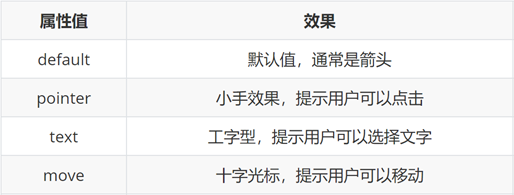
<!DOCTYPE html>
    <html lang="en">
    <head>
        <meta charset="UTF-8">
          <meta http-equiv="X-UA-Compatible" content="IE=edge">
            <meta name="viewport" content="width=device-width, initial-scale=1.0">
          <title>Document</title>
            <style>
              div:nth-child(1) {
              cursor: default;
              }
              div:nth-child(2) {
              /* 小手 */
              cursor: pointer;
              }
              div:nth-child(3) {
              /* 文本 */
              cursor: text;
              }
              div:nth-child(4) {
              /* 移动 */
              cursor: move;
              }
              div:nth-child(5) {
              /* 禁止 */
              cursor: not-allowed;
              }
              button {
              cursor: pointer;
              }
            </style>
          </head>
          <body>
          <div>鼠标默认</div>
          <div>鼠标小手</div>
          <div>鼠标选择文本</div>
          <div>鼠标移动</div>
          <div>鼠标禁止</div>
          <button>注册</button>
          </body>
        </html>
禁用鼠标样式

div:nth-child(5) {
/* 禁止 */
cursor: not-allowed;
}
表格样式-合并相邻两个边框
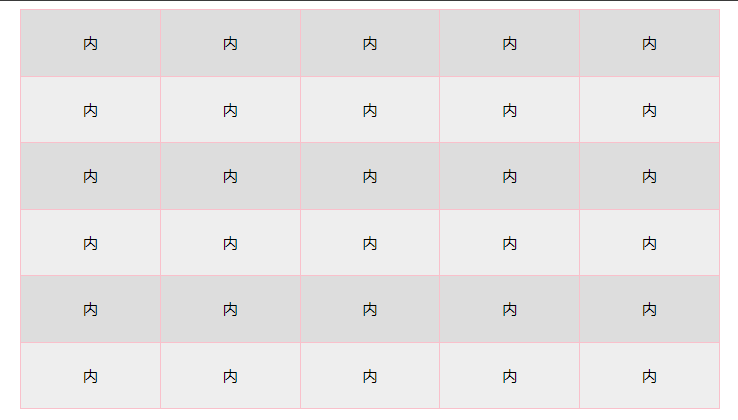
<!DOCTYPE html>
    <html lang="en">
    <head>
        <meta charset="UTF-8">
          <meta http-equiv="X-UA-Compatible" content="IE=edge">
            <meta name="viewport" content="width=device-width, initial-scale=1.0">
          <title>Document</title>
            <style>
              table {
              width: 700px;
              height: 400px;
              margin: 0 auto;
              text-align: center;
              }
              table,
              tr,
              td {
              border: 1px solid pink;
              /* 合并相邻的两个边框 */
              border-collapse: collapse;
              }
              /* 2n 偶数 / even */
              /* tr:nth-child(2n) {
              background-color: #eee;
              } */
              tr:nth-child(even) {
              background-color: #eee;
              }
              /* 2n+1 奇数 odd */
              tr:nth-child(odd) {
              background-color: #ddd;
              }
            </style>
          </head>
          <body>
            <table>
              <tr>
              <td>内</td>
              <td>内</td>
              <td>内</td>
              <td>内</td>
              <td>内</td>
              </tr>
              <tr>
              <td>内</td>
              <td>内</td>
              <td>内</td>
              <td>内</td>
              <td>内</td>
              </tr>
              <tr>
              <td>内</td>
              <td>内</td>
              <td>内</td>
              <td>内</td>
              <td>内</td>
              </tr>
              <tr>
              <td>内</td>
              <td>内</td>
              <td>内</td>
              <td>内</td>
              <td>内</td>
              </tr>
              <tr>
              <td>内</td>
              <td>内</td>
              <td>内</td>
              <td>内</td>
              <td>内</td>
              </tr>
              <tr>
              <td>内</td>
              <td>内</td>
              <td>内</td>
              <td>内</td>
              <td>内</td>
              </tr>
            </table>
          </body>
        </html>
04-平面转换
简介
作用:为元素添加动态效果,一般与过渡配合使用
概念:改变盒子在平面内的形态(位移、旋转、缩放、倾斜)
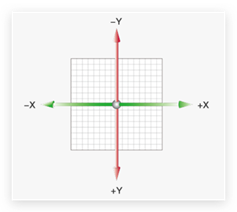
平面转换也叫 2D 转换,属性是 transform
平移
transform: translate(X轴移动距离, Y轴移动距离);- 取值
- 像素单位数值
- 百分比(参照盒子自身尺寸计算结果)
- 正负均可
- 技巧
- translate() 只写一个值,表示沿着 X 轴移动
- 单独设置 X 或 Y 轴移动距离:translateX() 或 translateY()
定位居中
- 方法一:margin
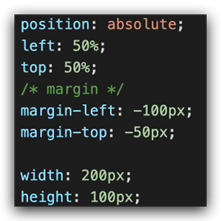
- 方法二:平移 → 百分比参照盒子自身尺寸计算结果
旋转
transform: rotate(旋转角度);- 取值:角度单位是 deg
- 技巧
- 取值正负均可
- 取值为正,顺时针旋转
- 取值为负,逆时针旋转
转换原点
默认情况下,转换原点是盒子中心点
transform-origin: 水平原点位置 垂直原点位置;取值:
- 方位名词(left、top、right、bottom、center)
- 像素单位数值
- 百分比
案例-时钟
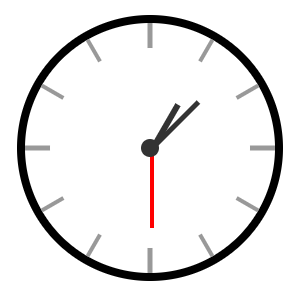
.hour {
width: 6px;
height: 50px;
background-color: #333;
margin-left: -3px;
transform: rotate(15deg);
transform-origin: center bottom;
}
.minute {
width: 5px;
height: 65px;
background-color: #333;
margin-left: -3px;
transform: rotate(90deg);
transform-origin: center bottom;
}
.second {
width: 4px;
height: 80px;
background-color: red;
margin-left: -2px;
transform: rotate(240deg);
transform-origin: center bottom;
}
多重转换
多重转换技巧:先平移再旋转
transform: translate() rotate();- 多重转换原理:以第一种转换方式坐标轴为准转换形态
- 旋转会改变网页元素的坐标轴向
- 先写旋转,则后面的转换效果的轴向以旋转后的轴向为准,会影响转换结果
缩放
transform: scale(缩放倍数);
transform: scale(X轴缩放倍数, Y轴缩放倍数);- 技巧
- 通常,只为 scale() 设置一个值,表示 X 轴和 Y 轴等比例缩放
- 取值大于1表示放大,取值小于1表示缩小
倾斜
transform: skew();取值:角度度数 deg
05-渐变
渐变是多个颜色逐渐变化的效果,一般用于设置盒子背景
分类:
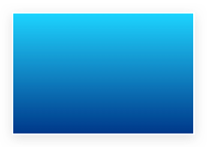
- 线性渐变
- 径向渐变
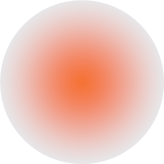
线性渐变
background-image: linear-gradient(
渐变方向,
颜色1 终点位置,
颜色2 终点位置,
......
);
取值:
- 渐变方向:可选
- to 方位名词
- 角度度数
- 终点位置:可选
- 百分比
background-image: linear-gradient(
to right,
rgba(255, 255, 255, 0.3),
#f86442
);
径向渐变
background-image: radial-gradient(
半径 at 圆心位置,
颜色1 终点位置,
颜色2 终点位置,
......
);
取值:
- 半径可以是2条,则为椭圆
- 圆心位置取值:像素单位数值 / 百分比 / 方位名词
background-image: radial-gradient(
50px at 10px 10px,
rgba(255, 255, 255, 0.5),
transparent
);
06-综合案例-轮播图
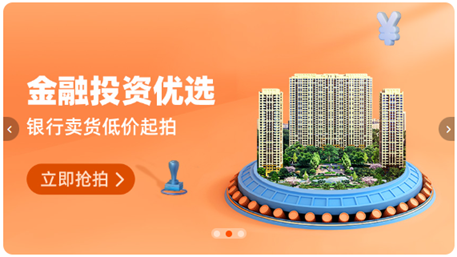
图片效果
HTML结构
<div class="banner">
  <!-- 图: ul > li -->
    <ul>
    <li><a href="#"><img src="./images/banner1.jpg" alt=""></a></li>
    <li><a href="#"><img src="./images/banner2.jpg" alt=""></a></li>
    <li><a href="#"><img src="./images/banner3.jpg" alt=""></a></li>
    </ul>
  </div>
CSS样式
* {
margin: 0;
padding: 0;
box-sizing: border-box;
}
li {
list-style: none;
}
.banner {
position: relative;
margin: 100px auto;
width: 564px;
height: 315px;
/* background-color: pink; */
overflow: hidden;
}
/* 图片 */
.banner img {
width: 564px;
border-radius: 12px;
vertical-align: middle;
}
.banner ul {
display: flex;
}
箭头
HTML结构
<!-- 箭头 -->
  <!-- 上一张 prev -->
      <a href="#" class="prev">
    <i class="iconfont icon-zuoce"></i>
    </a>
    <!-- 下一张 next -->
        <a href="#" class="next">
      <i class="iconfont icon-youce"></i>
      </a>
CSS样式
/* 箭头 */
.banner .prev,
.banner .next {
/* 隐藏 */
display: none;
position: absolute;
top: 50%;
transform: translateY(-50%);
width: 20px;
height: 30px;
background-color: rgba(0,0,0, 0.3);
text-decoration: none;
color: #fff;
line-height: 30px;
}
/* 鼠标滑到banner区域,箭头要显示 display:block */
.banner:hover .prev,
.banner:hover .next {
display: block;
}
.banner .prev {
left: 0;
border-radius: 0 15px 15px 0;
}
.banner .next {
right: 0;
border-radius: 15px 0 0 15px;
text-align: center;
}
圆点
HTML结构
<!-- 圆点 -->
  <ol>
  <li></li>
  <li class="active"></li>
  <li></li>
  </ol>
CSS样式
/* 圆点 */
.banner ol {
position: absolute;
bottom: 20px;
left: 50%;
transform: translateX(-50%);
height: 13px;
background-color: rgba(255,255,255,0.3);
display: flex;
border-radius: 10px;
}
.banner ol li {
margin: 3px;
width: 8px;
height: 8px;
background-color: #fff;
border-radius: 50%;
cursor: pointer;
}
/* 橙色的li */
.banner ol .active {
background-color: #ff5000;
}
{
/* 隐藏 */
display: none;
position: absolute;
top: 50%;
transform: translateY(-50%);
width: 20px;
height: 30px;
background-color: rgba(0,0,0, 0.3);
text-decoration: none;
color: #fff;
line-height: 30px;
}
/* 鼠标滑到banner区域,箭头要显示 display:block */
.banner:hover .prev,
.banner:hover .next {
display: block;
}
.banner .prev {
left: 0;
border-radius: 0 15px 15px 0;
}
.banner .next {
right: 0;
border-radius: 15px 0 0 15px;
text-align: center;
}
### 圆点
#### HTML结构
```html
CSS样式
/* 圆点 */
.banner ol {
position: absolute;
bottom: 20px;
left: 50%;
transform: translateX(-50%);
height: 13px;
background-color: rgba(255,255,255,0.3);
display: flex;
border-radius: 10px;
}
.banner ol li {
margin: 3px;
width: 8px;
height: 8px;
background-color: #fff;
border-radius: 50%;
cursor: pointer;
}
/* 橙色的li */
.banner ol .active {
background-color: #ff5000;
}
 浙公网安备 33010602011771号