

Backup and Restore the VMM Database
2012-01-04 17:00 络绎 阅读(439) 评论(0) 收藏 举报- Backup the VMM database
1. Launch SCVMM Console, connect it with VMM server
- 2. Click Settings to open Settings -> Home page, click Backup to open Virtual Machine Manager Backup
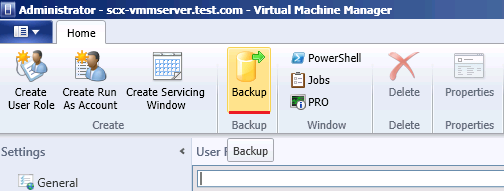
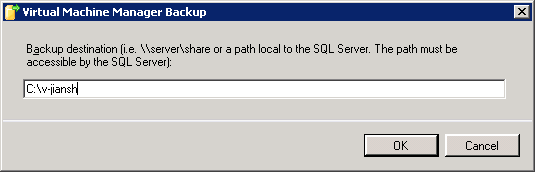
3. On Virtual Machine Manager Backup wizard, enter the Backup destination path. Notice the path must be accessible by SQL server. Then click OK button. You can see the backup file under the destination you provide

- Restore VMM Database on remote server
We use SCVMMrecover.exe tool to restore VMM Database from command line. The SCVMMrecover.exe located under SCVMM installation path\bin.
1. Launch SCVMM shell with Administrator permission, connect the SCVMM server with command
Get-SCVMMServer -ComputerName scxomt-ws7-82
2. Use cd command go to the SCVMMrecover.exe tool path
3. Use following command to recover the backup Database
.\SCVMMRecover.exe -Path C:\SCVMMDB\VirtualManagerDB-01042012-034833.bak -confirm
4. After recover the Database successfully, you can get the output as following shows
Virtual Machine Manager database recovery completed.
5. Now, you can launch the SCVMM Console and connect with SCVMM server, you will see the DB has been recovered
MSDN: http://technet.microsoft.com/en-us/library/cc956045.aspx

 浙公网安备 33010602011771号