

Import VMWare Template to VMM
2011-12-31 16:25 络绎 阅读(535) 评论(0) 收藏 举报Pre-Environment
- Windows server scx-vmmserver with VMM Server/Console installed.
- 2 hosts. One host vmware with installed VCenter, another host ESX installed VMWare. Host ESX managed by host vmware. Both the 2 hosts vmware and ESX was managed by VMM.
Overview
Before import VMWare template to SCVMM, you must ensure there are templates on VMWare host. Here we have some steps on this topic:
1. Create a VM on VCenter (from VMM or VCenter)
2. Create a VMWare template from VM created on 1st step
3. Import template created on 2nd step to VMM library
Create a VM on Vcenter
You can create a VM to ESX host from VMM or VCenter, here we use VCenter as example.
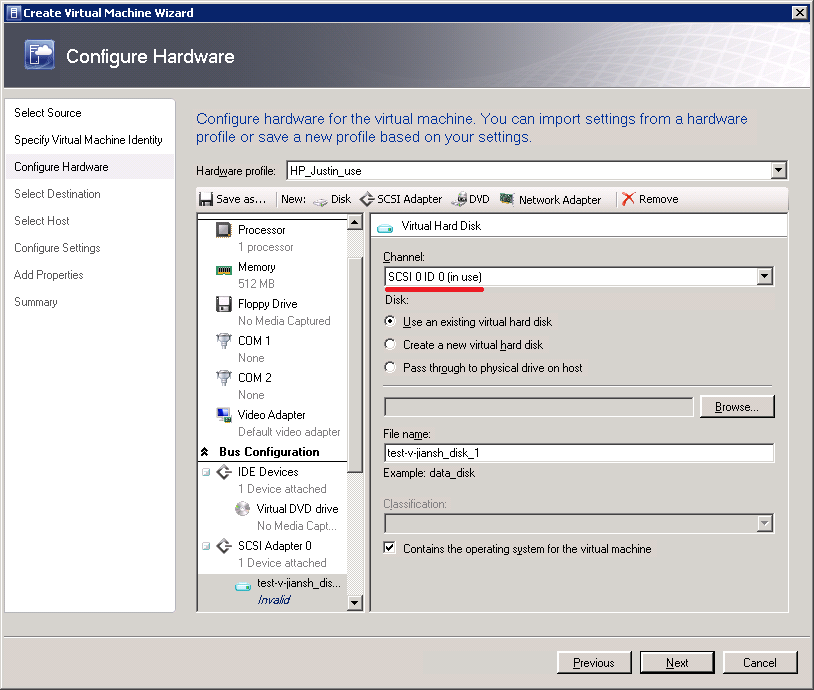
Notice: if you create a VMWare VM from VMM, you need marked the Adapter Channel as SCSI because VMWare only support SCSI Adapter
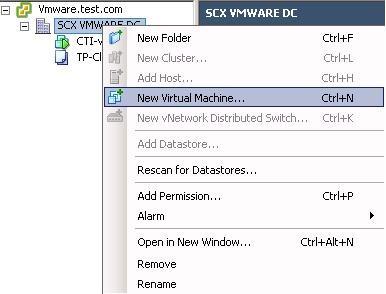
1. Logon vmware, launch VCenter, select datacenter and right click to select New Virtual Machine to open Create New Virtual Machine wizard
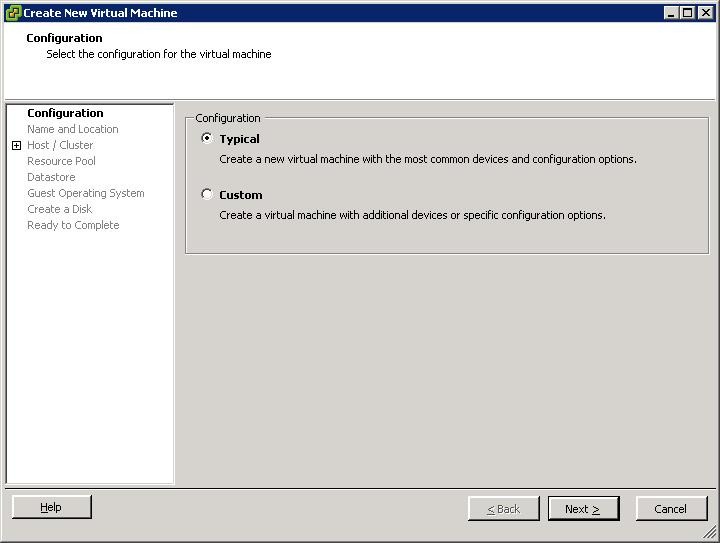
2. On Create New Virtual Machine wizard, select Typical and click Next to open Name and Location page
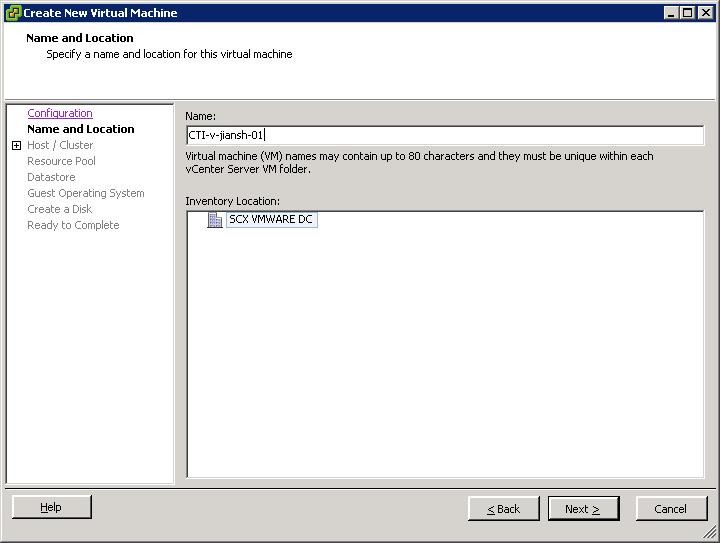
3. On Name and Location page, enter your VM name and select the location then click Next to open Host/Cluster page
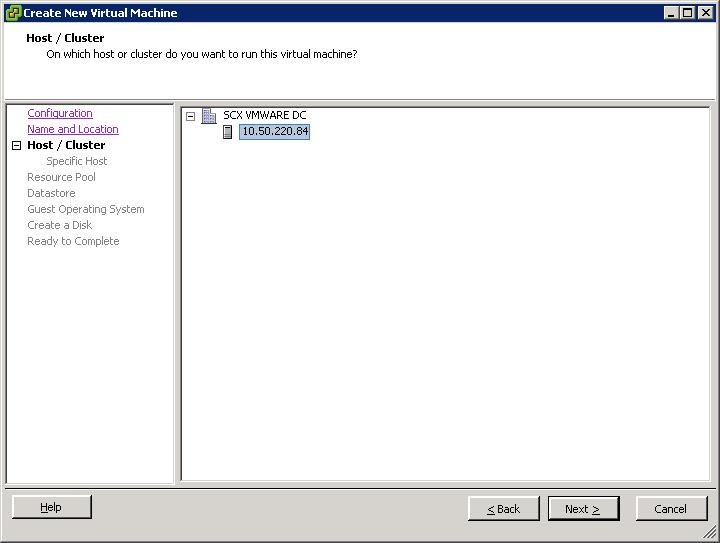
4. On Host/Cluster page, select the ESX host and click Next to open Datastore page
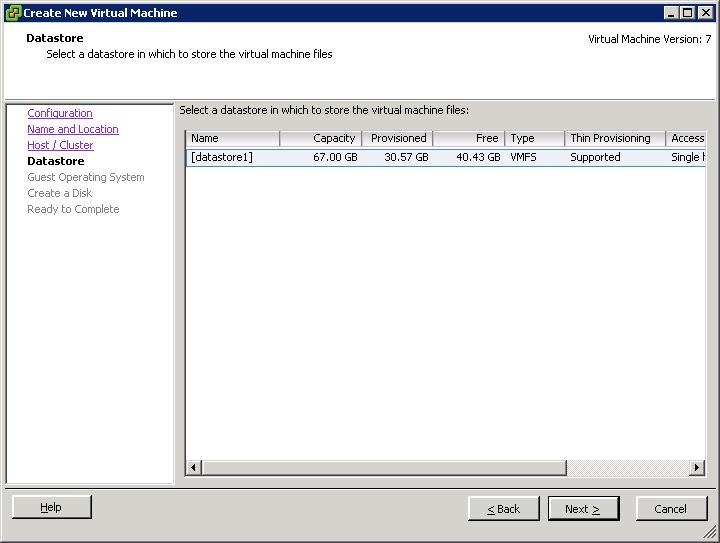
5. On Datastore page, keep the default selection and click Next to open Guest OS page
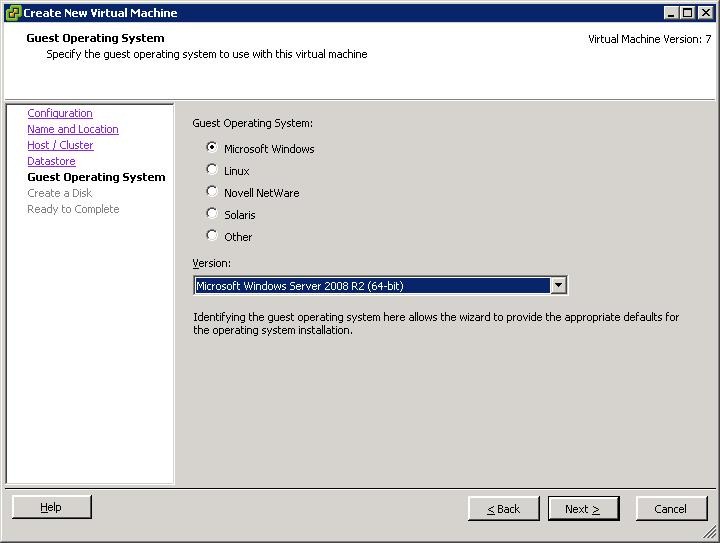
6. On Guest OS page, select the target Platform and OS then click Next button to open Create a Disk page
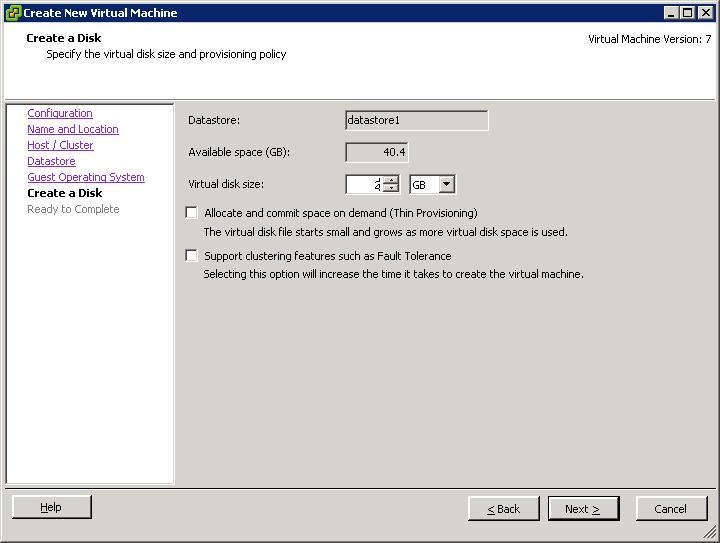
7. On Create a Disk page, enter the disk size and click Next button to open Ready to Complete page
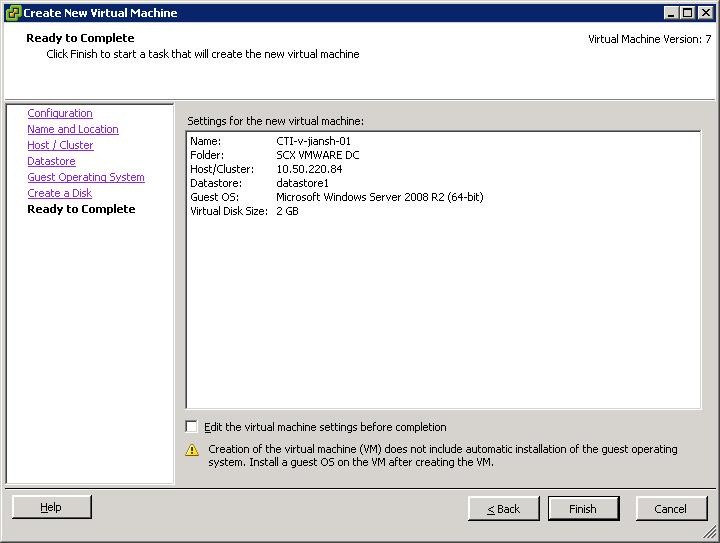
8. On Ready and Complete page, click Finish button to create VM. Now you can see the VM on main page
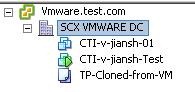
Create a VMWare template from VMWare VM
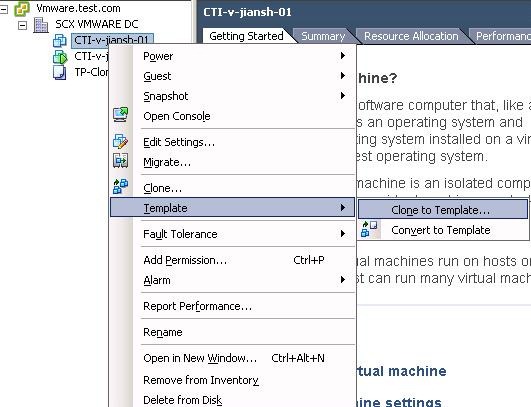
1. On main page, select the VM you want to create VMWare template and right click to select Template->Clone to Template … to open Clone Virtual Machine to Template Wizard
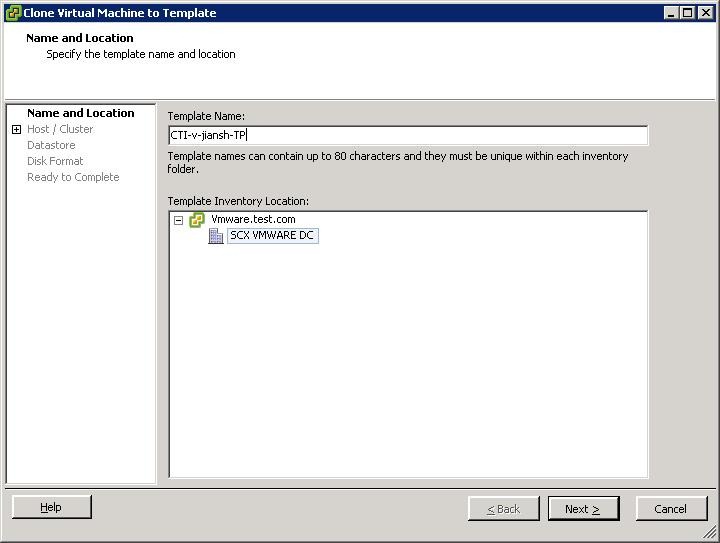
2. On Name and Location page, enter the template name and select Location then click Next to open Host/Cluster page
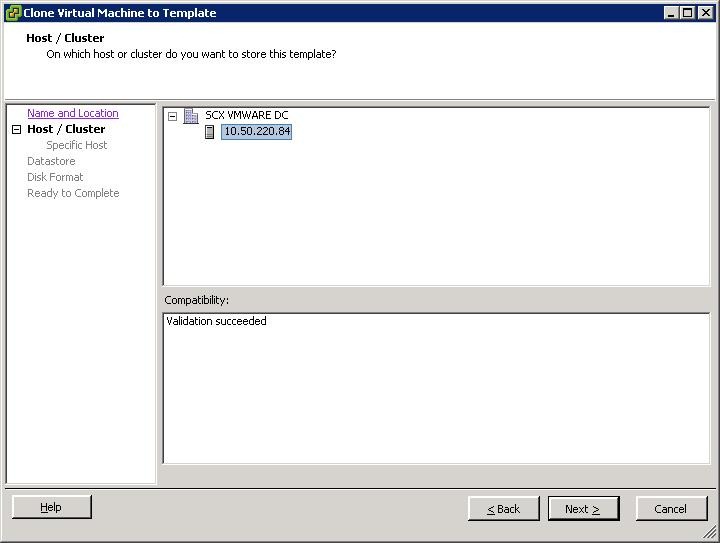
3. On Host/Cluster page, select the ESX host and click Next to open Datastore page
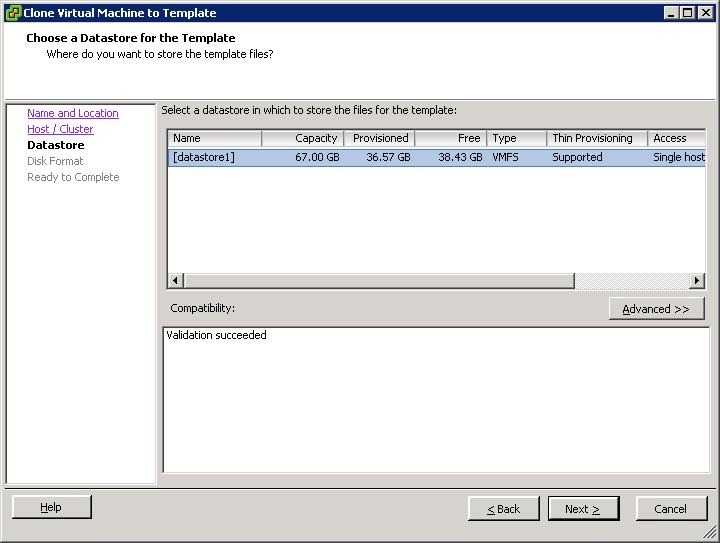
4. On Datastore page, keep the default selection and click Next to open Disk format page
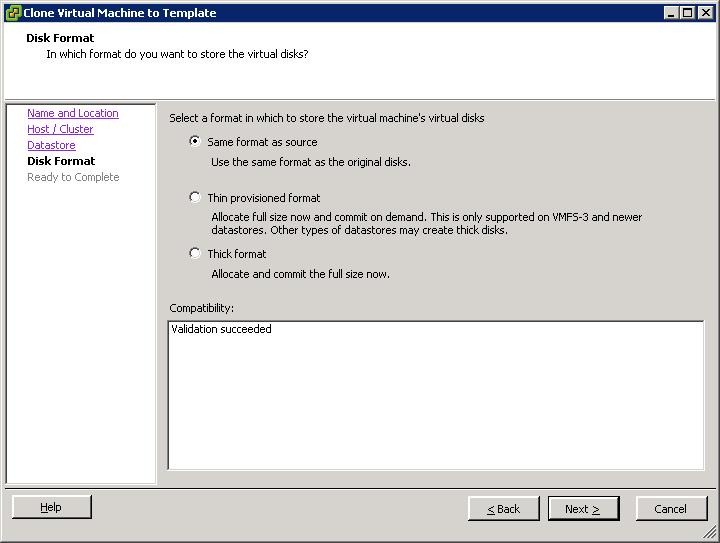
5. On Disk format page, select the format you want and click Next to open Ready to Complete page
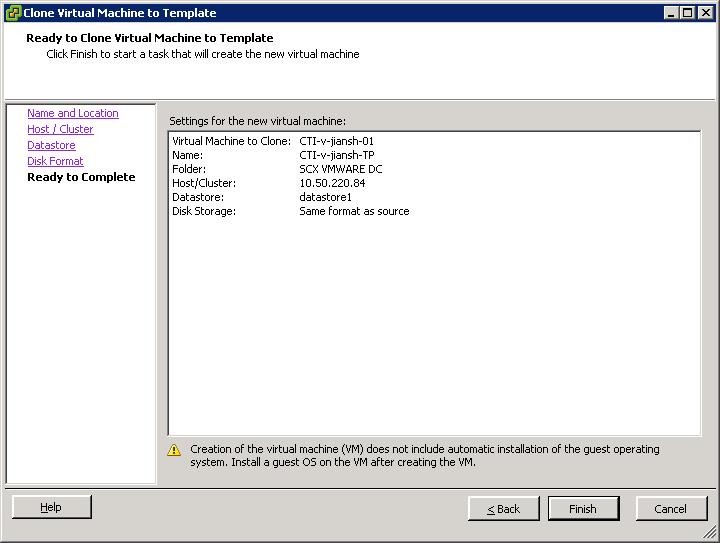
6. Click Finish to created VMWare template on VCenter, you can see the template on main page
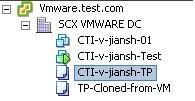
Import VMWare Template to VMM
1. Logon scx-vmmserver, launch VMM Console -> Fabric->Servers->vCenter Servers. Select the VCenter servers and right click, select Import Template to open Import Templates wizard

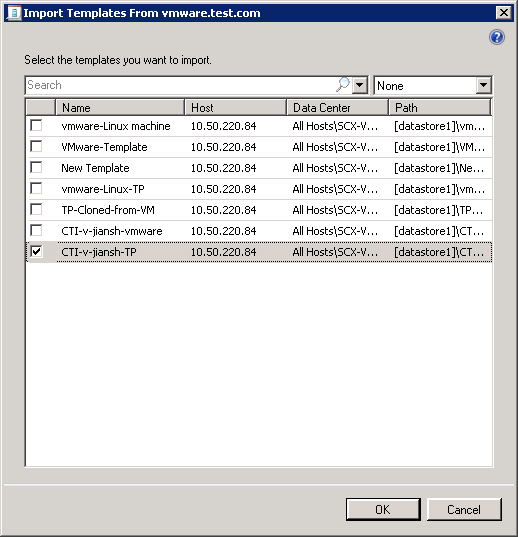
2. Select the template you want to import and click OK to import the target template to VMM. You can see the template from Library -> Templates -> VM Templates
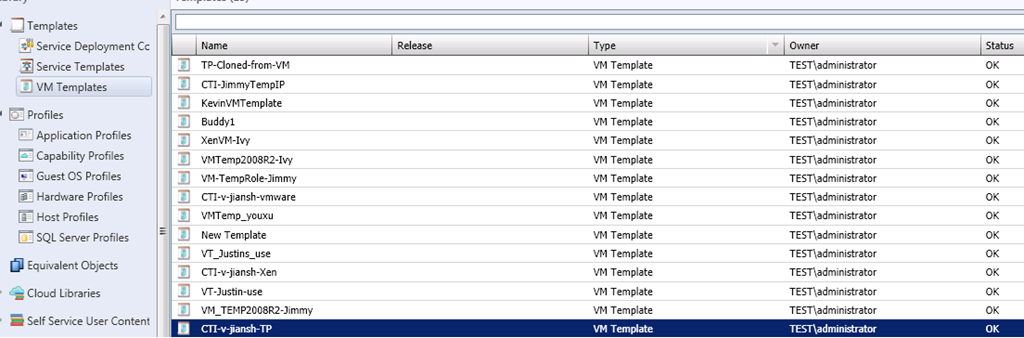
Also, you can import VMWare template to VMM from Library -> Home -> Import VMWare Template

 浙公网安备 33010602011771号