

Vue2框架
1.vue.js 初体验
基于vue.js框架来编写项目需要以下几个步骤:
-
导入vue.js包(CDN)
<!-- 开发环境版本,包含了有帮助的命令行警告 --> <script src="https://cdn.jsdelivr.net/npm/vue@2/dist/vue.js"></script> <!-- 生产环境版本,优化了尺寸和速度 --> <script src="https://cdn.jsdelivr.net/npm/vue@2"></script> # 当然,也可以将文件下载下来再通过本地导入。 -
应用
<!DOCTYPE html>
<html lang="en">
<head>
    <meta charset="UTF-8">
    <title>Title</title>
    <!-- 1.引入vue.js文件 -->
    <script src="https://cdn.jsdelivr.net/npm/vue@2/dist/vue.js"></script>
</head>
<body>

<!-- 2.指定区域,该区域的内容希望由vue.js来接管。 -->
<div id="app">
    <h1>欢迎学习Vue.js</h1>
    <div>我叫{{name}},微信{{wechat}}</div>

    <input type="button" value="点我" v-on:click="clickMe">
</div>


<script>
	// 3.创建Vue对象,并关联指定HTML区域。
    var app = new Vue({
        el: '#app',
        data: {
            name: '武沛齐',
            wechat: 'wupeiqi888'
        },
        methods: {
            clickMe: function () {
                // 获取值this.name
                // 修改值this.name = "xx"
                this.name = "alex";
                this.wechat = "wupeiqi666";
            }
        }
    })
</script>
</body>
</html>
后期编写前端代码使用IDE:WebStom (与Pycharm是一家子)【2020.1版本破解同Pycharm】
2.vue常见指令
想要使用vue.js来进行开发,就必须学会vue.js中提供的指令,明白每个指令是什么意思,才能更灵活的让他去显示我们想要的效果。
一大波vue指令来了。。。
2.1 插值表达式
一般在显示文本内容的标签中使用。
<!DOCTYPE html>
<html lang="en">
<head>
    <meta charset="UTF-8">
    <title>Title</title>
    <script src="https://cdn.jsdelivr.net/npm/vue@2/dist/vue.js"></script>
</head>
<body>
<div id="app">
    <div>我叫{{name}},我喜欢{{hobby}},邮箱:{{dataInfo.email}}</div>
    <ul>
        <li>{{'李杰'}}</li>
        <li>{{'李杰' + "土鳖"}}</li>
        <li>{{ base + 1 + 1 }}</li>
        <li>{{ 1===1 ?"李杰":"alex"}}</li>
    </ul>
    <ul>
        <li>{{ condition?"李杰":"alex"}}</li>
    </ul>
    <input type="button" value="点我" v-on:click="clickMe">
</div>


<script>
    var app = new Vue({
        el: '#app',
        data: {
            name: '武沛齐',
            hobby: '篮球',
            dataInfo: {
                id: 1,
                email: "xxx.com"
            },
            condition: false,
            base: 1
        },
        methods: {
            clickMe: function () {
                this.name = "苑日天";
                this.condition = true;
                this.dataInfo.email = "wupeiqi@live.com";
                this.base += 100;
            }
        }
    })

// {{ }}和v-text的作用是一样的都是插入值直接渲染  innerText
// v-htmL既能插入值又能插入标签  innerHTML

</script>
</body>
</html>
2.2 v-bind指令
一般用于对标签中的属性进行操作。
<!DOCTYPE html>
<html lang="en">
<head>
    <meta charset="UTF-8">
    <title>Title</title>
    <script src="https://cdn.jsdelivr.net/npm/vue@2/dist/vue.js"></script>
    <style>
        .ig {
            border: 2px solid red;
        }
    </style>
</head>
<body>
<div id="app">
    <img src='xx.png' class='c1' />

    <img alt="" v-bind:src="imageUrl" v-bind:class="cls">

</div>


<script>
    var app = new Vue({
        el: '#app',
        data: {
            imageUrl: 'https://hcdn2.luffycity.com/media/frontend/public_class/PY1@2x_1566529821.1110113.png',
            cls: "ig",
        }
    })
</script>
</body>
</html>
<!DOCTYPE html>
<html lang="en">
<head>
    <meta charset="UTF-8">
    <title>Title</title>
    <script src="https://cdn.jsdelivr.net/npm/vue@2/dist/vue.js"></script>
    <style>
        .ig {
            border: 2px solid red;
        }

        .info {
            color: red;
        }

        .danger {
            font-size: 10px;
        }
    </style>
</head>
<body>
<div id="app">
    <img src='xx.png' class='c1'/>

    <img alt="" v-bind:src="imageUrl" v-bind:class="cls">

    <h1 v-bind:class="{info:v1,danger:v2}">你好呀111</h1>
    <h1 v-bind:class="clsDict">你好呀</h1>

    <h2 v-bind:class="[a1,a2]"></h2>
    <h2 v-bind:class="[1===1?a1:'y',a2]">111</h2>

    <h3 v-bind:style="{ color:clr,fontSize:size+'px'}">222</h3>
    <h3 style="color: red;font-size: 19px">333</h3>

    <input type="button" value="点我" v-on:click="clickMe">
</div>


<script>
    var app = new Vue({
        el: '#app',
        data: {
            imageUrl: 'https://hcdn2.luffycity.com/media/frontend/public_class/PY1@2x_1566529821.1110113.png',
            cls: "ig",
            v1: true,
            v2: true,
            clsDict: {
                info: false,
                danger: false
            },
            a1: "info",
            a2: "danger",
            clr: "red",
            size: "19",
        },
        methods:{
            clickMe:function () {
                this.v1 = false;
            }
        }
    })
</script>
</body>
</html>
v-bind注意:
-
简写的格式:
:属性名=xxx,例如:<h1 v-bind:class="v1"></h1> <h1 :class="v1"></h1> <img :src="xx" /> -
v-bind属于单向绑定( JS修改->HTML修改 )。
2.3 v-model指令
一般用于在交互的表中中使用,例如:input、select、textarea等。【双向绑定】
<!DOCTYPE html>
<html lang="en">
<head>
    <meta charset="UTF-8">
    <title>Title</title>
    <script src="https://cdn.jsdelivr.net/npm/vue@2/dist/vue.js"></script>
</head>
<body>
<div id="app">
    <div>
        用户名:<input type="text" v-model="user">
    </div>
    <div>
        密码:<input type="password" v-model="pwd">
    </div>
    <input type="button" value="登录" v-on:click="clickMe"/>
    <input type="button" value="重置" v-on:click="resetForm"/>
</div>


<script>
    var app = new Vue({
        el: '#app',
        data: {
            user: "",
            pwd: "",
        },
        methods: {
            clickMe: function () {
                console.log(this.user, this.pwd)
            },
            resetForm: function () {
                this.user = "";
                this.pwd = "";
            }
        }
    })
</script>
</body>
</html>
更多相关标签示例:
<!DOCTYPE html>
<html lang="en">
<head>
    <meta charset="UTF-8">
    <title>Title</title>
    <script src="https://cdn.jsdelivr.net/npm/vue@2/dist/vue.js"></script>
</head>
<body>
<div id="app">
    <div>
        用户名:<input type="text" v-model="user">
    </div>
    <div>
        密码:<input type="password" v-model="pwd">
    </div>
    <div>
        性别:
        <input type="radio" v-model="sex" value="1">男
        <input type="radio" v-model="sex" value="2">女
    </div>
    <div>
        爱好:
        <input type="checkbox" v-model="hobby" value="11">篮球
        <input type="checkbox" v-model="hobby" value="22">足球
        <input type="checkbox" v-model="hobby" value="33">评判求
    </div>
    <div>
        城市:
        <select v-model="city">
            <option value="sh">上海</option>
            <option value="bj">北京</option>
            <option value="sz">深圳</option>
        </select>
    </div>
    <div>
        擅长领域:
        <select v-model="company" multiple>
            <option value="11">技术</option>
            <option value="22">销售</option>
            <option value="33">运营</option>
        </select>
    </div>
    <div>
        其他:<textarea v-model="more"></textarea>
    </div>

    <input type="button" value="注 册" v-on:click="clickMe"/>
</div>


<script>
    var app = new Vue({
        el: '#app',
        data: {
            user: "",
            pwd: "",
            sex: "2",
            hobby: ["22"],
            city: "sz",
            company: ["22", "33"],
            more: '...'
        },
        methods: {
            clickMe: function () {
                console.log(this.user, this.pwd, this.sex, this.hobby, this.city, this.company, this.more);
            },
        }
    })
</script>
</body>
</html>
<!DOCTYPE html>
<html lang="en">
<head>
    <meta charset="UTF-8">
    <title>Title</title>
    <script src="https://cdn.jsdelivr.net/npm/vue@2/dist/vue.js"></script>
</head>
<body>
<div id="app">
    <div>
        用户名:<input type="text" v-model="info.user">
    </div>
    <div>
        密码:<input type="password" v-model="info.pwd">
    </div>
    <div>
        性别:
        <input type="radio" v-model="info.sex" value="1">男
        <input type="radio" v-model="info.sex" value="2">女
    </div>
    <div>
        爱好:
        <input type="checkbox" v-model="info.hobby" value="11">篮球
        <input type="checkbox" v-model="info.hobby" value="22">足球
        <input type="checkbox" v-model="info.hobby" value="33">评判求
    </div>
    <div>
        城市:
        <select v-model="info.city">
            <option value="sh">上海</option>
            <option value="bj">北京</option>
            <option value="sz">深圳</option>
        </select>
    </div>
    <div>
        擅长领域:
        <select v-model="info.company" multiple>
            <option value="11">技术</option>
            <option value="22">销售</option>
            <option value="33">运营</option>
        </select>
    </div>
    <div>
        其他:<textarea v-model="info.more"></textarea>
    </div>

    <input type="button" value="注 册" v-on:click="clickMe"/>
</div>


<script>
    var app = new Vue({
        el: '#app',
        data: {
            info: {
                user: "",
                pwd: "",
                sex: "2",
                hobby: ["22"],
                city: "sz",
                company: ["22", "33"],
                more: '...'
            }
        },
        methods: {
            clickMe: function () {
                console.log(this.info);
            },
        }
    })
</script>
</body>
</html>
2.4 v-for指令
用户数据进行循环并展示。
示例1:
<div id="app">
    <ul>
        <li v-for="item in dataList">{{ item }}</li>
    </ul>
</div>
<script>
    var app = new Vue({
        el: '#app',
        data: {
            dataList: ["郭德纲", "于谦", "三哥"],
        }
    })
</script>
示例2:
<div id="app">
    <ul>
        <li v-for="(item,idx) in dataList">{{idx}} - {{ item }}</li>
    </ul>
</div>
<script>
    var app = new Vue({
        el: '#app',
        data: {
            dataList: ["郭德纲", "于谦", "三哥"],
        }
    })
</script>
示例3:
<div id="app">
    <ul>
        <li v-for="(value,key) in dataDict">{{key}} - {{ value }}</li>
    </ul>
</div>
<script>
    var app = new Vue({
        el: '#app',
        data: {
            dataDict: {
                id: 1,
                age: 18,
                name: "xxx"
            }
        }
    })
</script>
示例4:
<div id="app">
    <ul>
        <li v-for="(item,idx) in cityList">{{item.id}} - {{ item.text }}</li>
    </ul>
</div>
<script>
    var app = new Vue({
        el: '#app',
        data: {
            cityList: [
                {id: 11, text: "上海"},
                {id: 12, text: "北京"},
                {id: 13, text: "深圳"},
            ]
        }
    })
</script>
示例5:
<ul>
	<li> <span>id 11</span>  <span>text 上海</span> </li>
	。。
	。。
</ul>
<div id="app">
    <ul>
        <li v-for="(item,idx) in cityList">
        	<span v-for="(v,k) in item">{{k}} {{v}}</span>
        </li>
    </ul>
</div>
<script>
    var app = new Vue({
        el: '#app',
        data: {
            cityList: [
                {id: 11, text: "上海"},
                {id: 12, text: "北京"},
                {id: 13, text: "深圳"},
            ]
        }
    })
</script>
2.5 v-on指令
事件相关的指令,例如:
v-on:click
v-on:dblclick
v-on:mouseover,
v-on:mouseout,
v-on:change
v-on:focus
...
<!DOCTYPE html>
<html lang="en">
<head>
    <meta charset="UTF-8">
    <title>Title</title>
    <script src="https://cdn.jsdelivr.net/npm/vue@2/dist/vue.js"></script>
</head>
<body>
<div id="app">
    <ul>
        <li v-on:click="clickMe">点击</li>
        <li @click="clickMe">点击</li>
        <li v-on:dblclick="doSomething('双击')">双击</li>
        <li v-on:mouseover="doSomething('进入')" v-on:mouseout="doSomething('离开')">进入&离开</li>
    </ul>
</div>

<script>
    var app = new Vue({
        el: '#app',
        data: {},
        methods: {
            clickMe: function () {
                alert("点击了")
            },
            doSomething: function (msg) {
                console.log(msg);
            }
        }
    })
</script>
</body>
</html>
注意:事件可以简写为 <div @click="xx">点击</div>
案例:数据管理
数据的管理包括对数据:展示、动态添加、删除、修改。
-
数据列表展示
<!DOCTYPE html> <html lang="en"> <head> <meta charset="UTF-8"> <title>Title</title> <script src="https://cdn.jsdelivr.net/npm/vue@2/dist/vue.js"></script> <style> .penal { border: 1px solid #dddddd; margin: 20px 0 0 0; padding: 10px; border-bottom: 0; background-color: #d9d9d9; } .table { width: 100%; border-collapse: collapse; border-spacing: 0; } .table > tbody > tr > td, .table > tbody > tr > th, .table > tfoot > tr > td, .table > tfoot > tr > th, .table > thead > tr > td, .table > thead > tr > th { padding: 8px; vertical-align: top; border: 1px solid #ddd; text-align: left; } </style> </head> <body> <div id="app"> <h3 class="penal">数据列表</h3> <table class="table"> <thead> <tr> <td>姓名</td> <td>年龄</td> </tr> </thead> <tbody> <tr v-for="item in dataList"> <td>{{item.name}}</td> <td>{{item.age}}</td> </tr> </tbody> </table> </div> <script> var app = new Vue({ el: '#app', data: { dataList: [ {"name": "武沛齐", "age": 19}, {"name": "alex", "age": 89}, ] } }) </script> </body> </html> -
数据添加
<!DOCTYPE html> <html lang="en"> <head> <meta charset="UTF-8"> <title>Title</title> <script src="https://cdn.jsdelivr.net/npm/vue@2/dist/vue.js"></script> <style> .penal { border: 1px solid #dddddd; margin: 20px 0 0 0; padding: 10px; border-bottom: 0; background-color: #d9d9d9; } .table { width: 100%; border-collapse: collapse; border-spacing: 0; } .table > tbody > tr > td, .table > tbody > tr > th, .table > tfoot > tr > td, .table > tfoot > tr > th, .table > thead > tr > td, .table > thead > tr > th { padding: 8px; vertical-align: top; border: 1px solid #ddd; text-align: left; } </style> </head> <body> <div id="app"> <h3 class="penal">表单区域</h3> <div> <div> <label>姓名</label> <input type="text" v-model="user"> </div> <div> <label>年龄</label> <input type="text" v-model="age"> <input type="button" value="新建" @click="addUser"> </div> </div> <h3 class="penal">数据列表</h3> <table class="table"> <thead> <tr> <td>姓名</td> <td>年龄</td> </tr> </thead> <tbody> <tr v-for="item in dataList"> <td>{{item.name}}</td> <td>{{item.age}}</td> </tr> </tbody> </table> </div> <script> var app = new Vue({ el: '#app', data: { user: "", age: "", dataList: [ {name: "武沛齐", age: 19}, {name: "alex", age: 89}, ] }, methods: { addUser: function () { let row = {name: this.user, age: this.age}; this.dataList.push(row); this.user = ""; this.age = ""; } } }) </script> </body> </html> -
删除数据
<!DOCTYPE html> <html lang="en"> <head> <meta charset="UTF-8"> <title>Title</title> <script src="https://cdn.jsdelivr.net/npm/vue@2/dist/vue.js"></script> <style> .penal { border: 1px solid #dddddd; margin: 20px 0 0 0; padding: 10px; border-bottom: 0; background-color: #d9d9d9; } .table { width: 100%; border-collapse: collapse; border-spacing: 0; } .table > tbody > tr > td, .table > tbody > tr > th, .table > tfoot > tr > td, .table > tfoot > tr > th, .table > thead > tr > td, .table > thead > tr > th { padding: 8px; vertical-align: top; border: 1px solid #ddd; text-align: left; } </style> </head> <body> <div id="app"> <h3 class="penal">表单区域</h3> <div> <div> <label>姓名</label> <input type="text" v-model="user"> </div> <div> <label>年龄</label> <input type="text" v-model="age"> <input type="button" value="新建" @click="addUser"> </div> </div> <h3 class="penal">数据列表</h3> <table class="table"> <thead> <tr> <td>姓名</td> <td>年龄</td> <td>操作</td> </tr> </thead> <tbody> <tr v-for="(item,idx) in dataList"> <td>{{item.name}}</td> <td>{{item.age}}</td> <td> <input type="button" value="删除" @click="deleteRow" :data-idx="idx"/> </td> </tr> </tbody> </table> </div> <script> var app = new Vue({ el: '#app', data: { user: "", age: "", dataList: [ {name: "武沛齐", age: 19}, {name: "alex", age: 89}, ] }, methods: { addUser: function () { let row = {name: this.user, age: this.age}; this.dataList.push(row); this.user = ""; this.age = ""; }, deleteRow: function (event) { // 根据索引删除dataList中的值 let idx = event.target.dataset.idx; this.dataList.splice(idx, 1); } } }) </script> </body> </html> -
编辑修改数据
<!DOCTYPE html>
<html lang="en">
<head>
    <meta charset="UTF-8">
    <title>Title</title>
    <script src="https://cdn.jsdelivr.net/npm/vue@2/dist/vue.js"></script>
    <style>
        .penal {
            border: 1px solid #dddddd;
            margin: 20px 0 0 0;
            padding: 10px;
            border-bottom: 0;
            background-color: #d9d9d9;
        }

        .table {
            width: 100%;
            border-collapse: collapse;
            border-spacing: 0;
        }

        .table > tbody > tr > td, .table > tbody > tr > th, .table > tfoot > tr > td, .table > tfoot > tr > th, .table > thead > tr > td, .table > thead > tr > th {
            padding: 8px;
            vertical-align: top;
            border: 1px solid #ddd;
            text-align: left;
        }
    </style>
</head>
<body>

<div id="app">
    <h3 class="penal">表单区域</h3>
    <div>
        <div>
            <label>姓名</label>
            <input type="text" v-model="user">
        </div>
        <div>
            <label>年龄</label>
            <input type="text" v-model="age">
            <input type="button" :value="title" @click="addUser">
        </div>
    </div>

    <h3 class="penal">数据列表</h3>
    <table class="table">
        <thead>
        <tr>
            <td>姓名</td>
            <td>年龄</td>
            <td>操作</td>
        </tr>
        </thead>
        <tbody>
        <tr v-for="(item,idx) in dataList">
            <td>{{item.name}}</td>
            <td>{{item.age}}</td>
            <td>
                <input type="button" value="删除" @click="deleteRow" :data-idx="idx"/>
                <input type="button" value="编辑" @click="editRow" :data-idx="idx"/>
            </td>
        </tr>
        </tbody>
    </table>
</div>
<script>
    var app = new Vue({
        el: '#app',
        data: {
            editIndex: undefined,
            title: "新建",
            user: "",
            age: "",
            dataList: [
                {name: "武沛齐", age: 19},
                {name: "alex", age: 89},
            ]
        },
        methods: {
            addUser: function () {
                if (this.editIndex) {
                    // 修改
                    this.dataList[this.editIndex].name = this.user;
                    this.dataList[this.editIndex].age = this.age;
                } else {
                    let row = {name: this.user, age: this.age};
                    this.dataList.push(row);
                }
                this.user = "";
                this.age = "";
                this.editIndex = undefined;
                this.title = "新建";
            },
            deleteRow: function (event) {
                // 根据索引删除dataList中的值
                let idx = event.target.dataset.idx;
                this.dataList.splice(idx, 1);
            },
            editRow: function (event) {
                let idx = event.target.dataset.idx;
                // let name = this.dataList[idx].name;
                // let age = this.dataList[idx].age;
                // let {id, name} = {id: 1, name: "武沛齐"};
                // console.log(id, name);
                let {name, age} = this.dataList[idx];
                this.user = name;
                this.age = age;
                this.title = "编辑";
                this.editIndex = idx;
            }
        }
    })
</script>
</body>
</html>
2.6 v-if指令
条件判断。
<!DOCTYPE html>
<html lang="en">
<head>
    <meta charset="UTF-8">
    <title>Title</title>
    <script src="https://cdn.jsdelivr.net/npm/vue@2/dist/vue.js"></script>
</head>
<body>
<div id="app">
    <a v-if="isLogin">{{user}}</a>
    <a v-else>登录</a>
</div>

<script>
    var app = new Vue({
        el: '#app',
        data: {
            isLogin: false,
            user: "武沛齐"
        }
    })
</script>
</body>
</html>
<!DOCTYPE html>
<html lang="en">
<head>
    <meta charset="UTF-8">
    <title>Title</title>
    <script src="https://cdn.jsdelivr.net/npm/vue@2/dist/vue.js"></script>
</head>
<body>
<div id="app">
    <h1 v-if="v1">阿里无人区</h1>


    <h1 v-if="v2">去西藏</h1>
    <h1 v-else>去新疆</h1>


    <div v-if="v3 === '北京'">
        <h1>天安门</h1>
    </div>
    <div v-else-if="v3 === '新疆'">
        <h1>乌鲁木齐</h1>
    </div>
    <div v-else-if="v3 ==='西藏'">
        <h1>拉萨</h1>
    </div>
    <div v-else>
        <h1>大理</h1>
    </div>
</div>

<script>
    var app = new Vue({
        el: '#app',
        data: {
            v1: true,
            v2: true,
            v3: "新疆"
        }
    })
</script>
</body>
</html>
2.7 v-show指令
根据条件显示或隐藏(标签都会渲染到页面)。
<!DOCTYPE html>
<html lang="en">
<head>
    <meta charset="UTF-8">
    <title>Title</title>
    <script src="https://cdn.jsdelivr.net/npm/vue@2/dist/vue.js"></script>
</head>
<body>
<div id="app">
    <h1 v-show="v1">可可西里</h1>
    <h1 v-show="!v1">罗布泊</h1>
</div>

<script>
    var app = new Vue({
        el: '#app',
        data: {
            v1: false,
        }
    })
</script>
</body>
</html>
<!DOCTYPE html>
<html lang="en">
<head>
    <meta charset="UTF-8">
    <title>Title</title>
    <script src="https://cdn.jsdelivr.net/npm/vue@2/dist/vue.js"></script>
    <style>
        label {
            width: 60px;
            display: inline-block;
            text-align: right;
            margin-right: 8px;
        }
    </style>
</head>
<body>
<div id="app">
    <input type="button" value="密码登录" @click="isSms=false"/>
    <input type="button" value="短信登录" @click="isSms=true"/>

    <div v-show="isSms">
        <p>
            <label>手机号</label>
            <input type="text" placeholder="手机号">
        </p>
        <p>
            <label>验证码</label>
            <input type="text" placeholder="验证码">
        </p>
    </div>
    <div v-show="!isSms">
        <p>
            <label>用户名</label>
            <input type="text" placeholder="用户名">
        </p>
        <p>
            <label>密码</label>
            <input type="password" placeholder="密码">
        </p>
    </div>

</div>

<script>
    var app = new Vue({
        el: '#app',
        data: {
            isSms: false,
        }
    })
</script>
</body>
</html>
案例:用户登录
在编写案例之前,现在来学下axios,他是一个HTTP 库,可以发送Http请求。
<script src="https://unpkg.com/axios/dist/axios.min.js"></script>
<script>
    axios({
        method: "post",
        url: 'https://api.luf...ord/login/',
        params: {
			v1:123,
            v2:456
        },
        data: {
            name:"武沛齐",
            pwd:"123"
        },
        headers: {
            "Content-Type": "application/json"
        }
    }).then(function (res) {
        console.log(res.data);
    }).catch(function (error) {
		console.log(error);
    })
</script>
<!DOCTYPE html>
<html lang="en">
<head>
    <meta charset="UTF-8">
    <title>Title</title>
    <script src="https://cdn.jsdelivr.net/npm/vue@2/dist/vue.js"></script>
    <script src="https://unpkg.com/axios/dist/axios.min.js"></script>
    <style>
        label {
            width: 60px;
            display: inline-block;
            text-align: right;
            margin-right: 8px;
        }
    </style>
</head>
<body>
<div id="app">
    <input type="button" value="密码登录" @click="isSms=false"/>
    <input type="button" value="短信登录" @click="isSms=true"/>

    <div v-show="isSms">
        <p>
            <label>手机号</label>
            <input type="text" placeholder="手机号" v-model="sms.mobile">
        </p>
        <p>
            <label>验证码</label>
            <input type="text" placeholder="验证码" v-model="sms.code">
        </p>
    </div>
    <div v-show="!isSms">
        <p>
            <label>用户名</label>
            <input type="text" placeholder="用户名" v-model="info.username">
        </p>
        <p>
            <label>密码</label>
            <input type="password" placeholder="密码" v-model="info.password">
        </p>
    </div>

    <input type="button" value="登 录" @click="loginForm"/>
</div>

<script>
    var app = new Vue({
        el: '#app',
        data: {
            isSms: false,
            info: {
                username: "",
                password: "",
            },
            sms: {
                mobile: "",
                code: ""
            }
        },
        methods: {
            loginForm: function () {
                // 1.获取用户输入的值
                let dataDict = this.isSms ? this.sms : this.info;

                let url;
                if (this.isSms) {
                    url = "https://api.luffycity.com/api/v1/auth/mobile/login/?loginWay=mobile";
                } else {
                    url = "https://api.luffycity.com/api/v1/auth/password/login/?loginWay=password";
                }

                // 2.想某个地址发送网络请求 axios
                // https://api.luffycity.com/api/v1/auth/password/login/?loginWay=password
                // {"username":"alex123","password":"999"}

                // https://api.luffycity.com/api/v1/auth/mobile/login/?loginWay=mobile
                // {"mobile":"18630087660","code":"123123"}
                axios({
                    method: "post",
                    url: url,
                    data: dataDict,
                    headers: {
                        "Content-Type": "application/json"
                    }
                }).then(function (res) {
                    if (res.data.code === -1) {
                        alert(res.data.msg);
                        return;
                    }
                    // 登录成功后跳转
                    window.location.href = "https://www.luffycity.com"
                }).catch(function (error) {
                    alert("请求异常,请重新操作。")
                })
            }
        }
    })
</script>
</body>
</html>
3.组件化开发
在开发过程中,我们可以将页面中 某一部分 的功能编写成一个组件,然后再在页面上进行引用。
- 有利于划分功能模块的开发(HTML、CSS、JavaScript等相关代码都集成到组件中)。
- 有利于重用
3.1 局部组件
<!DOCTYPE html>
<html lang="en">
<head>
    <meta charset="UTF-8">
    <title>Title</title>
    <script src="https://cdn.jsdelivr.net/npm/vue@2/dist/vue.js"></script>
</head>
<body>
<div id="app">
    <h1>=======当前页面=======</h1>
    {{name}}

    <h1>=======引入子组件=======</h1>
    <Demo></Demo>
    <Demo></Demo>
    <Bb></Bb>
    <Bb></Bb>
    <hr/>
    <Bb></Bb>
</div>
<script>
    //创建子组件
    const Demo = {
        data:function() {
            return {
                msg: '哈哈哈哈哈'
            }
        },
        template: `
            <div>
                <h1>{{msg}}</h1>
                <input type="text" v-model="msg"/>
                <input type="button" @click="showMeg" value="点我呀">
            </div>
        `,
        methods: {
            showMeg: function () {
                alert(this.msg);
            }
        }
    }

    //创建子组件
    const Bili = {
        // 组件中的data是一个方法,并返回值(与Vue对象创建不同)
        data:function() {
            return {
                dataList: [
                    {"id": 1, "title": "路飞学城倒闭了"},
                    {"id": 2, "title": "老板和保洁阿姨跑了"},
                ]
            }
        },
        template: `
            <div>
                <h1>数据列表</h1>
                <table border="1">
                    <thead>
                    <tr>
                        <th>ID</th>
                        <th>标题</th>
                    </tr>
                    </thead>
                    <tbody>
                    <tr v-for="item in dataList">
                        <td>{{item.id}}</td>
                        <td>{{item.title}}</td>
                    </tr>
                    </tbody>
                </table>
            </div>
        `
    }

    var app = new Vue({
        el: '#app',
        data: {
            name: "武沛齐",
        },
        components: {
            Demo,
            Bb: Bili
        },
        methods: {}
    })
</script>
</body>
</html>
3.2 全局组件
<!DOCTYPE html>
<html lang="en">
<head>
    <meta charset="UTF-8">
    <title>Title</title>
    <script src="https://cdn.jsdelivr.net/npm/vue@2/dist/vue.js"></script>
</head>
<body>
<div id="app">
    <h1>=======当前页面=======</h1>
    {{name}}

    <h1>=======引入子组件=======</h1>
    <Demo></Demo>
    <Demo></Demo>
    <Bili></Bili>
    <Bili></Bili>
</div>
<script>
    //创建子组件
    Vue.component('Demo', {
        data: function () {
            return {
                msg: '哈哈哈哈哈'
            }
        },
        template: `
            <div>
                <h1>{{msg}}</h1>
                <input type="text" v-model="msg"/>
                <input type="button" @click="showMeg" value="点我呀">
            </div>
        `,
        methods: {
            showMeg: function () {
                alert(this.msg);
            }
        }
    });

    //创建子组件
    Vue.component('Bili', {
        // 组件中的data是一个方法,并返回值(与Vue对象创建不同)
        data: function () {
            return {
                dataList: [
                    {"id": 1, "title": "路飞学城倒闭了"},
                    {"id": 2, "title": "老板和保洁阿姨跑了"},
                ]
            }
        },
        template: `
            <div>
                <h1>数据列表</h1>
                <table border="1">
                    <thead>
                    <tr>
                        <th>ID</th>
                        <th>标题</th>
                    </tr>
                    </thead>
                    <tbody>
                    <tr v-for="item in dataList">
                        <td>{{item.id}}</td>
                        <td>{{item.title}}</td>
                    </tr>
                    </tbody>
                </table>
            </div>
        `
    });

    var app = new Vue({
        el: '#app',
        data: {
            name: "武沛齐",
        },
        methods: {}
    })
</script>
</body>
</html>
4.vue-router组件
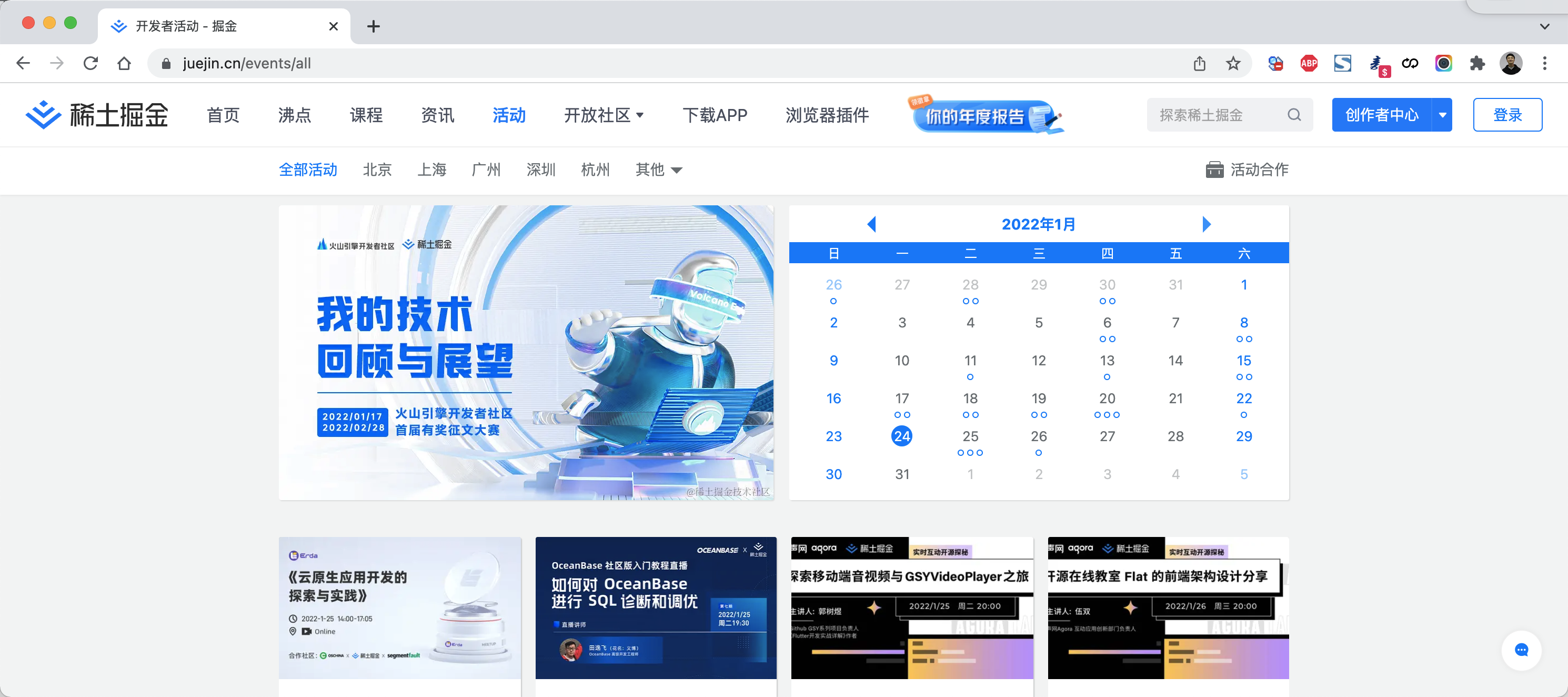
vue + vue-router组件 可以实现 SPA(single Page Application),即:单页面应用。
单页面应用,简而言之就是项目只有一个页面。
一个页面如何呈现多种界面的效果呢?
- 基于vue开发多个组件,例如:活动组件、课程组件、咨询组件
- 在页面上 vue-router 用来管理这些组件,用户点击某个按钮,就显示特定的组件(数据基于Ajax获取)。
4.1 下载和引用
官方地址:https://router.vuejs.org/zh/
下载地址:https://unpkg.com/vue-router@4
<!DOCTYPE html>
<html lang="en">
<head>
    <meta charset="UTF-8">
    <title>Title</title>

    <!--  vue-router.js 依赖 vue.js -->
    <script src="vue.js"></script>
    <script src="vue-router.js"></script>

</head>
<body>
	...
</body>
</html>
注意:后期用脚手架开发时,可以直接使用npm下载和引用。
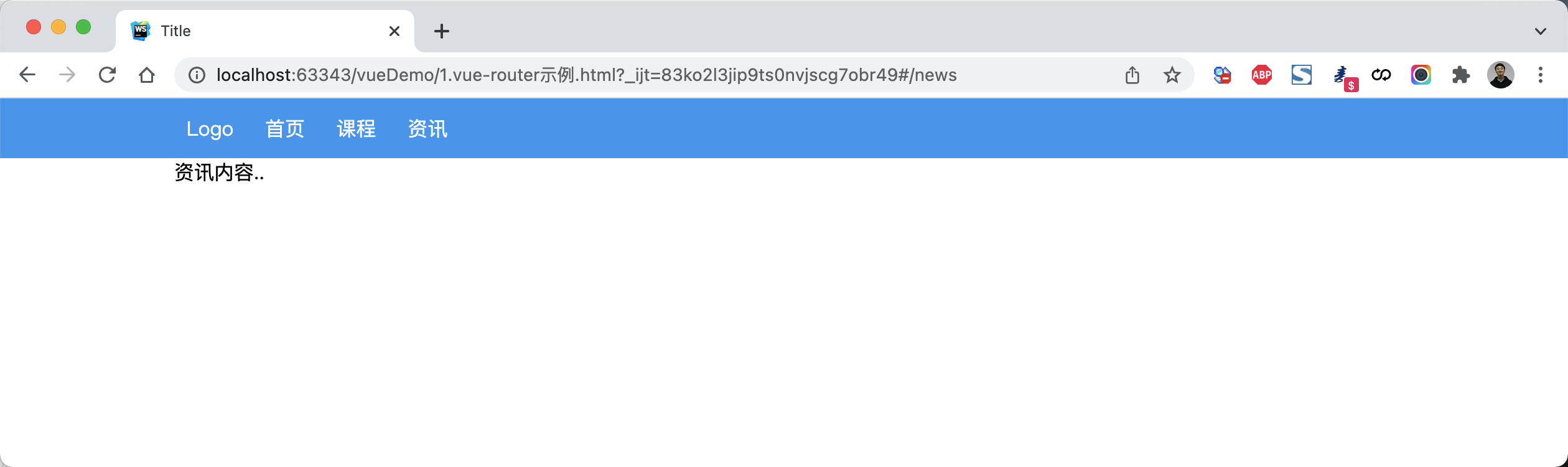
4.2 快速上手
<!DOCTYPE html>
<html lang="en">
<head>
    <meta charset="UTF-8">
    <title>Title</title>
    <style>
        body {
            margin: 0;
        }

        .container {
            width: 980px;
            margin: 0 auto;
        }

        .menu {
            height: 48px;
            background-color: #499ef3;
            line-height: 48px;

        }

        .menu a {
            color: white;
            text-decoration: none;
            padding: 0 10px;
        }
    </style>

    <script src="vue.js"></script>
    <script src="vue-router.js"></script>
</head>
<body>
<div id="app">
    <div class="menu">
        <div class="container">
            <router-link to="/">Logo</router-link>
            <router-link to="/home">首页</router-link>
            <router-link to="/course">课程</router-link>
            <router-link to="/news">资讯</router-link>
        </div>
    </div>
    <div class="container">
        <router-view></router-view>
    </div>

</div>

<script>

    const Home = {template: '<div>首页内容...</div>'}
    const Course = {template: '<div>课程内容..</div>'}
    const News = {template: '<div>资讯内容..</div>'}

    const router = new VueRouter({
        routes: [
            {
                path: '/',
                component: Home
            },
            {
                path: '/home',
                component: Home
            },
            {path: '/course', component: Course},
            {path: '/news', component: News}
        ],
    })

    var app = new Vue({
        el: '#app',
        data: {
            name: "武沛齐",
        },
        methods: {},
        router: router
    })
</script>
</body>
</html>
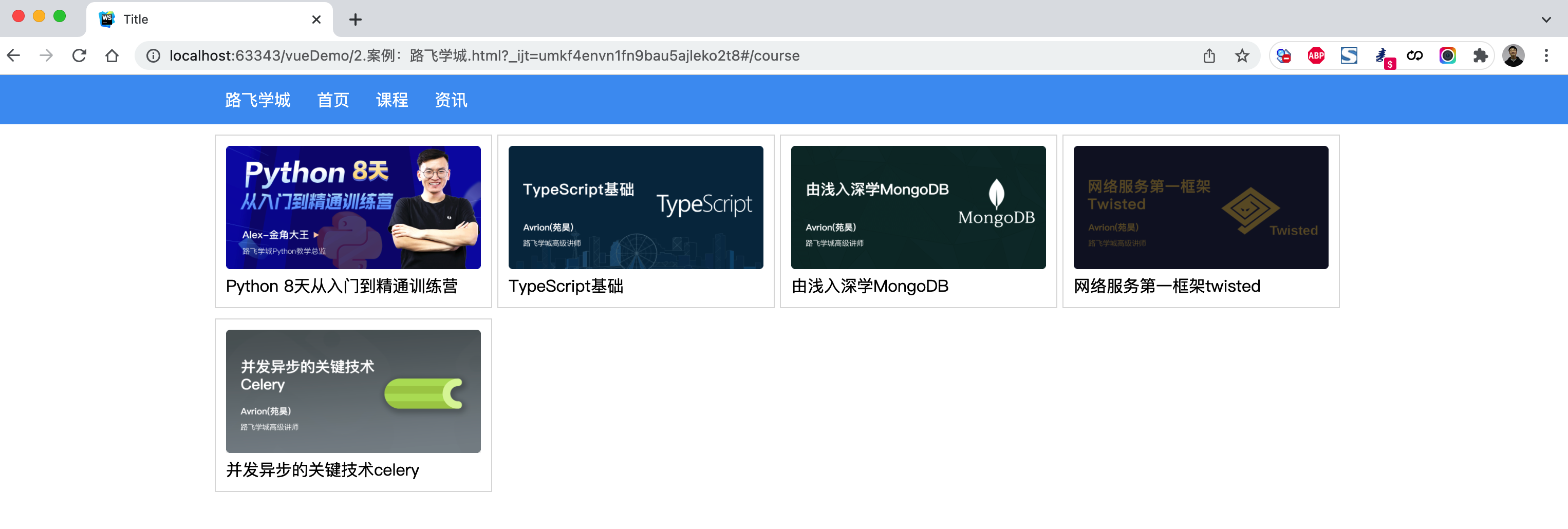
案例:路飞学城(第1版)
<!DOCTYPE html>
<html lang="en">
<head>
    <meta charset="UTF-8">
    <title>Title</title>
    <style>
        body {
            margin: 0;
        }

        .container {
            width: 1100px;
            margin: 0 auto;
        }

        .menu {
            height: 48px;
            background-color: #499ef3;
            line-height: 48px;

        }

        .menu a {
            color: white;
            text-decoration: none;
            padding: 0 10px;
        }

        .course-list {
            display: flex;
            flex-wrap: wrap;
            justify-content: flex-start;
        }

        .course-list .item {
            width: 248px;
            padding: 10px;
            border: 1px solid #dddddd;
            margin-right: 5px;
            margin-top: 10px;
        }

        .course-list .item img {
            width: 100%;
            height: 120px;
        }
    </style>

    <script src="vue.js"></script>
    <script src="vue-router.js"></script>
    <script src="axios.min.js"></script>
</head>
<body>
<div id="app">
    <div class="menu">
        <div class="container">
            <router-link to="/">路飞学城</router-link>
            <router-link to="/home">首页</router-link>
            <router-link to="/course">课程</router-link>
            <router-link to="/news">资讯</router-link>
        </div>
    </div>
    <div class="container">
        <router-view></router-view>
    </div>

</div>

<script>

    const Home = {
        data: function () {
            return {
                title: "欢迎使用路飞学城"
            }
        },
        template: `<h2>{{title}}</h2>`
    }
    const Course = {
        data: function () {
            return {
                courseList: []
            }
        },
        created: function () {
            /* 组件创建完成之后自动触发【此时组件的对象已创建,但还未将页面先关的DOM创建并显示在页面上】
                 - 可以去操作组件对象,例如:this.courseList = [11,22,33]
                 - 不可以去操作DOM,例如:document.getElementById (未创建)
             */
            axios({
                method: "get",
                url: 'https://api.luffycity.com/api/v1/course/actual/?limit=5&offset=0',
                headers: {
                    "Content-Type": "application/json"
                }
            }).then((res) => {
                this.courseList = res.data.data.result;
            })

        },
        mounted: function () {
            /* DOM对象已在页面上生成,此时就可以 */
        },
        template: `
            <div class="course-list">
                <div class="item" v-for="item in courseList">
                    <img :src="item.cover" alt="">
                    <a>{{item.name}}</a>
                </div>
            </div>`
    }
    const News = {
        data: function () {
            return {
                dataList: []
            }
        },
        created: function () {
            /* 组件创建完成之后自动触发【此时组件的对象已创建,但还未将页面先关的DOM创建并显示在页面上】
                 - 可以去操作组件对象,例如:this.courseList = [11,22,33]
                 - 不可以去操作DOM,例如:document.getElementById (未创建)
             */
            axios({
                method: "get",
                url: 'https://api.luffycity.com/api/v1/course/actual/?limit=5&offset=10',
                headers: {
                    "Content-Type": "application/json"
                }
            }).then((res) => {
                this.dataList = res.data.data.result;
            })

        },
        template: `<ul><li v-for="item in dataList">{{item.name}}</li></ul>`
    }

    const router = new VueRouter({
        routes: [
            {path: '/', component: Home},
            {path: '/home', component: Home},
            {path: '/course', component: Course},
            {path: '/news', component: News}
        ],
        //mode: 'history'
    })

    var app = new Vue({
        el: '#app',
        data: {},
        methods: {},
        router: router
    })
</script>
</body>
</html>
4.3 路由和传值
当某个组件可以根据某些参数值的不同,展示不同效果时,需要用到动态路由。
例如:访问网站看到课程列表,点击某个课程,就可以跳转到课程详细页面(根据课程ID不同展示不同数据)。
如何来设置动态路由呢?
-
定义路由
const router = new VueRouter({ routes: [ { path: '/', component: Home}, { path: '/course', component: Course, name: "Course"} { path: '/detail/:id', component: Detail, name: "Detail"} ], }) -
HTML展示
<div> <router-link to="/">首页</router-link> <router-link to="/course">课程</router-link> <router-link to="/detail/123">课程</router-link> <router-link :to="{path:'/course'}">课程</router-link> <router-link :to="{path:'/course?size=19&page=2'}">课程</router-link> <router-link :to="{path:'/course', query:{size:19,page:2}">课程</router-link> <router-link :to="{name:'Course'}">课程</router-link> <router-link :to="{name:'Course', query:{size:19,page:2} }">课程</router-link> <router-link :to="{path:'/detail/22',query:{size:123}}">Linux</router-link> <router-link :to="{name:'Detail',params:{id:3}, query:{size:29}}">网络安全</router-link> </div> <h1>内容区域</h1> <router-view></router-view> -
组件获取URL传值和GET参数
 const Detail = {
     data: function () {
         return {
             title: "详细页面",
             paramDict: null,
             queryDict: null,

         }
     },
     created: function () {
         this.paramDict = this.$route.params;
         this.queryDict = this.$route.query;
         // 发送axios请求
     },
     template: `<div><h2>{{title}}</h2><div>当前请求的数据 {{paramDict}}  {{queryDict}}</div></div>`
 }
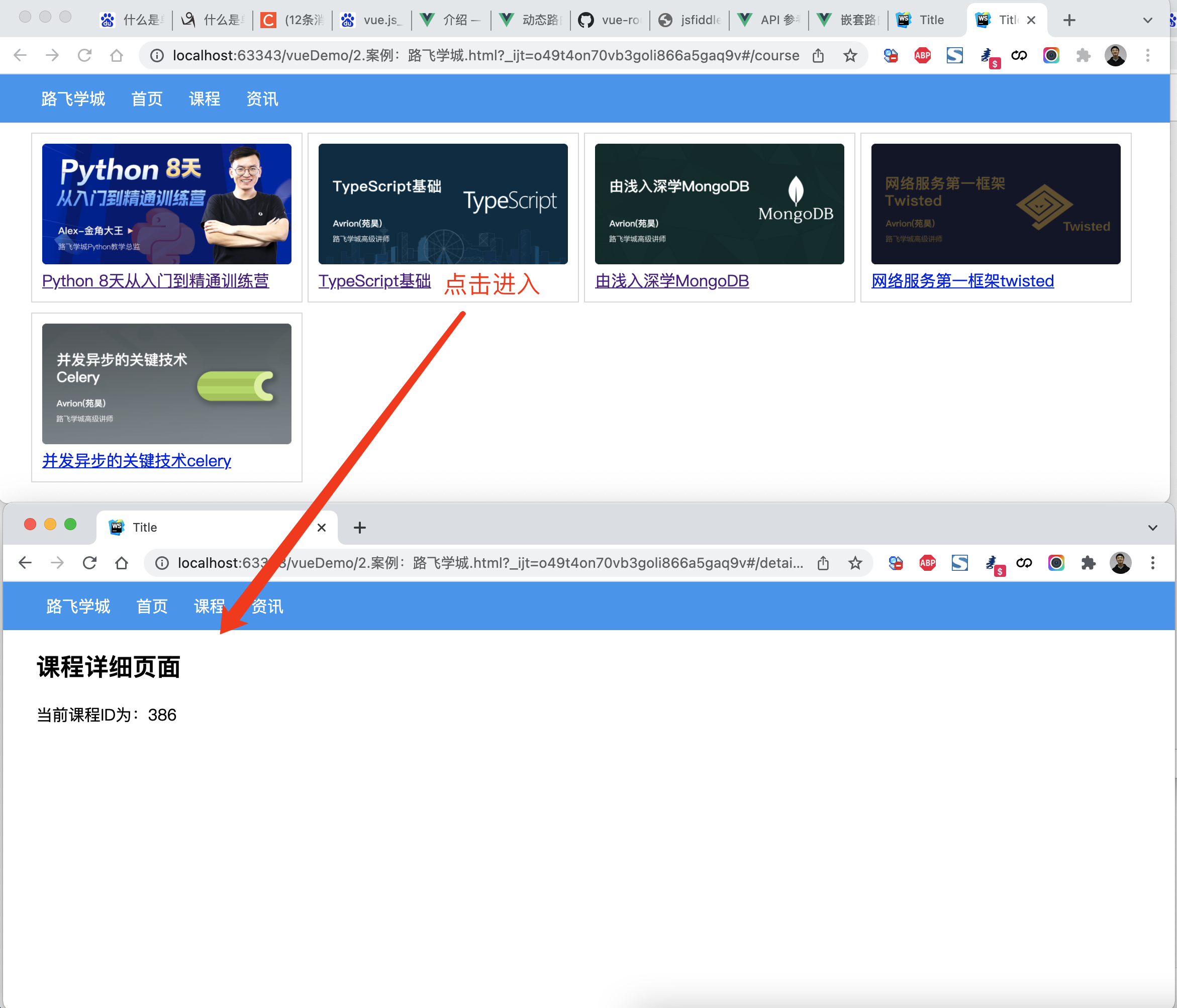
案例:路飞学城(第2版)
点击课程,查看课程详细页面。
<!DOCTYPE html>
<html lang="en">
<head>
    <meta charset="UTF-8">
    <title>Title</title>
    <style>
        body {
            margin: 0;
        }

        .container {
            width: 1100px;
            margin: 0 auto;
        }

        .menu {
            height: 48px;
            background-color: #499ef3;
            line-height: 48px;

        }

        .menu a {
            color: white;
            text-decoration: none;
            padding: 0 10px;
        }

        .course-list {
            display: flex;
            flex-wrap: wrap;
            justify-content: flex-start;
        }

        .course-list .item {
            width: 248px;
            padding: 10px;
            border: 1px solid #dddddd;
            margin-right: 5px;
            margin-top: 10px;
        }

        .course-list .item img {
            width: 100%;
            height: 120px;
        }
    </style>

    <script src="vue.js"></script>
    <script src="vue-router.js"></script>
    <script src="axios.min.js"></script>
</head>
<body>
<div id="app">
    <div class="menu">
        <div class="container">
            <router-link to="/">路飞学城</router-link>
            <router-link to="/home">首页</router-link>
            <router-link to="/course">课程</router-link>
            <router-link to="/news">资讯</router-link>
        </div>
    </div>
    <div class="container">
        <router-view></router-view>
    </div>

</div>

<script>

    const Home = {
        data: function () {
            return {
                title: "欢迎使用路飞学城"
            }
        },
        template: `<h2>{{title}}</h2>`
    }
    const Course = {
        data: function () {
            return {
                courseList: []
            }
        },
        created: function () {
            /* 组件创建完成之后自动触发【此时组件的对象已创建,但还未将页面先关的DOM创建并显示在页面上】
                 - 可以去操作组件对象,例如:this.courseList = [11,22,33]
                 - 不可以去操作DOM,例如:document.getElementById (未创建)
             */
            axios({
                method: "get",
                url: 'https://api.luffycity.com/api/v1/course/actual/?limit=5&offset=0',
                headers: {
                    "Content-Type": "application/json"
                }
            }).then((res) => {
                this.courseList = res.data.data.result;
            })

        },
        mounted: function () {
            /* DOM对象已在页面上生成,此时就可以 */
        },
        template: `
            <div class="course-list">

                <div class="item" v-for="item in courseList">
                    <router-link :to="{name:'Detail',params:{id:item.id}}">
                        <img :src="item.cover" alt="">
                        <a>{{item.name}}</a>
                     </router-link>
                </div>

            </div>`
    }
    const News = {
        data: function () {
            return {
                dataList: []
            }
        },
        created: function () {
            /* 组件创建完成之后自动触发【此时组件的对象已创建,但还未将页面先关的DOM创建并显示在页面上】
                 - 可以去操作组件对象,例如:this.courseList = [11,22,33]
                 - 不可以去操作DOM,例如:document.getElementById (未创建)
             */
            axios({
                method: "get",
                url: 'https://api.luffycity.com/api/v1/course/actual/?limit=5&offset=10',
                headers: {
                    "Content-Type": "application/json"
                }
            }).then((res) => {
                this.dataList = res.data.data.result;
            })

        },
        template: `<ul><li v-for="item in dataList">{{item.name}}</li></ul>`
    }

    const Detail = {
        data: function () {
            return {
                title: "详细页面",
                courseId: null
            }
        },
        created: function () {
            this.courseId = this.$route.params.id;
            // 此处可以根据课程ID,发送ajax请求获取课程详细信息
        },
        template: `<div><h2>课程详细页面</h2><div>当前课程ID为:{{courseId}}</div></div>`
    }

    const router = new VueRouter({
        routes: [
            {path: '/', component: Home},
            {path: '/home', component: Home},
            {path: '/course', component: Course},
            {path: '/news', component: News},
            {path: '/detail/:id', component: Detail, name: 'Detail'}
        ],
        //mode: 'history'
    })

    var app = new Vue({
        el: '#app',
        data: {},
        methods: {},
        router: router
    })
</script>
</body>
</html>
4.5 无法刷新
上述编写案例是没有问题,但如果在开发中会涉及到 同一个路由的跳转(默认不会重新加载页面,数据无法获取)。
例如:在详细页面再出现一个课程推荐,即:在课程详细,点击推荐的课程后跳转到课程详细页面(课程ID不同),此时课程的ID还是原来加载的ID,无法获取推荐课程的ID。
如何解决呢?
在课程详细的组件中设置watch属性即可,watch会监测$route 值,一旦发生变化,就执行相应的函数。
const Detail = {
    data: function () {
        return {
            title: "详细页面",
            courseId: null,

        }
    },
    created: function () {
        this.courseId = this.$route.params.id;
        this.getCourseDetail();
    },
    watch: {
        $route:function(to, from) {
            this.courseId = to.params.id;
            // this.getCourseDetail();
        }
    },
    methods: {
        getCourseDetail: function () {
            // 根据this.courseId获取课程详细信息
        }
    },
    template: `<div><h2>{{title}}</h2><div>当前请求的数据 {{paramDict}}  {{queryDict}}</div></div>`
}
案例:路飞学城(第3版)
在详细页面实现推荐课程
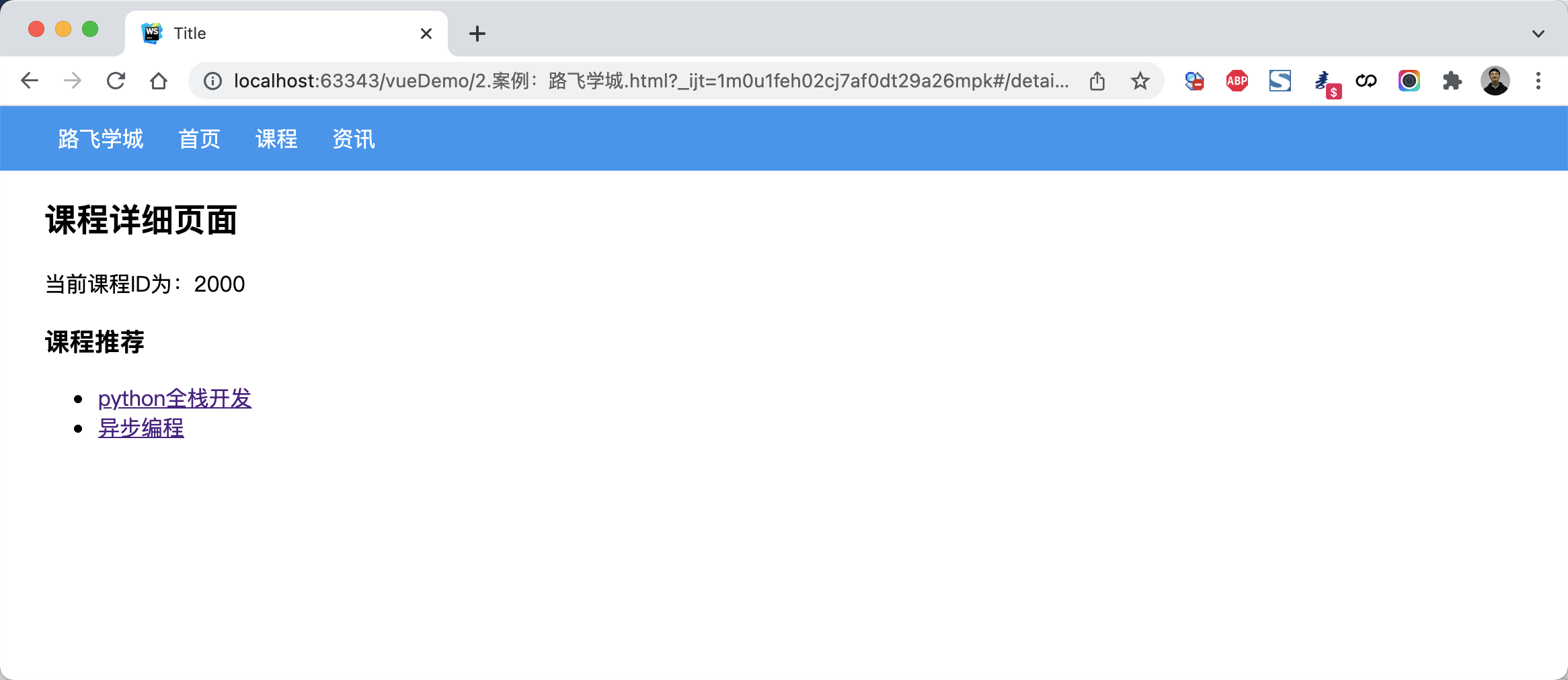
<!DOCTYPE html>
<html lang="en">
<head>
    <meta charset="UTF-8">
    <title>Title</title>
    <style>
        body {
            margin: 0;
        }

        .container {
            width: 1100px;
            margin: 0 auto;
        }

        .menu {
            height: 48px;
            background-color: #499ef3;
            line-height: 48px;

        }

        .menu a {
            color: white;
            text-decoration: none;
            padding: 0 10px;
        }

        .course-list {
            display: flex;
            flex-wrap: wrap;
            justify-content: flex-start;
        }

        .course-list .item {
            width: 248px;
            padding: 10px;
            border: 1px solid #dddddd;
            margin-right: 5px;
            margin-top: 10px;
        }

        .course-list .item img {
            width: 100%;
            height: 120px;
        }
    </style>

    <script src="vue.js"></script>
    <script src="vue-router.js"></script>
    <script src="axios.min.js"></script>
</head>
<body>
<div id="app">
    <div class="menu">
        <div class="container">
            <router-link to="/">路飞学城</router-link>
            <router-link to="/home">首页</router-link>
            <router-link to="/course">课程</router-link>
            <router-link to="/news">资讯</router-link>
        </div>
    </div>
    <div class="container">
        <router-view></router-view>
    </div>

</div>

<script>

    const Home = {
        data: function () {
            return {
                title: "欢迎使用路飞学城"
            }
        },
        template: `<h2>{{title}}</h2>`
    }
    const Course = {
        data: function () {
            return {
                courseList: []
            }
        },
        created: function () {
            /* 组件创建完成之后自动触发【此时组件的对象已创建,但还未将页面先关的DOM创建并显示在页面上】
                 - 可以去操作组件对象,例如:this.courseList = [11,22,33]
                 - 不可以去操作DOM,例如:document.getElementById (未创建)
             */
            axios({
                method: "get",
                url: 'https://api.luffycity.com/api/v1/course/actual/?limit=5&offset=0',
                headers: {
                    "Content-Type": "application/json"
                }
            }).then((res) => {
                this.courseList = res.data.data.result;
            })

        },
        mounted: function () {
            /* DOM对象已在页面上生成,此时就可以 */
        },
        template: `
            <div class="course-list">

                <div class="item" v-for="item in courseList">
                    <router-link :to="{name:'Detail',params:{id:item.id}}">
                        <img :src="item.cover" alt="">
                        <a>{{item.name}}</a>
                     </router-link>
                </div>

            </div>`
    }
    const News = {
        data: function () {
            return {
                dataList: []
            }
        },
        created: function () {
            /* 组件创建完成之后自动触发【此时组件的对象已创建,但还未将页面先关的DOM创建并显示在页面上】
                 - 可以去操作组件对象,例如:this.courseList = [11,22,33]
                 - 不可以去操作DOM,例如:document.getElementById (未创建)
             */
            axios({
                method: "get",
                url: 'https://api.luffycity.com/api/v1/course/actual/?limit=5&offset=10',
                headers: {
                    "Content-Type": "application/json"
                }
            }).then((res) => {
                this.dataList = res.data.data.result;
            })

        },
        template: `<ul><li v-for="item in dataList">{{item.name}}</li></ul>`
    }

    const Detail = {
        data: function () {
            return {
                title: "详细页面",
                courseId: null,
                hotCourseList: [
                    {id: 1000, title: "python全栈开发"},
                    {id: 2000, title: "异步编程"},
                ],
            }
        },
        created: function () {
            this.courseId = this.$route.params.id;
            // 此处可以根据课程ID,发送ajax请求获取课程详细信息
            this.getCourseDetail();
        },
        watch: {
            $route: function (to, from) {
                this.courseId = to.params.id;
                this.getCourseDetail();
            }
        },
        methods: {
            getCourseDetail: function () {
                // 根据this.courseId获取课程详细信息
            }
        },
        template: `
                <div>
                    <h2>课程详细页面</h2>
                    <div>当前课程ID为:{{courseId}}</div>
                    <h3>课程推荐</h3>
                    <ul>
                        <li v-for="item in hotCourseList">
                            <router-link :to="{name:'Detail', params:{id:item.id}}">{{item.title}}</router-link>
                        </li>
                    </ul>
                </div>`
    }

    const router = new VueRouter({
        routes: [
            {path: '/', component: Home},
            {path: '/home', component: Home},
            {path: '/course', component: Course},
            {path: '/news', component: News},
            {path: '/detail:id', component: Detail, name: 'Detail'}
        ],
        //mode: 'history'
    })

    var app = new Vue({
        el: '#app',
        data: {},
        methods: {},
        router: router
    })
</script>
</body>
</html>
4.6 路由嵌套
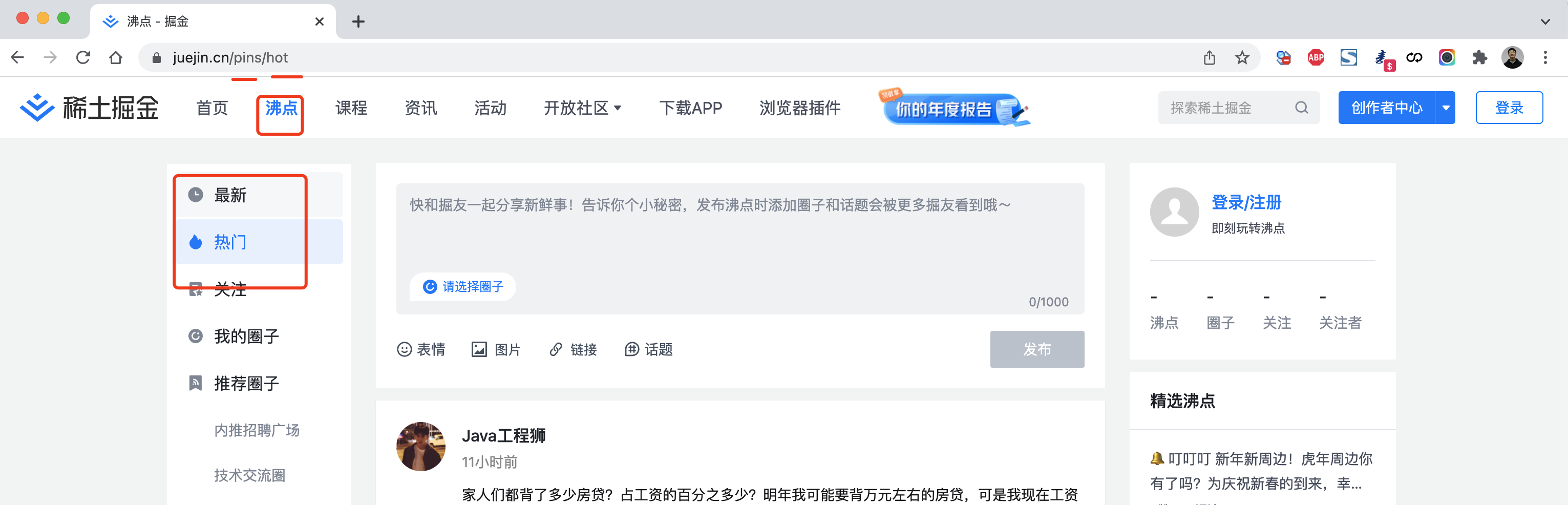
const router = new VueRouter({
  routes: [
    {
      path: '/pins/',
      component: Pins,
      children: [
        {
          // 当 /pins/hot 匹配成功,
          // Hot组件 会被渲染在 Pins 的 <router-view> 中
          path: 'hot',
          component: Hot
        },
        {
          // 当 /pins/following 匹配成功,
          // Following组件 会被渲染在 Pins 的 <router-view> 中
          path: 'following',
          component: Following
        }
      ]
    }
  ]
})
案例:路飞学城(第4版)
<!DOCTYPE html>
<html lang="en">
<head>
    <meta charset="UTF-8">
    <title>Title</title>
    <style>
        body {
            margin: 0;
        }

        .container {
            width: 1100px;
            margin: 0 auto;
        }

        .menu {
            height: 48px;
            background-color: #499ef3;
            line-height: 48px;

        }

        .menu a {
            color: white;
            text-decoration: none;
            padding: 0 10px;
        }

        .course-list {
            display: flex;
            flex-wrap: wrap;
            justify-content: flex-start;
        }

        .course-list .item {
            width: 248px;
            padding: 10px;
            border: 1px solid #dddddd;
            margin-right: 5px;
            margin-top: 10px;
        }

        .course-list .item img {
            width: 100%;
            height: 120px;
        }
    </style>

    <script src="vue.js"></script>
    <script src="vue-router.js"></script>
    <script src="axios.min.js"></script>
</head>
<body>
<div id="app">
    <div class="menu">
        <div class="container">
            <router-link to="/">路飞学城</router-link>
            <router-link to="/pins">沸点</router-link>
            <router-link to="/home">首页</router-link>
            <router-link to="/course">课程</router-link>
            <router-link to="/news">资讯</router-link>
        </div>
    </div>
    <div class="container">
        <router-view></router-view>
    </div>

</div>

<script>

    const Home = {
        data: function () {
            return {
                title: "欢迎使用路飞学城"
            }
        },
        template: `<h2>{{title}}</h2>`
    }
    const Course = {
        data: function () {
            return {
                courseList: []
            }
        },
        created: function () {
            /* 组件创建完成之后自动触发【此时组件的对象已创建,但还未将页面先关的DOM创建并显示在页面上】
                 - 可以去操作组件对象,例如:this.courseList = [11,22,33]
                 - 不可以去操作DOM,例如:document.getElementById (未创建)
             */
            axios({
                method: "get",
                url: 'https://api.luffycity.com/api/v1/course/actual/?limit=5&offset=0',
                headers: {
                    "Content-Type": "application/json"
                }
            }).then((res) => {
                this.courseList = res.data.data.result;
            })

        },
        mounted: function () {
            /* DOM对象已在页面上生成,此时就可以 */
        },
        template: `
            <div class="course-list">

                <div class="item" v-for="item in courseList">
                    <router-link :to="{name:'Detail',params:{id:item.id}}">
                        <img :src="item.cover" alt="">
                        <a>{{item.name}}</a>
                     </router-link>
                </div>

            </div>`
    }
    const News = {
        data: function () {
            return {
                dataList: []
            }
        },
        created: function () {
            /* 组件创建完成之后自动触发【此时组件的对象已创建,但还未将页面先关的DOM创建并显示在页面上】
                 - 可以去操作组件对象,例如:this.courseList = [11,22,33]
                 - 不可以去操作DOM,例如:document.getElementById (未创建)
             */
            axios({
                method: "get",
                url: 'https://api.luffycity.com/api/v1/course/actual/?limit=5&offset=10',
                headers: {
                    "Content-Type": "application/json"
                }
            }).then((res) => {
                this.dataList = res.data.data.result;
            })

        },
        template: `<ul><li v-for="item in dataList">{{item.name}}</li></ul>`
    }
    const Detail = {
        data: function () {
            return {
                title: "详细页面",
                courseId: null,
                hotCourseList: [
                    {id: 1000, title: "python全栈开发"},
                    {id: 2000, title: "异步编程"},
                ],
            }
        },
        created: function () {
            this.courseId = this.$route.params.id;
            // 此处可以根据课程ID,发送ajax请求获取课程详细信息
            this.getCourseDetail();
        },
        watch: {
            $route: function (to, from) {
                this.courseId = to.params.id;
                this.getCourseDetail();
            }
        },
        methods: {
            getCourseDetail: function () {
                // 根据this.courseId获取课程详细信息
            }
        },
        template: `
                <div>
                    <h2>课程详细页面</h2>
                    <div>当前课程ID为:{{courseId}}</div>
                    <h3>课程推荐</h3>
                    <ul>
                        <li v-for="item in hotCourseList">
                            <router-link :to="{name:'Detail', params:{id:item.id}}">{{item.title}}</router-link>
                        </li>
                    </ul>
                </div>`
    }

    const Pins = {
        data: function () {
            return {}
        },
        template: `
            <div>
                <h2>沸点专区</h2>
                <router-link :to="{name:'Hot'}">热点</router-link>
                <router-link :to="{name:'Following'}">关注</router-link>
                <router-view></router-view>
            </div>
         `
    };

    const Hot = {template: `<div><h2>Hot页面</h2></div>`};
    const Following = {template: `<div><h2>Following页面</h2></div>`};

    const router = new VueRouter({
        routes: [
            {path: '/', component: Home},
            {path: '/home', component: Home},
            {path: '/course', component: Course},
            {path: '/news', component: News},
            {path: '/detail:id', component: Detail, name: 'Detail'},
            {
                path: '/pins',
                component: Pins,
                name: 'Pins',
                children: [
                    {
                        // 当 /pins/hot 匹配成功,
                        // Hot组件 会被渲染在 Pins 的 <router-view> 中
                        path: 'hot',
                        component: Hot,
                        name:'Hot'
                    },
                    {
                        // 当 /pins/following 匹配成功,
                        // Following组件 会被渲染在 Pins 的 <router-view> 中
                        path: 'following',
                        component: Following,
                        name:'Following'
                    }
                ]
            }
        ],
        //mode: 'history'
    })

    var app = new Vue({
        el: '#app',
        data: {},
        methods: {},
        router: router
    })
</script>
</body>
</html>
案例:后台分类菜单
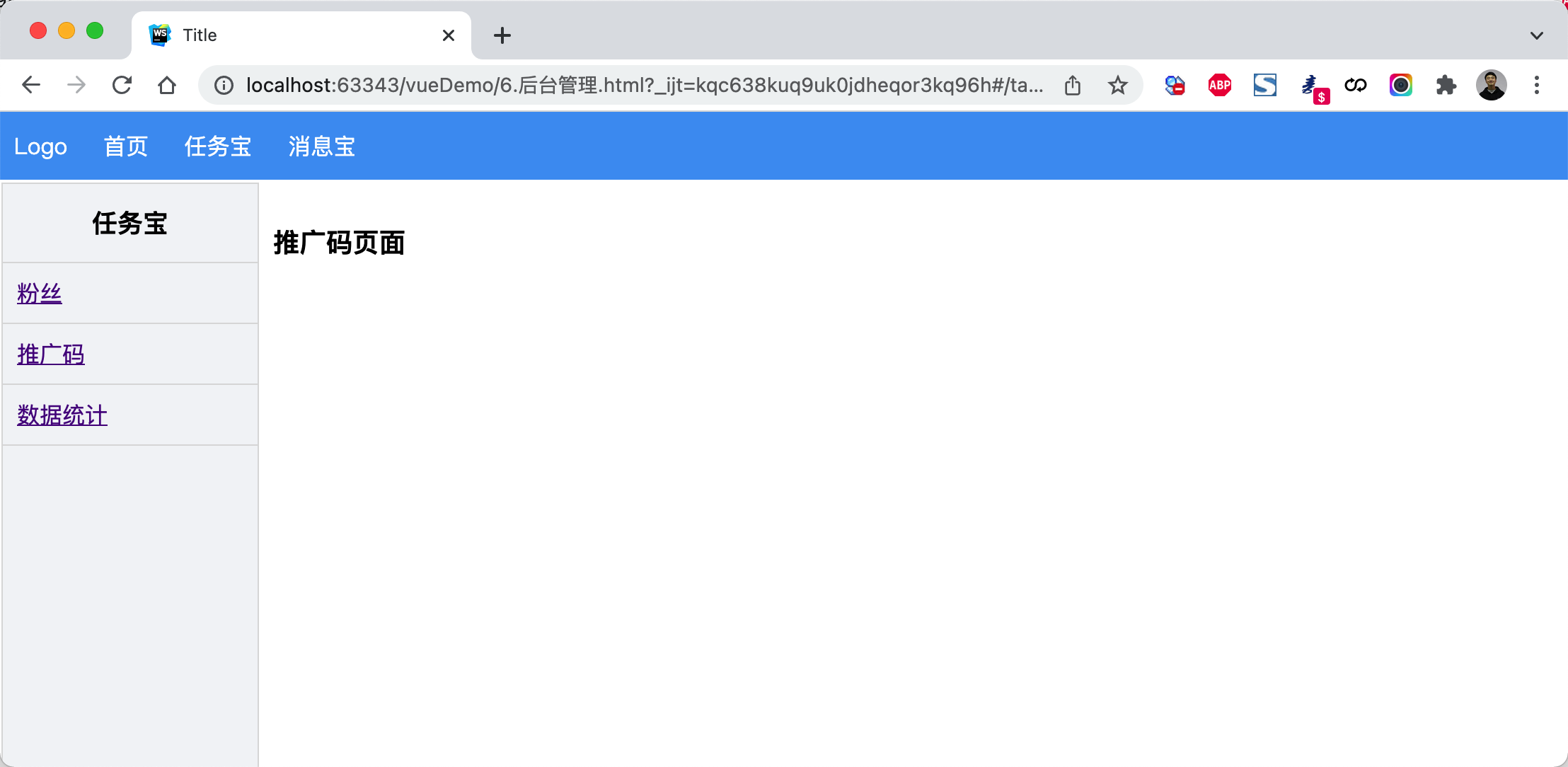
<!DOCTYPE html>
<html lang="en">
<head>
    <meta charset="UTF-8">
    <title>Title</title>
    <style>
        body {
            margin: 0;
        }

        .header {
            height: 48px;
            background-color: #499ef3;
            line-height: 48px;

        }

        .header a {
            color: white;
            text-decoration: none;
            padding: 0 10px;
        }

        .body .left-menu {
            width: 180px;
            border: 1px solid #dddddd;
            border-bottom: 0;
            position: absolute;
            left: 1px;
            top: 50px;
            bottom: 0;
            overflow: auto;
            background-color: #f3f5f7;
        }

        .body .left-menu .head {
            border-bottom: 1px solid #dddddd;
            text-align: center;
            font-size: 18px;
            font-weight: bold;
            padding: 15px;
        }

        .body .left-menu a {
            display: block;
            padding: 10px;
            border-bottom: 1px solid #dddddd;
        }

        .body .right-body {
            position: absolute;
            left: 183px;
            top: 50px;
            right: 0;
            bottom: 0;
            overflow: auto;
            padding: 10px;

        }
    </style>

    <script src="vue.js"></script>
    <script src="vue-router.js"></script>
    <script src="axios.min.js"></script>
</head>
<body>
<div id="app">
    <div class="header">
        <router-link to="/">Logo</router-link>
        <router-link to="/home">首页</router-link>
        <router-link to="/task">任务宝</router-link>
        <router-link to="/message">消息宝</router-link>
    </div>
    <div class="body">
        <router-view></router-view>
    </div>

</div>

<script>

    const Home = {
        data: function () {
            return {
                title: "欢迎使用xx系统"
            }
        },
        template: `<h2>{{title}}</h2>`
    };

    const Task = {
        data: function () {
            return {}
        },
        template: `
            <div>
                <div class="left-menu">
                    <div class="head">任务宝</div>
                    <router-link :to="{name:'Fans'}">粉丝</router-link>
                    <router-link :to="{name:'Spread'}">推广码</router-link>
                    <router-link :to="{name:'Statistics'}">数据统计</router-link>
                </div>
                <div class="right-body">
                    <router-view></router-view>
                </div>

            </div>`
    };

    const Fans = {template: `<h3>粉丝页面</h3>`};
    const Spread = {template: `<h3>推广码页面</h3>`};
    const Statistics = {template: `<h3>数据统计页面</h3>`};

    const Message = {
        data: function () {
            return {}
        },
        template: `
            <div>
                <div class="left-menu">
                    <div class="head">消息宝</div>
                    <router-link :to="{name:'Sop'}">SOP</router-link>
                    <router-link :to="{name:'Send'}">推送管理</router-link>
                </div>
                <div class="right-body">
                    <router-view></router-view>
                </div>

            </div>`
    };

    const Sop = {template: `<h3>SOP页面</h3>`};
    const Send = {template: `<h3>推送管理页面</h3>`};

    const router = new VueRouter({
        routes: [
            {path: '/', component: Home},
            {path: '/home', component: Home},
            {
                path: '/task',
                component: Task,
                name: 'Task',
                children: [
                    {
                        path: '',
                        // component: Fans,
                        // redirect:'/task/fans'
                        redirect: {name: 'Fans'}
                    },
                    {
                        path: 'fans',
                        component: Fans,
                        name: 'Fans'
                    },
                    {
                        path: 'spread',
                        component: Spread,
                        name: 'Spread'
                    },
                    {
                        path: 'statistics',
                        component: Statistics,
                        name: 'Statistics'
                    }
                ]
            },
            {
                path: '/message',
                component: Message,
                name: 'Message',
                children: [
                    {
                        path: 'sop',
                        component: Sop,
                        name: 'Sop'
                    },
                    {
                        path: 'send',
                        component: Send,
                        name: 'Send'
                    }
                ]
            }
        ]
    })

    var app = new Vue({
        el: '#app',
        data: {},
        methods: {},
        router: router
    })
</script>
</body>
</html>
4.7 编程式导航
除了使用 <router-link> 创建 a 标签来定义导航链接,我们还可以借助 router 的实例方法,通过编写代码来实现。
想要导航到不同的 URL,则使用 router.push 方法。这个方法会向 history 栈添加一个新的记录,所以,当用户点击浏览器后退按钮时,则回到之前的 URL。
-
router.push
// 字符串 router.push('home') // 对象 router.push({ path: 'home' }) // 命名的路由 router.push({ name: 'user', params: { userId: '123' }}) // // 带查询参数,变成 /register?plan=private router.push({ path: 'register', query: { plan: 'private' }}) -
router.replace
// 字符串 router.replace('home') // 对象 router.replace({ path: 'home' }) // 命名的路由 router.replace({ name: 'user', params: { userId: '123' }}) // 带查询参数,变成 /register?plan=private router.replace({ path: 'register', query: { plan: 'private' }}) # 跟 router.push 很像,唯一的不同就是,它不会向 history 添加新记录,而是跟它的方法名一样 —— 替换掉当前的 history 记录。 -
router.go 这个方法的参数是一个整数,意思是在 history 记录中向前或者后退多少步
// 在浏览器记录中前进一步,等同于 history.forward()
router.go(1)

// 后退一步记录,等同于 history.back()
router.go(-1)

// 前进 3 步记录
router.go(3)

// 如果 history 记录不够用,那就默默地失败呗
router.go(-100)
router.go(100)
案例:登录跳转(含顶部)
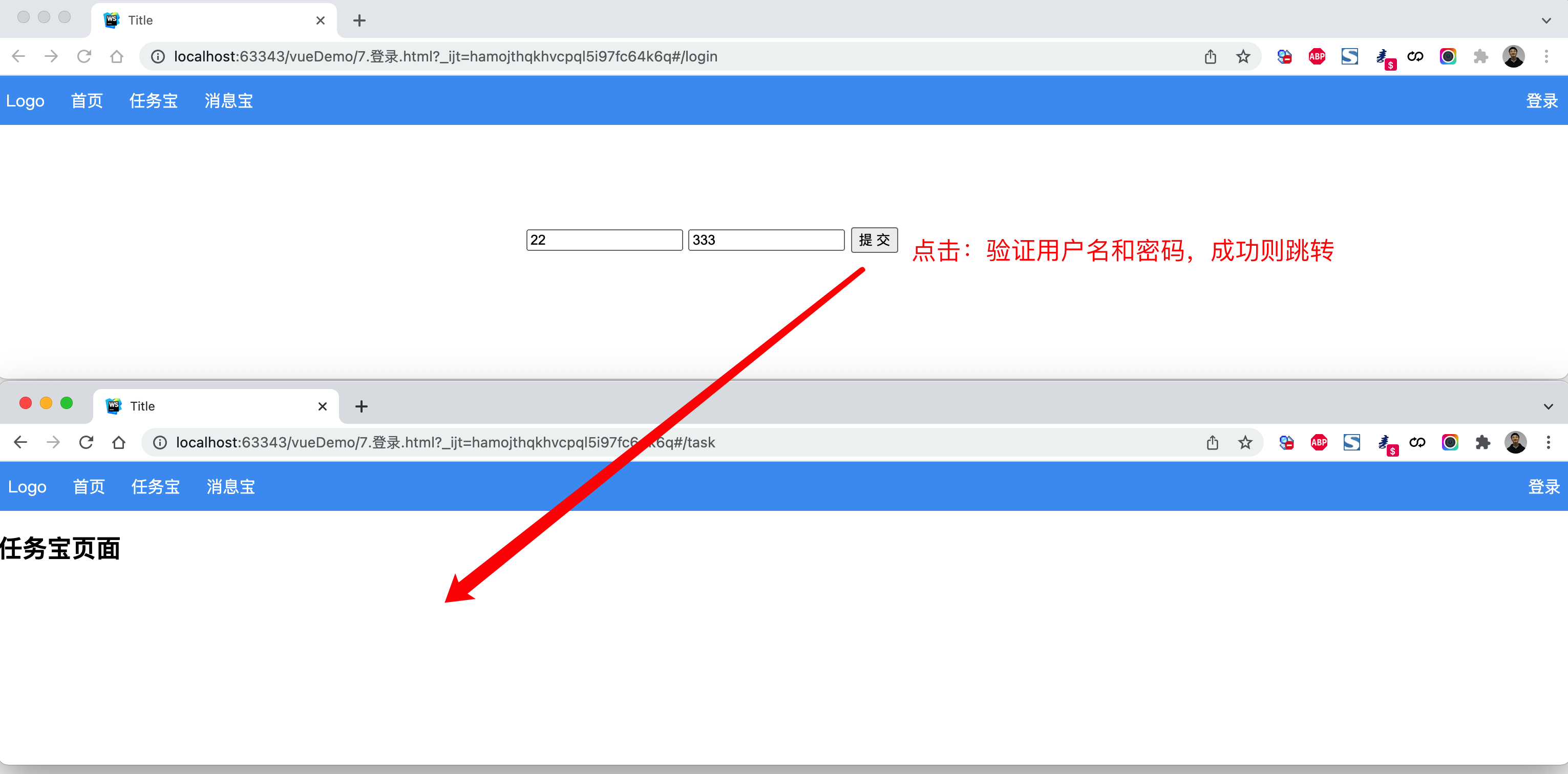
<!DOCTYPE html>
<html lang="en">
<head>
    <meta charset="UTF-8">
    <title>Title</title>
    <style>
        body {
            margin: 0;
        }

        .header {
            height: 48px;
            background-color: #499ef3;
            line-height: 48px;

        }

        .header a {
            color: white;
            text-decoration: none;
            padding: 0 10px;
        }


    </style>
    <script src="vue.js"></script>
    <script src="vue-router.js"></script>
</head>
<body>
<div id="app">
    <div class="header">
        <router-link to="/">Logo</router-link>
        <router-link to="/home">首页</router-link>
        <router-link to="/task">任务宝</router-link>
        <router-link to="/message">消息宝</router-link>

        <div style="float: right;">
            <router-link to="/login">登录</router-link>
        </div>
    </div>
    <div class="body">
        <router-view></router-view>
    </div>

</div>

<script>

    const Home = {
        data: function () {
            return {
                title: "欢迎使用xx系统"
            }
        },
        template: `<h2>{{title}}</h2>`
    };

    const Task = {
        data: function () {
            return {}
        },
        template: `
            <div>
                <h2>任务宝页面</h2>
            </div>`
    };

    const Message = {
        data: function () {
            return {}
        },
        template: `
            <div>
                <h2>消息宝页面</h2>
            </div>`
    };

    const Login = {
        data: function () {
            return {
                user: '',
                pwd: ''
            }
        },
        methods: {
            doLogin: function () {
                if (this.user.length > 0 && this.pwd.length > 0) {
                    this.$router.push({name: 'Task'});
                    // this.$router.replace({name: 'Task'});
                }
            }
        },
        template: `
            <div style="width: 500px;margin: 100px auto">
                <input type="text" placeholder="用户名" v-model="user"/>
                <input type="text" placeholder="密码" v-model="pwd" />
                <input type="button" value="提 交"  @click="doLogin" />
            </div>
         `
    };
    const router = new VueRouter({
        routes: [
            {path: '/', component: Home},
            {path: '/home', component: Home},
            {path: '/login', component: Login, name: 'Login'},
            {path: '/task', component: Task, name: 'Task'},
            {path: '/message', component: Message, name: 'Message'}
        ]
    })

    var app = new Vue({
        el: '#app',
        data: {},
        methods: {},
        router: router
    })
</script>
</body>
</html>
案例:登录跳转(不含顶部)
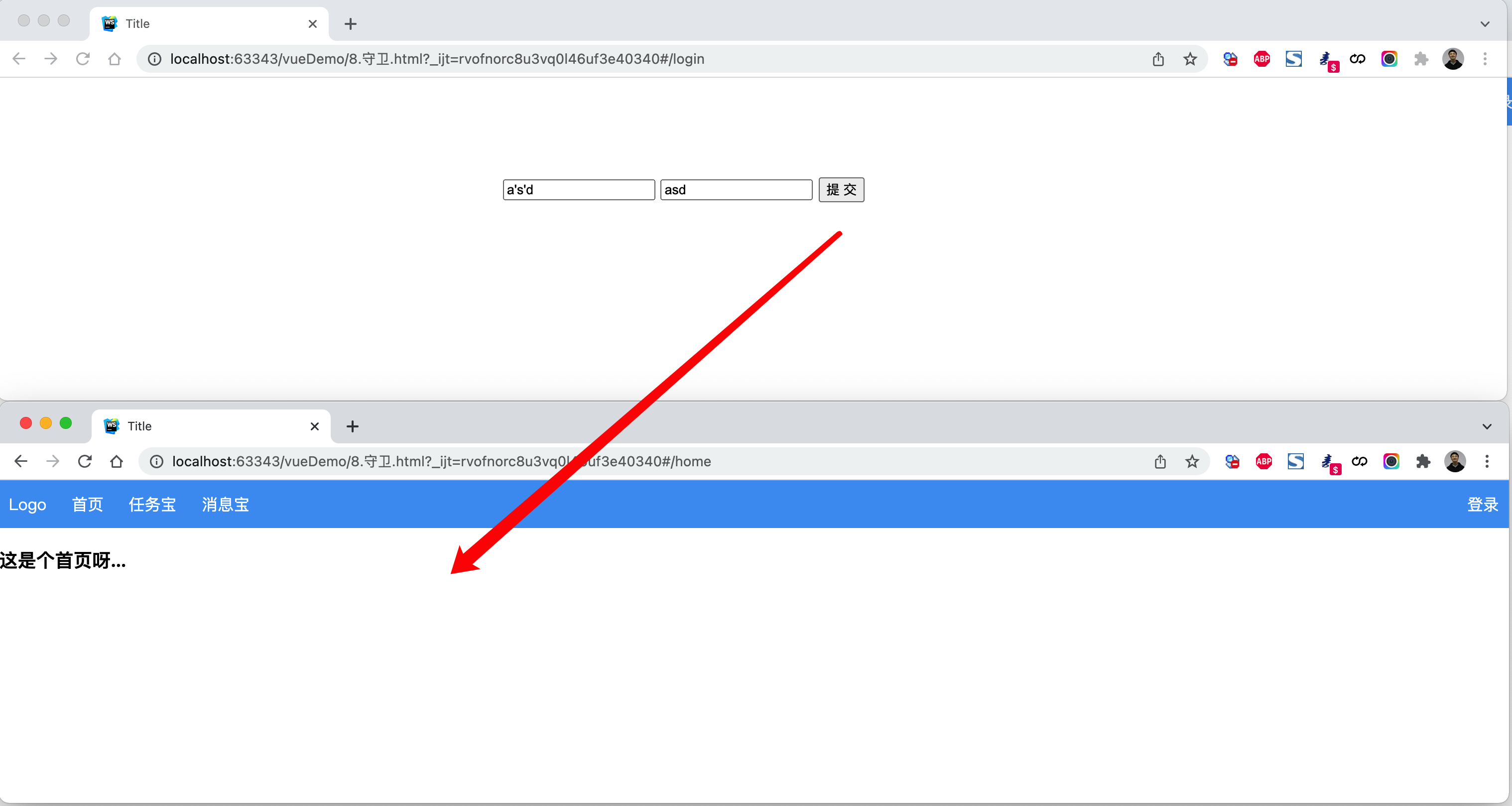
<!DOCTYPE html>
<html lang="en">
<head>
    <meta charset="UTF-8">
    <title>Title</title>
    <style>
        body {
            margin: 0;
        }

        .header {
            height: 48px;
            background-color: #499ef3;
            line-height: 48px;

        }

        .header a {
            color: white;
            text-decoration: none;
            padding: 0 10px;
        }

        .body .left-menu {
            width: 180px;
            border: 1px solid #dddddd;
            border-bottom: 0;
            position: absolute;
            left: 1px;
            top: 50px;
            bottom: 0;
            overflow: auto;
            background-color: #f3f5f7;
        }

        .body .left-menu .head {
            border-bottom: 1px solid #dddddd;
            text-align: center;
            font-size: 18px;
            font-weight: bold;
            padding: 15px;
        }

        .body .left-menu a {
            display: block;
            padding: 10px;
            border-bottom: 1px solid #dddddd;
        }

        .body .right-body {
            position: absolute;
            left: 183px;
            top: 50px;
            right: 0;
            bottom: 0;
            overflow: auto;
            padding: 10px;

        }
    </style>
    <script src="vue.js"></script>
    <script src="vue-router.js"></script>
</head>
<body>
<div id="app">
    <router-view></router-view>
</div>

<script>

    const Home = {
        data: function () {
            return {
                title: "欢迎使用xx系统"
            }
        },
        template: `
            <div>
                <div class="header">
                    <router-link to="/">Logo</router-link>
                    <router-link to="/home">首页</router-link>
                    <router-link :to="{name:'Task'}">任务宝</router-link>
                    <router-link :to="{name:'Message'}">消息宝</router-link>

                    <div style="float: right;">
                        <router-link to="/login">登录</router-link>
                    </div>
                </div>
                <div class="body">
                    <router-view></router-view>
                </div>

            </div>
        `
    };

    const Index = {template: '<h3>这是个首页呀...</h3>'}

    const Task = {
        data: function () {
            return {}
        },
        template: `
            <div>
                <div class="left-menu">
                    <div class="head">任务宝</div>
                    <router-link :to="{name:'Fans'}">粉丝</router-link>
                    <router-link :to="{name:'Spread'}">推广码</router-link>
                    <router-link :to="{name:'Statistics'}">数据统计</router-link>
                </div>
                <div class="right-body">
                    <router-view></router-view>
                </div>

            </div>`
    };

    const Fans = {template: `<h3>粉丝页面</h3>`};
    const Spread = {template: `<h3>推广码页面</h3>`};
    const Statistics = {template: `<h3>数据统计页面</h3>`};

    const Message = {
        data: function () {
            return {}
        },
        template: `
            <div>
                <div class="left-menu">
                    <div class="head">消息宝</div>
                    <router-link :to="{name:'Sop'}">SOP</router-link>
                    <router-link :to="{name:'Send'}">推送管理</router-link>
                </div>
                <div class="right-body">
                    <router-view></router-view>
                </div>

            </div>`
    };

    const Sop = {template: `<h3>SOP页面</h3>`};
    const Send = {template: `<h3>推送管理页面</h3>`};
    const Login = {
        data: function () {
            return {
                user: '',
                pwd: ''
            }
        },
        methods: {
            doLogin: function () {
                if (this.user.length > 0 && this.pwd.length > 0) {
                    this.$router.push({name: 'Index'});
                    // this.$router.replace({name: 'Task'});
                }
            }
        },
        template: `
            <div style="width: 500px;margin: 100px auto">
                <input type="text" placeholder="用户名" v-model="user"/>
                <input type="text" placeholder="密码" v-model="pwd" />
                <input type="button" value="提 交"  @click="doLogin" />
            </div>
         `
    };


    const router = new VueRouter({
        routes: [
            {
                path: '/',
                // component: Home,
                redirect: '/login'
            },
            {path: '/login', component: Login, name: 'Login'},
            {
                path: '/home',
                component: Home,
                children: [
                    {
                        path: '',
                        component: Index,
                        name: "Index"
                    },
                    {
                        path: 'task',
                        component: Task,
                        name: 'Task',
                        children: [
                            {
                                path: 'fans',
                                component: Fans,
                                name: 'Fans'
                            },
                            {
                                path: 'spread',
                                component: Spread,
                                name: 'Spread'
                            },
                            {
                                path: 'statistics',
                                component: Statistics,
                                name: 'Statistics'
                            }
                        ]
                    },
                    {
                        path: 'message',
                        component: Message,
                        name: 'Message',
                        children: [
                            {
                                path: 'sop',
                                component: Sop,
                                name: 'Sop'
                            },
                            {
                                path: 'send',
                                component: Send,
                                name: 'Send'
                            }
                        ]
                    }
                ],
            },

        ]
    })

    var app = new Vue({
        el: '#app',
        data: {},
        methods: {},
        router: router
    })
</script>
</body>
</html>
4.8 导航守卫
在基于vue-router实现访问跳转时,都会执行一个钩子。
const router = new VueRouter({ ... })

router.beforeEach((to, from, next) => {
    // to: Route: 即将要进入的目标 路由对象
    // from: Route: 当前导航正要离开的路由
    // next() 继续向后执行
    // next(false) 中断导航,保持当前所在的页面。
    // next('/')   next({path:'/'}) next({name:'Login'})  跳转到指定页面
})
注意:可以基于他实现未登录跳转登录页面。
案例:登录拦截(全局)
未登录时,访问后台管理页面,自动跳转到登录页面。
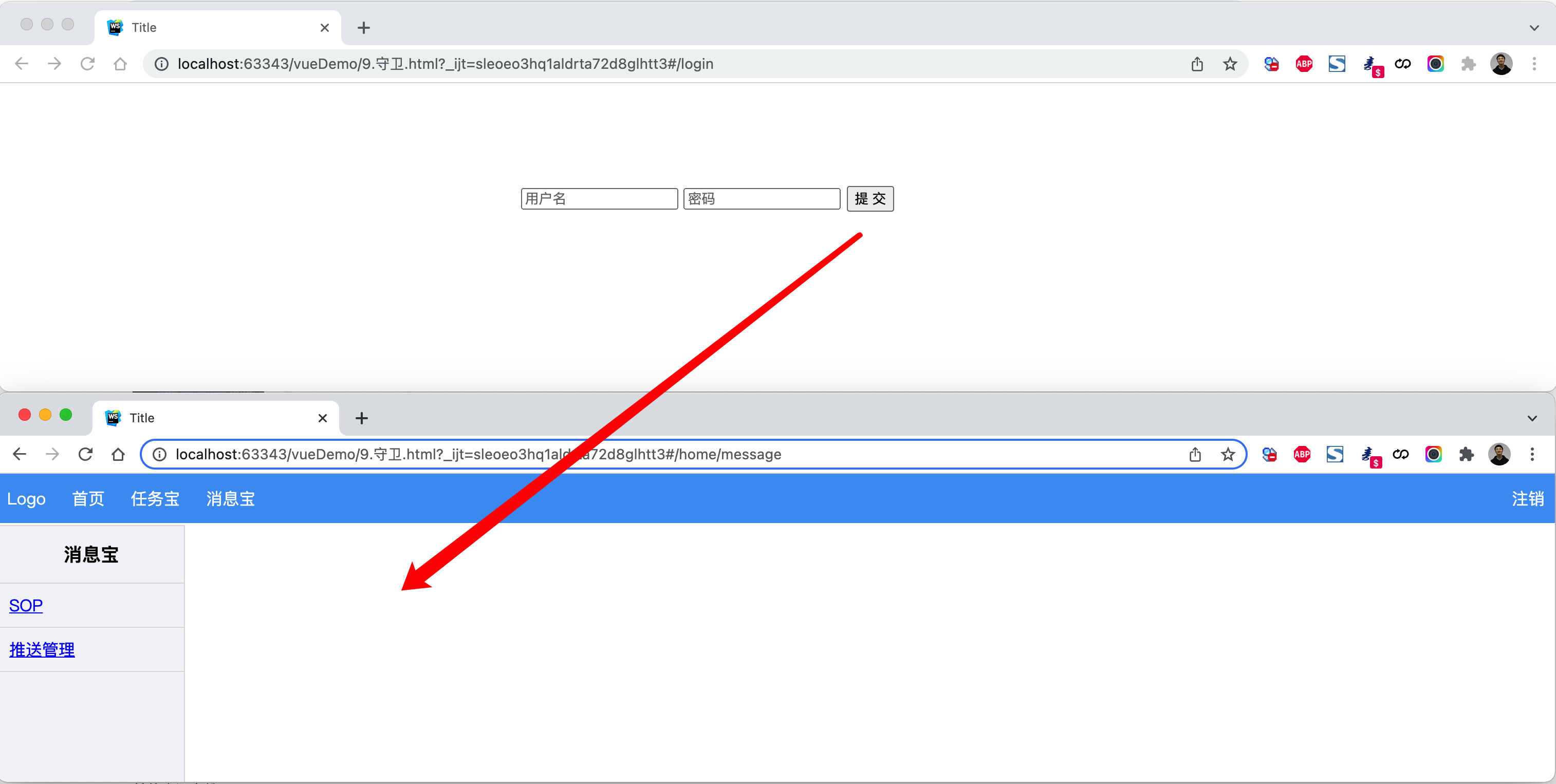
<!DOCTYPE html>
<html lang="en">
<head>
    <meta charset="UTF-8">
    <title>Title</title>
    <style>
        body {
            margin: 0;
        }

        .header {
            height: 48px;
            background-color: #499ef3;
            line-height: 48px;

        }

        .header a {
            color: white;
            text-decoration: none;
            padding: 0 10px;
        }

        .body .left-menu {
            width: 180px;
            border: 1px solid #dddddd;
            border-bottom: 0;
            position: absolute;
            left: 1px;
            top: 50px;
            bottom: 0;
            overflow: auto;
            background-color: #f3f5f7;
        }

        .body .left-menu .head {
            border-bottom: 1px solid #dddddd;
            text-align: center;
            font-size: 18px;
            font-weight: bold;
            padding: 15px;
        }

        .body .left-menu a {
            display: block;
            padding: 10px;
            border-bottom: 1px solid #dddddd;
        }

        .body .right-body {
            position: absolute;
            left: 183px;
            top: 50px;
            right: 0;
            bottom: 0;
            overflow: auto;
            padding: 10px;

        }
    </style>
    <script src="vue.js"></script>
    <script src="vue-router.js"></script>
</head>
<body>
<div id="app">
    <router-view></router-view>
</div>

<script>

    const Home = {
        data: function () {
            return {
                title: "欢迎使用xx系统"
            }
        },
        methods: {
            doLogout: function () {
                sessionStorage.clear();
                this.$router.push({name: "Login"});
            }
        },
        template: `
            <div>
                <div class="header">
                    <router-link to="/">Logo</router-link>
                    <router-link to="/home">首页</router-link>
                    <router-link :to="{name:'Task'}">任务宝</router-link>
                    <router-link :to="{name:'Message'}">消息宝</router-link>

                    <div style="float: right;">
                        <a @click="doLogout">注销</a>
                    </div>
                </div>
                <div class="body">
                    <router-view></router-view>
                </div>

            </div>
        `
    };

    const Index = {template: '<h3>这是个首页呀...</h3>'}

    const Task = {
        data: function () {
            return {}
        },
        template: `
            <div>
                <div class="left-menu">
                    <div class="head">任务宝</div>
                    <router-link :to="{name:'Fans'}">粉丝</router-link>
                    <router-link :to="{name:'Spread'}">推广码</router-link>
                    <router-link :to="{name:'Statistics'}">数据统计</router-link>
                </div>
                <div class="right-body">
                    <router-view></router-view>
                </div>

            </div>`
    };

    const Fans = {template: `<h3>粉丝页面</h3>`};
    const Spread = {template: `<h3>推广码页面</h3>`};
    const Statistics = {template: `<h3>数据统计页面</h3>`};

    const Message = {
        data: function () {
            return {}
        },
        template: `
            <div>
                <div class="left-menu">
                    <div class="head">消息宝</div>
                    <router-link :to="{name:'Sop'}">SOP</router-link>
                    <router-link :to="{name:'Send'}">推送管理</router-link>
                </div>
                <div class="right-body">
                    <router-view></router-view>
                </div>

            </div>`
    };

    const Sop = {template: `<h3>SOP页面</h3>`};
    const Send = {template: `<h3>推送管理页面</h3>`};
    const Login = {
        data: function () {
            return {
                user: '',
                pwd: ''
            }
        },
        methods: {
            doLogin: function () {
                if (this.user.length > 0 && this.pwd.length > 0) {
                    sessionStorage.setItem("isLogin", true);
                    this.$router.push({name: 'Index'});
                }
            }
        },
        template: `
            <div style="width: 500px;margin: 100px auto">
                <input type="text" placeholder="用户名" v-model="user"/>
                <input type="text" placeholder="密码" v-model="pwd" />
                <input type="button" value="提 交"  @click="doLogin" />
            </div>
         `
    };
    const router = new VueRouter({
        routes: [
            {
                path: '/',
                component: Home,
                redirect: '/home'
            },
            {
                path: '/home',
                component: Home,
                name: "Home",
                children: [
                    {
                        path: '',
                        component: Index,
                        name: "Index"
                    },
                    {
                        path: 'task',
                        component: Task,
                        name: 'Task',
                        children: [
                            {
                                path: 'fans',
                                component: Fans,
                                name: 'Fans'
                            },
                            {
                                path: 'spread',
                                component: Spread,
                                name: 'Spread'
                            },
                            {
                                path: 'statistics',
                                component: Statistics,
                                name: 'Statistics'
                            }
                        ]
                    },
                    {
                        path: 'message',
                        component: Message,
                        name: 'Message',
                        children: [
                            {
                                path: 'sop',
                                component: Sop,
                                name: 'Sop'
                            },
                            {
                                path: 'send',
                                component: Send,
                                name: 'Send'
                            }
                        ]
                    }
                ],
            },
            {path: '/login', component: Login, name: 'Login'},
        ]
    })

    router.beforeEach((to, from, next) => {
        // 如果已登录,则可以继续访问目标地址
        if (sessionStorage.getItem('isLogin')) {
            next();
            return;
        }
        // 未登录,访问登录页面
        if (to.name === "Login") {
            next();
            return;
        }
        // 未登录,跳转登录页面
        // next(false); 保持当前所在页面,不跳转
        next({name: 'Login'});
    })

    var app = new Vue({
        el: '#app',
        data: {},
        methods: {},
        router: router
    })
</script>
</body>
</html>
案例:登录拦截(路由)
<!DOCTYPE html>
<html lang="en">
<head>
    <meta charset="UTF-8">
    <title>Title</title>
    <style>
        body {
            margin: 0;
        }

        .header {
            height: 48px;
            background-color: #499ef3;
            line-height: 48px;

        }

        .header a {
            color: white;
            text-decoration: none;
            padding: 0 10px;
        }

        .body .left-menu {
            width: 180px;
            border: 1px solid #dddddd;
            border-bottom: 0;
            position: absolute;
            left: 1px;
            top: 50px;
            bottom: 0;
            overflow: auto;
            background-color: #f3f5f7;
        }

        .body .left-menu .head {
            border-bottom: 1px solid #dddddd;
            text-align: center;
            font-size: 18px;
            font-weight: bold;
            padding: 15px;
        }

        .body .left-menu a {
            display: block;
            padding: 10px;
            border-bottom: 1px solid #dddddd;
        }

        .body .right-body {
            position: absolute;
            left: 183px;
            top: 50px;
            right: 0;
            bottom: 0;
            overflow: auto;
            padding: 10px;

        }
    </style>
    <script src="vue.js"></script>
    <script src="vue-router.js"></script>
</head>
<body>
<div id="app">
    <router-view></router-view>
</div>

<script>

    const Home = {
        data: function () {
            return {
                title: "欢迎使用xx系统"
            }
        },
        methods: {
            doLogout: function () {
                sessionStorage.clear();
                this.$router.push({name: "Login"});
            }
        },
        template: `
            <div>
                <div class="header">
                    <router-link to="/">Logo</router-link>
                    <router-link to="/home">首页</router-link>
                    <router-link :to="{name:'Task'}">任务宝</router-link>
                    <router-link :to="{name:'Message'}">消息宝</router-link>

                    <div style="float: right;">
                        <a @click="doLogout">注销</a>
                    </div>
                </div>
                <div class="body">
                    <router-view></router-view>
                </div>

            </div>
        `
    };

    const Index = {template: '<h3>这是个首页呀...</h3>'}

    const Task = {
        data: function () {
            return {}
        },
        template: `
            <div>
                <div class="left-menu">
                    <div class="head">任务宝</div>
                    <router-link :to="{name:'Fans'}">粉丝</router-link>
                    <router-link :to="{name:'Spread'}">推广码</router-link>
                    <router-link :to="{name:'Statistics'}">数据统计</router-link>
                </div>
                <div class="right-body">
                    <router-view></router-view>
                </div>

            </div>`
    };

    const Fans = {template: `<h3>粉丝页面</h3>`};
    const Spread = {template: `<h3>推广码页面</h3>`};
    const Statistics = {template: `<h3>数据统计页面</h3>`};

    const Message = {
        data: function () {
            return {}
        },
        template: `
            <div>
                <div class="left-menu">
                    <div class="head">消息宝</div>
                    <router-link :to="{name:'Sop'}">SOP</router-link>
                    <router-link :to="{name:'Send'}">推送管理</router-link>
                </div>
                <div class="right-body">
                    <router-view></router-view>
                </div>

            </div>`
    };

    const Sop = {template: `<h3>SOP页面</h3>`};
    const Send = {template: `<h3>推送管理页面</h3>`};
    const Login = {
        data: function () {
            return {
                user: '',
                pwd: ''
            }
        },
        methods: {
            doLogin: function () {
                if (this.user.length > 0 && this.pwd.length > 0) {
                    sessionStorage.setItem("isLogin", true);
                    this.$router.push({name: 'Index'});
                }
            }
        },
        template: `
            <div style="width: 500px;margin: 100px auto">
                <input type="text" placeholder="用户名" v-model="user"/>
                <input type="text" placeholder="密码" v-model="pwd" />
                <input type="button" value="提 交"  @click="doLogin" />
            </div>
         `
    };
    const router = new VueRouter({
        routes: [
            {
                path: '/',
                component: Home,
                redirect: '/home'
            },
            {
                path: '/home',
                component: Home,
                name: "Home",
                children: [
                    {
                        path: '',
                        component: Index,
                        name: "Index"
                    },
                    {
                        path: 'task',
                        component: Task,
                        name: 'Task',
                        children: [
                            {
                                path: 'fans',
                                component: Fans,
                                name: 'Fans'
                            },
                            {
                                path: 'spread',
                                component: Spread,
                                name: 'Spread'
                            },
                            {
                                path: 'statistics',
                                component: Statistics,
                                name: 'Statistics'
                            }
                        ]
                    },
                    {
                        path: 'message',
                        component: Message,
                        name: 'Message',
                        children: [
                            {
                                path: 'sop',
                                component: Sop,
                                name: 'Sop'
                            },
                            {
                                path: 'send',
                                component: Send,
                                name: 'Send'
                            }
                        ]
                    }
                ],
                beforeEnter: (to, from, next) => {
                    if (sessionStorage.getItem('isLogin')) {
                        next();
                        return;
                    }
                    // 未登录,跳转登录页面
                    // next(false); 保持当前所在页面,不跳转
                    next({name: 'Login'});
                }
            },
            {path: '/login', component: Login, name: 'Login'},
        ]
    })

    var app = new Vue({
        el: '#app',
        data: {},
        methods: {},
        router: router
    })
</script>
</body>
</html>
补充:
-
cookie
-
localStorage
setItem (key, value) getItem (key) removeItem (key) clear () key (index) -
sessionStorage
5.脚手架
基于vue+vue-router单文件开发,可以完成小规模的页面的开发,但如果项目大+组件多+依赖多,开发起来就非常不方便。
此时,脚手架(vue cli - Vue Command Line Interface )是一个基于 Vue.js 进行快速开发的完整系统。
官方的说法:
Vue CLI 致力于将 Vue 生态中的工具基础标准化。它确保了各种构建工具能够基于智能的默认配置即可平稳衔接,这样你可以专注在撰写应用上,而不必花好几天去纠结配置的问题。
通俗的说法:
他帮助我们构内置了很多组件来帮助我们更便捷的的开发vue.js项目。
5.1 安装
-
第一步:安装node.js
Vue CLI 4.x+ 需要 Node.js v8.9 或更高版本 (推荐 v10 以上)。

https://nodejs.org/en/download/

=======如果想要更新node.js的版本=======

1.先查看本机node.js版本:
	node -v

2.清除node.js的cache:
	sudo npm cache clean -f

3.安装 n 工具,这个工具是专门用来管理node.js版本的,别怀疑这个工具的名字,是他是他就是他,他的名字就是 "n"
	sudo npm install -g n

4.安装最新版本的node.js
	sudo n stable

5.再次查看本机的node.js版本:
	node -v
-
第二步:关于npm
安装上node之后,自带了npm包管理工具,类似于Python中的pip。

如果想要更新npm到最新版,可以执行命令:
	sudo npm install npm@latest -g

-
第三步:npm淘宝源,以后基于npm安装包就会快了(相当于豆瓣的pip源)
npm config set registry https://registry.npm.taobao.org -
第四步:全局安装vue-cli
# 安装(最新版)
sudo npm install -g @vue/cli

# 安装(指定版本)
sudo npm install -g @vue/cli@4.5.14

# 卸载
sudo npm uninstall -g @vue/cli

5.2 创建项目
cd /Users/wupeiqi/WebstormProjects
vue create mysite
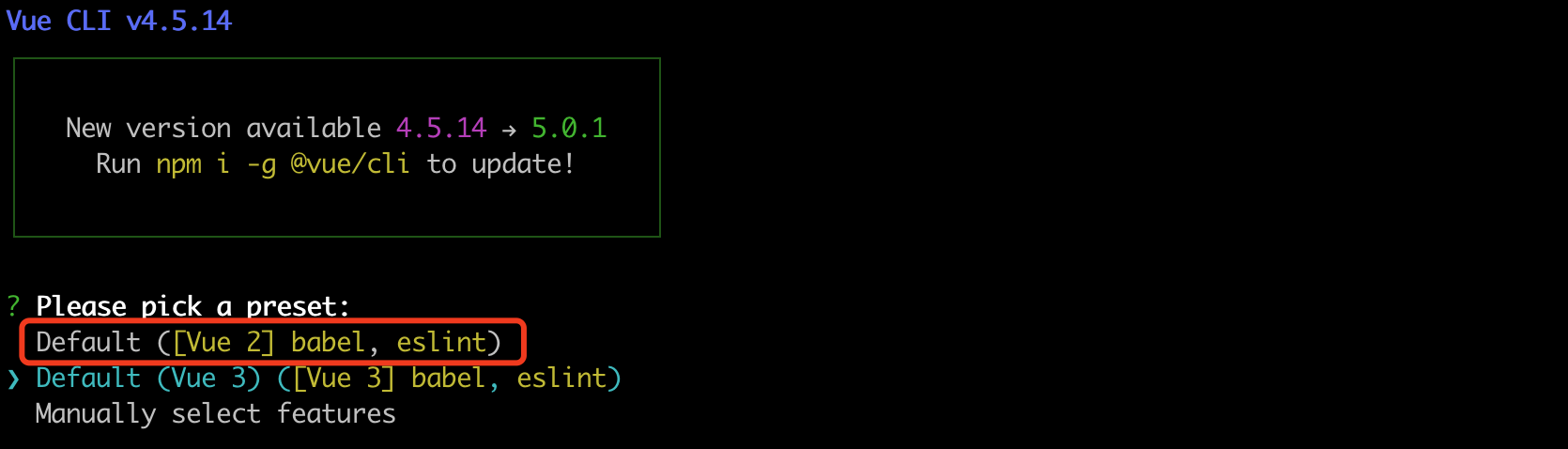
提示:babel是一个将ES6语法转化成ES5的工具,eslint是做语法检查。

a few moments later...
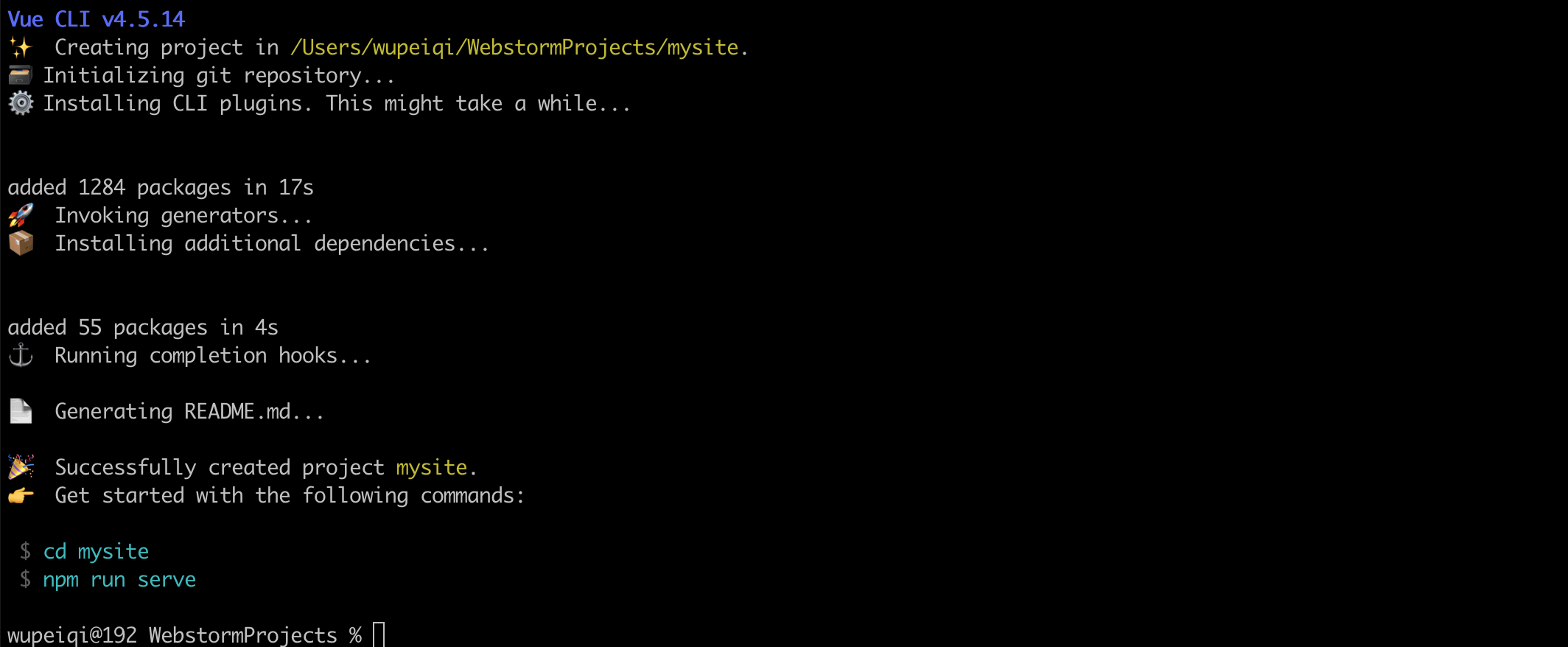
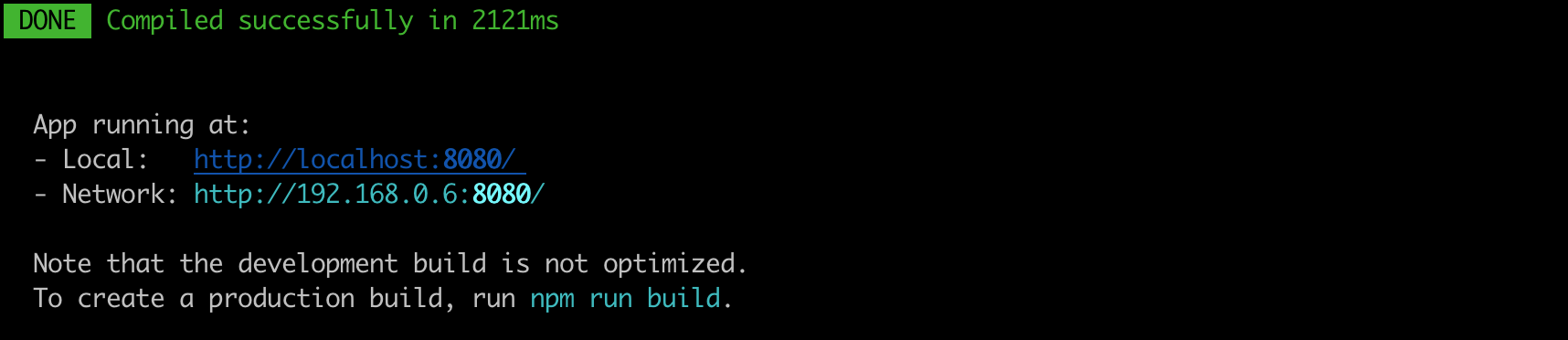
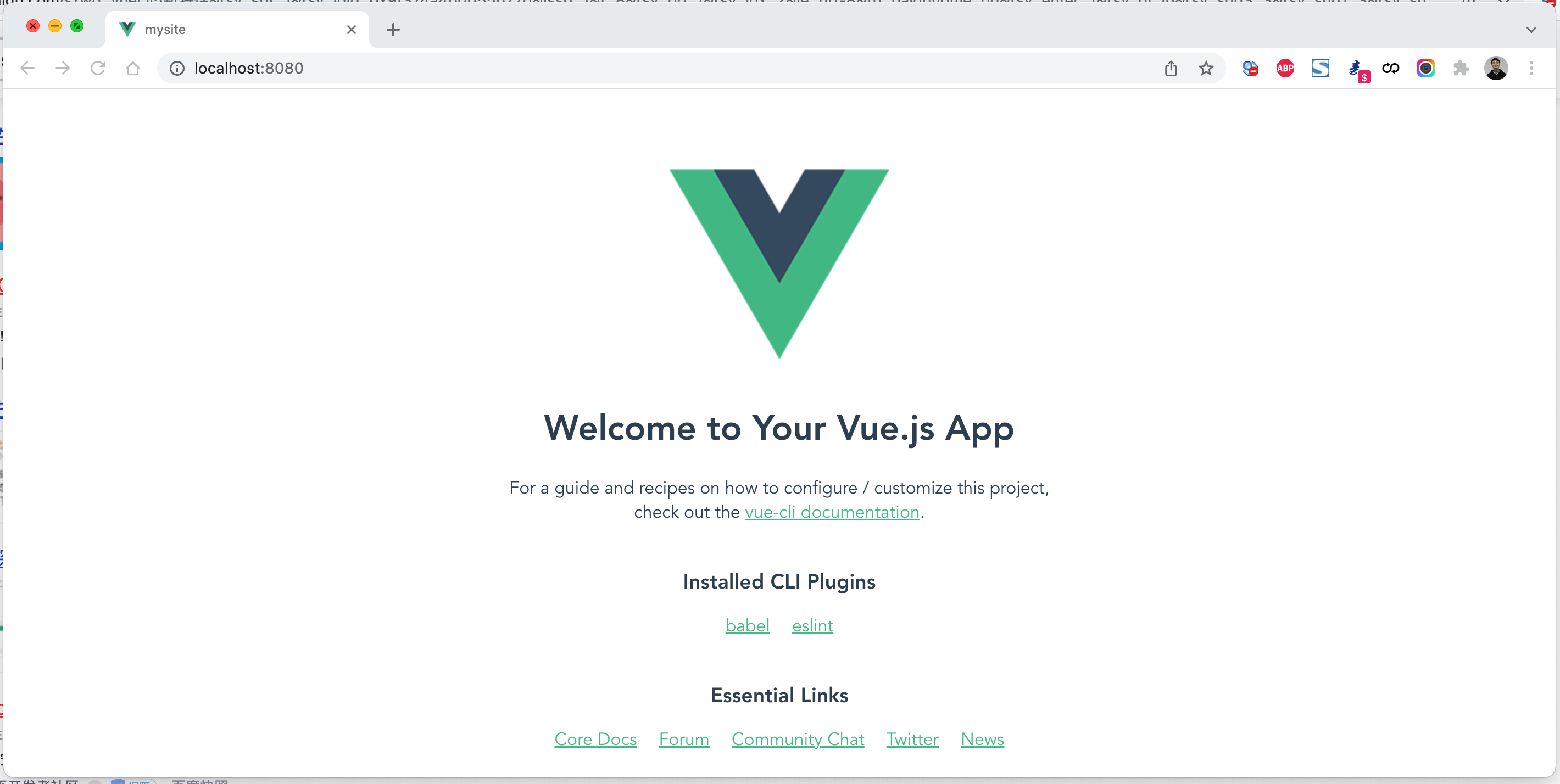
按照提示执行如下命令,脚手架就会给我们大家一个Web服务去运行编写的vue项目(便于开发测试)。
cd mysite
npm run serve
5.3 编译部署
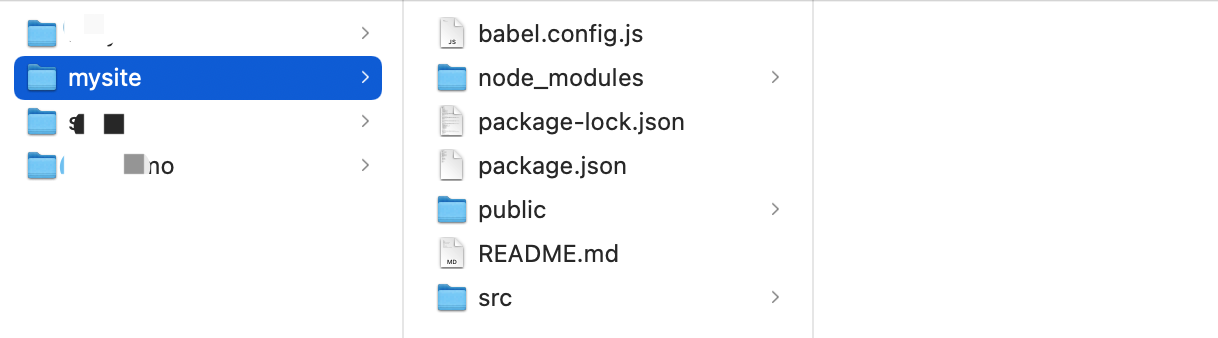
项目创建完,脚手架会默认会生成如下文件(包含项目依赖、配置文件、默认代码)。
如果以后项目开发完毕,想要进行项目部署,是不需要这些文件的,执行命令:
cd 项目目录
npm run build
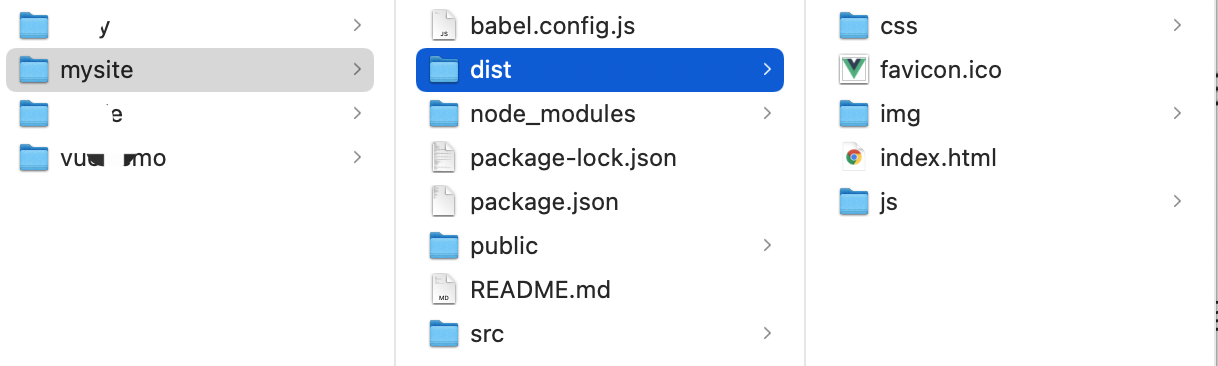
build会将项目中的依赖和代码自动编译成HTML、CSS、JavaScript代码,后续只需要将此代码上传至服务器部署即可。
5.4 目录结构
- babel.config.js      babel是ES6转换ES5的组件,这是他所需的配置文件(一般不需要动)。
- package.json         项目所需的包的版本信息。
- package-lock.json    保存项目所需的包细节以及包的依赖等信息。
- node-modules         项目安装依赖包的文件保存的地方。例如:npm install axios
                       axios包会保存在此目录、信息也会写在 package.json、package-lock.json中
- src
	- main.js          项目的启动 npm run serve ,用户访问时程序的入门。
	- App.vue		   主组件
	- components       子组件
	- assets           静态文件(自己的静态文件,会被压缩和合并)
- public		      【此目录下的文件直接被复制到dist/目录下,一般放不动的数据,引入第三方】
	- index.html       主HTML文件(模板引擎)
	- favicon.icon     图标
- README.md            项目说明文档
cd 项目
npm install
本质上,其实就是将原来的代码做了拆分来进行开发,开发完毕之后再编译整合起来。
<!DOCTYPE html>
<html lang="en">
<head>
    <meta charset="UTF-8">
    <title>Title</title>
    <script src="https://cdn.jsdelivr.net/npm/vue@2/dist/vue.js"></script>
</head>
<body>

<div id="app">
    <h1>欢迎学习Vue.js</h1>
    <div>我叫{{name}},微信{{wechat}}</div>
</div>

<script>


    var app = new Vue({
        el: '#app',
        data: {
            name: '武沛齐',
            wechat: 'wupeiqi888'
        },
        methods: {
            clickMe: function () {
                this.name = "alex";
                this.wechat = "wupeiqi666";
            }
        }
    })
</script>
</body>
</html>
5.5 快速上手
5.5.1 axios组件
安装:
cd 项目目录
npm install axios
npm install vue-axios
导入:
import Vue from 'vue'
import axios from 'axios'
import VueAxios from 'vue-axios'

Vue.use(VueAxios, axios)
使用:
Vue.axios.get(api).then((response) => {
  console.log(response.data)
})

this.axios.get(api).then((response) => {
  console.log(response.data)
})

this.$http.get(api).then((response) => {
  console.log(response.data)
})
5.5.2 vue-router组件
安装:
cd 项目目录
npm install vue-router@3
引入:
// router/index.js

import Vue from 'vue'
import VueRouter from 'vue-router'


import Home from '../components/Home'


Vue.use(VueRouter)

const router = new VueRouter({
    routes: [
        {
            path: '/home',
            name: "Home",
            component: Home
        },
    ]
})

export default router
// main.js
import Vue from 'vue'
import axios from 'axios'
import VueAxios from 'vue-axios'


import App from './App.vue'

// 导入router文件
import router from "./router"


Vue.use(VueAxios, axios)

Vue.config.productionTip = true


new Vue({
    router: router,
    render: h => h(App),
}).$mount('#app')
使用:App.vue
<router-link to="/home">点我</router-link>
<router-view></router-view>
5.5.3 案例:路飞学城
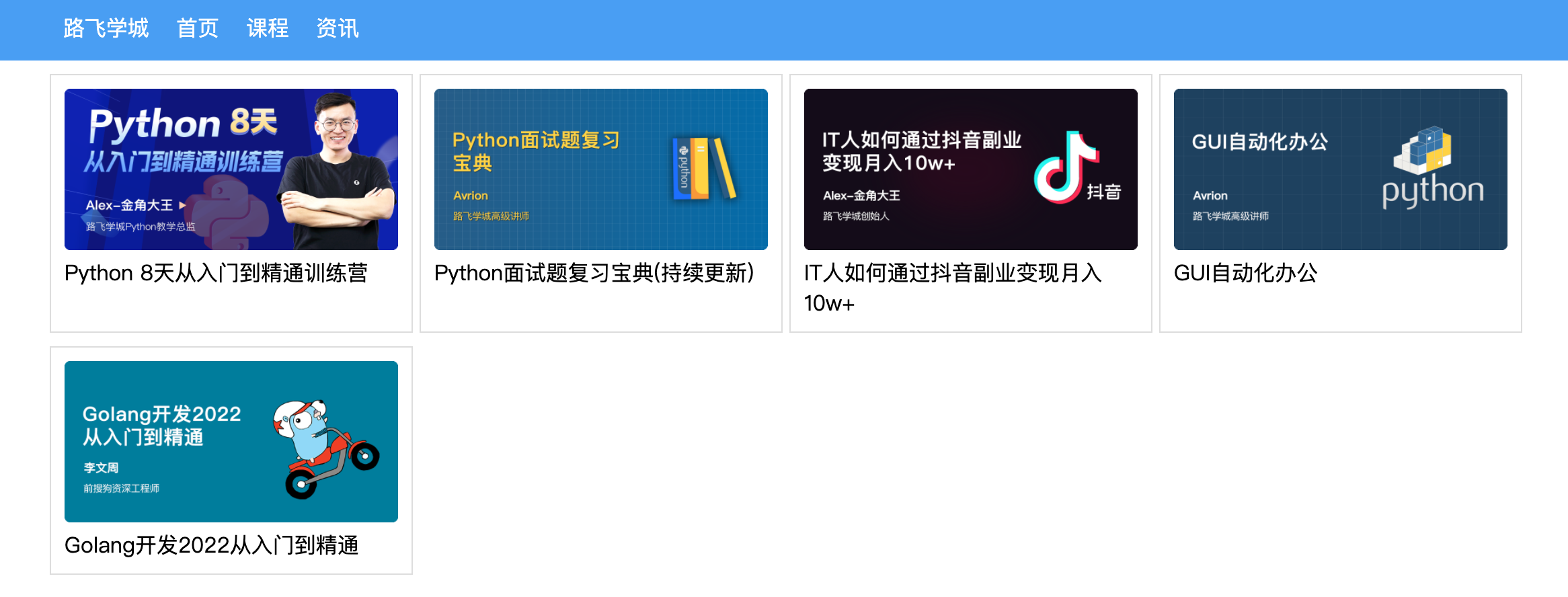
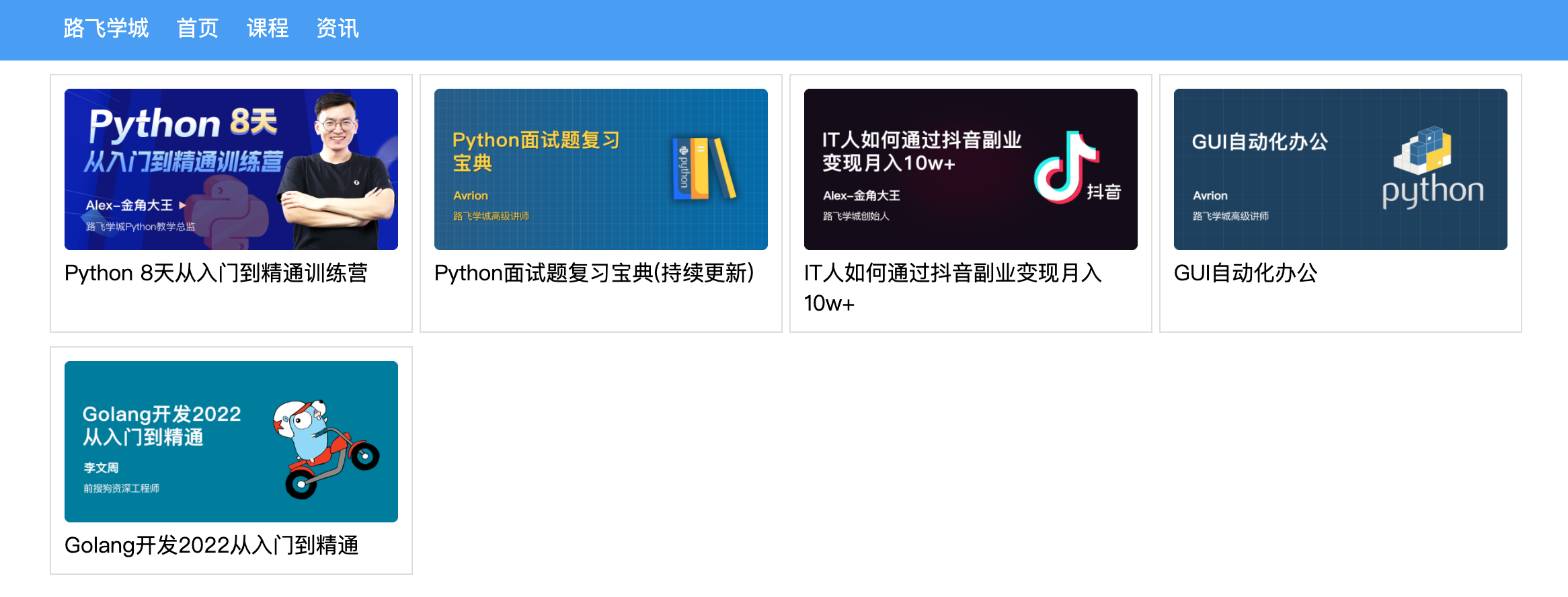
基于vue-cli快速开发:路飞学城(第一版)
5.6 线上部署
-
第一步:编译
npm run build -
第二步:将编译后的代码dist文件上传到服务器(阿里云、腾讯云)
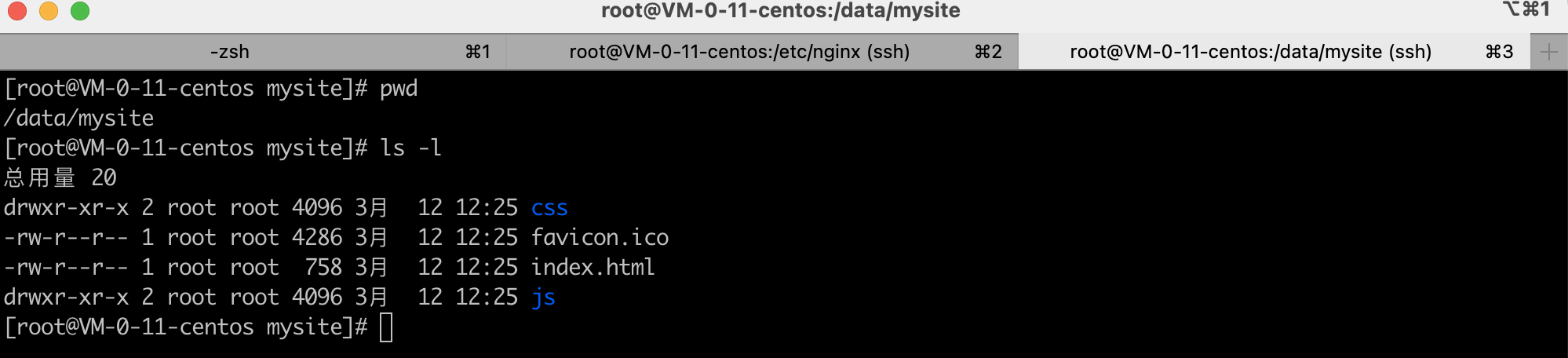
-
第三步:安装nginx + 配置 + 启动
yum install nginxvim /etc/nginx/nginx.conf
user nginx;
worker_processes auto;
error_log /var/log/nginx/error.log;
pid /run/nginx.pid;

# Load dynamic modules. See /usr/share/doc/nginx/README.dynamic.
include /usr/share/nginx/modules/*.conf;

events {
    worker_connections 1024;
}

http {
    log_format  main  '$remote_addr - $remote_user [$time_local] "$request" '
                      '$status $body_bytes_sent "$http_referer" '
                      '"$http_user_agent" "$http_x_forwarded_for"';

    access_log  /var/log/nginx/access.log  main;

    sendfile            on;
    tcp_nopush          on;
    tcp_nodelay         on;
    keepalive_timeout   65;
    types_hash_max_size 4096;

    include             /etc/nginx/mime.types;
    default_type        application/octet-stream;

    include /etc/nginx/conf.d/*.conf;

    server {
        listen       80;
        listen       [::]:80;
        server_name  _;
        # 项目目录
        root         /data/mysite;

        # Load configuration files for the default server block.
        include /etc/nginx/default.d/*.conf;

        error_page 404 /404.html;
        location = /404.html {
        }

        error_page 500 502 503 504 /50x.html;
        location = /50x.html {
        }
    }


}
>>>systemctl start nginx -
第四步:访问
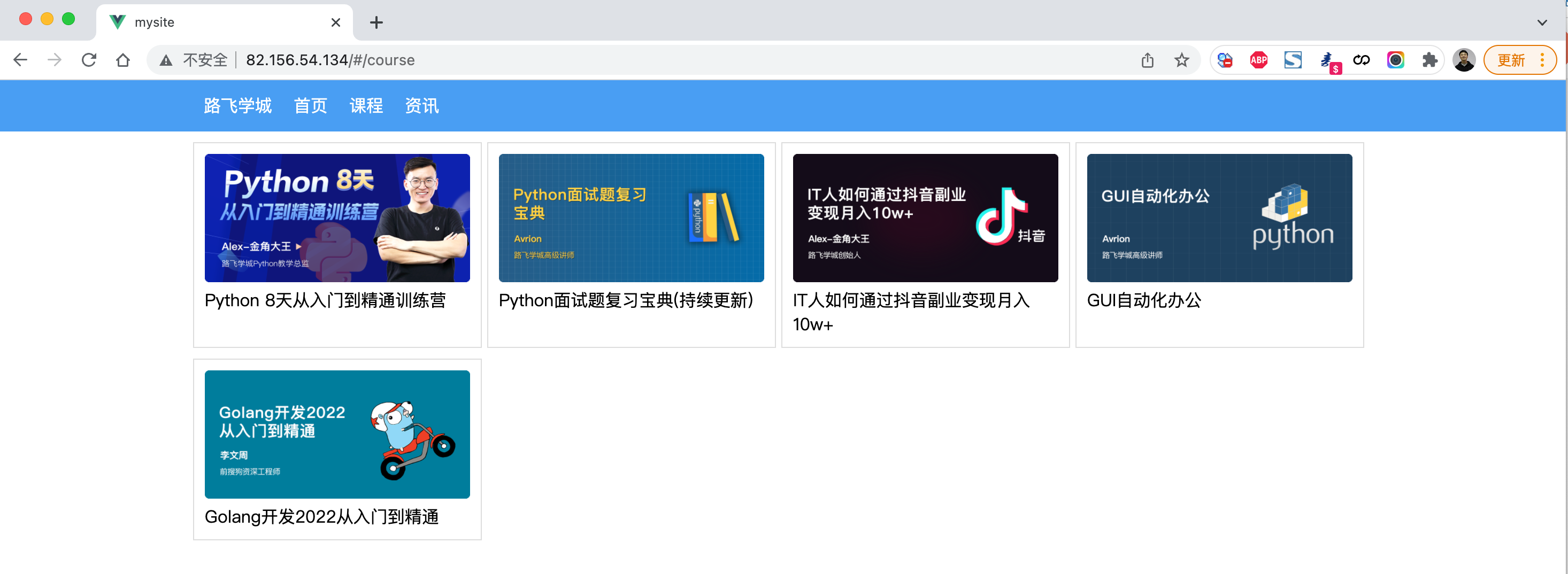
6.vuex
Vuex 是一个专为 Vue.js 应用程序开发的状态管理模式。它采用集中式存储管理应用的所有组件的状态,并以相应的规则保证状态以一种可预测的方式发生变化。
说人话:将组件中需要共享的数据交给vuex来帮我们进行管理,例如:用户登录状态、加入购物车。

6.1 案例:登录
vue create vxdemo
npm install vue-router@3
npm install vuex@3
-
main.js
import Vue from 'vue' import App from './App.vue' import router from "./router" import store from "./store" Vue.config.productionTip = false new Vue({ router: router, store: store, render: h => h(App), }).$mount('#app') -
App.vue
<template> <div id="app"> <div class="menu"> <div class="container"> <router-link to="/home">首页</router-link> <router-link to="/course">课程</router-link> <div style="float: right"> <a v-if="this.$store.state.isLogin"> {{this.$store.state.userInfo.username}} </a> <router-link v-else to="/login">登录</router-link> </div> </div> </div> <div class="container"> <router-view></router-view> </div> </div> </template> <script> export default { name: 'App', data() { return {} }, components: {}, } </script> <style> body { margin: 0; } .container { width: 1100px; margin: 0 auto; } .menu { height: 48px; background-color: #499ef3; line-height: 48px; } .menu a { color: white; text-decoration: none; padding: 0 10px; } </style> -
store/index.js
import Vue from 'vue' import Vuex from 'vuex' Vue.use(Vuex) export default new Vuex.Store({ state: { isLogin: false, //是否登录 userInfo: null //用户信息 }, mutations: { login: function (state, info) { state.userInfo = info; state.isLogin = true; }, }, actions: {} }) -
router/index.js
// router/index.js import Vue from 'vue' import VueRouter from 'vue-router' import Home from '../components/Home' import Course from '../components/Course' import Login from '../components/Login' Vue.use(VueRouter) const router = new VueRouter({ routes: [ { path: '/home', name: "Home", component: Home }, { path: '/course', name: "Course", component: Course }, { path: '/login', name: "Login", component: Login }, ] }) export default router -
components/Login.vue
<template>
    <div>
        <input type="text" v-model="info.username" placeholder="用户名">
        <input type="password" v-model="info.password" placeholder="密码">
        <input type="button" value="登录" @click="doLogin"/>
    </div>
</template>

<script>
    export default {
        name: "Login",
        data() {
            return {
                info: {
                    username: "",
                    password: ""
                }
            }
        },
        methods: {
            doLogin: function () {
                // 1.用户登录
                this.$store.commit('login', this.info);
                // 2.登录成功修改状态
                this.$router.push({name: 'Home'});
            }
        }
    }
</script>

<style scoped>

</style>
6.2 关于computed属性
在vue的组件中有一个computed属性(计算属性),监听关联的数据,如果发生变化则重新计算并显示。
<template>
    <div>
        <h1>主页 {{v1}} {{ v2}}</h1>

        <div>总数:{{totalData}}</div>
        <input type="button" value="点我" @click="addData"/>
    </div>
</template>

<script>
    export default {
        name: "Home",
        data() {
            return {
                v1: 123,
                v2: 456
            }
        },
        computed: {
            totalData: {
                get() {
                    let data = this.v1 + this.v2;
                    return data + 1000;
                },
                set(value) {
                    this.v1 = value;
                }
            }
        },
        methods: {
            addData() {
                this.totalData = 999;
                // this.v2 = 1000;
            }
        }
    }
</script>

<style scoped>

</style>
所以,上述案例也可以用computed属性来实现,例如:App.vue改成:
<template>
    <div id="app">
        <div class="menu">
            <div class="container">
                <router-link to="/home">首页</router-link>
                <router-link to="/course">课程</router-link>

                <div style="float: right">
                    <a v-if="userState">
                        {{userName}}
                    </a>
                    <router-link v-else to="/login">登录</router-link>

                </div>
            </div>
        </div>
        <div class="container">
            <router-view></router-view>
        </div>
    </div>
</template>

<script>

    export default {
        name: 'App',
        data() {
            return {}
        },
        computed: {
            userState: {
                get() {
                    return this.$store.state.isLogin;
                }
            },
            userName() {
                return this.$store.state.userInfo.username;
            },

        },
        components: {},
    }
</script>

<style>
    body {
        margin: 0;
    }

    .container {
        width: 1100px;
        margin: 0 auto;
    }

    .menu {
        height: 48px;
        background-color: #499ef3;
        line-height: 48px;

    }

    .menu a {
        color: white;
        text-decoration: none;
        padding: 0 10px;
    }


</style>
6.3 案例:购物车

6.4 关于Action
Action 类似于 mutation,不同在于:
- Action 提交的是 mutation,而不是直接变更状态。
- Action 可以包含任意异步操作。
代码示例:
const store = createStore({
  state: {
    count: 0
  },
  mutations: {
    increment (state) {
      state.count+=1;
    }
  },
  actions: {
    increment (context) {
        // 触发mutations
      	context.commit('increment')
    }
  }
})
在组件中如果要触发,则应该执行:
this.$store.dispatch('increment')
这就有点像脱裤子放屁,意义何在呢? 当有异步操作时,应该使用action、而不是mutation,例如:
import Vue from 'vue'
import Vuex from 'vuex'

Vue.use(Vuex)


export default new Vuex.Store({
    state: {
        isLogin: false, //是否登录
        userInfo: null, //用户信息
        carNumber: 0,
        xxxxx: 10
    },
    mutations: {
        login: function (state, info) {
            state.userInfo = info;
            state.isLogin = true;
        },
        addCar: function (state) {
            state.carNumber += 1;
        },
        fetchAsync: function (state) {
            // ajax
            setTimeout(function () {
                state.xxxxx += 1;
            }, 1000);
        }

    },
    actions: {}
})
this.$store.commit("fetchAsync");
从效果上看是没有问题的,但是通过开发者工具就会发现,监测到的state的数据不准确。
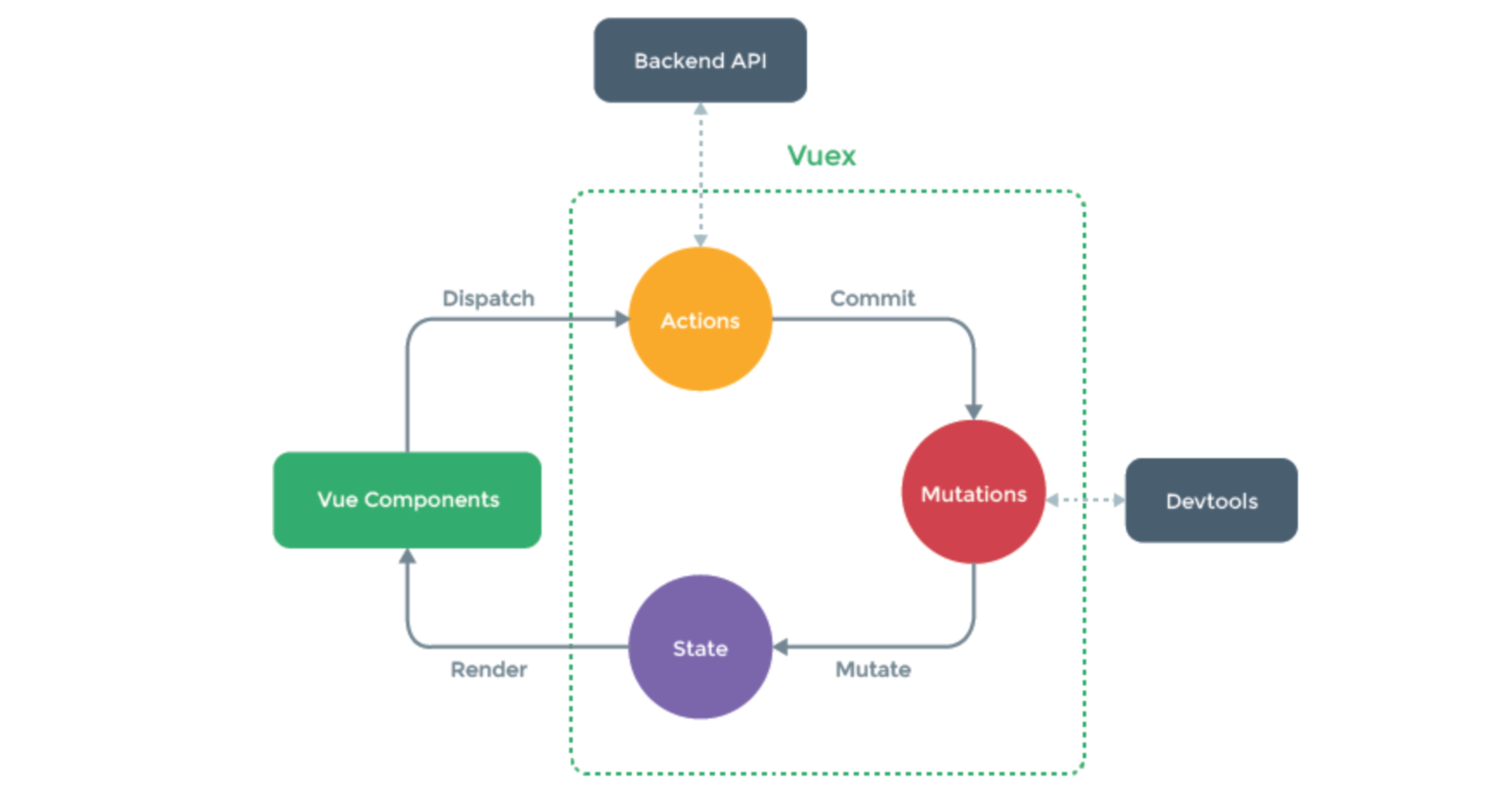
所以,这种情况可以选择用Action。
import Vue from 'vue'
import Vuex from 'vuex'

Vue.use(Vuex)


export default new Vuex.Store({
    state: {
        isLogin: false, //是否登录
        userInfo: null, //用户信息
        carNumber: 0,
        xxxxx: 10
    },
    mutations: {
        login: function (state, info) {
            state.userInfo = info;
            state.isLogin = true;
        },
        addCar: function (state) {
            state.carNumber += 1;
        },
        fetchAsync: function (state,data) {
            state.xxxxx += 1;
            console.log(data);
        }

    },
    actions: {
        fetchAsync: function (context,data) {
            setTimeout(function () {
                context.commit("fetchAsync",data);
            }, 1000);
        }
    }
})
再触发时,调用:
this.$store.dispatch('fetchAsync',{ amount: 10})
7.flex布局
在CSS3中flex可以非常便捷的可以帮助我们实现对页面的布局。
- 传统的页面布局,基于div+float来实现。
- flex可以快速实现页面的布局(很方便)。
关于flex布局你必须要了解的有一下几点:
<div class="menu" 样式>
    <div class="item" 样式>112</div>
    <div class="item">113</div>
</div>
7.1 容器
7.1.1 flex布局
在容器元素上应用
<div class="menu">
    <div class="item">112</div>
    <div class="item">113</div>
</div>

<style>
    .menu{
        border: 1px solid red;
        width: 500px;
        display: flex;         // 表示flex布局
    }
</style>
7.1.2 元素的方向(主轴和副轴)
<div class="menu">
    <div class="item">112</div>
    <div class="item">113</div>
</div>
<style>
    .menu{
        border: 1px solid red;
        width: 500px;

        display: flex;         // 表示flex布局
        flex-direction: row;   // 主轴是横向,副轴是纵向。
    }
</style>
7.1.3 元素排列方式
justify-content,主轴上的元素的排列方式
align-items,副轴上的元素的排列方式。
示例1:

<div class="menu">
    <div class="item">11</div>
    <div class="item">112</div>
    <div class="item">112</div>
</div>
<style>
    .menu {
        width: 500px;
        border: 1px solid red;
        display: flex;

        flex-direction: row;
        justify-content: flex-start;     /* 主轴=横向,横向从左开始 */
        justify-content: flex-end;       /* 主轴=横向,横向从右开始 */
        justify-content: space-between;   /* 主轴=横向,左右定格,中间元素等分空白 */
        justify-content: space-around;   /* 主轴=横向,所有元素等分空白 */
        justify-content: space-evenly;   /* 主轴=横向,元素间距一样 */
    }

    .item {
        border: 1px solid green;
        padding: 5px 50px;
        height: 50px;
        width: 40px;
    }
</style>
示例2:

<div class="menu">
    <div class="item">11</div>
    <div class="item">112</div>
    <div class="item">112</div>
</div>
<style>
    .menu {
        width: 500px;
        height: 300px;
        border: 1px solid red;
        display: flex;

        flex-direction: row;
        justify-content: flex-start;     /* 主轴=横向,横向从左开始 */
        justify-content: flex-end;       /* 主轴=横向,横向从右开始 */
        justify-content: space-between;   /* 主轴=横向,左右定格,中间元素等分空白 */
        justify-content: space-around;   /* 主轴=横向,所有元素等分空白 */
        justify-content: space-evenly;   /* 主轴=横向,元素间距一样 */

        align-items: center;             /* 副轴=纵向,元素居中*/
        align-items: flex-start;         /* 副轴=纵向,元素顶部*/
        align-items: flex-end;           /* 副轴=纵向,元素底部*/
    }

    .item {
        border: 1px solid green;
        padding: 5px 50px;
        height: 50px;
        width: 40px;
    }
</style>
7.1.4 换行
flex-wrap: nowrap;元素超过容器,不换行flex-wrap: wrap;元素超过容器,换行
示例1:不换行
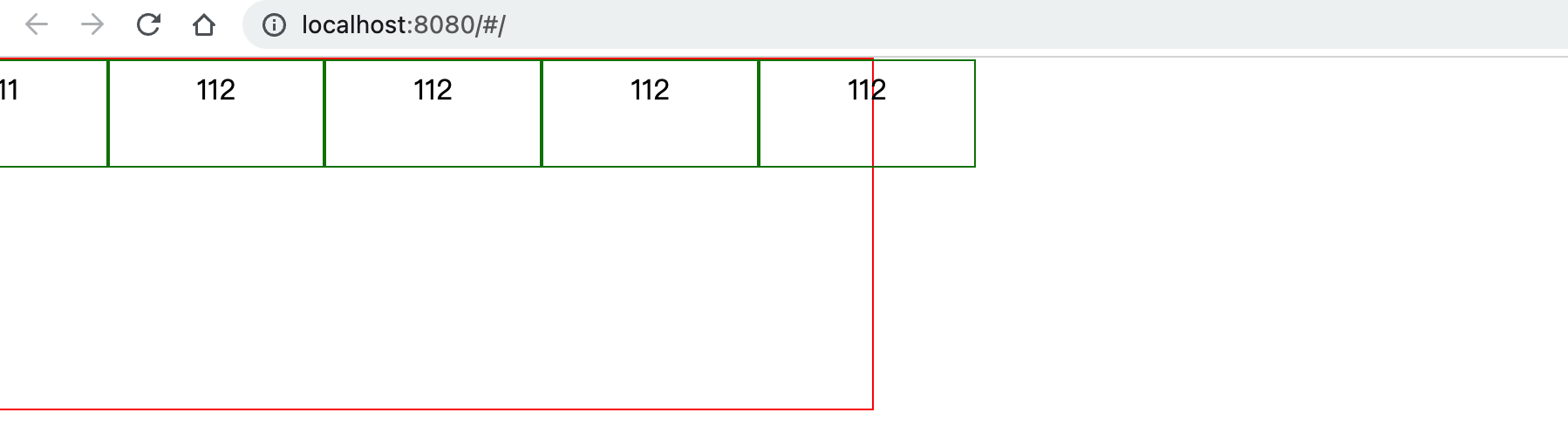
<div class="menu">
    <div class="item">11</div>
    <div class="item">112</div>
    <div class="item">112</div>
    <div class="item">112</div>
    <div class="item">112</div>
</div>
<style>
    .menu {
        width: 500px;
        height: 200px;
        border: 1px solid red;
        display: flex;

        flex-direction: row;
        justify-content: space-evenly;   /* 主轴=横向,元素间距一样 */
        align-items: flex-start;         /* 副轴=纵向,元素顶部*/

        flex-wrap: nowrap;

    }

    .item {
        border: 1px solid green;
        padding: 5px 50px;
        height: 50px;
        width: 40px;
    }
</style>
示例2:换行
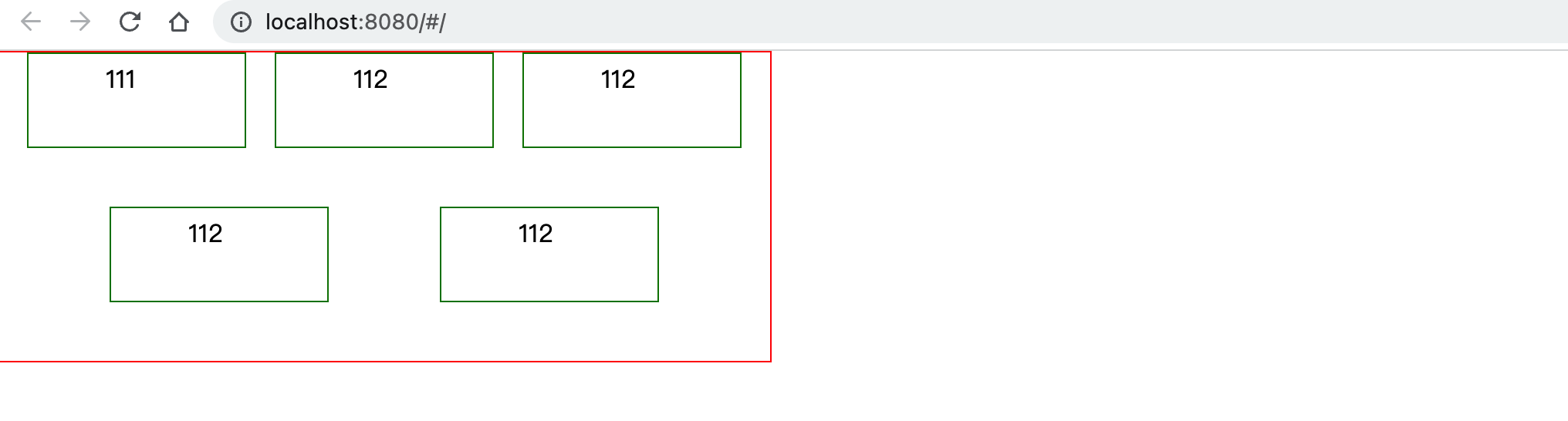
<div class="menu">
    <div class="item">111</div>
    <div class="item">112</div>
    <div class="item">112</div>
    <div class="item">112</div>
    <div class="item">112</div>

</div>

<style>
    body{
        margin: 0;
    }
    .menu {
        width: 500px;
        height: 200px;
        border: 1px solid red;
        display: flex;

        flex-direction: row;
        justify-content: space-evenly;   /* 主轴=横向,元素间距一样 */
        align-items: flex-start;         /* 副轴=纵向,元素顶部*/

        flex-wrap: wrap;

    }

    .item {
        border: 1px solid green;
        padding: 5px 50px;
        height: 50px;
        width: 40px;
    }
</style>
7.1.5 多行对齐方式
align-content用于控制多行元素的对齐方式,如果元素只有一行则不会起作用;默认stretch,即在元素没设置高度,或高度为auto情况下让元素填满整个容器。
flex-start | flex-end | center | space-between | space-around | space-evenly | stretch(默认);
7.2 元素
7.2.1 顺序
order,默认0,用于决定项目排列顺序,数值越小,项目排列越靠前。

<div class="father">
    <div class="son" style="order: 2">11</div>
    <div class="son" style="order: 0">22</div>
    <div class="son" style="order: 1">33</div>
</div>

<style scoped>
    .father {
        border: 1px solid red;
        width: 500px;
        height: 300px;
        display: flex;
        flex-direction: row;
        justify-content: flex-start;
    }

    .father .son {
        border: 1px solid saddlebrown;
        width: 20px;
        height: 18px;
    }
</style>
7.2.2 剩余空间
flex-grow,默认0,用于决定项目在有剩余空间的情况下是否放大,默认不放大;

<div class="father">
    <div class="son">11</div>
    <div class="son" style="flex-grow: 1">22</div>
    <div class="son" style="flex-grow: 1">33</div>
</div>
案例:flex页面布局
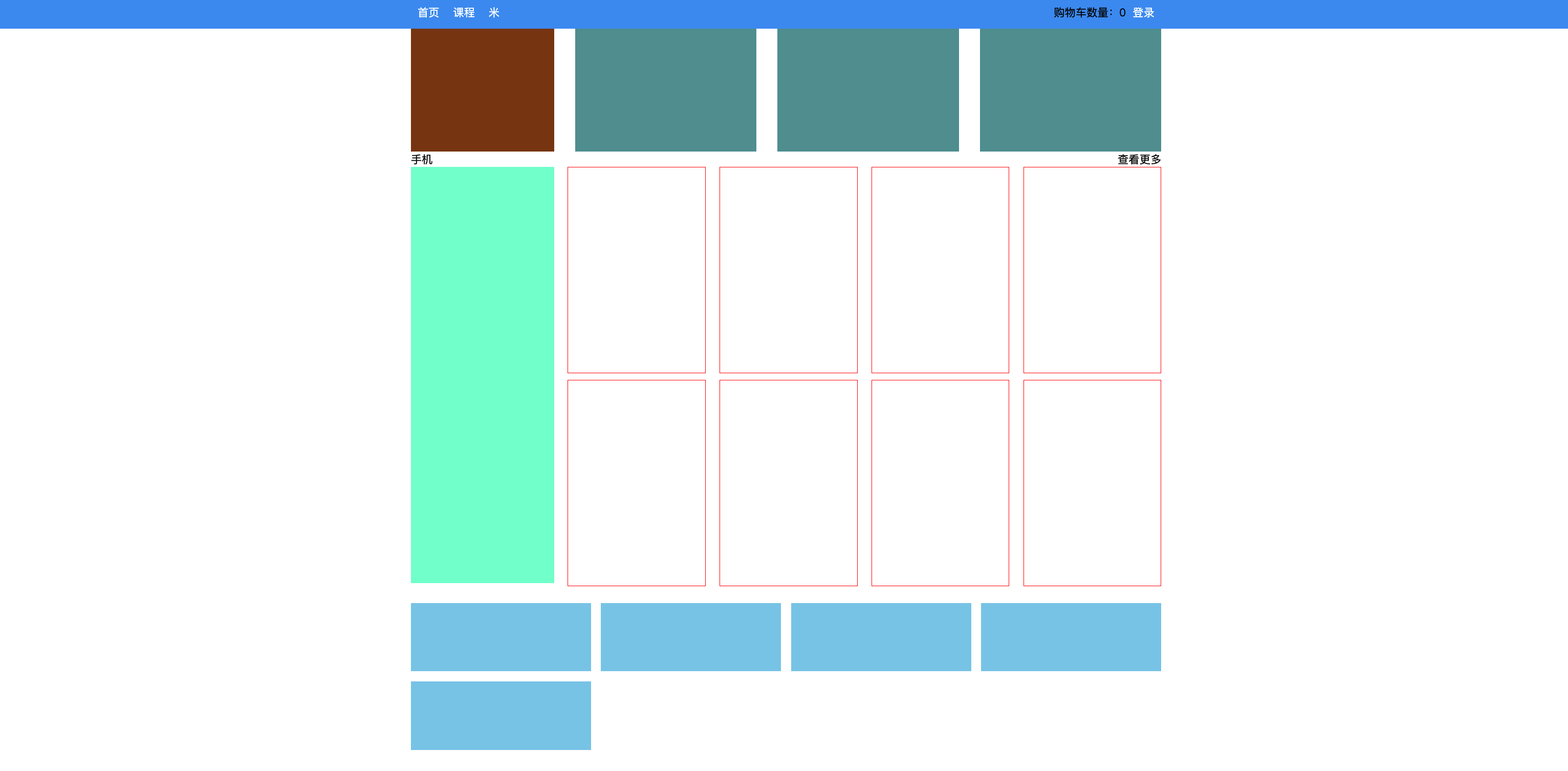
<template>
    <div>
        <div class="row1">
            <div class="company"></div>
            <div class="pic"></div>
            <div class="pic"></div>
            <div class="pic"></div>
        </div>
        <div class="row2">
            <div class="title">
                <div>手机</div>
                <div>查看更多</div>
            </div>
            <div class="pic-list">
                <div class="big"></div>
                <div class="right-list">
                    <div class="group">
                        <div class="phone"></div>
                        <div class="phone"></div>
                        <div class="phone"></div>
                        <div class="phone"></div>
                    </div>
                    <div class="group">
                        <div class="phone"></div>
                        <div class="phone"></div>
                        <div class="phone"></div>
                        <div class="phone"></div>
                    </div>

                </div>
            </div>
        </div>

        <div class="course-list">
            <div class="item"></div>
            <div class="item"></div>
            <div class="item"></div>
            <div class="item"></div>
            <div class="item"></div>

        </div>
    </div>
</template>

<script>
    export default {
        name: "Mi"
    }
</script>

<style scoped>
    .row1 {
        display: flex;
        flex-direction: row;
        justify-content: space-between;
    }

    .row1 .company {
        width: 210px;
        height: 180px;
        background-color: saddlebrown;
    }

    .row1 .pic {
        width: 266px;
        height: 180px;
        background-color: cadetblue;
    }

    .row2 .title {
        display: flex;
        flex-direction: row;
        justify-content: space-between;
    }

    .row2 .pic-list {
        display: flex;
        flex-direction: row;
        justify-content: space-between;
    }

    .row2 .pic-list .big {
        background-color: aquamarine;
        height: 610px;
        width: 210px;
        margin-right: 20px;
    }

    .row2 .pic-list .right-list {
        /*background-color: antiquewhite;*/
        flex-grow: 1;
    }

    .row2 .pic-list .right-list .group {


        display: flex;
        flex-direction: row;
        justify-content: space-between;
        flex-wrap: wrap;
    }

    .row2 .pic-list .right-list .phone {
        margin-bottom: 10px;
        border: 1px solid red;
        width: 200px;
        height: 300px;
    }

    .course-list {
        display: flex;
        justify-content: space-between;
        flex-wrap: wrap;
    }

    .course-list .item {
        width: 24%;
        height: 100px;
        background-color: skyblue;
        margin-top: 15px;
    }

	// 如果最后一个元素,是第3个,右边距=一个位置 + 所有空白位置/3(有三个空白位置)
    .course-list .item:last-child:nth-child(4n - 1) {
        margin-right: calc(24% + 4% / 3);
    }

	// 如果最后一个元素,是第2个,右边距=两个位置 + 所有空白位置/3*2(有三个空白位置)
    .course-list .item:last-child:nth-child(4n - 2) {
        margin-right: calc(48% + 8% / 3);
    }
</style>
至此,结合以上的知识点,我们就可以来开发一个项目,但很多的页面按钮、标签、提示框等都需要自己手动,太费劲。
所以,接下来就要给大家的来聊一个UI框架 - ElementUI,他的内部提供了很多方便的样式和组件,可以加速我们开发。
8.ElementUI
Element,是有 饿了吗 团队开发一套为开发者、设计师和产品经理准备的基于 Vue 2.0 的组件库(也支持vue3.x)。
在他的基础上来开发,可以大大提升开发进度。
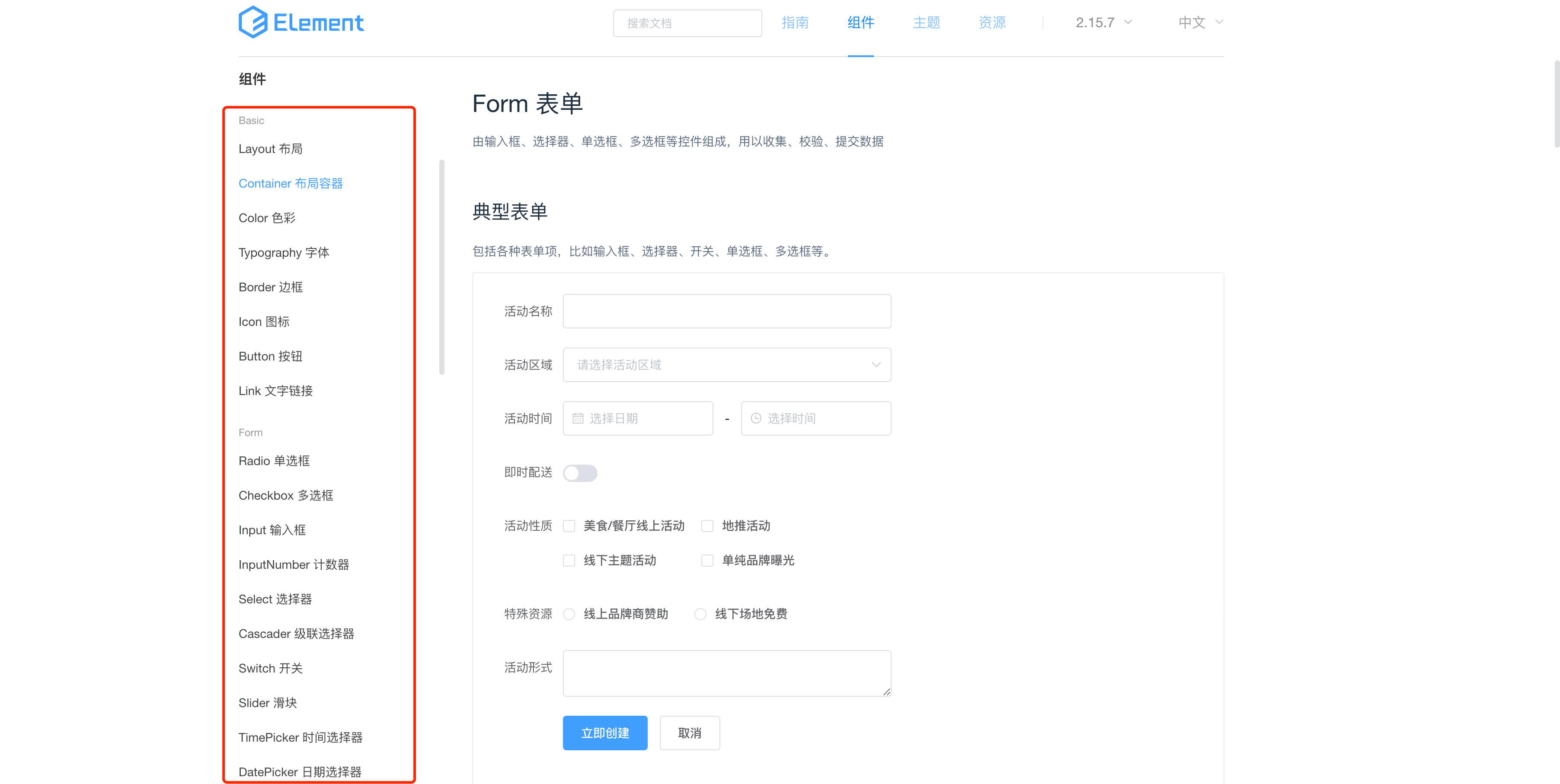
想要在项目中进行使用element-ui需要提前安装并引入。
8.1 引入
方式1:完整引入
-
安装
cd 项目目录 npm install element-ui -
引入
import Vue from 'vue'; import ElementUI from 'element-ui'; import 'element-ui/lib/theme-chalk/index.css'; import App from './App.vue'; Vue.use(ElementUI); new Vue({ render: h => h(App), }).$mount('#app') -
在组件中使用
<el-button type="success">哈哈哈</el-button>
方式2:局部引入
-
安装
cd 项目目录 npm install element-ui -
引入
import Vue from 'vue'; import { Button, Select } from 'element-ui'; import 'element-ui/lib/theme-chalk/index.css'; import App from './App.vue'; Vue.use(Button) Vue.use(Select) new Vue({ render: h => h(App), }).$mount('#app') -
在组件中使用
<el-button type="success">哈哈哈</el-button>完整组件名称:https://element.eleme.cn/#/zh-CN/component/quickstart
8.2 组件的使用
参见官方文档,在后续的项目开发中来应用并使用。

 浙公网安备 33010602011771号