
.netcore3.1 Ocelot与Consul结合使用
.netcore3.1 Ocelot与Consul结合使用
一、在网关项目中添加配置信息
1.1 添加以下两个配置
 //webapi服务的配置
    {
      "downstreampathtemplate": "/api/employmanagement",
      "downstreamscheme": "http",
      "UseServiceDiscovery": true,
      //服务的名称
      "ServiceName": "Servicetwo",
      "upstreampathtemplate": "/gateway/consul",
      "upstreamhttpmethod": [ "Get" ],
      //负债均衡的算法
      "LoadBanlancerOptions": {
        "Type": "LastConnection"
      }
//consul的全局配置
 "GlobalConfiguration": {
    "ServiceDiscoveryProvider": {
      "Scheme": "http",

      "Host": "localhost",
      //consul的端口
      "Port": "8500",
      "Type": "Consul"
    }
  }
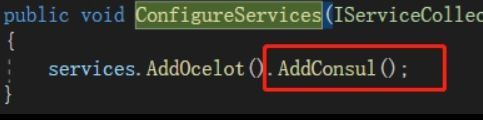
1.2 添加cosul服务
二、配置Consul注册信息
2.1
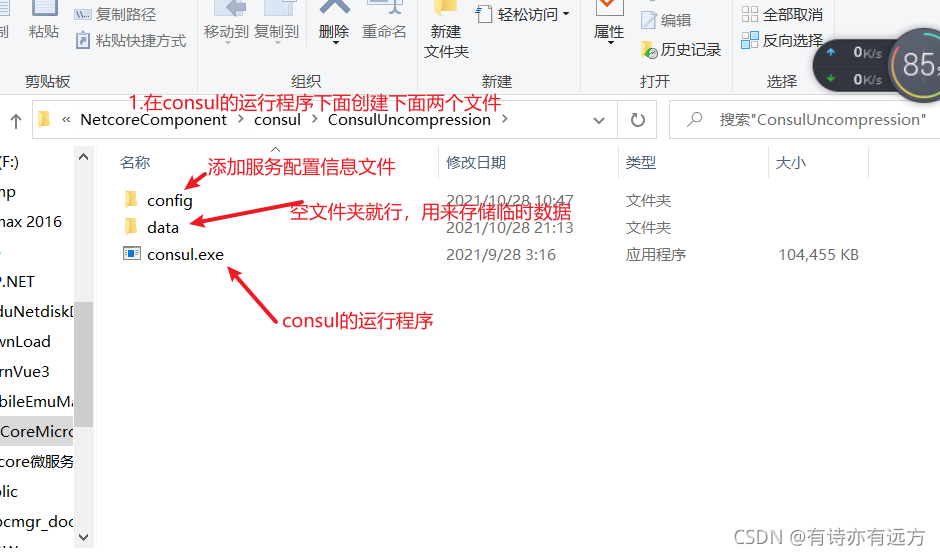
2.2 在config中添加配置文件
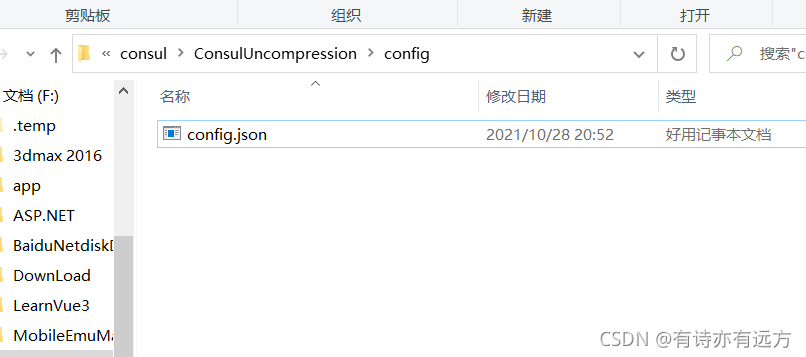
文件的代码
{
  "services": [
    {
    //唯一id
      "id": "ServiceApiTwo",
      //与在上面的配置文件的服务名一样
      "name": "Servicetwo",

      "tags": [
        "primary"
      ],
      "address": "localhost",
      "port": 9004,
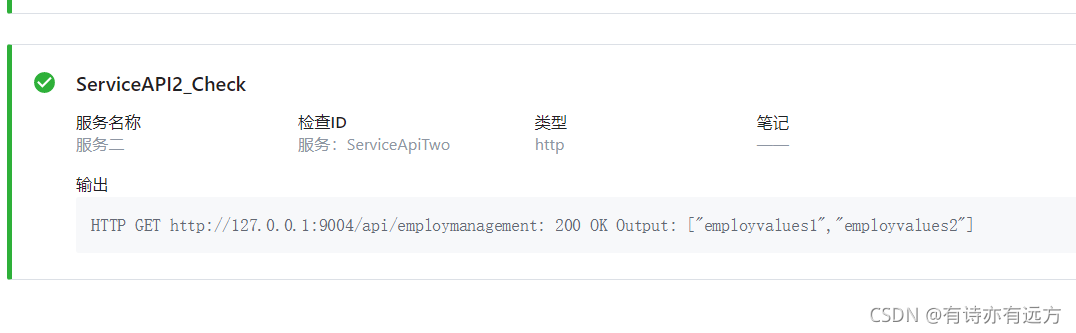
      "checks": [
        {
          "name": "ServiceAPI2_Check",
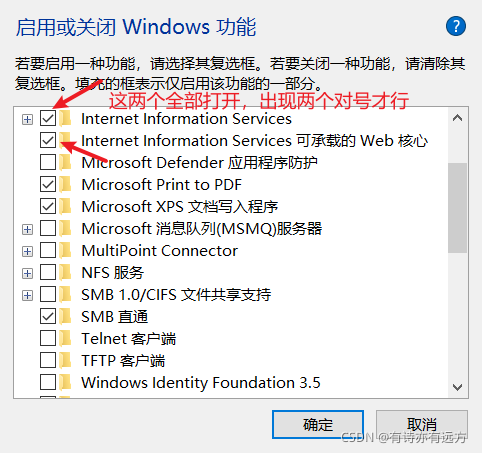
          //127.0.0.0.1的使用需要打开window功能,见下图
          "http": "http://127.0.0.1:9004/api/employmanagement",
          "interval": "5s",
          "timeout": "100s"
        }
      ]
    }
  ]
}
三、执行consul
3.1打开cmd
输入命令
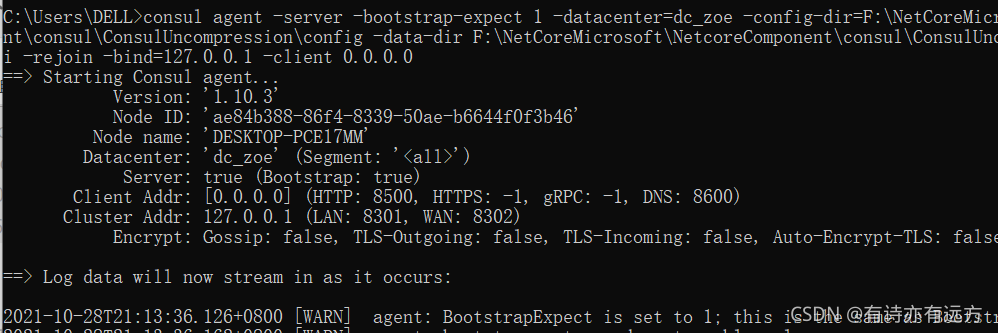
consul agent -server -bootstrap-expect 1 -datacenter=dc_zoe
-config-dir= 上面图中config.json的地址(从某盘开始,如C:/)
-data-dir 上面data文件的地址
-ui -rejoin -bind=127.0.0.1 -client 0.0.0.0
出现下图成功,创建了一个服务端的节点,用来访问服务的
3.2 保持上面cmd不关,再次打开一个cmd 输入如下命令
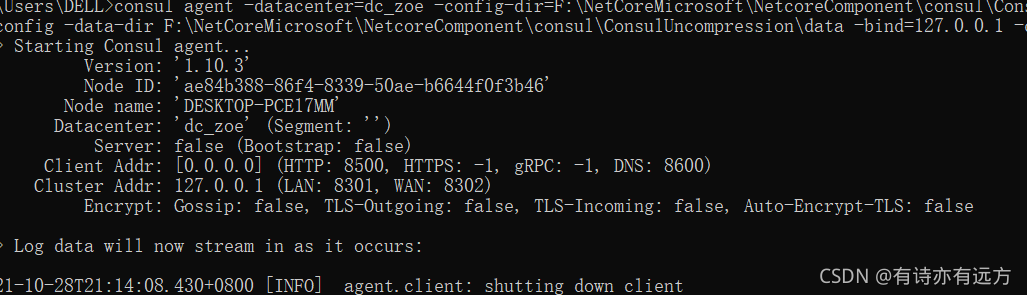
consul agent -datacenter=dc_zoe -config-dir=F:\NetCoreMicrosoft\NetcoreComponent\consul\ConsulUncompression\config(config.json的地址) -data-dir F:\NetCoreMicrosoft\NetcoreComponent\consul\ConsulUncompression\data(data的地址) -bind=127.0.0.1 -client 0.0.0.0
出现如图成功
3.3在键入命令加入到cosul中
C:\Users\DELL>consul join 127.0.0.1
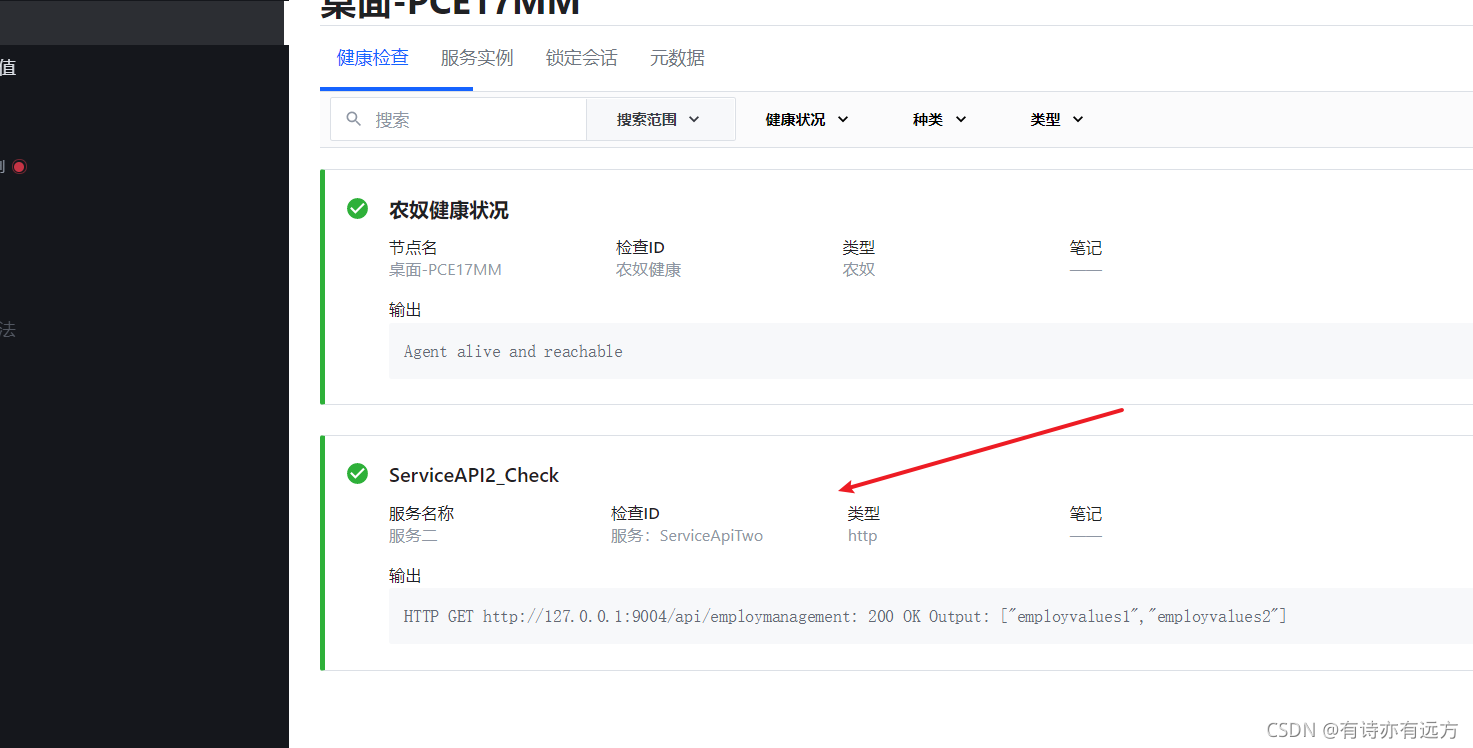
打开http://localhost:8500访问consul出现了节点,自此成功
四、访问服务
http://localhost:9000/gateway/consul
这里通过网关,去到consul,并通过consul代理到真实地址
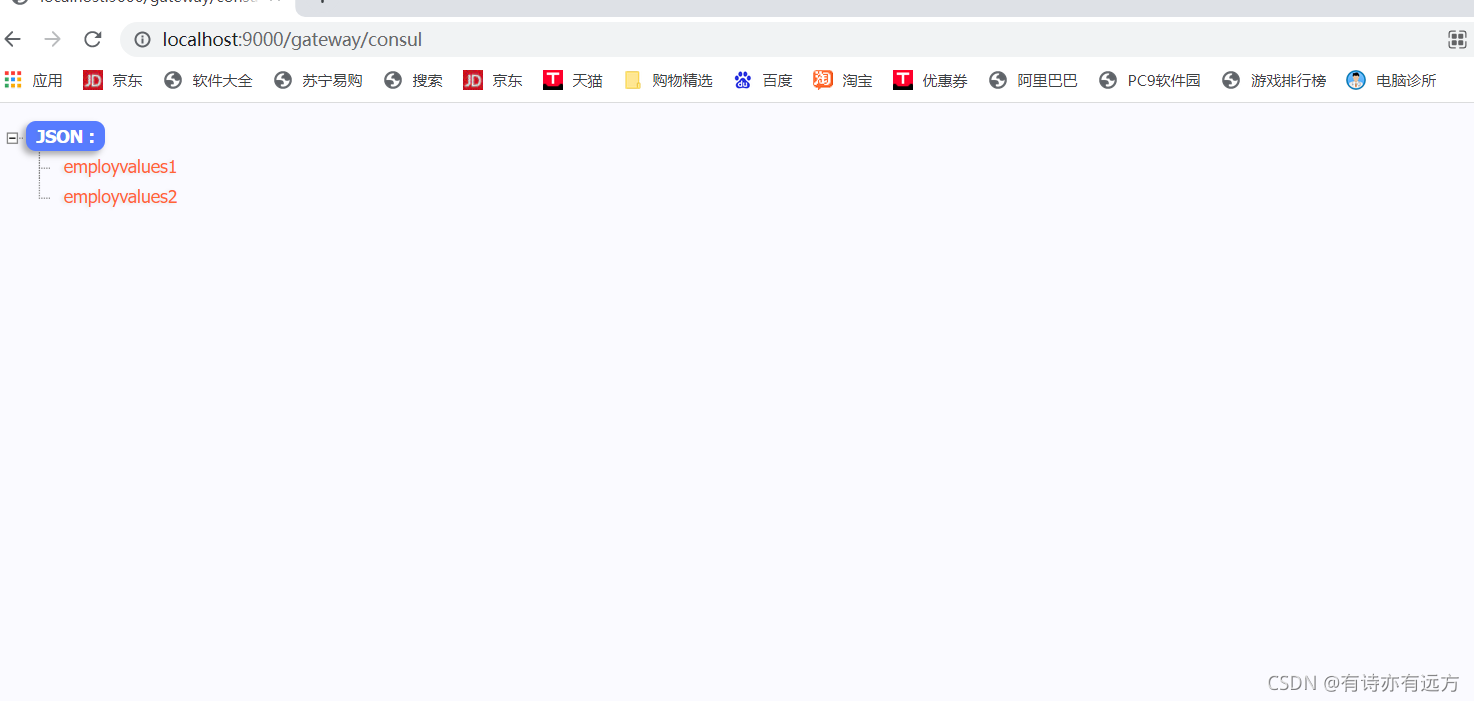
如下俩图

演示完毕

 浙公网安备 33010602011771号