
Linux基础
linux发展史
unix  诞生(贝尔实验室)

minix 谭宁邦教授(主要用于教学)

stallman 斯托曼,

    公司:自由软件基金会  FSF(Free Software Foundation)
    项目 : GNU(一个项目,自由、开源替代unix)         GUN's NOT UNIX
    守则:GPL
        1、自由传播
        2、任意修改,但必须发出来,通用公共许可
  开源了很多优秀的软件,但是缺少linux内核
托瓦兹
91 开发出了linux内核。
32位与64位的区别:
当初设计时的定位不同
安装要求配置不同
运算速度不同
寻址能力不同
buffer与cache:
写入数据到内存里,这个数据的内存空间称为缓冲区(buffer),写入到内存buffer缓冲区,写缓冲。

从内存读取数据,这个存数据的内存空间称为缓存区(cache),从内存cache读取缓存区,读缓存。
linux系统的启动过程
1、按下电源
2、BIOS自检    出现logo
3、MBR系统引导
4、GRUB菜单(选择不同的内核,或者进入救援模式)
5、加载内核
6、启动int进程
7、从/etc/inittab 初始化系统(设置主机名,设置ip)
8、执行/etc/re.d/re/sysinit脚本
    根据运行级别不同,运行对应的文件(开机自启动软件)   /etc/rc0.d/*     /etc/rc6.d/*
9、执行/etc/re.d/re脚本
10、启动mingetty进程  显示登录界面
开机自检
从硬盘的MBR中读取引导程序GRUB
引导程序根据配置文件显示引导菜单
如果选择进入linux系统,此时引导程序加载Linux内核文件
当内核全部加载完毕后,GRUB的任务完成,此时全部控制权交给Linux,cpu开始执行Linux内核代码,初始化任务调度,分配内存、加载驱动等。简而言之,此步骤将建立一个内核运行环境
内核代码执行完毕后,开始执行Linux系统的第一个进程-systemd,进程号为1
systemd进程启动后将读取/etc/systemd/system/default.target,这个文件的作用是设置系统的运行级别。systemd会根据此文件设置系统的运行级别并启动相应的服务
服务启动完成后,将引导login弹出登录界面
查看系统信息
[root@VM_0_15_centos ~]# cat /etc/redhat-release
CentOS Linux release 7.2.1511 (Core)
[root@VM_0_15_centos ~]# uname -a
Linux VM_0_15_centos 3.10.0-514.26.2.el7.x86_64 #1 SMP Tue Jul 4 15:04:05 UTC 2017 x86_64 x86_64 x86_64 GNU/Linux
[root@VM_0_15_centos ~]# cat /etc/os-release
NAME="CentOS Linux"
VERSION="7 (Core)"
ID="centos"
ID_LIKE="rhel fedora"
VERSION_ID="7"
PRETTY_NAME="CentOS Linux 7 (Core)"
ANSI_COLOR="0;31"
CPE_NAME="cpe:/o:centos:centos:7"
HOME_URL="https://www.centos.org/"
BUG_REPORT_URL="https://bugs.centos.org/"

CENTOS_MANTISBT_PROJECT="CentOS-7"
CENTOS_MANTISBT_PROJECT_VERSION="7"
REDHAT_SUPPORT_PRODUCT="centos"
REDHAT_SUPPORT_PRODUCT_VERSION="7"
linux符号
''                    所见即所得,吃啥吐啥
""                    特殊符号会被解析运行
``                    ===$()先运行里面的命令,把结果留下来
>                    重定向符号,先清空文件的内容,然后追加文件的最后
>>                    重定向符号  追加文件的最后

2>                    错误重定向符号,先清空文件的内容,然后追加文件的最后
2>>                    错误重定向符号  追加文件的最后

~                    当前用户的老家
!                    强制取反;查找并运行历史命令
                        例子:!awk:包含awk的命令,最后一条并运行
                        history | grep awk
#                    注释;root用户的变量提示符

$                    去除变量的内容;普通用户的命令提示符

*                    所有任何东西
\                    转义字符
&&                    前一个命令执行成功然后在执行后一个命令
||                    前一个命令支持失败后再执行后面的命令
查询帮助的方法
- man fstab
- man hosts
- man 命令
- 命令 --help 简洁
- help linux内置命令
Linux基本命令


-n 取消输出每行结尾的回车
-e 让echo命令支持 \n \t 转义字符


   \\     反斜杠
   \b     backspace
   \c     produce no further output
   \e     escape
   \f     form feed
   \n     new line
   \r     carriage return
   \t     horizontal tab
   \v     vertical tab
   \0NNN  byte with octal value NNN (1 to 3 digits)
   \xHH   byte with hexadecimal value HH (1 to 2 digits)


echo   *********   >> ./123.txt   2 >> ./123.txt
echo   *********   >> ./123.txt   2>&1
mkdir        #创建文件夹
touch        #创建文件,要写后缀
[root@ace ~]# xargs -n2 <./123.txt # 分组
[root@ace data]# head -n1 123.txt # 取文件的前几行,默认10
[root@ace data]# tail -2 123.txt                    # 取文件后几行,默认10
tail -f  与tailf是一样的
cp  /data  /temp
或者/bin/sh  /data  /temp
为什么会出现提示? 默认有 -i参数
Why?
    1、防止运行危险命令
    2、简化命令,别名
[root@ace data]# alias                # 查看所有别名
alias cp='cp -i'
alias l.='ls -d .* --color=auto'
alias ll='ls -l --color=auto'
alias ls='ls --color=auto'
alias mv='mv -i'
alias rm='rm -i'
alias which='alias | /usr/bin/which --tty-only --read-alias --show-dot --show-tilde'


如何临时设置别名
 [root@ace data]# alias cp
alias cp='cp -i'
[root@ace data]# alias cp='echo 1 2 3 4 5 6'
[root@ace data]# alias cp
alias cp='echo 1 2 3 4 5 6'
[root@ace data]# cp /root /temp
1 2 3 4 5 6 /root /temp
[root@ace data]# alias cp='cp -i'


如何永久修改
编辑/etc/profile,在最下边一行
添加 alias cp='echo 1 2 3 4 5 6'
[root@ace data]# source /etc/profile  使它生效
[root@ace data]# vim /root/.bashrc    还要修改这里
移动光标到文件的最后一行        G
移动光标到文件的  第一行        gg
在当前行之下插入一个空行,并进入编辑模式    o(小写字母)
删除当前光标所在行后面的内容                D
[root@ace data]#useradd   oldbody                    # 添加用户
[root@ace data]#id oldbody
uid=500(oldbody) gid=500(oldbody) groups=500(oldbody)
[root@ace data]#passwd oldbody                        # 设置密码
Changing password for user oldbody.
New password:
BAD PASSWORD: it is too simplistic/systematic
BAD PASSWORD: is too simple
Retype new password:
passwd: all authentication tokens updated successfully.
[root@ace data]# tree -Ld 1
[root@ace data]# find /root/ -type f -name "oldboy.txt"
[root@ace data]# find /root/ -type f -name "*.txt"
[root@ace data]# tree -Ld 1
[root@ace data]# find  -maxdepth 1 -type d -mtime +7 -size +1M ! -name "."
tar  options   打包(压缩)到哪里   源文件位置(建议相对位置)

z----压缩工具----gzip
c----创建-------create
v----显示压缩/解压过程
f----file------指定压缩包的名字
t----list------查看压缩包里的内容
x-----extract-----解压


###创建压缩包
tar zcf /tmp/etc.tar.gz /etc/
###查看压缩包
tar tf /tmp/etc.tar.gz
#解压
tar xf /tmp/etc.tar.gz

[root@ace /]# tar zcf /tmp/etc-pai.tar.gz  etc/  --exclude=services   ###排除所有文件名叫services的文件
--exclude-from=/tmp/paichu.txt,创建的时候使用


-C /opt    指定解压到opt目录下
如何查看/etc/services文件的有多少行
[root@ace oldboy]# wc -l /etc/services
10774 /etc/services
[root@ace oldboy]# ps -ef |grep "/sshd"  | wc -l
root       1509      1  0 17:51 ?           00:00:00 /usr/sbin/sshd
root       1669   1509  0 17:51 ?         00:00:00 sshd: root@pts/0
root       1795   1509  0 18:17 ?         00:00:00 sshd: root@pts/1
root       1813   1671  0 18:17 pts/0    00:00:00 grep sshd
ln   -s   oldboy.txt oldboy.txt-soft

ln   oldboy.txt oldboy.txt-hard
 1)    如何创建:
    a)默认不带参数情况下,ln命令创建的是硬链接,带-s参数的ln命令创建的是软链接。
 2) 含义:
    a)硬链接文件与源文件的inode节点号相同,而软链接文件相当于windows下面的快捷方式(inode节点号与源文件不同)
 3)    特点:
    a)不能对目录创建硬链接,但可以创建软链接,对目录的软链接会经常被用到
    b)软链接可以跨文件系统,硬链接不可以跨文件系统。

 4)    怎么没的(源文件,软链接,硬链接与删除)
   a)除软链接文件,对源文件及硬链接文件无任何影响;
   b)除文件的硬链接文件,对源文件及软链接文件无任何影响;
   c)除链接文件的源文件,对硬链接文件无影响,会导致其软链接失效(红底白字闪烁状);
   d)时删除源文件及其硬链接文件,整个文件才会被"真正"的删除。
[root@oldboyedu43-lnb oldboy]# ls -l |grep "^d"
[root@oldboyedu43-lnb oldboy]# ls -l |awk '$2>1'
total 32
drwxr-xr-x  3 root root 4096 Dec 15 00:26 ext
drwxr-xr-x. 2 root root 4096 Dec 11 21:22 test
drwxr-xr-x  2 root root 4096 Dec 15 00:26 xiaodong
drwxr-xr-x  2 root root 4096 Dec 15 00:26 xiaofan
drwxr-xr-x  2 root root 4096 Dec 15 00:26 xingfujie

[root@oldboyedu43-lnb oldboy]# ls -F|grep "/"          #-F 给目录加上’/‘尾巴


ls -lrt

-r  逆序显示内容
-t  按照文件的修改时间

[root@oldboyedu43-lnb etc]# ls -l --time-style=long-iso
total 1636
drwxr-xr-x.  3 root root   4096 2017-12-08 12:38 abrt
drwxr-xr-x.  4 root root   4096 2017-12-08 12:41 acpi
-rw-r--r--.  1 root root     46 2017-12-12 07:18 adjtime
-rw-r--r--.  1 root root   1512 2010-01-12 21:28 aliases
-rw-r--r--.  1 root root  12288 2017-12-08 12:49 aliases.db


ace@ace-virtual-machine:/$ ls -ld /etc/
drwxr-xr-x 134 root root 12288 1月   8 09:57 /etc/
ace@ace-virtual-machine:~$ cat --help
用法:cat [选项]... [文件]...
Concatenate FILE(s) to standard output.

如果没有指定文件,或者文件为"-",则从标准输入读取。

  -A, --show-all           equivalent to -vET
  -b, --number-nonblank    number nonempty output lines, overrides -n
  -e                       equivalent to -vE
  -E, --show-ends          display $ at end of each line
  -n, --number             number all output lines
  -s, --squeeze-blank      suppress repeated empty output lines
  -t                       与-vT 等价
  -T, --show-tabs          将跳格字符显示为^I
  -u                       (被忽略)
  -v, --show-nonprinting   使用^ 和M- 引用,除了LFD和 TAB 之外
      --help        显示此帮助信息并退出
      --version        显示版本信息并退出
[root@ace data]# awk  '/zhangsan/'  123.txt        # 匹配zhangsan
[root@ace data]# awk    '!/zhangsan/'  123.txt        # 不匹配zhangsan
[root@ace data]# awk  'NR==20'      123.txt          # 显示第20行
[root@ace data]# awk  'NR==20,NR==30'    123.txt      # 显示第20到第30行

[root@ace oldboy]# awk -F "[, ]"  '{print $3,"原封不动的输出"$6}' oldboy.txt
        -F "[, ]" 表示以逗号或者空格作为菜刀 分隔符

ifconfig eth0|awk 'NR==2{print $2}'


ifconfig eth0|awk -F "[: ]+"  'NR==2{print $4}'
[root@ace data]# sed  '/zhangsan/d'  123.txt        # 匹配到的zhangsan删除

[root@ace data]# sed  '/^$/d'  123.txt        # 匹配到的空行删除


[root@ace data]# sed -n '20p' 123.txt                # 显示第20行,-n关闭默认输出
[root@ace data]# sed -n '20,30p' 123.txt             # 显示第20到第30行
[root@ace data]# sed -n '20,$p' 123.txt              # 显示第20到最后一行
[root@ace data]# sed  's#需要替换的内容#替换成什么#g'     123.sh            # 默认不会修改源文件
[root@ace data]# sed  -i   's#需要替换的内容#替换成什么#g'     123.sh             # 修改源文件

echo 123456|sed -r 's#(.*)#<\1#g'    # 后向引用是扩展正则的功能

# 以下两种写法一致
[root@ace data]# ifconfig eth0|sed -n '2p'|sed 's#inet#oldboy#g'
[root@ace data]# ifconfig eth0|sed -n '2s#inet#oldboy#gp'

ace@ace-virtual-machine:~$ sed -n '/zhangsan/p' 123.txt
zhangsan
[root@ace data]# grep "zhangsan"  123.txt        # 匹配zhangsan
[root@ace data]# grep -v  "zhangsan"  123.txt        # 不匹配zhangsan
[root@ace data]# grep  -A10 “2X0” 123.txt          # 找到内容为2X0的一行,同时显示接下来的10行        -B 之上-C上下

egrep === grep -E 支持高级正则

egrep "3306|1521" /etc/services


--color=auto
Usage: date [OPTION]... [+FORMAT]
  or:  date [-u|--utc|--universal] [MMDDhhmm[[CC]YY][.ss]]
Display the current time in the given FORMAT, or set the system date.

  -d, --date=STRING         display time described by STRING, not `now'
        date -d '+1day'        # 一天之前(year,month,day,hour,min,sec)
  -f, --file=DATEFILE       like --date once for each line of DATEFILE
  -r, --reference=FILE      display the last modification time of FILE
  -R, --rfc-2822            output date and time in RFC 2822 format.
                            Example: Mon, 07 Aug 2006 12:34:56 -0600
      --rfc-3339=TIMESPEC   output date and time in RFC 3339 format.
                            TIMESPEC=`date', `seconds', or `ns' for
                            date and time to the indicated precision.
                            Date and time components are separated by
                            a single space: 2006-08-07 12:34:56-06:00
  -s, --set=STRING          set time described by STRING
        date -s '+1hour'    # 将时间调后一小时
  -u, --utc, --universal    print or set Coordinated Universal Time
      --help     display this help and exit
      --version  output version information and exit

FORMAT controls the output.  Interpreted sequences are:

  %%   a literal %
  %a   locale's abbreviated weekday name (e.g., Sun)
  %A   locale's full weekday name (e.g., Sunday)
  %b   locale's abbreviated month name (e.g., Jan)
  %B   locale's full month name (e.g., January)
  %c   locale's date and time (e.g., Thu Mar  3 23:05:25 2005)
  %C   century; like %Y, except omit last two digits (e.g., 20)
  %d   day of month (e.g, 01)
  %D   date; same as %m/%d/%y
  %e   day of month, space padded; same as %_d
  %F   full date; same as %Y-%m-%d
  %g   last two digits of year of ISO week number (see %G)
  %G   year of ISO week number (see %V); normally useful only with %V
  %h   same as %b
  %H   hour (00..23)
  %I   hour (01..12)
  %j   day of year (001..366)
  %k   hour ( 0..23)
  %l   hour ( 1..12)
  %m   month (01..12)
  %M   minute (00..59)
  %n   a newline
  %N   nanoseconds (000000000..999999999)
  %p   locale's equivalent of either AM or PM; blank if not known
  %P   like %p, but lower case
  %r   locale's 12-hour clock time (e.g., 11:11:04 PM)
  %R   24-hour hour and minute; same as %H:%M
  %s   seconds since 1970-01-01 00:00:00 UTC
  %S   second (00..60)
  %t   a tab
  %T   time; same as %H:%M:%S
  %u   day of week (1..7); 1 is Monday
  %U   week number of year, with Sunday as first day of week (00..53)
  %V   ISO week number, with Monday as first day of week (01..53)
  %w   day of week (0..6); 0 is Sunday
  %W   week number of year, with Monday as first day of week (00..53)
  %x   locale's date representation (e.g., 12/31/99)
  %X   locale's time representation (e.g., 23:13:48)
  %y   last two digits of year (00..99)
  %Y   year
  %z   +hhmm numeric timezone (e.g., -0400)
  %:z  +hh:mm numeric timezone (e.g., -04:00)
  %::z  +hh:mm:ss numeric time zone (e.g., -04:00:00)
  %:::z  numeric time zone with : to necessary precision (e.g., -04, +05:30)
  %Z   alphabetic time zone abbreviation (e.g., EDT)
自动修改系统时间
pool.ntp.org
ntpl.aliyun.com
ntpdate
[root@ace /]# ntpdate pool.ntp.org
8 Jan 14:43:37 ntpdate[2198]: step time server 85.199.214.101 offset 1.834547 sec
[root@ace ~]# which --help
Usage: /usr/bin/which [options] [--] COMMAND [...]
Write the full path of COMMAND(s) to standard output.

  --version, -[vV] Print version and exit successfully.
  --help,          Print this help and exit successfully.
  --skip-dot       Skip directories in PATH that start with a dot.
  --skip-tilde     Skip directories in PATH that start with a tilde.
  --show-dot       Don't expand a dot to current directory in output.
  --show-tilde     Output a tilde for HOME directory for non-root.
  --tty-only       Stop processing options on the right if not on tty.
  --all, -a        Print all matches in PATH, not just the first
  --read-alias, -i Read list of aliases from stdin.
  --skip-alias     Ignore option --read-alias; don't read stdin.
  --read-functions Read shell functions from stdin.
  --skip-functions Ignore option --read-functions; don't read stdin.

Recommended use is to write the output of (alias; declare -f) to standard
input, so that which can show aliases and shell functions. See which(1) for
examples.

If the options --read-alias and/or --read-functions are specified then the
output can be a full alias or function definition, optionally followed by
the full path of each command used inside of those.
[root@ace ~]# whereis awk
awk: /bin/awk /usr/bin/awk /usr/libexec/awk /usr/share/awk /usr/share/man/man1p/awk.1p.gz /usr/share/man/man1/awk.1.gz


可以通过参数,只显示特定内容
根据名字,查找文件的路径


文件名字与文件路径对应有一个表格,  模糊查询。
新建了文件后,使用updatedb 来更新这张表
[root@ace ~]# w
 14:07:24 up 31 min,  2 users,  load average: 0.00, 0.00, 0.00
USER     TTY      FROM              LOGIN@   IDLE   JCPU   PCPU WHAT
root     tty1     -                14:05    1:33   0.00s  0.00s -bash
root     pts/0    10.0.0.1         13:35    0.00s  0.02s  0.00s w
[root@ace ~]# last
root     tty1                          Wed Jan  9 14:05   still logged in
root     pts/0        10.0.0.1         Wed Jan  9 13:35   still logged in
reboot   system boot  2.6.32-754.el6.x Wed Jan  9 13:35 - 14:07  (00:32)
root     pts/0        10.0.0.1         Tue Jan  8 08:53 - crash (1+04:42)
reboot   system boot  2.6.32-754.el6.x Tue Jan  8 08:47 - 14:07 (1+05:20)
root     pts/0        10.0.0.1         Mon Jan  7 02:56 - 03:46  (00:50)
root     pts/0        10.0.0.1         Sun Jan  6 22:53 - 01:34  (02:40)
root     pts/0        10.0.0.1         Sun Jan  6 17:58 - 22:46  (04:48)
root     pts/0        10.0.0.1         Sun Jan  6 16:56 - 17:56  (01:00)
reboot   system boot  2.6.32-754.el6.x Sun Jan  6 16:55 - 14:07 (2+21:12)
root     pts/0        10.0.0.1         Sat Jan  5 21:24 - 22:05  (00:41)
root     pts/5        10.0.0.1         Sat Jan  5 20:10 - 20:11  (00:00)
root     pts/4        10.0.0.1         Sat Jan  5 20:10 - 20:18  (00:07)
[root@ace ~]# lastlog
Username         Port     From             Latest
root             tty1                      Wed Jan  9 14:05:51 +0800 2019
bin                                        **Never logged in**
daemon                                     **Never logged in**
adm                                        **Never logged in**
lp                                         **Never logged in**
sync                                       **Never logged in**
shutdown                                   **Never logged in**
halt                                       **Never logged in**
mail                                       **Never logged in**
uucp                                       **Never logged in**
operator                                   **Never logged in**
games                                      **Never logged in**
gopher                                     **Never logged in**
ftp                                        **Never logged in**
nobody                                     **Never logged in**
dbus                                       **Never logged in**
vcsa                                       **Never logged in**
abrt                                       **Never logged in**
haldaemon                                  **Never logged in**
ntp                                        **Never logged in**
saslauth                                   **Never logged in**
postfix                                    **Never logged in**
sshd                                       **Never logged in**
tcpdump                                    **Never logged in**
oldbody                                    **Never logged in**
chmod u+x oldboy.txt
chmod u-x oldboy.txt
chmod u=x oldboy.txt
chmod u=rwx oldboy.txt


chmod +x oldboy.txt === chmod ugo+x oldboy.txt  === chmod a+x oldboy.txt


主人    家人     陌生人
use    group   other
chown 用户。用户组 文件
chmod  chown
都有-R  参数   递归

慎用
echo 123 | tr '0-9' 'a-h'
将0-9替换为a-h
cut -c 2-11
截取第2-11个字符
[root@ace ~]# seq 10
2
4
6
8
10

[root@ace ~]# seq -w 10
02
04
06
08
10

seq
chpasswd   name:password

# 更改用户密码,格式有要求
# 可以批量修改
# chpasswd <123.log
mount
查看挂载状态
iostat -dk  1 5
iostat -dk  1  /dev/sda
查看磁盘io
dd if=dev/zero  of=/data/bigfile

ctrl+c
显示写速度
[root@liushuo ~]# vmstat 1 5
procs -----------memory---------- ---swap-- -----io---- -system-- ------cpu-----
 r  b   swpd   free   buff  cache   si   so    bi    bo   in   cs us sy id wa st
 2  0  86744 146884 109104 1222692    0    0    23    20    4    1  4  1 94  1  0
 0  0  86744 146744 109108 1222700    0    0    12     0  176  356  0  0 99  1  0
 0  0  86744 146620 109112 1222732    0    0    28     0  187  334  2  1 96  1  0
 0  0  86744 147800 109116 1222732    0    0    12     0  189  373  1  0 99  0  0
 0  0  86744 147816 109120 1222740    0    0    12     0  171  340  0  0 99  1  0
[root@liushuo ~]# dstat
You did not select any stats, using -cdngy by default.
----total-cpu-usage---- -dsk/total- -net/total- ---paging-- ---system--
usr sys idl wai hiq siq| read  writ| recv  send|  in   out | int   csw
  4   1  94   1   0   0|  23k   20k|   0     0 |   0    11B| 265   488
  2   1  97   0   0   0|  16k    0 | 559B 1733B|   0     0 | 193   487
  0   1  98   1   0   0|  12k    0 | 518B 1079B|   0     0 | 160   315
  0   0  98   2   0   0|  16k   96k| 560B 1531B|   0     0 | 187   399
  1   0  99   0   0   0|  12k    0 |  96B  408B|   0     0 | 160   316
  0   1  98   1   0   0|  12k    0 | 471B  640B|   0     0 | 173   329
 1.vi编辑器具有三种工作模式?
命令模式    编辑模式    底线命令模式


3.在 Linux系统中,压缩文件后生成后缀为.gz文件的解压命令是?
gzip -rv filename  #压缩文件为filename.gz
gzip -d filename.gz  #解压缩文件去掉.gz后缀


5.在 Linux系统中,压缩文件后生成后缀为.xz文件的解压命令是?
xz -d #解压缩
xz -z  #压缩
groupadd   创建用户组
  -g  指定gid  数字          默认用户创建时,与uid一致
查看磁盘空间的占用情况

a    所有文件系统的磁盘使用情况,包括0块的文件系统
k    以k字节为单位显示
i     显示i节点信息,而不是磁盘块
t     显示各指定的文件系统的磁盘空间的使用情况
x    列出不是某一指定类型的文件系统的磁盘空间的使用情况
h    以更直观的方式显示磁盘空间
T    显示文件系统类型
du 查看文件或目录所占用的空间
a    显示全部目录或目录下的每个文件所占用的磁盘空间
b    大小用bytes来表示
c    最后在加上总计
h    以直观的方式显示大小
--max-depth=N    只打印层级大小等于指定数值的文件夹的大小
s    只显示个文件大小的总和
x    只计算属于同于文件系统的文件
L    计算所有的文件大小
wget
--spider  模拟爬虫
-q    安静访问,
-o /dev/null 不输出
-T --timeout 超时时间
-t    --tries 重试次数
curl
-I    只看响应头
-s    安静的
-o    /dev/null  不输出
-w   %{http_code}  返回状态码,man查看具体参数
-m  数据传输最长时间

curl -I -s -w "%{http_code}\n" -o /dev/null  www.baiud.com
cut
-c    截取字符串的子串 按位置; such as :2-11
zip  oldbody.txt.zip   oldboy.txt
压缩文件
init 0
poweroff            # 拔电源
halt                # 手动关电源


[root@ace ~]# shutdown --help
Usage: shutdown [OPTION]... TIME [MESSAGE]
Bring the system down.

Options:
  -r                          reboot after shutdown
  -h                          halt or power off after shutdown
  -H                          halt after shutdown (implies -h)
  -P                          power off after shutdown (implies -h)
  -c                          cancel a running shutdown
  -k                          only send warnings, don't shutdown
  -q, --quiet                 reduce output to errors only
  -v, --verbose               increase output to include informational messages
      --help                  display this help and exit
      --version               output version information and exit

时间可能有不同的格式,最常见的只是简单的单词“现在”,它会带来系统立即下降。其他有效的格式是+m,其中m是等待的分钟数直到关机,hh:mm,指定24小时时钟上的时间。

默认情况下,系统会进入维护(单用户)模式,您可以使用以下方式进行更改-r或-h选项,分别指定重新启动或系统停止。h选项可以使用-H或-P进行进一步修改,以指定是停止系统还是关闭系统之后。默认值由关闭脚本决定。
init 6
reboot
shutdown -r 1
shutdown -r now
tracroute/tracert命令
显示主机的端口与服务网络连接状态,ESTABLISHED表示建立连接的状态,数量即表示网络连接数
显示主机的端口与服务网络连接状态。
grep   sed  awk  都可以过滤,grep 效率最高

sed    查找、修改、替换文件

awk    找文件的行的操作
suid  setuid
作用:运行某一个命令的时候相当于这个命令的所有者(root)
-rwsr-xr-x(4755)
设置方法:chmod  u+s /bin/rm  或者chmod  4755 /bin/rm
危险:所有用户运行命令的时候都相当于是root
passwd命令
4就是suid


sticky粘滞位
drwxrwxrwt(1777)            /tmp目录

1、任何人都可以在这个目录里创建目录(原来权限是777)
2、每个人智能管理自己的文件,其他处理不了


sgid locate
作用:运行某一个命令的时候相当于这个命令的家人(root)
数学计算
[root@VM_0_15_centos ~]# echo   '2*3' |bc
6
[root@VM_0_15_centos ~]# awk 'BEGIN{print 1/3}'
0.333333
[root@VM_0_15_centos ~]# echo   '1/3' |bc
0
[root@VM_0_15_centos ~]#
linux的一些语法
echo {01..50}
echo {a..f}
echo stu{a..f}
显示行号
:set nu   #显示行号
:set nonu #取消显示行号

[root@ace ~]# grep -n "." nginx.conf
[root@ace ~]# sed '=' nginx.conf |xargs -n2
[root@ace ~]# awk '{print NR}' nginx.conf
[root@ace ~]# awk '{print NR,$0}' nginx.conf
[root@ace ~]# nl nginx.conf
将一些特殊的文件复制到指定目录
方法1 find+$()
  cp   $(find /app/logs/ -type f -name "*.log")  /tmp/a/
  find /app/logs/ -type f -name "*.log" -exec cp {} /tmp/b/  \;
  find /app/logs/ -type f -name "*.log" |xargs cp -t /tmp/c
for time in {01..20};do date -s "201705$time"; touch access_www_$(date +%F).log ;done
现在需要从文件中过滤出“oldboy”和“31333741”字符串,请给出命令.

[root@ace oldboy]# sed 's#I am ##g' oldboy.txt |sed 's#,myqq is##g'
[root@ace oldboy]# sed 's#,# #g' oldboy.txt |awk '{print $3,$6}'
[root@ace oldboy]# tr "," " " <oldboy.txt |awk '{print $3,$6}'
[root@ace oldboy]# awk -F "[, ]"  '{print $3,"原封不动的输出"$6}' oldboy.txt
        -F "[, ]" 表示以逗号或者空格作为菜刀 分隔符
cd - 相当于cd  $OLDPWD
回到上一次cd之前

[root@ace sysconfig]# echo $OLDPWD
/etc/sysconfig
find /oldboy -type f -name "*.txt"|xargs sed 's#www.etiantian.org#www.oldboyedu.com#g'
sed 's#www.etiantian.org#www.oldboyedu.com#g'  $(find /oldboy -type f -name "*.txt")
sed 's#www.etiantian.org#www.oldboyedu.com#g'  `(find /oldboy -type f -name "*.txt"`
find /oldboy -type f -name "*.txt"  -exec ls -l  {}  \;


 &&       前边执行对了,后边在执行
 ;        前后没有什么区别
linux环境变量
使用env查看所有变量

PS1    [\u@\h \W]\$        [root@ace data]#
PS1='[\u@\h \W \t]\$'            # 修改默认样式
修改PATH环境变量
##临时
[root@ace ~]# echo $PATH
/usr/local/sbin:/usr/local/bin:/sbin:/bin:/usr/sbin:/usr/bin:/root/bin
[root@@ace ~]# export PATH=/usr/local/sbin:/usr/local/bin:/sbin:/bin:/usr/sbin:/usr/bin
[root@@ace ~]# echo $PATH
/usr/local/sbin:/usr/local/bin:/sbin:/bin:/usr/sbin:/usr/bin

##永久
把环境变量的配置命令追加到/etc/profile中
export PATH=/usr/local/sbin:/usr/local/bin:/sbin:/bin:/usr/sbin:/usr/bin:/root/bin
source /etc/profile
PATH的作用:
  1、环境变量
  2、存放的命令的位置、目录

执行一个命令的过程
1、系统会出PATH里面的位置查找命令  是否存在
2、存在就执行
3、不存在就报错,command not found
linux文件属性
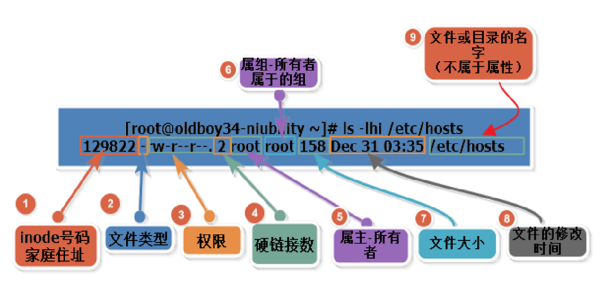
文件所有者的权限,文件所属组的权限 和其他用户对文件的权限
     文件                    目录
r    读取文件的内容           查看目录的内容(需要x权限)
w    修改文件的内容(需要r)    在目录下面创建 删除文件(需要x权限)
x    执行文件(需要r)          进入到目录的权限(cd)

删除一个文件,需要看是否对该目录是否有wx权限
1.网站是通过傀儡用户运行的www
2.网站用户上传目录,file 644 dir 755 www www
3.除了上传目录之外 file 644 dir 755 root root
根据umask计算出系统默认的权限规则
1.对于目录 777直接减去umask
2.对于文件 666减去umask的值,如果umask某一位上面是奇数,减完umask之后奇数位需要+1
# umask 032  可以直接更改  临时     永久  /etc/profile
文件系统属性(文件属性)
常用的   #a=====append 只能追加
         #i=====immutable 不可更改


[root@online01 ~]# lsattr oldboy.txt
-------------e- oldboy.txt
[root@online01 ~]# chattr +a oldboy.txt
[root@online01 ~]# lsattr oldboy.txt
-----a-------e- oldboy.txt
[root@online01 ~]# cat oldboy.txt
hello.txt
[root@online01 ~]# echo hello >>oldboy.txt
[root@online01 ~]# cat oldboy.txt
hello.txt
hello
[root@online01 ~]# echo hello >oldboy.txt
-bash: oldboy.txt: Operation not permitted
[root@online01 ~]# rm -f oldboy.txt
rm: cannot remove `oldboy.txt': Operation not permitted
[root@online01 ~]# mv oldboy.txt  /tmp/
mv: cannot move `oldboy.txt' to `/tmp/oldboy.txt': Operation not permitted
[root@ace ~]# stat 123,txt
  File: `123,txt'
  Size: 200           Blocks: 8          IO Block: 4096   regular file
Device: 803h/2051d    Inode: 654110      Links: 1
Access: (0644/-rw-r--r--)  Uid: (    0/    root)   Gid: (    0/    root)
Access: 2019-01-05 20:08:04.410631441 +0800                #    access time        文件的访问时间
Modify: 2019-01-05 20:07:56.730630296 +0800                #      modified time      文件的修改时间
Change: 2019-01-05 20:07:56.730630296 +0800                #    change time        文件属性的改变时间

atime随着访问就变,造成大量的写磁盘
解决::--->只有ctime变了以后atime才变
[root@oldboyedu01-nb ~]# file /etc/hosts  # 查看文件是什么类型(普通文件、二进制文件、文本文件、数据文件)不会因后缀更改而变化
/etc/hosts: ASCII text
文件名不是文件的属性
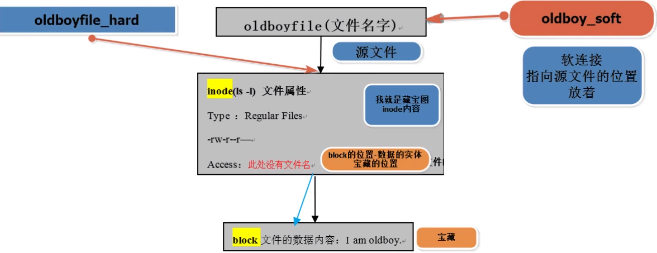
inode是用来存放文件属性的。         格式化创建文件系统的自动创建。
                      ls -i 查看文件的inode号码
                      df -i 查看inode使用情况
block是用来实际存放数据的位置。    格式化创建文件系统的时候自动创建。
                      ls -lh查看文件的大小
                      df -h 查看磁盘的使用情况
inode特点:
存放着block的位置(指向block的指针)
inode节点号要相同的文件,护卫硬链接文件
inode在一个文件系统(分区),是唯一的。
block特点:
block是实际存放数据的位置
block 4k(centos 6.x) 1k 8k
创建大文件会占用多个block,如果文件很小1k,4k剩余的空间会被浪费。
创建一个非空文件要占用一个inode和至少1个block
每读取一个block就会消耗一次磁盘I/O(input/output 磁盘读写)。
[root@oldboyedu01-nb oldboy]# lsof |grep delete
rsyslogd  1250      root    2w      REG                8,3 7803924480     130420 /var/log/secure (deleted)
软件名称                                                   文件大小              文件名

 (deleted)---标记 这个文件的硬链接数量为0,进程调用数不为0。
linux正则匹配
支持正则匹配的有 grep sed awk
基础正则  (basic regular expression)BRE                   grep   /sed    /   awk  支持
^ $ . *  []   [^]
*   0次及以上 (贪婪匹配)
.任意一个字符,包括空格(可以匹配多次),不包含字符  grep是一个字符一个字符匹配,通过-o参数查看
扩展正则(extended  regular expression)ERE           egrep / sed -r  / awk 支持

|    +    {}     ()         ?
egrep 'oldboy|linux' oldboy.txt
egrep 'oldb(o|e)y' oldboy.txt
()  括号中的内容相当于是一个整体 后向引用(反向引用)
echo 123456|sed -r 's#(.*)#<\1#g'
\n 回车换行
linux命令行快捷键
Ctrl + a   把光标移动到《行首》
Ctrl + e   把光标移动到《行尾》

Ctrl + c   取消当前的操作 cancel
Ctrl + d   logout命令(当前行没有任何内容,退出当前用户)
Ctrl + l  (小写字母L) 清除屏幕内容 clear

Ctrl + u   剪切光标所在位置到行首的内容
Ctrl + k   剪切光标所在位置到行尾的内容
ctrl + y   粘贴

ctrl + →   把光标向右移动一个单词
ctrl + ←   把光标向左移动一个单词


history |grep awk

Ctrl + r search 搜索历史命令,继续搜索
netstat(ss-centos7) 显示主机的端口与服务网络连接状态,ESTABLISHED表示建立连接的状态,数量即表示网络连接数lsof 显示主机的端口与服务网络连接状态。

 浙公网安备 33010602011771号