
CSS04下-清除浮动
清除浮动5种方法
1、直接设置父元素高度
➢ 特点: • 优点:简单粗暴,方便
• 缺点:有些布局中不能固定父元素高度。如:新闻列表、京东推荐模块
<!DOCTYPE html>
<html lang="en">
<head>
<meta charset="UTF-8">
<meta http-equiv="X-UA-Compatible" content="IE=edge">
<meta name="viewport" content="width=device-width, initial-scale=1.0">
<title>Document</title>
<style>
.top {
margin: 0 auto;
width: 1000px;
/* height: 300px; */
background-color: pink;
}
.bottom {
height: 100px;
background-color: green;
}
.left {
float: left;
width: 200px;
height: 300px;
background-color: #ccc;
}
.right {
float: right;
width: 790px;
height: 300px;
background-color: skyblue;
}
</style>
</head>
<body>
<!-- 父子级标签, 子级浮动, 父级没有高度, 后面的标准流盒子会受影响, 显示到上面的位置 -->
<div class="top">
<div class="left"></div>
<div class="right"></div>
</div>
<div class="bottom"></div>
</body>
</html>
给高前
给高后

2、额外标签法
➢ 操作: 1. 在父元素内容的最后添加一个块级元素
2. 给添加的块级元素设置 clear:both
➢ 特点: • 缺点:会在页面中添加额外的标签,会让页面的HTML结构变得复杂
<!DOCTYPE html>
<html lang="en">
<head>
<meta charset="UTF-8">
<meta http-equiv="X-UA-Compatible" content="IE=edge">
<meta name="viewport" content="width=device-width, initial-scale=1.0">
<title>Document</title>
<style>
.top {
margin: 0 auto;
width: 1000px;
/* height: 300px; */
background-color: pink;
}
.bottom {
height: 100px;
background-color: green;
}
.left {
float: left;
width: 200px;
height: 300px;
background-color: #ccc;
}
.right {
float: right;
width: 790px;
height: 300px;
background-color: skyblue;
}
.clearfix {
/* 清除左右两侧浮动的影响 */
clear: both;
}
</style>
</head>
<body>
<!-- 父子级标签, 子级浮动, 父级没有高度, 后面的标准流盒子会受影响, 显示到上面的位置 -->
<div class="top">
<div class="left"></div>
<div class="right"></div>
<div class="clearfix"></div>
</div>
<div class="bottom"></div>
</body>
</html>
3、单伪元素清除法
➢ 操作:用伪元素替代了额外标签
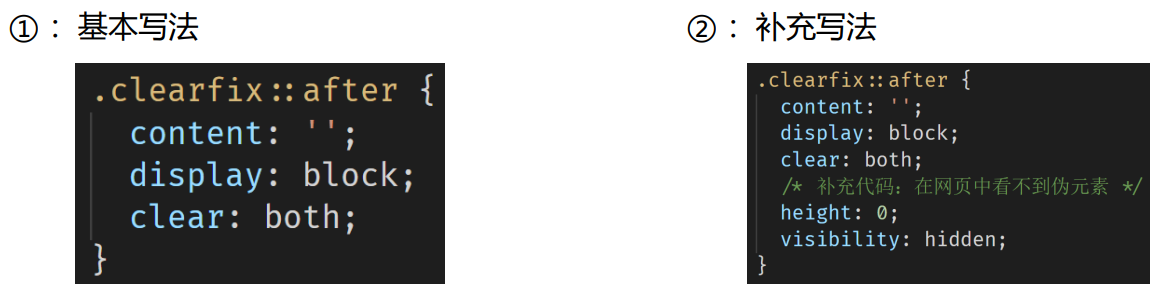
特点: • 优点:项目中使用,直接给标签加类即可清除浮动
<!DOCTYPE html>
<html lang="en">
<head>
<meta charset="UTF-8">
<meta http-equiv="X-UA-Compatible" content="IE=edge">
<meta name="viewport" content="width=device-width, initial-scale=1.0">
<title>Document</title>
<style>
.top {
margin: 0 auto;
width: 1000px;
/* height: 300px; */
background-color: pink;
}
.bottom {
height: 100px;
background-color: green;
}
.left {
float: left;
width: 200px;
height: 300px;
background-color: #ccc;
}
.right {
float: right;
width: 790px;
height: 300px;
background-color: skyblue;
}
/* 单伪元素清除浮动 和 额外标签法原理是一样的 */
.clearfix::after {
content: '';
/* 伪元素添加的标签是行内, 要求块 */
display: block;
clear: both;
/* 为了兼容性 */
height: 0;
visibility: hidden;
}
</style>
</head>
<body>
<!-- 父子级标签, 子级浮动, 父级没有高度, 后面的标准流盒子会受影响, 显示到上面的位置 -->
<div class="top clearfix">
<div class="left"></div>
<div class="right"></div>
<!-- 通过css 添加标签 -->
</div>
<div class="bottom"></div>
</body>
</html>
4、双伪元素清除法
操作:
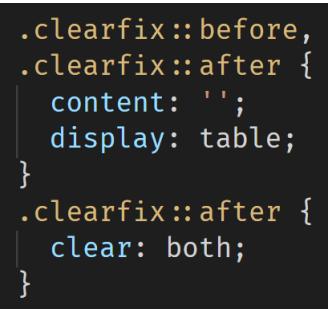
➢ 特点: • 优点:项目中使用,直接给标签加类即可清除浮动
<!DOCTYPE html>
<html lang="en">
<head>
<meta charset="UTF-8">
<meta http-equiv="X-UA-Compatible" content="IE=edge">
<meta name="viewport" content="width=device-width, initial-scale=1.0">
<title>Document</title>
<style>
.top {
margin: 0 auto;
width: 1000px;
/* height: 300px; */
background-color: pink;
}
.bottom {
height: 100px;
background-color: green;
}
.left {
float: left;
width: 200px;
height: 300px;
background-color: #ccc;
}
.right {
float: right;
width: 790px;
height: 300px;
background-color: skyblue;
}
/* .clearfix::before 作用: 解决外边距塌陷问题
外边距塌陷: 父子标签, 都是块级, 子级加margin会影响父级的位置
*/
/* 清除浮动 */
.clearfix::before,
.clearfix::after {
content: '';
display: table;
}
/* 真正清除浮动的标签 */
.clearfix::after {
/* content: '';
display: table; */
clear: both;
}
</style>
</head>
<body>
<!-- 父子级标签, 子级浮动, 父级没有高度, 后面的标准流盒子会受影响, 显示到上面的位置 -->
<div class="top clearfix">
<div class="left"></div>
<div class="right"></div>
</div>
<div class="bottom"></div>
</body>
</html>
5、给父元素设置overflow : hidden
<!DOCTYPE html>
<html lang="en">
<head>
<meta charset="UTF-8">
<meta http-equiv="X-UA-Compatible" content="IE=edge">
<meta name="viewport" content="width=device-width, initial-scale=1.0">
<title>Document</title>
<style>
.top {
margin: 0 auto;
width: 1000px;
/* height: 300px; */
background-color: pink;
overflow: hidden;
}
.bottom {
height: 100px;
background-color: green;
}
.left {
float: left;
width: 200px;
height: 300px;
background-color: #ccc;
}
.right {
float: right;
width: 790px;
height: 300px;
background-color: skyblue;
}
</style>
</head>
<body>
<!-- 父子级标签, 子级浮动, 父级没有高度, 后面的标准流盒子会受影响, 显示到上面的位置 -->
<div class="top">
<div class="left"></div>
<div class="right"></div>
</div>
<div class="bottom"></div>
</body>
</html>

 浙公网安备 33010602011771号