
Linux常用组件安装【持久化软件】
一. jdk安装
1. 查看版本
1 yum -y list java*
2. 选择并安装jdk
1 yum install -y java-1.8.0-openjdk.x86_64
3. 检查
1 java -version
二.postgresql安装
1. 安装
参考链接:https://www.postgresql.org/download/linux/redhat/
sudo yum install -y https://download.postgresql.org/pub/repos/yum/reporpms/EL-7-x86_64/pgdg-redhat-repo-latest.noarch.rpm
sudo yum install -y postgresql14-server
sudo /usr/pgsql-14/bin/postgresql-14-setup initdb
sudo systemctl enable postgresql-14
sudo systemctl start postgresql-14
2. 连接
1 psql -h 192.168.95.128 -p 5432 postgres postgres
3. 重启
1 sudo systemctl restart postgresql-14
4. 配置设置(其它ip可以访问)【yum安装目录】
/var/lib/pgsql/14/data
vim pg_hba.conf

1 vim postgresql.conf

1 重启 sudo systemctl restart postgresql-14
5. Navicat连接
5.1 查看防火墙开放的端口
firewall-cmd --zone=public --list-ports
5.2 添加需要开放的端口
firewall-cmd --zone=public --add-port=5432/tcp --permanent 【不带permanent,重启后该设置失效】
5.3 重启
firewall-cmd --reload
6. 安装扩展插件(pgcrypto:加密解密插件)
执行 yum install postgresql14-contrib -y 【注意版本匹配【14】】
Navicat执行:CREATE EXTENSION pgcrypto;
三.安装redis
1. 下载
1 wget http://download.redis.io/releases/redis-5.0.7.tar.gz
2. 解压
tar -zvxf redis-5.0.7.tar.gz
3. 安装gcc
yum -y install gcc
4. 编译
1 make distclean && make
5. 安装
make PREFIX=/usr/local/software/redis-5.0.7 install
【PREFIX=】这个关键字的作用是安装的时候用于指定安装后的程序bin存放的路径
6. 启动redis
/usr/local/redis/bin/redis-server ./redis.conf
./bin/redis-cli stop  //停止redis
7. 连接redis
1 ./bin/redis-cli
8. 测试
1 set testkey01 1
9. 添加端口
firewall-cmd --zone=public --add-port=6379/tcp --permanent
firewall-cmd --zone=public --list-ports
firewall-cmd --reload
10. 配置文件修改(其它机器访问该redis)
vim redis.conf
protected-mode no
daemonize yes   //守护进程后台运行
loglevel verbose   //修改日志级别
requirepass root  //修改密码
# bind 127.0.0.1  //注释掉只监听本机的ip
==============================================================================
10.搭建主备环境
10.1 搭建两个redis
修改配置文件:
1. 主的配置文件redis.conf
daemonize  yes
requirepass 123456
pidfile   /var/run/redis-8000.pid
logfile   /var/log/redis/redis-8000.log
port   8000
2. 从的配置文件
port  8001
daemonize  yes
requirepass 123456
masterauth 123456
pidfile   /var/run/redis-8000.pid
logfile   /var/log/redis/redis-8000.log
replicaof  192.168.68.110 8000
10.2 验证
主:set hh 7891
从:get hh
=============================================================================
11. 搭建集群环境
11.1 环境准备
1 需要准备6个单机的redis;
11.2 修改redis.conf
设置 1. cluster-enabled yes 2. port
11.3 编写启动脚本
cd redis01
./redis-server redis.conf
cd ..
cd redis02
./redis-server redis.conf
cd ..
cd redis03
./redis-server redis.conf
cd ..
cd redis04
./redis-server redis.conf
cd ..
cd redis05
./redis-server redis.conf
cd ..
cd redis06
./redis-server redis.conf
cd ..
1 chmod +x start-all.sh
11.4 启动

11.5 构建集群
1 redis01/bin/redis-cli --cluster create 192.168.95.128:7001 192.168.95.128:7002 192.168.95.128:7003 192.168.95.128:7004 192.168.95.128:7005 192.168.95.128:7006 --cluster-replicas 1

11.6 重启redis集群
(1)删除所有节点下的nodes.conf文件
(2)重启redis
(3)再次执行redis01/bin/redis-cli --cluster create 192.168.95.128:7001 192.168.95.128:7002 192.168.95.128:7003 192.168.95.128:7004 192.168.95.128:7005 192.168.95.128:7006 --cluster-replicas 1
四.Elasticsearch安装
1. 下载
1 https://www.elastic.co/cn/downloads/elasticsearch
2. 解压
1 tar -zxvf elasticsearch-6.8.8.tar.gz
3. 解决es强依赖jdk问题【es6.8.8版本不存在该问题】

cd /usr/local/elasticsearch688/bin
vim elasticsearch
############## 添加配置解决jdk版本问题 ##############
# 将jdk修改为es中自带jdk的配置目录
export JAVA_HOME=/usr/local/elasticsearch-7.13.2/jdk
export PATH=$JAVA_HOME/bin:$PATH

if [ -x "$JAVA_HOME/bin/java" ]; then
        JAVA="/usr/local/elasticsearch-7.13.2/jdk/bin/java"
else
        JAVA=`which java`
fi
4. 解决内存不足问题

vim /usr/local/elasticsearch688/config/jvm.options

默认配置如下:
-Xms2g
-Xmx2g
默认的配置占用内存太多了,调小一些:
-Xms256m
-Xmx256m
5. 创建专用用户启动ES(root用户不能直接启动es)

5.1 创建用户
1 useradd user-es
5.2 创建所属组
1 chown user-es:user-es -R /usr/local/elasticsearch688
5.3 切换user-es用户
1 su - user-es
5.4 启动es
1 /usr/local/elasticsearch688/bin/elasticsearch
埋坑:
启动报错:

坑【1】的解决办法:
vi /etc/security/limits.conf
//在文件末尾添加下面的参数值
* soft nofile 65536
* hard nofile 131072
坑【2】的解决办法:
vim /etc/sysctl.conf
//在文件末尾添加下面的参数值
vm.max_map_count=655360
5.5 执行 curl 127.0.0.1:9200
{
  "name" : "FyDCa4X",
  "cluster_name" : "elasticsearch",
  "cluster_uuid" : "kQaohzb3T5qkdK1Qp4KntQ",
  "version" : {
    "number" : "6.8.8",
    "build_flavor" : "default",
    "build_type" : "tar",
    "build_hash" : "2f4c224",
    "build_date" : "2020-03-18T23:22:18.622755Z",
    "build_snapshot" : false,
    "lucene_version" : "7.7.2",
    "minimum_wire_compatibility_version" : "5.6.0",
    "minimum_index_compatibility_version" : "5.0.0"
  },
  "tagline" : "You Know, for Search"
}
6. elasticsearch-head连接es
修改配置文件:
vim /usr/local/elasticsearch688/config/elasticsearch.yml
//在文件末尾添加如下内容
http.cors.enabled: true
http.cors.allow-origin: "*"
http.cors.allow-methods: OPTIONS, HEAD, GET, POST, PUT, DELETE
http.cors.allow-headers: "X-Requested-With, Content-Type, Content-Length, X-User"
network.host: 0.0.0.0
重启es和es-head

====================================================================================
7. 集群搭建
7.1 环境准备
准备3台单机的es
7.2 修改config/elasticsearch.yml配置文件 【注意版本不同,使用的参数不一样,修改3个节点的配置文件】

7.3 启动es集群服务
7.4 连接

五. FastDFS安装
1. 安装依赖库
yum install gcc libevent libevent-devel -y
2. 安装libfastcommon 库
libfastcommon 库是 FastDFS 文件系统运行需要的公共 C 语言函数库
2.1 下载地址:
https://github.com/happyfish100/libfastcommon/tree/V1.0.36 【注意版本】
2.2 解压:
unzip libfastcommon-1.0.36.zip
2.3 编译:
./make.sh
2.4 安装:
./make.sh install
3. 安装fastDFS
3.1 下载地址:
https://github.com/happyfish100/fastdfs/archive/V5.11.tar.gz 【注意版本】
3.2 解压:
tar -zxvf fastdfs-5.11.tar.gz
3.3 编译:
./make.sh
3.4 安装:
./make.sh install
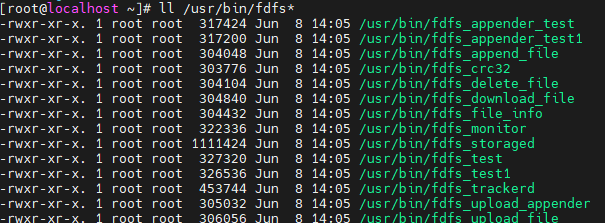
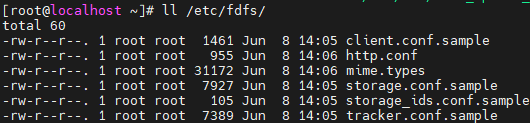
4. 检查编译安装后的文件
ll /usr/bin/fdfs*
ll /etc/fdfs/
cd /survey/storeSoftware/fastDFS/fastdfs-5.11/conf
执行:
cp http.conf /etc/fdfs/
cp mime.types /etc/fdfs/
5. FastDFS配置
5.1 删除/etc/fdfs/目录下配置文件的后缀名.sample的文件
5.2 修改tracker.conf文件 【配置文件中不要出现中文】
vim /survey/storeSoftware/fastDFS/fastdfs-5.11/conf/tracker.conf

//文件末尾添加如下内容
base_path=/opt/fastdfs/tracker              【#配置tracker存储数据的目录,需要手动创建】
5.3 修改storage.conf文件
vim /survey/storeSoftware/fastDFS/fastdfs-5.11/conf/storage.conf

//文件末尾添加如下内容
base_path=/opt/fastdfs/storage
store_path_count=1
store_path0=/opt/fastdfs/storage/files
tracker_server=192.168.95.128:22122    【不能使用127.0.0.1:22122, 注意把默认的tracker_server设置注释掉】
5.4 拷贝配置文件并创建目录
cp  /survey/storeSoftware/fastDFS/fastdfs-5.11/conf/tracker.conf  /survey/storeSoftware/fastDFS/fastdfs-5.11/conf/storage.conf  /etc/fdfs/

创建目录:
/opt/fastdfs/tracker       /opt/fastdfs/storage        /opt/fastdfs/storage/files
6. 启动FastDFS
6.1 启动tracker服务 【任意目录执行】
fdfs_trackerd /etc/fdfs/tracker.conf
6.2 启动storage服务
fdfs_storaged /etc/fdfs/storage.conf
6.3 查看storage是否已经注册到了tracker下
fdfs_monitor /etc/fdfs/storage.conf

7. FastDFS重启和关闭
fdfs_trackerd /etc/fdfs/tracker.conf restart
fdfs_storaged /etc/fdfs/storage.conf restart
fdfs_trackerd /etc/fdfs/tracker.conf stop
fdfs_storaged /etc/fdfs/storage.conf stop
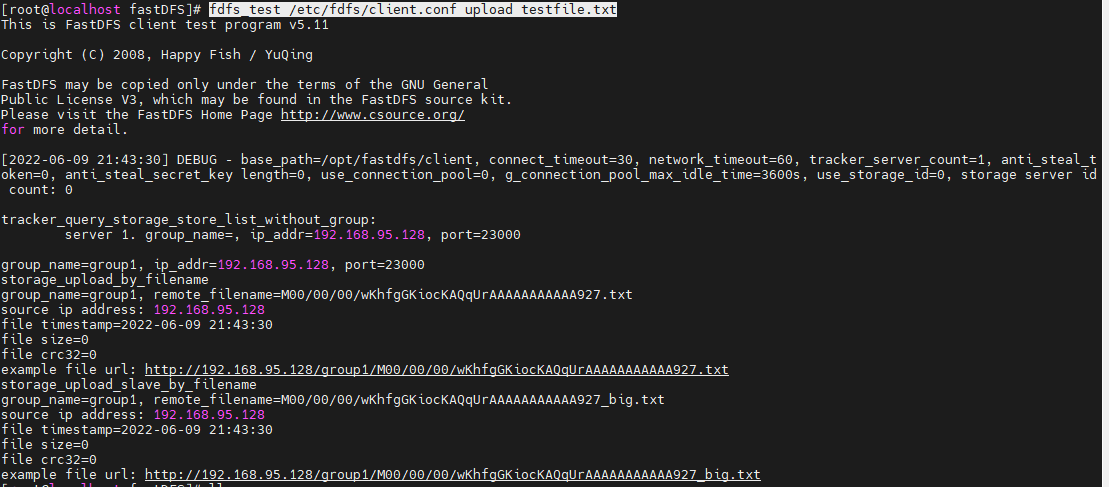
8. 使用fdfs_test进行测试
vim /survey/storeSoftware/fastDFS/fastdfs-5.11/conf/client.conf      //文件末尾添加如下内容
base_path=/opt/fastdfs/client         # 存放日志的目录,需要手动创建
tracker_server=192.168.179.128:22122          【不能使用127.0.0.1:22122, 注意把默认的tracker_server设置注释掉】
cp  /survey/storeSoftware/fastDFS/fastdfs-5.11/conf/client.conf  /etc/fdfs/
创建测试文件:
touch testfile.txt
fdfs_test /etc/fdfs/client.conf upload testfile.txt

 浙公网安备 33010602011771号