
【底部】导航键开发
tabbar图标:
首页、分类、购物车、我的------>选中/未选中
应用方法:1.在static文件下创建tabbar
2.在矢量图标库中找到自己需要的tabbar图标,下载-->PNG下载
3.将下载的tabbar图标放在项目的static文件夹中,并进行重命名
4.在页面下创建对应的页面
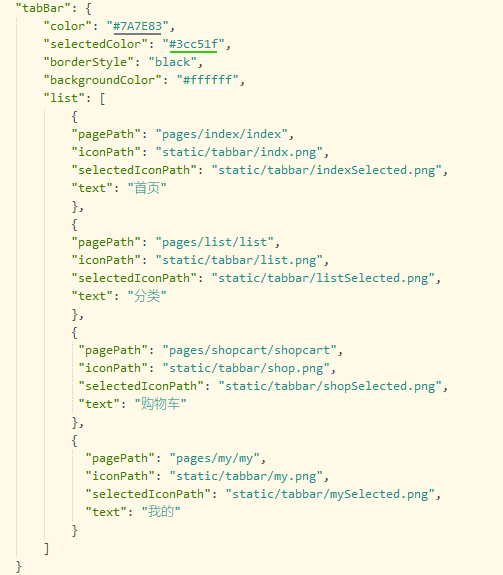
5.在pages.json文件下创建tabbar函数调用tabbar图标
"tabBar": {
"color": "#7A7E83",
"selectedColor": "#3cc51f",
"borderStyle": "black",
"backgroundColor": "#ffffff",
"list": [
{
"pagePath": "pages/index/index",
"iconPath": "static/tabbar/indx.png",
"selectedIconPath": "static/tabbar/indexSelected.png",
"text": "首页"
},
{
"pagePath": "pages/list/list",
"iconPath": "static/tabbar/list.png",
"selectedIconPath": "static/tabbar/listSelected.png",
"text": "分类"
},
{
"pagePath": "pages/shopcart/shopcart",
"iconPath": "static/tabbar/shop.png",
"selectedIconPath": "static/tabbar/shopSelected.png",
"text": "购物车"
},
{
"pagePath": "pages/my/my",
"iconPath": "static/tabbar/my.png",
"selectedIconPath": "static/tabbar/mySelected.png",
"text": "我的"
}
]
}
若对tabbar图标进行相应的调整参考uni-app官网 (dcloud.net.cn)

 浙公网安备 33010602011771号