

开发工具篇 - 持续连载中
@ 20240710 & lth
编写时间:2025-07-10
更新时间:2025-11-04

使用语言:python
包管理:miniconda(miniforge) & uv
IDE:VScode
交互开发环境:jupyter
代码管理:github
打包工具: pyinstaller、Nuitka
迁移部署:docker、podman
常用包:
  空间数据处理:gdal、geopandas、ratserio
  效率:threading、multiprocessing
  应用框架:flask
常用工具:
  开源远程及数据库工具:HEXHUB   --免安装 https://www.hexhub.cn/
协作
1. Conda 一致地管理所有依赖关系,环境隔离
2. VS Code 中编写代码,具有智能完成和调试
3. JupyterLab 在笔记本中实验和可视化数据
4. Git 跟踪所有更改并实现协作
5. Docker 确保可重现的环境和轻松部署
1. Conda
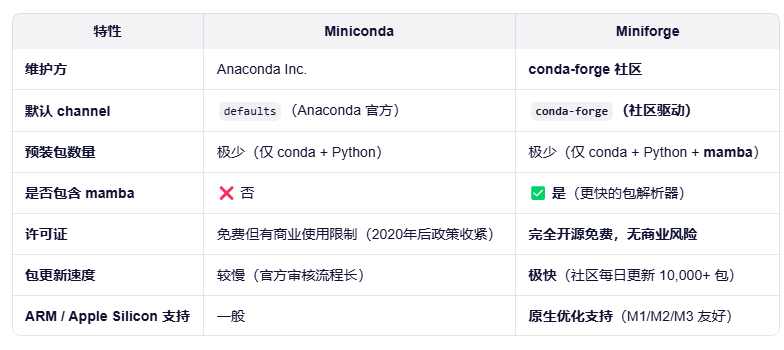
推荐使用miniconda(miniforge)
miniforge : https://conda-forge.org/miniforge/
环境配置
安装完成后,您可以关闭 PowerShell 窗口。转到开始菜单并搜索“Anaconda Prompt”以打开新的终端

------------------------------Windows PowerShell-------------------------------
# 下载安装
curl https://repo.anaconda.com/miniconda/Miniconda3-latest-Windows-x86_64.exe - o .\miniconda.exe
start /wait "" .\miniconda.exe /S
del .\miniconda.exe

# 初始化
source ~/miniconda3/bin/activate
conda init --all

------------------------------------Linux--------------------------------------
# 下载安装
mkdir -p ~/miniconda3
wget https://repo.anaconda.com/miniconda/Miniconda3-latest-Linux-x86_64.sh -O ~/ miniconda3/miniconda.sh
bash ~/miniconda3/miniconda.sh -b -u -p ~/miniconda3
rm ~/miniconda3/miniconda.sh

------------------------------------初始化--------------------------------------
source ~/miniconda3/bin/activate
conda init --all
conda init cmd.exe

# 验证安装结果 & 基础配置
conda --version
conda info
conda config --set auto_activate_base false
conda install -n base mamba -c conda-forge
常用命令
# 创建一个名为'geo'的新环境,包含Python 3.12
conda create -n geo python=3.12

# 激活环境
conda activate geo

# 在base环境中安装mamba以便更快的包管理
conda install -n base mamba -c conda-forge

# 安装地理空间编程的必需包,使用mamba加速
mamba install -c conda-forge pygis

# 导出包
conda env export -n myenv > myenv.yml

# 根据yml新建环境
conda env create -f environment.yml -n newname
包安装-UV
进入conda或自带的python环境,使用pip安装,uv是以项目的维度进行环境管理,uv 可以比 pip 快 10-100 倍进行包安装,实际没有
pip install uv

# 安装包
uv pip install jupyterlab leafmap

# 从requirements文件安装
uv pip install -r requirements.txt
2. VScode
轻量化代码编辑器,支持docker、remote-ssh扩展
代码质量和格式化:
• Black Formatter:遵循 PEP 8 标准的自动 Python 代码格式化
• Pylint:高级 Python 代码检查,用于捕获错误和执行编码标准
• autoDocstring:自动为您的函数生成 Python 文档字符串
• Prettier:JavaScript、JSON、CSS 等的代码格式化程序

开发工具:
• Docker:VS Code 的 Docker 支持
• IntelliCode:AI 辅助代码补全和建议
• CodeSnap:为文档生成美丽的代码截图
3. JupyterLab
交互式开发环境
环境配置
conda create -n geo python=3.12
conda activate geo
conda install -c conda-forge jupyterlab leafmap
常用命令
# 启动
jupyter lab
# 在特定端口启动(如果默认端口忙时有用)
jupyter lab --port=8889
# 启动时不自动打开浏览器(对远程服务器有用)
jupyter lab --no-browser --port=8888
4. Git
分布式版本控制系统
环境配置
# 注册
	https://github.com

# 安装
	https://git-scm.com/downloads
	Windows:下载并运行安装程序 .exe 文件
	Linux(Debian/Ubuntu): sudo apt install git

# 检查 Git 版本
	git --version

# 检查安装位置
	which git # macOS/Linux
	where git # Windows

# 配置
	git config --global user.name "您的全名"
	git config --global user.email "your.github@email.com

# 工作流
	工作目录 → 暂存区 → 本地仓库 → GitHub
	(编辑) (git add) (git commit) (git push)
使用示例
克隆远程仓库
# 1. 在 GitHub 上新建一个空仓库(比如叫 my-project)
# 2. 然后在本地执行以下命令:

git clone https://github.com/your-username/my-project.git

# 3. 进入项目目录
cd my-project

# 4. 添加文件、提交更改
git add . 或 git add analysis.py
git commit -m "Initial commit"

# 5. 推送回远程仓库
git push
本地初始化
# 1. 创建项目目录并进入
mkdir my-project
cd my-project

# 2. 初始化本地 Git 仓库
git init

# 3. 添加文件并提交
git add .
git commit -m "Initial commit"

# 4. 添加远程仓库地址
git remote add origin https://github.com/your-username/my-project.git

# 5. 推送本地分支到远程(首次需指定默认上游分支)
git push -u origin master   # 或 main,取决于你的默认分支名
5. Docker
提供整个开发环境
环境配置
------------------------------Windows-----------------------------
1. 转到 https://docker.github.net.cn/get-docker/
2. 下载适合您操作系统的 Docker Desktop
3. 运行安装程序并按照设置说明操作 https://www.docker.com
4. 安装后,Docker Desktop 将自动启动
5. 您将在系统托盘(Windows)或菜单栏(macOS)中看到 Docker 图标

------------------------------liunx-------------------------------
参考:https://docs.docker.com/desktop/setup/install/linux/

# 验证
docker --version
基础命令
# 拉取镜像
docker pull giswqs/pygis:book

# 命令行参数启动容器
docker run -it -p 8888:8888 -v $(pwd):/app/workspace giswqs/pygis:book
  参数解释
  • docker run :启动新容器
  • -it :使容器交互式(您可以向其输入命令)
  • -p 8888:8888 :将容器内的端口 8888 连接到您计算机上的端口 8888(用于 Jupyter)
  • -v $(pwd):/app/workspace :与容器共享您的当前目录
  • giswqs/pygis:book :要使用的 Docker 镜像名称和标签

# 运行容器内的要用
http://127.0.0.1:8888/lab?token=your_token_here

# 停止容器
docker stop container_name

# 列出镜像
docker images

# 列出容器
docker ps  列出所有包括未启动:docker ps -a

# 移除镜像或容器
docker rm name
6. Google Colab
基于云的 Jupyter 笔记本环境,提供对计算资源的免费访问,包括GPU 和 TPU
教学示例:[Google Colab](https://colab.research.google.com/github/giswqs/intro-gispro/blob/main)
个人:[GIS_Learning.ipynb - Colab](https://colab.research.google.com/drive/1yF-qBq2LLjIuyvJLdcG6M8WwVXCbpArF#scrollTo=pkS4GLX6DcH1)
7. 打包工具比较
pyinstaller、Nuitka
pyinstaller打包一般不会报错,但是臃肿,打包时间较短,打包后程序运行慢,体积大
Nuitka打包注意依赖的版本不要用最新的QT包,然后打包时间较长,但是会用C编译源码,打包后程序运行快,体积小
8. 数据库工具duckdb
This book is designed for GIS analysts, data scientists, and spatial developers who want to leverage DuckDB for their geospatial workflows. Whether you're transitioning from traditional GIS tools, looking to handle larger datasets more efficiently, or seeking to integrate spatial analysis into modern data pipelines, this book provides the practical guidance you need. A basic understanding of spatial concepts is helpful, but no prior DuckDB or SQL experience is required.
本书专为希望利用 DuckDB 进行地理空间工作流的 GIS 分析师、数据科学家和空间开发者设计。无论您是从传统 GIS 工具过渡过来,希望更高效地处理大型数据集,还是寻求将空间分析集成到现代数据管道中,本书都将为您提供所需的实用指导。对空间概念有基本了解将有所帮助,但无需具备 DuckDB 或 SQL 的先验经验。

What You Will Learn:  您将学到什么:

Install and configure DuckDB with the spatial extension
安装和配置带空间扩展的 DuckDB
Write and optimize SQL queries for spatial data operations
编写和优化用于空间数据操作的 SQL 查询
Integrate DuckDB with Python, Pandas, and Polars
将 DuckDB 与 Python、Pandas 和 Polars 集成
Import and export geospatial formats: Shapefile, GeoJSON, GeoParquet, PMTiles
导入和导出地理空间格式:Shapefile、GeoJSON、GeoParquet、PMTiles
Perform geometry operations, projections, and measurements
执行几何运算、投影和测量
Run spatial joins, point-in-polygon, and nearest-neighbor queries
运行空间连接、点在多边形内和最近邻查询
Visualize data interactively using Leafmap and Jupyter Notebooks
使用 Leafmap 和 Jupyter Notebooks 进行交互式数据可视化
Analyze large-scale cloud-native datasets using PMTiles
使用 PMTiles 分析大规模云原生数据集
Work with case studies on wetlands, buildings, and mobility data
处理湿地、建筑物和移动数据的案例研究
Build dynamic dashboards with Solara
使用 Solara 构建动态仪表板
Optimize performance for large-scale geospatial processing
优化大规模地理空间处理的性能
Leverage GDAL for advanced format support and conversions
利用 GDAL 实现高级格式支持和转换
Key Features:  主要特点:

Hands-on, example-driven approach with fully working code
实践性强、案例驱动的教学方法,附带完整可运行的代码
Chapter-end exercises to reinforce learning
章节末尾练习,强化学习效果
Real-world datasets and case studies throughout
贯穿全书,使用真实世界数据集和案例研究
Seamless Python ecosystem integration (Leafmap, Pandas, GeoPandas)
无缝集成 Python 生态系统(Leafmap、Pandas、GeoPandas)
Comprehensive coverage of DuckDB 1.4.x spatial features
全面覆盖 DuckDB 1.4.x 空间功能
Clear, step-by-step workflows for production-ready analytics
清晰、分步的生产级分析工作流
Expert troubleshooting tips and performance tuning insights
专家级故障排除技巧和性能调优见解
By the end of this book, you'll be able to confidently use DuckDB for your spatial data management and analysis workflows, processing datasets of any size, performing complex spatial analysis with ease, and building interactive, high-performance applications that reveal deep geospatial insights.
到本书结束时,您将能够自信地使用 DuckDB 进行您的空间数据管理和分析工作流程,处理任何大小的数据集,轻松执行复杂的空间分析,并构建交互式、高性能的应用程序,揭示深刻的地理空间洞察。

 浙公网安备 33010602011771号