


windows terminal在WIN10下配置使用
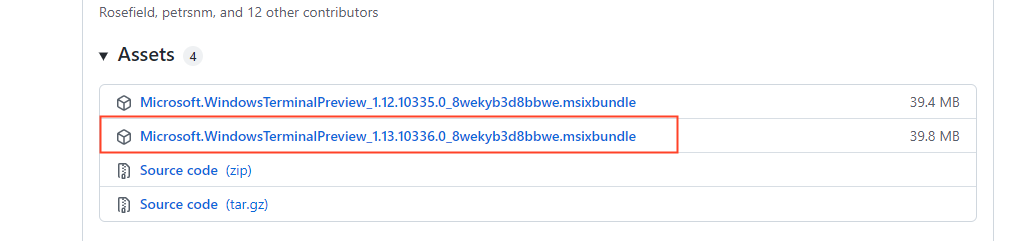
1、下载
https://github.com/microsoft/terminal/releases
可以选择下载最新的安装包,直接安装即可,安装完后,直接打开就可以使用了
2、将git bash配置到windows terminal中
1、先确认已安装GIT;
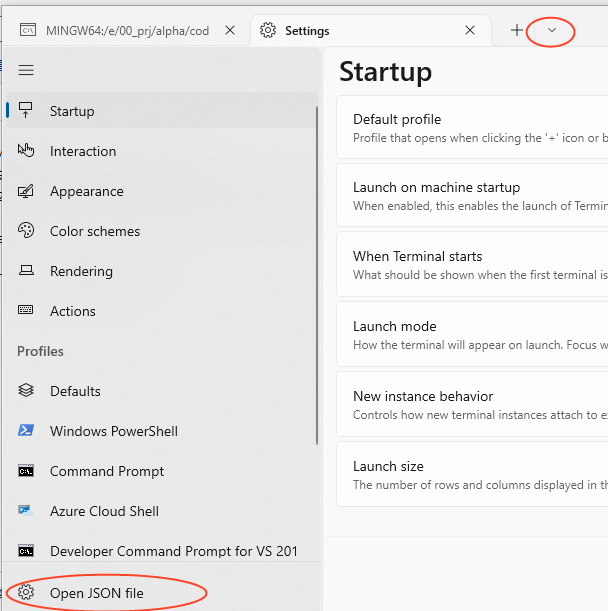
2、在打开的windows terminal的标题栏点击下拉箭头,选择"Settings",然后点击"Open JSON file"
3、在json文件中添加如下内容
{
"closeOnExit": "graceful",
"colorScheme": "Campbell",
"commandline": "C:\Program Files\Git\bin\bash.exe",
"cursorColor": "#FFFFFF",
"cursorShape": "bar",
"font":
{
"size": 11
},
"guid": "{0caa0dad-35be-5f56-a8ff-afceeeaa6109}",
"historySize": 9001,
"name": "git-bash",
"opacity": 75,
"padding": "0, 0, 0, 0",
"snapOnInput": true,
"startingDirectory": ".",
"useAcrylic": true
}
如图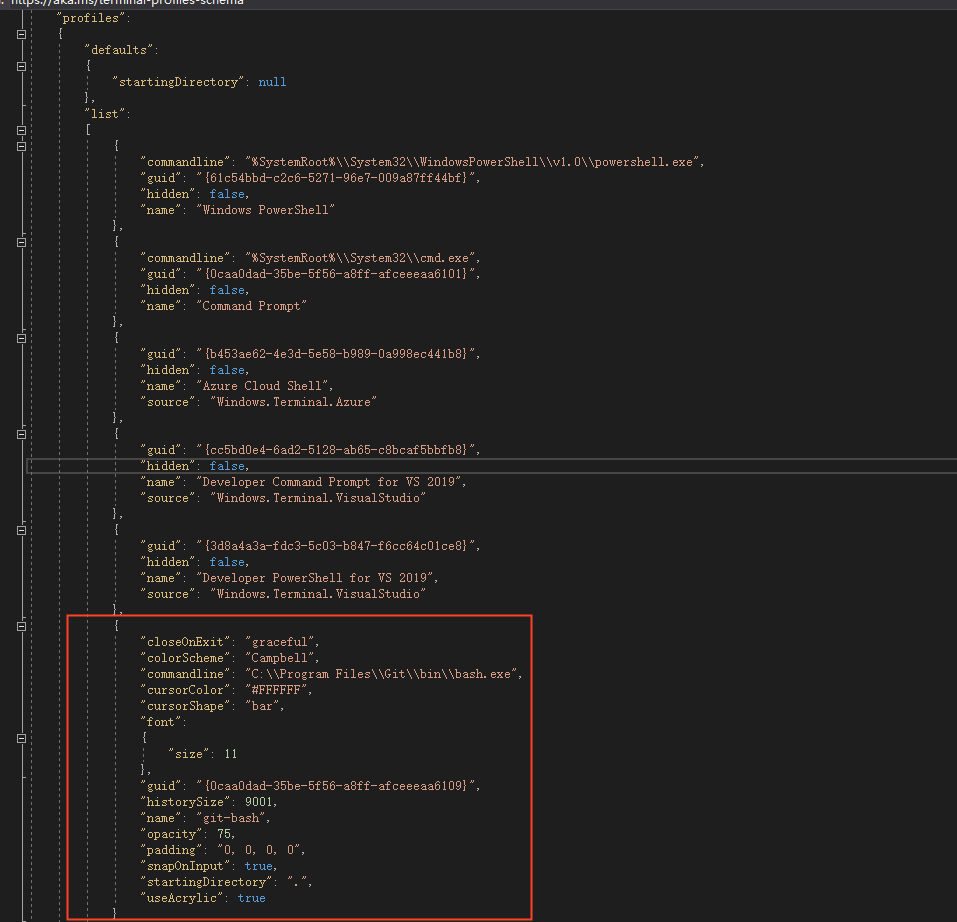
4、解决git bash在windows terminal下中文显示乱码:打开C:\Git\etc\bash.bashrc文件(具体看GIT安装的位置),然后在末尾添加该行export LC_ALL=en_US.UTF-8
5、添加右键打开windows terminal:Win+R打开运行,输入regedit打开注册表,在路径[HKEY_CLASSES_ROOT\Directory\Background\shell\下,添加一个项,可命名为windows terminal,修改数据,设置为Windows Terminal Here,设置的数据为右键时显示的文本,然后在该项下添加一个项command,修改值为C:\Users\joe.lihonglin\AppData\Local\Microsoft\WindowsApps\wt.exe,其中用户名根据使用者来定,保存即可,如下图



 浙公网安备 33010602011771号