app自动化测试之元素定位及常用方法
1.元素定位
1.1 安装Appium-inspector
必要的启动参数
{
    "appium:automationName":"UIAutomator2",
    "platformName":"Android"
}
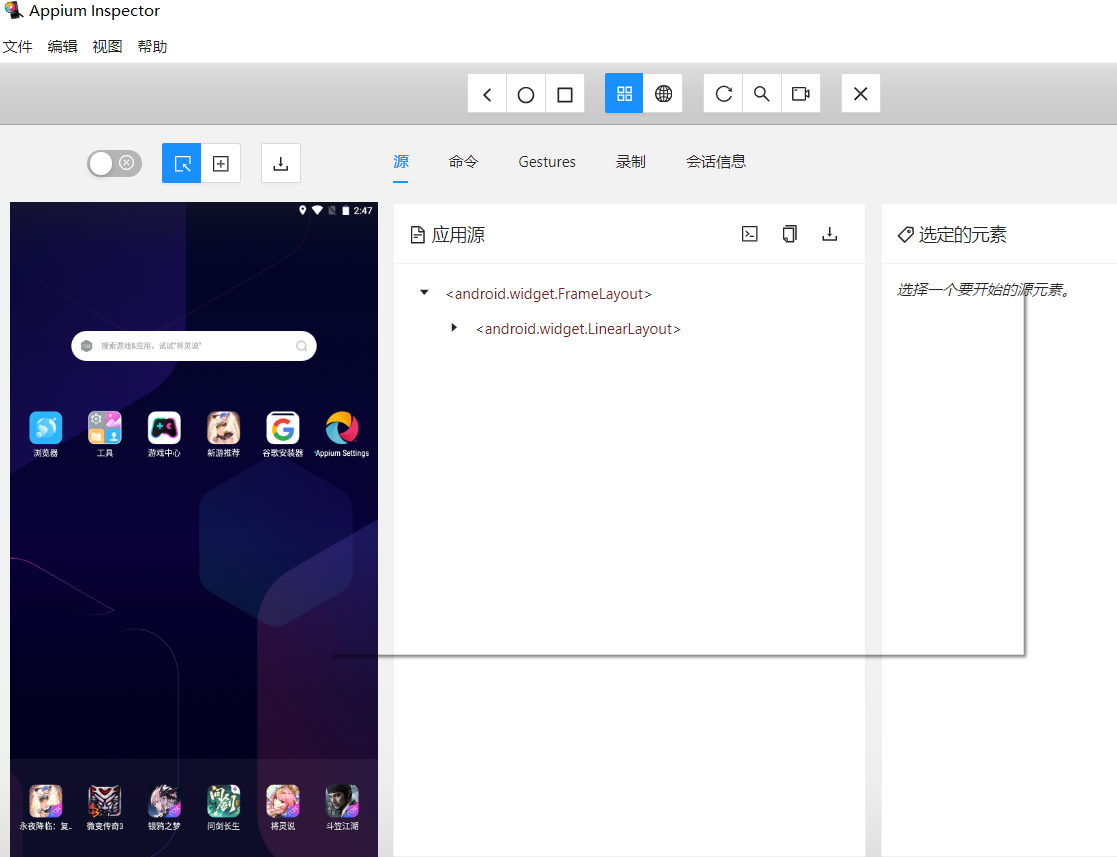
appium元素定位方式跟selenium是一样的
- 通过appium客户端启动服务器自动连接手机之后,进入对应的被测app以及界面
- app有不同的界面和不同的功能
- app的界面主要是以元素构成
- 需要对界面功能进入自动化测试就一定要定位该界面元素执行对应的操作方法
对手机app的界面进行元素定位的方式,同样跟selenium的定位方式一致
from appium import webdriver
from appium.options.android import UiAutomator2Options
from appium.webdriver.common.appiumby import AppiumBy
from selenium.webdriver.common.by import By


driver = webdriver.Remote(
    'http://127.0.0.1:4723',
    options=UiAutomator2Options()
)

driver.get_screenshot_as_file("page.png")
el_1 = driver.find_element(By.XPATH,'//android.widget.FrameLayout[@content-desc="文件夹:工具"]')
el_2 = driver.find_elements(AppiumBy.ACCESSIBILITY_ID,'文件夹:工具')[0]
el_3 = driver.find_element(AppiumBy.ANDROID_UIAUTOMATOR,'new UiSelector().text("浏览器")')
assert el_1 == el_2
assert el_1 != el_3
元素操作
 1 import time
 2
 3 from appium import webdriver
 4 from appium.options.android import UiAutomator2Options
 5 from appium.webdriver.common.appiumby import AppiumBy
 6 from selenium.webdriver import Keys
 7 from selenium.webdriver.common.by import By
 8 from appium.webdriver.extensions.keyboard import Keyboard
 9 from appium.webdriver.extensions.android.nativekey import AndroidKey
10
11
12 driver = webdriver.Remote(
13     'http://127.0.0.1:4723',
14     options=UiAutomator2Options()
15 )
16
17 driver.implicitly_wait(5)
18
19 el_1 = driver.find_element(AppiumBy.ANDROID_UIAUTOMATOR,'new UiSelector().text("浏览器")')
20 el_1.click() #点击浏览器启动
21 time.sleep(3)
22
23 #定位输入框
24 el_2 = driver.find_element(AppiumBy.ID,'com.android.browser:id/url')
25 #点击输入框
26 el_2.click()
27 #输入地址
28 el_2.send_keys("https://www.baidu.com")
29 #按下回车
30 driver.press_keycode(AndroidKey.ENTER) #Android中的回车和Web中的回车,不是一回事
31
32 time.sleep(3)
33 driver.get_screenshot_as_file("page.png") #截图记录
34 print('文本内容',el_2.text)
35 print('位置+大小',el_2.rect)
36 print('class属性',el_2.get_attribute('class'))
1.2八大定位方式
class By:
    """Set of supported locator strategies."""

    ID = "id"
    XPATH = "xpath"
    LINK_TEXT = "link text"
    PARTIAL_LINK_TEXT = "partial link text"
    NAME = "name"
    TAG_NAME = "tag name"
    CLASS_NAME = "class name"
    CSS_SELECTOR = "css selector"
1.3 一般定位方式
1.3.1 使用xpath定位
根据xpath具体的元素文本值进行手写定位元素
#通过手写xpath定位文本内容进行元素操作,可以解决90%以上的元素定位问题
driver.find_element(By.XPATH,"//*[@text='显示']").click()
1.3.2 通过id定位
前提是界面元素中的id是唯一的,如果有多个元素id一致的,name无法进行定位操作
解决方案:可以使用driver.find_elements(By.ID,"android:id/title").click(),返回列表,找到具体需要操作的元素对象的下标
#通过id进行定位元素
#driver.find_element(By.ID,'android:id/title').click()
#默认点击当前界面第1个id为android:id/title值的元素
print(driver.find_elements(By.ID,'android:id/title'))
driver.find_elements(By.ID,'android:id/title')[3].click()
print(len(driver.find_elements(By.ID,'android:id/title')))
1.3.3 通过class_name定位
前提是界面中元素class_name的值是唯一就可以单独定位操作,否则需要进行多个元素定位然后通过下标选中对应的元素
#通过class_name进行定位
driver.find_element(By.CLASS_NAME,'android.widget.ImageView').click()
1.3.4 通过坐标定位
使用tap方法来进行元素的坐标定位操作
tap([(x,y)],duration)
接收2个实参
- 第一个是列表代表界面的坐标值,坐标值必须是一个元组
- 第二个是对元素点击操作的持续时间,单位是毫秒
#通过坐标值定位
driver.tap([(954,881)],duration=100)
通过坐标定位元素有一定的局限性
- 优点:界面中任意的元素都可以通过坐标定位点击操作
- 缺点:当手机分辨率发生变化的时候,界面的具体元素坐标也会发生变化
一般使用场景是固定的机型或固定的分辨率情况下进行自动化测试使用坐标会更加高效
获取当前app以及界面的adb命令:adb shell dumpsys window windows |findstr mFocusedApp
2.常用的操作方法
- 关闭应用和断开连接
- 安装应用
- 卸载应用
- 判断应用是否安装
- 获取当前操作应用包名
- 获取当前操作应用界面名
- 获取当前界面的xml源码
 1 #安装应用
 2 #前提需要准备一个被测app安装包
 3 driver.install_app(r'D:\app\toutiao.apk')
 4
 5 #卸载应用
 6 driver.remove_app(io.manong.developerdaily)
 7 #判断应用是否安装
 8 print(driver.is_app_installed('io.manong.developerdaily'))
 9
10 #获取当前操作应用包名
11 print(driver.current_package)
12 #获取当前操作应用界面名
13 print(driver.current_activity)
14 #获取当前界面的xml源码
15 print(driver.page_source)
16
17 time.sleep(5)
18
19 #关闭应用和断开连接
20 driver.quit()
3.元素的常用属性
- 获取元素的文本内容
- 获取元素的属性值
- 获取元素的坐标值
- 获取元素的宽度(大小)
- 对元素进行点击操作
- 对元素进行输入操作
 1 import time
 2
 3 from appium import webdriver
 4 from selenium.webdriver.common.by import By
 5
 6 # 配置手机连接的参数信息
 7 # 字典格式:所有参数键是固定的,值是对应的设备参数
 8 desired_caps = {}
 9 # 设备的名字
10 desired_caps['deviceName'] = "127.0.0.1:62001"  # adb devices查看
11 # 系统的名字
12 desired_caps['platformName'] = "Android"
13 # 需要连接的app名字
14 desired_caps['appPackage'] = "com.android.settings"  # adb shell dumpsys window windows|findstr mFocusedApp命令查看
15
16 # 需要连接的app对应的界面名字
17 desired_caps['appActivity'] = ".Settings"
18
19 driver = webdriver.Remote('http://127.0.0.1:4723/wd/hub', desired_capabilities=desired_caps)
20
21
22 el=driver.find_element(By.XPATH,'//*[@text="显示"]')
23 #获取元素的文本内容
24 print(el.text)
25 #获取元素的属性值
26 print(el.get_attribute('class'))
27 #获取元素的坐标值
28 print(el.location)
29 #获取元素的宽度(大小)
30 print(el.size)
31 #定位搜索框,进行点击以及输入
32 #对元素进行点击操作
33 driver.find_element(By.ID,'com.android.settings:id/search').click()
34 #对元素进行输入操作
35 driver.find_element(By.XPATH,'//*[@text="搜索…"]').send_keys("图片")
36
37
38 time.sleep(5)
39
40 driver.quit()
4.模拟手势操作
模拟滚动的手势操作
有两种实现方式:
1.通过元素的相对位置进行滚动
#注意:手机界面中显示的所有元素可以进行定位操作,但是界面之外的所有元素都不能进行操作
#添加滚动操作,通过元素的相对位置进行滚动
el_1=driver.find_element(By.XPATH,'//*[@text="蓝牙"]')
el_2=driver.find_element(By.XPATH,'//*[@text="应用"]')
#调用滚动方法
driver.scroll(el_2,el_1)
driver.find_element(By.XPATH,'//*[@text="安全"]').click()
2.通过坐标开始和结束进行滚动
#通过坐标进行滚动操作
driver.swipe(144,1759,144,799)
driver.find_element(By.XPATH,'//*[@text="安全"]').click()
不管是元素的相对位置还是坐标进行滚动都需要明确滚动的开始和结束
5.事件链的常用操作
通过TouchAction创建事件链对象
完成一些比较复杂的操作和连续的触摸行为
使用步骤:
- 创建事件链对象,传递实参驱动driver
- 完成具体操作执行方式
- 按下
- 长按
- 移动
- 等待
- 松手
- 轻敲
- ...
- 具体的操作方式执行之后必须要进行事务提交才能生效
- perform()
5.1 通过完成设置屏幕解锁图案的绘制案例
 1 """
 2 @Filename: script/06事件链的常用操作
 3 @Author:李国生
 4 @Time:2024-03-10 11:48
 5 @Describe: ...
 6 """
 7 import time
 8
 9 from appium import webdriver
10 from selenium.webdriver.common.by import By
11 from appium.webdriver.common.touch_action import TouchAction
12
13 # 配置手机连接的参数信息
14 # 字典格式:所有参数键是固定的,值是对应的设备参数
15 desired_caps = {}
16 # 设备的名字
17 desired_caps['deviceName'] = "127.0.0.1:62001"  # adb devices查看
18 # 系统的名字
19 desired_caps['platformName'] = "Android"
20 # 需要连接的app名字
21 desired_caps['appPackage'] = "com.android.settings"  # adb shell dumpsys window windows|findstr mFocusedApp命令查看
22
23 # 需要连接的app对应的界面名字
24 desired_caps['appActivity'] = ".Settings"
25
26 driver = webdriver.Remote('http://127.0.0.1:4723/wd/hub', desired_capabilities=desired_caps)
27
28 # 通过坐标进行滚动操作
29 driver.swipe(144, 1759, 144, 799)
30 driver.find_element(By.XPATH, '//*[@text="安全"]').click()
31 time.sleep(1)
32 driver.find_element(By.XPATH, '//*[@text="屏幕锁定"]').click()
33 time.sleep(1)
34 driver.find_element(By.XPATH, '//*[@text="图案"]').click()
35
36 # 创建事件链对象
37 action = TouchAction(driver)
38
39
40 # 绘制M图案函数
41 def draw_M():
42     # press:按下
43     # wait:按下事件,单位毫秒
44     # move_to 移动
45     # release 松手
46     # 事件链完成之后要进行提交 perform()
47     time.sleep(1)
48     action.press(x=210, y=1560).wait(100) \
49         .move_to(x=210, y=1231).wait(100) \
50         .move_to(x=210, y=905).wait(100) \
51         .move_to(x=539, y=1231).wait(100) \
52         .move_to(x=867, y=905).wait(100) \
53         .move_to(x=867, y=1231).wait(100) \
54         .move_to(x=867, y=1560).wait(100) \
55  \
56         # 之后按下操作,完成之后,需要松手
57     action.release()
58     # 提交事件链
59     action.perform()
60
61
62 # 第一次绘制M图案
63 draw_M()
64 # 点击继续
65 driver.find_element(By.XPATH, '//*[@text="继续"]').click()
66
67 # 绘制第二次图案
68 draw_M()
69 # 点击确定按钮
70 driver.find_element(By.XPATH, '//*[@text="确认"]').click()
71 # 点击完成按钮
72 time.sleep(1)
73 driver.find_element(By.XPATH, '//*[@text="完成"]').click()
74
75 time.sleep(5)
76 driver.quit()
6.手机操作
- 安装app apk
- 获取包名
- 获取activity包
- 卸载
import time

from appium import webdriver
from appium.options.android import UiAutomator2Options
from appium.webdriver.common.appiumby import AppiumBy
from selenium.webdriver import Keys
from selenium.webdriver.common.by import By
from appium.webdriver.extensions.keyboard import Keyboard
from appium.webdriver.extensions.android.nativekey import AndroidKey


driver = webdriver.Remote(
    'http://127.0.0.1:4723',
    options=UiAutomator2Options().load_capabilities({
        "appPackage": "com.ss.android.article.news",
        "appActivity": "com.ss.android.account.v3.view.TransparentAccountLoginActivity"
    })
)

driver.implicitly_wait(5)

#driver.install_app(r'D:\temp\toutiao.apk')

print('包名=',driver.current_package)
print('activity名',driver.current_activity)

print('头条已安装=',driver.is_app_installed('com.ss.android.article.news'))
driver.remove_app('com.ss.android.article.news')
print('app已经移除')
print('头条已安装=',driver.is_app_installed('com.ss.android.article.news'))

 浙公网安备 33010602011771号