
微信小程序种子项目之自定义tabBar
效果图
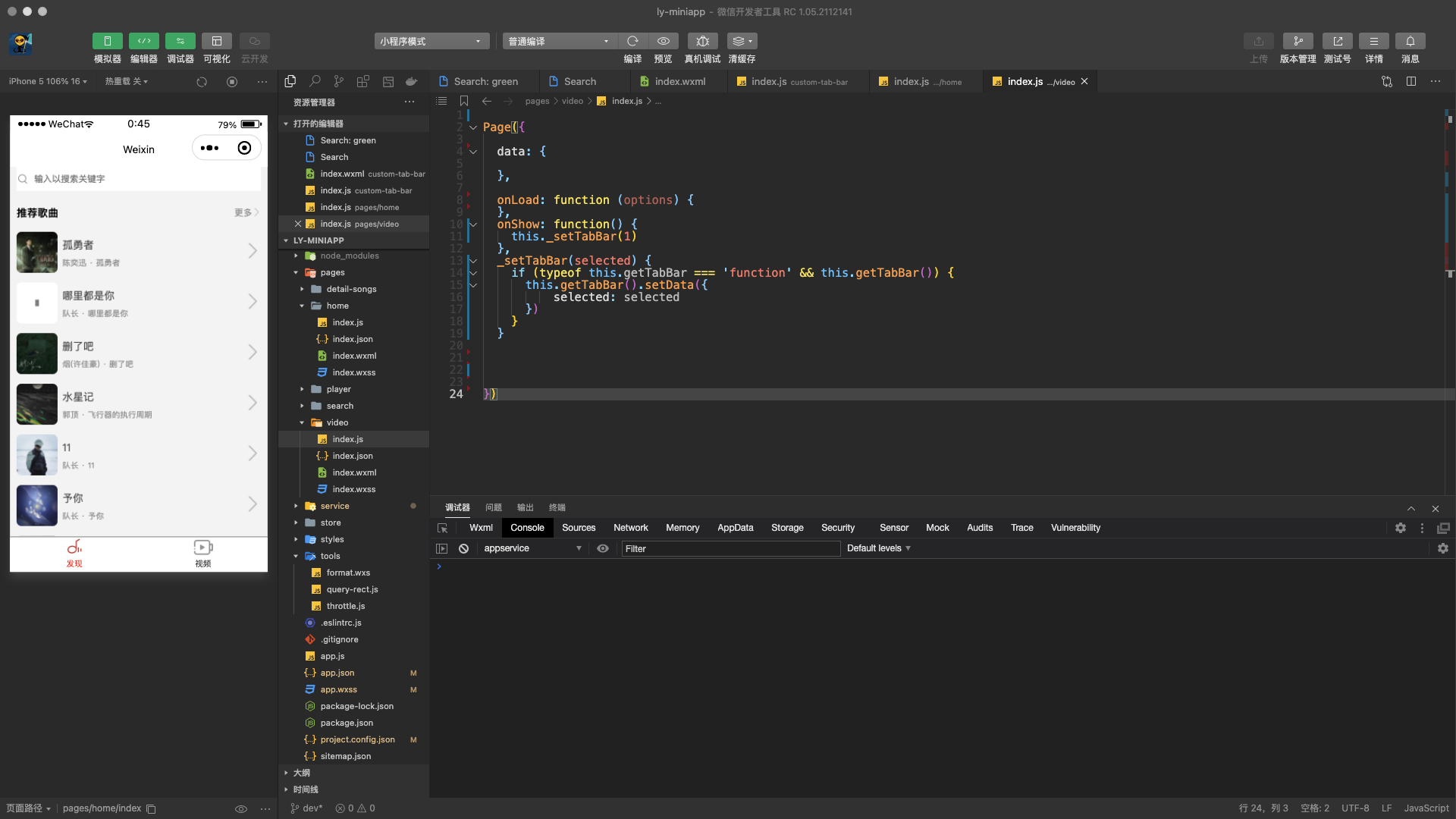
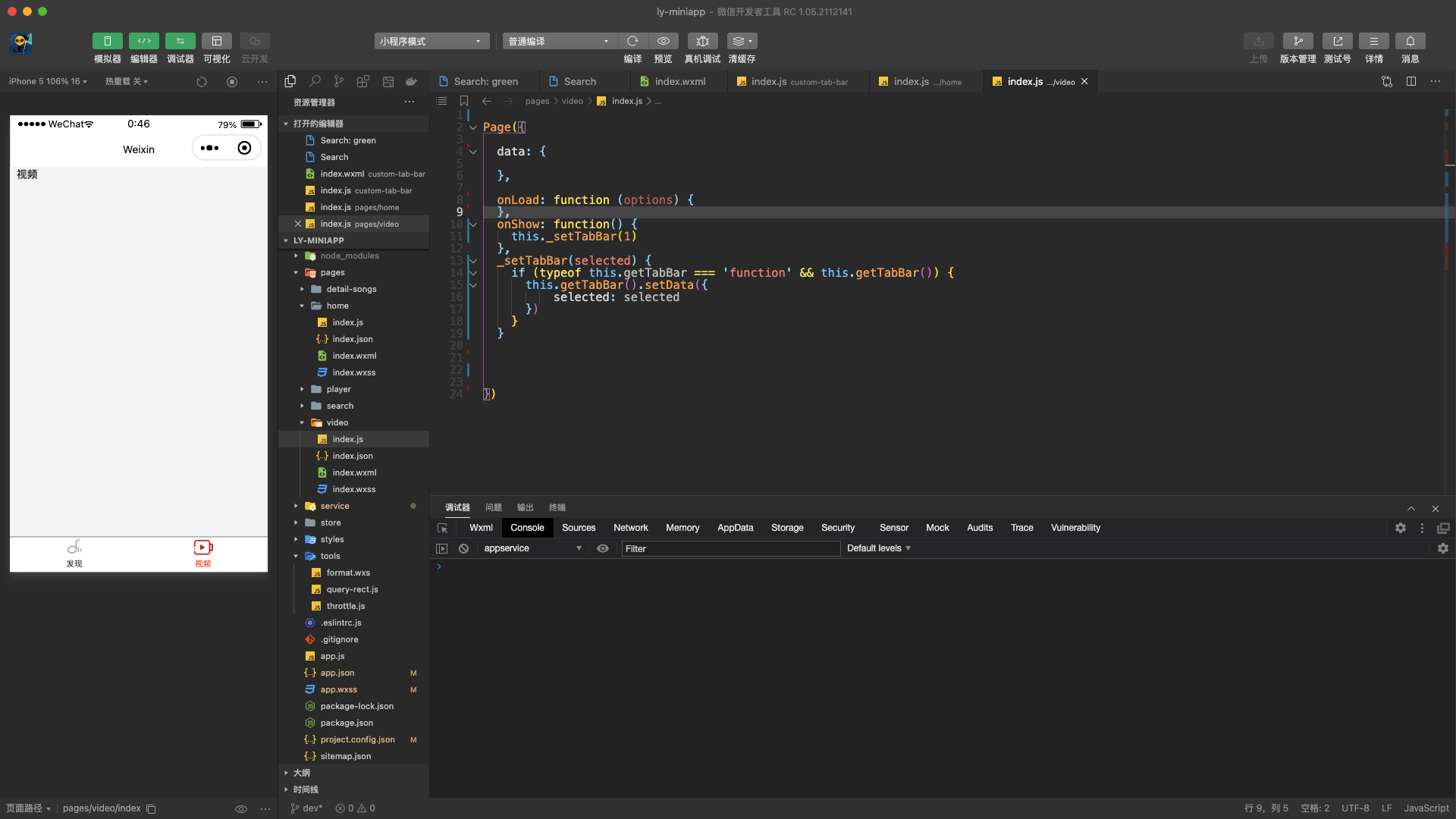
开始配置
1.设置custom
最关键的一步就是在app.json中的tabBar下开启custom为true,并且配置对应的路径,否则不会生效。
"tabBar": {
    "custom": true,
    "list": [
      {
        "pagePath": "pages/home/index",
        "text": "发现"
      },
      {
        "pagePath": "pages/video/index",
        "text": "视频"
      }
    ]
  },
2.创建自定义组件
根目录下创建文件夹custom-tab-bar,并新建Components index
注意文件名称必须为custom-tab-bar
3.撸代码
输入各个文件的代码,录入结构/样式,控制行为等等
custom-tab-bar/index.wxml
<cover-view class="tab-bar">
    <cover-view class="tab-bar-border"></cover-view>
    <cover-view
        class="tab-bar-item"
        wx:for="{{list}}"
        wx:key="index"
        data-index="{{index}}"
        data-path="{{item.pagePath}}"
        bindtap="handleTabSwitch"
    >
    <cover-image
        class="cover-image"
        src="{{selected === index ? item.selectedIconPath : item.iconPath}}"
    >
    </cover-image>
    <cover-view
        class="tab-bar-item-text"
        style="color: {{selected === index ? selectedColor : color}}"
    >
        {{item.text}}
    </cover-view>
    </cover-view>
</cover-view>
custom/index.js
// custom-tab-bar/index.js
Component({

    data: {
        selected: 0,
        color: '#333333',
        selectedColor: 'red',
        list: [
            {
                text: '发现',
                pagePath: '/pages/home/index',
                iconPath: '/icons/tabbar/home.png',
                selectedIconPath: '/icons/tabbar/home-active.png'
            },
            {
                text: '视频',
                pagePath: '/pages/video/index',
                iconPath: '/icons/tabbar/video.png',
                selectedIconPath: '/icons/tabbar/video-active.png'
            }
        ]
    },

    /**
     * 组件的方法列表
     */
    methods: {
        handleTabSwitch (evt) {
            const data = evt.currentTarget.dataset
            const url = data.path
            wx.switchTab({url})
            // tabbar图片会出现闪栋,注视下面的代码就可以了
            // this.setData({selected: data.index})
        }
    }
})
custom/index.wxss
.tab-bar {
    display: flex;
    width: 100%;
    height: 44px;
    background-color: #ffffff;
    justify-content: space-between;
    position: fixed;
    bottom: 0;
}

.tab-bar-border {
    width: 100%;
    height: 1px;
    background-color: #999;
    position: absolute;
    top: 0;
}

.tab-bar-item {
    flex: 1;
    display: flex;
    text-align: center;
    align-items: center;
    flex-direction: column;
}

.tab-bar-item .cover-image {
    width: 27px;
    height: 27px;
}

.tab-bar-item-text {
    font-size: 10px;
}
custom/index.json
{
    "component": true,
    "usingComponents": {}
}
注意事项
问题
- 图片闪烁
- 切换tabbar,文字未正确选中
解决
在tabbar对应的那几个文件中,通过this.getTabBar().setData({})设置selected
Page({
  onShow: function() {
    # 首页为0 视频为1,根据tabbar配置的顺序设置
    this._setTabBar(1)
  },
  _setTabBar(selected) {
    if (typeof this.getTabBar === 'function' && this.getTabBar()) {
      this.getTabBar().setData({
          selected: selected
      })
    }
  }
})
本文来自博客园,作者:杨凌云的博客,转载请注明原文链接:https://www.cnblogs.com/leacloud/articles/15894838.html

 浙公网安备 33010602011771号