

一款实用的web截图工具(一)
github地址:https://github.com/kejiacheng/kscreenshot
码云地址:https://gitee.com/kejiacheng/kscreenshot
kscreenshot
介绍
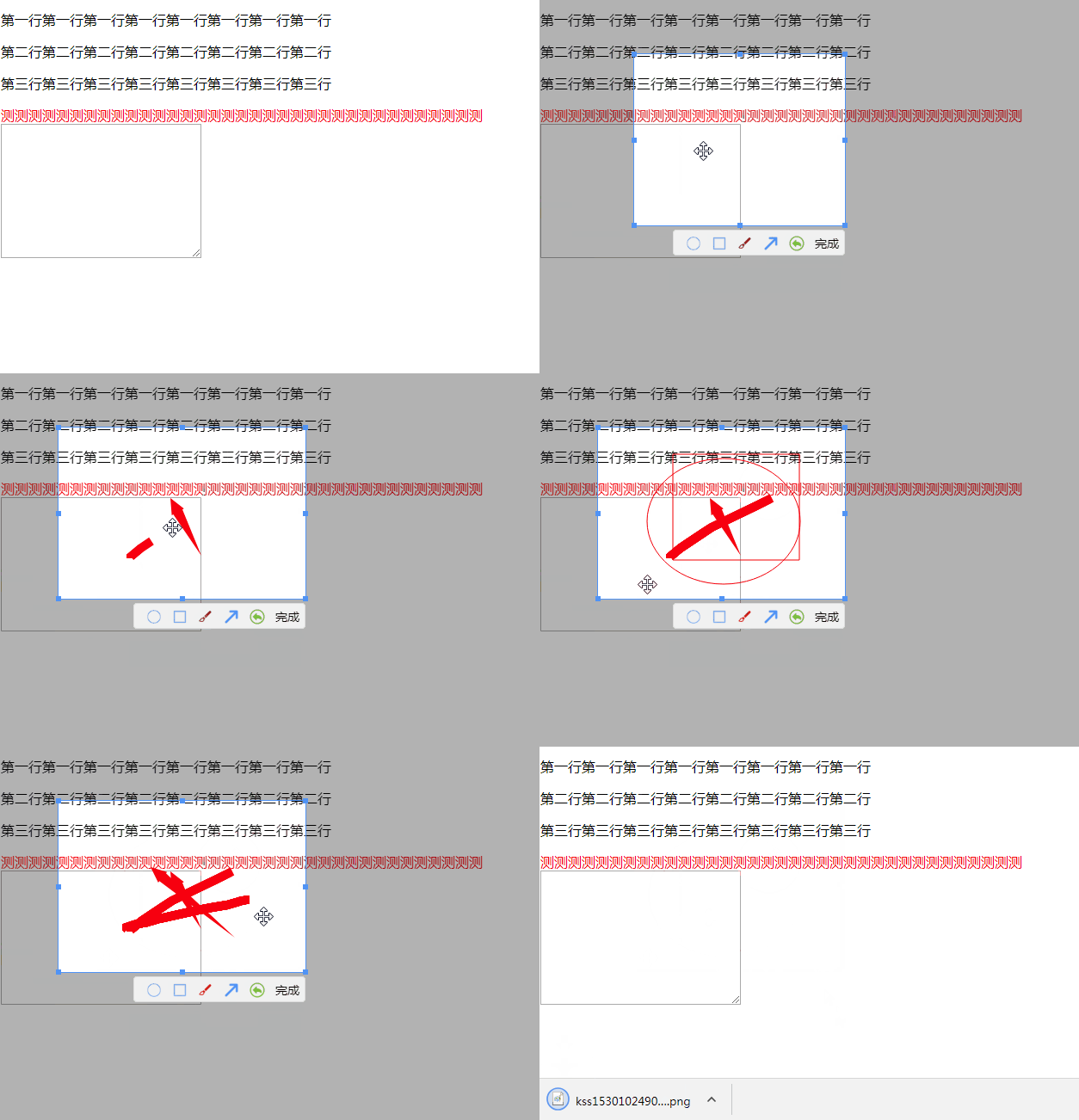
web截图工具的功能实现基于Canvas技术。其功能主要包括截图,下载,复制以及在截图过程中通过工具栏对截图进行绘制。
实现方式
本文将会根据代码中的src文件夹里面的每个文件逐一介绍。
首先先看入口文件kss.js。
let kss = (function () {
    let instance

    let kss = function (key, getAbsolutePath) {
        if (instance) {
            return instance
        }

        this.kss = null
        ...


        this.init(key)
        return instance = this
    }

    kss.prototype.init = function (key) {...}
    kss.prototype.start = function () {...}
    kss.prototype.end = function () {...}

    return kss
)()
上述代码通过立即执行函数生成一个构造函数,该函数有两个参数:key,getAbsolutePath;其中第一个参数key为键盘中的keyCode,用以开启截图模式。第二个参数为一个回调函数,主要是解决实现复制功能时,只能使用绝对路径的问题。构造函数中的if语句让该构造函数是一个单例模式,只允许生成同一个方法。this.kss = null及...是一些构造函数的属性和方法。this.init(key)用以初始化截图工具。在构造函数的下方,在其原型上定义了3个方法:init,start,end。
/init方法
kss.prototype.init = function (key) {
    const that = this

    document.addEventListener('keydown', isRightKey.bind(null, key))

    function isRightKey (key, e) {
        if (e.keyCode === key && e.shiftKey && !that.isScreenshot) {
            that.isScreenshot = true
            that.start()
            that.end()
        }
    }
}
这是初始化函数,它有一个key的参数,用以开启截图模式。函数中,在document上添加了一个键盘按下事件,通过isRightKey函数我们可以得出,当用户按下了设定的key值,shift键以及不在截图状态时,将执行start,end函数。
//start方法
kss.prototype.start = function () {
    const that = this
    html2canvas(document.body, {useCORS:true})
        .then((canvas) => {
            that.kss = canvas
            css(canvas, {
                position: 'fixed',
                top: 0,
                left: 0,
                'z-index': 10000
        })
        canvas.id = 'kss'

        document.body.appendChild(canvas)

        let style = document.createElement('style')
        style.type = 'text/css'
        style.innerHTML = `.kssBody{cursor: url("${cursorImg}"), auto; user-select: none}`
        that.style = style

        document.head.appendChild(style)
        addClass(document.body, 'kssBody')

        canvas.addEventListener('mousedown', that.startDrawDown)
    })
}
开始函数,使用了html2canvas插件,将生成一个基本还原内容的Canvas。将该canvas放入body当中,并给其添加一个鼠标按下事件。该事件将在下面介绍。
//end方法
kss.prototype.end = function () {
    const that = this
    document.addEventListener('keydown', endScreenShot)

    function endScreenShot (e) {
        if (e.keyCode === 27) {
            endAndClear(that)
            document.removeEventListener('keydown', endScreenShot)
        }
    }
}
结束函数,在document上添加一个键盘事件,当键盘按下esc键(即keyCode为27)时,将结束截图状态。
剩余部分下篇继续

 浙公网安备 33010602011771号