

Asp.net core 学习笔记 (Logging 日志)
更新: 2022-03-21
修订版: ASP.NET Core – Logging & Serilog
更新 : 2021-02-13
太久没有弄了,来复习一下做做笔记 :
dotnet new webapp -o TestLog
目前自带的模板首页就会有这个 log example 了
打开 visual studio > view > output 运行时就可以看见了
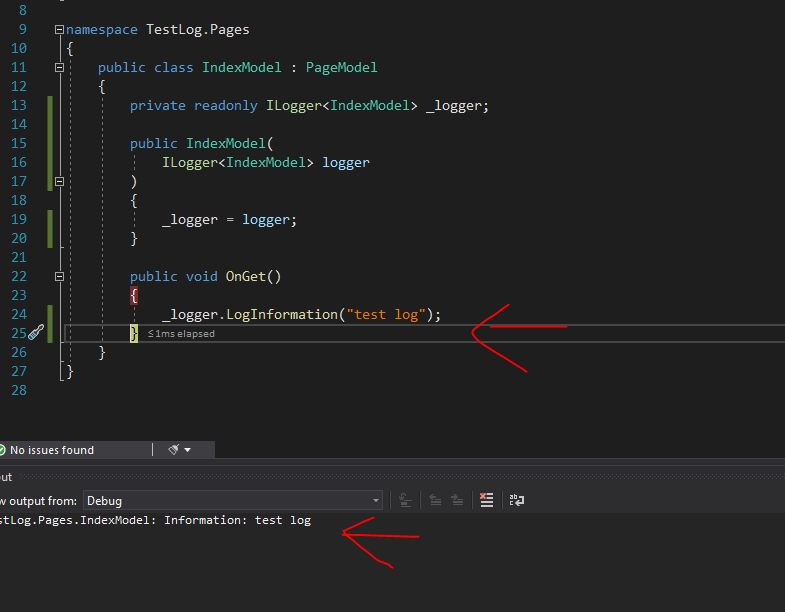
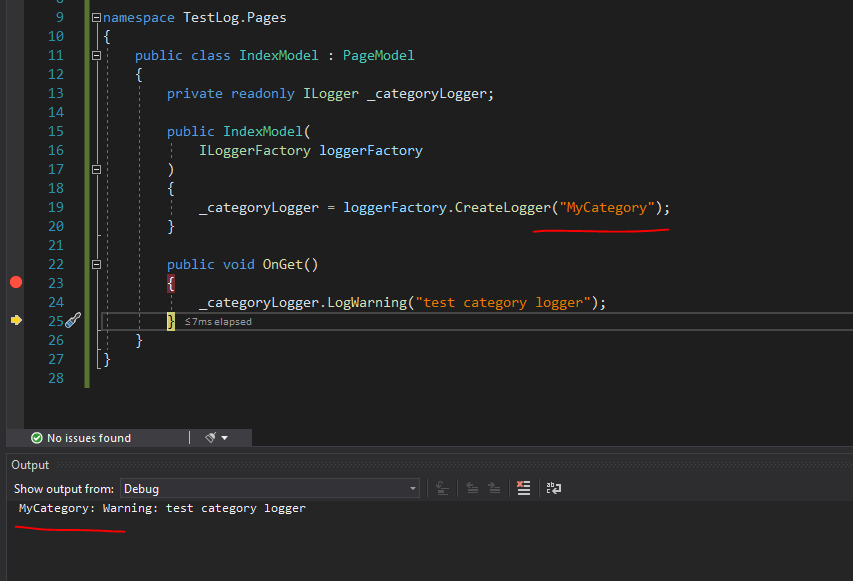
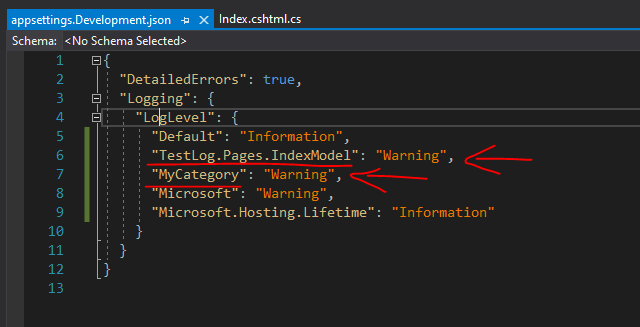
每个 log 都有 category 的概念, 在 appsetting 我们可以为每个 category 设置 min level
比如某 category 在 production 的时候 min level 是 warning, 在 dev 的时候是 info
想上边的注入方式, 它的 category 是 namespace 和 class "TestLog.Pages.IndexModel"
如果我们想自定义的话可以用 factory 来创建 logger
在 appsetting 声明 min level
level 的顺序是 Trace = 0, Debug = 1, Information = 2, Warning = 3, Error = 4, Critical = 5, and None = 6.
None 就是不要 log. Trace 就类似 track 追踪的意思
微软 build in 的只能输出在 console 和 debug, 没有支持写入 file
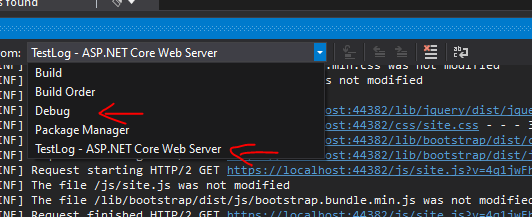
随便提一下, 在 visual studio debug 是第 3 个, console 是最后一个
那我们使用 third party 的吧, 推荐 serilog
dotnet add package Serilog.AspNetCore
https://github.com/serilog/serilog-aspnetcore
照着 github 教程做就可以了
提醒, 记得加这个哦
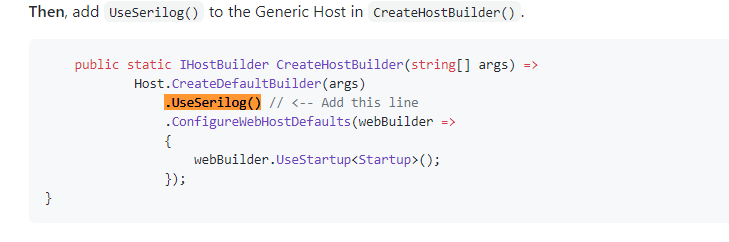
原本的只是 write to console, 我们可以自己加一个 debug
  Log.Logger = new LoggerConfiguration()
               .MinimumLevel.Information()
               .MinimumLevel.Override("Microsoft", LogEventLevel.Information)
               .Enrich.FromLogContext()
               .WriteTo.Console()
               .WriteTo.Debug() // 加
               .CreateLogger();
用了 serilog 之后原本的 appsetting config 就不需要了, 如果要使用 appsetting 来做 config 的话要另外装一个 dll, 迟点说.
serilog 做 scope 的话, 写法不是很好看
首先 program.cs 记得配置这个
.Enrich.FromLogContext()
然后调用的时候
using (_logger.BeginScope(new Dictionary<string, object>
{
    { "OrderId", 1234}
}))
{
    _logger.LogInformation("Processing a new order 1");
}
是的用字典.
然后 output template 要改一下
.WriteTo.Debug(outputTemplate: "[{Timestamp:HH:mm:ss} {Level:u3}] {Message:lj} " +
                        "{Properties:j}{NewLine}{Exception}")
参考 :
https://github.com/serilog/serilog/wiki/Formatting-Output
https://www.initpals.com/net-core/scoped-logging-using-microsoft-logger-with-serilog-in-net-core-application/
serilog 有一个 build in 的 request log 取代 asp.net core build in 的, 因为微软的 log 太多了
首先 program.cs silent 掉为了的
               .MinimumLevel.Override("Microsoft", LogEventLevel.Warning)
               .MinimumLevel.Override("Microsoft.AspNetCore", LogEventLevel.Warning)
然后 startup.cs
app.UseSerilogRequestLogging(options =>
{
    options.MessageTemplate = "HTTP {RequestMethod} {RequestPath} responded {StatusCode} in {Elapsed:0} ms";
    options.GetLevel = (httpContext, elapsed, ex) => LogEventLevel.Information;
    options.EnrichDiagnosticContext = (diagnosticContext, httpContext) =>
    {
     // 这里可以加一点料, 加了 template 就可以用 {RequestHost} 这样
        // diagnosticContext.Set("RequestHost", httpContext.Request.Host.Value);
        //diagnosticContext.Set("RequestScheme", httpContext.Request.Scheme);
    };
});
通过这个 middle 每个请求都会被记入起来. 放 static file 下面, 不然 static 也会被 log 就不好了.
如果要自己做也可以参考这个 https://www.carlrippon.com/adding-useful-information-to-asp-net-core-web-api-serilog-logs/
来说说 write to file
dotnet add package Serilog.Sinks.File
.WriteTo.File("log.txt", rollingInterval: RollingInterval.Day)
这样就行了.
默认情况下 write to file 是马上的, 这个对 IO 性能可能不太好. 所以 serilog 推出了一个 async 版本, 就是先隔着, 当一定量的时候才写入
有好有坏啦. 看你怎样用咯
dotnet add package Serilog.Sinks.Async
.WriteTo.Async(a => a.File("log.txt", rollingInterval: RollingInterval.Day, buffered: true), bufferSize: 500)
wrap 起来就可以了, buffered = true, buffer size 默认是 10,000 items 那是多少我不知道.
然后再 app 结束前一定要释放哦
try
{
    CreateHostBuilder(args).Build().Run();
}
catch (Exception ex)
{
    Log.Fatal(ex, "Host terminated unexpectedly");
}
finally
{
    Log.CloseAndFlush(); // 重要
}
最后是用 appsetting 来做 config
dotnet add package Serilog.Settings.Configuration
program.cs
var configuration = new ConfigurationBuilder()
    .SetBasePath(Directory.GetCurrentDirectory())
        .AddJsonFile("appsettings.json", optional: false, reloadOnChange: true)
        .AddJsonFile($"appsettings.{Environment.GetEnvironmentVariable("ASPNETCORE_ENVIRONMENT") ?? ""}.json", optional: true)
    .Build();

Log.Logger = new LoggerConfiguration()
    .ReadFrom.Configuration(configuration)
    .CreateLogger();
通过 enviromen variable 来获取 appsettings.Development.json
然后 appsettings json 长这样
  "Serilog": {
    "Using": [ "Serilog.Sinks.File" ], // 这个在 dotnet core project 下是多余的,可以拿掉哦
    "MinimumLevel": {
      "Default": "Information",
      "Override": {
        "Microsoft": "Warning",
        "Microsoft.AspNetCore": "Warning",
        "System": "Warning"
      }
    },
    "WriteTo": [
      {
        "Name": "File",
        "Args": {
          "path": "log.txt",
          "rollingInterval": "Day",
          "outputTemplate": "[{Timestamp:hh:mm:ss tt} {Level:u3}] {Message:lj} {Properties:j}{NewLine}{Exception}"
        }
      },
      {
        "Name": "Async",
        "Args": {
          "configure": [
            {
              "Name": "File",
              "Args": {
                "path": "log-async.txt",
                "rollingInterval": "Day",
                "outputTemplate": "[{Timestamp:hh:mm:ss tt} {Level:u3}] {Message:lj} {Properties:j}{NewLine}{Exception}",
                "buffered": true
              }
            }
          ]
        }
      }
    ],
    "Enrich": [ "FromLogContext" ]
  }
搞定
更新, 目前使用的是 serilog
https://github.com/serilog/serilog-extensions-logging-file (这个是轻量版,几乎不需要配置)
https://github.com/serilog/serilog-aspnetcore (这个是 standard 版)
core 有自己 build in 的 log. 也有对应的接口让我们可以使用第三方 provider.
core 没有实现对 file 的写入, 而是让我们连接 Azure Blob Storage 服务.
所以呢我们需要一个第三方来完成这个事儿.
nuget : Serilog.Extensions.Logging.File
整个 logging setup 是这样的
appsettings.json
{
  "Logging": {
    "IncludeScopes": false,
    "LogLevel": {
      "Default": "Information",
      "System": "None",
      "Microsoft": "None"
    }
  }
}
如果不喜欢 Microsoft 自带的 log, 可以使用 LogLevel.None 清掉.
Startup.cs
public class Startup
{
    public void Configure(IApplicationBuilder app, IHostingEnvironment env, ILoggerFactory loggerFactory)
    {
        loggerFactory.AddFile("Logs/{Date}.txt");
    }
}
Controller.cs
public class HomeController : Controller
{
    private readonly ILogger logger;
    public HomeController(
        ILogger<HomeController> logger
    )
    {
        this.logger = logger;
    }

    public IActionResult Index()
    {
     int eventId = 1000;
        logger.LogError(eventId, new Exception("error"), "error message");
        return View();
    }
}
依赖注入 ILogger 并附上一个 Class, 这个 Class 是命名分类的作用.
eventId 让我们方便归类的, 类似 http error status 那样.
还可以直接把 Exception 写入 logging 哦.

 浙公网安备 33010602011771号