


Install MySQL on Mac OS X
There are already several instructions out there on how to install
MySQL on Mac OS X, but most of them are either outdated or more
complicated than they need to be. Here you will find an easy tutorial
showing how to install MySQL, start it up, access it as the default
root user, create a database, delete the database and exit.
Step 1: Download MySQL. Go to the downloads page at mysql.com and download the particular version of MySQL that is appropriate for your OS and machine architecture. In my case, I downloaded the "Mac OS X 10.5 (x86_64)" version because I have Mac OS X 10.5 running on a MacBook with a 64-bit Intel processor.

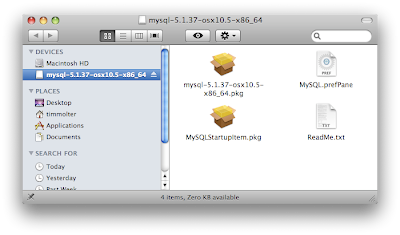
Step 2: Access the installers. Go the the directory where the .dmg file was downloaded to and mount the .dmg file by double clicking it. The .dmg contains the MySQL and MySQL Startup installer packages.
 Step
3: Install MySQL and the MySQL Startup Item. Double-clicking on
mysql*.pkg icon starts an installer wizard that takes you through a few
intuitive installation steps. Once you click through the wizard and
accept a license agreement you should see the "install succeeded" page.
Repeat for MySQLStartupItem.pkg.
Step
3: Install MySQL and the MySQL Startup Item. Double-clicking on
mysql*.pkg icon starts an installer wizard that takes you through a few
intuitive installation steps. Once you click through the wizard and
accept a license agreement you should see the "install succeeded" page.
Repeat for MySQLStartupItem.pkg.
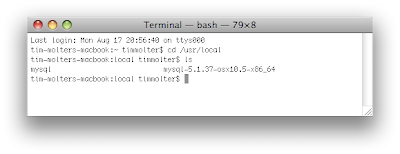
 Step 4: Verify Install. Fire up the Terminal and type in:
 Step 5: Restart your computer. When the computer reboots, it will startup the database server allowing you to connect to it.
Step 6: Start MySQL. Type in:
 Step 7: Create a database, delete it and exit MySQL. At the
Piece of Cake!!
In addition, here are the commands you need to start and stop MySQL:
Step 1: Download MySQL. Go to the downloads page at mysql.com and download the particular version of MySQL that is appropriate for your OS and machine architecture. In my case, I downloaded the "Mac OS X 10.5 (x86_64)" version because I have Mac OS X 10.5 running on a MacBook with a 64-bit Intel processor.

Step 2: Access the installers. Go the the directory where the .dmg file was downloaded to and mount the .dmg file by double clicking it. The .dmg contains the MySQL and MySQL Startup installer packages.
 Step
3: Install MySQL and the MySQL Startup Item. Double-clicking on
mysql*.pkg icon starts an installer wizard that takes you through a few
intuitive installation steps. Once you click through the wizard and
accept a license agreement you should see the "install succeeded" page.
Repeat for MySQLStartupItem.pkg.
Step
3: Install MySQL and the MySQL Startup Item. Double-clicking on
mysql*.pkg icon starts an installer wizard that takes you through a few
intuitive installation steps. Once you click through the wizard and
accept a license agreement you should see the "install succeeded" page.
Repeat for MySQLStartupItem.pkg. Step 4: Verify Install. Fire up the Terminal and type in:
 cd /usr/local , hit enter, type in: ls , and verify that there are two items. The Mac OS X .pkg of MySQL installs itself into /usr/local/mysql-VERSION and /usr/local/mysql. Step 5: Restart your computer. When the computer reboots, it will startup the database server allowing you to connect to it.
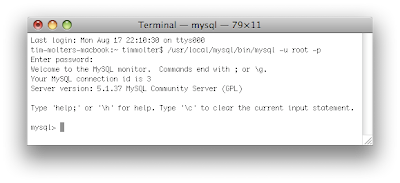
Step 6: Start MySQL. Type in:
/usr/local/mysql/bin/mysql -u root -p
. The last part of the command tells it you want to start it up as the
root user and that you'd like to be prompted for a password. By default
the root's password is blank, so when you are prompted for it, just hit
enter. You are now running MySQL, and you can tell it what to do at the
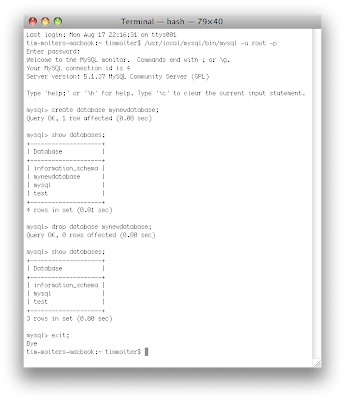
MySQL command prompt: mysql>. Step 7: Create a database, delete it and exit MySQL. At the
 mysql> prompt, type in: create database mynewdatabase; . Verify that it was created by typing in: show databases; . You should see the database along with the default databases. Delete the database by typing in: drop database mynewdatabase; . Verify that it was deleted by typing in: show databases; . Exit MySQL by typing in: exit; .
Piece of Cake!!
In addition, here are the commands you need to start and stop MySQL:
sudo /Library/StartupItems/MySQLCOM/MySQLCOM stop
sudo /Library/StartupItems/MySQLCOM/MySQLCOM start
sudo /Library/StartupItems/MySQLCOM/MySQLCOM restart
 浙公网安备 33010602011771号