文章目录
动画效果抢先看
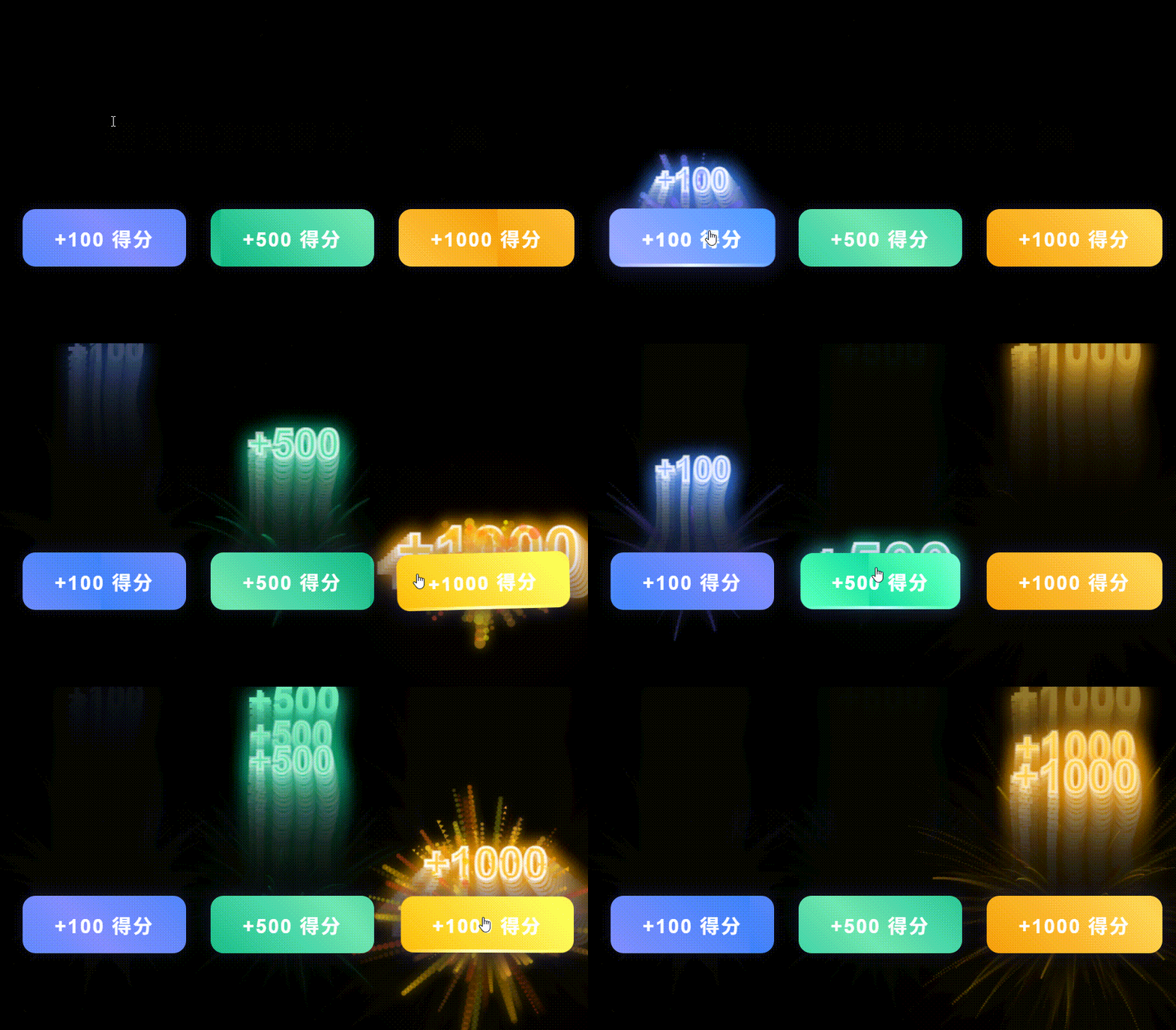
【资源免费】因为这里上传文件大小有限制,所以不是很清晰,大家可以下载顶部免费资源,自己本地双击打开html文件即可
️ 舞台搭建:Canvas基础配置
任何Canvas项目的第一步都是搭建基础环境,让我们来看看代码中是如何做的:
<canvas id="score-canvas"></canvas>
<canvas id="glow-canvas"></canvas>
这两个canvas元素就是我们绘制特效的舞台。接下来在JavaScript中获取它们并设置上下文:
// Canvas 初始化
const scoreCanvas = document.getElementById('score-canvas');
const scoreCtx = scoreCanvas.getContext('2d');
const glowCanvas = document.getElementById('glow-canvas');
const glowCtx = glowCanvas.getContext('2d');getContext('2d')方法是获取Canvas 2D渲染上下文,这是所有2D绘图操作的入口点,提供了各种绘制图形的方法。
为了让Canvas适应不同屏幕大小,还需要处理窗口大小变化:
// 适配窗口大小
function resizeCanvas() {
scoreCanvas.width = window.innerWidth;
scoreCanvas.height = window.innerHeight;
glowCanvas.width = window.innerWidth;
glowCanvas.height = window.innerHeight;
}
resizeCanvas();
window.addEventListener('resize', resizeCanvas);这里有个小知识点:Canvas的width和height属性与CSS中的width和height不同,它们决定了Canvas的实际像素尺寸,而CSS只是控制其在页面上的显示大小。如果只设置CSS而不设置Canvas自身的width和height,绘制的内容会被拉伸变形。
分层绘制:让特效更有层次感
这个特效最巧妙的一点是使用了两层Canvas:
#score-canvas {
position: fixed;
top: 0;
left: 0;
width: 100vw;
height: 100vh;
pointer-events: none;
z-index: 0; /* 低于按钮z-index=1,不遮挡按钮 */
}
#glow-canvas {
position: fixed;
top: 0;
left: 0;
width: 100vw;
height: 100vh;
pointer-events: none;
z-index: -1; /* 最底层光晕 */
}
这种分层策略在复杂Canvas动画中非常常见,有以下几个好处:
- 性能优化:不同特效更新频率不同,分层可以避免不必要的重绘
- 视觉层次感:通过z-index控制不同元素的显示层级
- 简化逻辑:将不同类型的特效分离到不同画布,便于管理
pointer-events: none这个CSS属性也很有用,它让Canvas不会响应鼠标事件,确保下方的按钮可以正常被点击。
✨ 背景星光:Canvas之外的开胃小菜
在正式进入Canvas特效之前,代码中先用普通的HTML元素创建了背景星光效果:
// 背景星光生成
const stars = document.querySelector('.stars');
for (let i = 0; i < 150; i++) {
const star = document.createElement('div');
star.style.position = 'absolute';
star.style.width = `${Math.random() * 3 + 1}px`;
star.style.height = star.style.width;
star.style.backgroundColor = 'rgba(255, 255, 255, 0.8)';
star.style.borderRadius = '50%';
star.style.left = `${Math.random() * 100}vw`;
star.style.top = `${Math.random() * 100}vh`;
star.style.boxShadow = '0 0 10px rgba(255, 255, 255, 0.5)';
star.style.animation = `twinkle ${Math.random() * 3 + 2}s infinite alternate`;
stars.appendChild(star);
}
这段代码虽然没有使用Canvas,但是为我们展示了一种创建随机分布元素的思路,这种思路在后面的粒子系统中也会用到。每个星星都有随机的大小、位置和闪烁频率,营造出深邃太空的感觉。
会跳舞的得分文字:文本绘制技巧
得分文字是这个特效的核心元素之一,让我们看看ScoreText类是如何实现的:
class ScoreText {
constructor(x, y, score) {
this.x = x;
this.y = y;
this.score = score;
// 根据分数设置不同大小
this.baseSize = score >= 1000 ? 56 : score >= 500 ? 48 : 40;
this.size = this.baseSize * 1.8; // 初始放大效果
this.opacity = 1;
this.speedY = -4; // 向上移动
this.life = 70;
this.pulse = 0;
this.swing = 0;
// 创建文本渐变
this.gradient = scoreCtx.createLinearGradient(0, 0, 0, this.baseSize);
if (score === 100) {
this.gradient.addColorStop(0, 'rgba(139, 172, 248, 1)');
this.gradient.addColorStop(1, 'rgba(59, 130, 246, 1)');
} else if (score === 500) {
this.gradient.addColorStop(0, 'rgba(110, 231, 183, 1)');
this.gradient.addColorStop(1, 'rgba(16, 185, 129, 1)');
} else {
this.gradient.addColorStop(0, 'rgba(252, 211, 77, 1)');
this.gradient.addColorStop(1, 'rgba(245, 158, 11, 1)');
}
}
update() {
// 更新位置、大小和透明度
this.y += this.speedY;
this.life--;
this.pulse += 0.2;
this.swing = Math.sin(this.pulse) * 2; // 利用正弦函数实现摇摆效果
// 缩放动画
this.size = this.size > this.baseSize
? this.size - this.baseSize * 0.05
: this.baseSize + Math.sin(this.pulse) * 3;
this.opacity = this.life > 40 ? 1 : this.life / 40;
}
draw() {
scoreCtx.save();
scoreCtx.translate(this.x + this.swing, this.y);
// 设置阴影效果增强立体感
scoreCtx.shadowColor = this.score === 100 ? 'rgba(59, 130, 246, 0.8)' :
this.score === 500 ? 'rgba(16, 185, 129, 0.8)' :
'rgba(245, 158, 11, 0.8)';
scoreCtx.shadowBlur = 25;
// 绘制渐变文本
scoreCtx.font = `bold ${this.size}px Arial`;
scoreCtx.fillStyle = this.gradient;
scoreCtx.textAlign = 'center';
scoreCtx.textBaseline = 'middle';
scoreCtx.fillText(`+${this.score}`, 0, 0);
// 文本描边增强效果
scoreCtx.strokeStyle = `rgba(255, 255, 255, ${this.opacity * 0.9})`;
scoreCtx.lineWidth = 3;
scoreCtx.strokeText(`+${this.score}`, 0, 0);
scoreCtx.restore();
}
}
这里用到了几个重要的Canvas文本绘制技巧:
- 渐变文本:使用
createLinearGradient()创建线性渐变,让文字更有质感 - 文本阴影:通过
shadowColor和shadowBlur属性给文字添加发光效果 - 文本描边:结合
fillText()和strokeText()让文字更醒目 - 文本对齐:使用
textAlign和textBaseline精确控制文本位置
同时,通过update()方法实现了文字的多种动画效果:初始放大、向上移动、左右摇摆和逐渐消失,让文字看起来栩栩如生。
粒子特效:让得分飞一会儿
粒子系统是游戏特效中常用的技术,这个案例中实现了两种粒子:普通得分粒子和1000分专属的爆发粒子。
先看普通的ScoreParticle类:
class ScoreParticle {
constructor(x, y, score) {
this.x = x;
this.y = y;
this.size = Math.random() * 6 + 2;
this.shape = Math.random() > 0.5 ? 'circle' : 'triangle'; // 随机形状
this.rotation = Math.random() * Math.PI * 2;
this.rotateSpeed = (Math.random() - 0.5) * 0.2;
// 根据分数设置不同颜色
this.color = score === 100
? `rgba(${99 + Math.random() * 50}, ${102 + Math.random() * 50}, ${241 + Math.random() * 14}, ${Math.random() * 0.7 + 0.5})`
: score === 500
? `rgba(${16 + Math.random() * 50}, ${185 + Math.random() * 50}, ${129 + Math.random() * 26}, ${Math.random() * 0.7 + 0.5})`
: `rgba(${245 + Math.random() * 10}, ${158 + Math.random() * 50}, ${11 + Math.random() * 44}, ${Math.random() * 0.7 + 0.5})`;
// 随机运动方向
const angle = Math.random() * Math.PI * 2;
const speed = score >= 1000 ? Math.random() * 5 + 2 : Math.random() * 4 + 1;
this.vx = Math.cos(angle) * speed;
this.vy = Math.sin(angle) * speed - 3;
this.arc = score >= 500 ? (Math.random() - 0.5) * 0.1 : 0; // 高分曲线运动
this.gravity = 0.05;
this.drag = 0.985;
this.life = score >= 1000 ? Math.random() * 40 + 30 : Math.random() * 30 + 20;
}
update() {
// 应用物理效果
this.vx += Math.sin(this.y * 0.05) * this.arc; // 曲线偏移
this.vx *= this.drag; // 阻力
this.vy *= this.drag;
this.vy += this.gravity; // 重力
this.x += this.vx;
this.y += this.vy;
this.rotation += this.rotateSpeed;
this.life--;
this.opacity = this.life / (this.life > 50 ? 70 : 50);
this.size *= 0.96; // 逐渐缩小
}
draw() {
scoreCtx.save();
scoreCtx.translate(this.x, this.y);
scoreCtx.rotate(this.rotation);
// 粒子发光效果
scoreCtx.shadowColor = this.color;
scoreCtx.shadowBlur = 12;
if (this.shape === 'circle') {
// 绘制圆形粒子
scoreCtx.beginPath();
scoreCtx.arc(0, 0, this.size, 0, Math.PI * 2);
scoreCtx.fillStyle = this.color.replace(/[^,]+(?=\))/, this.opacity);
scoreCtx.fill();
} else {
// 绘制三角形粒子
scoreCtx.beginPath();
scoreCtx.moveTo(0, -this.size);
scoreCtx.lineTo(this.size * 0.866, this.size * 0.5);
scoreCtx.lineTo(-this.size * 0.866, this.size * 0.5);
scoreCtx.closePath();
scoreCtx.fillStyle = this.color.replace(/[^,]+(?=\))/, this.opacity);
scoreCtx.fill();
}
scoreCtx.restore();
}
}
这个粒子类展示了Canvas绘制基本形状的方法:
- 绘制圆形:使用
arc()方法,参数分别是圆心x、y,半径,起始角度和结束角度 - 绘制多边形:使用
moveTo()和lineTo()方法定义路径,最后用closePath()闭合
更重要的是,它实现了简单的物理系统:
- 重力效果:通过逐渐增加y方向速度实现
- 阻力效果:通过乘以一个小于1的值逐渐减小速度
- 曲线运动:通过正弦函数计算水平方向的偏移
对于1000分的特殊效果,代码还实现了BurstParticle类,提供更强烈的视觉冲击:
class BurstParticle {
constructor(x, y) {
this.x = x;
this.y = y;
this.size = Math.random() * 8 + 3;
this.color = `rgba(${255}, ${Math.random() * 200 + 55}, ${Math.random() * 50}, ${Math.random() * 0.8 + 0.4})`;
const angle = Math.random() * Math.PI * 2;
const speed = Math.random() * 10 + 5; // 更快的速度
this.vx = Math.cos(angle) * speed;
this.vy = Math.sin(angle) * speed;
this.life = Math.random() * 20 + 15;
}
// update和draw方法类似,这里省略...
}
光晕效果:给特效加点"光"
光晕效果是提升视觉冲击力的重要手段,代码中使用单独的Canvas层来实现:
class GlowEffect {
constructor(x, y, score) {
this.x = x;
this.y = y;
// 根据分数设置不同初始半径
this.radius = score >= 1000 ? 120 : score >= 500 ? 80 : 50;
this.opacity = 0.8;
// 根据分数设置不同颜色
this.color = score === 100
? `rgba(59, 130, 246, ${this.opacity})`
: score === 500
? `rgba(16, 185, 129, ${this.opacity})`
: `rgba(245, 158, 11, ${this.opacity})`;
}
update() {
this.radius += 3; // 逐渐扩大
this.opacity *= 0.95; // 逐渐透明
}
draw() {
glowCtx.save();
glowCtx.beginPath();
glowCtx.arc(this.x, this.y, this.radius, 0, Math.PI * 2);
glowCtx.fillStyle = this.color.replace(/[^,]+(?=\))/, this.opacity);
glowCtx.filter = 'blur(30px)'; // 模糊效果实现光晕
glowCtx.fill();
glowCtx.filter = 'none'; // 重置滤镜
glowCtx.restore();
}
}这里的关键技术是使用filter: 'blur(30px)'来实现模糊效果,模拟光线扩散的感觉。同时,通过让光晕逐渐扩大并降低透明度,营造出一种爆炸后光芒扩散的效果。
值得注意的是,绘制完成后要使用glowCtx.filter = 'none'重置滤镜,避免影响后续绘制的元素。
动画循环:让一切动起来的秘密
所有静态的元素和效果,都需要通过动画循环才能变成生动的特效:
function animate() {
// 半透明清除,保留拖影效果
scoreCtx.fillStyle = 'rgba(0, 0, 0, 0.08)';
scoreCtx.fillRect(0, 0, scoreCanvas.width, scoreCanvas.height);
glowCtx.fillStyle = 'rgba(0, 0, 0, 0.15)';
glowCtx.fillRect(0, 0, glowCanvas.width, glowCanvas.height);
// 更新并绘制所有特效元素
glowEffects.forEach(glow => { glow.update(); glow.draw(); });
scoreTexts.forEach(text => { text.update(); text.draw(); });
scoreParticles.forEach(p => { p.update(); p.draw(); });
burstParticles.forEach(p => { p.update(); p.draw(); });
// 移除生命周期结束的元素,优化性能
glowEffects.filter(glow => glow.opacity < 0.05).forEach(glow => {
  glowEffects.splice(glowEffects.indexOf(glow), 1);
  });
  // 其他元素的清理...
  requestAnimationFrame(animate);
  }
animate(); // 启动动画循环这个动画循环使用了requestAnimationFrame方法,这是现代浏览器推荐的动画API,它会根据浏览器的刷新频率自动调整调用频率,通常是每秒60次,比使用setInterval更高效。
循环中做了三件重要的事情:
- 清除画布:使用半透明的黑色填充整个画布,这种方式可以保留上一帧的部分痕迹,产生拖影效果
- 更新和绘制:调用所有特效元素的
update()方法更新状态,再调用draw()方法绘制 - 清理过期元素:移除那些已经不可见或生命周期结束的元素,避免性能损耗
交互反馈:按钮点击的魔法
最后,我们来看看如何将这些特效与用户交互结合起来:
// 按钮点击触发特效
scoreBtns.forEach(btn => {
btn.addEventListener('click', (e) => {
const score = parseInt(btn.dataset.score);
// 获取按钮中心位置
const rect = btn.getBoundingClientRect();
const x = rect.left + rect.width / 2;
const y = rect.top + rect.height / 2;
// 创建各种特效元素
glowEffects.push(new GlowEffect(x, y, score));
scoreTexts.push(new ScoreText(x, y, score));
// 根据分数创建不同数量的粒子
const particleCount = score === 100 ? 60 : score === 500 ? 100 : 150;
for (let i = 0; i < particleCount; i++) {
scoreParticles.push(new ScoreParticle(x, y, score));
}
// 1000分专属特效
if (score === 1000) {
// 爆发粒子
for (let i = 0; i < 80; i++) {
burstParticles.push(new BurstParticle(x, y));
}
// 屏幕闪烁效果
document.body.style.backgroundColor = 'rgba(255, 220, 0, 0.1)';
setTimeout(() => { document.body.style.backgroundColor = ''; }, 100);
// 按钮震动
btn.classList.add('btn-shake');
setTimeout(() => { btn.classList.remove('btn-shake'); }, 400);
}
// 按钮点击反馈动画
btn.style.transform = 'scale(0.9)';
setTimeout(() => {
btn.style.transform = 'scale(1.05)';
setTimeout(() => { btn.style.transform = 'scale(1)'; }, 100);
}, 100);
});
});
这段代码实现了点击按钮时的完整交互逻辑:
- 确定位置:使用
getBoundingClientRect()获取按钮在视口中的位置,计算出中心点作为特效的发射点 - 创建特效:根据不同的分数值,创建相应的光晕、文字和粒子特效
- 特殊处理:为1000分添加额外的爆发粒子、屏幕闪烁和按钮震动效果
- 按钮反馈:通过CSS transform实现按钮的按压反馈动画
这种根据不同分数值提供不同强度特效的做法,增强了游戏的成就感和趣味性。
总结
这篇文章对应的资源可以直接免费下载,效果也是简单实现,主要是为大家提供一个思路,我的Canvas实战专栏中会有更加精细的Canvas3D效果的动画展现给大家,如果大家又想要的动画效果,欢迎大家在评论区留言,我会不定时实现评论区粉丝的期望动画效果,欢迎大家关注✨✨✨


 浙公网安备 33010602011771号