

https://vscode.github.net.cn/docs/terminal/profiles
Visual Studio Code 中的终端配置文件_Vscode中文网
https://code.visualstudio.com/docs/terminal/profiles
1,点击左下角齿轮,找到Settings。
2,输入terminal.integrated.profiles.windows,选择Edit in settings.json。或者直接在全局的settings.json里直接修改。
{
"terminal.integrated.profiles.windows": {
"MSYS2": {
"path": "C:\\msys64\\usr\\bin\\bash.exe",
"args": ["--login", "-i"], // 同时启用登录模式和交互式
"icon": "copilot",
"color": "terminal.ansiGreen",
"env": {"CHERE_INVOKING": "1"} // Keeps terminal in the current directory
}
},
// 设置默认终端为 MSYS2(可选)
"terminal.integrated.defaultProfile.windows": "MSYS2"
}
icon和color,在输入时会提示各种可选项。
也可以在终端出现以后单独设置,设置完,可能看到参数值,然后在更新到settings里。
4, 这样在Command palette里输入Create New Terminal,就许可选择MSYS2了。
或者在安装MSYS2后,直接就配置好了,不用设置,在创建Terminal时就能选择并使用。
也可以在WSL VS Code中添加MSYS2终端,在terminal.integrated.profiles.linux里,
"bash (MSYS2)": {
"path": "/mnt/c/msys64/usr/bin/bash.exe", // Adjust the path if necessary
"args": ["--login", "-i" ],
"icon": "terminal-bash",
"env": {
"CHERE_INVOKING": "1" // Keeps terminal in the current directory
}
}
但是这个意义不大,因为MSYS2无法访问WSL系统里的文件。
https://code.visualstudio.com/docs/terminal/profiles#_configuring-profiles
settings.json的内容示例:
{
// 定义终端配置(Windows)
"terminal.integrated.profiles.windows": {
// 其他默认终端(可选保留)
"Command Prompt": {
"path": "cmd.exe",
"args": []
},
"PowerShell": {
"path": "powershell.exe",
"args": []
},
// 新增 MSYS2 终端(MINGW64 示例)
"MSYS2 (MINGW64)": {
"path": "C:\\msys64\\usr\\bin\\bash.exe", // MSYS2 的 bash 路径
"args": ["--login"], // 加载用户环境(如 .bashrc)
"icon": "terminal-bash" // 可选:设置终端图标(VS Code 内置图标)
},
// 若得 MINGW32 环境,路径相同但需确保软件在 mingw32 目录下
// "MSYS2 (MINGW32)": {
// "path": "C:\\msys64\\usr\\bin\\bash.exe",
// "args": ["--login"]
// }
},
// 设置默认终端为 MSYS2(可选)
"terminal.integrated.defaultProfile.windows": "MSYS2 (MINGW64)"
}
settings文件里设置举例:
"args": { "query": "VS Code", "triggerSearch": true, "focusResults": false }
==================================================
终端的右键菜单设置
在终端右侧可以点开右键菜单:

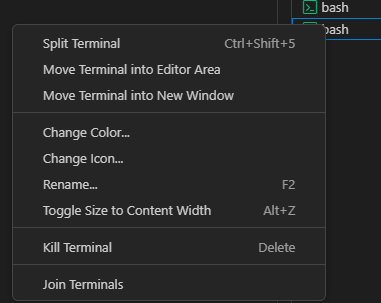
1,Split Terminal,新增一个输入命令行,但共享同一上下文。
分割后,会出现一个Unsplit Terminal选项,合并回去。
2,Move Terminal into Editor Area,将当前终端移动到编辑面板。
3,Move Terminal into New Window,将当前终端移动到新窗口。
4,Change Color,更改颜色
5,Change Icon,更改图标
6,Rename... , 更改名字
7,Toggle Size to Content Width, 调整终端的列宽。
8,Kill Terminal,关闭此终端。
通过9,Join Terminals,选中多个终端,能够进行合并。合并后就是对一个终端进行Split后的操作一样。
You can also right-click on a terminal tab and select Toggle Size to Content Width (Alt+Z) to resize the number of terminal columns to the largest wrapped line in the terminal.
您也可以右键单击终端选项卡,然后选择“ 将大小切换为内容宽度 ”(Alt+Z),将终端列数调整为终端中最大的换行。
这里选择的color和icon选项的值,可以作为settings.json里的设置项进行填写。
比如:
"icon": "terminal",
"color": "terminal.ansiGreen",


 浙公网安备 33010602011771号