
倒计时小工具学习
关于控件样式资源:
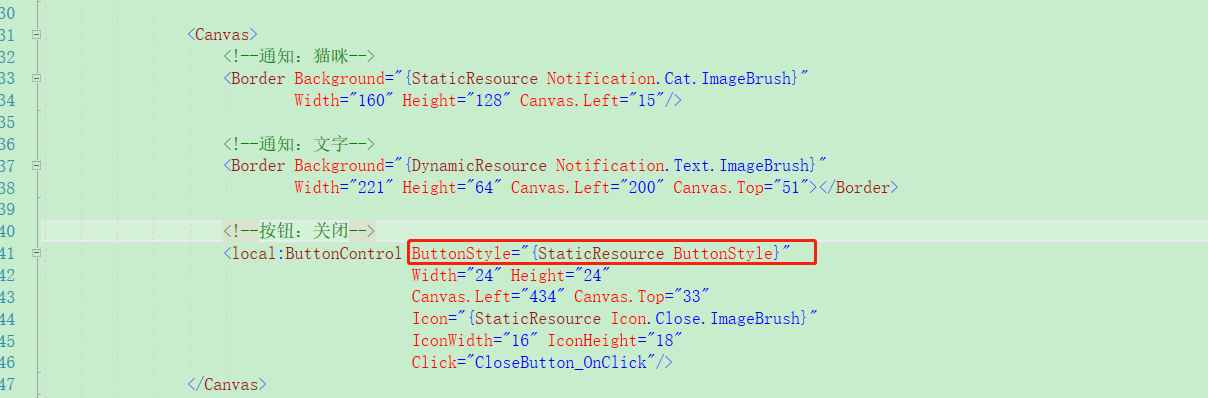
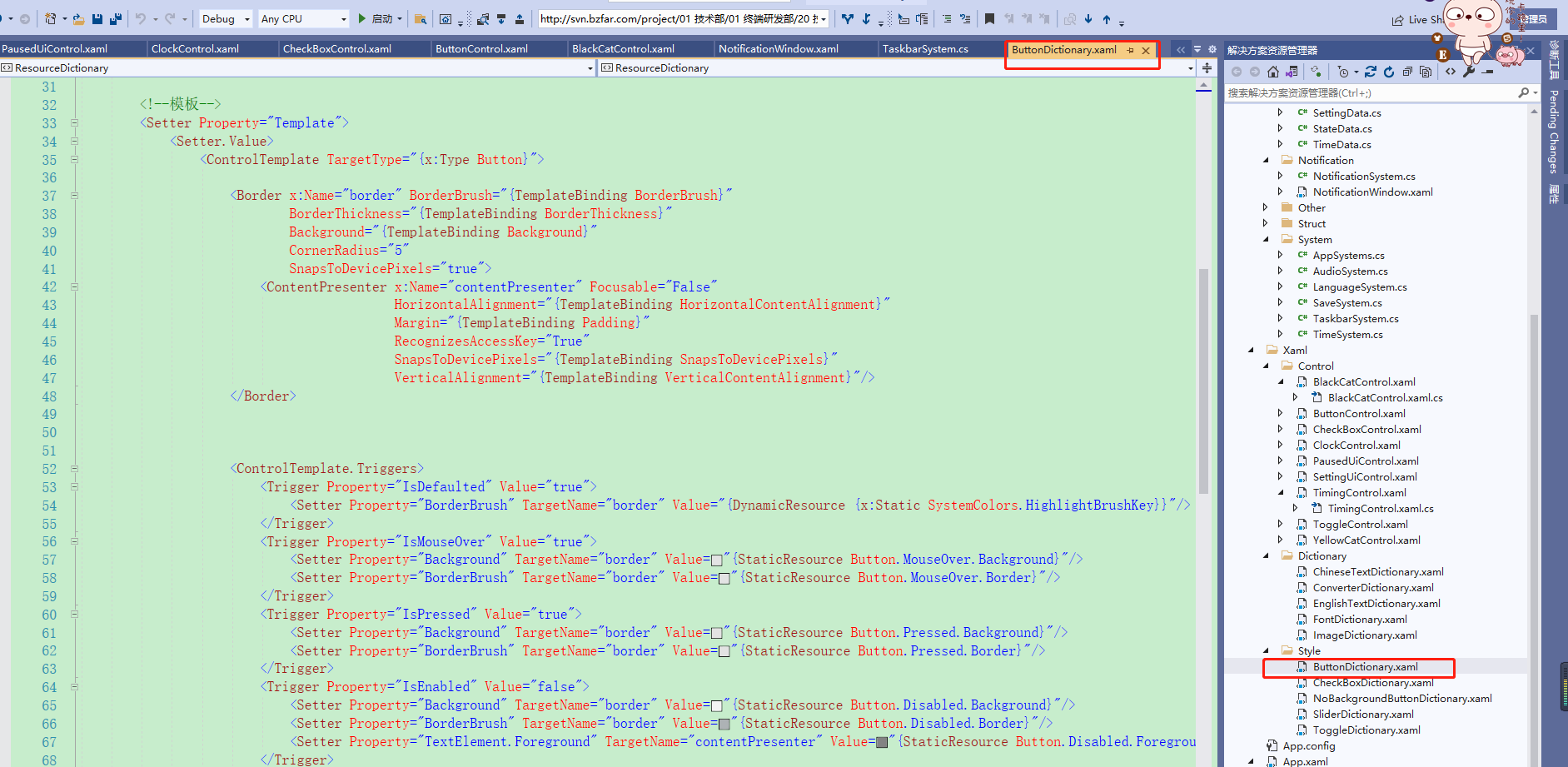
- 主xaml页面只显示控件,控件的样式资源及触发器写入style文件中,尽量使xaml页面简洁;
如下,为前端页面
![]()
如下为按钮样式及触发器单独配置:
- 使用合并资源字典
<ResourceDictionary.MergedDictionaries>。
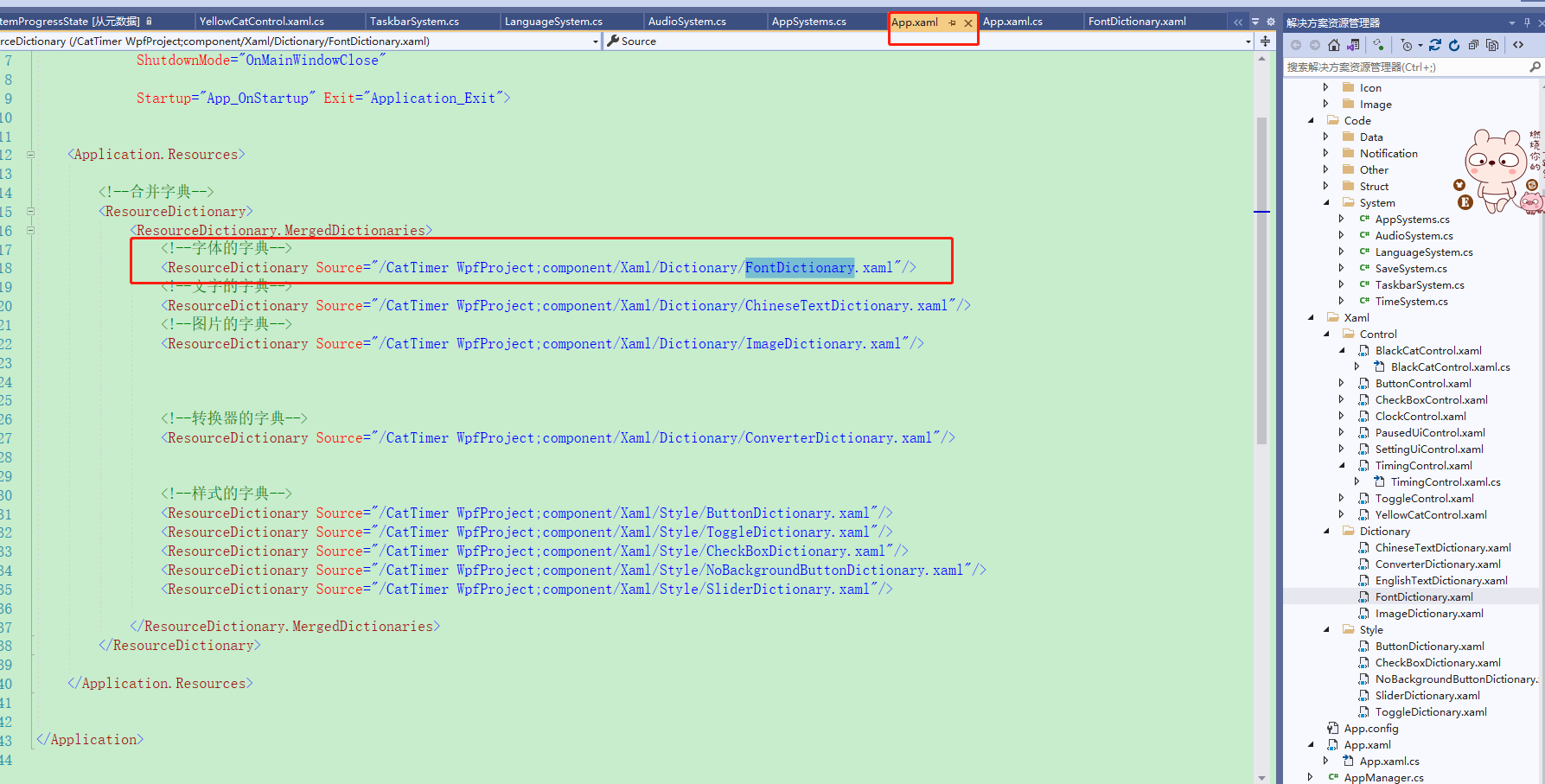
即字典资源可先进行统一归类,再在App.xaml中进行注册 ,避免App.xaml中的样式资源杂乱。
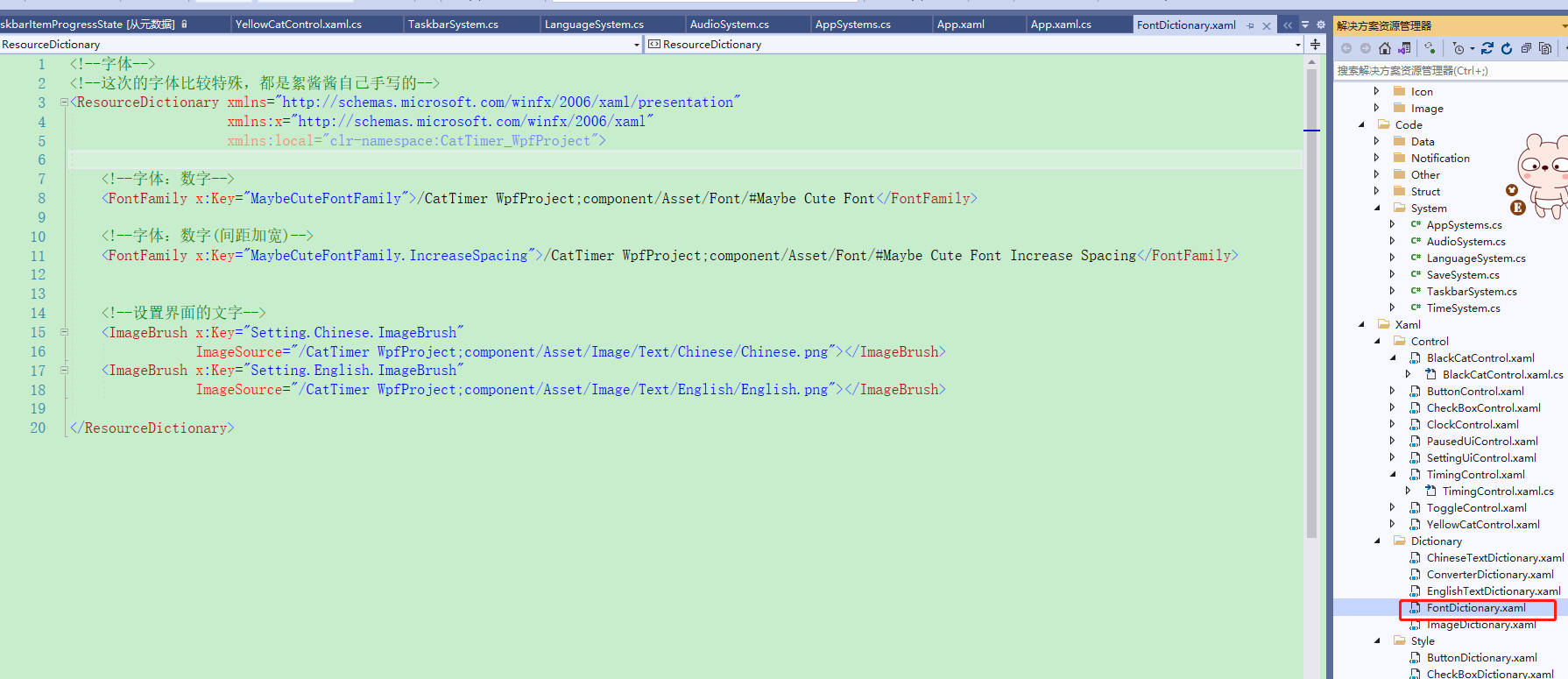
如下,有多个字体样式资源先统一写到FontDictionary.xaml中,
![]()
再将FontDictionary.xaml添加在App.xaml的合并字典中。
![]()
动态资源绑定实现一键换肤功能
定义两个包含的资源名称一致的字典,
例如,如下代码是界面设置为中文格式的图片样式资源
<!--中文的文字-->
<ResourceDictionary xmlns="http://schemas.microsoft.com/winfx/2006/xaml/presentation"
                    xmlns:x="http://schemas.microsoft.com/winfx/2006/xaml"
                    xmlns:local="clr-namespace:CatTimer_WpfProject">

    <!--绳子的按钮 的文字-->
    <ImageBrush x:Key="RopeButton.Pause.ImageBrush"
                ImageSource="/CatTimer WpfProject;component/Asset/Image/Text/Chinese/Pause.png"></ImageBrush>
    <ImageBrush x:Key="RopeButton.Resume.ImageBrush"
                ImageSource="/CatTimer WpfProject;component/Asset/Image/Text/Chinese/Resume.png"></ImageBrush>
    <ImageBrush x:Key="RopeButton.Reset.ImageBrush"
                ImageSource="/CatTimer WpfProject;component/Asset/Image/Text/Chinese/Reset.png"></ImageBrush>


    <!--设置界面 的文字-->
    <ImageBrush x:Key="Setting.Title.ImageBrush"
                ImageSource="/CatTimer WpfProject;component/Asset/Image/Text/Chinese/SettingTitle.png"></ImageBrush>
    <ImageBrush x:Key="Setting.Minute.ImageBrush"
                ImageSource="/CatTimer WpfProject;component/Asset/Image/Text/Chinese/Minute.png"></ImageBrush>


    <!--计时界面 的文字-->
    <ImageBrush x:Key="Timer.Paused.ImageBrush"
                ImageSource="/CatTimer WpfProject;component/Asset/Image/Text/Chinese/Paused.png"></ImageBrush>


    <!--定时界面 的文字-->
    <ImageBrush x:Key="Timing.Start.ImageBrush"
                ImageSource="/CatTimer WpfProject;component/Asset/Image/Text/Chinese/Start.png"></ImageBrush>
    <ImageBrush x:Key="Timing.StartLine.ImageBrush"
                ImageSource="/CatTimer WpfProject;component/Asset/Image/Text/Chinese/StartLine.png"></ImageBrush>


    <!--通知界面 的文字-->
    <ImageBrush x:Key="Notification.Text.ImageBrush"
                ImageSource="/CatTimer WpfProject;component/Asset/Image/Text/Chinese/Notification.png"></ImageBrush>

</ResourceDictionary>
如下代码是界面设置为英文时的代码
<!--英文的文字-->
<ResourceDictionary xmlns="http://schemas.microsoft.com/winfx/2006/xaml/presentation"
                    xmlns:x="http://schemas.microsoft.com/winfx/2006/xaml"
                    xmlns:local="clr-namespace:CatTimer_WpfProject">

    <!--绳子的按钮 的文字-->
    <ImageBrush x:Key="RopeButton.Pause.ImageBrush"
                ImageSource="/CatTimer WpfProject;component/Asset/Image/Text/English/Pause.png"></ImageBrush>
    <ImageBrush x:Key="RopeButton.Resume.ImageBrush"
                ImageSource="/CatTimer WpfProject;component/Asset/Image/Text/English/Resume.png"></ImageBrush>
    <ImageBrush x:Key="RopeButton.Reset.ImageBrush"
                ImageSource="/CatTimer WpfProject;component/Asset/Image/Text/English/Reset.png"></ImageBrush>


    <!--设置界面 的文字-->
    <ImageBrush x:Key="Setting.Title.ImageBrush"
                ImageSource="/CatTimer WpfProject;component/Asset/Image/Text/English/SettingTitle.png"></ImageBrush>
    <ImageBrush x:Key="Setting.Minute.ImageBrush"
                ImageSource="/CatTimer WpfProject;component/Asset/Image/Text/English/Minute.png"></ImageBrush>


    <!--计时界面 的文字-->
    <ImageBrush x:Key="Timer.Paused.ImageBrush"
                ImageSource="/CatTimer WpfProject;component/Asset/Image/Text/English/Paused.png"></ImageBrush>


    <!--定时界面 的文字-->
    <ImageBrush x:Key="Timing.Start.ImageBrush"
                ImageSource="/CatTimer WpfProject;component/Asset/Image/Text/English/Start.png"></ImageBrush>
    <ImageBrush x:Key="Timing.StartLine.ImageBrush"
                ImageSource="/CatTimer WpfProject;component/Asset/Image/Text/English/StartLine.png"></ImageBrush>


    <!--通知界面 的文字-->
    <ImageBrush x:Key="Notification.Text.ImageBrush"
                ImageSource="/CatTimer WpfProject;component/Asset/Image/Text/English/Notification.png"></ImageBrush>

</ResourceDictionary>
前台引用动态资源:
 <Border Name="TitleBorder" Width="76" Height="64"
         Background="{DynamicResource Setting.Title.ImageBrush}" Canvas.Left="28" Canvas.Top="32"></Border>
后台切换皮肤:
 public void SetLanguage(LanguageType _language)
        {
            AppManager.AppDatas.SettingData.Language = _language;

            string _dictionaryFilePath = "";
            switch (_language)
            {
                case LanguageType.Chinese:
                    _dictionaryFilePath = "/CatTimer WpfProject;component/Xaml/Dictionary/ChineseTextDictionary.xaml";
                    break;

                case LanguageType.English:
                    _dictionaryFilePath = "/CatTimer WpfProject;component/Xaml/Dictionary/EnglishTextDictionary.xaml";
                    break;
            }

            //创建1个新的资源字典
            ResourceDictionary _resourceDictionary = new ResourceDictionary();

            //设置资源字典的资源
            _resourceDictionary.Source = new Uri(_dictionaryFilePath, UriKind.Relative);

            //替换资源字典(替换App.xaml中的TextDictionary)
            AppManager.MainApp.Resources.MergedDictionaries[6] = _resourceDictionary;
        }
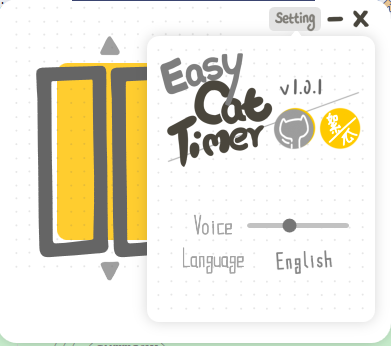
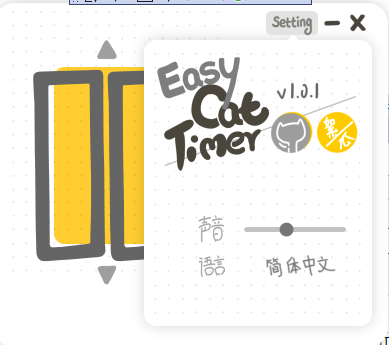
效果:
切换前:
切换后:
关于部分小功能
任务栏的进度条使用(实时进度、闪烁,报错停止)
在windows窗体下添加属性TaskbarItemInfo
  <!--任务栏的相关控件-->
    <Window.TaskbarItemInfo>
        <!--在窗口中,创建一个任务栏进度条-->
        <TaskbarItemInfo x:Name="taskbarItemInfo"></TaskbarItemInfo>
    </Window.TaskbarItemInfo>
在后台,可设置进度条实时进度
        /// <summary>
        /// 设置 [任务栏进度条]的进度
        /// (取值范围:0-1)
        /// </summary>
        /// <param name="_value">进度条的进度</param>
        public void SetProgressValue(double _value)
        {
            // 修改进度
            _value = Tools.Clamp(_value, 0, 1);
            AppManager.MainWindow.taskbarItemInfo.ProgressValue = _value;
        }
闪烁及停止的效果使用TaskbarItemProgressState属性的值来控制
效果:


 浙公网安备 33010602011771号