

Automate SQL Server Analysis Services Tasks with PowerShell - Part 2
Problem
In my last tip about PowerShell for SQL Server Analysis Services, we offered an introduction to PowerShell. In this second tip we will demonstrate how to do a few different discrete tasks including: creating a backup with the current date, using variables to specify the partition to be processed, run an XMLA script to create a new partition and call MDX scripts using PowerShell. Check out this tip to learn more.
Solution
Let's dive right into our first of four examples of using PowerShell to automate SQL Server Analysis Services tasks.
Working with PowerShell Variables with SQL Server Analysis Services
- Let's start working with variables.
$mydate="ssas powershell"
We created a variable named $mydate. The prefix $ is mandatory. We are assigning the value "ssas powershell".
- If you need to display the value of $mydate variable just write the variable name and press ENTER
$mydate

We created a variable named $mydate. The prefix $ is mandatory. We are assigning the value "ssas powershell".
- Now we are going to assign to the variable, the current date:
$mydate=Get-Date
We used the Get-Date function to get the current date and we stored the value in the $mydate variable. Note that PowerShell does not require the data type for a variable:
$mydate

- As you noticed the date is in long format and in Spanish (the language depends on the server configuration). Let's convert the current format to the format yyyyddMM (years, days and months)
$mydate=Get-Date -format yyyyddMM
Note that you are using the MM for month uppercased. This is because the mm lowercased means minutes.
- You can verify the new format:
$mydate

We now have a variable with the current date in the yyyyddMM format.
- What we want to do now is to create a backup with the current date.
backup-asdatabase d:\awdb-$mydate.abf "AdventureWorksDW2012Multidimensional-EE" -AllowOverwrite -ApplyCompression

We created a backup with the current date on the d drive and we concatenated the name awdb- with the current date. We also specified the database name, overwriting the existing backup and if we want to compress the backup.

Processing a SQL Server Analysis Services Partition with PowerShell
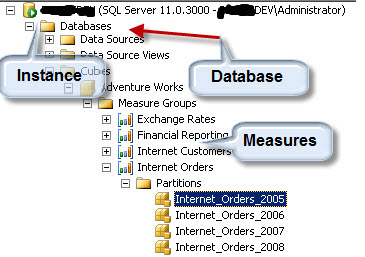
- Now let's move to the SQL Server Analysis Services partitions. As you know in SSAS the multidimensional database contains cubes, the cubes contain measures and the measures have partitions. The picture below shows the hierarchy.
- Now let's process the partition Internet_Orders_2008. To do this we are going to create a variable $myyear with the value 2008 and then process that partition.
$myyear=2008
Invoke-ProcessPartition -Name "Internet_Orders_"+$myyear -MeasureGroupname "Internet Orders" -CubeName "Adventure Works" -database "AdventureWorksDW2012Multidimensional-EE" -ProcessType "ProcessFull"
In the code above, the variable "Internet_Orders_$myyear" is the partition named "Internet_Orders_2008". The MeasureGroupName is "Internet Orders" and the CubeName is "Adventure Works".
Calling an XMLA Script from PowerShell
- Now we are going to call an XMLA script. XMLA is mainly used to create SSAS objects and process them. In this example we are going to generate a script to create a partition and then call it using PowerShell. First, let's create a script to generate the partition "Internet_Orders_2008".
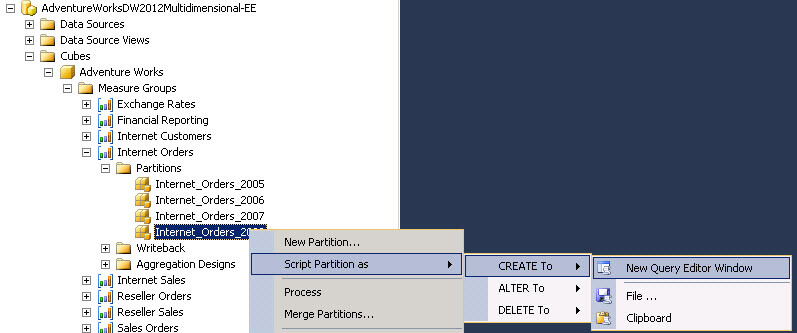 Now, let's modify the script created in step 1 by changing the year from "2008" to "2009". What we are doing is modifying the script for the "Internet_Orders_2008" partition to create a new partition named "Internet_Orders_2009".
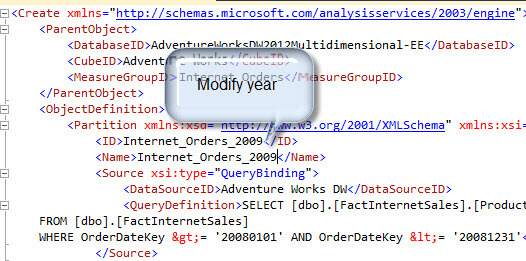
- We are going to save the script in the d:\powershell2\createPartition.xmla directory and we will use the Inkove-ASCmd PowerShell command to run the scripts.
Invoke-ASCmd -InputFile:"d:\powershell2\createPartition.xmla"
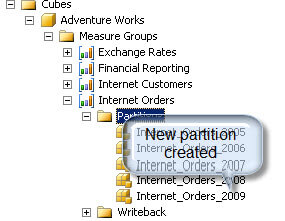
The command Invoke-ASCmd is the PowerShell command used to run SSAS commands including xmla scripts, mdx scripts to run SSAS queries, MDX scripts to run multidimensional queries and DMX queries to run Data Mining Queries. If you refresh the SSAS instance in SSMS, you will notice that a new partition is created.
Run MDX Queries with PowerShell
- We are going to run an MDX query using PowerShell. First we are going to generate the MDX queries.
In order to do that, open the SSMS and browse the Adventure Works Cube in the AdventureWorks DW2012 Database.
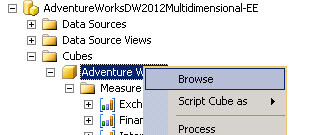
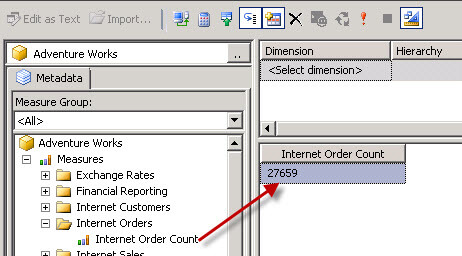
- Drag and drop the Internet Order Count Measure to the query pane.
- Press the design mode icon to view the MDX.
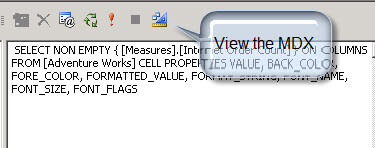
- Copy the query and save it to a file named "mymdx.mdx" in the "d:\powershell2\" directory.
- To run the mdx script in PowerShell run this command:
Invoke-ASCmd -Database "AdventureWorksDW2012Multidimensional-EE" -InputFile:"d:\powershell2\mymdx.mdx"| Out-file d:\Results\XMLAQueryOutput.xml
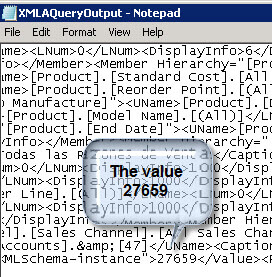
What we did is to execute the mdx file in the AdventureWorksDW2012Multidimensional database. The results are displayed in a xml file named XMLAQueryOutput.xml.
- The results can be displayed here when you open the xml file:

 浙公网安备 33010602011771号