
winform界面测试
首先下载WinAppDriver
地址:https://github.com/microsoft/WinAppDriver
下载1.1.1版的msi
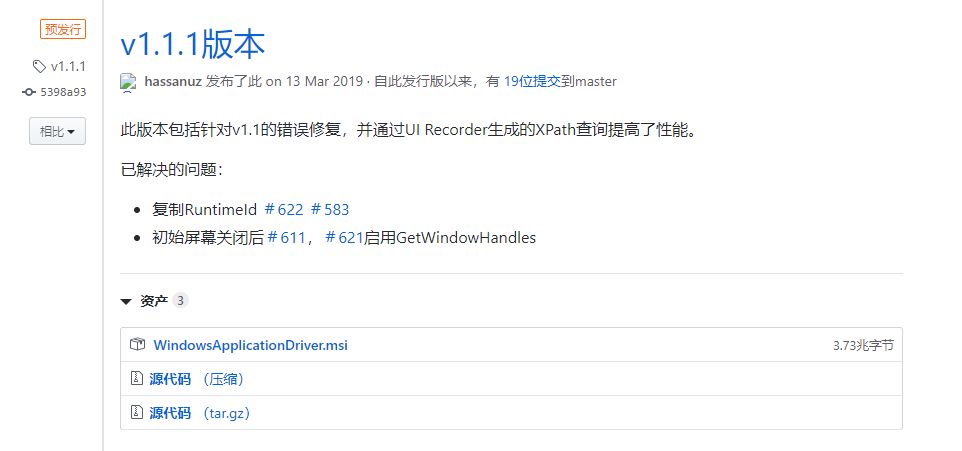
然后安装
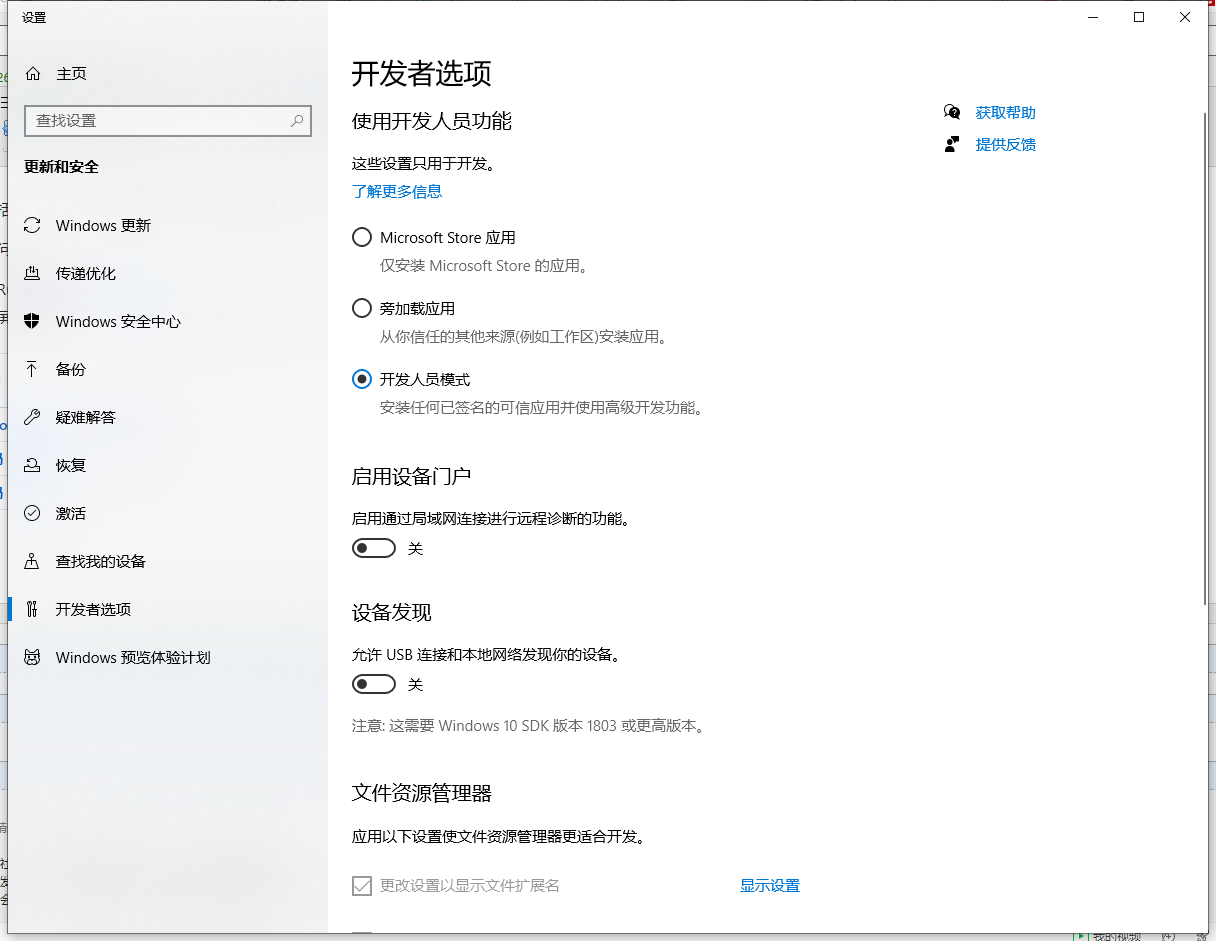
安装完把电脑的开发者设置设为开发人员模式
然后在路径C:\Program Files (x86)\Windows Application Driver
找到WinAppDriver.exe
以管理员身份运行
运行后是这个界面:
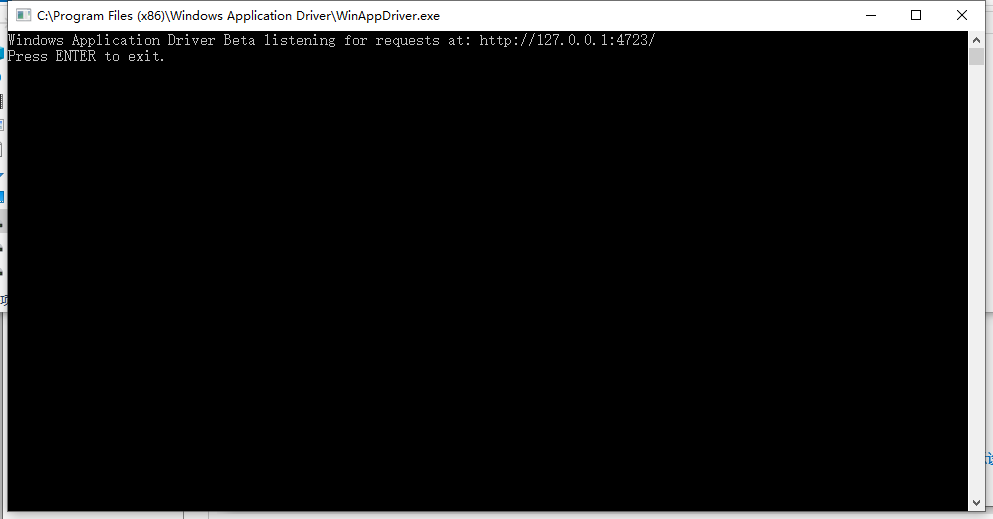
然后就不要管他
打开你的项目右键管理nuget程序包
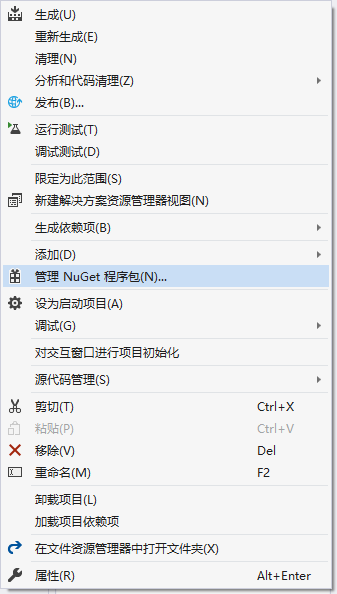
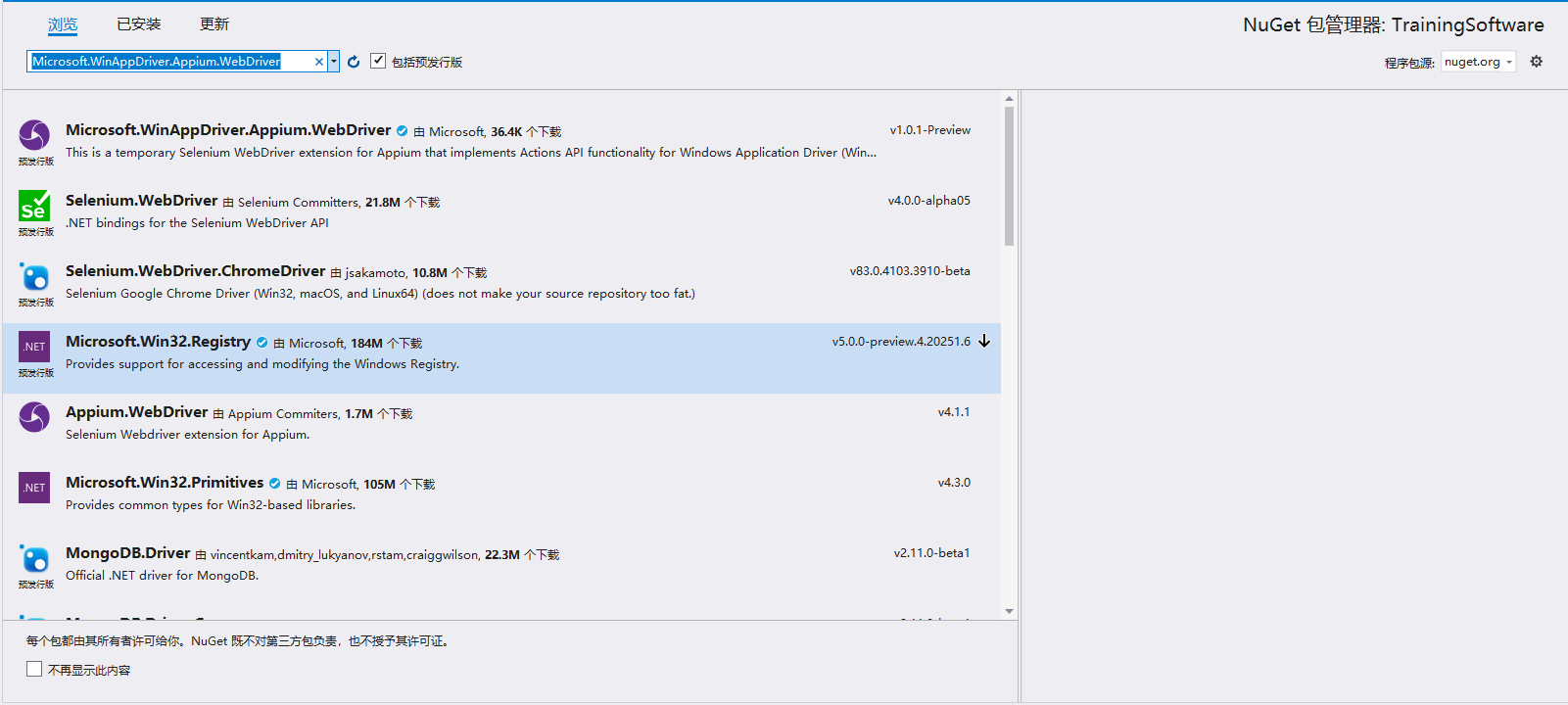
在浏览处搜索Microsoft.WinAppDriver.Appium.WebDriver,安装第一个
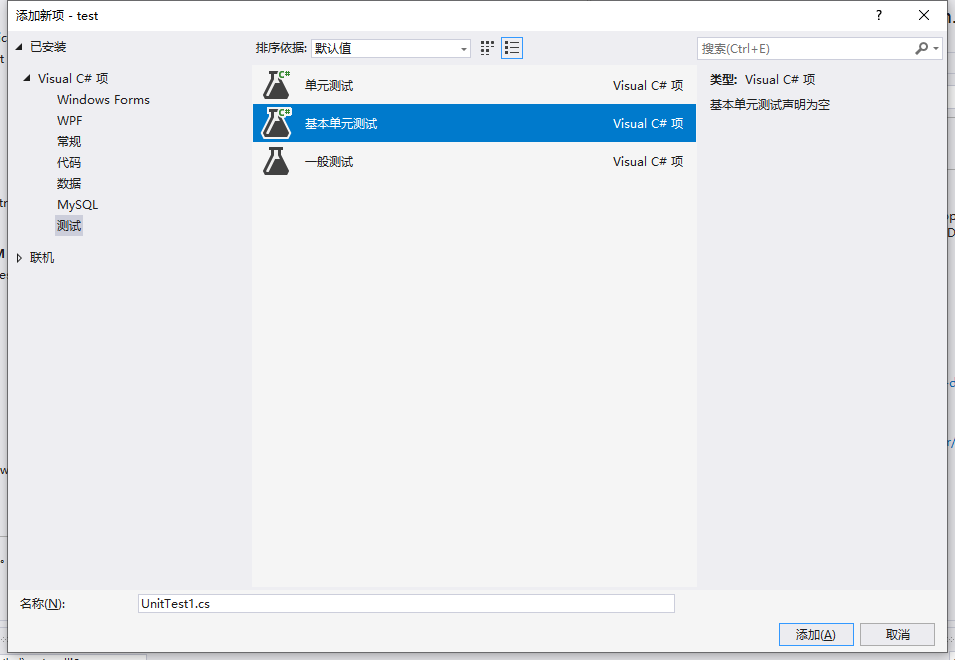
然后创建一个测试
在测试类中添加下面代码,其中path修改为你要测试的exe的地址,例如"C:\\Users\\hasee\\source\\repos\\nowss\\mian\\TrainingSoftware\\bin\\Debug\\TrainingSoftware.exe"
当然可以改为相对地址
protected const string WindowsApplicationDriverUrl = "http://127.0.0.1:4723";
private const string Paint3DAppId = "path";
protected static WindowsDriver<WindowsElement> desktopSession;
然后再测试中添加下面的代码
DesiredCapabilities appCapabilities = new DesiredCapabilities();
appCapabilities.SetCapability("app", Paint3DAppId);
appCapabilities.SetCapability("deviceName", "WindowsPC");
desktopSession = new WindowsDriver<WindowsElement>(new Uri(WindowsApplicationDriverUrl), appCapabilities);
当然记得使用alt+enter解决红色下划线
添加完后为
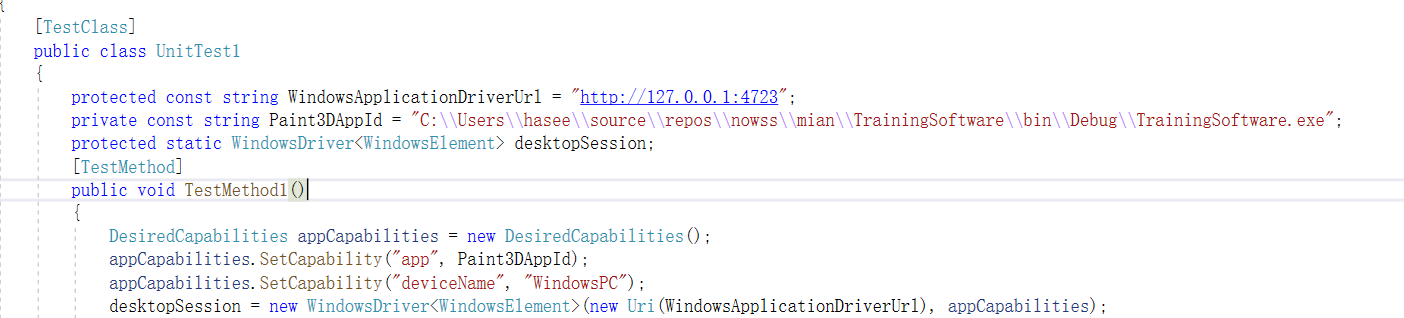
然后运行测试你就能发现可以自动打开界面了
然后进行界面的自动测试
下载整个项目
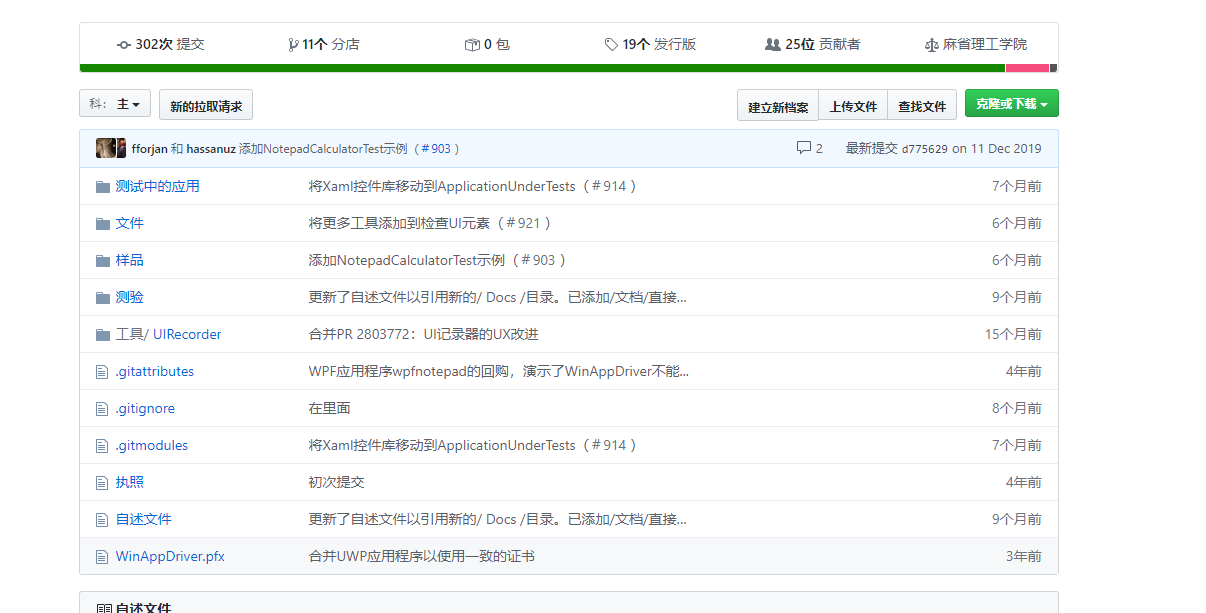
解压完后打开tools
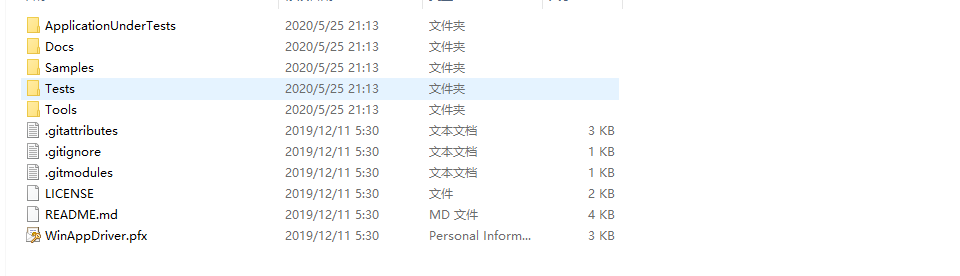
打开UIRecorder
然后打开WinAppDriverUIRecorder.sln
然后点击开始执行即可
出现下方界面
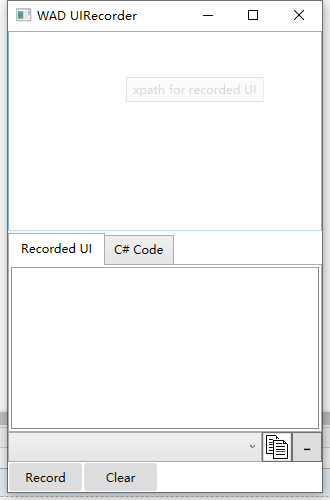
这时运行你要测试的界面,然后返回UIRecorder界面
点击c#code
然后点击record
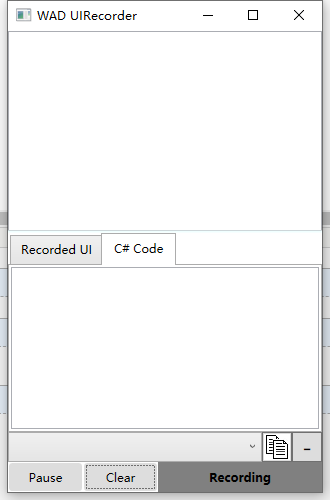
然后返回你要测试的程序,把鼠标移动到你要点击的按钮上等一下
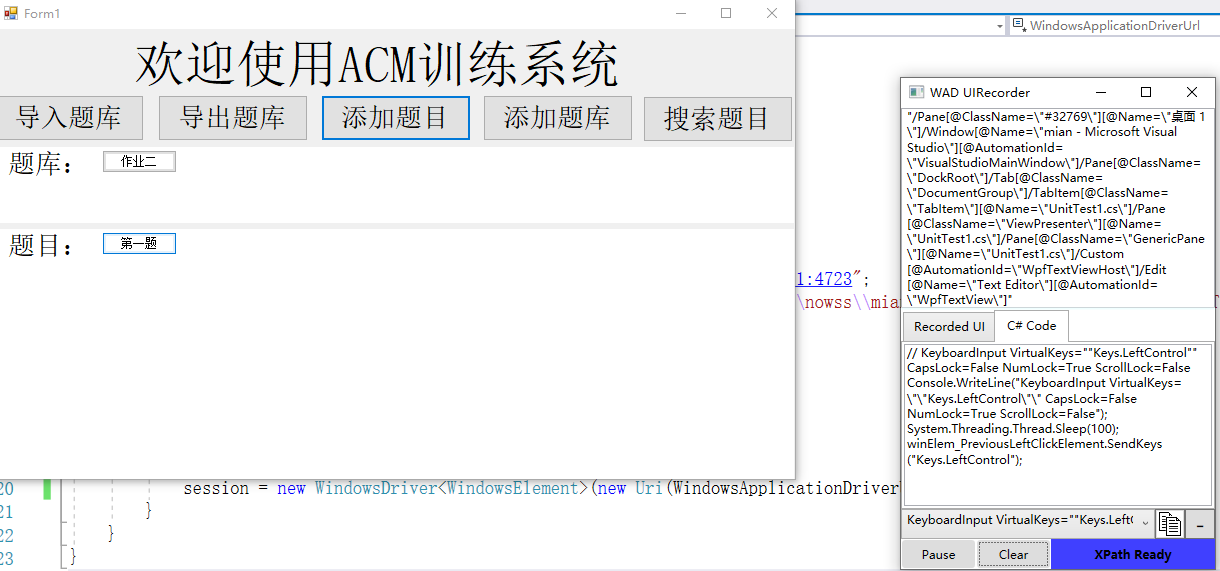
就会出现xpathready
然后点击那个按钮,然后点击pause
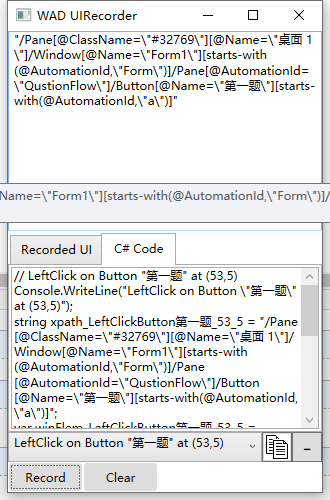
然后复制下方代码黏贴到测试代码下方
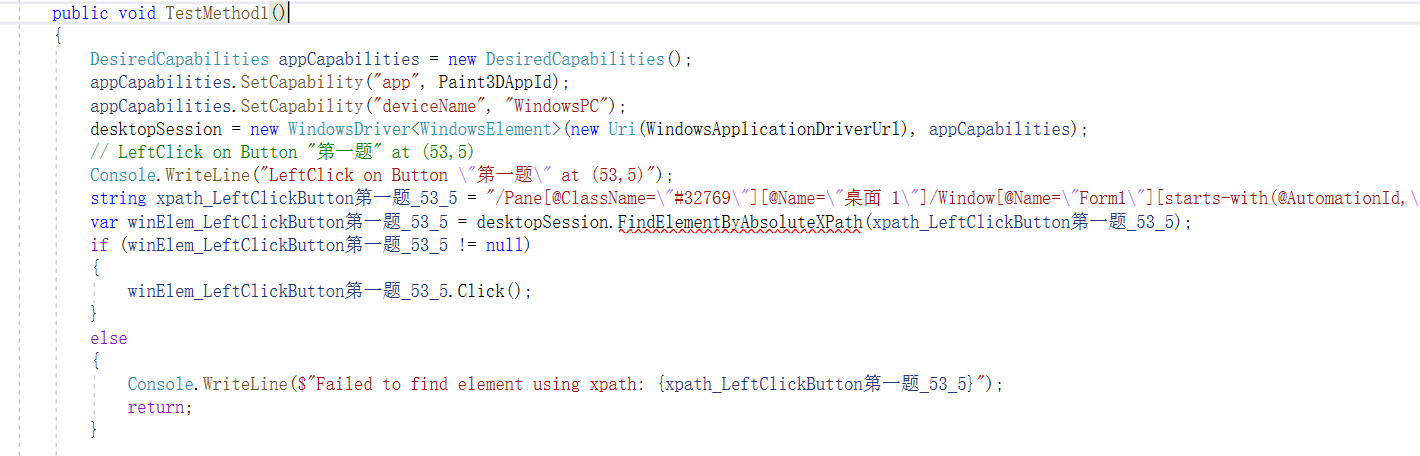
把第二句修改为下面这个,其中name为你要点击的按钮的Name
var winElem_LeftClickButton第一题_53_5 = desktopSession.FindElementByAccessibilityId("name");
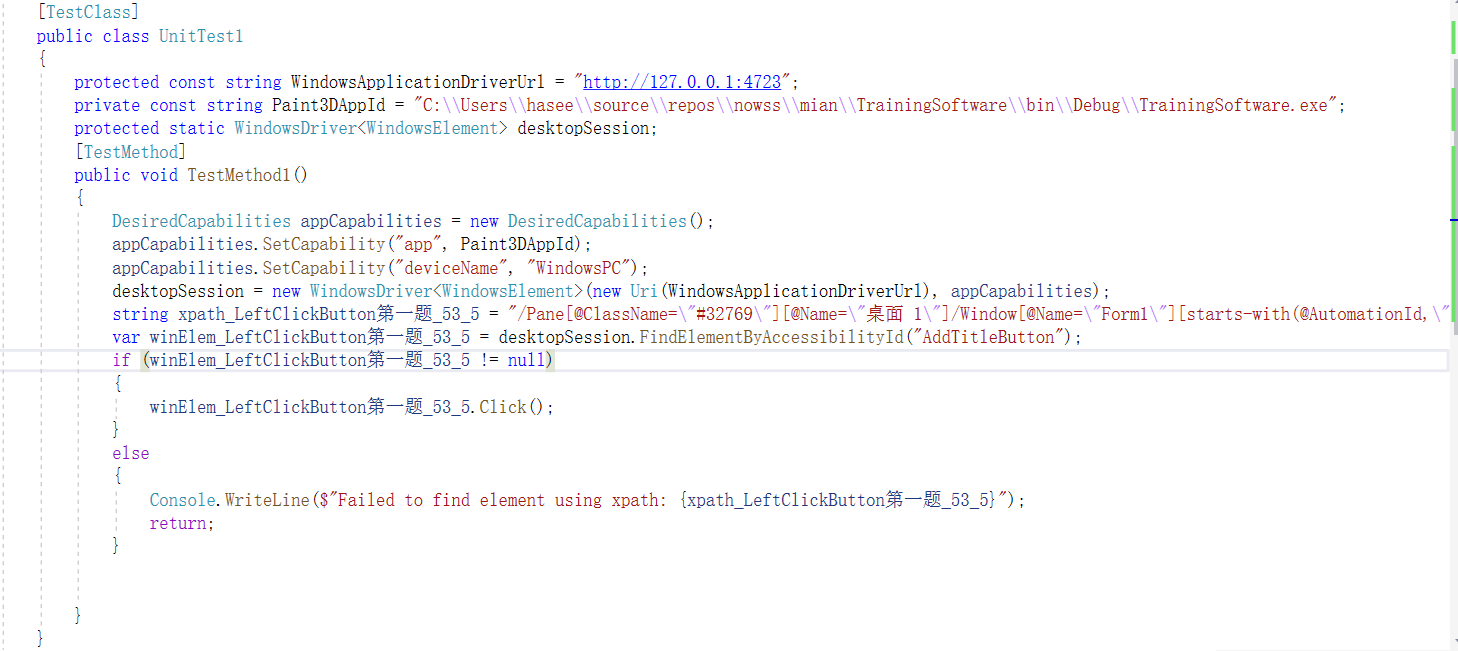
然后运行你就可以发现他可以自动点击按钮了
然后你可以用相同的方式获取界面上的组件测试属性例如text是否正确
这样就可以简单的界面测试了
较难的还需要继续研究

 浙公网安备 33010602011771号