
Android basics - Applying some UI patterns
When I started with my Android application, I had the idea to create a home screen and an action bar just like one of the Android developers described in a blog item. I was really helped by the source code of the Google I/O Schedule app. In this post I will explain how I used several layouts to create my app.
Action bar
 The action bar is a bar on the top of the screen that provides your users with quick access to common actions. In the screenshot I placed an icon in the right corner that lets the user quickly return to the home screen.
The XML layout:
<LinearLayoutstyle="@style/TitleBar">
<ImageViewstyle="@style/TitleBarAction"
android:src="@drawable/title_bar_logo"/>
<ImageViewstyle="@style/TitleBarSeparator"/>
<TextViewstyle="@style/TitleBarText"
android:text="JTeam"/>
<ImageViewstyle="@style/TitleBarSeparator"/>
<ImageButtonstyle="@style/TitleBarAction"
android:src="@drawable/ic_title_home_default"
android:onClick="onHomeClick"/>
</LinearLayout>The XML file for the style (styles.xml):
<stylename="TitleBar">
<itemname="android:id">@+id/title_container</item>
<itemname="android:layout_width">fill_parent</item>
<itemname="android:layout_height">45dip</item>
<itemname="android:orientation">horizontal</item>
<itemname="android:background">#4b08a3</item>
</style>
<stylename="TitleBarAction">
<itemname="android:layout_width">45dip</item>
<itemname="android:layout_height">fill_parent</item>
<itemname="android:background">@drawable/title_button</item>
</style>
<stylename="TitleBarSeparator">
<itemname="android:layout_width">1px</item>
<itemname="android:layout_height">fill_parent</item>
<itemname="android:background">#40ffffff</item>
</style>
<stylename="TitleBarText">
<itemname="android:layout_width">0dp</item>
<itemname="android:layout_height">fill_parent</item>
<itemname="android:layout_weight">1</item>
<itemname="android:gravity">center_vertical</item>
<itemname="android:textSize">18sp</item>
<itemname="android:paddingLeft">12dip</item>
<itemname="android:paddingRight">12dip</item>
<itemname="android:textStyle">bold</item>
<itemname="android:textColor">#ffffffff</item>
<itemname="android:singleLine">true</item>
<itemname="android:ellipsize">end</item>
</style>In your activity you need to implement the onClick of the home button.
publicvoidonHomeClick(View v) {
startActivity(newIntent(this, HomeActivity.class));
}Dashboard
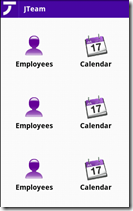
The dashboard is often your home orientation activity and contains the main features of your application. To create a dashboard you need to create a layout file and program the behaviour of the buttons when they are clicked.
On the left you can see the dashboard that I created. I have copied the icons just to give you an impression of how a “full” dashboard could look like.
The XML layout (main.xml):
<?xmlversion="1.0"encoding="utf-8"?>
<LinearLayoutxmlns:android="http://schemas.android.com/apk/res/android"
android:id="@+id/home_root"
android:orientation="vertical"
android:layout_width="fill_parent"
android:layout_height="fill_parent"
android:background="#ffffffff">
<!-- Actionbar -->
<LinearLayoutstyle="@style/TitleBar">
...
</LinearLayout>
<!-- Buttons -->
<LinearLayoutandroid:orientation="vertical"
android:layout_width="fill_parent"
android:layout_height="wrap_content"
android:layout_weight="1"
android:padding="6dip">
<LinearLayoutandroid:orientation="horizontal"
android:layout_width="fill_parent"
android:layout_height="wrap_content"
android:layout_weight="1">
<Buttonandroid:id="@+id/home_btn_users"
style="@style/HomeButton"
android:onClick="onEmployeesClick"
android:text="Employees"
android:drawableTop="@drawable/btn_employees"/>
<Buttonandroid:id="@+id/home_btn_player_availability"
style="@style/HomeButton"
android:onClick="onCalendarClick"
android:text="Calendar"
android:drawableTop="@drawable/btn_calendar"/>
</LinearLayout>
...
</LinearLayout>
</LinearLayout>The activity (HomeActivity.java):
publicclassHomeActivityextendsActivity {
@Override
publicvoidonCreate(Bundle savedInstanceState) {
super.onCreate(savedInstanceState);
setContentView(R.layout.main);
}
publicvoidonEmployeesClick(View v) {
startActivity(newIntent(this, EmployeesActivity.class));
}
}ProcessDialog
The ProcessDialog allows you to load data in the background while you show your users a loading screen. The ProcessDialog can be realised with an AsyncTask.
I created a subclass of the AsyncTask that overrides three methods.

- doInBackground(…) - In this method you can make the call to get your data.
- onPreExecute() - In this method you can show your dialog.
- onPostExecute() - This method will be executed when all data is retrieved. Here you can dismiss your dialog and add the data to your adapter.
The XML layout (activity_employees.xml):
<?xmlversion="1.0"encoding="utf-8"?>
<LinearLayoutxmlns:android="http://schemas.android.com/apk/res/android"
android:orientation="vertical"
android:layout_width="fill_parent"
android:layout_height="fill_parent">
<!-- Actionbar -->
<LinearLayoutstyle="@style/TitleBar">
...
</LinearLayout>
<ListViewandroid:id="@android:id/list"
android:layout_width="fill_parent"
android:layout_height="fill_parent"/>
</LinearLayout>The activity (EmployeesActivity.java):
publicclassEmployeesActivityextendsListActivity {
@Override
publicvoidonCreate(Bundle savedInstanceState) {
super.onCreate(savedInstanceState);
setContentView(R.layout.activity_employees);
newEmployeesTask().execute();
}
publicvoidonHomeClick(View v) {
startActivity(newIntent(this, HomeActivity.class));
}
//================================================= EmployeesTask ==================================================
privateclassEmployeesTaskextendsAsyncTask<Void, Void, String[]> {
privateProgressDialog progressDialog;
@Override
protectedString[] doInBackground(Void... voids) {
returnnewString[]{"Roberto van der Linden","Employee 2","Employee 3"};
}
@Override
protectedvoidonPreExecute() {
progressDialog = ProgressDialog.show(EmployeesActivity.this,"","Loading...");
}
@Override
protectedvoidonPostExecute(String[] employees) {
progressDialog.dismiss();
setListAdapter(newArrayAdapter<String>(EmployeesActivity.this, android.R.layout.simple_list_item_1, employees));
}
}
}So I hope this blog helped a few of people in their journey to create a great Android app. If you want to know more about creating an app with asynchronous retrieval of data, you can read my previous blog post.

 浙公网安备 33010602011771号