
C++(27)-windows-VSCODE+C++---cl.exe
1.下载VSCODE
2.下载MinGW
3.配置C++环境
4.配置编译环境(cl.exe)
5.测试程序
1.下载安装VSCODE
https://code.visualstudio.com/
2.下载安装MinGW
下载 mingw.org 一般不要选择下午,速度慢还老出错。凌晨会是个不错的时间段:)
2.1 安装选项:
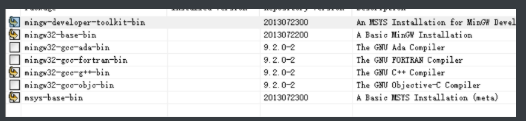
点击apply
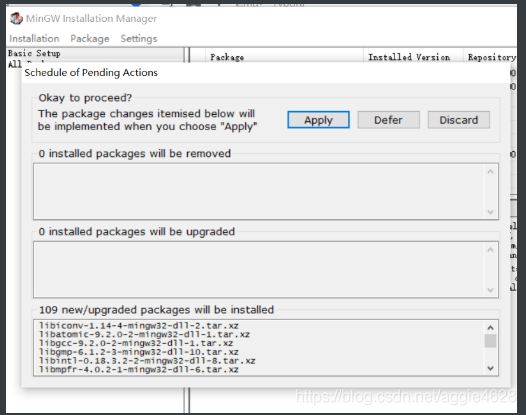
出现
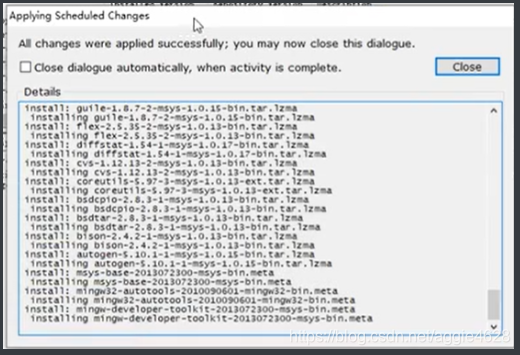
表示安装好了。
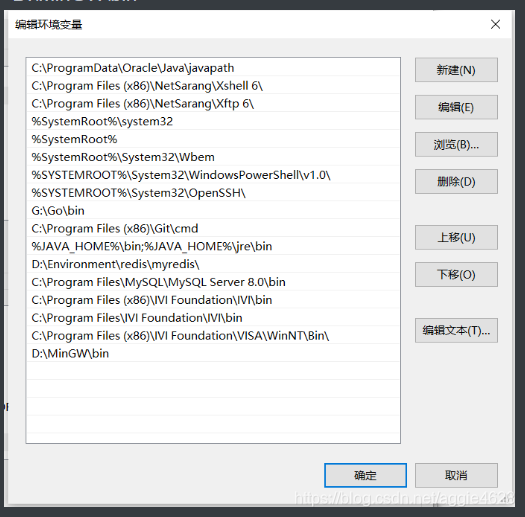
2.2 配置环境变量
D:\MinGW\bin
命令行 gcc -v出现下图表示可以了
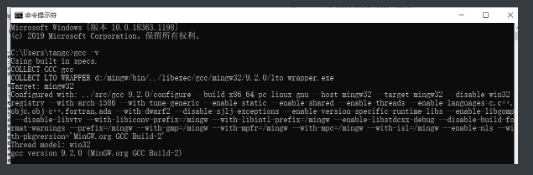
3.配置C++环境
CTRL+SHIF+P
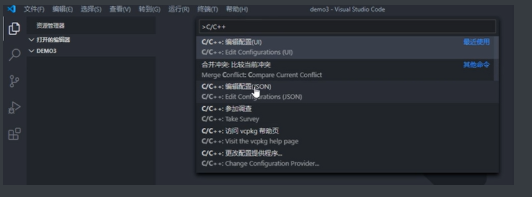
选择UI的。 写C :选择GCC 写C++:选择G++ 或者cl.exe
4.配置编译环境(cl.exe)
cl.exe是Microsoft C/C++编译器 ,一般用VS打开,如果想在VSCode下用:
4.1.把cl.exe配置成环境变量。
//1.在Path中添加cl.exe所在文件夹路径。若未找到,直接VS的安装目录下搜索cl.exe即可
D:\Program Files (x86)\Microsoft Visual Studio\2019\Community\VC\Tools\MSVC\14.27.29110\bin\Hostx64\x64;

//2.在系统变量中新建变量INCLUDE,添加cl.exe的包含目录
D:\Program Files\Microsoft Visual Studio\2019\Community\VC\Tools\MSVC\14.27.29110\include;


//3.在系统变量中新建变量LIB,添加cl.exe的库目录
D:\Program Files (x86)\Microsoft Visual Studio\2019\Community\VC\Tools\MSVC\14.27.29110\lib\x86;
当出现下图时表明OK了
4.2.设置权限
直接调试时会出现
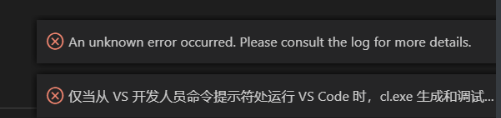
解决方法1. 通过X86 Native Tools Command Prompt或者X64 Native Tools Command Prompt以VS开发人员的权限打开VS Code。
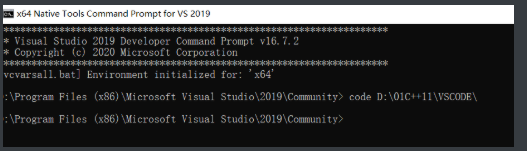
D:\Program Files (x86)\Microsoft Visual Studio\2019\Community> code D:\01C++11\VSCODE\解决方法2: 通过Developer Command Prompt for VS 2017以VS开发人员的权限打开VS Code。
解决方法3: 调试时,选择C++ (Windows)*和*默认配置将上面的launch.json和tasks.json拷贝到.vscode文件夹中。
4.3launch.json
{
    // Use IntelliSense to learn about possible attributes.
    // Hover to view descriptions of existing attributes.
    // For more information, visit: https://go.microsoft.com/fwlink/?linkid=830387
    "version": "0.2.0",
    "configurations": [
        {
            "name": "cl.exe - 生成和调试活动文件",
            "type": "cppvsdbg",
            "request": "launch",
            "program": "${fileDirname}\\${fileBasenameNoExtension}.exe",
            "args": [],
            "stopAtEntry": false,
            "cwd": "${workspaceFolder}",
            "environment": [],
            "externalConsole": true,
            "preLaunchTask": "C/C++: cl.exe build active file"
        }
    ]
}
task.json
{
    "tasks": [
        {
            "type": "cppbuild",
            "label": "C/C++: cl.exe build active file",
            "command": "cl.exe",
            "args": [
                "/Zi",
                "/EHsc",
                "/Fe:",
                "${fileDirname}\\${fileBasenameNoExtension}.exe",
                "${file}"
            ],
            "options": {
                "cwd": "${workspaceFolder}"
            },
            "problemMatcher": [
                "$msCompile"
            ],
            "group": {
                "kind": "build",
                "isDefault": true
            },
            "detail": "Generated task by Debugger"
        }
    ],
    "version": "2.0.0"
}
c_cpp_properties.json
{
    "configurations": [
        {
            "name": "Win32",
            "includePath": [
                "${workspaceFolder}/**"
            ],
            "defines": [
                "_DEBUG",
                "UNICODE",
                "_UNICODE"
            ],
            "windowsSdkVersion": "10.0.18362.0",
            "compilerPath": "D:/Program Files (x86)/Microsoft Visual Studio/2019/Community/VC/Tools/MSVC/14.27.29110/bin/Hostx64/x64/cl.exe",
            "cStandard": "c11",
            "cppStandard": "c++11",
            "intelliSenseMode": "msvc-x64"
        }
    ],
    "version": 4
}
5.测试程序
#include <iostream>
#include<stdlib.h>
using namespace std;

int main()
{
   cout<<"hello"<<endl;
   system("pause");
    return 0;
}

 浙公网安备 33010602011771号