
您可以从阿帕奇TinkerPop官方网站下载小精灵控制台
You can download the Gremlin console from the official Apache TinkerPop website:http://tinkerpop.apache.org/
只需要几分钟,您就可以安装并运行它。您只需下载ZIP文件,并解压它,您就准备就绪了。Tinker Pop3需要安装Java8近期的一个版本。笔者所有的测试都是在JAVA8 1.8.0_131这个版本上调试运行的。小精灵控制台在1.8.0_45之前的版本上是不能正常工作的。如果您还没有安装JAVA8的环境,您可以从官方网址找到JAVA8并下载安装它。在编写独立运行的Java和Groovy程序时用到的JAR包也需要下载的,这部分内容将在以后的讨论。
It only takes a few minutes to get the Gremlin Console installed and running. You just download the
ZIP file and unzip it and you are all set. TinkerPop 3 also requires a recent version of Java 8 being
installed. I have done all of my testing using Java 8 version 1.8.0_131. The Gremlin Console will not
work with versions prior to 1.8.0_45. If you do not have Java 8 installed it is easy to find and
download off the Web. The download also includes all of the JAR files that are needed to write a
standalone Java or Groovy TinkerPop application but that is a topic for later!
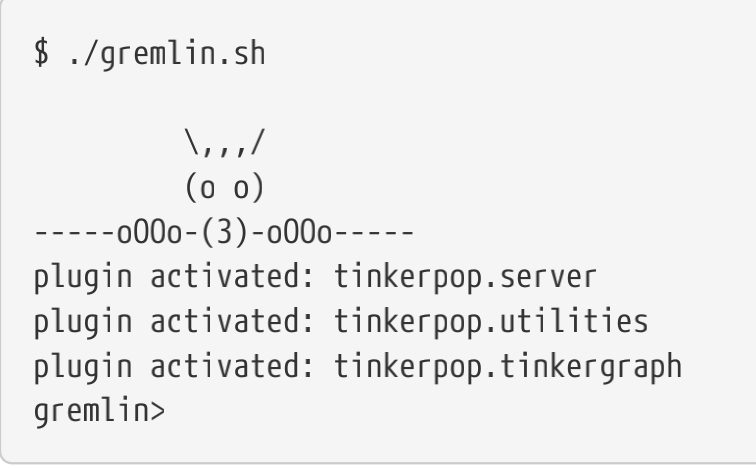
当您运行小精灵控制台时,您可以看到标语或者标识,也有类似的一些提示信息。别担心这些附加的提示消息,我们会在稍后聊到它们。
When you start the Gremlin console you will be presented with a banner/logo and a prompt that
will look something like this. Don’t worry about the plugin messages yet we will talk about those a
bit later.
您也可以通过输入:help命令得到可用的命令的列表。注意:这些控制台使用的命令都有冒号的前缀。这样就控制台就可以把它们做为特殊字符识别出来,它们与小精灵查询语言的命令和Groovy命令是不同的。
You can get a list of the available commands by typing :help. Note that all commands to the console
itself are prefixed by a colon ":". This enables the console to distinguish them as special and
different from actual Gremlin and Groovy commands.
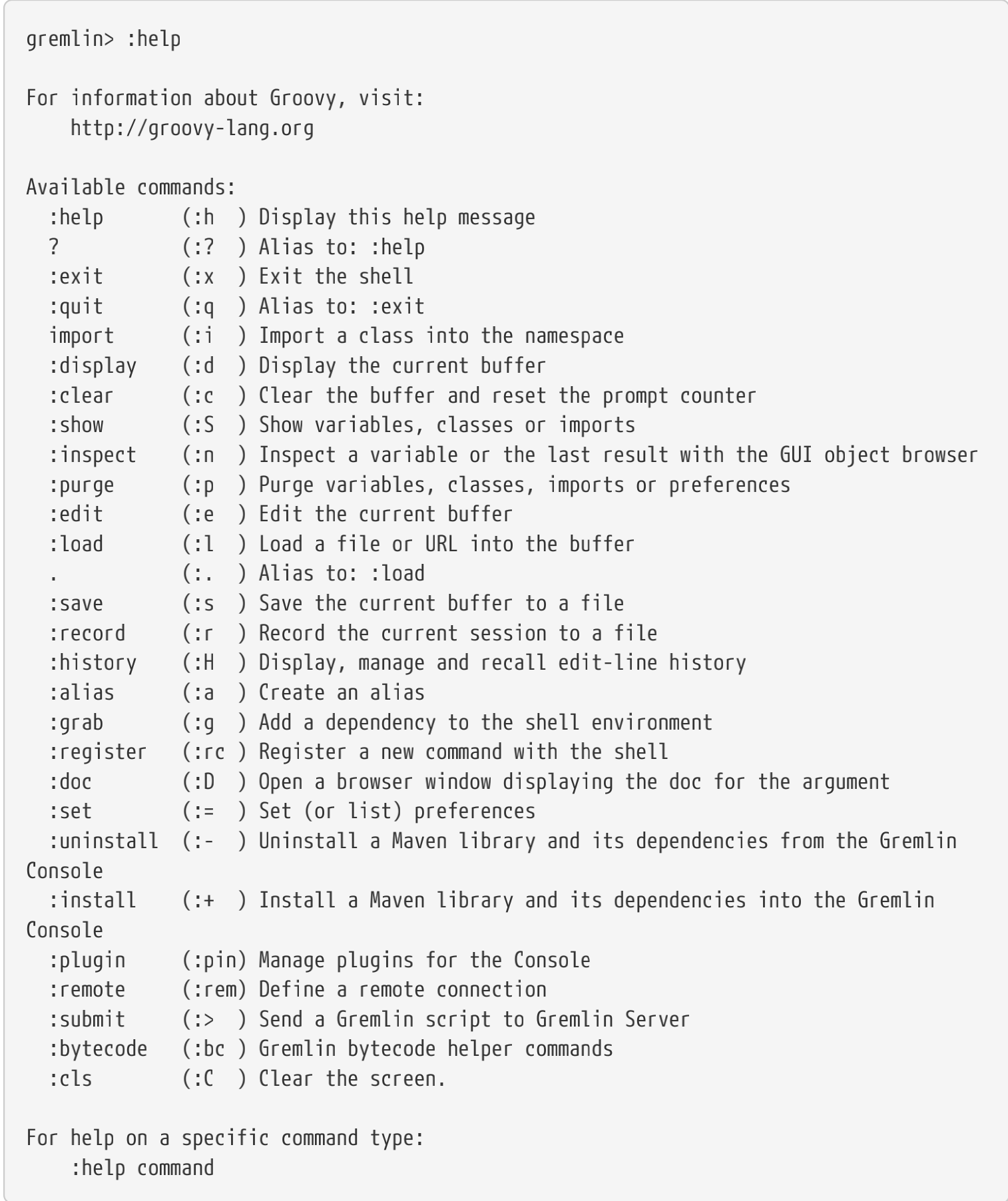
以上列出来的所有命令中,:clear,简写是:c,这个命令特别重要,要记住,如果控制台的表现有点奇怪,或者您发现被类似“……1>”这样的内容卡住了,请您键入“:clear”这样事情就重置了。
Of all the commands listed above :clear (:c for short) is an important one to
remember. If the console starts acting strangely or you find yourself stuck with a
prompt like "……1>" , typing :clear will reset things nicely.
这面所述内容似乎不值一提,小精灵控制台本就是基于Groovy控制台的,您可以直接向控制台输入合法的Groovy代码。当然也可以通过它来体验图和小精灵查询语言,当然如果您愿意,您也可以把它当做一个桌面的计算器。
It is worth noting that as mentioned above, the Gremlin console is based on the Groovy console and
as such you can enter valid Groovy code directly into the console. So as well as using it to
experiment with Graphs and Gremlin you can use it as, for example, a desktop calculator should
you so desire!

以简洁的形式把查询结果显示出来,这件事小精灵控制台做的不错。 如果您是工作在支持Tinker Pop3的图数据库上,而不是在小精灵控制台上工作(例如您使用HTTP REST API与小精灵服务器会话),那么您的返回结果将是JSON文档格式的,您可能需要编写代码来解析它。我们将在本书的后续篇章中探讨这一话题。
The Gremlin Console does a very nice job of only showing you a nice and tidy set
of query results. If you are working with a graph system that supports TinkerPop 3
but not via the Gremlin console (an example of this would be talking to a Gremlin
Server using the HTTP REST API) then what you will get back is going to be a JSON
document that you will need to write some code to parse. We will explore that
topic much later in the book.
如果您想要看到运行各种查询的输出结果,大量的这类例子,您可以在“复合查询和它们的结果”这一节中找到它们,这一节中我们尽可能多的探讨了各种各样的查询。
If you want to see lots of examples of the output from running various queries you will find plenty
in the "MISCELLANEOUS QUERIES AND THEIR RESULTS" section of this book where we have tried
to go into more depth on various topics.
您在使用小精灵控制台的时候用到的最多的就是它的交互模式。其实您也可以通过命令行参数传入一个文件名,加上前导的字符e ,小精灵控制台就会执行这个文件并退出。例如,如果您有一个名叫“mycode.groovy”的文件,您可以从windows系统的命令行或者终端terminal去执行它,执行的命令如下:
Mostly you will run the Gremlin console in its interactive mode. However you can also pass the
name of a file as a command line parameter, preceded by the -e flag and Gremlin will execute the
file and exit. For example if you had a file called "mycode.groovy" you could execute it directly from
your command line window or terminal window as follows:

如果您想让控制台执行您的脚本,但是执行后不要立即退出,那么您要用-i而不是-e.
If you wanted to have the console run your script and not exit afterwards, you can use the -i option
instead of -e.
您可以通过在控制台输入gremlin --help得到全部命令行选项。您可以得到类似下面内容的帮助信息:
You can get help on all of the command line options for the Gremlin console by typing gremlin --
help. You should get back some help text that looks like this

如果您想查看您已安装的TinkerPop的版本的信息,您可以从小精灵控制台输入下面的信息:
If you ever want to check which version of TinkerPop you have installed you can enter the
following command from inside the Gremlin console.

有一件不太明显或者显著的事情,那就是Gremlin控制台在启动的时候,它代表您引用了大量的Java类和枚举类型。这样在控制台中书写查询就相当容易了。这部分内容我们会在“需要注意的导入的类和枚举”这一节中研究。一旦您开始用Java或者其它语言编写独立运行的程序,您就需要知道控制台以您的名义做了哪些事情。做为稍后内容的预热,您可以控制台中先输入:show imports,看看它会返回些什么?
One thing that is not at all obvious or apparent is that the Gremlin console quietly imports a large
number of Java Classes and Enums on your behalf as it starts up. This makes writing queries within
the console simpler. However, as we shall explore in the "Important Classes and Enums to be aware
of" section later, once you start writing standalone programs in Java or other languages, you need
to actually know what the console did on your behalf. As a teaser for what comes later, try typing
:show imports when using the Gremlin Console and see what it returns.

 浙公网安备 33010602011771号