
python3安装OCR识别库tesserocr过程图解 文字识别 验证码识别
window环境
环境材料准备
- Window10
- Python-3.7.3.tgz
- tesserocr安装包
安装tesserocr
1、打开链接,https://digi.bib.uni-mannheim.de/tesseract/,见下图。
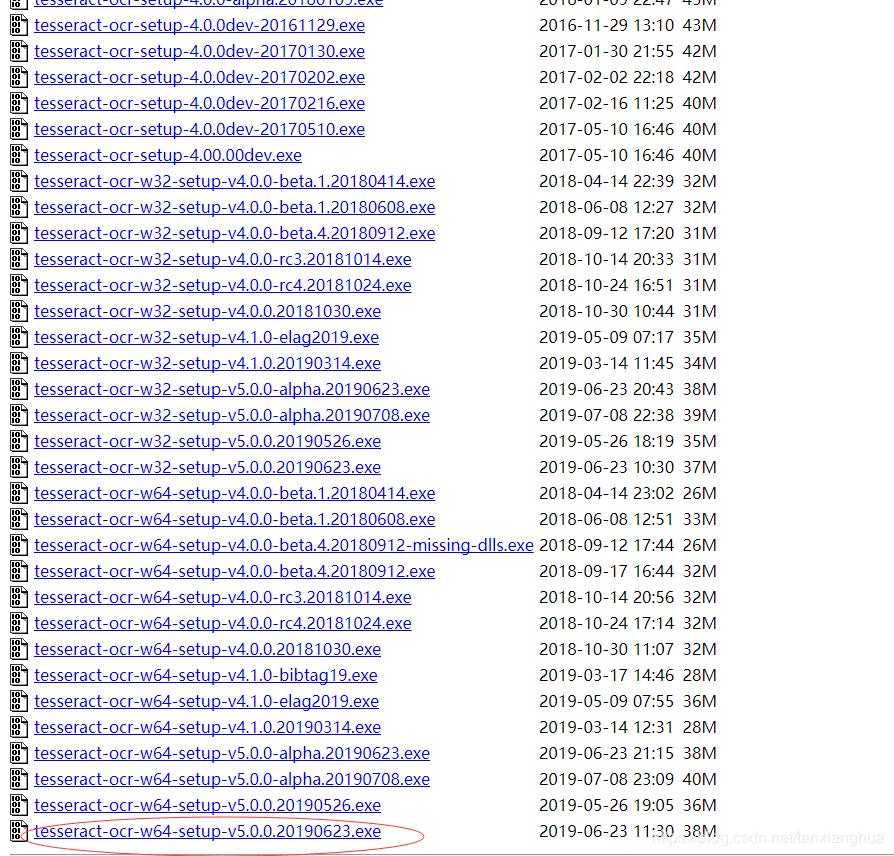
下载最新版的tesseract-ocr-w64-setup-v5.0.0.20190623.exe,然后安装,本人直接安装在C盘目录下。安装完毕后,如下图。

配置环境变量,有两个步骤。
在系统变量里,修改path,如下图。
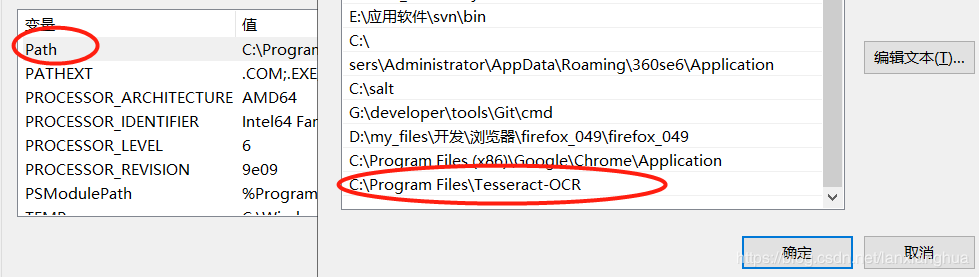
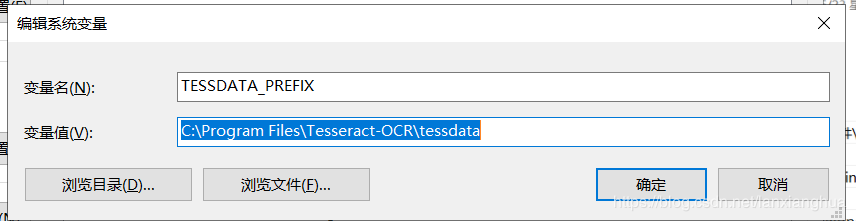
在系统变量里,创建一个新的变量名为:TESSDATA_PREFIX,值为:C:\Program Files\Tesseract-OCR\tessdata(根据自己安装的tesserocr安装路径为准),如下图。
检查Tesseract-OCR是否安装完成,如下图。

Python3.7加载tesserocr
1、安装Python的OCR识别库
pip install Pillow
pip install pytesseract
2、python加载Window的tesserocr应用,要修改pytesseract三方库的pytesseract.py脚本。

打开pytesseract.py,将Window的tesserocr应用的tesserocr.exe绑定好。
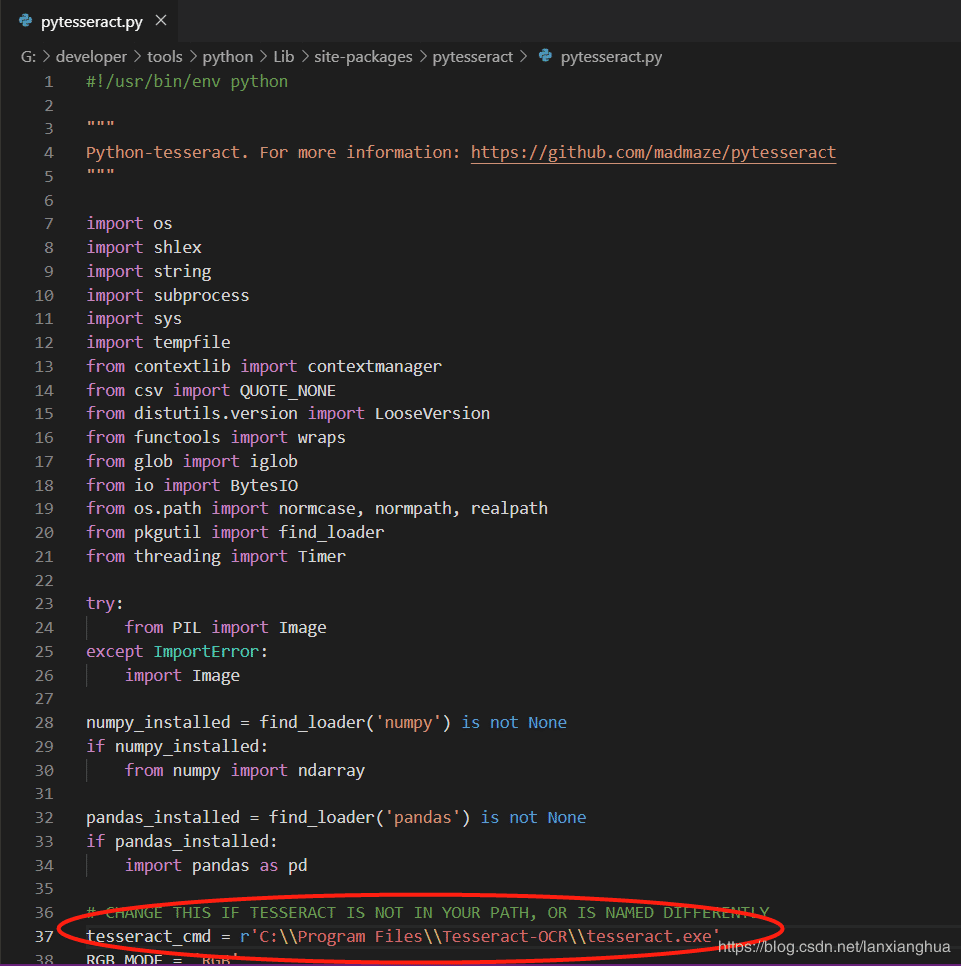
3、到这里Python的绑定window的tesserocr应用已经完成。
读取验证码图片 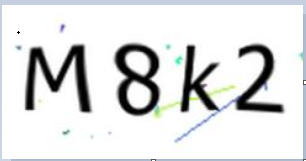
 1 from PIL import Image
 2 import pytesseract
 3
 4
 5 def read_text(text_path):
 6   """
 7   传入文本(jpg、png)的绝对路径,读取文本
 8   :param text_path:
 9   :return: 文本内容
10   """
11   # 验证码图片转字符串
12   im = Image.open(text_path)
13   # 转化为8bit的黑白图片
14   imgry = im.convert('L')
15   # 二值化,采用阈值分割算法,threshold为分割点
16   threshold = 140
17   table = []
18   for j in range(256):
19     if j < threshold:
20       table.append(0)
21     else:
22       table.append(1)
23   out = imgry.point(table, '1')
24   # 识别文本
25   text = pytesseract.image_to_string(out, lang="eng", config='--psm 6')
26   return text
27
28
29 if __name__ == '__main__':
30   print(read_text("d://v3.png"))
输出:
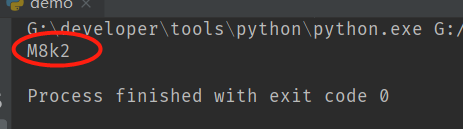
读取中文文本图片
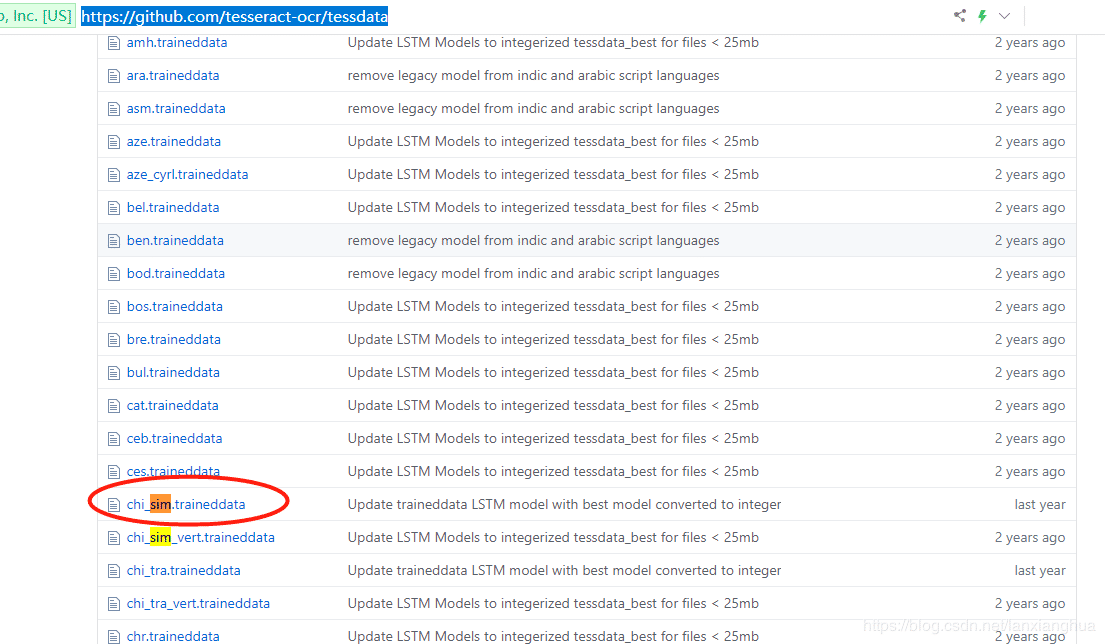
1、因为OCR读取不同语言需要加载语言包,因此需要下载简体中文语言包。
从这个链接下载:https://github.com/tesseract-ocr/tessdata,下载红圈的简体中文包。然后将此文件放置window的安装目录下。如下两个图。
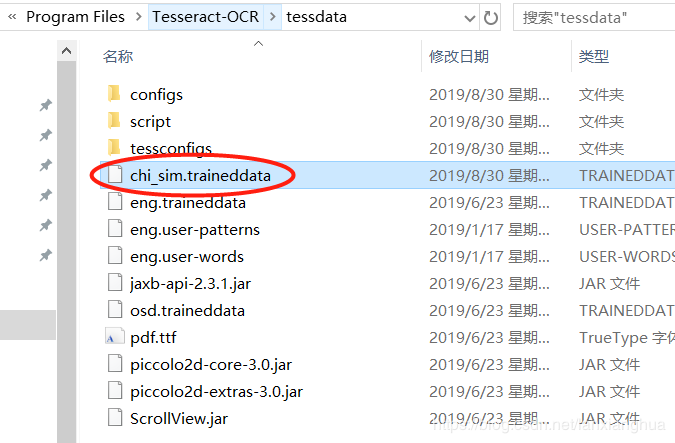
现在,我们来读取如下图片的中文文本内容。
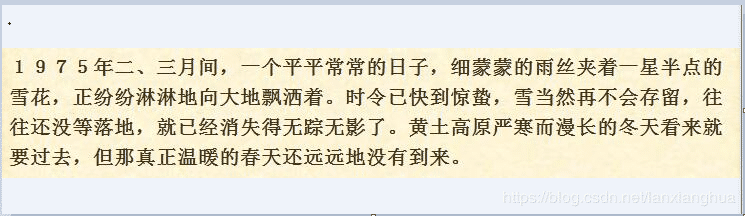
代码如下:
 1 from PIL import Image
 2 import pytesseract
 3
 4
 5 def read_text(text_path):
 6   """
 7   传入文本(jpg、png)的绝对路径,读取文本
 8   :param text_path:
 9   :return: 文本内容
10   """
11   # 验证码图片转字符串
12   im = Image.open(text_path)
13   # 转化为8bit的黑白图片
14   imgry = im.convert('L')
15   # 二值化,采用阈值分割算法,threshold为分割点
16   threshold = 140
17   table = []
18   for j in range(256):
19     if j < threshold:
20       table.append(0)
21     else:
22       table.append(1)
23   out = imgry.point(table, '1')
24   # 识别文本,lang参数改为chi_sim,其他代码与上面的读取验证码代码一致。
25   text = pytesseract.image_to_string(out, lang="chi_sim", config='--psm 6')
26   return text
27 if __name__ == '__main__':
28   print(read_text("d://v7.png"))

以上就是本文的全部内容,希望对大家的学习有所帮助,也希望大家多多支持!

 浙公网安备 33010602011771号