
VMware Workstation 安装Ubuntu虚拟机 屏幕窗口分辨率 自动调整大小 自动适应客户机 不管用 折腾记录
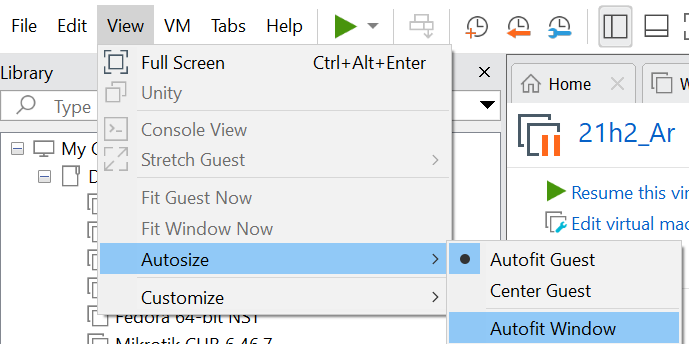
对应英文
Autofit Guest
Autofit Window
Autosize
Ubuntu 18.04.5 LTS
VMware Workstation 16 Pro
首先排查了vmware tools的安装问题
首先尝试通过这样安装
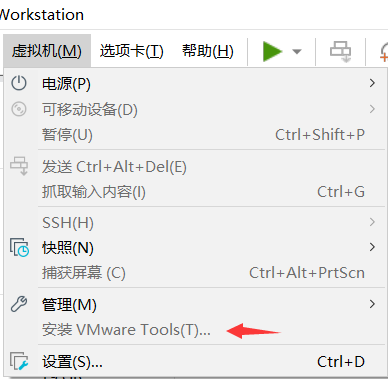
点击安装后,好像是有个cd挂载上,复制这个文件到桌面
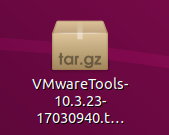
解压这个压缩包,在文件夹打开终端
The installer has detected an existing installation of open-vm-tools packages on this system and will not attempt to remove and replace these user-space applications. It is recommended to use the open-vm-tools packages provided by the operating system. If you do not want to use the existing installation of open-vm-tools packages and use VMware Tools, you must uninstall the open-vm-tools packages and re-run this installer. The packages that need to be removed are: open-vm-tools Packages must be removed with the --purge option.
安装程序已检测到此系统上已安装 open-vm-tools 软件包,并且不会尝试删除和替换这些用户空间应用程序。 建议使用操作系统提供的 open-vm-tools 软件包。 如果您不想使用 open-vm-tools 软件包的现有安装并使用 VMware Tools,则必须卸载 open-vm-tools 软件包并重新运行此安装程序。 需要删除的软件包有: open-vm-tools 必须使用 --purge 选项删除软件包。
意思是tar.gz解压的这个vmtool跟apt安装open-vm-tools都可以用,最好不要同时安装
open-vm-tools版本更新,推荐使用
结果安装上还是不行
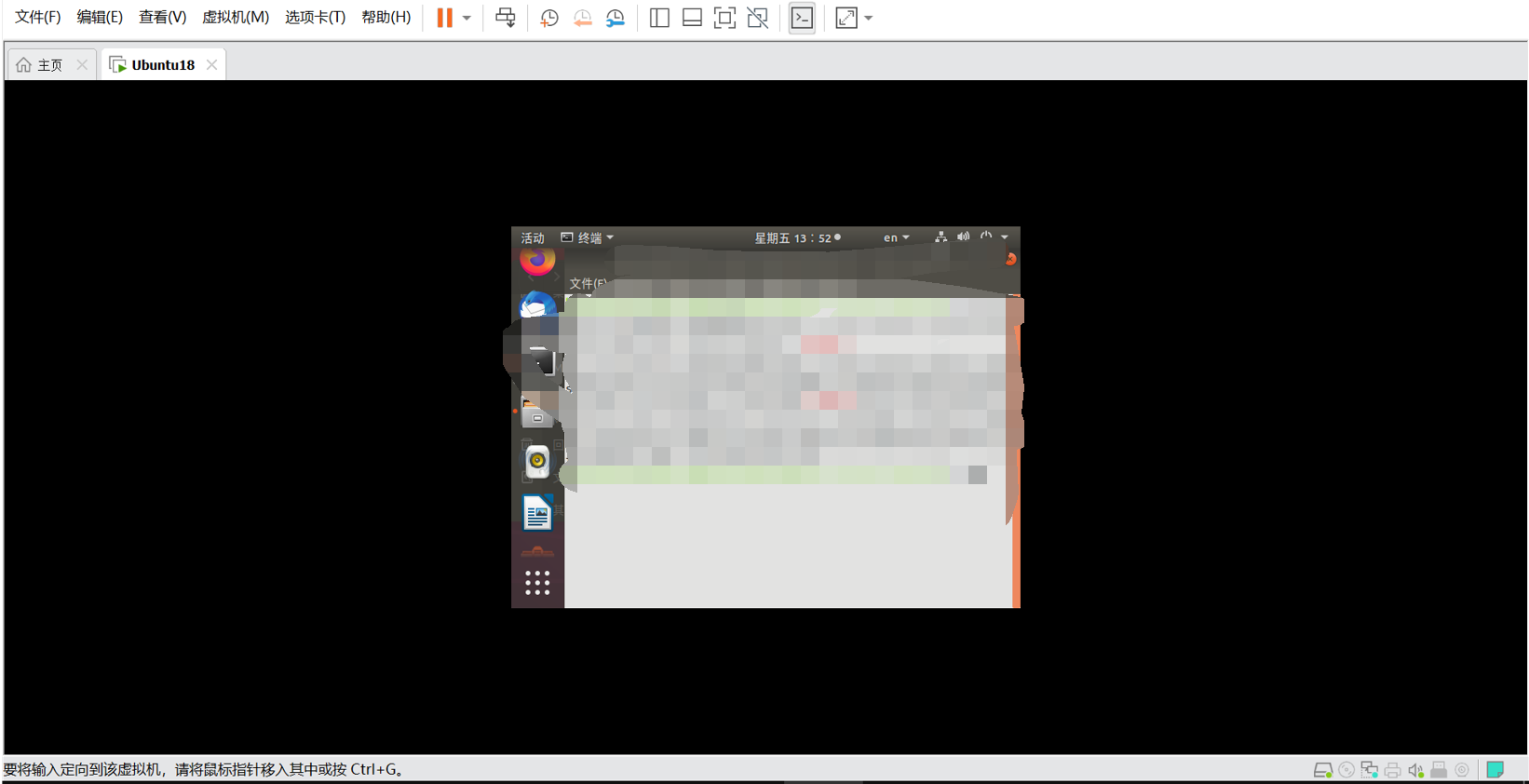
windows host和Ubuntu guest之间的复制粘贴和文件拖拽是正常的,就是窗口始终很小。
商业版本 (VMware Tools) 与开源版本 (open-vm-tools) 有何不同?如果是这样,怎么办?
我们的目标是努力使开源版本尽可能接近商业版本。不过,我们目前确实使用了第三方许可的某些组件以及其他 VMware 产品中仅以二进制形式提供的组件。
(两种理论上是一样的效果。。。)
open-vm-tools和open-vm-tools-desktop
Most of the Linux distributions ship two or more open-vm-tools packages. "open-vm-tools" is the core package without any dependencies on X libraries and "open-vm-tools-desktop" is an additional package with dependencies on "open-vm-tools" core package and X libraries.
在linux中,“X11”指的是“X Window System”,是图形化窗口管理系统
https://packages.ubuntu.com/focal/open-vm-tools-desktop 可以看两者的依赖关系
https://packages.ubuntu.com/focal/open-vm-tools
有图形化界面的ubuntu装open-vm-tools-desktop,没有图形化界面的ubuntu装open-vm-tools。
其它的一些搜的文章对于窗口大小不能适应全屏的问题的解决办法基本上都是反复安装和卸载,我尝试了很多这种命令
apt和apt-get应该可以混用,两者是类似的作用
安装和卸载商业版本
sudo ./vmware-install.pl
sudo vmware-uninstall-tools.pl
安装和卸载开源版本
sudo apt-get autoremove open-vm-tools
sudo apt-get purge open-vm-tools
sudo apt-get install open-vm-tools open-vm-tools-desktop
sudo apt install open-vm-tools-desktop -y(-y就是默认选yes)
sudo rm -rf /etc/vmware-tools(配置文件)
sudo apt-get remove --purge open-vm-tools open-vm-tools-desktop
sudo apt-get install --reinstall open-vm-tools
sudo apt-get install --reinstall open-vm-tools-desktop
sudo apt purge open-vm-tools
sudo apt update
sudo apt install open-vm-tools open-vm-tools-desktop
sudo dpkg --purge open-vm-tools
服务相关 .service修改尝试
参考:
https://github.com/vmware/open-vm-tools/issues/303
https://github.com/vmware/open-vm-tools/issues/54
https://github.com/vmware/open-vm-tools/issues/369
https://github.com/vmware/open-vm-tools/issues/708
https://github.com/vmware/open-vm-tools/issues/253
https://askubuntu.com/questions/1085621/vmware-workstation-ubuntu-18-10-full-screen-problem
sudo gedit open-vm-tools.service
systemctl restart open-vm-tools.service(systemctl命令:是一个systemd工具,主要负责控制systemd系统和服务管理器。systemd即为system daemon,是linux下的一种init软件。)
sudo gedit /etc/systemd/system/multi-user.target.wants/open-vm-tools.service
systemctl status open-vm-tools
vmtoolsd -v
systemctl daemon-reload(重新加载 systemd 管理器配置。这将重新运行所有生成器(请参阅 systemd.generator(7)),重新加载所有单元文件,并重新创建整个依赖关系树。重新加载守护进程时,systemd 代表用户配置侦听的所有套接字将保持可访问状态。
如果您更改/lib/systemd/system/<servicename>.service并通过以下方式重新启动 systemctl restart <servicename>.service 除非您执行systemctl daemon-reload,否则它不会加载新设置。相反,它只会重新启动旧的缓存设置,而不进行任何更改。)
systemctl restart open-vm-tools
ps awx | grep vmtoolsd
sudo gedit /lib/systemd/system/open-vm-tools.service
systemctl restart vmtoolsd
systemctl status vmtoolsd.service
lsof -p PID | grep libresolution
apt-get remove和apt-get purge
- apt-get remove packagename将删除二进制文件,但不会删除软件包packagename的配置或数据文件。
- apt-get purge packagename或apt-get remove --purge packagename
将删除有关包 packagename 的所有内容,[...]当您因为搞乱了配置而想要使用应用程序“重新开始”时特别有用。
/var/log/vmware-vmsvc.log Ubuntu中的日志排查
https://github.com/vmware/open-vm-tools/issues/493
https://kb.vmware.com/s/article/1007873
日志输出级别修改
/etc/vmware-tools/tools.conf
/etc/vmware-tools/tools.conf.example
vmsvc.level = debug
vmsvc.level = message
或/var/log/vmware-vmsvc-root.log
还有.1 .2 .3几次的
sudo journalctl(journalctl 是一个用于查询和管理 systemd 日志的命令行工具。systemd 是许多现代 Linux 发行版中的系统和服务管理器,它负责启动系统中的各种服务并管理它们的生命周期。)
journalctl
Dmesg : a command that prints kernel logs.
Journald: a service that collects logs from systemd
Syslog: a protocol for transferring log messages.
Journalctl有一个--dmesg选项,使其模仿dmesg。
dmesg is only kernel messages, journalctl is everything.
windows host中的排查
1查看windows中的VMware相关的服务有没有开启
2查看log日志
mksSandbox.log vmware.log
3查看.vmx文件内容
4关于VRAM的问题 修改.vmx文件
参考
https://www.reddit.com/r/vmware/comments/r1563q/autofitting_of_windows_guest_os_screen_resolution/
https://communities.vmware.com/t5/VMware-Fusion-Discussions/Truncated-VRAM-framebuffer-size-in-Ubuntu-16-04-0-LTS-under/td-p/463894
https://communities.vmware.com/t5/VMware-Workstation-Pro/Autofit-and-drag-and-drops-stops-working-after-full-screen/m-p/479542
https://kb.vmware.com/s/article/1024990?lang=zh_CN
https://superuser.com/questions/988457/vram-in-workstation-11-only-64mb
vmx| I005: SVGA-GFB: Truncated maximum resolution for register modes to VRAM size: VRAM=8388608 bytes, max wh(1672, 1254)
vmx| I005: SVGA-GFB: Truncated maximum resolution for register modes to VRAM size: VRAM=4194304 bytes, max wh(1176, 885)
这个问题其实并没有影响,我Ubuntu分辨率很小时和修复之后,log里都有这个问题
svga.minVRAMSize=8388608
svga.minVRAM8MB=TRUE
svga.maxWidth = "1280"
svga.maxHeight = "1024"
vmotion.checkpointFBSize = "8388608"
VMotion:在线改变主机位置
在线迁移运行中的虚拟机,以改变其主机位置,最大的特性是"整个迁移过程虚拟机应用不会中断”,这个功能是VMware一直以来很引以为傲的,尤其在Citrix XenServer和Microsoft Hyper-V推出相似功能之前;大部分企业在服务器虚拟化项目中首要考虑使用的功能就是VMotion,并且像DRS这样的高可用性功能是以VMotion为基础的。
vmotion解决的是计划内宕机的情况。举例子么:你的机器要升级内存,你可以先把这个esx上的vm迁走,然后在关机断电,升级内存。但是你的业务(vm)不停顿。
vmotion是计划内迁移(热迁移)。简单说就是,位于ESXi/ESX服务器上的虚拟机被用户自动、半自动或手动(结合DRS)的方式迁移到Cluster内其它ESXi/ESX主机上,整个过程不用停机,系统也不会中断(某些人习惯称之为无缝迁移)。
Fusion
VMware Fusion 是 VMware 在 MacOS 上的虚拟机,而 VMware WorkStation 是 VMware 在 Windows 和 Linux 上的虚拟机。
vmwgfx
vmwgfx 是一个 Linux 内核驱动程序,用于支持 VMware 虚拟化平台中的图形功能。
vmwgfx:指的是 VMware Graphics Framework(VMware 图形框架)。
vmtoolsd
是 VMware Tools 中的一个守护进程(daemon),负责管理虚拟机和宿主机之间的通信以及执行各种任务。具体来说,vmtoolsd 提供了以下功能:
-
主机和客户机通信:
vmtoolsd使得虚拟机(客户机)可以与 VMware 宿主机进行通信。这种通信可以用于执行诸如文件传输、剪贴板共享、时间同步等操作,以提高虚拟机的集成性和性能。 -
虚拟硬件管理: 它管理虚拟硬件设备,包括磁盘、网络适配器、显示适配器等,以确保它们与宿主机和其他虚拟机之间的正确交互。
-
性能优化和改善:
vmtoolsd还可以帮助优化虚拟机的性能,通过与宿主机协作来实现更高效的资源利用和更好的整体性能。 -
系统管理任务: 它还负责执行一些系统管理任务,比如自动调整虚拟机的分辨率、安装更新、执行备份等。
总之,vmtoolsd 是 VMware Tools 的一个关键组件,通过它,虚拟机可以更好地集成到 VMware 虚拟化环境中,并获得更好的性能和功能支持。
xrandr
$ xrandr(有问题时的输出)
xrandr: Failed to get size of gamma for output default
Screen 0: minimum 640 x 480, current 640 x 480, maximum 640 x 480
default connected primary 640x480+0+0 0mm x 0mm
640x480 73.00*
$ xrandr(正常了之后的输出)
Screen 0: minimum 1 x 1, current 1918 x 888, maximum 16384 x 16384
Virtual1 connected primary 1918x888+0+0 (normal left inverted right x axis y axis) 0mm x 0mm
1918x888 60.00*+
2560x1600 59.99
1920x1440 60.00
1856x1392 60.00
1792x1344 60.00
1920x1200 59.88
1600x1200 60.00
1680x1050 59.95
1400x1050 59.98
1280x1024 60.02
1440x900 59.89
1280x960 60.00
1360x768 60.02
1280x800 59.81
1152x864 75.00
1280x768 59.87
1024x768 60.00
800x600 60.32
640x480 59.94
Virtual2 disconnected (normal left inverted right x axis y axis)
Virtual3 disconnected (normal left inverted right x axis y axis)
Virtual4 disconnected (normal left inverted right x axis y axis)
Virtual5 disconnected (normal left inverted right x axis y axis)
Virtual6 disconnected (normal left inverted right x axis y axis)
Virtual7 disconnected (normal left inverted right x axis y axis)
Virtual8 disconnected (normal left inverted right x axis y axis)
In addition to the RandR X protocol, an official configuration utility (named xrandr) is maintained in the freedesktop git repository.
The X.Org project provides an open source implementation of the X Window System.
X.Org是X Windows系统(亦称X11、X或 X-Windows)的一个流行开源实现,该图形视窗系统可用于柏克莱软件套件(BSD)及Linux操作系统。
RandR(Resize and Rotate):RandR 是 X Window System 的一个扩展,最初由 Keith Packard 开发。它最初设计用于支持动态调整显示器分辨率和旋转显示,以适应不同的显示设备和用户喜好。
扩展(Extension):在 X Window System 中,扩展是用于增强或修改 X 协议功能的模块化组件。X RandR extension 扩展了 X11 协议,以支持动态显示器配置。
xrandr - primitive command line interface to RandR extension
Xrandr用于设置屏幕输出的大小、方向和/或反射。它还可以设置屏幕尺寸。
如果在没有任何选项的情况下调用,它将转储输出的状态,显示每个输出的现有模式,在首选模式后带有“+”,在当前模式后带有“*”。
设置-设备-显示-分辨率
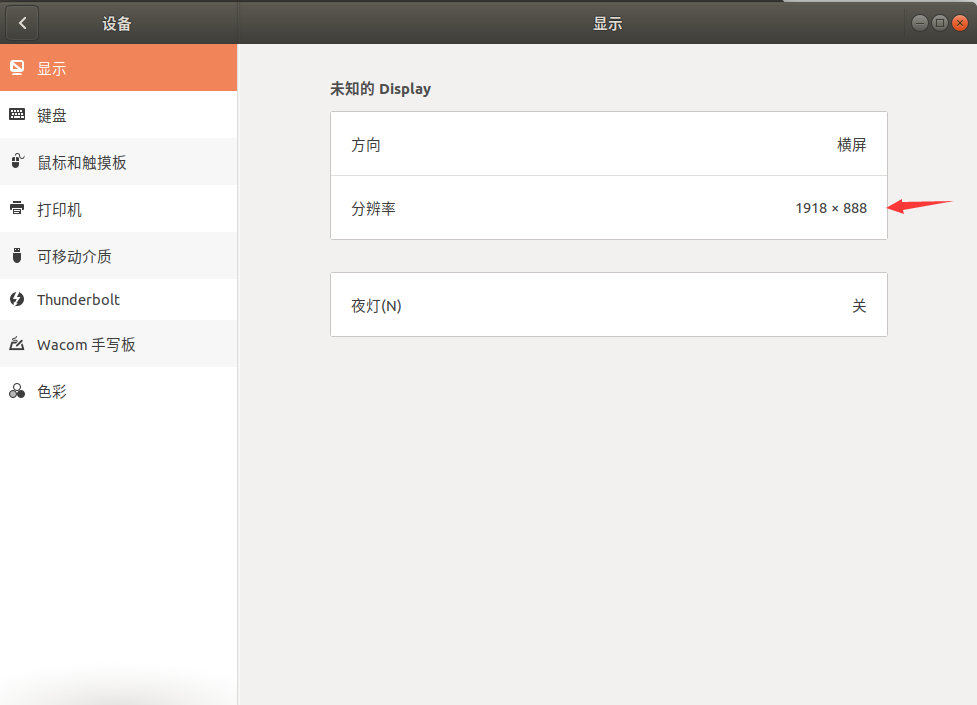
当时有问题时,我的分辨率那里什么都不显示
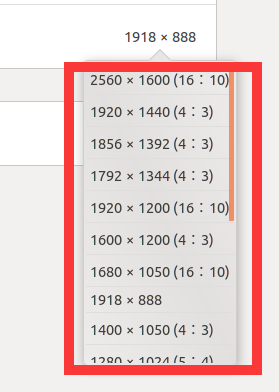
下拉的这些分辨率选项也都没有,下拉只显示一个小三角
GNOME kde Ubuntu
大多数主要发行版都使用GNOME(Fedora、Ubuntu、RHEL 等)
X vs wayland
Ubuntu的奇特的版本名称
Ubuntu 20.04 LTS Focal Fossa(凝视的狸猫)
Ubuntu 18.04 LTS Bionic Beaver(生化水獭)
Ubuntu 16.04 LTS Xenial Xerus(好客的非洲地松鼠)
Ubuntu 14.04 LTS Trusty Tahr(可靠塔尔羊)
Ubuntu 12.04 LTS Precise Pangolin(精准穿山甲)
Ubuntu 10.04 LTS Lucid Lynx(清醒猞狸)

 浙公网安备 33010602011771号