
Ionic5手写签名SignaturePad
测试程序下载:https://hanzhe.lanzous.com/itt47kncw3a
初始化项目
1. 首先新建一个Ionic5的项目:
ionic start test-1 blank
2. 安装对应的npm依赖:
npm install angular2-signaturepad --save
3. 依赖安装完成后在app.module.ts中注册该模块:
// 模块路径
import { SignaturePadModule } from 'angular2-signaturepad';

@NgModule({
    declarations: [AppComponent],
    entryComponents: [],
    // 在imports中进行注册
    imports: [BrowserModule, IonicModule.forRoot(), AppRoutingModule, SignaturePadModule],
    providers: [
        StatusBar,
        SplashScreen,
        { provide: RouteReuseStrategy, useClass: IonicRouteStrategy }
    ],
    bootstrap: [AppComponent]
})
export class AppModule { }
创建签名页
1. 签名需要屏幕上有足够的空间,我们新建一个Page页面专门用于签名:
ionic g page sign
2. 然后编辑sign.page.html文件,针对这个页面布局做一些修改(小弟UI功底贼差,这里可以自行发挥)
<ion-content>
    <!-- 撑满全屏的DIV,用于测量手机屏幕尺寸 -->
    <div #div class="rule"></div>
    <!-- 画布 -->
    <signature-pad *ngIf="isShowPad" [options]="options" class="sign"></signature-pad>
    <!-- 操作按钮 -->
    <div class="div-btn">
        <ion-button (click)="clear()" class="btn">重 绘</ion-button>
        <ion-button (click)="back()" class="btn">返 回</ion-button>
        <ion-button (click)="ok()" class="btn">确 认</ion-button>
    </div>
</ion-content>
3. 页面的CSS样式:
.rule {  // 起到格尺的作用
    // 宽高撑满
    width: 100%;
    height: 100%;
    // 透明
    opacity: 0;
    // 脱离文档流
    position: absolute;
    top: 0;
    left: 0;
    // 设置鼠标穿透
    pointer-events: none;
    // 防止拖拽报错
    touch-action: none;
}

.sign {   // 画布添加下边框起到分割线作用
    border-bottom: 1px solid #eaeaea;
}

.div-btn{  // 底部三个操作按钮居中显示
    text-align: center;
}

.btn {  // 设置每个按钮的大小、间隔
    width: 85px;
    height: 40px;
    margin: 30px 10px;
}
4. 开始写JS代码(代码都写了注释,就不再解释了):
import { SignaturePad } from 'angular2-signaturepad';

@Component({
    selector: 'app-sign',
    templateUrl: './sign.page.html',
    styleUrls: ['./sign.page.scss'],
})
export class SignPage {

    @ViewChild("div")
    private div: any;    // 尺子DIV对象
    @ViewChild(SignaturePad)
    private pad: SignaturePad;  // 画布
    private options: any;       // 宽高参数
    private isShowPad: boolean; // 是否显示
    private otherPage = {that: null, callBack: null};  // 其他页面传来的参数(回调)

    constructor(private navCtrl: NavController, private navParam: ActivatedRoute) {
        // 设置初始值
        this.options = { canvasWidth: 200, canvasHeight: 200 };
        this.isShowPad = false;
        // 接收传参
        this.otherPage.that = navParam.snapshot.queryParams.that;
        this.otherPage.callBack = navParam.snapshot.queryParams.callBack;
    }

    // 页面加载完成在调用初始化方法
    ionViewWillEnter() {
        this.canvasResize();
    }

    // 设置画布大小
    canvasResize() {
        // 获取当前屏幕宽高,留出100高度(下边框有1px)显示操作按钮,
        let dom = this.div.nativeElement;
        this.options.canvasWidth = dom.offsetWidth;
        this.options.canvasHeight = dom.offsetHeight - 99;
        // 等待属性设置完成之后再显示画布
        this.isShowPad = true;
    }

    // 清空画布内容
    clear() {
        this.pad.clear();
    }

    // 确认按钮
    ok() {
        // 点击确认后将图片转换为Base64传给回调、然后关闭该页面
        this.otherPage.callBack(this.otherPage.that, this.pad.toDataURL());
        this.navCtrl.back();
    }

    // 返回按钮
    back() {
        this.navCtrl.back();
    }

}
首页的调用测试
1. 签名页面已经绘制好了,接下来在Home组件中进行调用,编辑home.page.html:
<ion-header [translucent]="true">
    <ion-toolbar>
        <ion-title>请输入签名</ion-title>
    </ion-toolbar>
</ion-header>

<ion-content [fullscreen]="true">
    <div style="text-align: center;">
        <ion-button (click)="openPage()">点击开始签名</ion-button>
        <br />
        <img [src]="base64" style="border: 1px solid rgb(196, 196, 196); width: 80%;">
    </div>
</ion-content>
2. 首页这里就不修改样式了,能用就行,接下来是JS代码:
export class HomePage {

    private base64: string = "";

    constructor(private navCtrl: NavController) {}

    // 打开画布页面
    openPage() {
        this.navCtrl.navigateForward("sign", {queryParams: {
            // 传入当前组件的this指向和回调
            that: this,
            callBack: this.setBase64
        }});
    }

    // 获取base64图像然后显示在页面上
    setBase64(that, base64) {
        that.base64 = base64;
    }

}
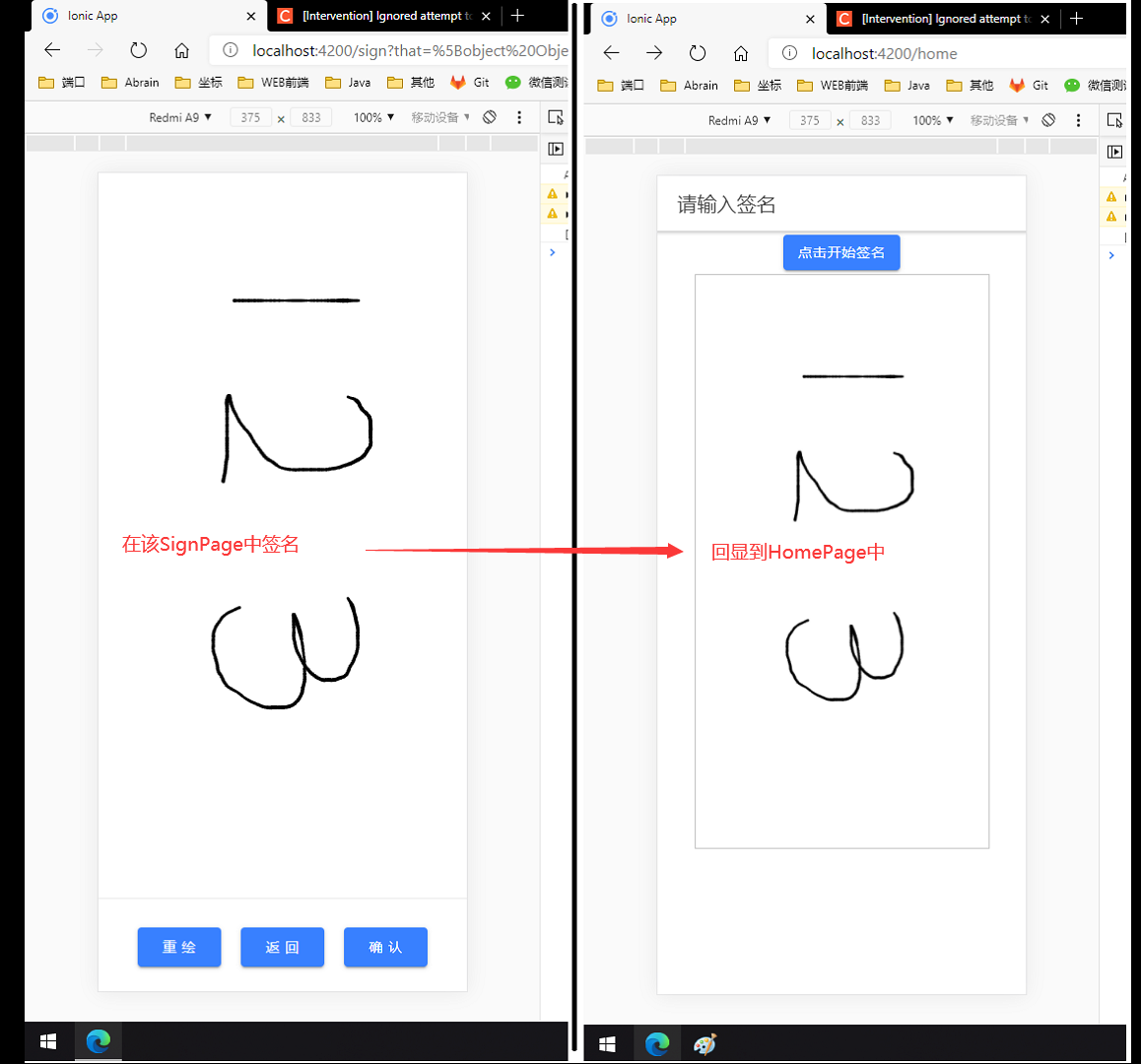
这样最简单的手写签名程序就完成了,运行查看效果:
Base图片旋转
从测试效果上来看,我们已经实现了目标功能,但是客户签字时肯定是横着签的,然后回显到Home页之后显示也会出现问题,如果把画布修改为宽大于高,画布是横过来了,但是局限于手机屏幕大小根本没办法签名,这里我在网上找了一个Base64的图像旋转代码可以使用:
1. 创建Ionic服务:
ionic g service service/util
2. 在服务中添加Base64图片旋转代码(代码来源:https://blog.csdn.net/qq_38082304/article/details/85287718):
export class UtilService {

    constructor() { }

    rotateBase64Img(src, edg, callback) {
        var canvas = document.createElement("canvas");
        var ctx = canvas.getContext("2d");
        var imgW;//图片宽度
        var imgH;//图片高度
        var size;//canvas初始大小
        if (edg % 90 != 0) {
            console.error("旋转角度必须是90的倍数!");
            throw '旋转角度必须是90的倍数!';
        }
        (edg < 0) && (edg = (edg % 360) + 360)
        const quadrant = (edg / 90) % 4; //旋转象限
        const cutCoor = {sx: 0, sy: 0, ex: 0, ey: 0}; //裁剪坐标
        var image = new Image();
        image.crossOrigin = "anonymous"
        image.src = src;
        image.onload = function () {
            imgW = image.width;
            imgH = image.height;
            size = imgW > imgH ? imgW : imgH;
            canvas.width = size * 2;
            canvas.height = size * 2;
            switch (quadrant) {
                case 0:
                    cutCoor.sx = size;
                    cutCoor.sy = size;
                    cutCoor.ex = size + imgW;
                    cutCoor.ey = size + imgH;
                    break;
                case 1:
                    cutCoor.sx = size - imgH;
                    cutCoor.sy = size;
                    cutCoor.ex = size;
                    cutCoor.ey = size + imgW;
                    break;
                case 2:
                    cutCoor.sx = size - imgW;
                    cutCoor.sy = size - imgH;
                    cutCoor.ex = size;
                    cutCoor.ey = size;
                    break;
                case 3:
                    cutCoor.sx = size;
                    cutCoor.sy = size - imgW;
                    cutCoor.ex = size + imgH;
                    cutCoor.ey = size + imgW;
                    break;
            }
            ctx.translate(size, size);
            ctx.rotate(edg * Math.PI / 180);
            ctx.drawImage(image, 0, 0);
            var imgData = ctx.getImageData(cutCoor.sx, cutCoor.sy, cutCoor.ex, cutCoor.ey);
            if (quadrant % 2 == 0) {
                canvas.width = imgW;
                canvas.height = imgH;
            } else {
                canvas.width = imgH;
                canvas.height = imgW;
            }
            ctx.putImageData(imgData, 0, 0);
            callback(canvas.toDataURL())
        };
    }

}
3. 然后在Home组件中引入这个服务,在显示图片的回调中将Base进行旋转:
export class HomePage {
    // 这里引入刚刚写好的工具类服务
    constructor(private navCtrl: NavController, private util: UtilService) {}
    // ....省略代码
    // 获取base64图像然后旋转270度后显示在页面上
    setBase64(that, base64) {
        // 第一个参数:Base64字符串
        // 第二个参数:旋转角度
        // 第三个参数:回调,接收返回的参数就是旋转后的Base64图片字符串
        that.util.rotateBase64Img(base64, 270, res=>that.base64 = res);
    }
}
这样图片旋转也已经处理好了,再来测试一下:

作者多数为原创文章 ( 部分转载已标出 ),目前资历尚浅文章内描述可能有误,对此造成的后果深表歉意,如有错误还望指正

 浙公网安备 33010602011771号